
Can You Download Peacock on Laptop & Mobile? (World Cup 2026 Guide)

Summary: Have you ever tried to download Peacock shows? Can you download from Peacock on both mobile and PC devices? What should you know about offline viewing of Peacock? After tests and experiences for days, I made this guide to help new Peacock users get the proper Peacock download methods.
Table of Contents
As a digital archivist, my June 2026 routine test of the latest Widevine CDM update quickly turned into a headache. The notorious "Black Screen of Death" was plaguing many screen-recording setups on Windows 11 24H2.
If you are wondering, can I download shows on Peacock to watch offline without hitting the rigid 48-hour expiration wall? You are not alone. With the FIFA World Cup 2026 now underway across US venues, demand for saving Peacock sports content has surged, especially since match replays can vanish within hours. I have re-tested the official methods against top-tier third-party tools to find a definitive answer for cross-device playback.

- Mobile Devices: Yes, but strictly sandboxed. Requires an active Premium Plus plan and limits you to 25 items that expire 48 hours after playback.
- PC/Mac Laptops: Officially unsupported. However, using a specialized peacock video downloader allows you to parse the encrypted bitstream and save permanent MP4s.
- Live/Reality Shows: Shows with dynamic DRM require immediate archiving be
2026 Peacock Offline Viewing Realities
Mobile App: Premium Plus Limits
If you are asking, 'Can I download Peacock shows on my phone?', the official route is straightforward but restrictive. Using the Peacock app (version 6.11+ in my tests), you need an iOS or Android device and a Premium Plus tier. The workflow is simple: find the downward arrow icon, tap it, and monitor the queue in your Downloads tab.
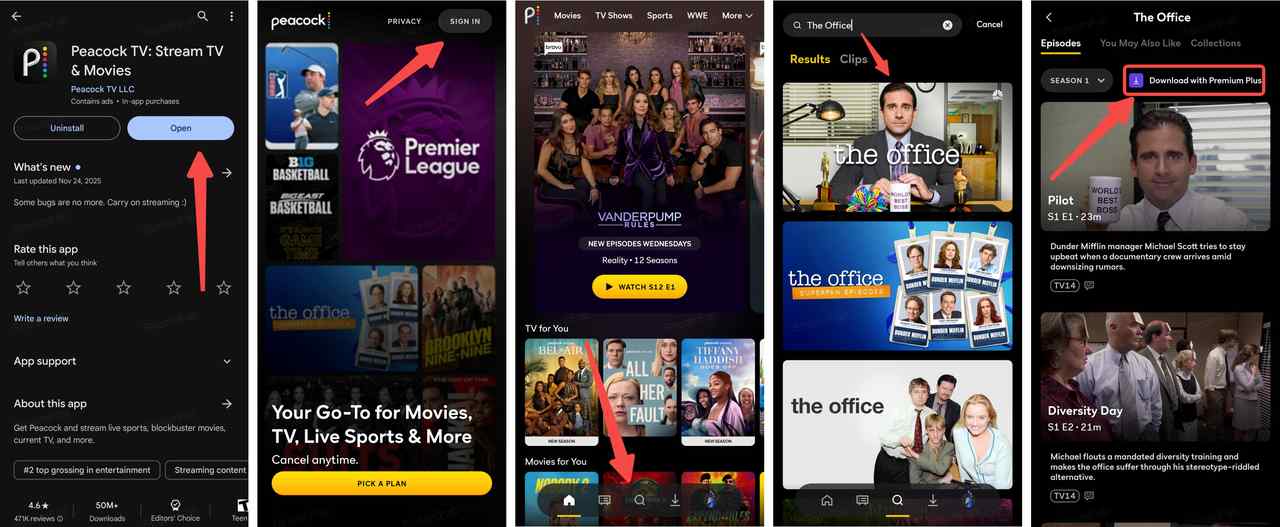
However, the limitations are severe for serious media hoarders. You are capped at 25 downloads per account across all devices. Once you hit play, a 48-hour self-destruct timer starts. During a month-long tournament like the World Cup 2026, that 25-title cap and 48-hour expiry become unmanageable — you cannot even keep a full group stage archived on one device. Furthermore, signing out or updating your OS can randomly wipe your entire cached library, a fatal flaw when prepping for a long flight without Wi-Fi.
Show-Specific Rules: Love Island
Not all streams are treated equally by the DRM servers. When users ask, 'Can I download Love Island on Peacock?', they often encounter the harsh reality of title-specific restrictions. Reality TV, sports-adjacent events, and newly licensed blockbusters utilise a dynamic geoblocking and DRM handshake. Even with Premium Plus, these titles are frequently flagged as "streaming only". If they are downloadable, they often expire much faster than standard catalogue shows due to SSAI (Server-Side Ad Insertion) configurations. To preserve these, you must bypass the in-app player limits. The same applies to World Cup 2026 highlights and match replays on Peacock — live sports content is among the most aggressively DRM-protected, making a dedicated downloader essential for permanent archival. For DAZN subscribers looking to save all 104 World Cup matches, check our step-by-step guide to screen record DAZN.
Laptop Solutions: Bypassing Official Download Limits
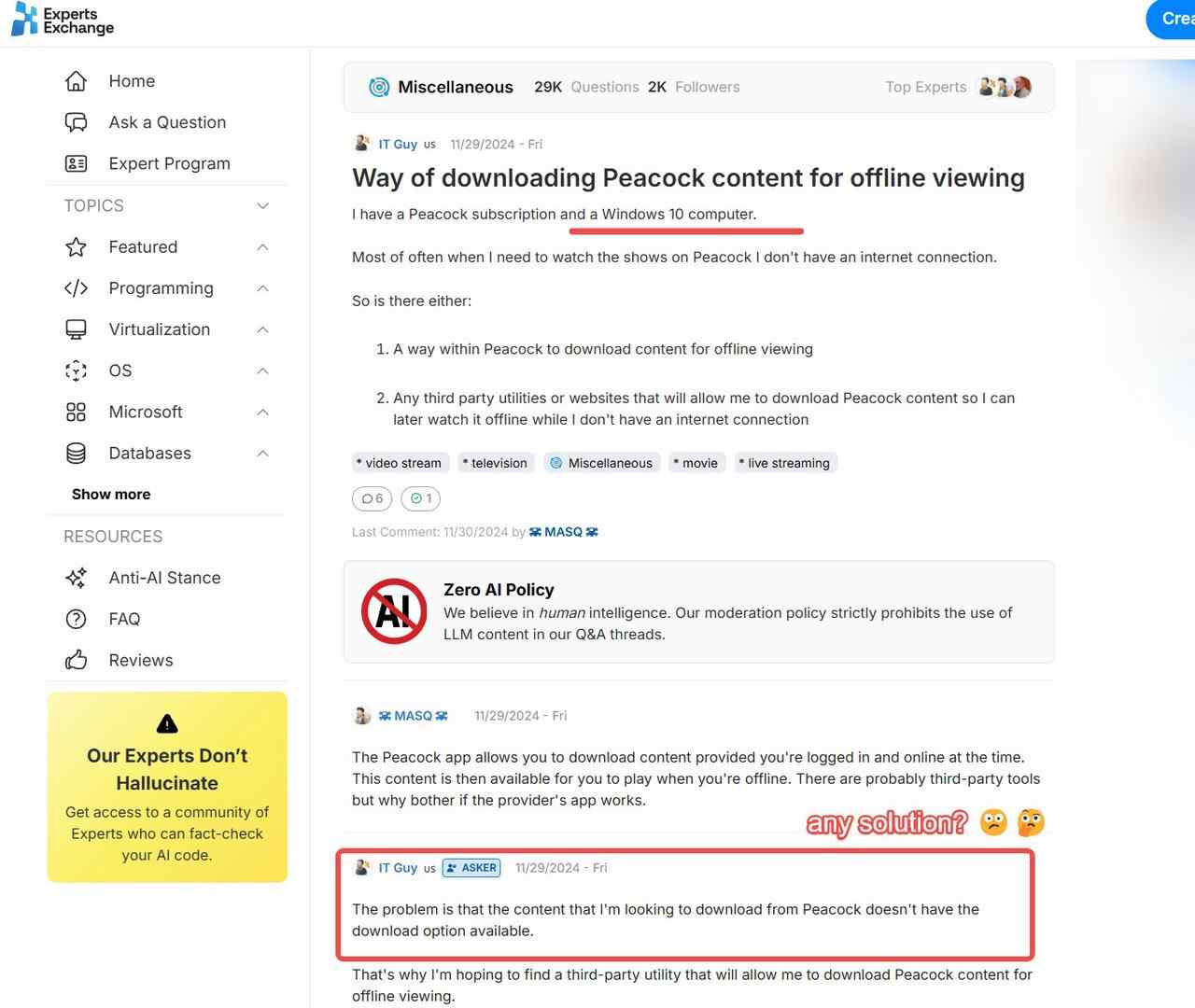
Officially, Peacock offers zero offline support for Windows or macOS. If you want to know can I download movies from peacock on my laptop, the answer relies entirely on your choice of software architecture.
Evaluating Third-Party Downloaders
To build a high-quality offline library, you must step outside the app ecosystem. I evaluate tools based on their ability to extract a 1:1 bitstream rather than just capturing the display output. A genuine downloader fetches the encrypted manifest, processes the decryption keys locally, and outputs a clean MP4 or MKV file. This guarantees permanent storage, allowing you to move files to a Plex server or a NAS. This is especially valuable during the World Cup 2026 season, where you may want to archive dozens of matches and highlights before they rotate off the platform. For live broadcasts not available on-demand, you can use RecordFab to record any livestream directly (Windows only).
Fixing PC DRM Black Screens
The biggest hurdle in 2026 is the HDCP 2.3 link and Chrome's Widevine L1 rendering logic. When basic screen recorders attempt to capture a stream, the hardware acceleration layer intervenes, resulting in an audio-only file with a black video feed.
To fix this, you either disable hardware acceleration in your browser (causing massive CPU spikes and dropped frames) or use software that intercepts the Widevine L3/L1 manifest directly, bypassing the display rendering phase entirely.
Tool Comparison: Efficiency vs Quality
I tested three distinct methodologies on my Windows 11 24H2 rig (LAN latency 6-8 ms). The results highlighted a massive gap in how these tools handle modern encryption.
| Software Tool | DRM Bypass Success Rate | Time Efficiency | Quality & Bitrate | Metadata Support |
|---|---|---|---|---|
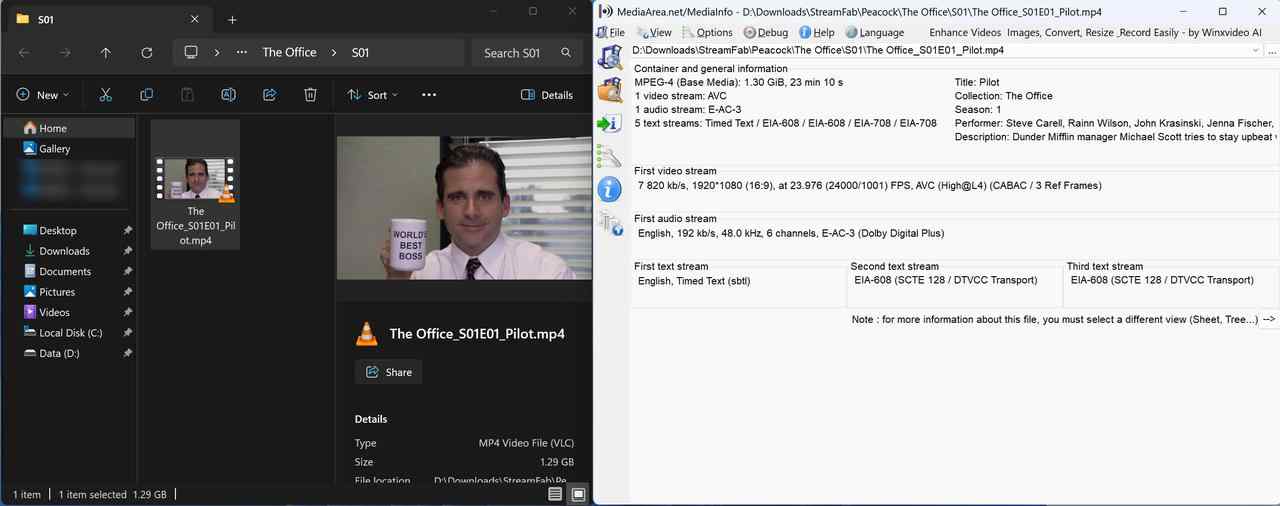
| StreamFab 🏆 Best Pick | 99% (Native Decryption) | High (10-15 mins per movie) | 1080p @ 7820 kbps (High@L4) | Full (NFO, Cast, Posters) |
| PlayOn Home | 75% (Screen Capture) | Real-time (1x speed) | 720p/360p @ 2238 kbps | Basic File Naming |
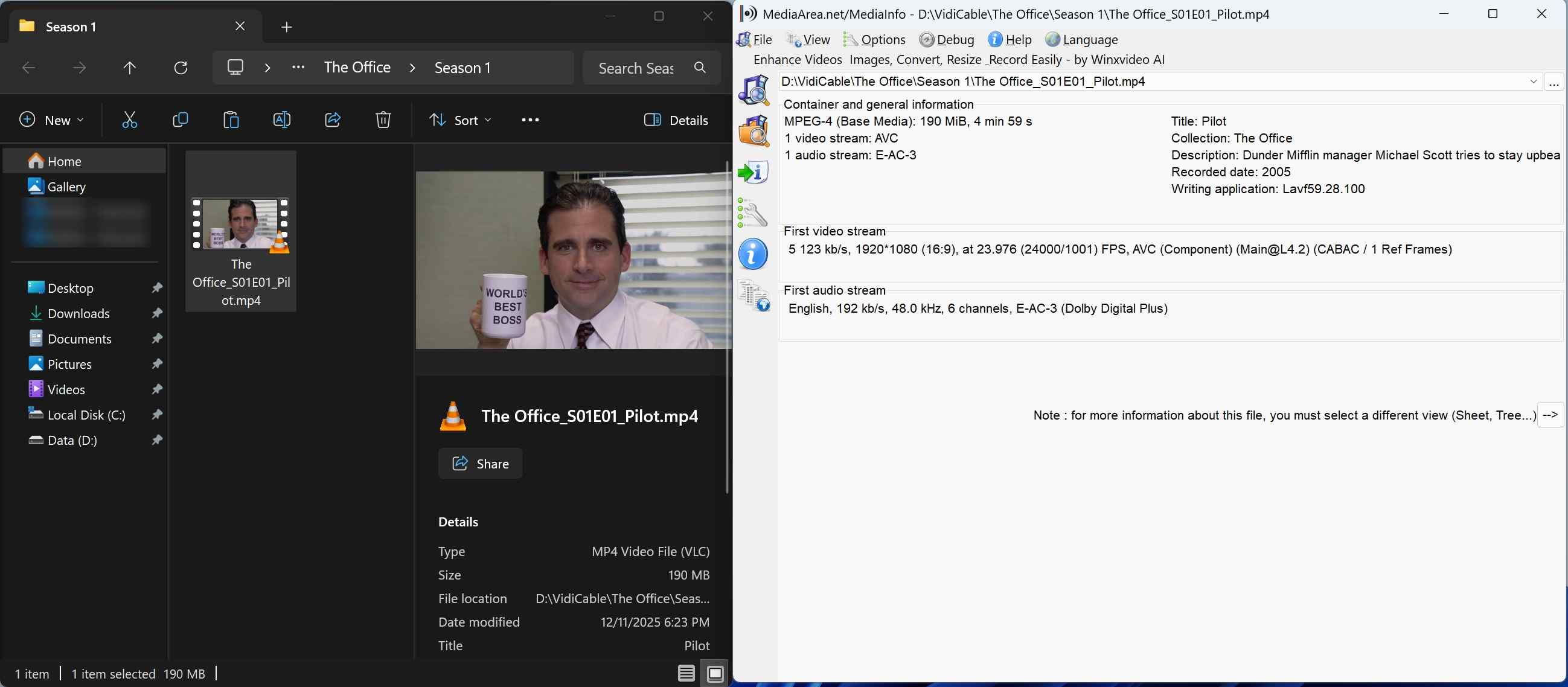
| VidiCable | 80% (Re-encoding) | Medium | 1080p @ 5123 kbps (Main@L4.2) | Partial |
StreamFab: Hardware Acceleration Test
In my technical assessment, StreamFab Peacock Downloader provides the most robust defence against DRM updates. Because it downloads rather than records, it easily circumvents the hardware acceleration black screen issue. During my test, it stripped out the SSAI dynamic ad-insertion flawlessly and pulled a pristine 1080p H.264 file with EAC3 5.1 audio.

- Save Peacock titles that your account can stream for offline viewing during an active subscription.
- Batch-save episodes and movies for offline viewing up to 1080p resolution & EAC3 5.1 or AAC 2.0 audio tracks.
- Peacock downloading option with H.264 or H.265 codecs saves your device storage space.
- Save titles you can legally stream during your valid subscription to MP4/MKV for device-compatible offline playback (personal use).
- Get Peacock downloads with your best-suited subtitles & metadata.
- Scheduled newly released videos on Peacock will be automatically downloaded.

Steps to download shows from Peacock via StreamFab are simple and clear. Just follow the 4 procedures below:
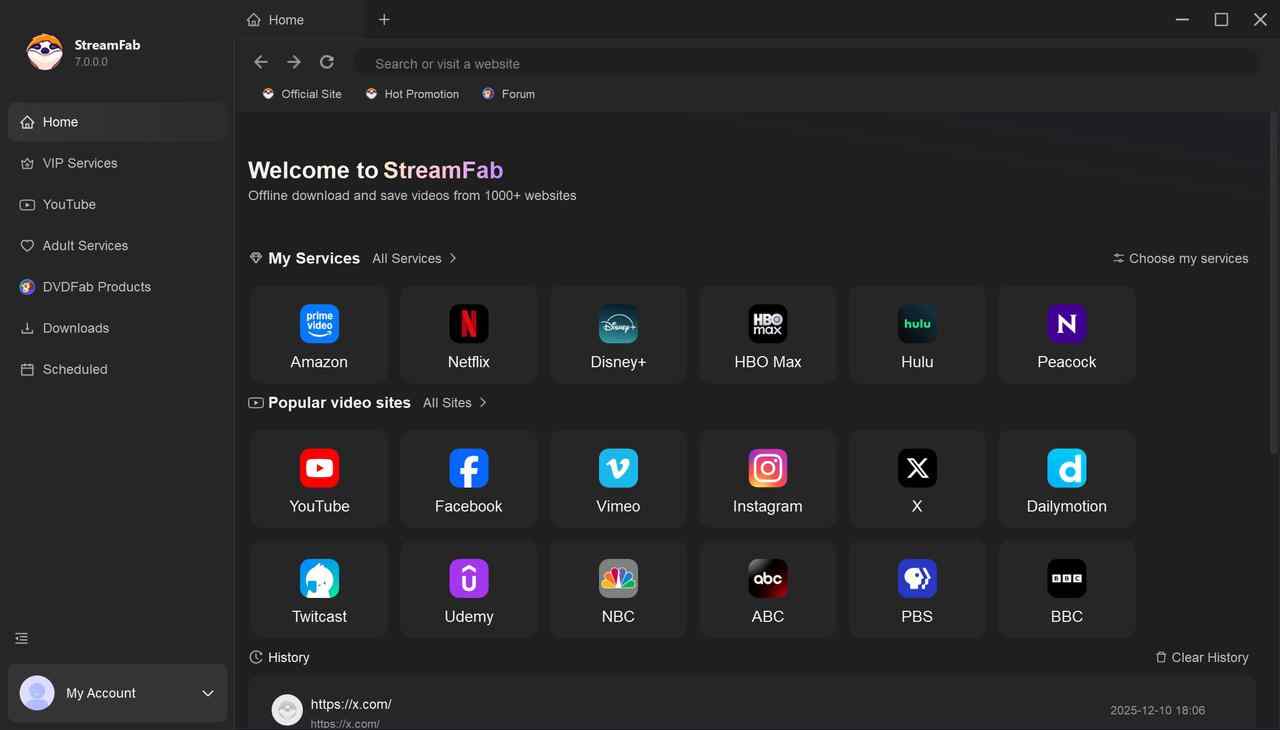
Tap the VIP Services on the left channel to find "Peacock". You can also copy and paste your video URL directly into the address bar on the Homepage.
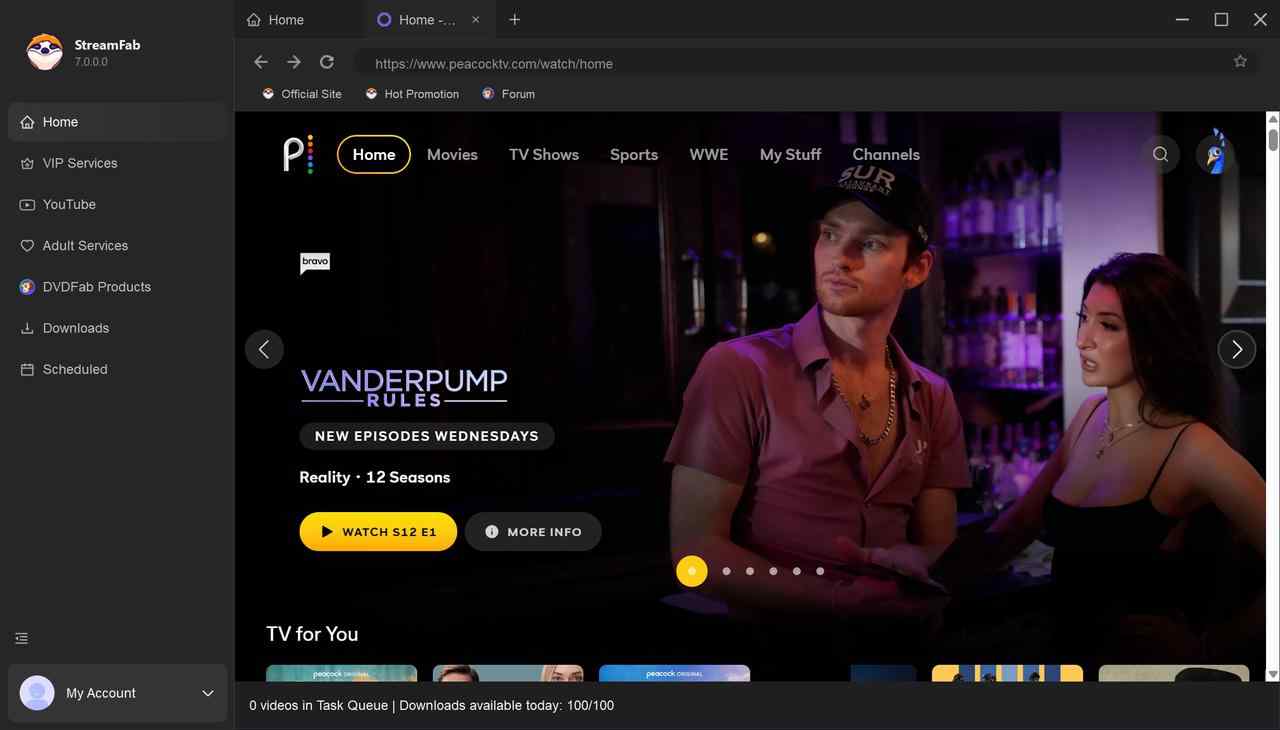
Search for the video and play it, then a pop-up window will ask for your video options. You can choose the audio and subtitle language, etc.
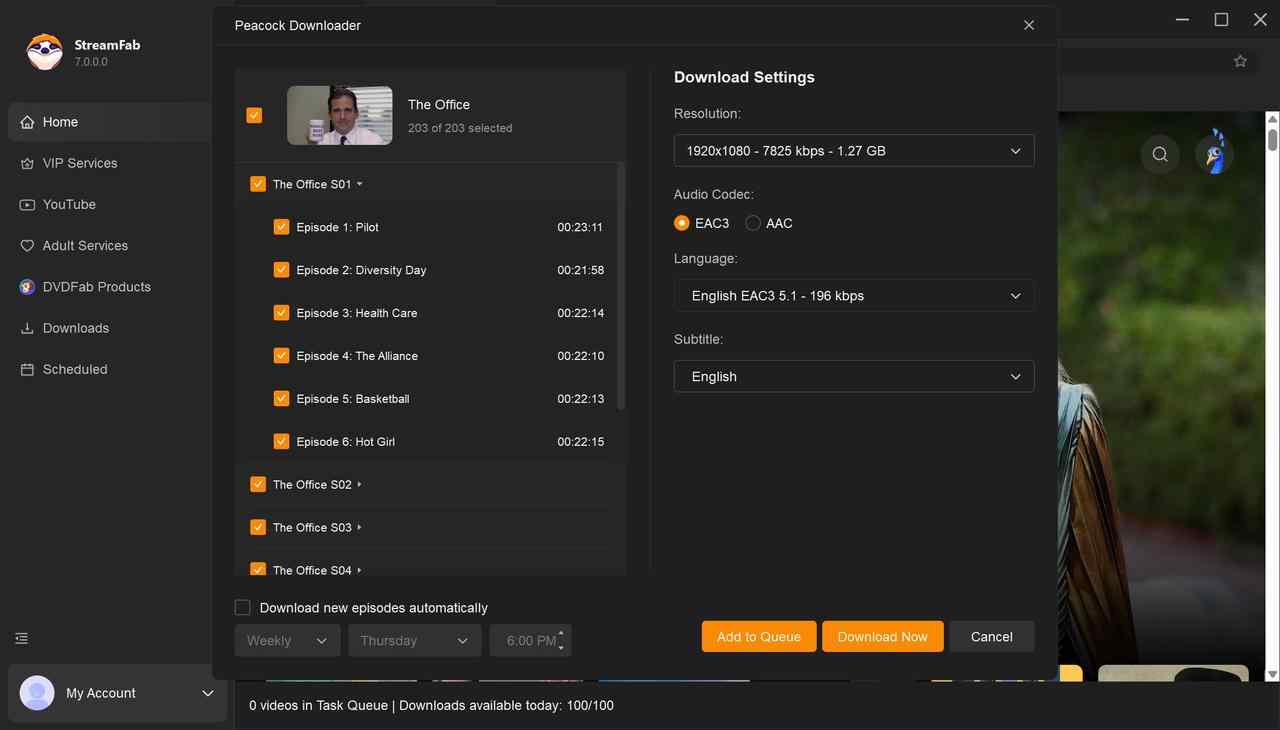
After customization, you can download it right now or add it to the queue.
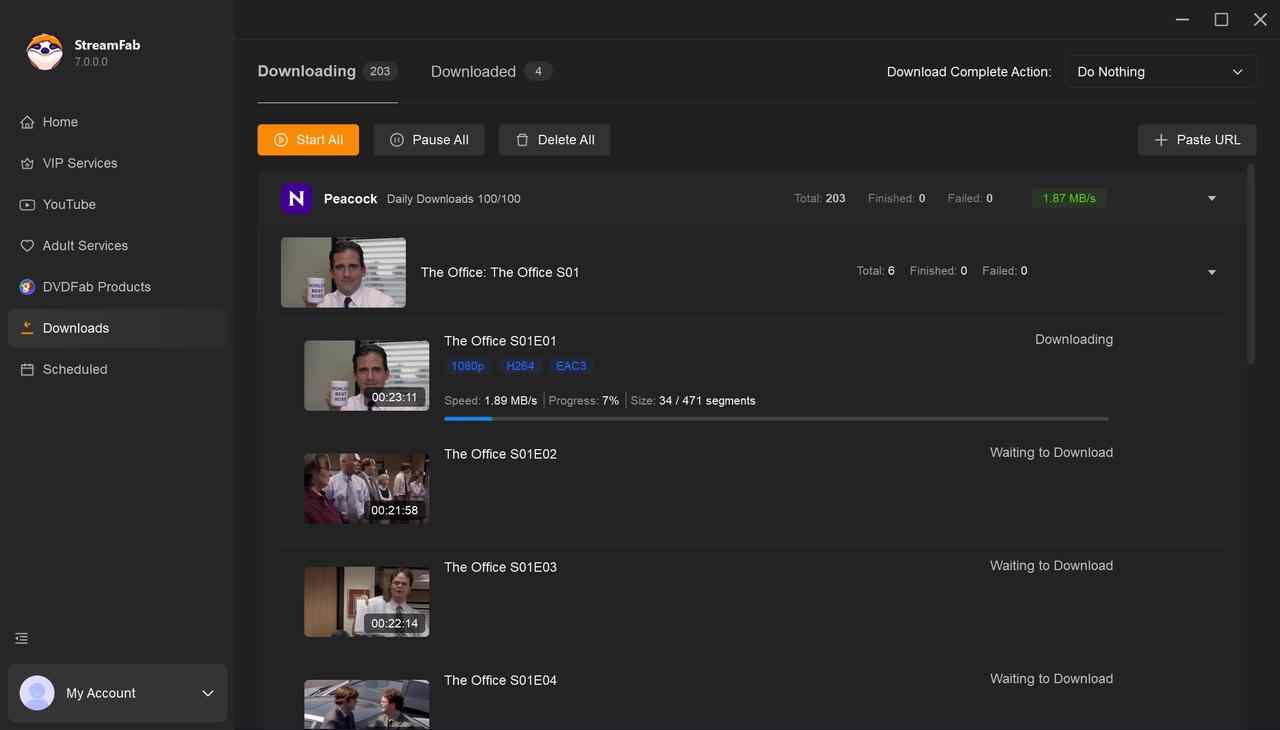
Finally, you will get the Peacock shows saved on your device, just like this screenshot shows:
PlayOn
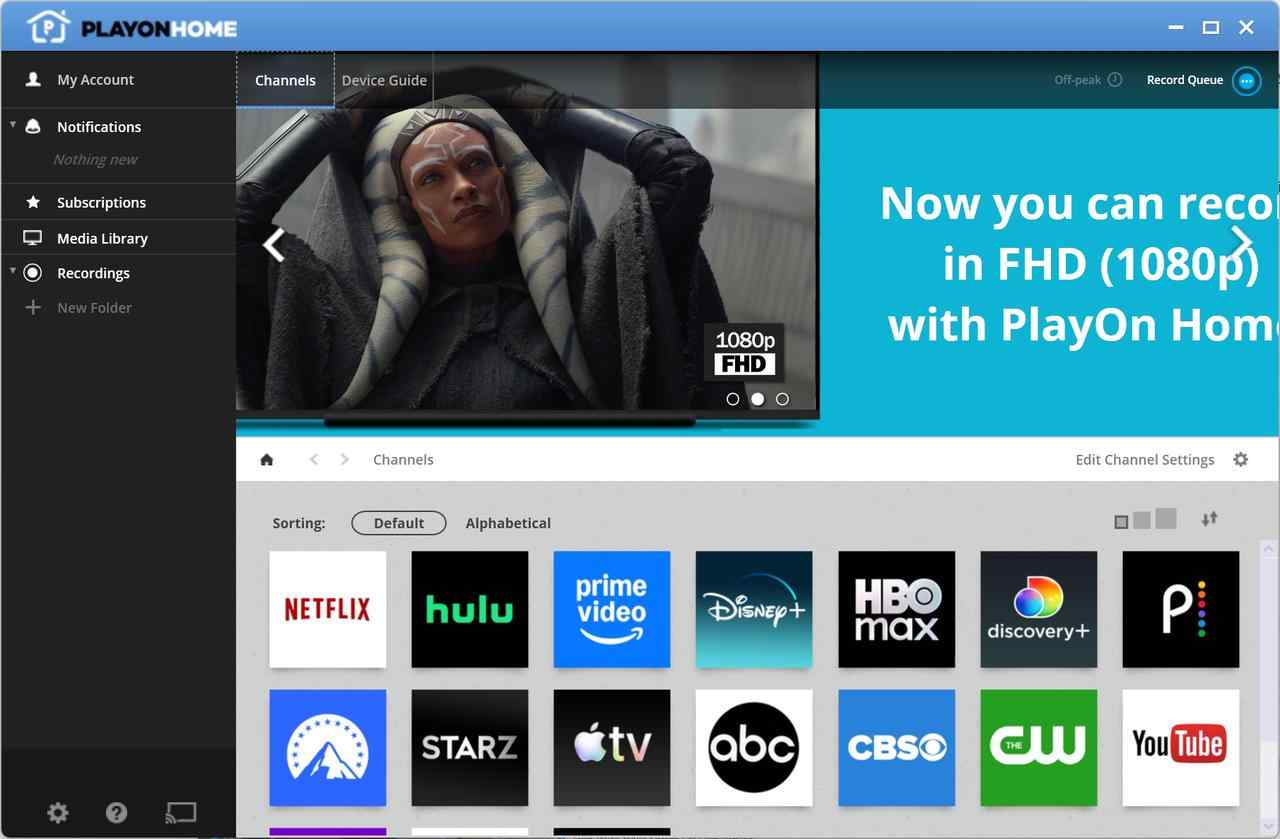
PlayOn Home functions as a legacy streaming DVR. If you queue an hour-long episode, it takes exactly one hour to process. My GPU monitoring showed that PlayOn relies heavily on real-time display capturing, which triggered DRM protection on newer titles, forcing a downgrade to 360p resolution to maintain the stream.
- Queue recordings (e.g., a whole season) and let them run overnight
- Outputs standard video files for personal playback, which aren’t managed by in-app offline timers in the same way.
- Good if you already keep a Windows PC running as a media or recording box
- Recording is real-time: a 60-minute episode takes 60 minutes to capture
- DVR-style capture can noticeably degrade picture quality compared to direct downloading
- Adds a disclaimer segment at the beginning of recordings, which is distracting for playback
That said, its interface is pretty friendly to new users. You can take the example steps below as a reference.
Install and launch PlayOn Home, then select Peacock from the supported services list.
Now you need to log in to Peacock within this standalone setting panel. After you finish logging in, PlayOn Home will automatically jump back to the main page.
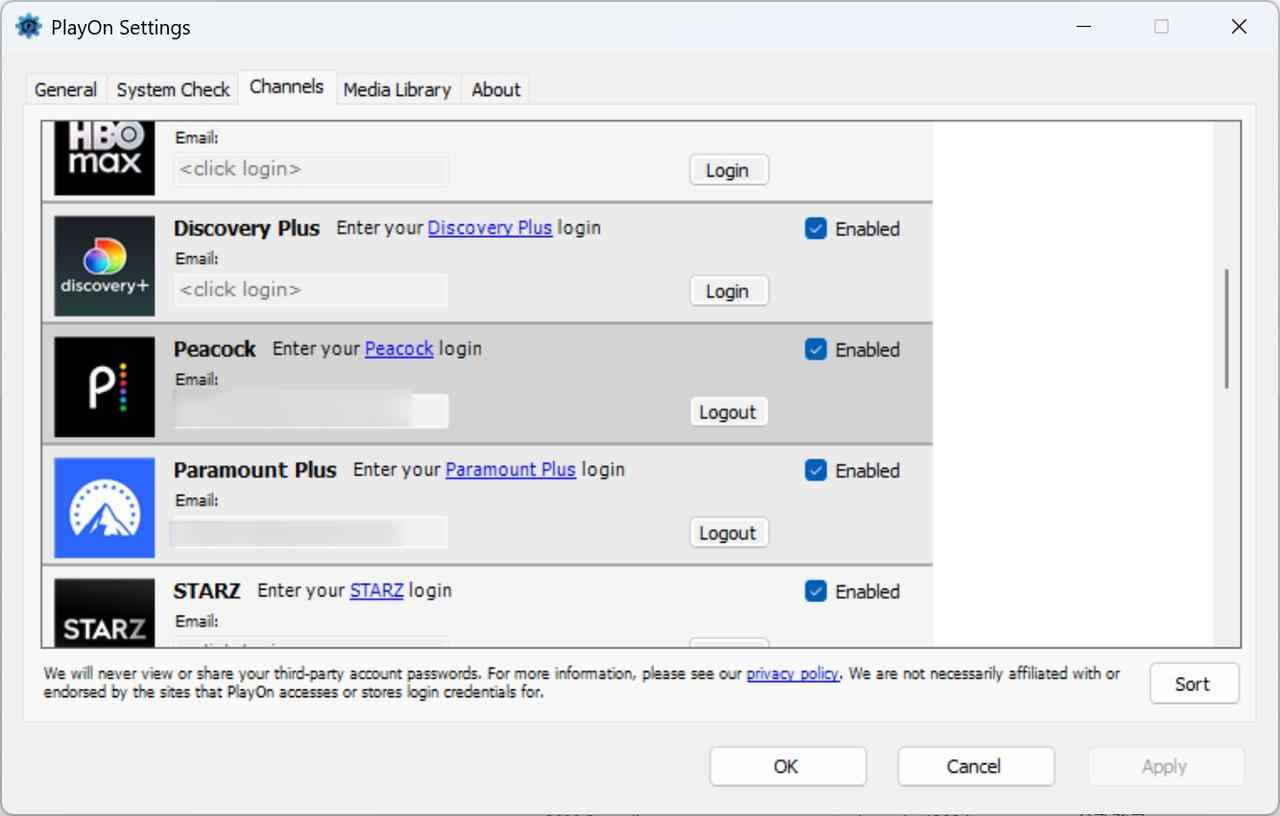
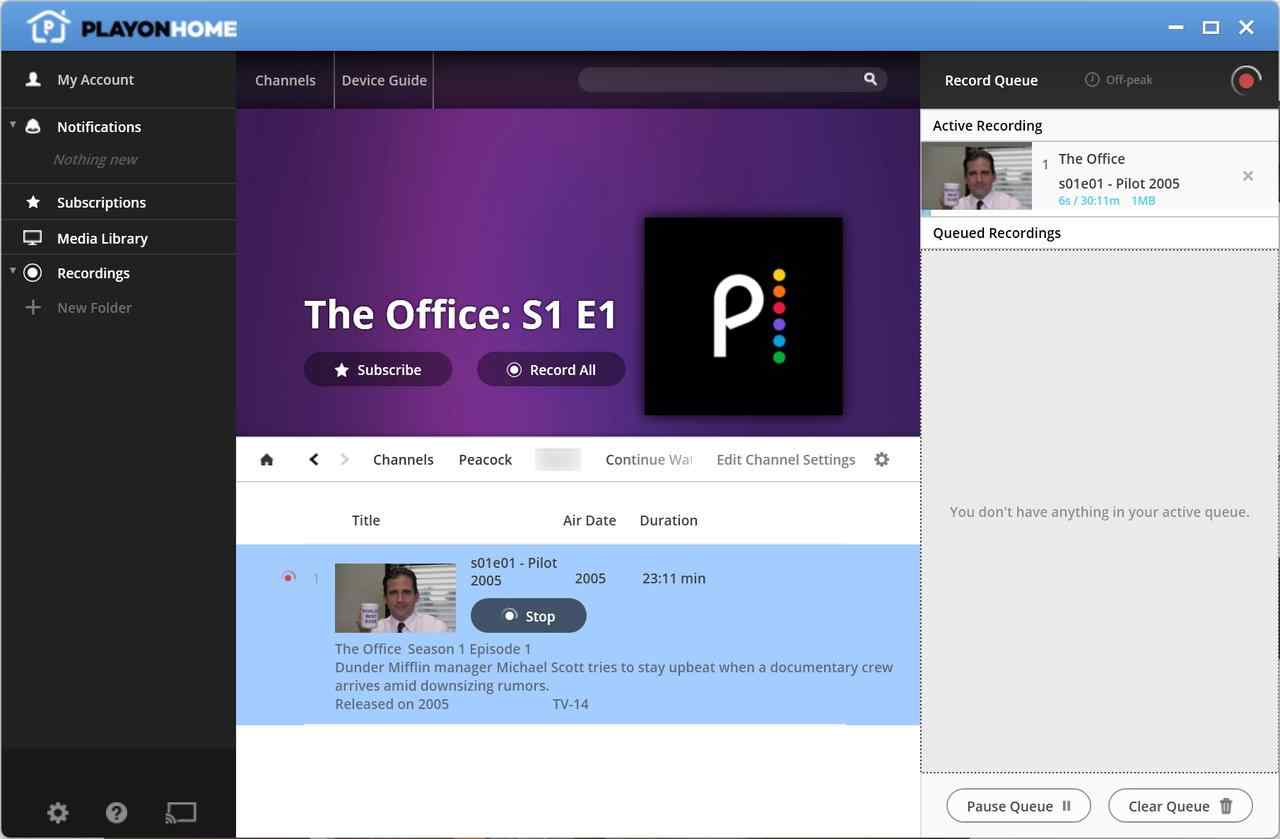
Now enter Peacock and move on the path to the episodes you want for offline viewing. You can also directly search for the title via the search bar. Click on the record button to start.
I know I'm using a quality-limited free version, but still, I want to show you what I finally got from PlayOn. As you can see here, the record is only 360p. Am I overgreedy for expecting 720p quality?
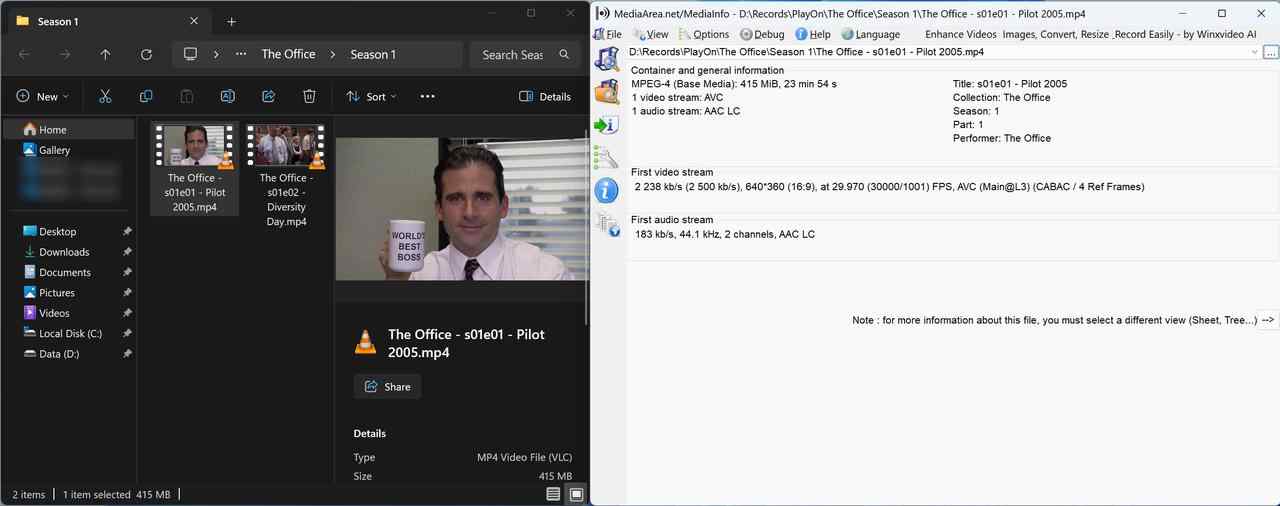

I can't accept that resolution and thought maybe my settings are not proper, so I changed the maximum video quality to "Medium", the best quality PlayOn Home free version can reach, and tried to record again. The fact is, you can only get 360p from its free version. No dice. But the bitrate is barely acceptable.
Vindicable
VidiCable Peacock Downloader sits somewhere in the middle. While it supports MP4 outputs, its encoder is locked to Main@L4. 2. When observing dynamic scenes (like fast-paced sports or reality TV), the compression artefacts are highly noticeable compared to StreamFab's bitstream extraction.
- Simple, straightforward workflow for basic downloading/recording tasks
- Saves videos as common formats like MP4/MKV, which are easy to play on most devices
- Download speed and stability can be inconsistent, especially for heavier use
- Provides a lower screen quality due to the codec profile
- A very stingy trial experience (possibly to cover up the flaws of the Re-encode download mode)
Its usage is not too difficult; it's similar to the general type of downloaders. However, there are some points you might need to pay attention to. Please refer to the steps to rip from Peacock (by the "rip", I mean, to legally back up Peacock content you have access to) below for details:
Get VidiCable from its official site, install it, and launch the app.
Select Peacock and sign in inside the built-in browser if required.
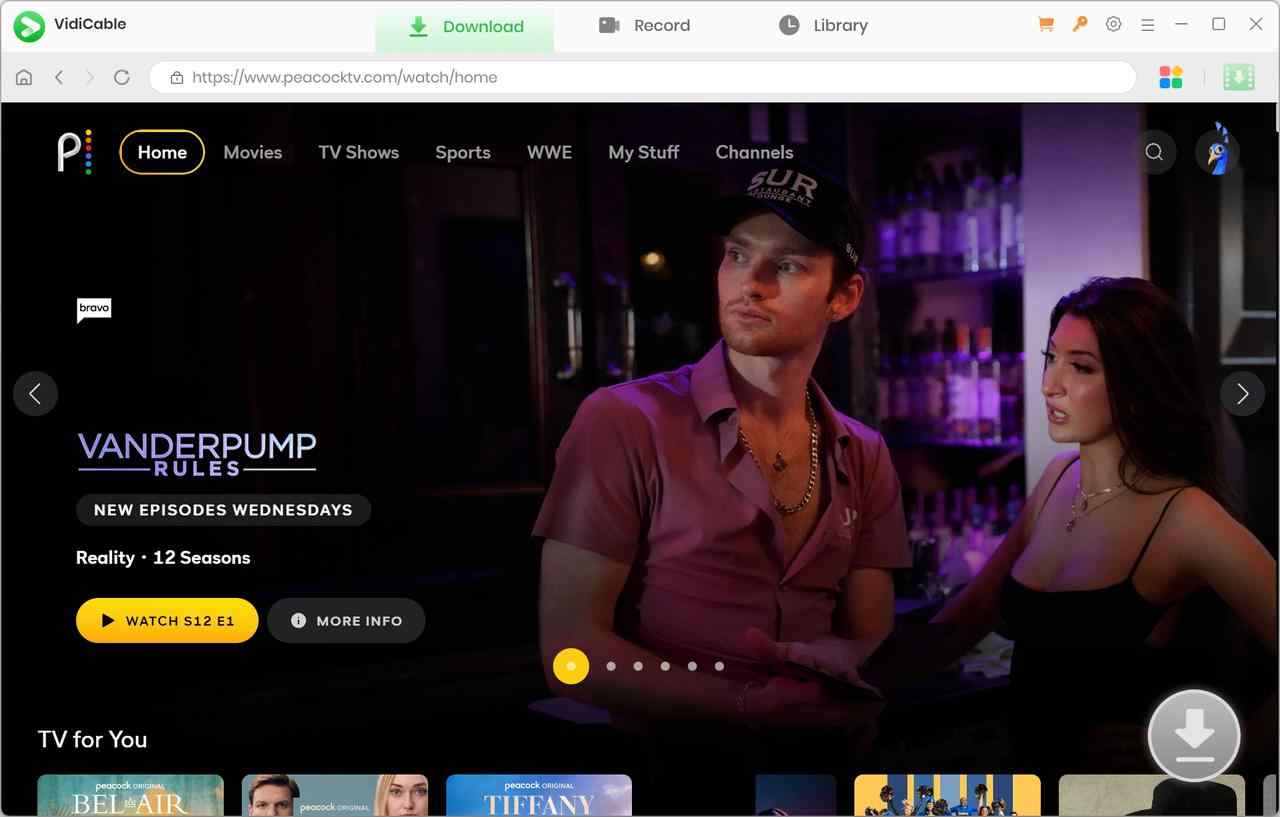
Open a title you can access and review available video/audio/subtitle options.
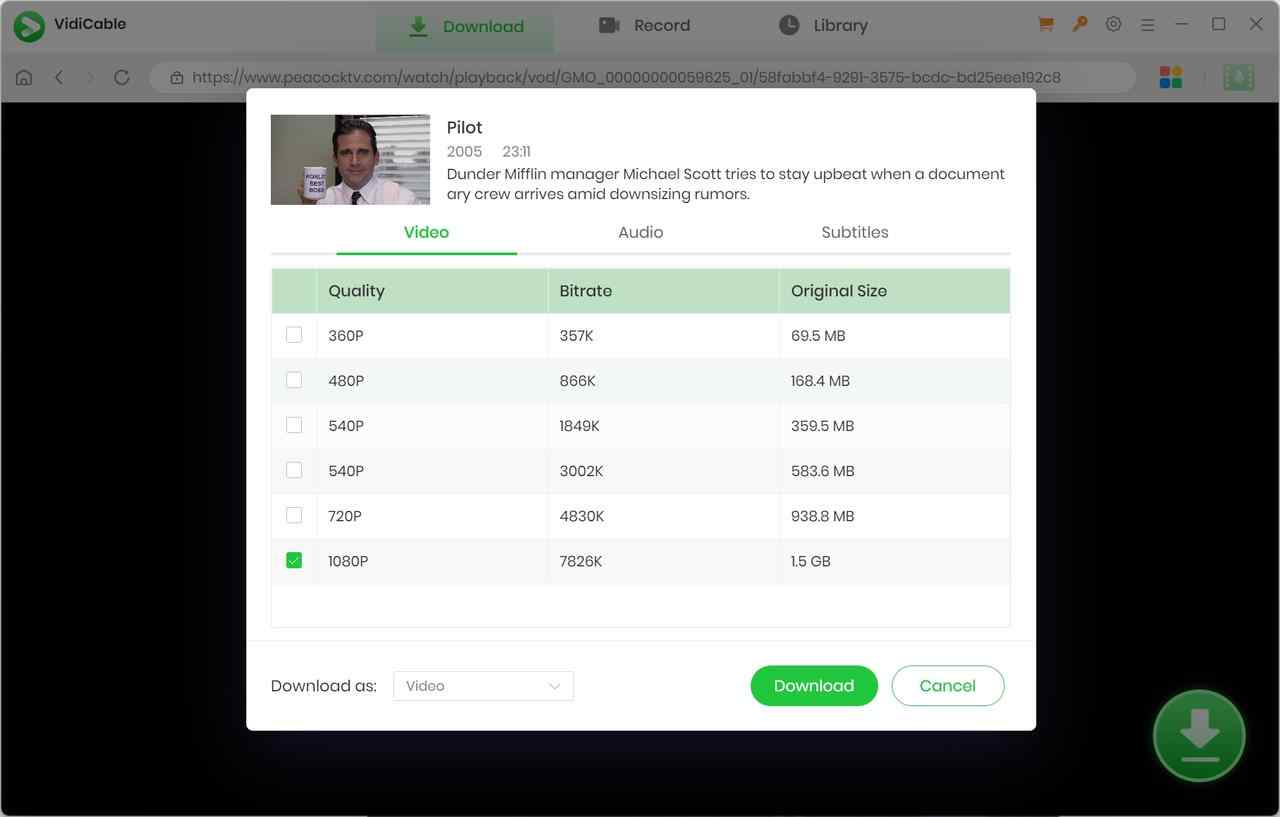
Start the offline task and track progress in the library/task section.
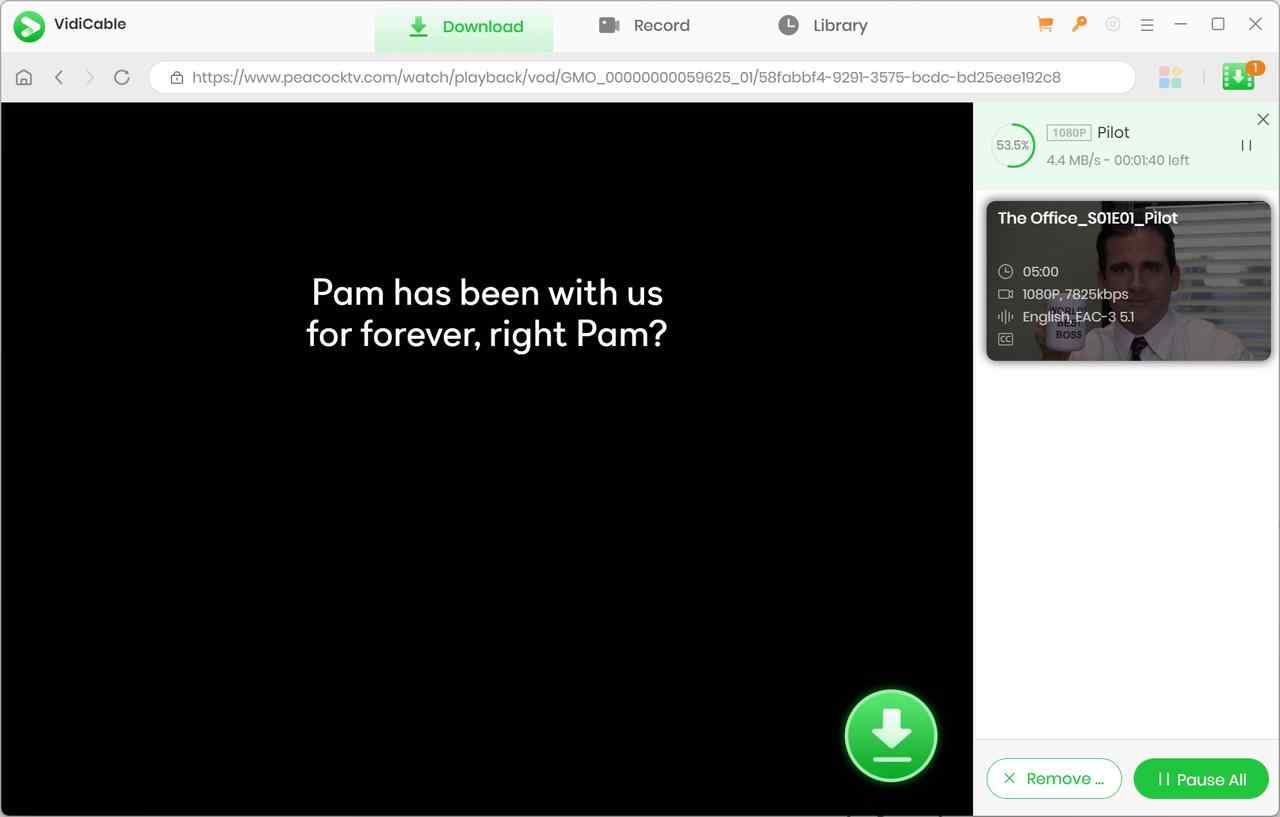
As I mentioned above regarding the quality issue, VidiCable Peacock Downloader’s encoder configuration is Main@L4.2, which maintains compatibility but results in a much lower bitrate, making it far less impressive compared to StreamFab’s 7820 kbps with High@L4. At least to my eyes, the programs downloaded by StreamFab Peacock Downloader retain better picture detail, show fewer compression artifacts, and have a particularly clear advantage with dynamic images.
Out of curiosity, I tested its recording function using the same episode of The Office. Surprisingly, the bitrate was quite high, reaching up to 25Mbps, but the resolution depends on the size of the VidiCable interface on your screen, so you might end up with an irregular resolution like 1146*644.
FAQ
How to fix mobile app offline errors?
If you are struggling with how to download from peacock app due to failed queues, the issue is often a corrupted CDM cache or insufficient storage. Force stop the app, clear your local cache, and verify you haven't hit the 25-item global account limit. Ensure your device OS is updated to handle the latest DRM handshake protocols.
Can saved episodes bypass regional restrictions?
Official app downloads are tightly bound by Geoblocking; if your device pings a foreign IP without a VPN, the app will lock your cached files. Conversely, standard MP4 or MKV files saved via third-party PC downloaders carry no location data and will play globally on any media player.
Transferring saved movies to other devices?
You cannot move official offline files from an iPad to a NAS, as they are hidden in a sandboxed, encrypted directory. To transfer your archive to a smart TV, Plex server, or external hard drive, you must use a PC downloading client to secure the raw video files first.
Can I download World Cup 2026 matches from Peacock?
If Peacock carries World Cup replays or highlights through its sports programming, StreamFab Peacock Downloader can save them as permanent MP4 files with no 48-hour expiration. For live broadcasts, you can also use RecordFab (Windows only) to capture streams in real time, though direct downloading is faster and produces higher quality.
Conclusion
Navigating streaming restrictions in 2026 requires understanding the underlying technology. While the official mobile application provides a passable, albeit highly restrictive, solution for a quick commute, it fails completely for digital archivists seeking permanent, high-fidelity media storage. Based on my GPU load tests and DRM success rates, StreamFab Peacock Downloader remains the only viable choice for laptop users looking to bypass black screens and build a pristine, offline MP4 library without dealing with real-time recording penalties. With the World Cup 2026 in full swing, now is the time to lock in your offline sports library before replays expire or get pulled from the catalogue. You can also explore our guide to download shows on Fubo for additional platform options.
Start Building Your Offline Peacock Library
Avoid 48-hour expiration limits and sudden platform removals. Download StreamFab today to securely save your favorite movies, sports, and reality shows in permanent 1080p MP4 formats.

Master 2026's technical fixes for Peacock streaming errors. From bypassing Tizen OS loading screen loops and Widevine CDM conflicts to securing 1080P offline archives with ad-free customizable downloading options.
By Marcia Hatcher - Aug 11, 2026
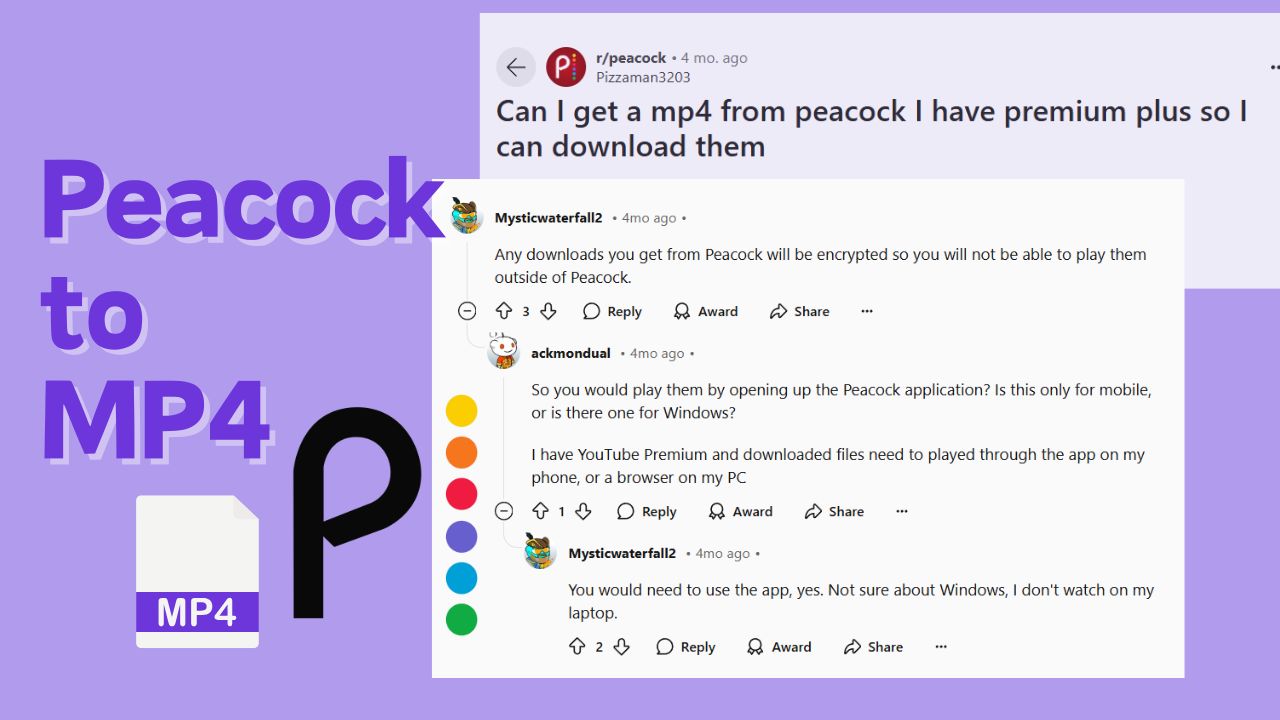
Peacock's official downloads are app-bound, not MP4 videos you can open in any player. This guide compares official limits, a desktop workflow, output choices, and troubleshooting.
By Erika Leen - Jul 27, 2026