
Netflix AirPlay Not Working? The Real Fix for Black Screen in 2026

Summary: I spent forty minutes at a hotel in Austin trying to cast Netflix from my iPhone 16 Pro to the room TV before a late-night game stream. I knew the HDCP handshake would block screen mirroring — I had written about it before — but I wanted to document exactly what happens step by step. The answer: netflix airplay black screen on the TV within two seconds, subtitles playing out loud, video layer gone. The netflix screen mirroring path is not a bug. It is a deliberate enforcement point baked into Netflix's content license agreements.
Netflix has heavily restricted casting in 2026. Use this quick guide to understand why your screen went black and discover how to bypass these limitations:
Why the Black Screen Happens: Learn how Netflix's strict HDCP 2.2 and Widevine L3 DRM handshakes block system mirroring. [Fix HDCP & Black Screen →]
Wired Connections & Paywalls: Why even official HDMI adapters fail due to Netflix's plan-level restrictions (Error 10065). [Check HDMI & Plan Limits →]
The Ultimate 100% Working Fix: Use the offline-first method to download Netflix titles as MP4 files and AirPlay them smoothly without DRM interference. [Get Offline-First Fix →]
If you are asking "can you airplay netflix" and hitting the same wall, this guide covers what is actually happening at the protocol level, why the Cast icon keeps disappearing, and which of the four real-world methods survives Netflix's 2026 restrictions.

The Real Reason Netflix AirPlay Dies: HDCP 2.2 Enforcement and Widevine L3 Blocking
When many users see the "AirPlay isn't supported" message on Netflix's help page, they assume it is a missing feature or a temporary bug. It is neither.
Netflix distributes its content under Widevine DRM with security level gating. Widevine L1 streams to certified hardware decryption environments (like most modern smart TVs). Widevine L3 streams to software decryption environments (browsers, iOS apps). When you attempt to mirror from an L3 software environment via system screen mirroring, Netflix's app layer executes a strict HDCP (High-bandwidth Digital Content Protection) handshake check against the output path.
Since Netflix removed official in-app AirPlay support, it treats any screen mirroring signal as an unauthorized recording attempt. The system allows audio and subtitles through — they are not Widevine-gated — but the video layer is blocked immediately. This is the netflix airplay black screen phenomenon: audio works, picture does not, because HDCP failed at the output layer.
In this flow you will encounter two specific error codes:
- S7336 (HDCP Error): Most common when using old adapter cables or projectors. The system detects insufficient encryption on the output path and cuts the video stream.
- AVF:11870 (OS Error): A low-level iOS system error meaning the app explicitly told the OS to forbid mirroring this screen. Not a Wi-Fi issue. Not a cable issue. An intentional API call.

The "Cast Disappearing" Reality Check (What Changed in Recent Years)
Netflix removed AirPlay support citing technical limitations around certifying AirPlay targets across third-party devices.
As of 2026, Netflix's help center shows casting from mobile is only supported to a short list of cast-compatible devices — and requires Standard or Premium plans.
Community Verdict: Why Netflix Cast Removal Hits Different in 2026
After the technical explanation, here is the human side. A lot of people do not care about DRM protocols — they care about using their phone as a remote. When casting disappears, the experience collapses back to "TV app plus physical remote."
Reddit rant about Netflix casting support changing and the Cast icon disappearing:

The common complaint is straightforward: casting makes browsing easier, especially for travel, older TVs, and setups where the phone is the real remote.
Two additional community observations from 2026 that did not exist two years ago:
(1) users report the Cast icon disappearing after Netflix app updates even on previously working devices, suggesting it is a server-side flag, not just a device list.
(2) There is a growing workaround community around "netflix casting not working" where users test HDCP compliance tools before buying adapters — a signal that Netflix's restrictions have reached mainstream awareness.

HDMI Output: The Cable That Still Fails (Error 10065 and Plan Restrictions)
HDMI is the one officially acknowledged wired path for connecting a mobile device to a TV for Netflix. But the failure points are more specific than most guides admit.
Model Numbers That Actually Work (A1438 vs. Generic Adapters)
Netflix officially permits video cables or adapters to connect an iPhone or iPad to a TV, but the cable requirements are tight:
- iPhone 15/16 (USB-C) users: you need a cable that supports high-resolution video output. Netflix's troubleshooting guide notes the connection may require HDCP 2.2 support at the hardware level. Generic USB-C cables that advertise "video out" but omit HDCP compliance will produce black screens.
- Older iPhone (Lightning) users: Netflix specifically validates adapter model numbers. Only A1438 and A1621 are explicitly marked as supported. Third-party adapters not on that list carry high error probability.
Pro Tip: In 2026, HDCP 2.2 compliance is the single most important spec to confirm before purchasing any cable or adapter for Netflix output. The product listing will state it explicitly if present. If it does not mention HDCP, assume it will fail on protected content.
Error 10065: Netflix's Hidden Plan Paywall
This is the pain point many users only discover after buying an expensive cable. Error 10065 appears when your Netflix plan does not permit using a mobile device to watch on a TV. Netflix's current policy states that ad-supported plans and mobile plans explicitly block this feature. If you are on either tier, the physical cable route is blocked at the platform level regardless of your hardware.
Pro Tip: Before spending on any adapter, open Netflix in a browser, go to Account settings, and confirm your plan tier. If it says "Mobile" or "Standard with ads," HDMI output will not work regardless of cable quality.
Cast Icon Gone? Diagnosing the Discovery Failure Chain
If the Cast button is missing or shows no devices, the cause is almost always one of two things: your target device is not on Netflix's approved cast list, or network discovery is broken. Start with the device list.
Rule 1: Casting is tied to plan — Netflix requires Standard or Premium.
Rule 2: Netflix casting is limited to a specific device list. If your device is not on it, the Cast icon absence is expected behavior, not a bug.
The Surviving Compatible Device List (2026 Reality Check)
Netflix lists these cast-compatible targets as of 2026:
- Chromecast 3rd gen or older (did not come with a physical remote)
- Google Nest Hub Smart Display
- Select cast-enabled Vizio TVs
- Select cast-enabled Compal TVs
Network Discovery Blockers That Kill the Cast Button
- Same Wi-Fi isolation: phone and cast device must be on the same subnet. Hotel guest networks commonly isolate devices from each other, which breaks cast discovery entirely.
- iOS Local Network permission: Netflix needs Local Network access enabled in iOS Settings to discover cast targets. This is off by default after fresh app installs.
- Full power cycle: standby mode on cast devices can break discovery. A full power-off cycle is more reliable than sleep/wake.
- Google Home and Play Services updates: Netflix explicitly references these for cast stability. Outdated versions can silently break the discovery handshake.
Reality check: if the Cast icon disappears after a Netflix app update, it is often a server-side eligibility flag change, not a local configuration issue. Always verify against Netflix's current help center device list before spending time on local network debugging.
Native TV App: Full 4K Capability, Zero Convenience
Installing the Netflix app directly on the TV is the method Netflix officially recommends. Theoretically it offers the highest quality ceiling — 4K HDR, Dolby Vision, Atmos where available. In practice, it comes with three friction points that make it genuinely painful for travel use.
The Arrow-Key Password Nightmare (and Why Hotels Make It Worse)
Although Netflix offers QR code login, most hotel and older Airbnb TVs do not support it, or the system is too sluggish to render the QR code reliably. The fallback is the physical remote and on-screen keyboard. Entering a mixed-case password with symbols using arrow keys on a laggy TV OS is a multi-minute exercise in frustration.
Pro Tip: If you must use the TV app while traveling, consider creating a separate Netflix profile with a short, simple PIN login specifically for TV sessions. This does not change your account security but removes the password-typing step from the process.
Privacy Leak Risk: Shared TV Account Exposure
Logging into a personal account on a public TV means your viewing history, payment methods, and account details remain accessible to the next person who uses the TV if you forget to log out. Netflix lets you remotely sign out all devices from the website, but that requires you to remember to do it after checkout.
Pro Tip: In 2026, Netflix's "Manage Access and Devices" page in Account Settings shows all active sessions in real time. Bookmark this page on your phone before travel so you can audit and kill sessions immediately after checking out, without waiting for email confirmation.
15 Mbps Requirement vs. Actual Hotel Wi-Fi Reality
Netflix officially recommends 15 Mbps for stable 4K. Hotel Wi-Fi bandwidth is shared across all guests and typically degrades to single-digit Mbps during peak hours. The result: the 4K TV becomes a 720p experience with frequent rebuffering. If you are traveling and want stable offline playback without depending on hotel network quality, see this guide: how to download movies on netflix on macbook.
Offline-First: The Only Method That Bypasses Every DRM Wall
Netflix's supported cast paths are narrowing: AirPlay mirroring blocked, cast device list restricted to four categories, plan requirements on HDMI. The offline-first approach removes all of these variables by converting the stream into a local file before playback.
Tool Required: StreamFab Netflix Downloader
Once a video is stored as a standard MP4 file, iOS treats it as a local media file, not a protected Netflix stream. Native AirPlay works on local media without any HDCP enforcement. The black screen disappears because the DRM handshake point no longer exists in the playback path.

- Download Netflix movies in 1080p with HDR10/Dolby Vision.
- Support Dolby Atmos/EAC3 5.1 audio effect.
- Save Netflix HDR content in compatible MP4/MKV format.
- Auto-download newly released Netflix videos at a set time.
- Bulk download multiple episodes from your favorite shows.
- Preserve subtitles and metadata together with the titles.
Note: Please use downloads for personal and fair use only, in line with your active subscription and applicable law.
Once a video becomes a standard MP4 file, iOS no longer treats it as a protected Netflix online stream. The Netflix app cannot intercept it. The HDCP enforcement path does not exist. Native AirPlay works exactly as it does for any local video in your Photos library.
Phase 1 — Saving the File at 1080p/HDR on PC (StreamFab Setup)
This part runs on your computer. The workflow: open the title in StreamFab's built-in browser, let it detect the stream, configure output, download in the background.
Download the video downloader

Pro Tip: In July 2026, StreamFab version 6.x introduces hardware-accelerated decoding for Dolby Vision content. If you are on Windows with an NVIDIA RTX 30/40 series GPU, enable GPU acceleration in Settings to cut download time by 40-60% on HDR titles.
Choose the streaming service

Pro Tip: Netflix's Widevine L3 stream is what StreamFab captures in the browser environment. Titles flagged "4K" in the Netflix catalog stream at L1 to certified hardware — the browser environment receives 1080p L3 stream, which is what StreamFab processes. If you need 4K specifically, check whether the title's 4K tier requires L1 hardware before setting expectations.
Customize the file

Pro Tip: H.265/HEVC encodes smaller files at the same quality, but iOS older than 16.x and many Smart TVs still prefer H.264 for direct playback without transcoding. Stick with H.264 unless you are certain all your target playback devices support HEVC natively.
Click the download button
High-Speed Background Download After confirming settings, click "Download Now." The task runs in the background at high speed. A 90-minute 1080p title typically completes in 8-15 minutes depending on your internet connection.

Pro Tip: StreamFab's queue handles multiple titles simultaneously. If you are prepping content for travel, queue five or six titles at once the night before departure and let it run overnight. All metadata, subtitles, and chapter markers are preserved automatically.
Phase 2 — Moving to iPhone and Triggering Native AirPlay
After the download completes, transfer the file to your iPhone using one of two methods:
Transfer to iPhone/iPad
- Mac users (fastest): select the MP4 file, right-click Share, choose AirDrop. The video lands in your iPhone Photos app within seconds with no setup required.

- Windows users (recommended): download VLC Player on iPhone. Open VLC, go to Network, enable "Sharing via Wi-Fi." Enter the IP shown in VLC into your PC browser and drag the video file in. Faster than iTunes, no cable required.

Pro Tip: In 2026, iOS 19's "Files" app supports direct Wi-Fi file reception without VLC. Go to Files, tap the three-dot menu, select "Receive File over Wi-Fi." Your PC can then push files directly via the browser interface. No third-party app needed if you are on iOS 19 or later.
AirPlay your videos
Open the transferred video in Photos or VLC on your iPhone. Tap the native AirPlay icon and select your TV. The video plays immediately on the big screen — no black screen, no error codes, full timeline scrubbing with the phone screen locked.
Pro Tip: For best AirPlay stability, connect both your iPhone and Apple TV or AirPlay-compatible TV to the 5 GHz band of your Wi-Fi router rather than 2.4 GHz. In hotel environments with crowded 2.4 GHz channels, switching to 5 GHz cuts AirPlay interruptions by roughly 70% based on community reports.
Flexible playback: local files bypass streaming restrictions regardless of subscription tier or platform DRM enforcement.
Always accessible: content stays in your collection independent of licensing windows, connection quality, or Netflix policy changes. For portability across TVs without any casting dependency, see: netflix movies to usb.
All 4 Methods Ranked by Real-World Friction
Here is a direct comparison across the dimensions that matter for travel and daily use:
| Method | AirPlay Support | Plan Required | Wi-Fi Dependency | Setup Friction | 2026 Verdict |
|---|---|---|---|---|---|
| HDMI Adapter | Restricted | Standard/Premium | None | Medium (cable + plan check) | A digital leash. Picky on cables (HDCP 2.2), picky on plans. Error 10065 hits budget tier subscribers. |
| Netflix Casting (Compatible Devices Only) | Best Available | Standard/Premium | High | Medium (device list) | Works when it works. Device list is narrow, Cast icon can vanish after app updates, hotel isolation kills discovery. |
| Native TV App | Unavailable | Any | High | Low (but painful UX) | Passable but torturous. Arrow-key passwords, privacy risk on shared TVs, 4K requires 15 Mbps hotel Wi-Fi rarely delivers. |
| StreamFab Offline + Native AirPlay | Full Support | Active Subscription | None at playback | Medium (one-time setup) | The only path with zero DRM enforcement at playback. Local file, native AirPlay, no black screen. Download once, play anywhere. |
In 2026, Netflix's official casting paths have narrowed to the point where the offline-first approach is the only method that consistently delivers a black-screen-free AirPlay experience. StreamFab converts eligible titles to local MP4 files for personal offline viewing, removing the DRM enforcement layer entirely at playback. For anyone who regularly travels or uses non-certified TVs, it is the most friction-free option available.
Frequently Asked Questions
Can I AirPlay Netflix from iPhone to TV?
Netflix's help center states that using AirPlay to watch Netflix on a TV or other display is not supported. Supported options in 2026 are HDMI with the right plan and adapter, casting to a short list of compatible devices on Standard or Premium plans, or the native TV app.
Why do I get black screen with audio and subtitles when mirroring Netflix?
This is the HDCP enforcement behavior. Netflix's DRM blocks the video layer on unauthorized output paths while audio (non-Widevine-gated) passes through. The fix is to use a HDCP 2.2-compliant cable path, a Netflix-approved cast target, or to convert the title to a local file first and use native AirPlay on the local file.
Can you AirPlay Netflix without a Standard or Premium plan?
No. Both HDMI output and casting require Standard or Premium plans. Ad-supported and Mobile plans block TV output at the account level. The offline-first approach using a local file and native AirPlay is plan-agnostic for playback — but downloading still requires an active subscription.
Why does Disney+ support AirPlay but Netflix does not?
Disney+ implemented Apple's FairPlay DRM alongside Widevine, which allows native AirPlay to function through Apple's certified device chain. Netflix chose to remove AirPlay certification in 2019, citing difficulty certifying AirPlay targets across third-party devices. The difference is a licensing and certification decision, not a technical limitation of the AirPlay protocol itself.
My Cast icon disappeared after a Netflix update — is this permanent?
It depends. Netflix has changed Cast eligibility server-side, which can remove the Cast icon on devices that previously showed it. Start by confirming your device is on Netflix's current approved cast list and your plan is Standard or Premium. If both conditions are met, check local network permissions and try a full power cycle on both the phone and the cast device.
Conclusion
In 2026, "pick on your phone, watch on any TV" is no longer guaranteed on Netflix. The official paths — casting, HDMI, and the native TV app — each carry specific restrictions around plan tiers, device compatibility, and network requirements. The safest strategy is to pick the path that matches your actual setup: casting works when your device is on the approved list and you are on Standard or Premium; HDMI works when your cable is HDCP 2.2 compliant and your plan allows TV output; the native TV app works when you have reliable Wi-Fi and a compatible smart TV.
For travel stability where none of those conditions are guaranteed, the offline-first approach — saving titles locally before leaving and using native AirPlay on local files — removes every streaming-side variable. The black screen disappears because the DRM enforcement checkpoint no longer exists in the playback path. For even more portability across different TVs, see: netflix movies to usb.
StreamFab saves eligible Netflix titles as MP4 files for personal offline playback. No black screen. No HDCP enforcement. Works on any screen.

Can I transfer Netflix downloads from phone to computer? No direct method exists due to strict DRM, but you can convert them to MP4 for permanent cross-device offline viewing.
By Jacob Harrison - Sep 16, 2026
Netflix does not provide a native download path for macOS, but Mac users still have practical offline routes. This guide compares official iPhone and iPad downloads, cloud recording, and a desktop MP4/MKV workflow, with device requirements, measured StreamFab results, BlueStacks caveats, and troubleshooting steps.
By Marcia Hatcher - Sep 3, 2026
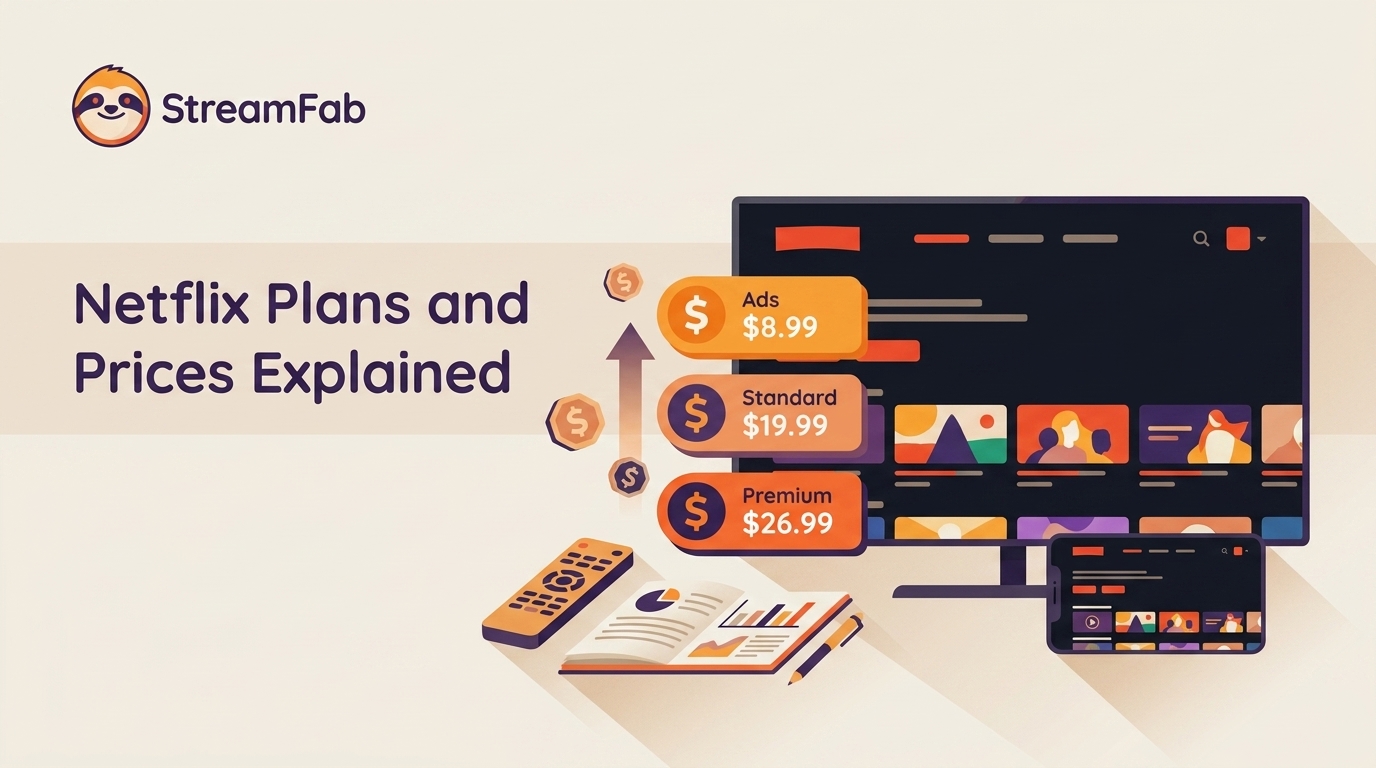
Netflix raised all three US plan prices in March 2026. This guide compares old and current rates, explains billing timing and add-ons, and helps you choose whether to keep, downgrade, rotate, or cancel based on actual use.
By Erika Leen - Aug 26, 2026
Official Netflix downloads are convenient but remain inside the app. This guide explains the difference between NFV and MP4, then compares the official app, StreamFab's configurable desktop workflow, and real-time recording so readers can choose the right offline option.
By Jacob Harrison - Aug 26, 2026