
Netflix to MP4 in 2026: 3 Practical Offline Options

Summary: Official Netflix downloads are convenient but remain inside the app. This guide explains the difference between NFV and MP4, then compares the official app, StreamFab's configurable desktop workflow, and real-time recording so readers can choose the right offline option.
Table of Contents
Official Netflix downloads stay inside the Netflix app and cannot be exported directly as ordinary MP4 files. To download Netflix to MP4 as a standard local file, you need a separate desktop downloader or real-time recorder for authorized personal offline viewing.
Introduction
A Netflix to MP4 search usually starts with one practical problem: the official download button supports offline viewing, but it does not create a portable video file. This guide separates that app-only route from a desktop Netflix MP4 converter and real-time recording.
The three options solve different needs. Use Netflix app downloads for the simplest offline experience, a desktop workflow when you need configurable MP4 or MKV files, and recording when playback-time capture is acceptable.
Why Netflix Downloads Are Not MP4 Files
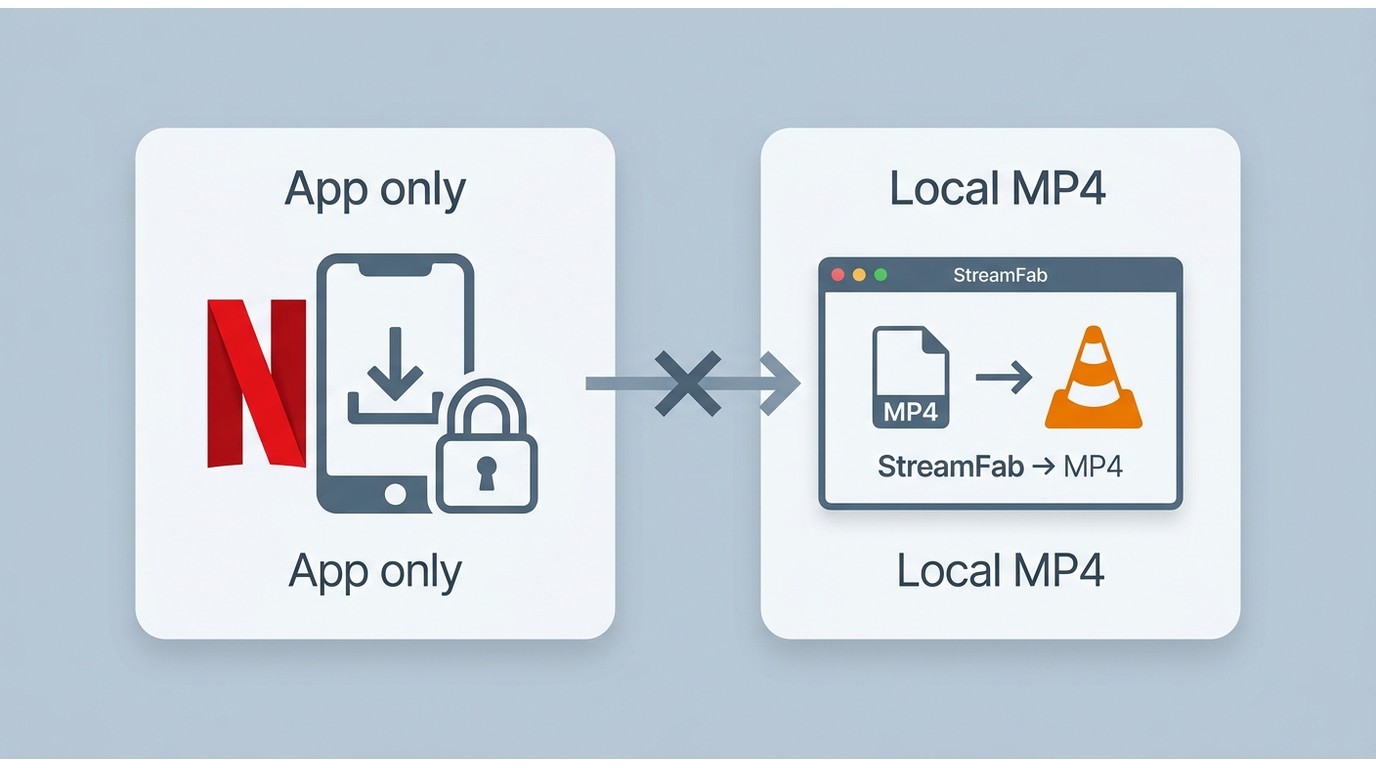
An official download is managed by Netflix, while an MP4 is a standard local container that common media players can open. That is why an NFV to MP4 conversion is not a direct file-format change.
- An MP4 can play in common media players on supported devices.
- Netflix app downloads remain managed by the app and follow title and viewing-window availability.
- Choose a method based on whether you need simple in-app viewing or a configurable local file.
The app controls where an official download plays, which account can open it, and how long it remains available. Catalog changes and offline viewing-window limits make this route convenient rather than portable.
My practical rule is to decide on the viewing environment first. If the Netflix app is available where you plan to watch, its download feature is the cleanest choice. If you specifically need Netflix MP4 on PC, evaluate a separate local-file workflow.
Download Netflix to 1080p MP4 on PC
Desktop tools address the local-file use case that the Netflix app does not. Before starting, have an active Netflix subscription, authorization to view the title, a supported Windows or Mac computer, and enough storage for the selected quality.
- Confirm that the title plays normally in your Netflix account.
- Choose MP4 for broad compatibility or MKV when its container options better fit your player.
- Select video, audio, and subtitles before adding episodes to a queue.
StreamFab Netflix Downloader
For content you're authorized to access, where permitted by platform terms and applicable law, StreamFab Netflix Downloader is a separate Windows and Mac application for creating configurable local files instead of app-managed downloads.
Effortlessly download movies from Netflix to MP4 format on your Mac or Windows with full HDR 1080p quality and Atmos/EAC3 5.1 audio, and enjoy your videos offline.
A Netflix downloader MP4 setup should focus on the settings that affect playback, not a long feature list. The URL-to-MP4 distinction also matters because a webpage address alone is not the same thing as a playable local file.
- Output: MP4 or MKV on Windows 10/11 and macOS.
- Video: up to 1080p; HDR10 or Dolby Vision when the title, plan, and availability support it.
- Audio: Dolby Atmos, EAC3 5.1, or AAC 2.0.
- Codec: choose H.264 or H.265; VP9 and AV1 availability depends on the source.
- Subtitles and metadata: select languages, save supported subtitles, and retain title data.
- Queue tools: batch episodes and schedule new releases.
- As of August 2026, the trial lasts 30 days with three video downloads per service; paid use has service quotas.
In a June 2026 macOS test at 24 Mbps, a 15:07 episode of Love, Death & Robots was saved at 1080p with HDR10 and Dolby Atmos/DD+5.1, producing a file of about 538.6 MB. That result describes the tested title and setup, not every Netflix video.
To convert Netflix to MP4 with the available settings, follow the numbered workflow below: sign in, open the title, choose MP4 plus the preferred tracks, add it to the queue, and start the job.
Install StreamFab Netflix Downloader on your device, then launch the program to enter the main interface.
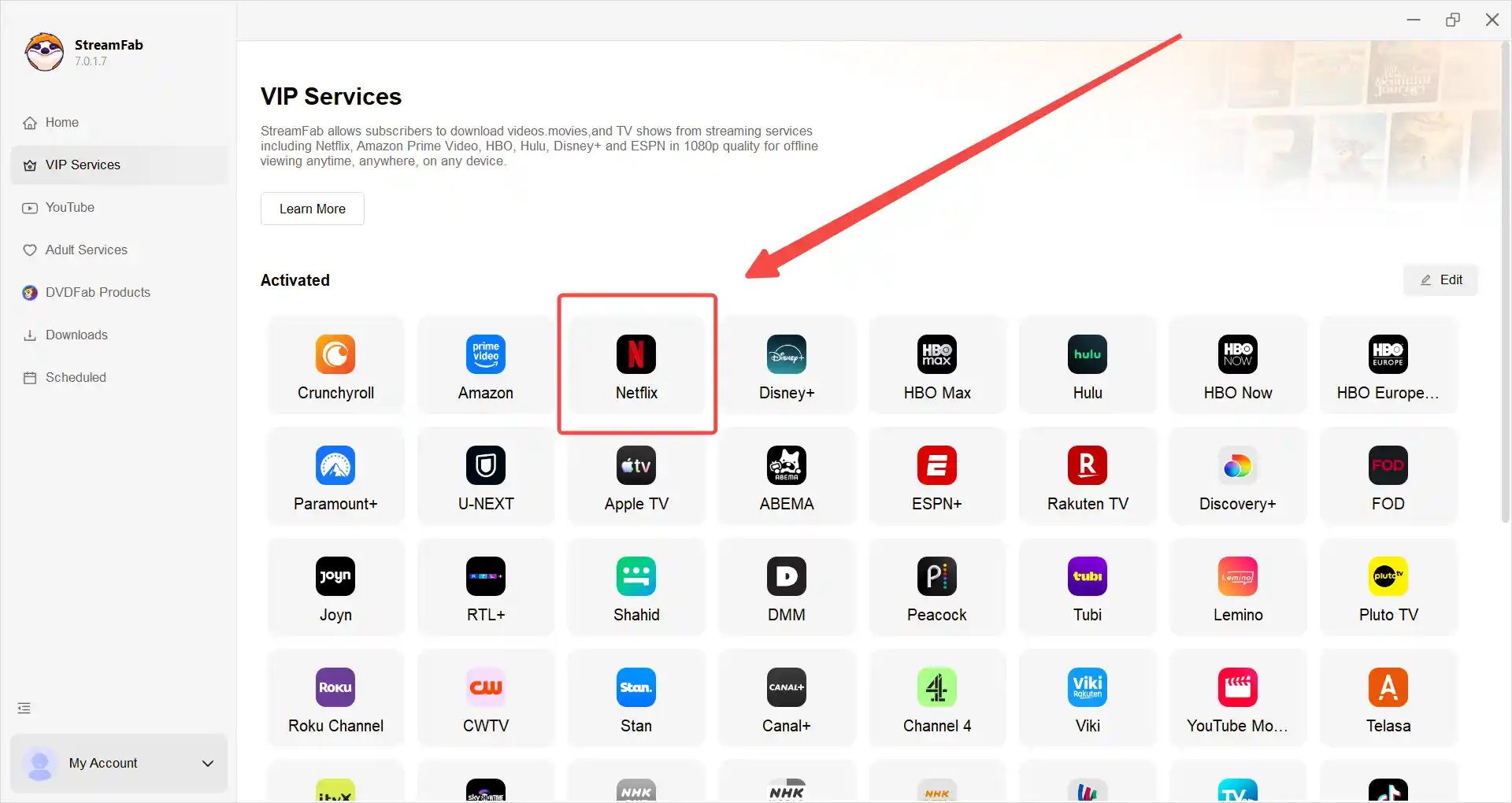
Tap the VIP Services to find the Netflix icon, and log into your Netflix account. Once logged in, you can browse and search for the movies or series that you are authorized to watch.
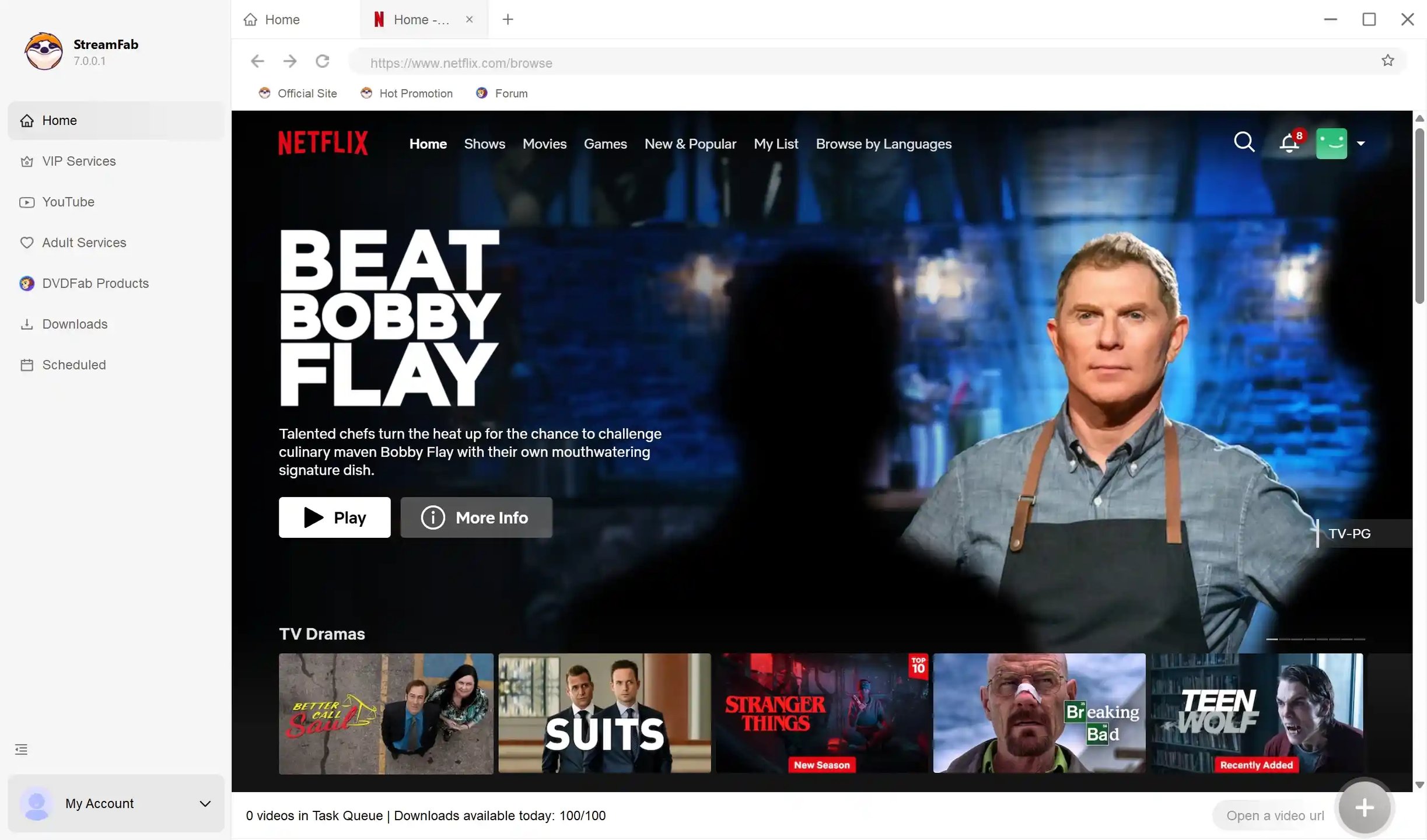
Alternatively, you may copy and paste the video URL directly into the address bar on the Homepage to access the title.
Search for the video and play it, then a pop-up window will ask for your video options. You can choose the audio, and subtitle language, and set the format as 'MP4'.
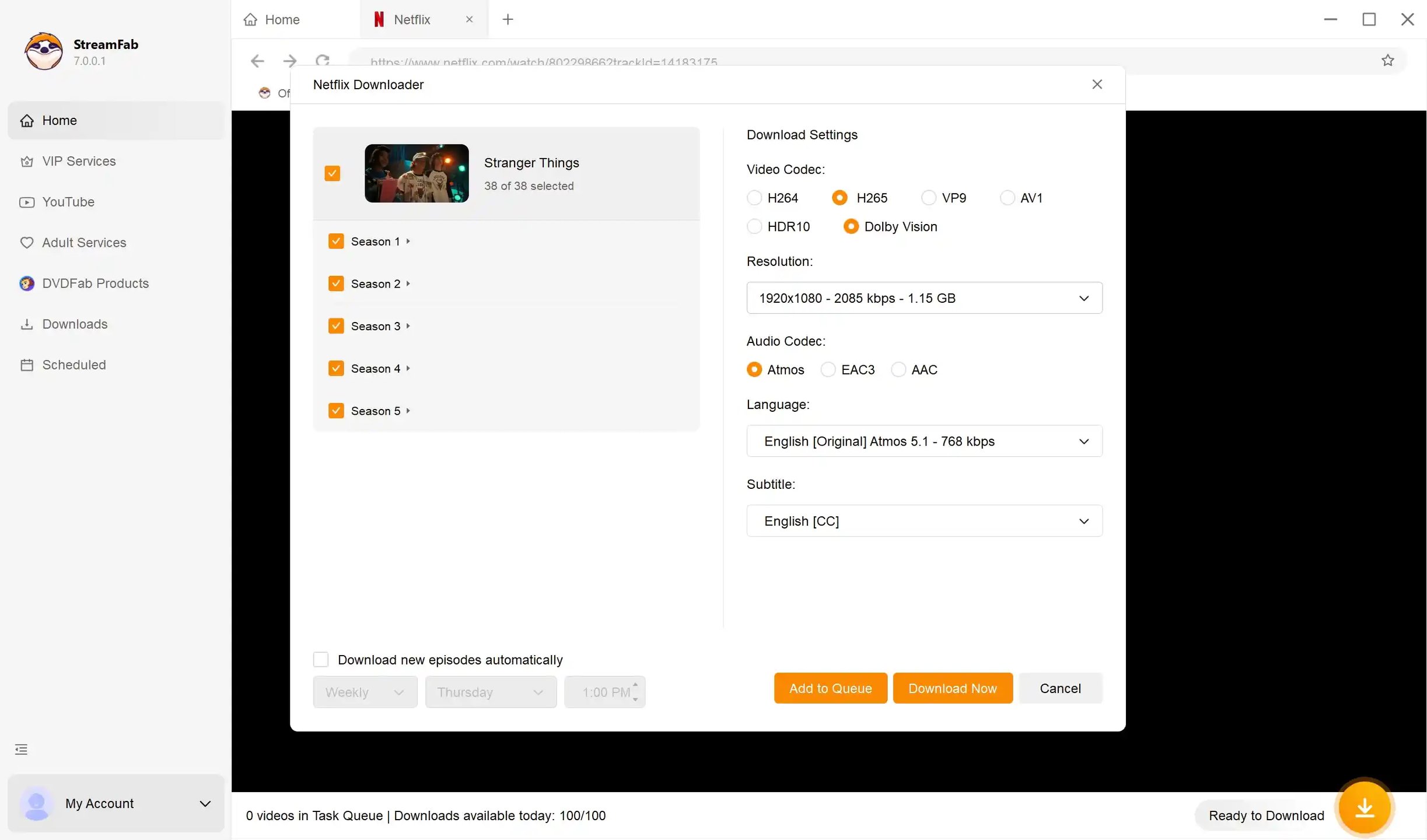
Here, you can select the preferred audio track and subtitle language, and choose MP4 as the output format.
Click the download button
After confirming your settings, you can start downloading the video immediately or add it to the download queue. Once completed, the MP4 file will be saved locally on your device for convenient offline playback within the scope of legitimate use.
StreamFab fits Windows and Mac users who need selectable codecs, audio, subtitles, and local files. It is less suitable when simple in-app viewing is enough, because the desktop workflow adds setup and moves to paid use after the trial.
Related: Output quality depends on the Netflix title, plan, and source availability.
Record Netflix Videos on PC
Real-time recording is a separate route for occasional MP4 capture. It can work when a direct local-file workflow is not the priority, but completion time and output quality depend more heavily on the recorder and computer.
Because general-purpose capture can show a blank frame, the limits described in this Netflix screen-recording overview matter when evaluating Audials One.
Audials remains an active Windows recording option. Open Netflix through its supported workflow, select the recording profile, play the authorized title, and let the recording finish before reviewing the MP4 output.
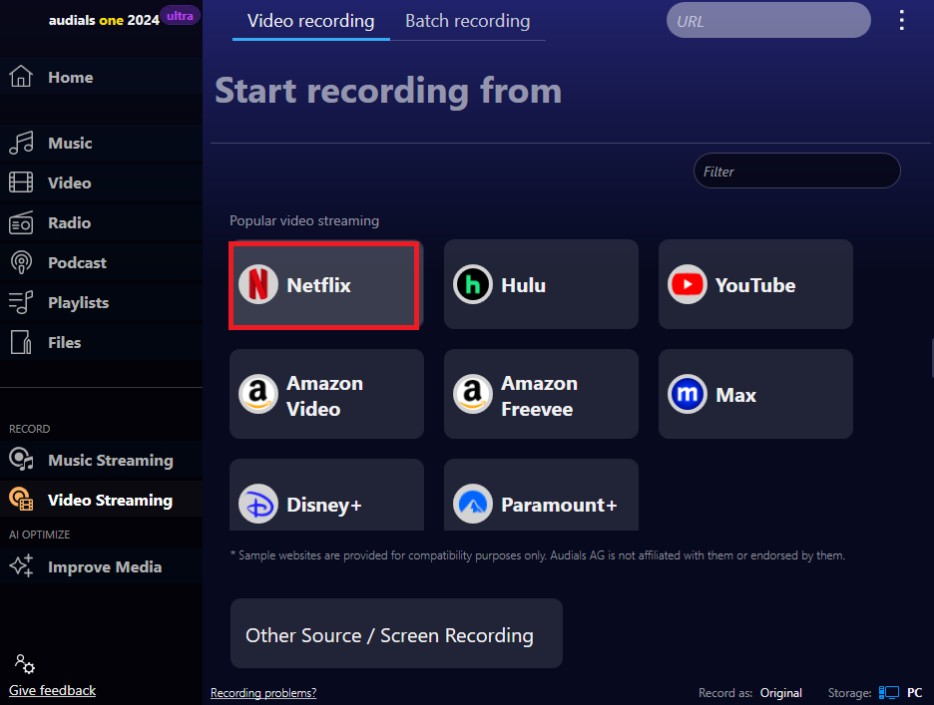
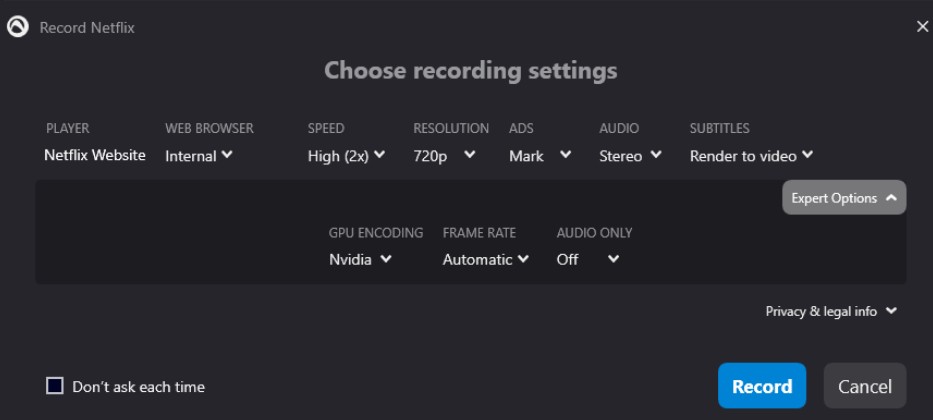
Real-time capture can fit occasional use when system-dependent output is acceptable. Screen recording Netflix is less suitable for long queues because:
- Protected playback may produce a blank screen in general-purpose recorders.
- Capture normally takes about as long as playback.
- Output quality and audio sync depend on software and system conditions.
Recording suits occasional users who accept playback-time capture and variable results. It is not the most direct fit for large episode queues or for viewers who want to configure audio, subtitles, and codecs before processing.
Related: Recording is a secondary route when configurable desktop files are not required.
Netflix Offline Options on Mobile
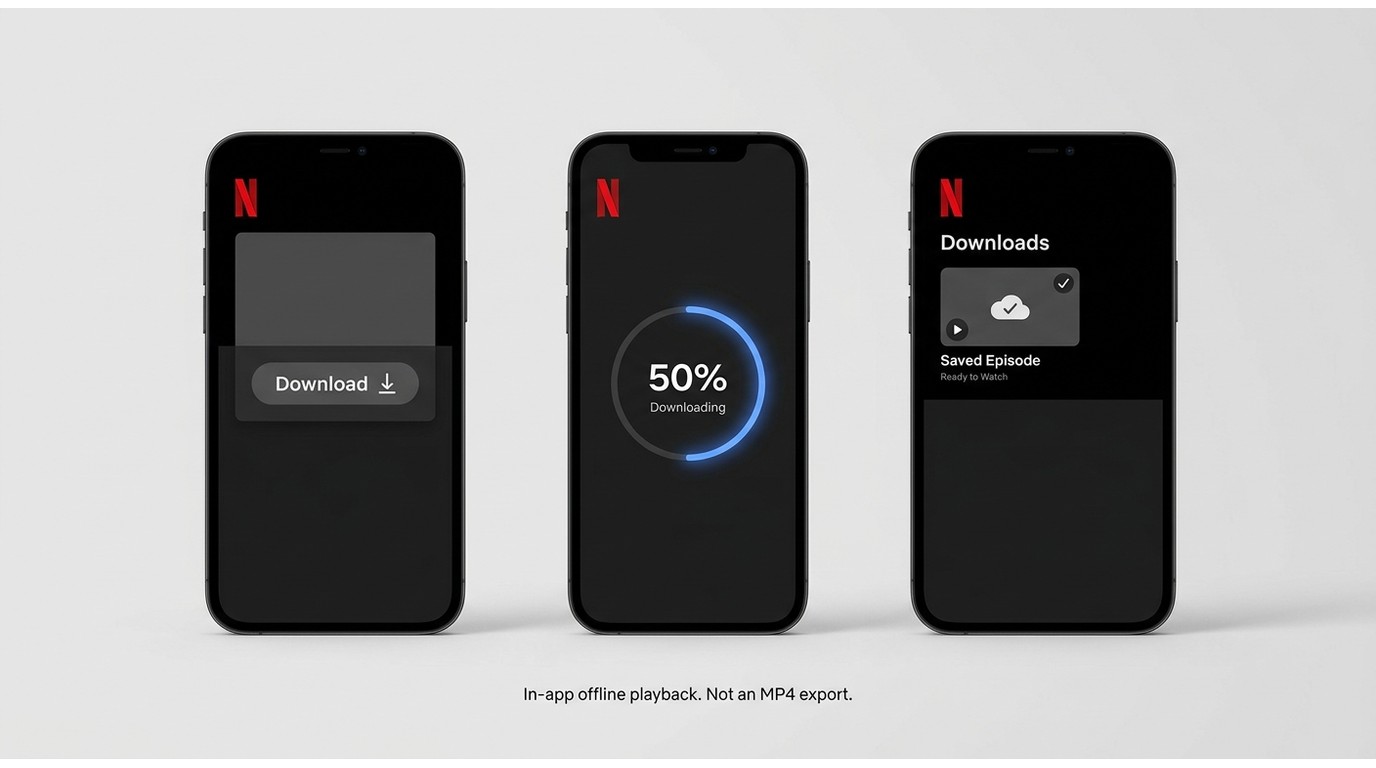
Netflix MP4 on mobile is not the same as an official mobile download. The Netflix app provides the supported in-app route, while PlayOn Cloud is a separate recording service with its own workflow and limits.
Official Netflix App Downloads
For most phone and tablet users, Netflix offline downloads in the official app are the simplest choice. They are included with an eligible plan, stay inside the app, and remain subject to device, title, and viewing-window availability.
- Open the Netflix app on an eligible device and sign in.
- Select a title that shows the download icon.
- Download it, then open the app's downloads area when you are offline.
The official app is the free Netflix download option for eligible subscribers, but it does not produce a portable MP4. Device and title availability may change, and Netflix download limits still apply.
PlayOn Cloud Recordings
PlayOn Cloud uses a separate cloud-recording workflow that can be managed from a mobile device. Treat it as a recording option rather than a way to export an existing Netflix app download.
- Install PlayOn Cloud and connect the supported Netflix channel.
- Select an authorized movie or episode and start a recording.
- After processing finishes, manage the recording from the app's library.
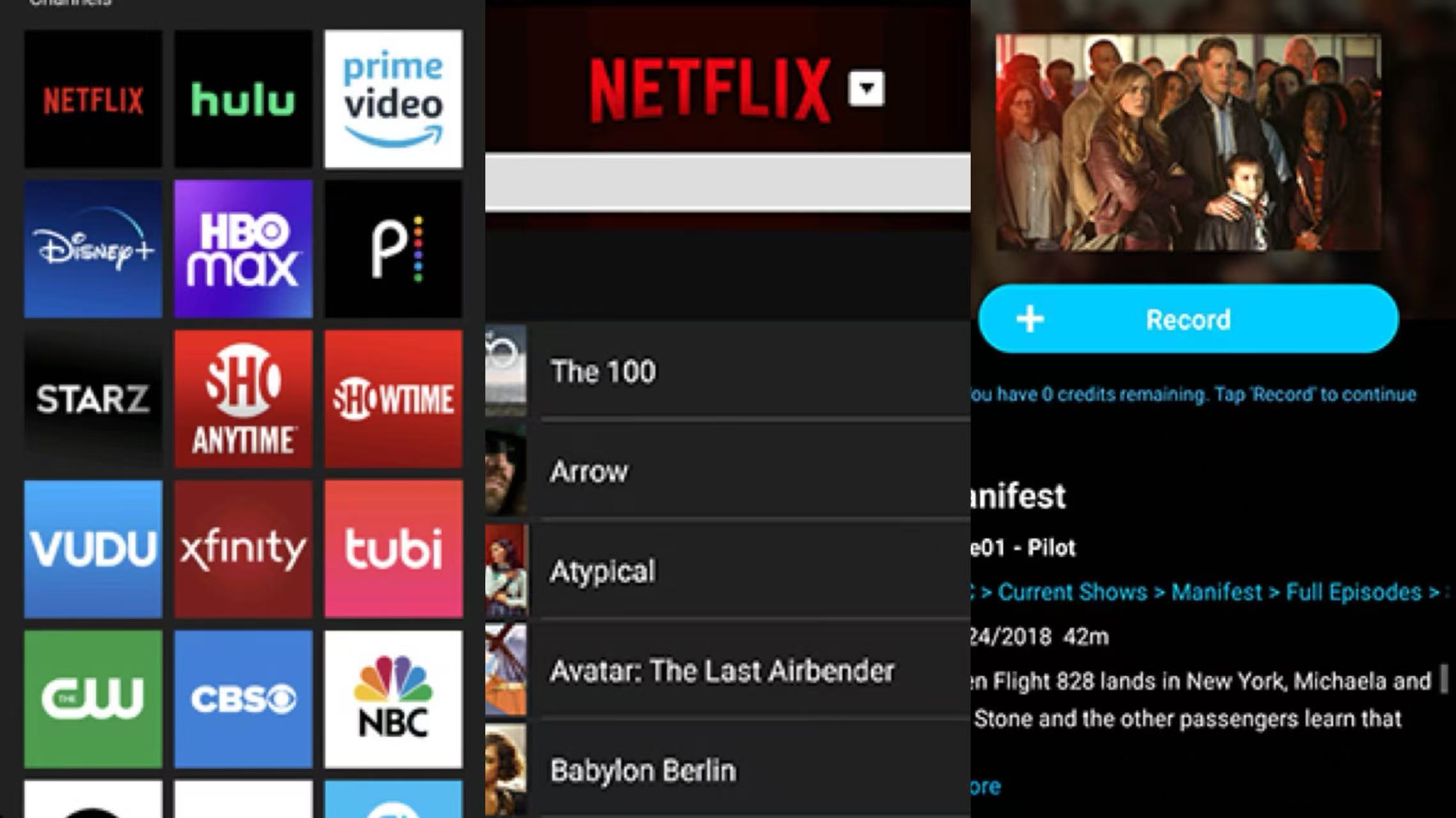
This route may suit users who prefer mobile management and accept service-dependent processing. It is less suitable for anyone expecting an official Netflix download to become a directly exportable file.

My recommendation on mobile is to use the official Netflix app unless a separate cloud-recording workflow clearly matches your file-management needs. Netflix movies can be transffered to USB, making it easier to manage your offline library across different devices when needed.
Netflix MP4 Options Compared
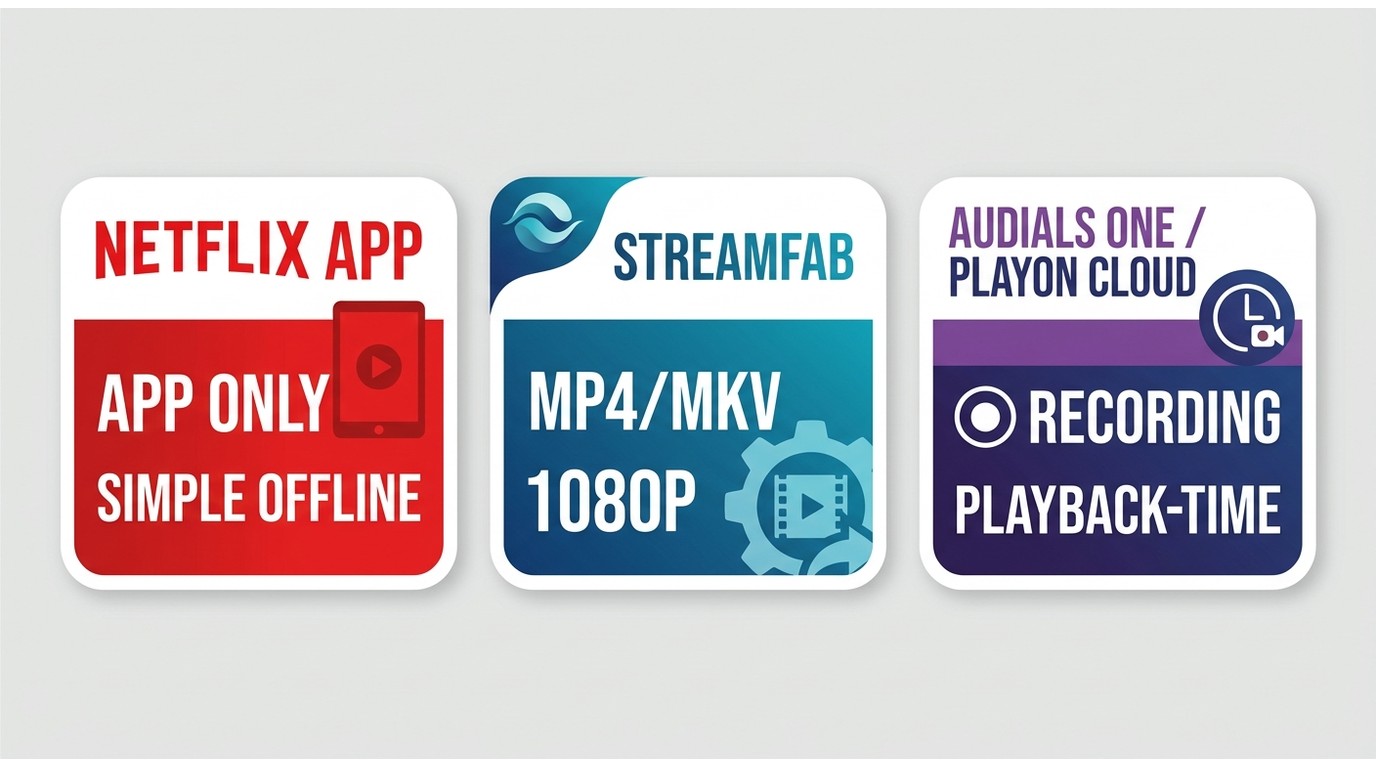
No single Netflix MP4 converter is right for every viewer. The useful comparison is app-only convenience versus configurable desktop files versus recording, with each method judged by output, quality, fit, and its main limitation.
| Method | Output | Typical quality | Best fit | Key limitation |
|---|---|---|---|---|
| Official Netflix app | App-only download | Varies by title and plan | Simple offline viewing | No MP4 export |
StreamFab Netflix Downloader | MP4 or MKV | Up to 1080p | Configurable desktop files | Windows/Mac; paid after trial |
| Audials | MP4 recording | System-dependent | Occasional PC capture | Takes playback time |
| PlayOn Cloud | Cloud recording | Service-dependent | Mobile-managed recording | Separate processing workflow |
The official app wins on simplicity. A desktop local-file workflow serves a different portability need, while real-time or cloud recording makes more sense only when its slower, system-dependent process is acceptable.
FAQs
1. Can all Netflix videos be downloaded to MP4?
2. Will the video quality be reduced when converting Netflix to MP4?
3. Is it legal to download Netflix to MP4 for personal use?
4. Can I convert an official Netflix download from NFV to MP4?
No. An official NFV download remains managed by the Netflix app, so NFV to MP4 is not a direct conversion path. A separate desktop workflow can create a local file from content you are authorized to access where the applicable rules permit it.
5. Which Netflix MP4 method is the best fit for me?
Choose the official app for simple in-app viewing, StreamFab when selectable desktop output matters, and a recorder for occasional playback-time capture. My preference is to start with the official route and add a local-file tool only when portability or file control is genuinely needed.
Update Log
August 2026: clarified the boundary between app-only downloads and MP4 files, refreshed the three offline options, and updated the comparison and FAQs.
Conclusion
Start with the official Netflix app for straightforward offline viewing. Choose a desktop downloader for configurable local files, or a recorder when occasional real-time capture is acceptable and its slower workflow is not a concern.
My balanced recommendation is to avoid adding a tool unless the app-only route fails your actual viewing need. StreamFab offers stronger file control on Windows and Mac, but it requires desktop setup and paid use after the trial.
Use local-file tools only for personal offline viewing of content you are authorized to access, where Netflix's terms and applicable law permit. Do not share or commercially use copyrighted recordings without authorization.

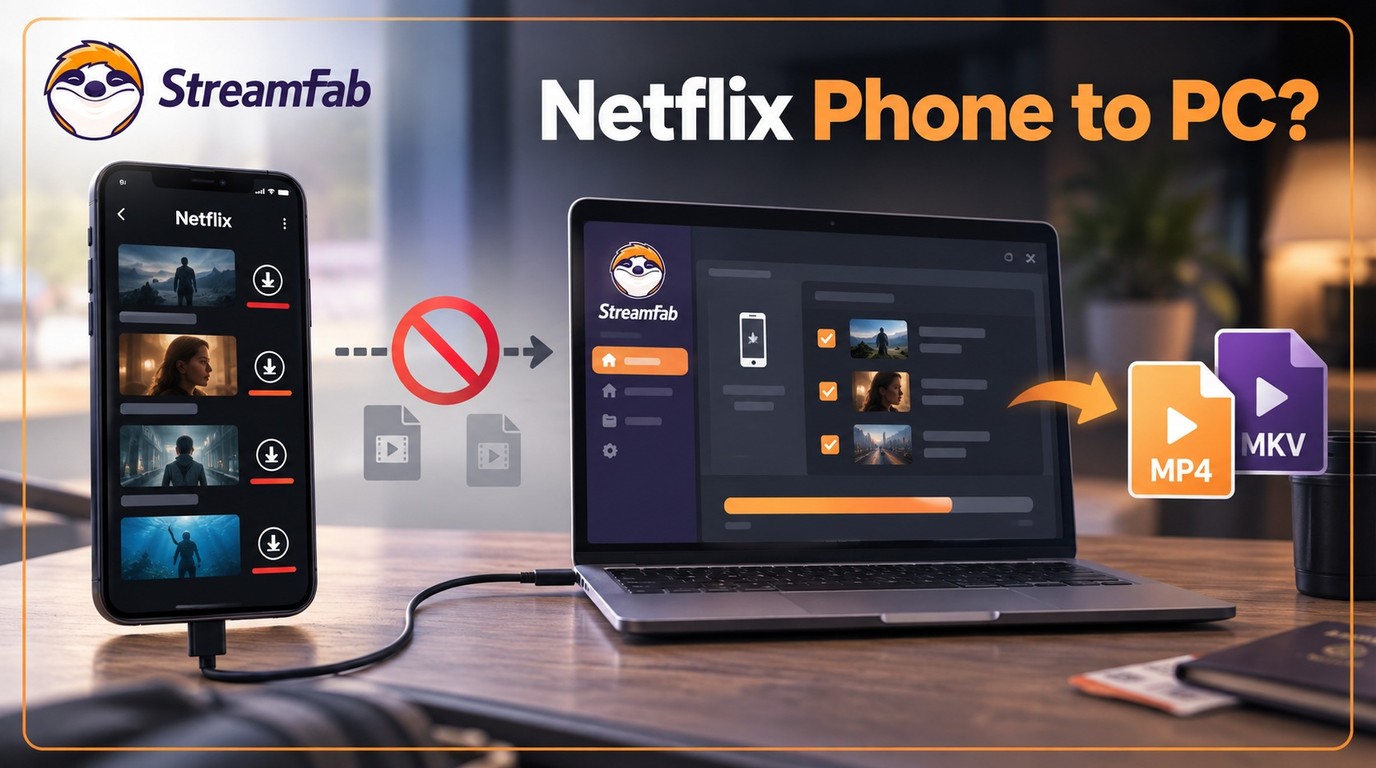
Can I transfer Netflix downloads from phone to computer? No direct method exists due to strict DRM, but you can convert them to MP4 for permanent cross-device offline viewing.
By Jacob Harrison - Sep 16, 2026
Netflix does not provide a native download path for macOS, but Mac users still have practical offline routes. This guide compares official iPhone and iPad downloads, cloud recording, and a desktop MP4/MKV workflow, with device requirements, measured StreamFab results, BlueStacks caveats, and troubleshooting steps.
By Marcia Hatcher - Sep 3, 2026
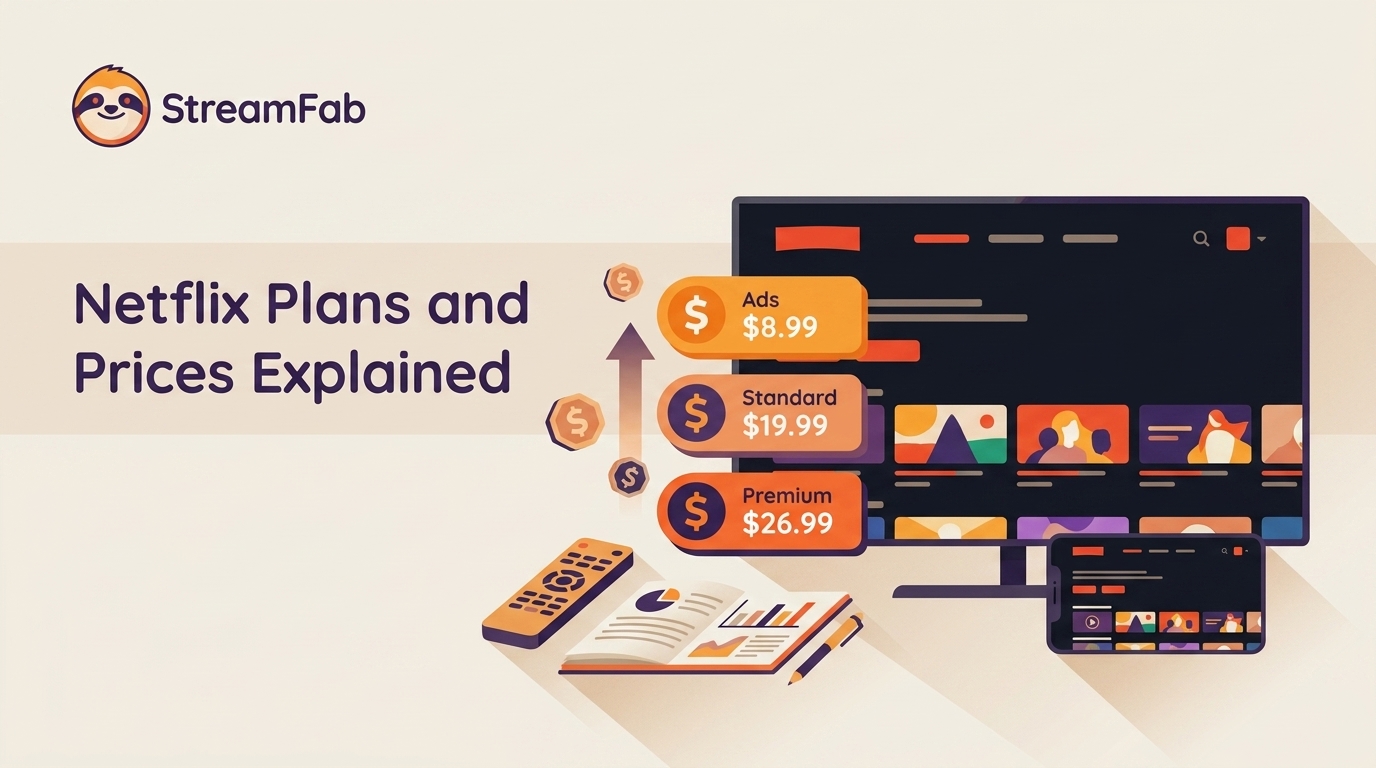
Netflix raised all three US plan prices in March 2026. This guide compares old and current rates, explains billing timing and add-ons, and helps you choose whether to keep, downgrade, rotate, or cancel based on actual use.
By Erika Leen - Aug 26, 2026

Discover the cheapest way to get Netflix in 2026. As a digital archiving expert, I break down plan comparisons, bundle hidden perks to build your permanent offline library.
By Marcia Hatcher - Aug 26, 2026