
How to Fix Disney Plus Protected Content License Error (2026)

Summary: This article will explain to you what the protected content license error of Disney Plus is, and then teach you eight ways to resolve this problem.
Table of Contents
The Disney Plus protected content license error, including a protected content license error on Roku, means playback authorization failed even if the app opens normally. The practical takeaway is to identify the failure scope first, then try low-risk device, display, network, and app recovery steps.
What the Protected Content License Error Means
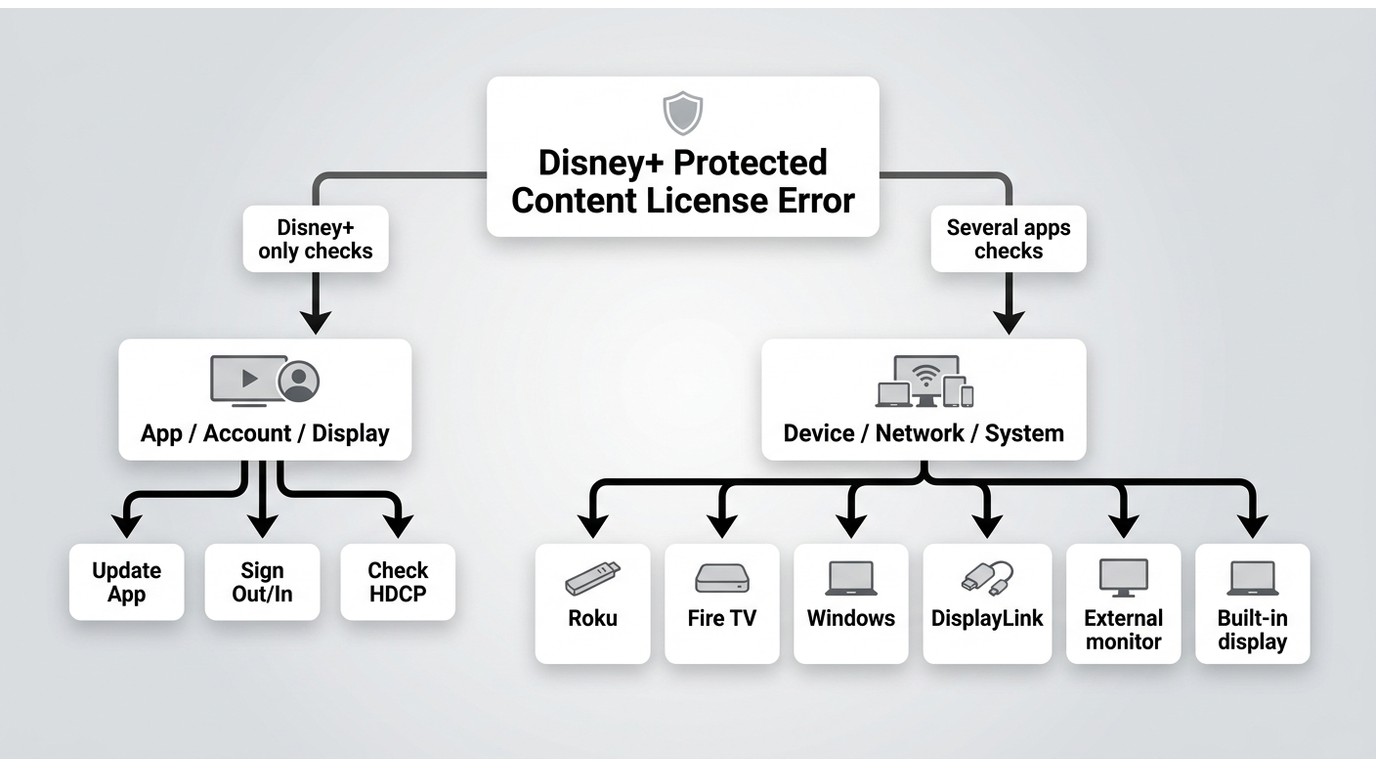
If Disney+ shows a protected content license error, the app could not complete playback authorization for your device or display connection, even if browsing and sign-in still work. First, check whether Disney+ alone fails or whether several protected-content apps fail on the same device. A Disney+-only issue often points to the app, account session, or display path; failures across apps are more likely to involve the device, network, or system software.
On newer Roku hardware, the error can also reflect DRM-stack compatibility during Roku OS's transition from PlayReady toward Widevine. Failure scope is more useful than repeatedly swapping cables because it separates an app-specific problem from a broader playback problem. On computers, disconnect external monitors, adapters, or DisplayLink software and retest on the built-in display. If the issue occurs on Fire TV, Disney+ troubleshooting for Fire TV can help narrow the device-specific checks.
Fix the Disney+ Protected Content License Error
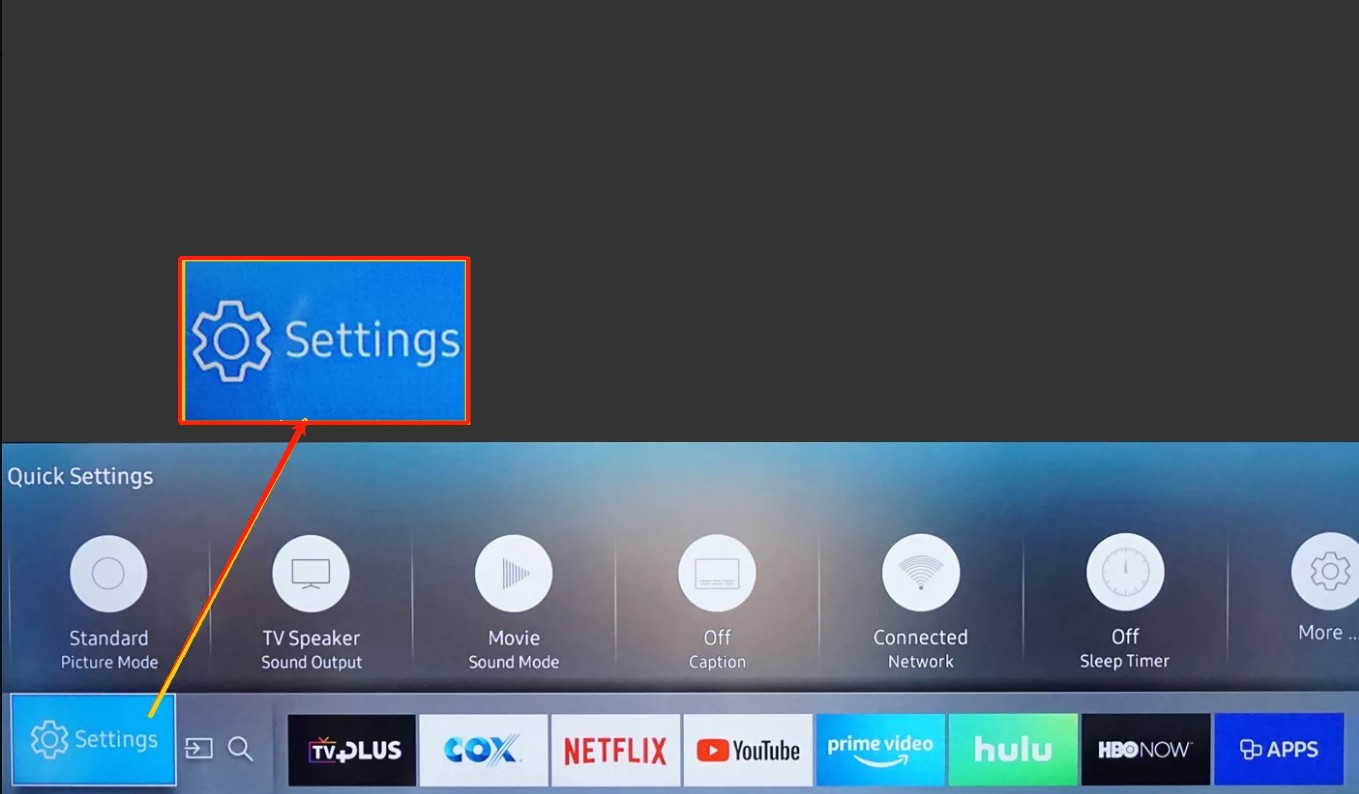
1. Update Your Device Firmware
Running outdated firmware is a common culprit. Ensure your TV or streaming device is running the latest software to support current streaming protocols.
2. Inspect Your HDMI Cable Connection
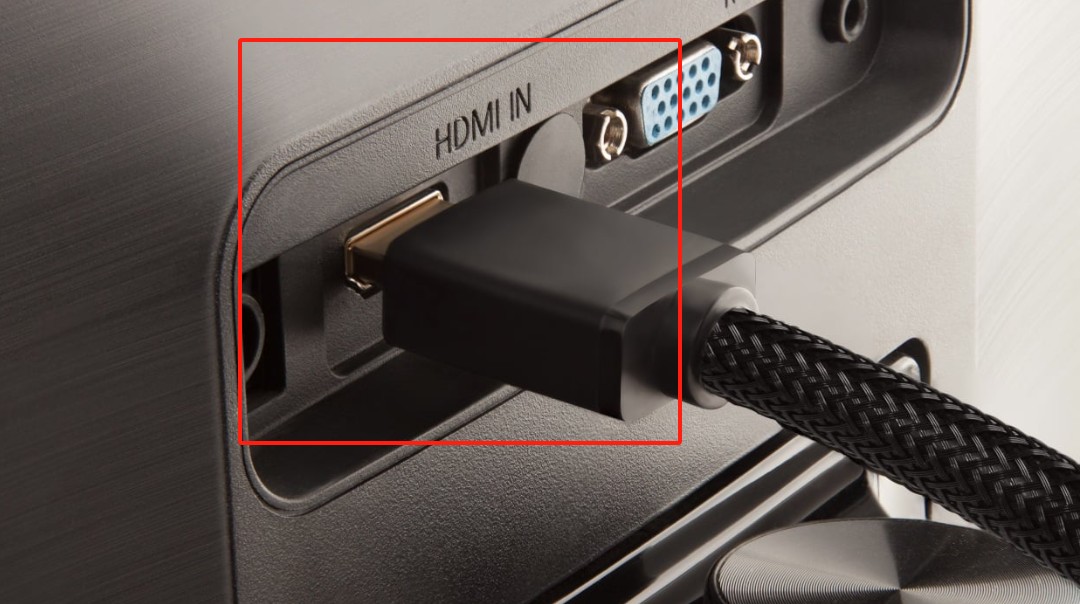
A faulty HDMI cable, port, receiver, or adapter can interrupt the HDCP handshake, the display-copy-protection check between your player and screen. Reseat the cable, test another port, and bypass a receiver or adapter when practical. For a recurring HDCP issue on Disney+, replace the cable only if the symptom follows that cable or returns after reseating it.
3. Reboot Your Streaming Device and Router
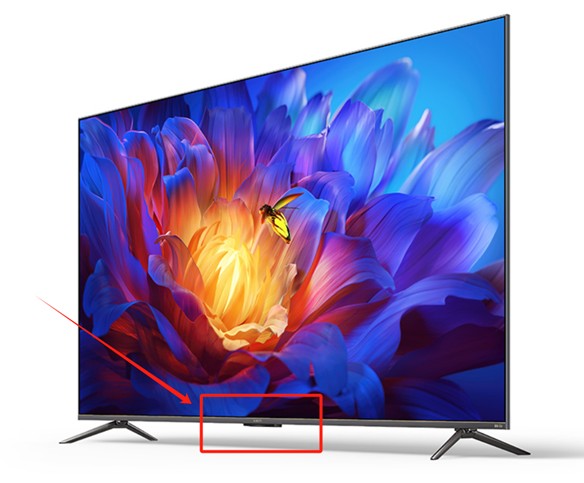
For a sudden intermittent failure, restart the streaming device, TV, and router in that order, then retest Disney+ before changing settings. This can clear temporary connection and authorization glitches, but it is unlikely to be enough when several apps keep failing after a device update.
4. Adjust Display Refresh Rate on Roku
On Roku devices that offer the setting, disable automatic display refresh-rate matching and retest before changing resolution or other display settings. Change one setting at a time so you can identify whether the display path is the cause.
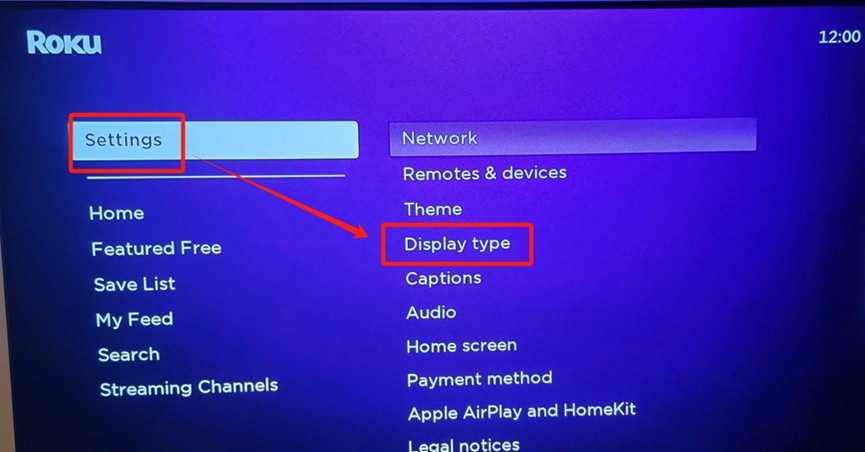
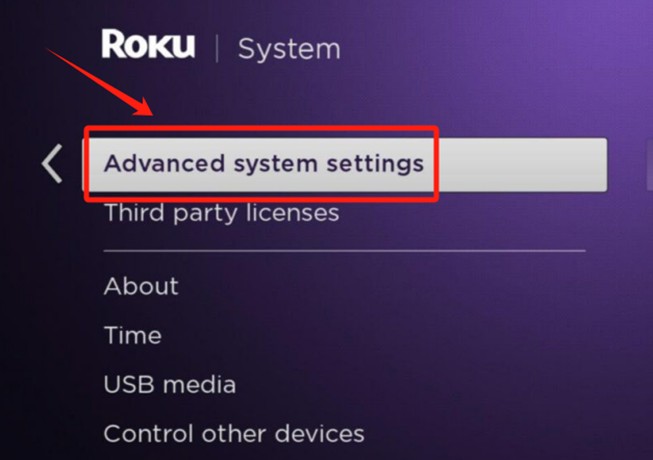
5. Escalate Network and App Recovery Safely
If the first four checks do not help, check Disney+ service status and test another network if possible. On Roku, a network connection reset removes saved network settings, so use it only after simpler router checks. Then clear Disney+ app data where supported, sign out and back in, and reinstall the app. Reserve a factory reset for last, after noting your settings and accounts; controlled escalation is more useful than repeated retries.
Choose Live Playback Repair or Offline Viewing
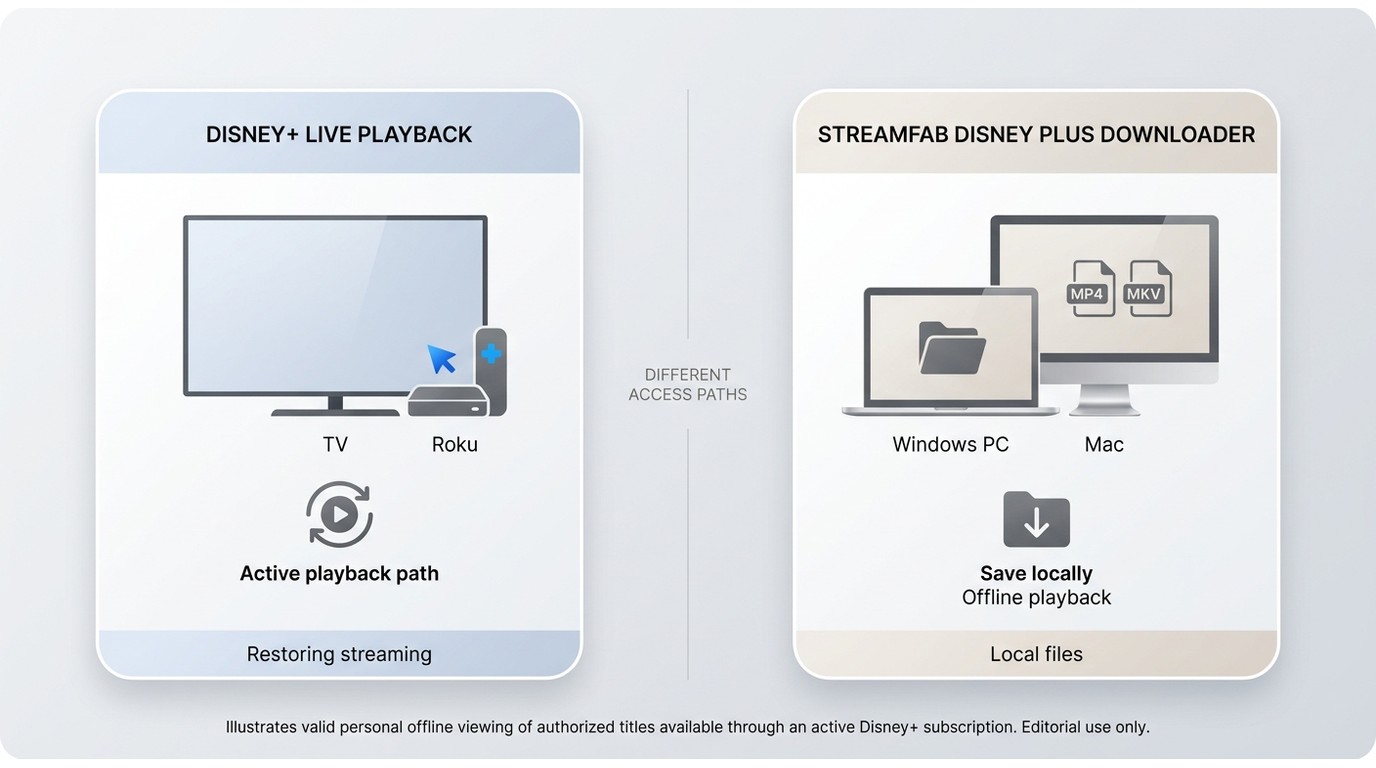
Repairing live playback is the first choice when you want Disney+ streaming restored on the affected device. For content you are authorized to access, where permitted by platform terms and applicable law, StreamFab Disney Plus Downloader is a desktop alternative for personal offline viewing when live playback remains unavailable.
| Primary goal | When it helps | Viewing dependency | Result | Not ideal for |
|---|---|---|---|---|
| Restore Disney+ streaming | One device has a playback error | Active app, network, and display path | Live playback resumes | Portable local-file needs |
| Local files with StreamFab | Authorized personal offline viewing | Compatible desktop and local playback | MP4 or MKV files | A quick Roku setting fix |
StreamFab Offline Viewing Features and Limits
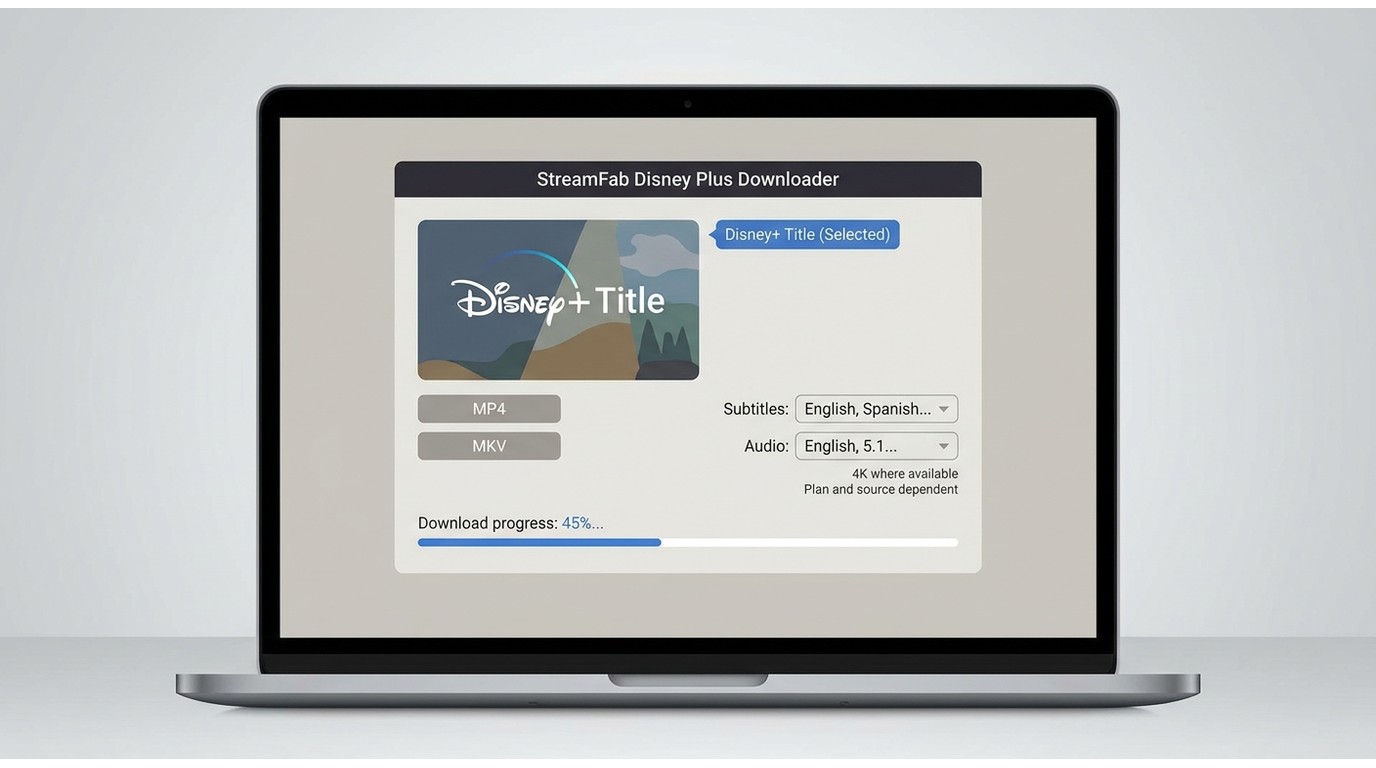

A reliable tool to save Disney Plus content in premium quality for personal offline viewing.
- Save authorized Disney+ titles as MP4 or MKV, up to 4K where available.
- Choose Dolby Vision or HDR options and Atmos, EAC3 5.1, or AAC 2.0 audio.
- Select subtitle languages for compatible titles.
- Include available Extras or Bonus clips when needed.
StreamFab Disney Plus Downloader is a Windows and Mac desktop app that saves authorized Disney+ titles as MP4 or MKV, with up to 4K where available and selectable subtitle and audio options.
Disney+ Protected Content License Error FAQ
What causes the protected content license error on Disney Plus?
Can a bad internet connection cause this error?
Why does changing my display refresh rate fix the issue?
Why does Disney+ say it failed to renew the content license?
A failed content license renewal means Disney+ could not complete playback authorization at that moment. If the app opens but the title will not start, focus on the device, display path, network, and app session rather than treating it as a separate error-code issue.
Can an external monitor or DisplayLink trigger this error?
Yes. Some external-display paths, adapters, docks, and DisplayLink software can interfere with protected playback. Disconnect them temporarily, test the built-in display, and reconnect components one at a time before changing account settings.
Can I fix the error on Android without resetting my device?
Usually, start with a force-stop, app update, cache clearing where available, and sign-out before reinstalling Disney+. A full device reset should be a last resort after those lower-impact recovery steps fail.
When to Contact Disney+ or Roku Support
Contact Disney+ or Roku support if the error persists after the ordered checks, begins after a Roku update, affects several protected-content apps, or appears on newer hardware despite restarting and updating firmware. For a useful Roku support handoff, include the device model, Roku OS version, affected apps, and the steps already completed in your support report.
Conclusion: Final Checklist for Restoring Playback
First, identify whether the Disney Plus playback error affects Disney+ alone or several protected-content apps. Apply the five fixes in order, and stop before network or factory resets unless lower-risk steps fail. For persistent cross-app or newer-device cases, contact Disney+ or Roku support. If live playback remains unavailable, StreamFab Disney Plus Downloader may be a secondary desktop option for authorized personal offline viewing where permitted by platform terms and applicable law.


Officially, you cannot download Disney Plus movies on a laptop natively. This post explores solutions to batch download Disney Plus series and movies in 4K HDR10 for personal offline viewing without black screen errors.
By Erika Leen - Sep 16, 2026
No online converters work due to recent DRM CDM updates. Discover the definitive technical method to bypass hardware acceleration black screens and securely archive Disney Plus to MP4 in true lossless 4K for your Plex library or USB storage.
By Erika Leen - Sep 15, 2026
You may encounter balck screen when recording Disney+ movies. Here, we will tell how to screen record Disney Plus on iPhone, Android, PC, and Mac. without errors
By Nicole Lopez - Aug 25, 2026
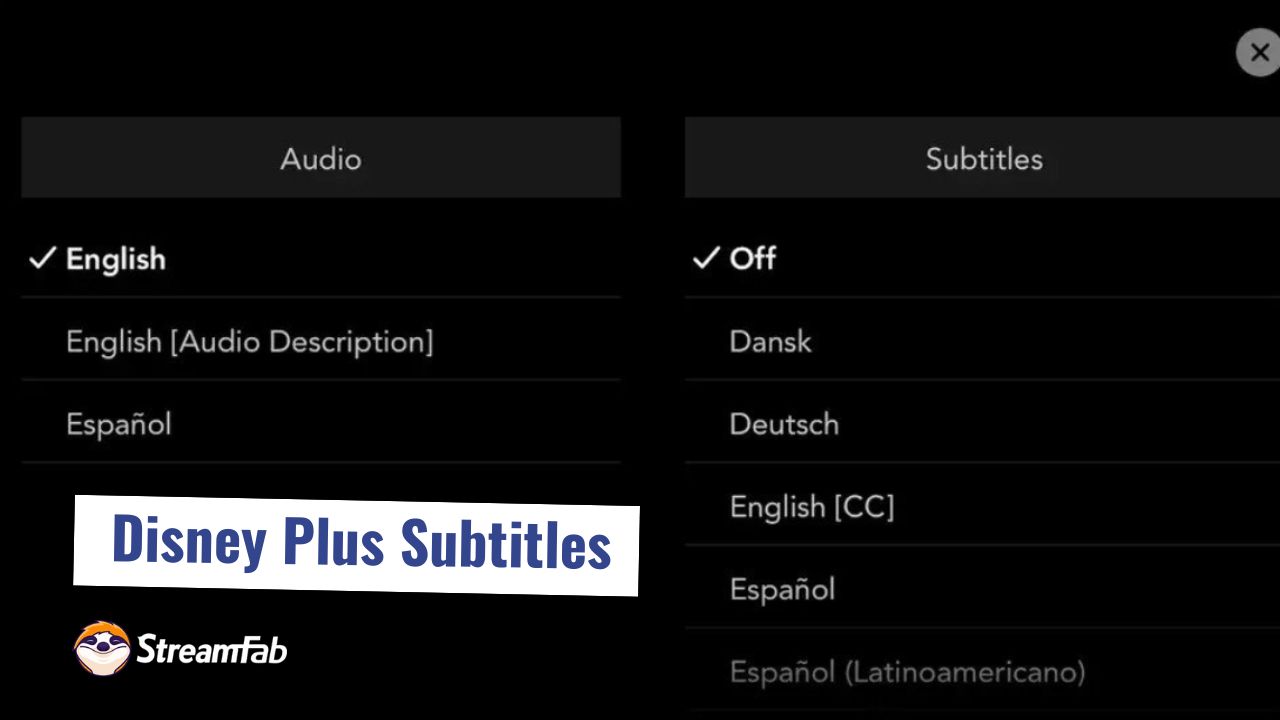
This article elucidates the process of enabling and disabling subtitles on Disney videos, providing detailed operational steps, as well as instructions on how to download Disney videos with subtitles or save such subtitles as SRT files.
By Erika Leen - Aug 5, 2026