
Downie Review 2026: Mac Video Downloader Tested, Pricing, Limits

Summary: Downie is still a solid Mac-only video downloader in 2026, sold as a $19.99 one-time license, and it handles 1,000+ general video sites cleanly. It does not download Netflix, Prime Video, Disney+ or other subscription streaming services, and there is no Windows build, so whether it's the right pick depends entirely on what you're trying to save.
I spent time with the current Downie 4.x build on macOS, checked how it behaves with YouTube after the recent regressions users have been flagging, and cross-checked pricing against the developer's own page.
Below: what Downie actually does well, where it hits a wall, and when a cross-platform tool like StreamFab makes more sense.
What Is Downie, and Who Is It For?
Downie is a Mac-only video downloader from Charlie Monroe Software, built for one job: grabbing a video off a supported website by pasting a URL or dragging a link onto the app icon. It's a good fit for Mac users who occasionally save clips from YouTube, Vimeo, Dailymotion or the long tail of general video hosts.
It's not for you if you're on Windows, you want a mobile app, or you need to save from subscription streaming platforms like Netflix or Disney+.
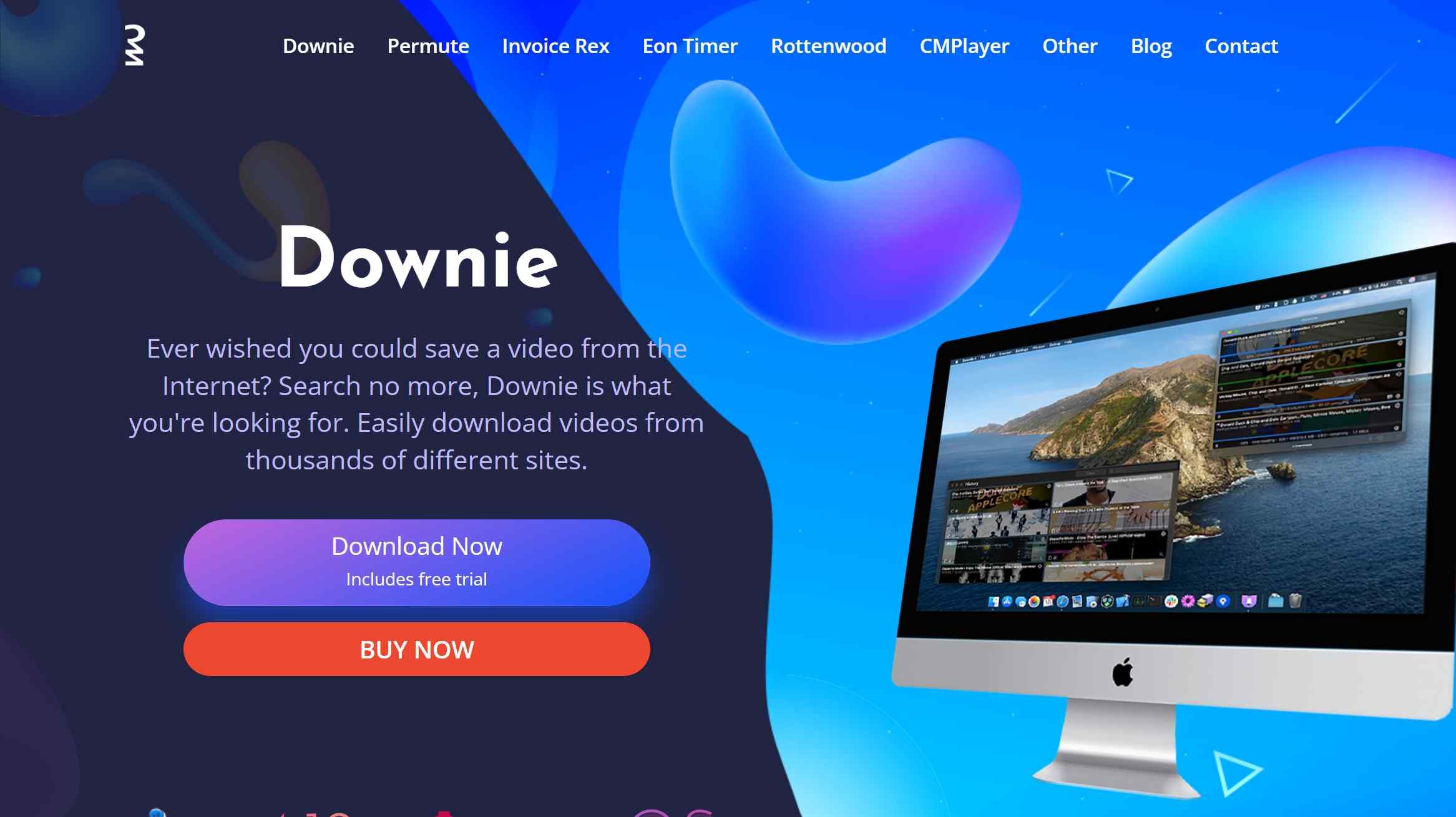
- Platform: macOS only (Intel and Apple Silicon); no Windows build
- Site coverage: 1,000+ general video hosting sites (YouTube, Vimeo, Dailymotion and similar)
- Download methods: Paste a URL, drag a link onto the app, or use the built-in search
- Best for: Mac users who occasionally save clips from general video sites
- Key limitation: Does not download from subscription streaming services (Netflix, Prime Video, Disney+, etc.)
Downie Pros and Cons at a Glance
If you're skimming, here's the honest verdict before the deep dive.
Pros
- Works with 1,000+ general video sites (YouTube, Vimeo, Dailymotion and the long tail)
- Clean drag-and-drop workflow; genuinely simple on macOS
- $19.99 one-time license from the developer, not a subscription
- Active maintenance from a small, responsive team (updates roughly every one to two weeks)
- Preserves original quality up to 4K where the source provides it
Cons
- macOS only; no Windows build and no mobile app
- Does not support subscription streaming services (Netflix, Prime Video, Disney+, HBO Max)
- Recent builds have shown YouTube reliability regressions users have flagged in 2026
- Audio output is stereo; no multi-channel or HDR passthrough
- Optional paid major upgrade if you want the next generation someday
My take: for a Mac user who wants to save the occasional YouTube or Vimeo clip, Downie is worth its $19.99. If you need Windows, streaming platforms, or 8K/HDR, it's simply the wrong tool.
Downie Tested: A Five-Aspect Breakdown
- This review is based on hands-on time with the current Downie 4.x build on macOS, cross-checked against the developer's own product page for pricing and versioning, plus 2026 community threads for the YouTube reliability caveat. Where Downie hits a ceiling, I've compared it against tools I actually use across Windows and Mac.
- For more solutions, you can check our selection of thebest streaming video downloaders.
1. Supported Sites and Platforms: 4.0/5.0
Downie gets a solid 4.0 for site coverage in 2026. It handles YouTube, Vimeo, Dailymotion and a long tail of niche hosts; the 1,000+ sites figure is real for general video. One caveat I'd add from watching the community in 2026: several users have flagged that YouTube downloads stopped working reliably in some of the newest builds, so staying on the latest version — and expecting the occasional short break after a platform change — is part of the deal.
2. Download Methods and Interface: 3.5/5.0
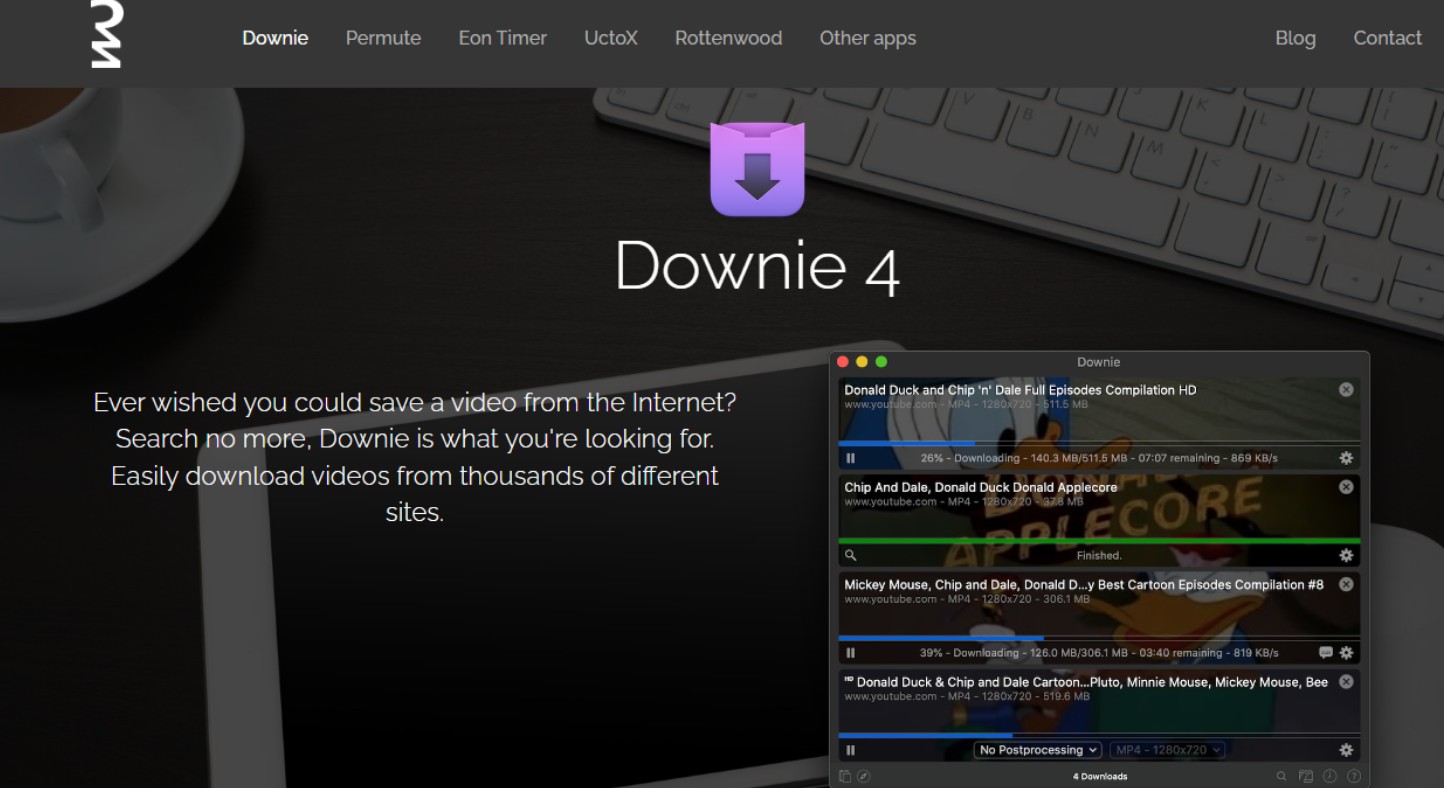
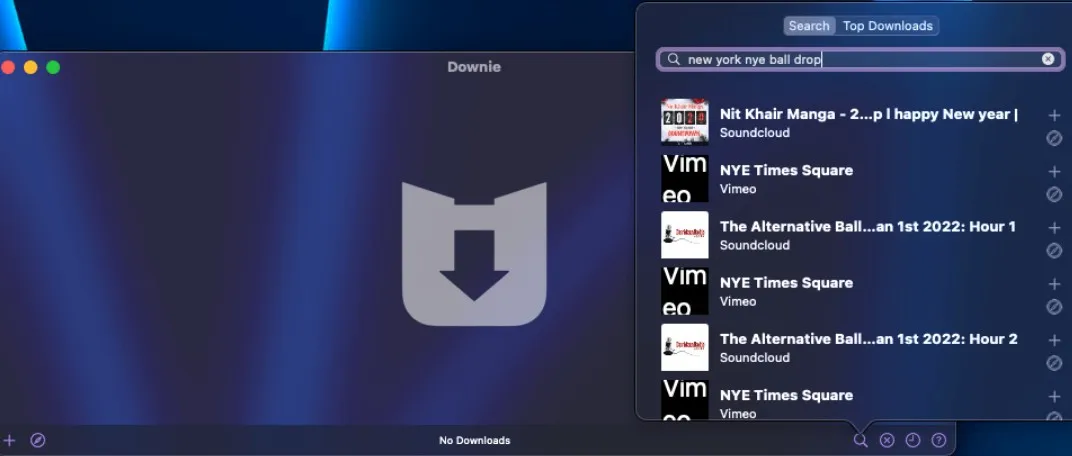
Downie gives you three ways in: paste a URL, drag a link onto the Dock icon, or use the built-in search by title/keyword. Paste-and-go is the workhorse and it's genuinely frictionless.
The built-in search works but isn't as sharp as searching on the source site — I use it as a fallback, not the primary path. The interface is minimal and drag-and-drop friendly, which is exactly what you want in a utility of this size.
3. Video Quality and Format Specs: 4.5/5.0
For supported sites, Downie's output specs shake out like this:
- Resolution ceiling: up to 4K where the source provides it
- Format preservation: original stream, no forced recompression
- Container: MP4 (with the option to keep the original)
- Audio: stereo; no multi-channel or HDR passthrough
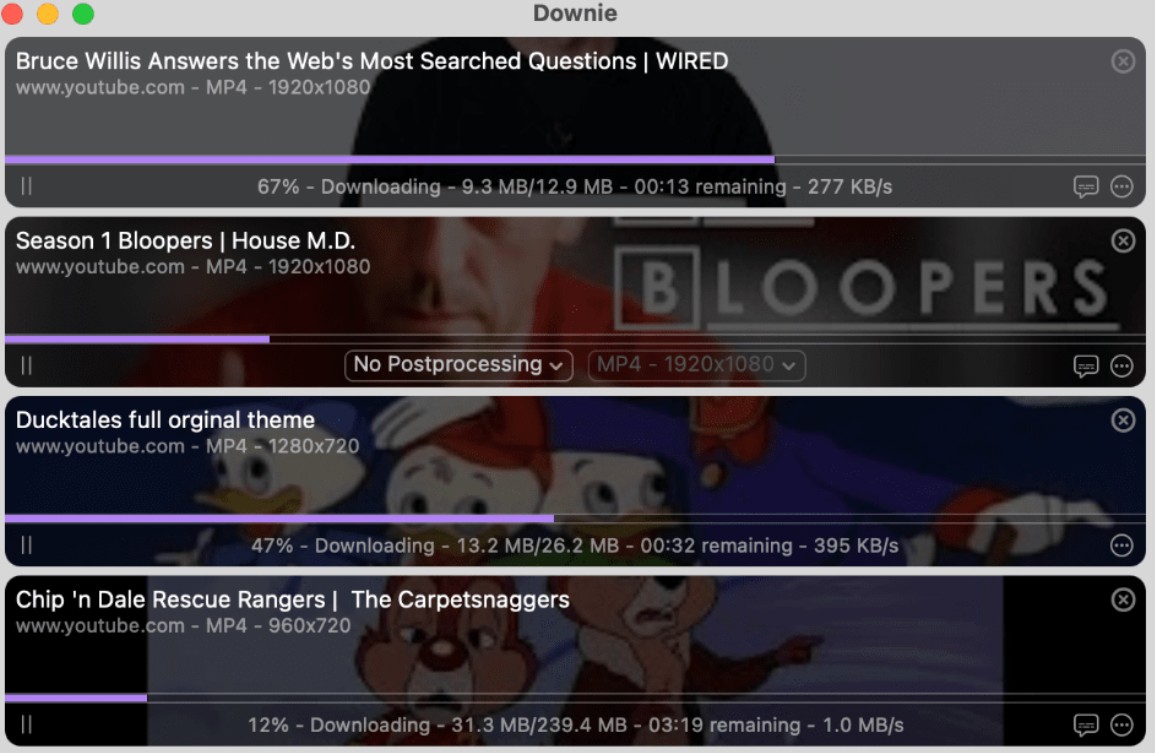
- Throughput: ~1–2 MB/s in my testing on a home connection
The ceiling is the source, not the app — Downie can't invent detail that YouTube or Vimeo didn't hand it. If you're specifically weighing Downie vs. 4K Video Downloader on quality, they land in a similar 4K/stereo tier; the real differentiators sit elsewhere (workflow, coverage, licensing).
4. Support and Update Cadence: 4.5/5.0
Downie's support is a genuine strong point in 2026:
- Response time: typically within 24 hours
- Helpfulness: knowledgeable, solution-oriented replies
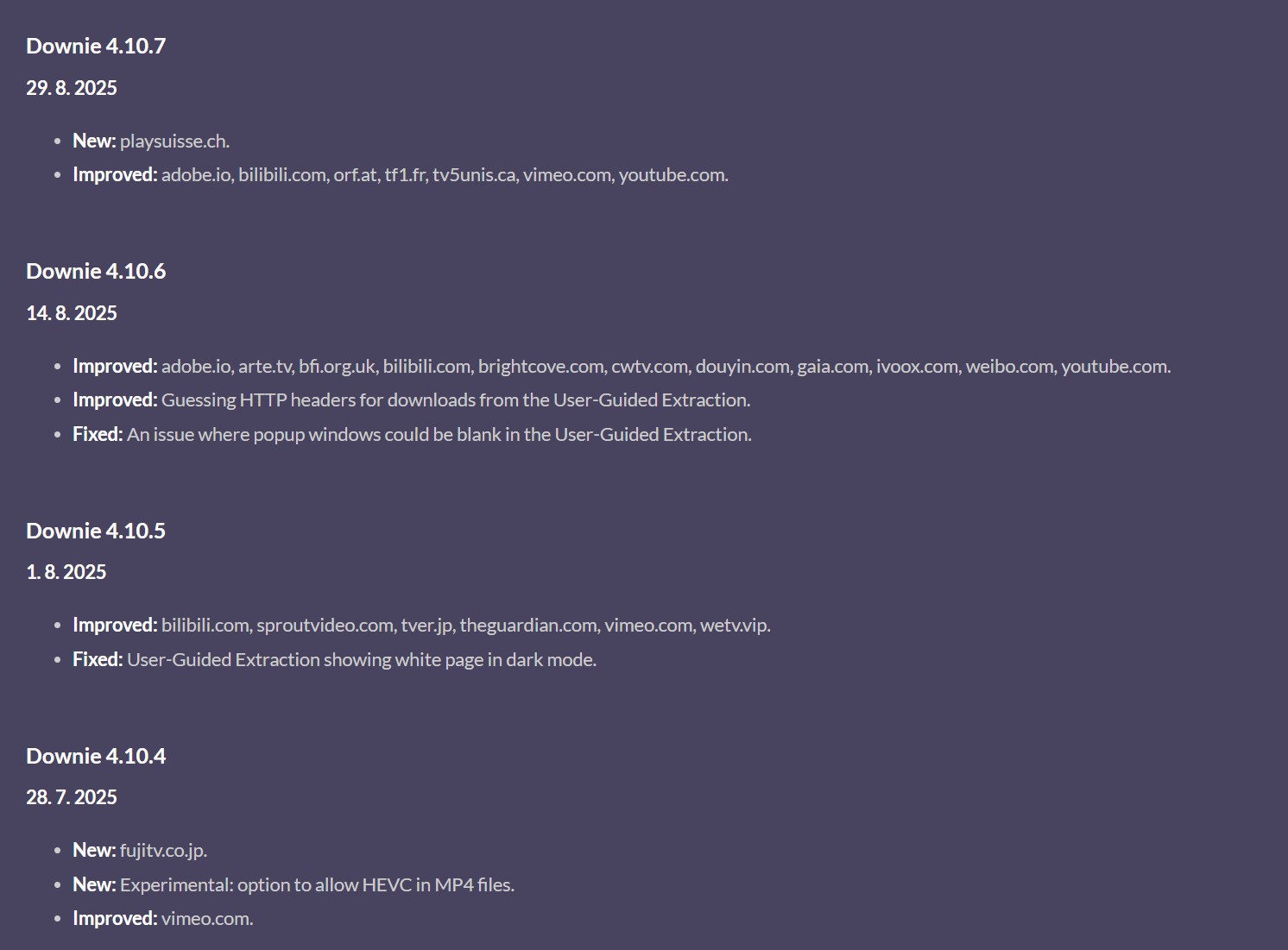
- Update cadence: roughly every one to two weeks, which is fast for a small team
That cadence matters more than it sounds — video sites change scrapers constantly, and a downloader that ships fixes every couple of weeks is a downloader that keeps working.
5. Pricing and Licensing: 4.0/5.0
This is the section the older version of this review got wrong, so let me be direct:
- Current version: Downie 4.x (v4.12.11 at the time of writing)
- Price: $19.99 one-time from the developer — described as "one purchase, yours forever"
- Upgrade model: optional paid major upgrade if a next generation ever ships; not a forced annual renewal
- Alternative path: also bundled inside a Setapp subscription
At $19.99 for a well-maintained utility you actually own, the value is clean. The catch isn't the price — it's the ceiling on what Downie can do (see the next few sections).
Does Downie Reliably Download YouTube in 2026?
Short version: yes, Downie still downloads YouTube in 2026 — but with an asterisk. Several 2026 users have reported that YouTube downloads stopped working reliably in some of the most recent builds, which is what happens whenever YouTube changes its player. In practice this means two things: keep Downie updated (the one-to-two-week cadence is exactly why you paid for it), and expect the occasional short outage right after a platform change.
Two other practical limits worth naming: pulling many videos back-to-back can trigger YouTube's rate limits, and the maximum resolution is whatever YouTube serves your browser for that clip (not every video is available in 4K). If you need YouTube specifically as part of a wider streaming workflow, our StreamFab YouTube downloader guide covers the cross-platform side.
Is Downie Safe, and What Do Users Say?
Yes, Downie is safe to use. It's a legitimately developed and actively maintained app from Charlie Monroe Software, distributed through the developer's own site, the Mac App Store, and Setapp. The real safety risk isn't Downie — it's the "downie crack" or pirated builds circulating on shady sites, which are the usual vector for macOS malware. Buy it from the developer or Setapp and skip that headache entirely.
User sentiment tracks the same story. On Setapp, Downie carries roughly a 98% positive rating across about 5,480 reviews (as of July 2026), with a lot of "by far the best video downloader on Mac" energy. The honest counter-note in 2026 threads is the YouTube reliability wobble mentioned above — real, but bounded to platform changes and usually fixed within an update cycle. If you're weighing this against a paid streaming tool, our is StreamFab safe writeup applies the same lens to StreamFab.
Downie Pricing, Free Trial, and Setapp
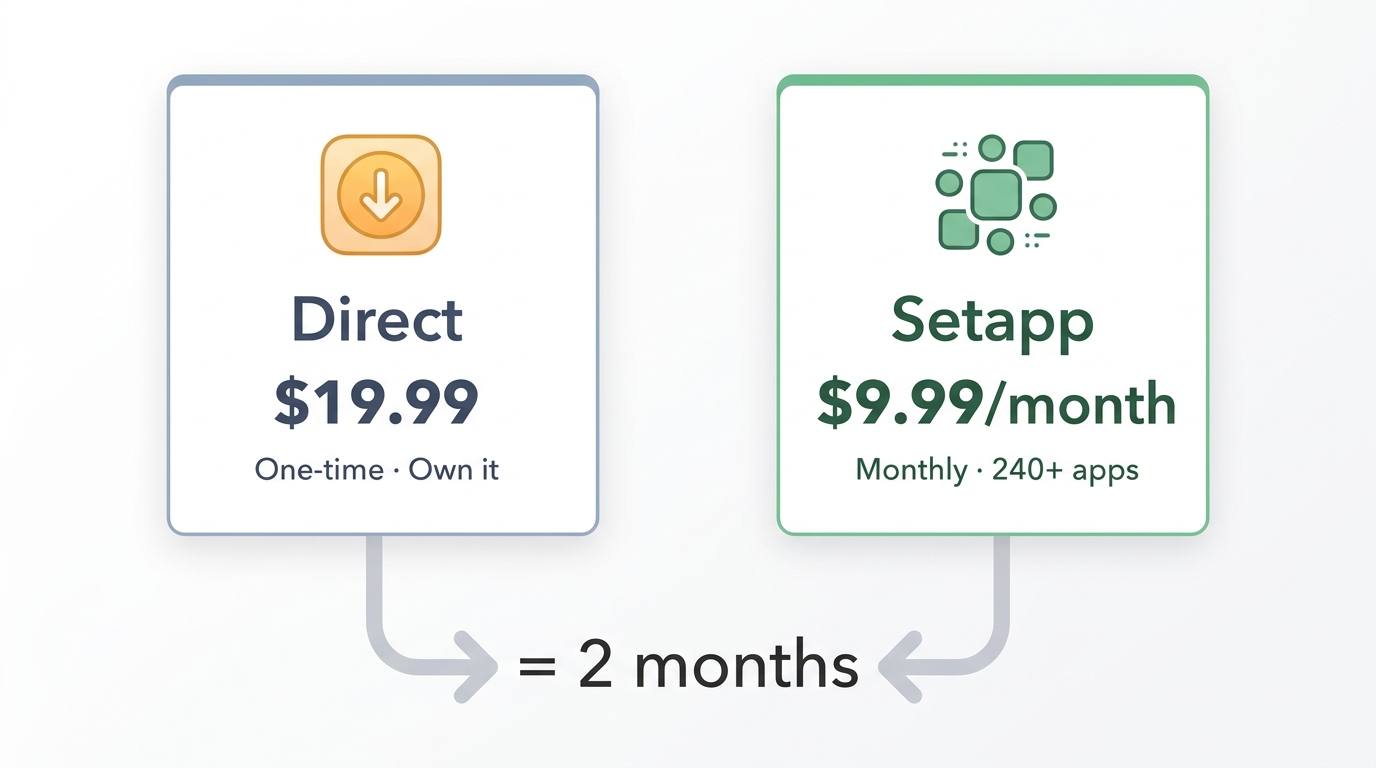
Two clean ways to get Downie, depending on how you buy software:
- Direct from the developer: $19.99 one-time license for the current major version. A free trial is available before you pay, so you can confirm your target sites work on your Mac first.
- Via Setapp: bundled inside Setapp's Mac app subscription (around $9.99/month for the standard Mac plan). This makes sense if you already use, or want, several other Setapp apps.
My rule of thumb: if Downie is the only Setapp app you'd actually use, the $19.99 one-time buy pays for itself in two months. If you'd use three or four Setapp apps, the subscription is the better math. Setapp's monthly rate is subject to change (as of July 2026), so double-check on their site before signing up.
Using Downie: A Step-by-Step Walkthrough
The operation steps of Downie downloader are simple and easy for beginners:
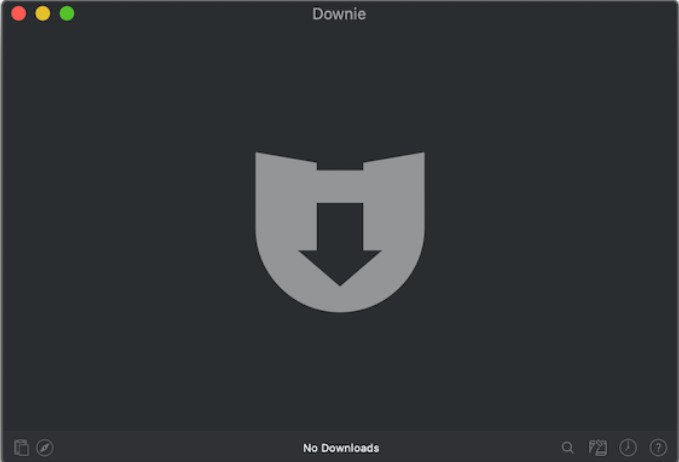
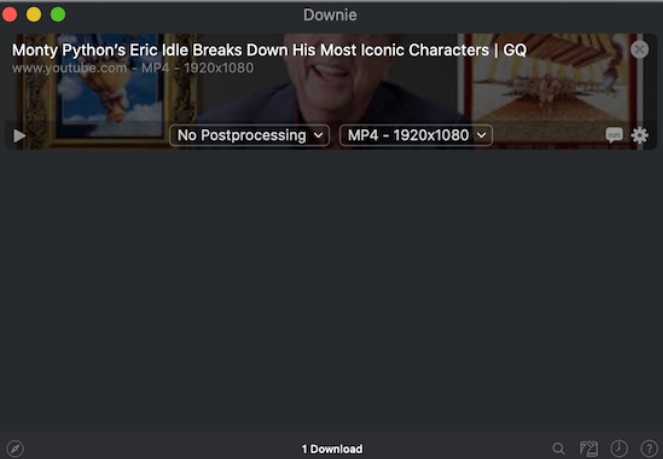
It is worth noting that we can also sync Downie browsing history between devices through iCloud. This is particularly convenient for Apple users.
Downie's Real Limits: No Windows, No Streaming
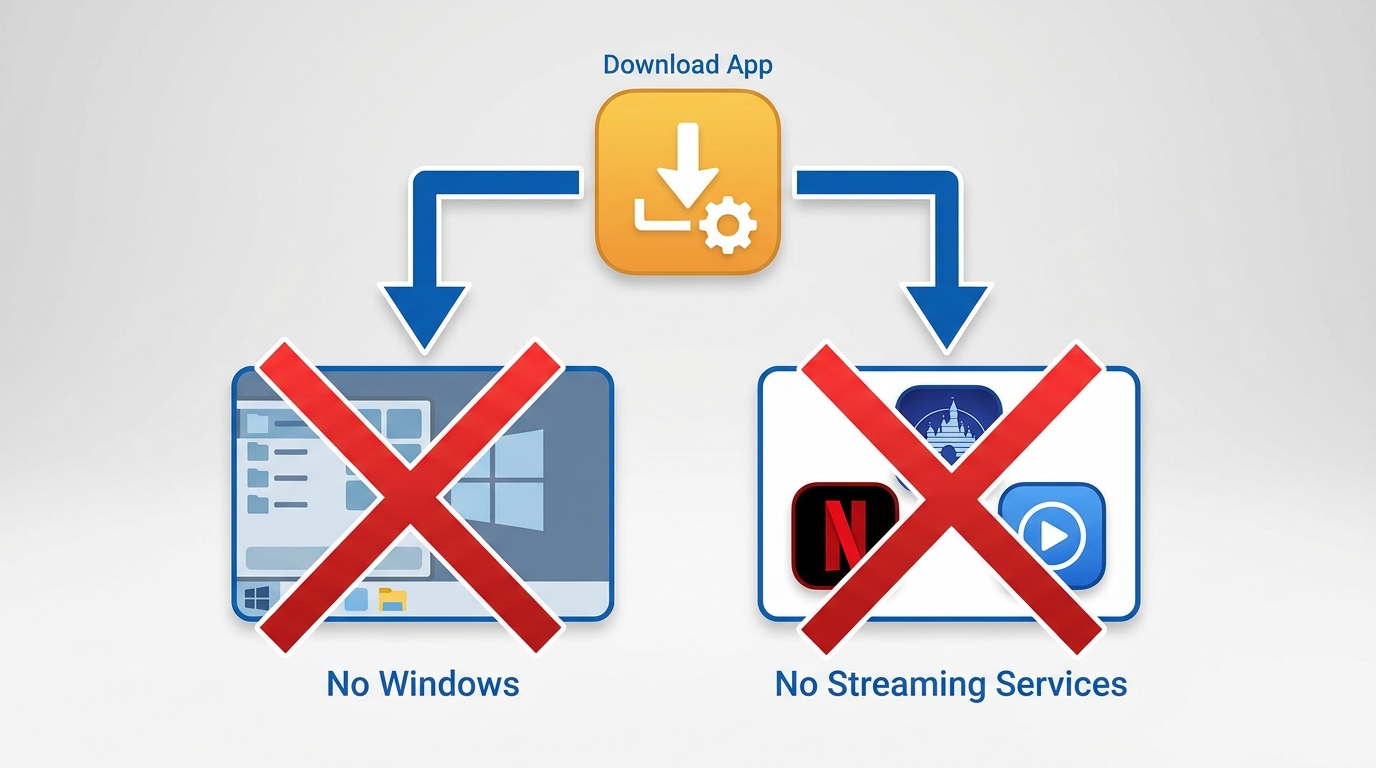
Two hard ceilings define what Downie can't do, and both come up constantly in 2026 threads.
No Windows build. Downie is macOS only, and there's no Windows version on the roadmap. On Mac it's fast, simple, and pleasant; if you're on Windows, that whole experience is off the table.
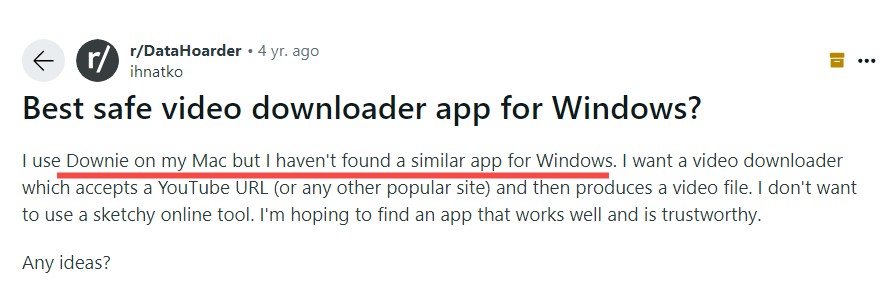
No subscription streaming services. Downie doesn't handle Netflix, Amazon Prime Video, Disney+, or HBO Max, and it tends to give up on the more heavily protected HLS streams too. It's a general video downloader, not an all-in-one streaming tool. If your daily need is YouTube, Vimeo, or Bilibili on a Mac, that ceiling never bites. For Windows users, or anyone who needs to save from subscription streaming services or heavily protected HLS streams, Downie simply isn't the right tool — that's where most people hit its limits and start shopping for an alternative.
Getting Downloads onto iPhone or iPad
Downie is Mac-desktop only — there's no iPhone or iPad app. If you want the file on your phone or tablet, you're adding a transfer step (AirDrop, iCloud Drive, or a cable) after the download lands on your Mac. That's fine occasionally, but if you're often away from your Mac and want to save straight to a mobile-friendly workflow, a cross-platform tool fits better.
StreamFab: A Cross-Platform Alternative for Windows and Mac
When Downie's Mac-only ceiling started biting for me — mostly because I flip between an iMac at home and a Windows laptop at work — the tool I settled on was StreamFab. It's a third-party desktop app that runs on Windows 10/11 and macOS, and it covers the exact two gaps Downie leaves open:
cross-platform support, and saving a local copy for personal offline viewing from streaming services you're authorized to access, where platform terms and applicable law allow it. Everything below assumes an active subscription on your side — StreamFab is not a way to watch streaming content without paying for it.
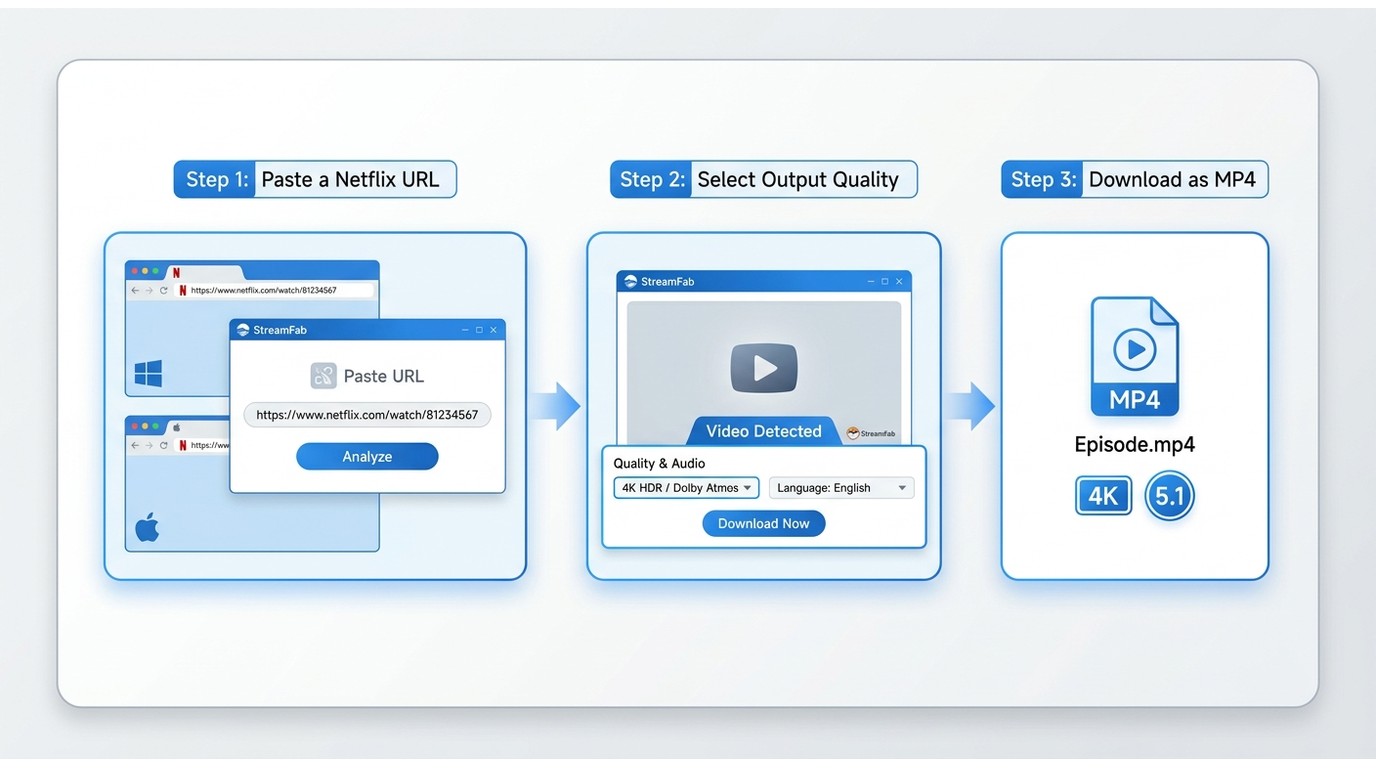
The way I frame it against Downie: Downie is the tidy general-site downloader for Mac users, and StreamFab is the desktop tool when you need Windows support, streaming platforms, or higher-end quality specs. Beyond straight cross-platform coverage, its notable differentiators are on the spec sheet: 60+ streaming services on top of the 1,000+ general video sites, output up to 8K with HDR10/Dolby Vision, Dolby Atmos/EAC3 5.1 multi-channel audio (Downie stops at stereo), batch and scheduled downloads for whole seasons overnight, and MP4/MKV/MP3 output. For example, saving a Netflix episode from your subscription lands as an MP4 with the original multi-channel audio and subtitles preserved — see the StreamFab Netflix downloader guide for the walkthrough.

Wider support than Downie: download streaming content from Netflix, Amazon Prime, Disney+, and more. I even downloaded an entire season of an HBO series in one go, with resolutions up to 4K, and it even preserved multiple audio tracks and subtitles and complete metadata.
| Feature | StreamFab | Downie |
|---|---|---|
| Platform Support | Windows & macOS | macOS only |
| Website Coverage | 60+ streaming services & 1,000+ general video sites | 1,000+ general video sites |
| Video Quality | 1080p/4K/8K + HDR10/Dolby Vision Dolby Atmos/EAC3 5.1/AAC 2.0 | 1080p/4K Stereo |
| Output Formats | MP4/MKV/MP3 | MP4 |
| Batch Processing | ✓ | ✕ |
| Licensing & updates | One-time purchase, lifetime free updates | $19.99 one-time license, optional paid major upgrades |
| Free trial | Yes (30-day trial per streaming service, 3 videos per service) | Yes (free trial before purchase) |
Workflow-wise it feels a lot like Downie: paste a link or open a video in the built-in browser, StreamFab recognizes it, one click to save. The difference is coverage — the same install handles my Mac and Windows machines, and the streaming platforms Downie can't touch.
Best for: Windows users, anyone who wants personal offline backups from Netflix / Prime Video / Disney+ under their own subscription, users who need 8K/HDR or multi-channel audio, and heavy batch downloaders.
Not ideal for: Mac-only users with light needs who are already happy with Downie's simplicity — there's no reason to pay more for capability you won't use.
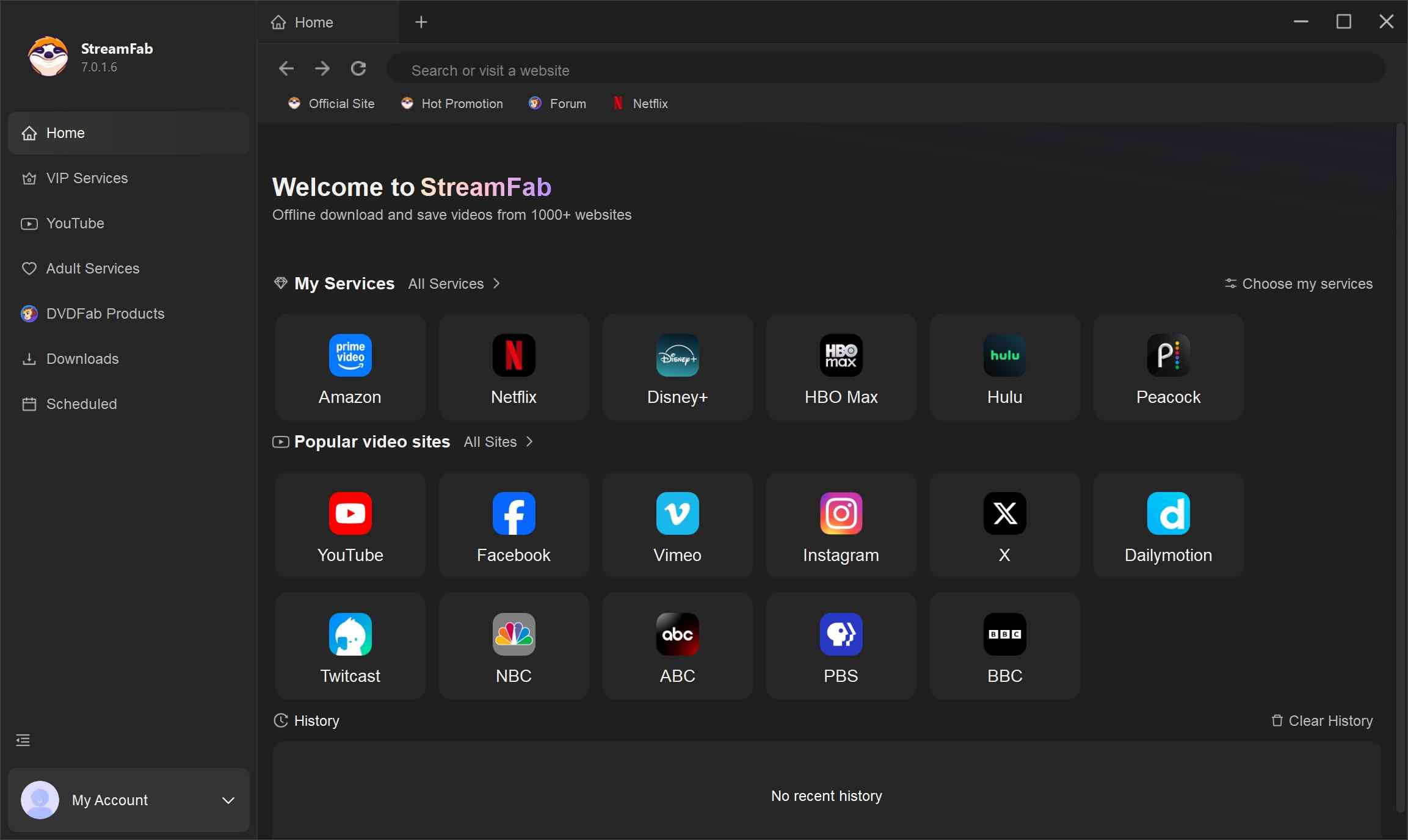
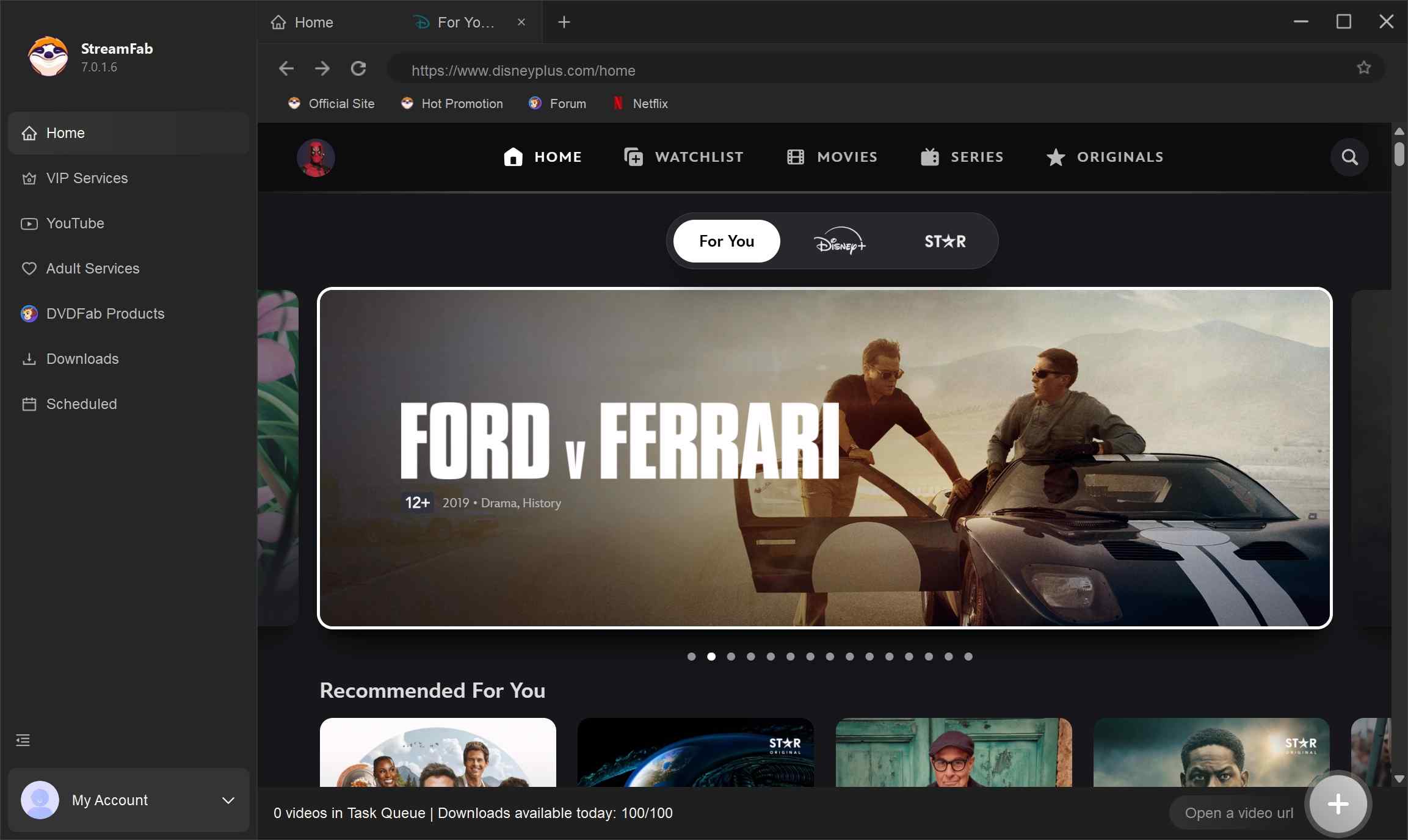
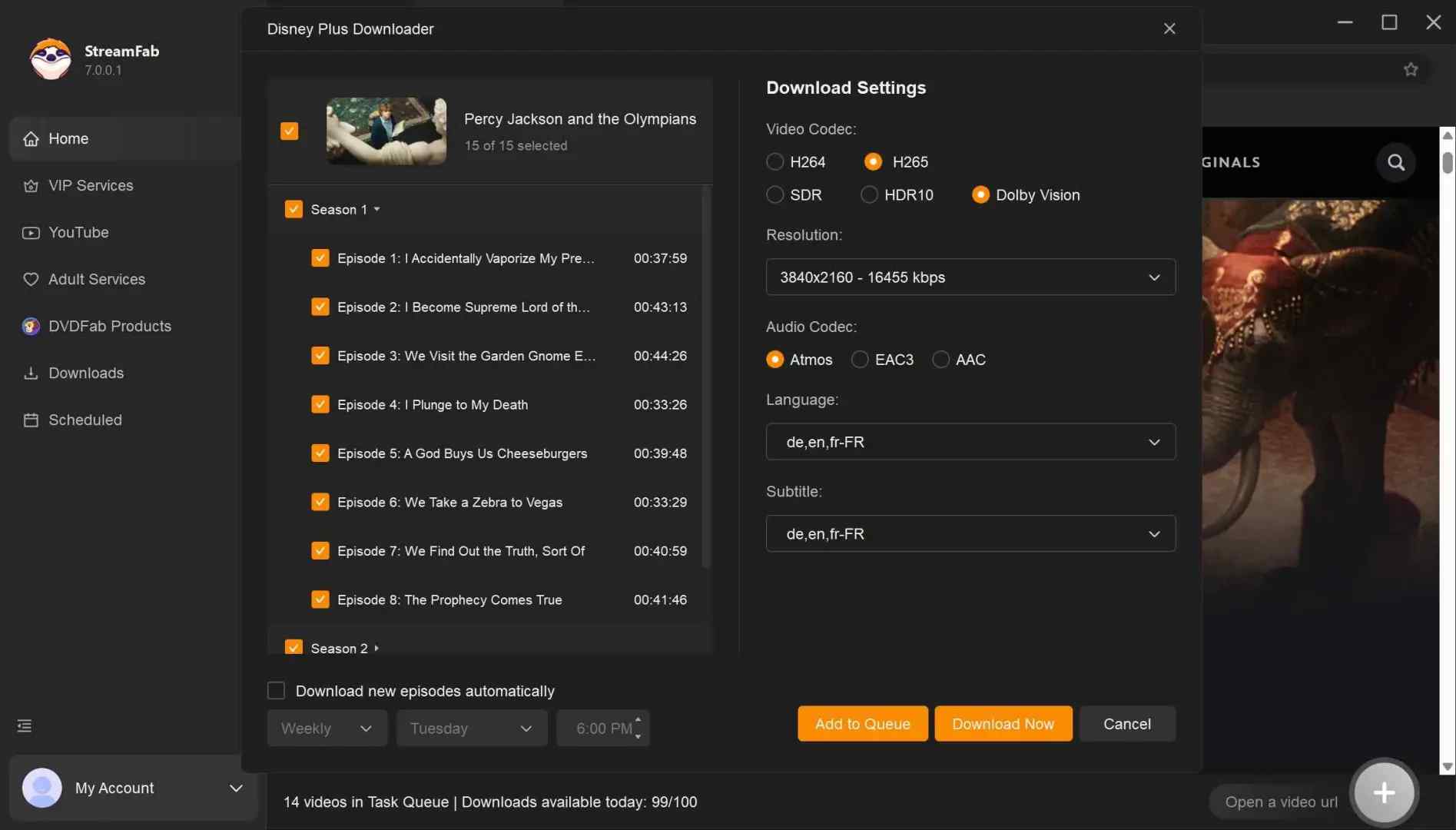
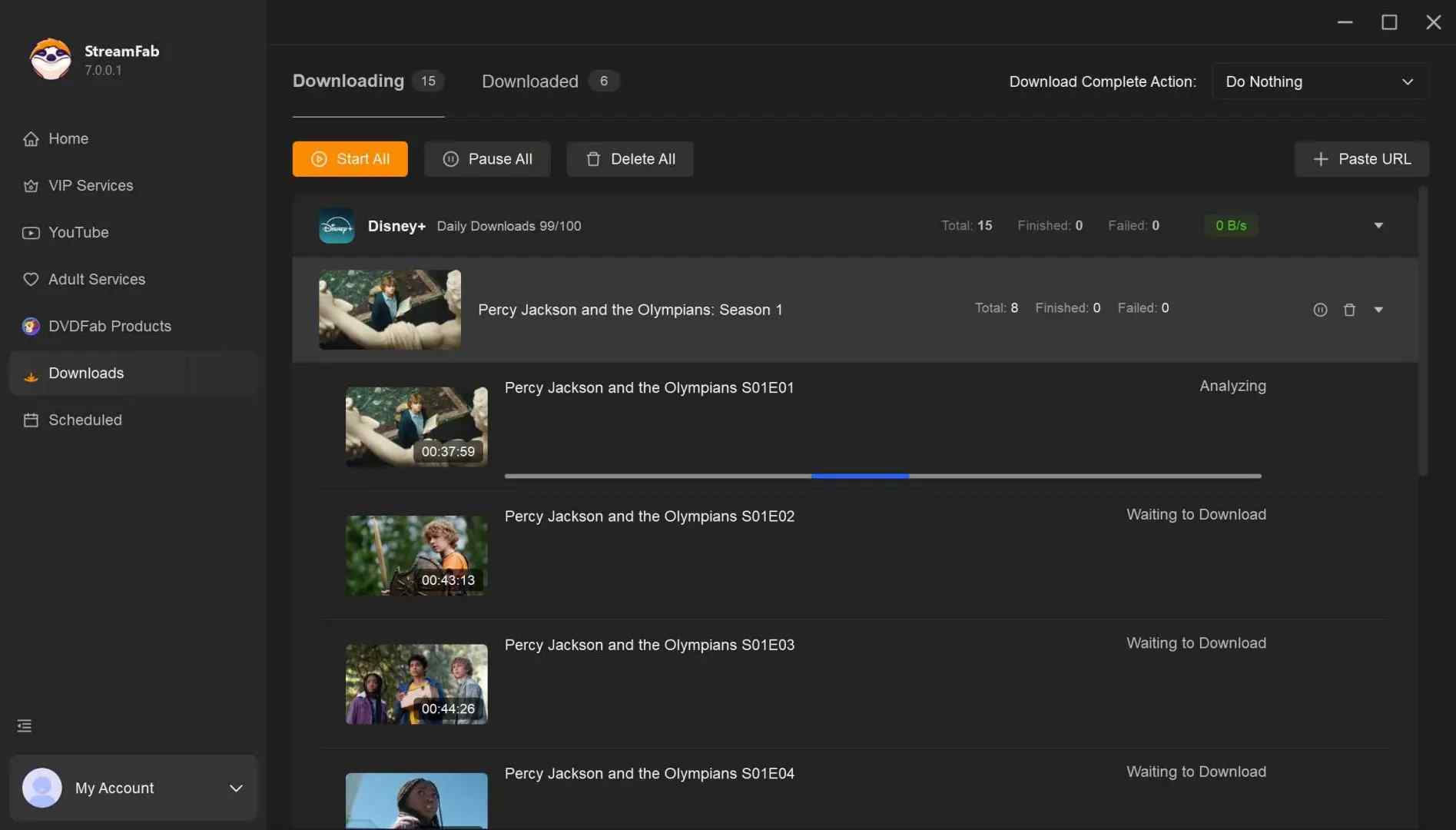
Compared with Downie, StreamFab covers more sites at higher quality specs and adds scheduled/batch automation across both Windows and Mac. A one-time purchase comes with lifetime free updates.
If you're still weighing Downie, the honest move is to trial both against your actual target sites before you buy either.

FAQs
1. Is Downie a one-time purchase or a subscription?
Direct from the developer, Downie is a $19.99 one-time license ("one purchase, yours forever") for the current major version. It's also available inside a Setapp monthly subscription as a separate acquisition path — pick whichever matches how you buy software.
2. If I own more than one Mac, can I use my Downie license on all of them?
You can use a single Downie license on multiple Macs you personally own, typically up to 2 or 3 devices. However: You may need to deactivate old devices before activating new ones. Family sharing isn’t officially supported. For business or educational use, separate licenses are required, and your license is tied to a specific major version.
3. What should I do if Downie suddenly stops working with a website I used to download from?
If Downie stops working with a particular website, first make sure you’re running the latest version. If the issue persists, you can report the problem through Downie’s support system, and sometimes changing user-agent settings or trying a different URL format can help as a temporary workaround.
4. What are the minimum system requirements to run Downie in 2026?
To run Downie in 2026, you’ll need a Mac with macOS 10.13 (High Sierra) or newer, an Intel or Apple Silicon (M1/M2/M3) processor, and at least 4GB of RAM (8GB recommended for 4K downloads). Some features may require extra permissions, and a stable internet connection is necessary.
Conclusion
My take after living with it: Downie is a genuinely good Mac video downloader for general sites — YouTube, Vimeo, Dailymotion, Bilibili — at a fair $19.99 one-time price, from a small team that ships fixes every couple of weeks. For that use case, it's worth the money.
Where it isn't the answer: Windows, iPhone/iPad, and subscription streaming services like Netflix, Prime Video or Disney+. If any of those matter to you, a cross-platform desktop tool fits better; StreamFab is the one I use for that side of the workflow, and the wider category is covered in our best streaming video downloader review. For another Mac-focused alternative angle, the AceThinker review is worth a look.
This review is refreshed periodically to keep pricing, versions and platform coverage current. Latest refresh:
- Confirmed the current shipping version as Downie 4.x (v4.12.11)
- Rebuilt the comparison table with accurate licensing and free-trial rows
- Added a dedicated YouTube reliability section reflecting 2026 user reports
- Added safety, user-review and Setapp acquisition sections
- Reframed limits and alternatives with balanced, non-absolute language
- Added a short iPhone/iPad cross-device note
Accurate as of Aug 2026.

This MovPilot Amazon Downloader review found that its six-minute trial can confirm setup and sample output, but not the full-movie reliability most buyers need to judge before paying. I measured the trial, mapped common failure points, and used a same-device control test to put that gap in context.
By Erika Leen - Oct 27, 2026
In-depth pazu streamget review for June 2026 — testing DRM handshake stability, 4K limits, and whether StreamFab is the stronger all-in-one alternative.
By Erika Leen - Oct 20, 2026
CleverGet offers separate downloading and recording workflows for Windows and Mac, with different file options. Compare MPD limits, annual and lifetime licenses, and trial use before choosing a workflow. The review also covers StreamFab for recurring episode downloads and explains the personal-use boundaries for local copies.
By Erika Leen - Oct 14, 2026
AnyStream (RedFox AnyStream) shut down in June 2024 and remains gone in 2026. I tested every major replacement — here are the 5 best anystream alternatives, including free options, ranked by real-world performance.
By Erika Leen - Oct 12, 2026