
Prime Video HDCP Error Explained: 6 Fixes for TVs and PCs

Summary: Prime Video HDCP errors usually come from a failed HDCP “handshake” somewhere in your playback chain (player → cable → switches/AVR/docks → TV/monitor), not an account block. HD often works with HDCP 1.4, while UHD/HDR commonly requires HDCP 2.2 end-to-end. Troubleshoot by restarting to refresh the handshake, testing a direct HDMI connection, swapping ports/cables, removing middle devices/adapters, and on PC addressing Error 7279 with browser/driver and display-chain checks.
A Prime Video HDCP error means the service could not complete the protected-display check across your active playback path. The fastest first test is to restart the player and display, then connect the player directly to the screen before replacing cables or other hardware.
The message does not identify one failed component. Use the symptom and active playback route to choose the first test:
| Exact symptom | Playback route | Likely weak link | First test | Next action |
|---|---|---|---|---|
| Black screen with audio | HDMI or external display | HDCP handshake, app, or browser path | Play directly on the built-in screen or TV app | Then test a direct HDMI connection |
| HD works but UHD or HDR fails | 4K/HDR over HDMI | A link without reliable HDCP 2.2 support | Try the same route with an HD title | Check every active port and intermediary |
| Error 7279 on an external monitor | Computer and secondary display | Browser, driver, cable, dock, or monitor | Disconnect unused displays and restart | Apply the computer checklist below |
| Prime Video fails while Netflix works | Same device and display | Different title, quality, or handshake route | Compare an HD Prime Video title | Diagnose Prime Video’s active route separately |
| Phone mirroring or screen sharing fails | Wireless sharing or protected capture | Content-protection behavior or the display route | Use the supported TV or device app | Do not assume the HDMI cable is at fault |
| Playback works without a receiver or dock | HDMI passthrough | A removed link or interaction between links | Restore one component at a time | Identify the combination that triggers the error |
I recommend isolating the playback route before buying a new cable because a controlled test changes one variable at a time; the message alone does not prove that the cable, display, app, or account caused the failure.
If the error appears only on certain titles or quality levels, diagnose the active display path rather than treating it as a general account or app failure.
Prime Video HDCP Standards Explained
What HDCP Checks
HDCP stands for High-bandwidth Digital Content Protection. Think of it as a “security check” for video traveling over digital connections like HDMI and DisplayPort.
HDCP is based on two simple ideas:
- Checks the display is allowed to show the video
- Encrypts the video signal while it travels through the cable
Streaming services use HDCP because studios require strong protection for premium content. If the connection can’t be verified, Prime Video may block playback or lower the quality.
How the Handshake Works Across the Display Chain
People often assume it’s either “Prime Video” or “my TV,” but HDCP issues are usually caused by the full connection setup.
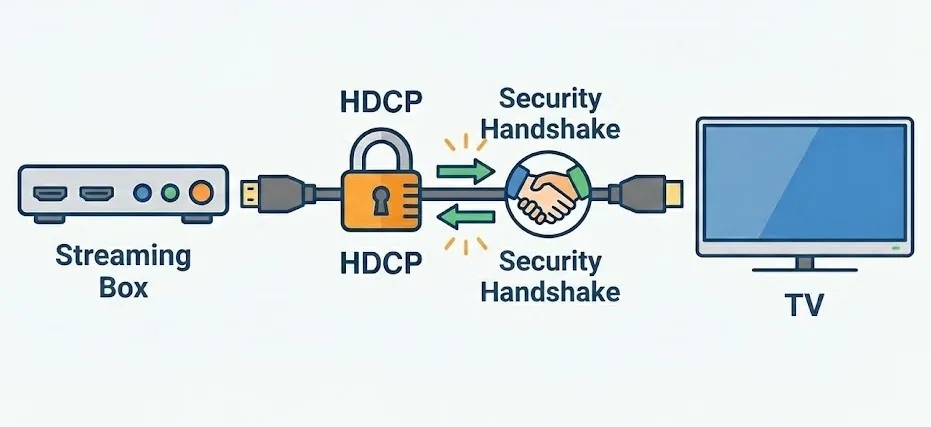
HDCP is more like a handshake across a chain: Player (Fire TV, Roku, console, PC) → cable → middle devices (receiver, switch, dock, adapter) → display (TV, monitor, projector)
If every link supports the required HDCP version and the handshake completes, playback should work. But if one link fails—because of the wrong version, weak passthrough, a finicky adapter, or an unsupported display—Prime Video may stop the stream or show an HDCP error.
HDCP 1.4 vs. 2.2 Requirements
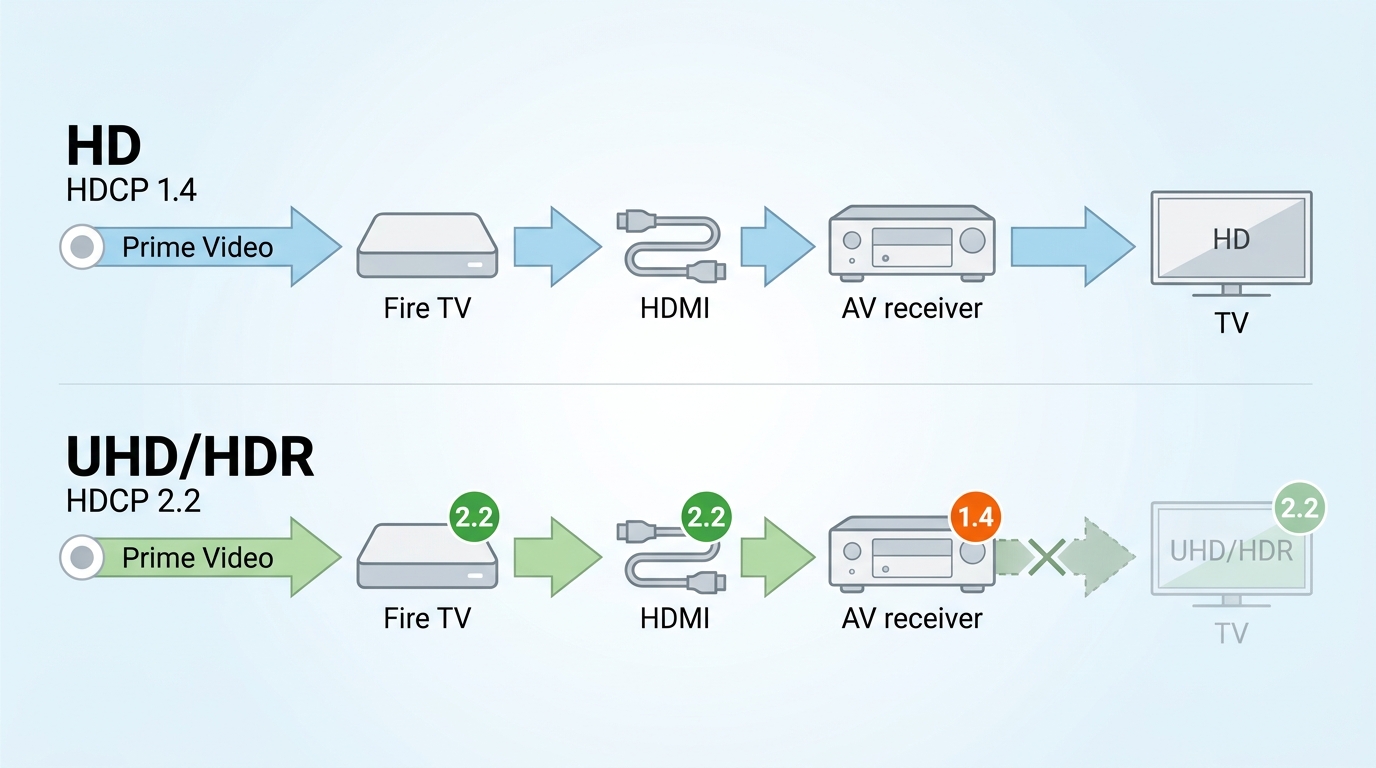
As of July 2026, Prime Video’s playback guidance identifies HDCP 1.4 for HD and HDCP 2.2 for UHD or HDR. Device-specific requirements can vary, but the active connection path must meet the applicable baseline.
| Target quality | HDCP baseline | Links that must comply | Common failure symptom | Quickest test |
|---|---|---|---|---|
| HD | HDCP 1.4 | Player, intermediaries, cable path, and display | Playback block, warning, or quality reduction | Connect the player directly to the display |
| UHD or HDR | HDCP 2.2 | Every active link in the UHD/HDR path | HD works, but UHD or HDR fails | Test an HD title, then check the 2.2 path |

Why this matters:
My rule of thumb is simple: if HD works but UHD or HDR fails, check the full HDCP 2.2 path before replacing hardware. Prime video download limits that affect downloads, not HDMI/HDCP playback.)
Fix Prime Video HDCP Errors by Route
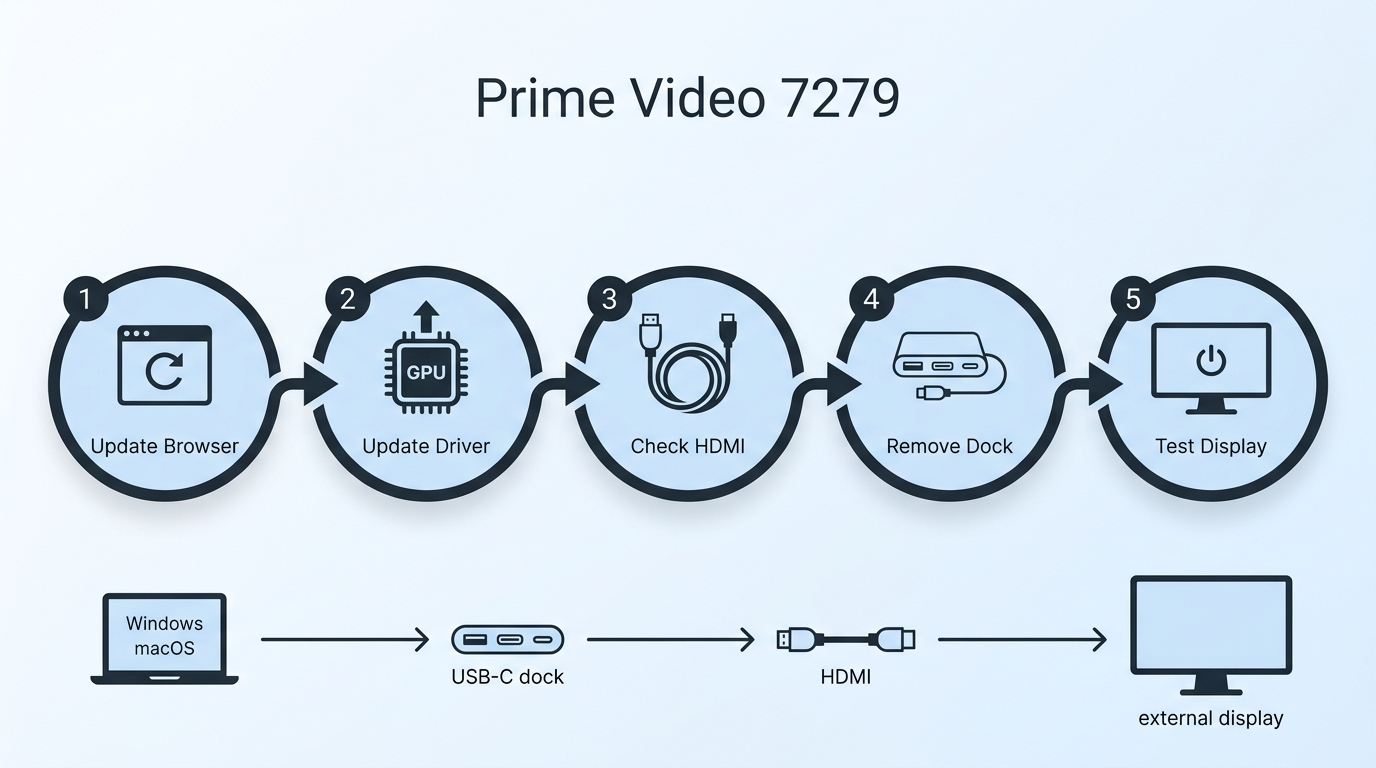
Use the six steps below to test both sides of the problem: the physical display chain and the software route, including the Prime Video app, browser, device firmware, and graphics driver where applicable.
Step 1: Reset the HDCP Handshake on Any Route
A full restart can resolve a temporary handshake failure, especially on a streaming player, TV, receiver, or computer. Power down the devices in the active path, restart them, and test playback again before changing the setup.
Tip: If you're using an Apple TV, do a full restart (not just sleep/wake). This helps because the HDMI/HDCP handshake runs when the device starts up.
Step 2: Isolate the Failing HDMI Link
Disconnect receivers, soundbar passthrough, HDMI switches, splitters, capture devices, docks, adapters, and unused displays. Test a direct path: Streaming device or computer → display. If playback works, restore one component at a time and retest.
This test is useful for isolating a removed link or interaction between links. It does not automatically prove that one bypassed component is defective or permanently incompatible.
Step 3: Check Ports and Cables for UHD or HDR
Prime Video guidance explicitly points users to confirm the HDMI path meets HDCP requirements—HDCP 1.4 for HD, HDCP 2.2 for UHD/HDR.
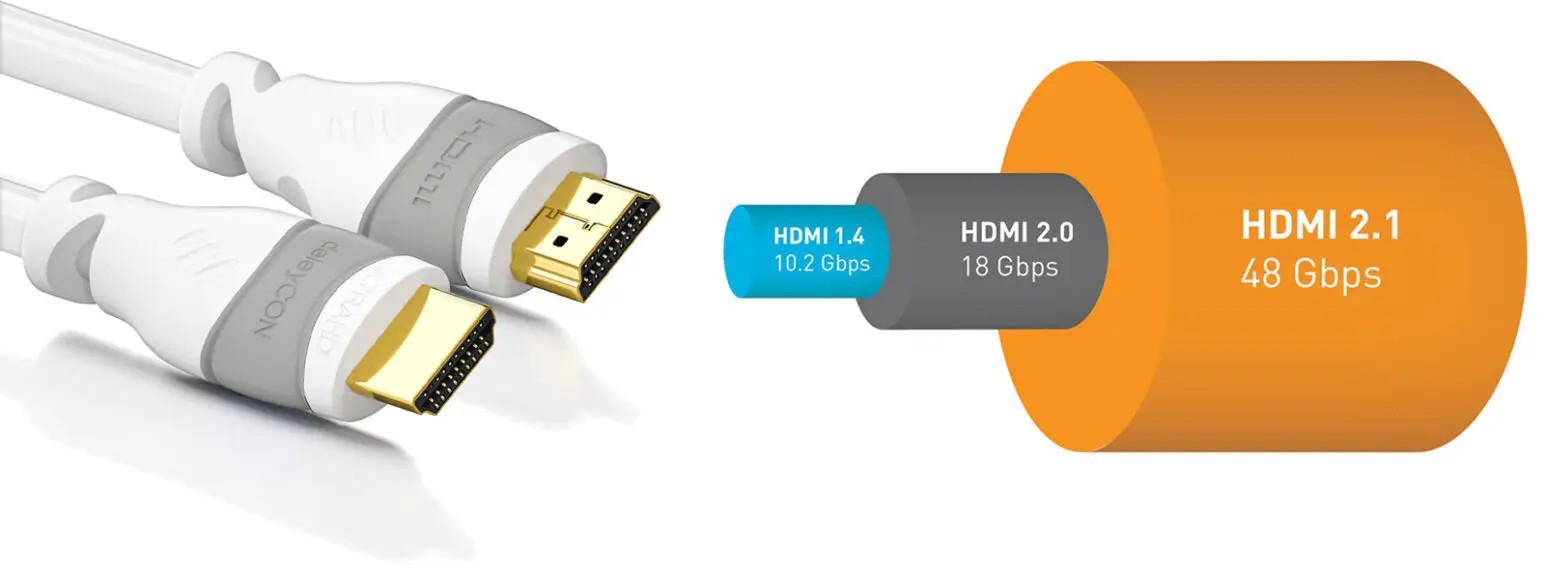
What to check in plain terms:
- Try a different HDMI port on the TV. Some TVs only support 4K/HDCP 2.2 on certain ports. You may also need to enable an “Enhanced” HDMI mode.
- Swap the cable—even if it “works sometimes,” intermittent handshake failures can still happen.
Step 4: Separate HD, UHD, and HDR Failures
If the issue only happens on UHD/HDR titles, that usually means something in the chain does not support HDCP 2.2. Prime Video also points to HDCP 2.2 for UHD/HDR, so this is a strong clue.
A quick diagnostic approach:
- Try a different title (HD vs UHD).
- If HD plays but UHD doesn’t, focus on the HDCP 2.2 chain rather than the Prime Video account.
Step 5: Fix Error 7279 on a Computer
Prime Video says Error 7279 usually indicates that something connected to the computer may not meet content protection standards. Work through these five actions:
- Update the browser.
- Update the computer’s device drivers, including the graphics driver.
- Try a different display cable.
- Disconnect unused secondary displays.
- Restart the computer and connected display devices.
If Prime Video works on the laptop screen but fails on an external monitor, my diagnostic priority is the external display path, including the cable, dock, adapter, driver, and monitor, rather than the account.
Step 6: Check Apps, Devices, and Screen Sharing
A Prime Video black screen can come from an HDMI or external-display handshake failure, browser or app content-protection behavior, or intentional restrictions during screen sharing or recording. Diagnose the active route before replacing hardware, and do not assume every black screen is a cable problem.
- Fire TV, Roku, or Apple TV: fully restart the player, test a direct TV connection, update the device and Prime Video app, and check firmware before considering a reset.
- Smart TV: update the app and TV firmware; clear app cache or data where the model provides that control, or reinstall the app when appropriate.
- Computer with an external monitor: update the browser and graphics driver, disconnect unused displays, and test without docks or adapters before replacing the monitor.
- Phone mirroring or screen sharing: test ordinary playback through the supported TV or streaming-device app; a black shared or recorded image may reflect protected-content behavior rather than an HDMI failure.
Converting Prime Video to MP4, reviewing Prime Video content protection, downloading Prime Video, watching Prime Video offline, and other file-based workflows are separate topics, not repairs for a live HDCP playback error; they presuppose authorized access and must follow the service terms, copyright law, and applicable local rules.
An Apple TV Handshake Case
An Apple TV report illustrates why a successful restart can confirm a handshake problem without proving that the issue is permanently resolved.
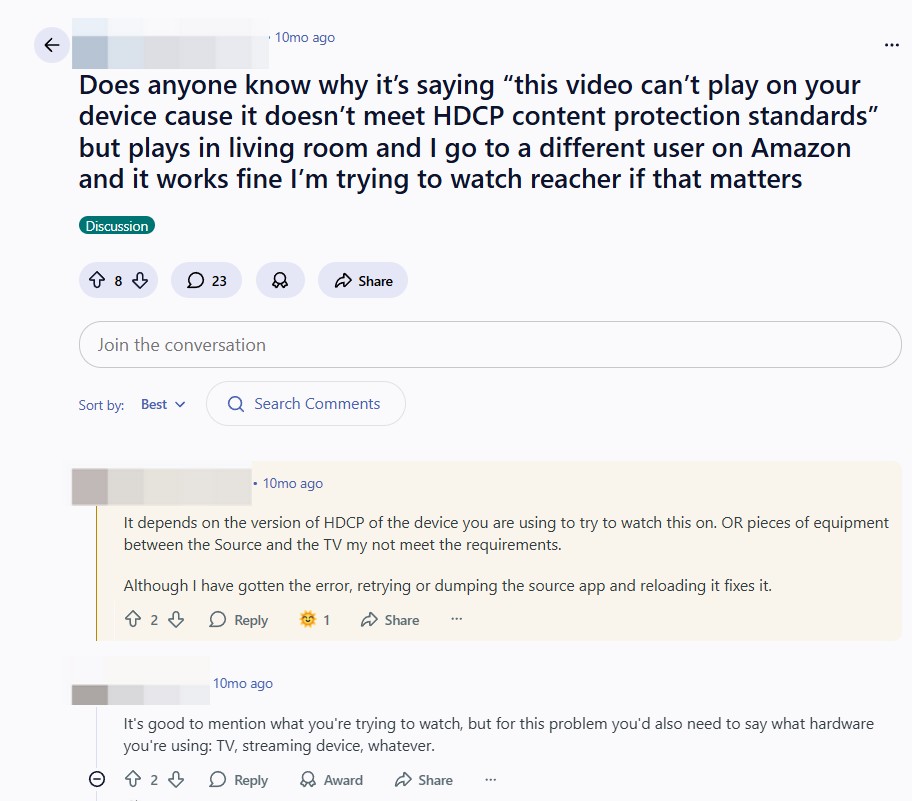
In a reported case, Prime Video failed on one Apple TV setup while the same content played on another TV in the home. Restarting the Apple TV temporarily restored playback, which is consistent with a new HDMI and HDCP handshake rather than an account-level repair.
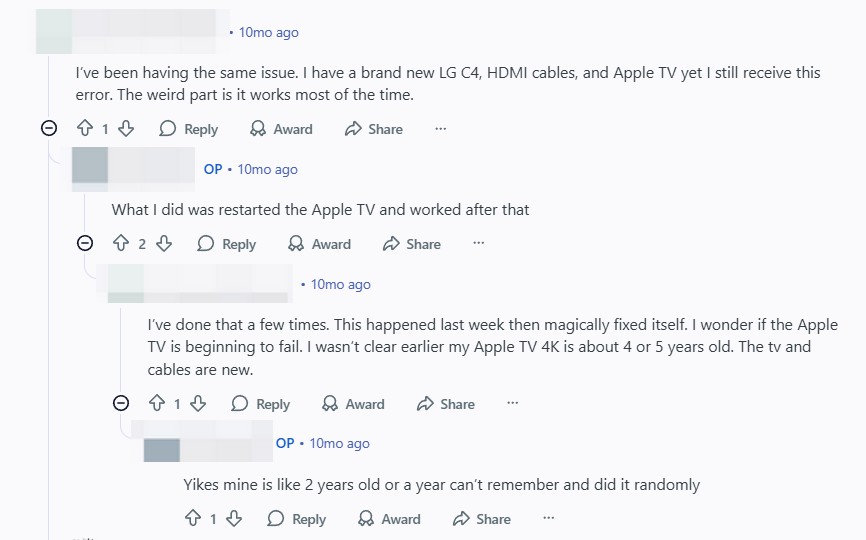
The important detail is recurrence: if the error returns, the active route still contains a handshake variable such as the HDMI port, cable, passthrough device, adapter, or current device state. A restart is therefore a useful diagnostic step, not proof of a lasting repair.
- A restart may temporarily restore playback bystartinga new HDCP handshake.
- If the error returns, isolate theactive display pathinstead of treating the restart as a lasting fix.
- Test a direct TV connection, then restore the receiver, soundbar, switch, dock, or adapter one at a time.
Recurrence can reflect the HDMI port, cable, device state, or an interaction between links. - If HD works but UHD or HDR fails, check HDCP 2.2 support across the full path.
FAQs
Why can Prime Video fail when Netflix works on the same setup?
Streaming services and individual titles can use different playback routes, quality requirements, content-protection implementations, and handshake timing. Another service working on the same setup does not prove that Prime Video’s active route is fully compatible, so test Prime Video by title quality and connection path.
Why does Prime Video play audio while the picture stays black?
Audio with a black picture can indicate an external-display HDCP failure, browser or app content-protection behavior, or protected screen sharing. First test playback on the device’s built-in screen or supported TV app, then isolate the HDMI path if ordinary playback works there.
Can a projector show menus but still fail Prime Video playback?
Yes. Displaying menus confirms basic video output, but protected Prime Video playback may require a supported HDCP version and a reliable handshake across the full route. Test a direct connection and check the projector’s input compatibility before replacing unrelated hardware.
Does every HDMI port on a 4K TV support HDCP 2.2?
No. Depending on the TV model, HDCP 2.2 or the required 4K mode may be available only on selected HDMI ports or after an enhanced-input setting is enabled. Check the labels and input settings for the specific model.
Conclusion
Resolve a Prime Video HDCP error with three controlled decisions:
- Identify the active route: TV app, streaming player, HDMI passthrough, computer display, or screen sharing.
- Run the best first test for that route, usually a restart or direct connection, and restore removed links one at a time.
- Apply the relevant app, firmware, browser, graphics-driver, cable, port, or secondary-display checks.
In my view, route isolation is more reliable than replacing hardware at random because each test changes one variable and produces a clearer diagnosis.

Tested in 2026: the best amazon prime video downloader picks for offline viewing on Windows and Mac — with real bitrate data, pros/cons, and a free trial on every tool.
By Nicole Lopez - Oct 12, 2026
Learn how to fix Amazon Prime Video offline playback errors in 2026. Discover official download rules, device limits, DRM handshake issues for a stable offline experience.
By Jacob Harrison - Sep 28, 2026
Choose among ten Prime Video movie picks, from documentaries and courtroom drama to action comedy and science fiction. Compare access labels and named rating signals, then match a film to your mood. The guide also explains membership offers, catalog changes, and personal offline-viewing options.
By Nicole Lopez - Sep 24, 2026
Running into Error Code 0.6 on Prime Video can ruin movie night, but it’s usually fixable. This guide walks through quick checks, explains the cause, and shares device-specific fixes.
By Nicole Lopez - Sep 23, 2026