
How to Save Twitch Streams: 5 Ways for VODs and Live Video

Summary: To get straight to the point, saving Twitch streams starts with identifying the stream: creators can enable Store past broadcasts and download their own VODs, while viewers need an authorized method suited to an ended public VOD, a live stream, or a phone.
Table of Contents
The main pain point is that Twitch-hosted storage, a local download, and a live recording solve different problems. This guide explains how to save Twitch streams, download Twitch VODs, and choose a practical path for creators, viewers, live broadcasts, and mobile devices.
Disclaimer: The methods below are separate from Twitch's native download feature. For content you're authorized to access, save a local copy for personal offline viewing only where permitted by platform terms and applicable rules, see: streamfab copyright and usage guidelines. For another creator's stream, permission to watch does not grant permission to redistribute, monetize, or share the recording.
What Twitch Saves and How Long
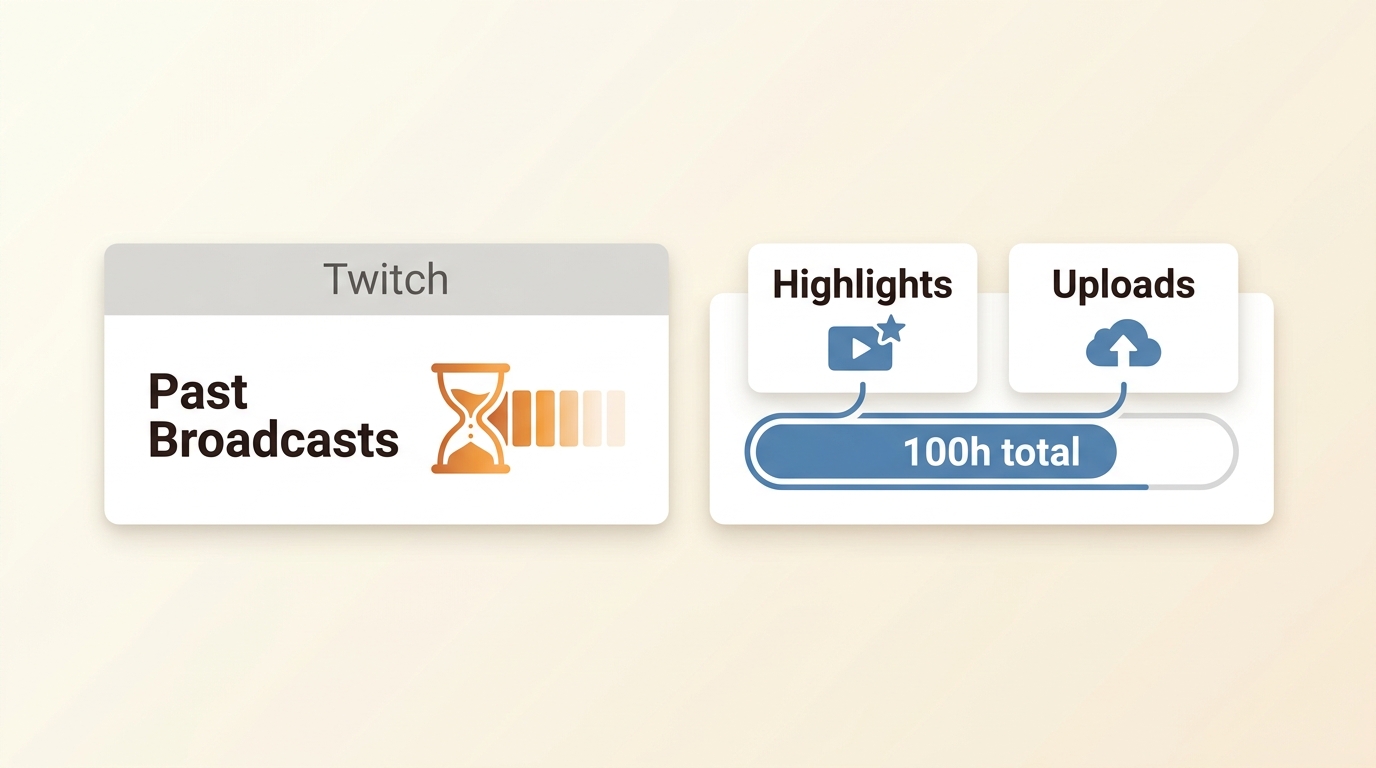
A Twitch VOD archive is not the same as a local file. Twitch can save eligible Past Broadcasts when creators turn on Store past broadcasts, but those replays follow a retention schedule and should not be treated as a long-term archive.
Past Broadcast retention is separate from the storage total for Highlights and Uploads. The following periods apply to eligible Past Broadcasts, as of July 2026:
- • 7 Days:Standard accounts retain eligible Past Broadcasts for up to seven days.
- • 14 Days:Twitch Affiliates retain eligible Past Broadcasts for up to 14 days.
- • 60 Days:Twitch Partners, Turbo, and Prime members retain eligible Past Broadcasts for up to 60 days.
Highlights and the 100-Hour Cap
The 100-hour cumulative storage cap applies to Highlights and Uploads, including unpublished items. It does not apply to standard Past Broadcasts or Clips. Review Highlights and Uploads separately if you use them to organize your channel.
Save Your Own Streams on Twitch
If you want to save your own Twitch streams, turn on VOD storage before you go live. Twitch does not create a Past Broadcast retroactively when storage was off, so enabling the setting protects future eligible broadcasts rather than a stream that has already ended.
Turn On Store Past Broadcasts
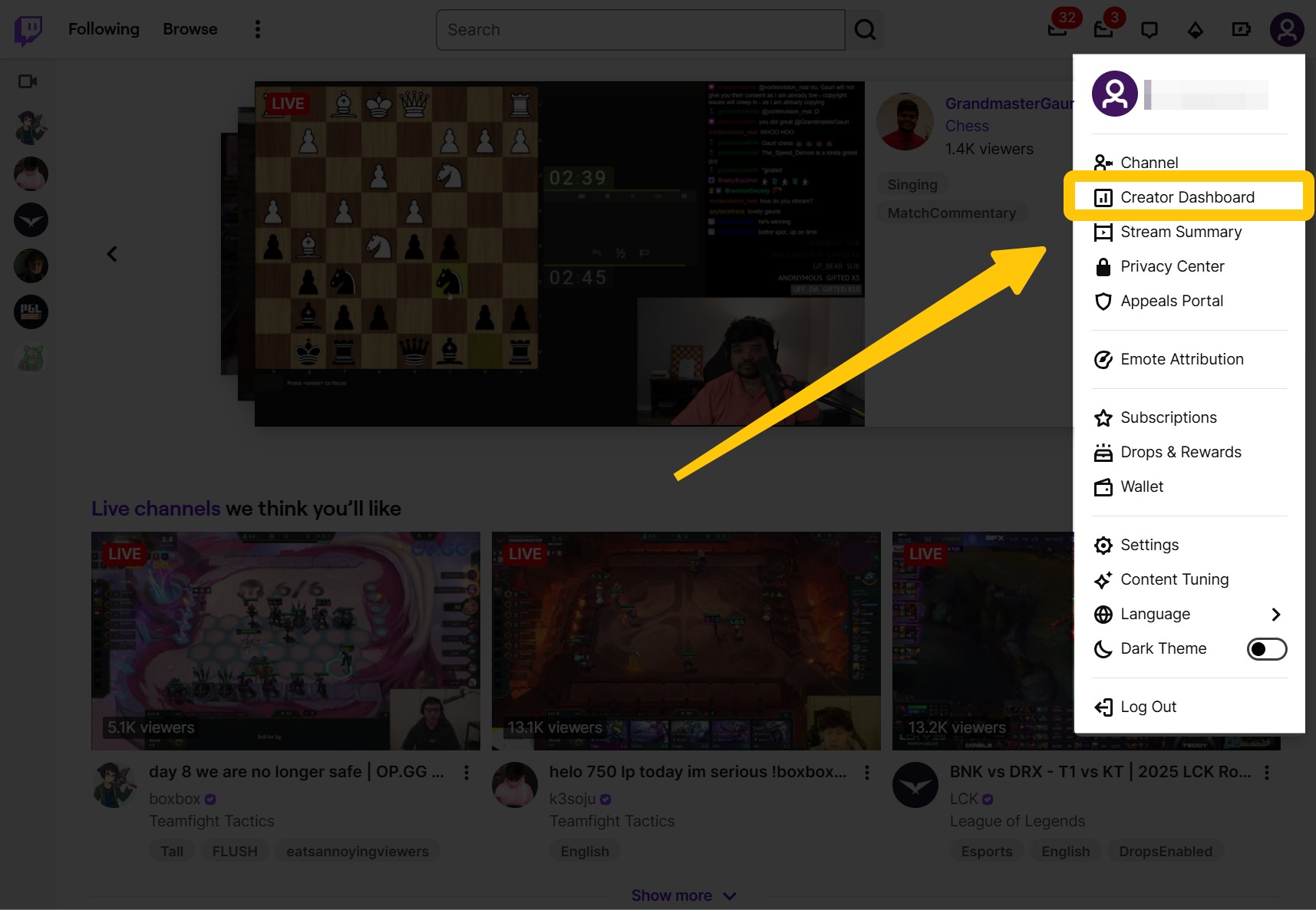
Step 1: In a desktop browser, log in to the Twitch Creator Dashboard and open the profile menu.
Step 2: Go to Settings > Stream. Scroll to the "VOD Settings" module and toggle "Store past broadcasts" to active.
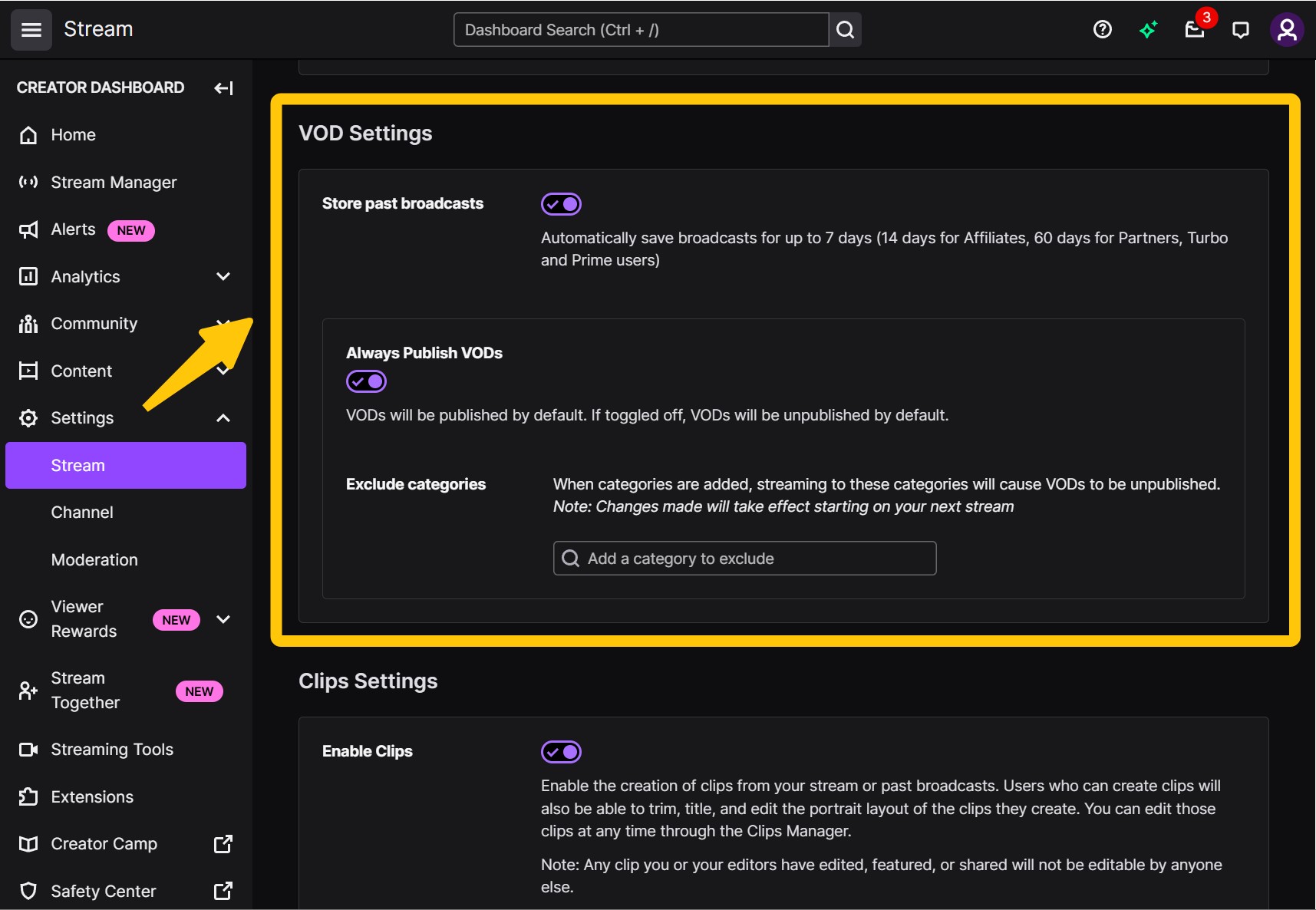
Creator note: Enabling storage gives Twitch permission to retain the next eligible broadcast; downloading it creates the local copy you control. For creators who need a local recording while live, OBS can be a separate option, but its settings and output depend on your hardware and configuration.
Download Your VOD from Video Producer
Step 1: Open Creator Dashboard > Content > Video Producer in a desktop browser.
Step 2: Find your saved Past Broadcast, open its options menu, and choose Download.
Step 3: Save the file to your computer and confirm the downloaded duration before removing anything from Twitch.
Fix VODs That Are Not Saving
First, confirm that Store past broadcasts was enabled before the stream began. Then check Video Producer rather than only the public channel page, review publishing and account settings, and distinguish a missing VOD from a VOD with muted audio. A broadcast made while storage was off is generally not created retroactively.
Choose the Right Save Method
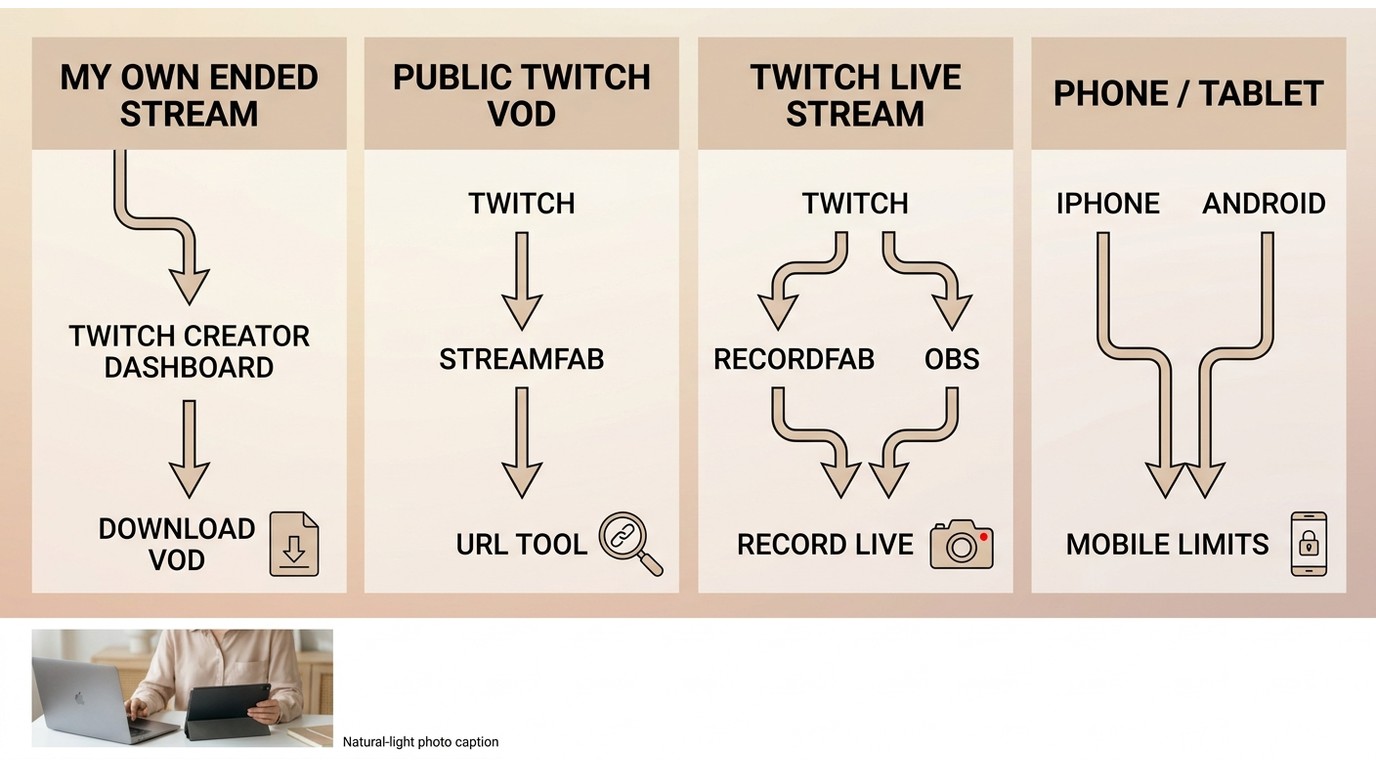
Public VODs and Clips
For an eligible public VOD or clip, the common workflow is simple: 1. copy the Twitch URL, 2. paste it into the chosen tool, 3. select an available quality or range, and 4. save the output. Web tools can be useful for occasional short videos, but they may limit duration, resolution, batch work, login-protected content, or full-VOD completion.
For clips, the output choices can differ by tool; this overview stays focused on saving streams, while the detailed Twitch clip to MP4 workflow covers clip conversion separately. Short public VODs and long archives should not be judged by the same standard: a completed sample segment does not prove a multi-hour download will finish.
| Method group | Best fit | Key limits | Format and access |
|---|---|---|---|
| Twitch Video Producer / URL-based web downloader | Your own VODs / occasional short public VODs | Video Producer is for your own broadcasts; web tools may limit length, quality, or login access. | Native download or available web output; check full-VOD completion. |
| StreamFab / TwitchDownloader CLI | Repeat desktop downloads / technical archive workflows | Desktop setup is required; CLI use requires technical knowledge; confirm authorization and long-VOD behavior. | StreamFab: MP4 or MKV, up to 1080p where available; account login may be required. |
| OBS local recording / RecordFab | A creator's live stream or authorized live capture | Recording must run during playback, and interruptions can appear in the file. | OBS settings vary; RecordFab records to MP4 at up to 1080p where available. |
Long-VOD checklist: Before starting a lengthy archive, check full-duration support, the highest available source quality, audio continuity, retry or resume behavior, expected file size, account-login requirements, and whether chat or metadata can be preserved. A successful short sample does not establish that a 10-hour archive will complete.
Phone and Tablet Options
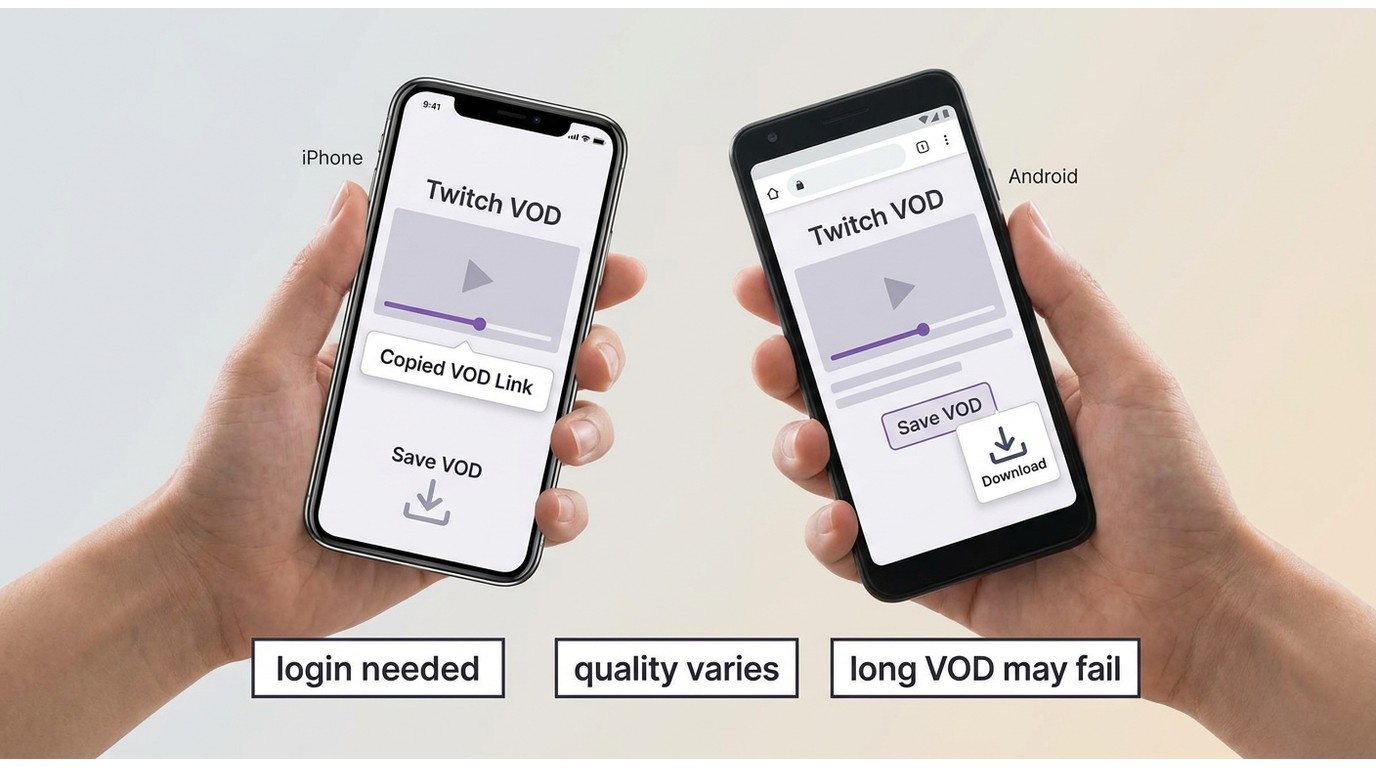
Creator Dashboard VOD storage is most reliably configured in a desktop browser. On iPhone and Android, viewers commonly use copy-link apps or browser tools for eligible VODs, but should assess full-length support, available quality, login handling, and privacy limits before using any mobile app.
StreamFab for Full-Length Desktop Downloads
StreamFab Twitch Downloader is a Windows and Mac desktop option for content you are authorized to access, where permitted by platform terms and applicable law. It supports full-length Twitch VOD and batch workflows, with MP4 or MKV output, H.264 video, AAC audio, and up to 1080p at 60 fps where available from the source.
For subscriber-only VODs, Twitch-account login may be required for content your account is authorized to access. This method fits repeat desktop downloads and long queues, but it is not ideal when you need one short clip or a phone-only workflow.

- Supports full-length Twitch VOD downloads on Windows and Mac, up to 1080p at 60 fps where available.
- Supports Twitch-account login for subscriber-only content you are authorized to access.
- Saves supported output in MP4 or MKV with H.264 video and AAC audio.
- Batch workflows can help with repeat desktop VOD downloads, subject to source availability and account access.
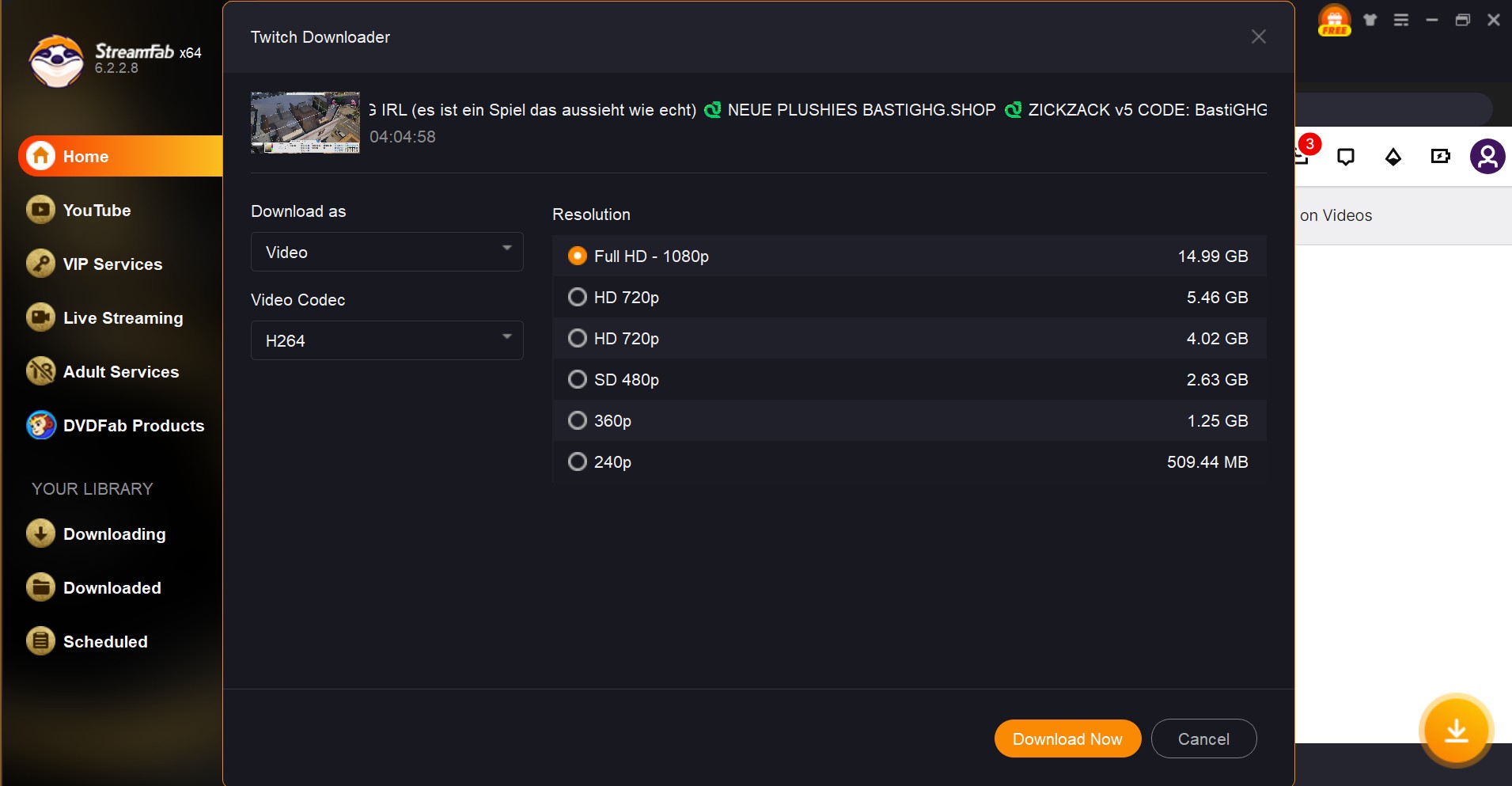
Step 1: Launch StreamFab, navigate to the "Live Streaming" module, and initialize the Twitch environment.
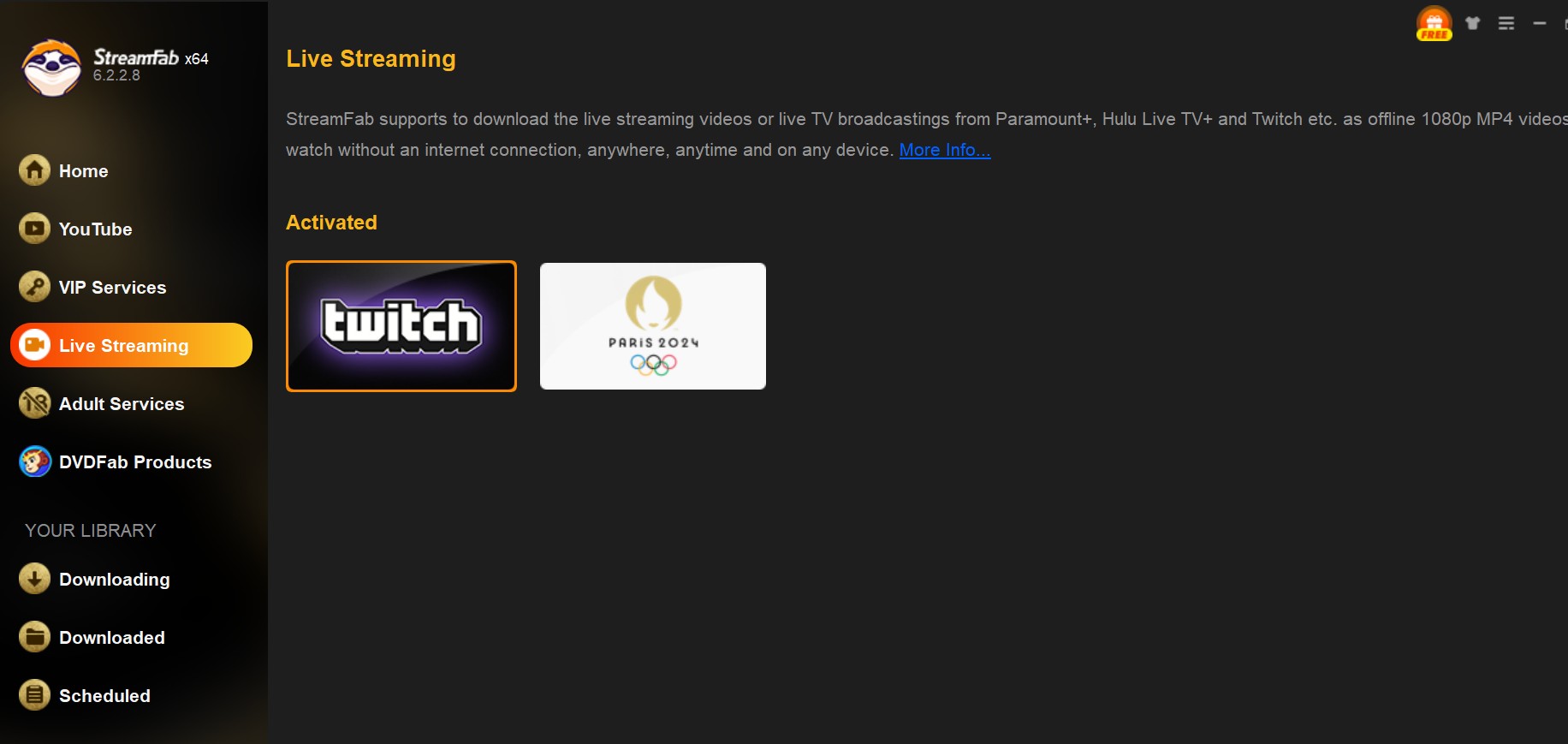
Step 2: Sign in to your Twitch account if the eligible VOD requires account access, then open the target video page.
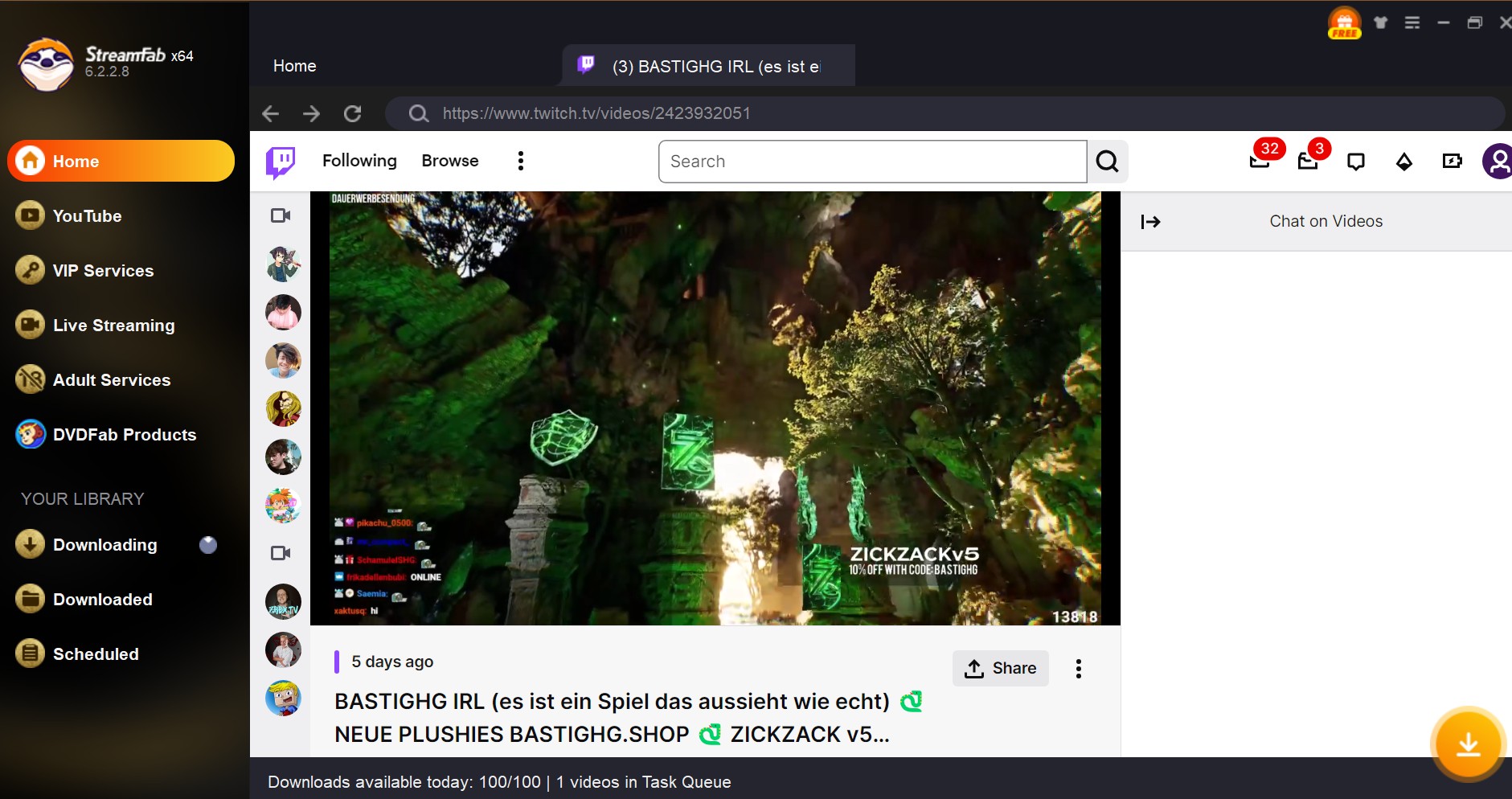
Step 3: Select an available quality and output option, then add the VOD to the queue. H.264 is a practical choice when broad playback compatibility matters.
Live Streams
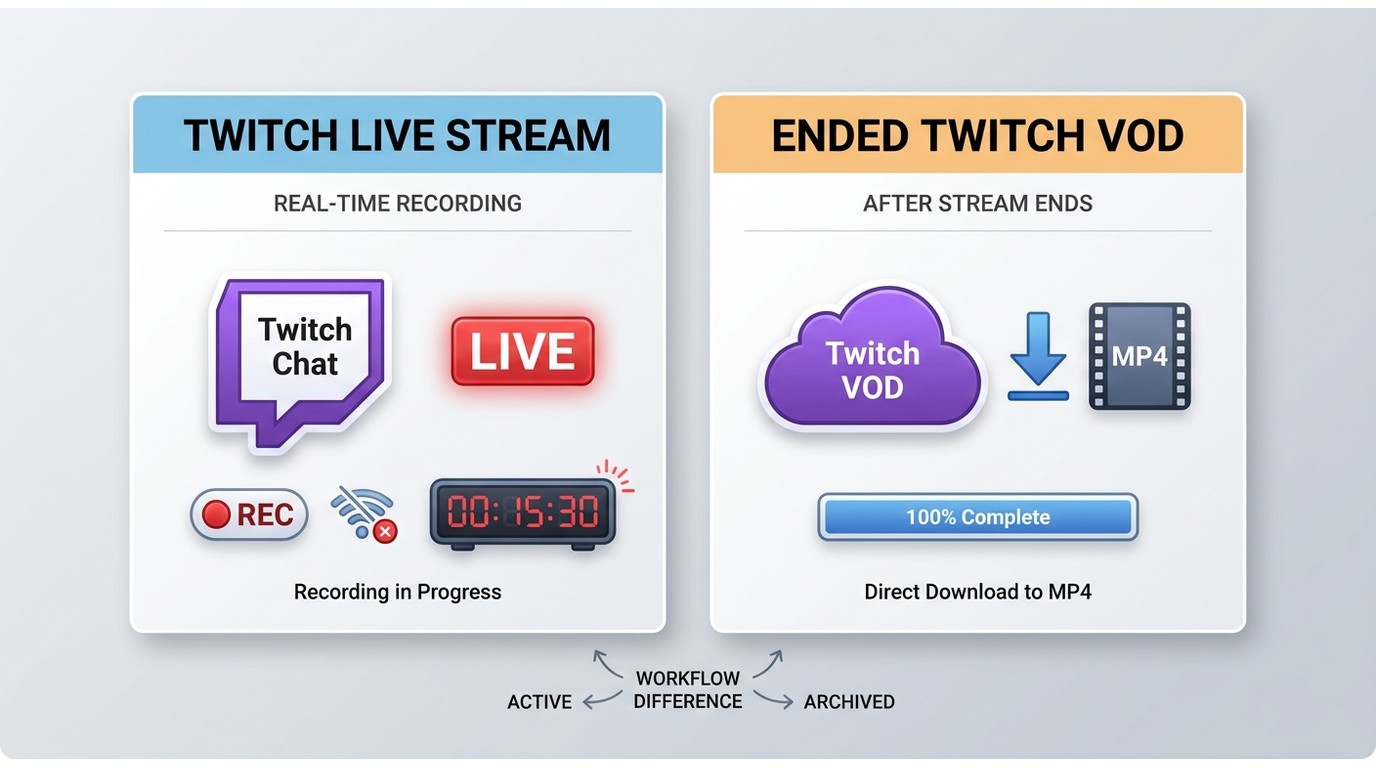
If a stream is still live, recording and downloading an ended VOD are different paths. A local recording can be appropriate for a creator recording their own broadcast or for authorized live capture, but it takes the full playback time and may reproduce interruptions seen during viewing.
RecordFab for Live Capture
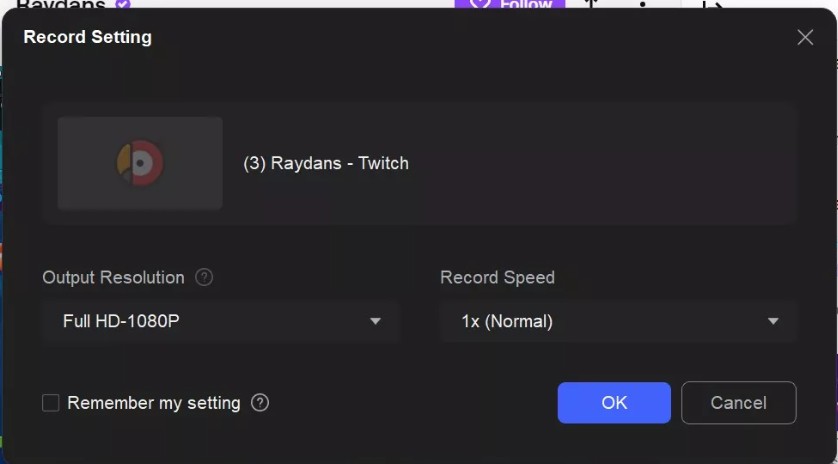
RecordFab is an integrated-browser recording option for eligible live video. It records to MP4 at up to 1080p where available, which can suit a stream that is currently live or a creator making an authorized local recording.
Recording is time-consuming and is not ideal when a complete ended VOD can be downloaded directly. If you see a black screen, treat it as a setup issue with several possible causes rather than assuming one browser setting is responsible.

- Uses an integrated browser to record eligible live video while it is playing.
- Records to MP4 at up to 1080p where available.
- Best suited to authorized live capture when an ended VOD is not yet available.
Step 1: Open RecordFab and sign in if the eligible stream requires account access.
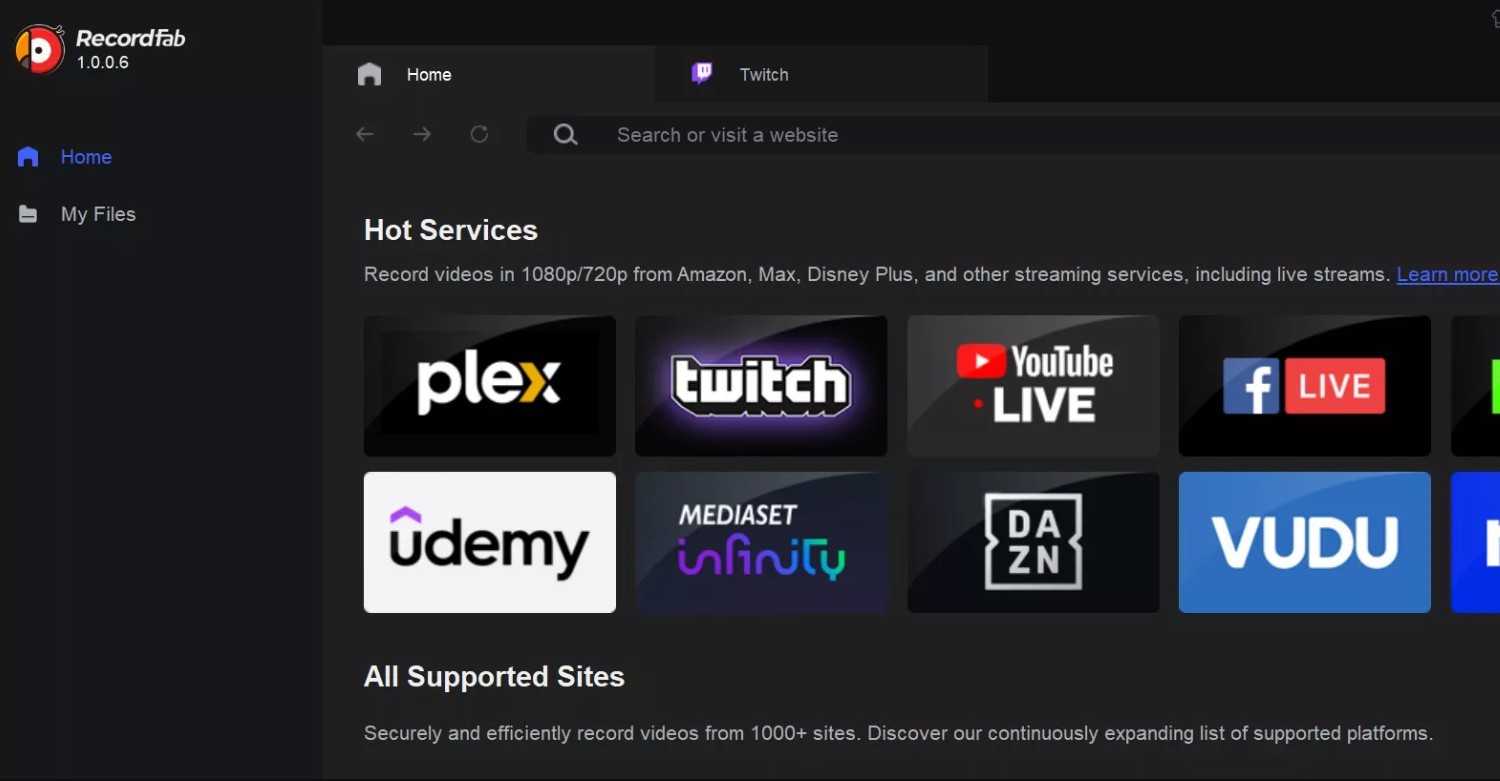
Step 2: Load the live stream URL and start recording once the video is ready to play.
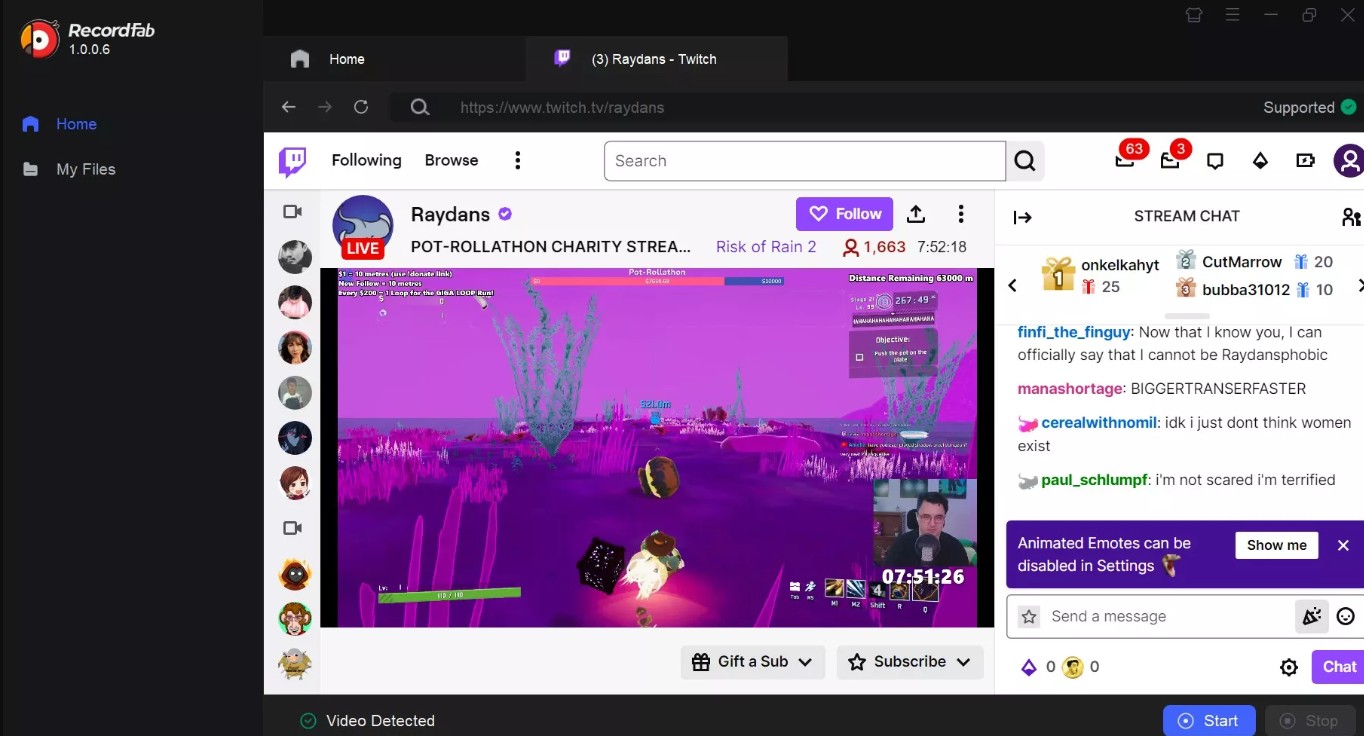
Step 3: Select an available recording quality, up to 1080p where available, and monitor the session for playback interruptions.
Manage Highlights and Upload Storage
Review the 100-Hour Total
The 100-hour total applies to Highlights and Uploads, including unpublished items, rather than ordinary Past Broadcasts. Reviewing those items helps keep the total manageable, while Past Broadcasts follow their separate retention schedule.
Delete Unneeded Highlights and Uploads
Navigate to Video Producer under your Creator Dashboard and filter for Highlights or Uploads. Select files you no longer need, use the available delete control, and confirm the action. Local backup and Twitch account cleanup solve different problems, so review each before deleting channel content.
Frequently Asked Questions
Can an expired Twitch VOD be recovered after it is deleted?
Generally, no. Once Twitch has removed an expired Past Broadcast, recovery is usually unavailable through Twitch. That is different from a VOD you already downloaded locally, which remains subject to the conditions under which you saved and use it.
Does a downloaded Twitch VOD include chat replay?
Not necessarily. Video download and chat replay are separate capabilities, so check whether your chosen method exports chat or metadata before starting a long archive. A video file alone should not be assumed to include the chat replay.
Why is audio missing from a saved Twitch VOD?
A download cannot restore audio that Twitch has already muted in the processed VOD. For future streams, a creator who needs an authorized local recording can consider recording while live, while respecting music rights and platform rules.
Is it okay to save another creator's Twitch stream?
Save another creato's content only when you are authorized to access it and only for personal offline viewing where permitted by Twitch's terms and applicable law. Do not redistribute, monetize, or share another creator's recording without permission.
Conclusion
The practical choice depends on ownership and timing. For your own ended broadcast, Twitch's native settings and Video Producer are the first places to start. For an occasional short public VOD, a transparent URL-based tool may be enough; for a stream that is still live, an authorized local recording may fit better.
For authorized full-length or batch VOD downloads on a desktop, StreamFab is one option to consider. It is less suitable for one short clip or a phone-only workflow. For an authorized stream that is still live, OBS or RecordFab can be more appropriate because recording must happen during playback. The key is to choose the method that matches the stream's owner, status, device, and required duration.

How to download Twitch clips as MP4 in HD source quality: free online tools, a browser extension, DevTools, or a desktop app. 4 tested methods for 2026.
By Nicole Lopez - Aug 7, 2026