
Can You Screen Record NOW TV? 2026 Fix for Black Screens

Summary: Use NOW's pause, rewind, or selected replay when those options meet your needs. Browser and device recording can still show a black video layer, while desktop local-file workflows serve a different need for authorized personal offline viewing.
Table of Contents
If you want to watch NOW TV offline, first separate official viewing options from a computer-based local-file workflow. Below, I explain why OBS or phone recording may capture audio but not video, what NOW offers for live viewing and replay, and where sports coverage has limits.
Note: Start with NOW's built-in pause, replay, and catch-up options. If you need a desktop local-file workflow for content you are authorized to access, the details on how to download videos from NOW TV belong in a separate guide.
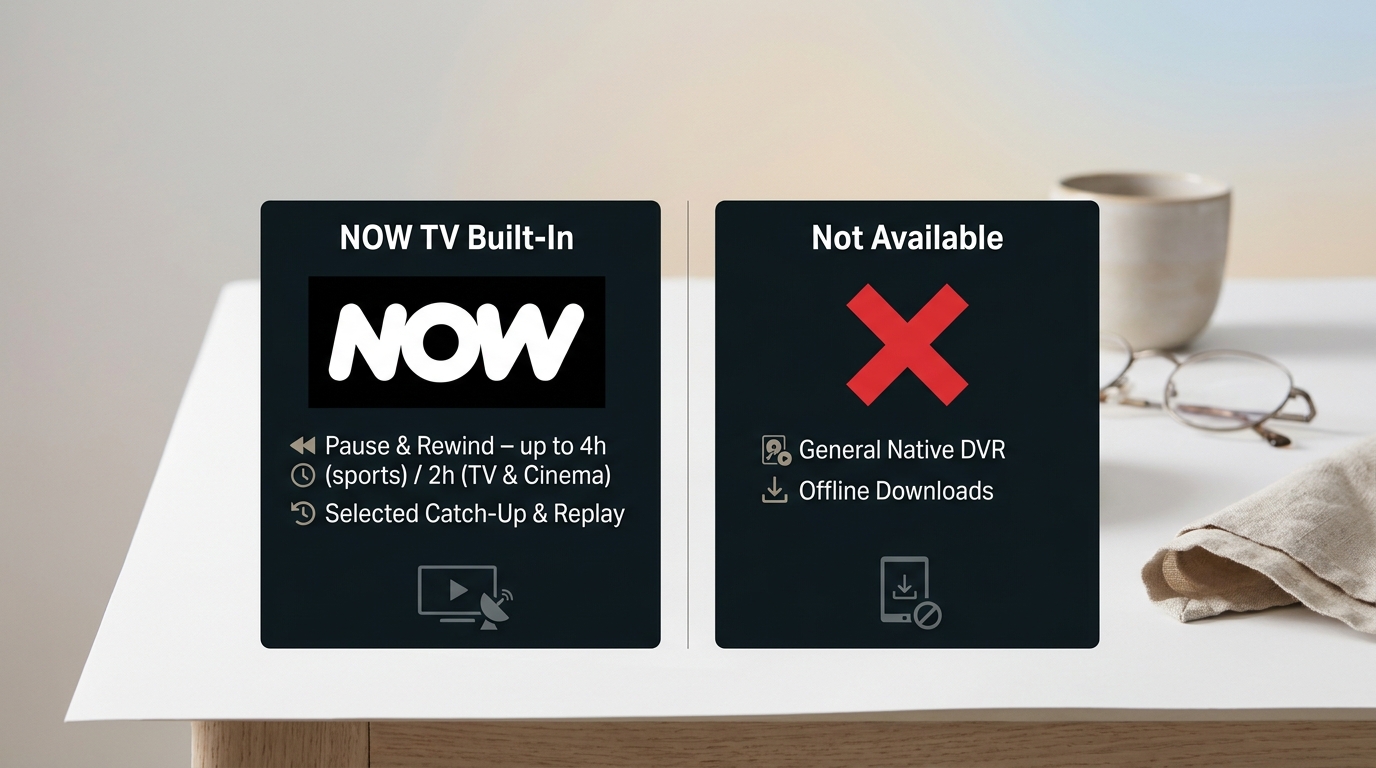
NOW Recording Options at a Glance
Native DVR, Pause, and Replay
My rule of thumb is simple: most viewers should check pause or replay first. A local-file option makes sense only when those official viewing features do not match the way you need to watch.
When a NOW TV screen recording fails, the practical issue is protected playback: a recorder may capture the interface or audio while the video layer stays black. That behavior is not necessarily a recorder malfunction, and switching tools does not guarantee that the video will become available to capture.
Why Black Screens Keep Audio
A black recording with audio or visible controls is a common symptom of protected playback. The video layer can remain unavailable to the recorder even when other screen elements are captured. In my view, once you see that pattern, changing recording software alone is unlikely to solve the underlying limitation.
NOW Box and EE TV Limits
A NOW streaming box is not a general DVR. EE TV Box Pro can be an authorized recording route for eligible guide-listed programming, but it is a separate provider arrangement. Community-reported considerations include EE Broadband, contract and device requirements, HD-only output in some setups, and recording limits tied to what appears in the guide.
Apps and Browsers Behave Differently
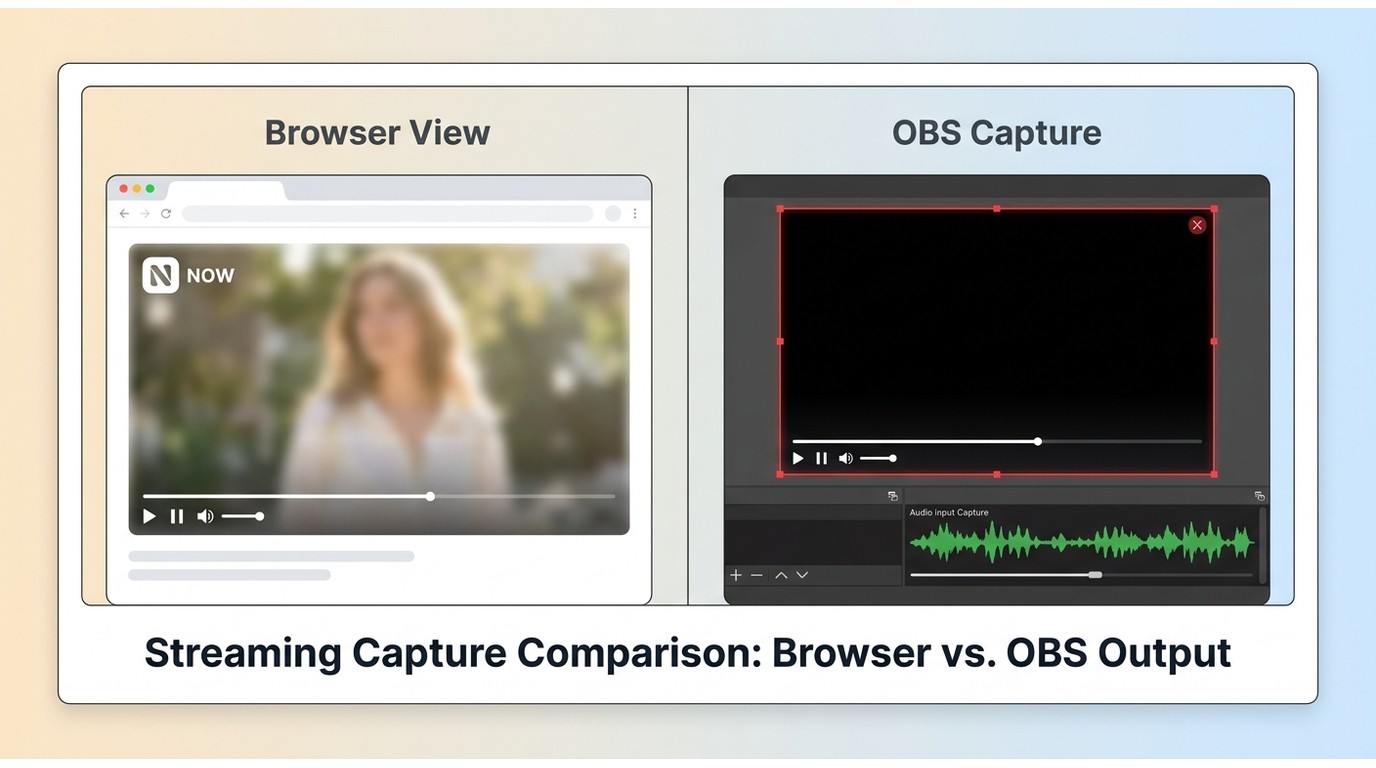
Apps and browsers can behave differently during NOW TV screen recording, but neither offers a reliable way to capture protected video. A browser may still show a black video layer even when audio or interface elements are recorded.
Hardware Acceleration Is Not Guaranteed
Some users try a Chromium-based browser with hardware acceleration turned off before using OBS or another web recorder. Results vary, and the setting is not a guaranteed fix for a NOW TV black screen.
If the video remains black, stop treating the setting as a solution. It may be worth a short authorized clip test, but real-time capture is a poor fit for long sports sessions because frames can drop or the recording can fail.
Mobile, Samsung TV, and Roku
Built-in phone recording can produce a blank NOW video layer while sound or interface elements still appear in the capture. Samsung TVs and Roku devices are playback devices, not a general native NOW DVR feature.
If you only need to finish a live program later, check the available pause or replay option before spending time on device recording.
Live Sports Replays Have Gaps
Replay Timing and Rights Limits
If you want to record NOW TV sports because you cannot watch live, check whether the event has pause, catch-up, or a full replay first. Sports replays are selected, can be delayed, may be incomplete, and depend on rights for that event.
NOW does not generally offer offline sports downloads. Sports are the least forgiving case: when a full replay is missing or delayed, it is not safe to assume it will appear later.
When EE TV Recording Helps
EE TV recording can help only when the relevant channel or program is eligible and listed in the guide. It is best viewed as a provider-specific DVR arrangement, not as a universal way to record every NOW sports event.
Recording vs Local-File Workflows
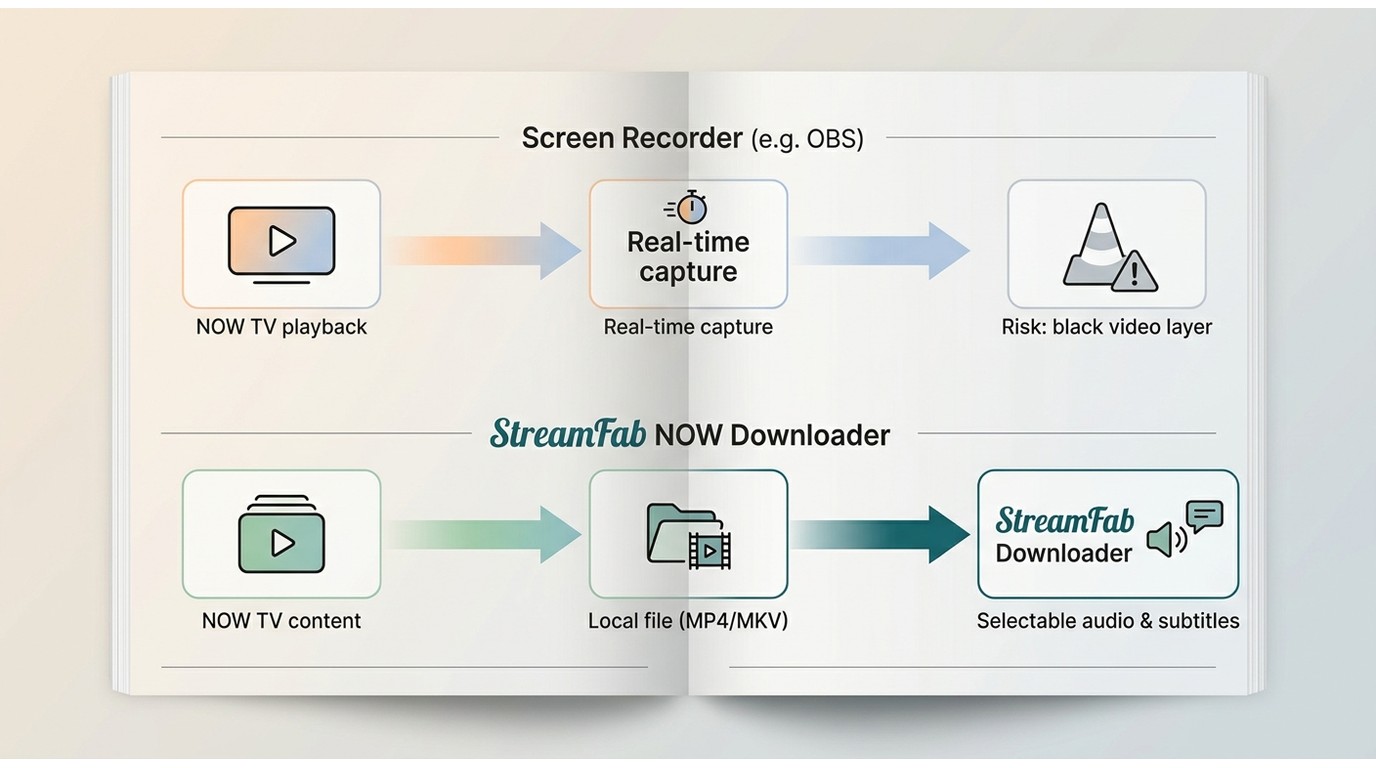
Screen recording and a local-file workflow solve different problems. A recorder captures what plays on screen in real time, while a local-file workflow creates a file for personal offline viewing when supported.
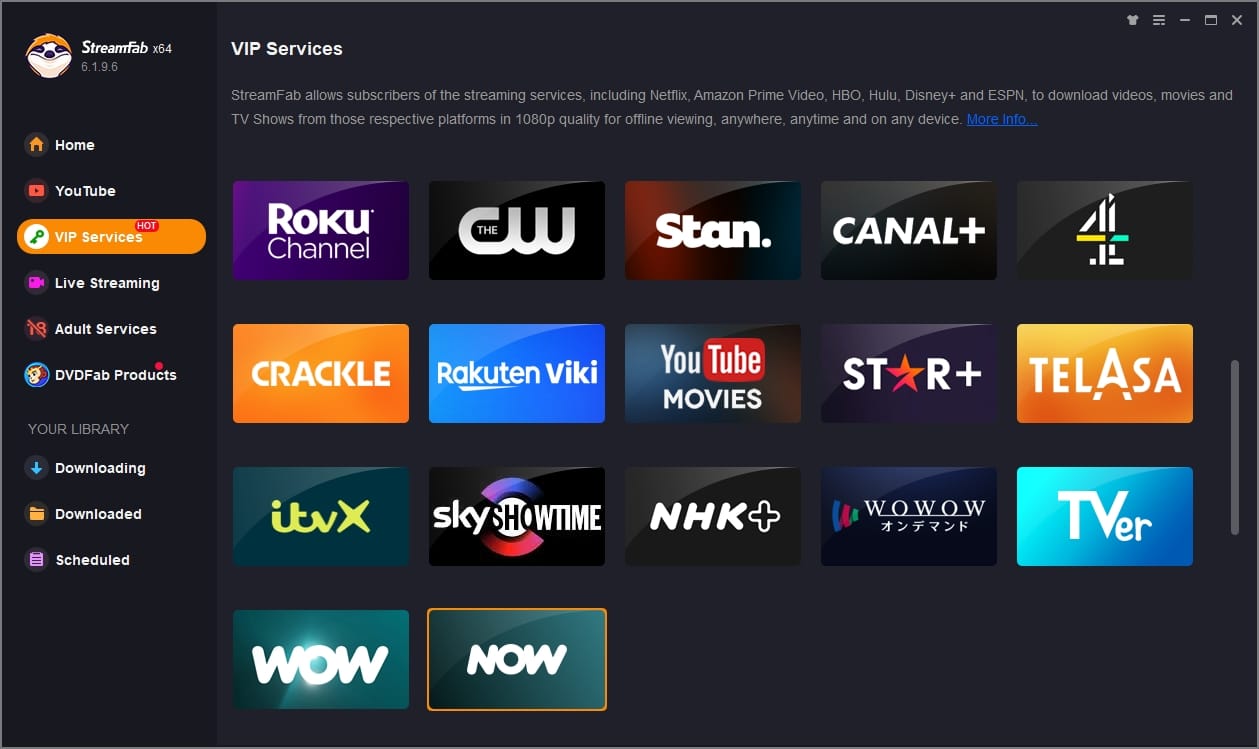
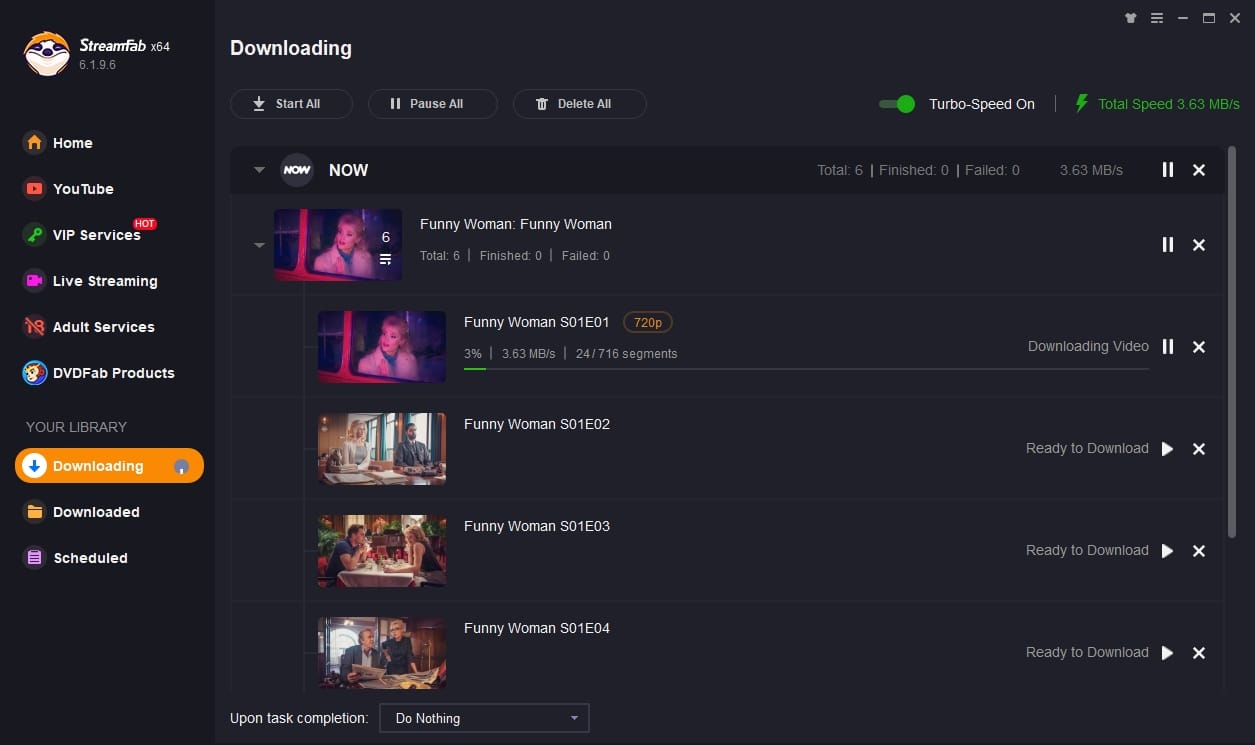
For content you are authorized to access, where permitted by platform terms and applicable law, StreamFab NOW Downloader is a desktop local-file workflow for Windows and Mac users.
MP4, MKV, Audio, and Subtitles
Whether a NOW TV recording becomes an MP4 depends on the recorder and its export settings.
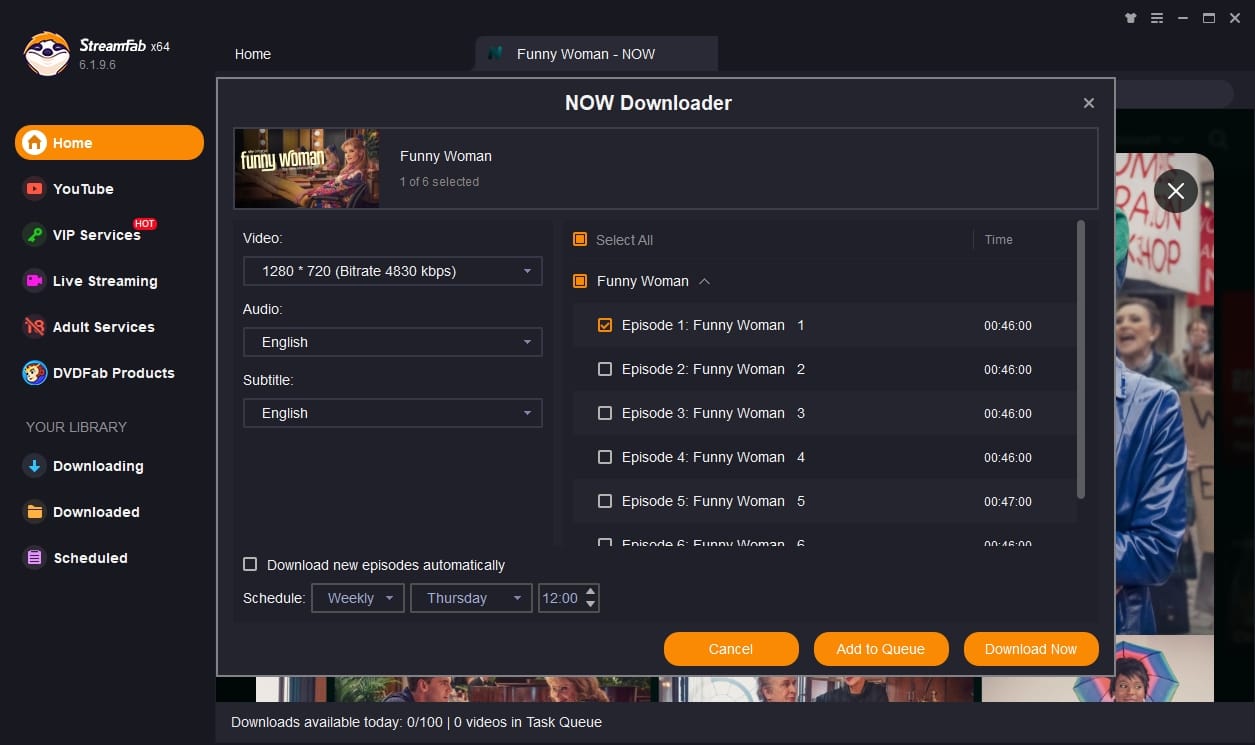
StreamFab NOW Downloader supports MP4 and MKV output, selectable audio languages, and subtitle downloading, while a screen recorder generally captures the rendered output rather than separate media tracks. MP4 is broadly compatible with common players; MKV can be useful when you want more track flexibility.
For authorized content and private offline viewing where permitted, StreamFab NOW Downloader offers a Windows and Mac local-file workflow with MP4 or MKV output, selectable audio languages, subtitle downloads, batch saving, and scheduled tasks. It is a better fit when you need a local file, not when NOW's pause or selected replay already solves the problem.
Which Method Fits Which Need
| Method | NOW pause and selected replay | EE TV Box Pro | Browser recorder | Mobile or TV-device recording | StreamFab NOW Downloader |
|---|---|---|---|---|---|
| Native DVR support | No general DVR | Eligible guide-listed programming | No | No | Local-file workflow |
| Time required | Use available pause, rewind, or replay | Depends on the provider DVR setup | Real-time playback | Real-time playback | Supports batch saving and scheduled tasks |
| Video and audio handling | Managed in the NOW app | Depends on the EE TV setup | May capture interface or audio while video remains black | May capture a blank video layer with audio | MP4 or MKV, selectable audio, and subtitle downloads |
| Best fit | Watching later without a local file | Eligible EE customers | Ordinary unprotected screen tasks | Playback on supported devices | Authorized personal offline viewing on Windows or Mac |
| Not ideal for | Keeping a local file | Recording every NOW program or event | A reliable NOW black-screen fix | Recording NOW programs | Viewers who only need pause or selected replay |
StreamFab Workflow

PC Screen Recorder Alternatives
The linked Audials Movie Box review covers a discontinued standalone product. Audials One is the current Audials product line, while OBS Studio and similar recorders remain better suited to ordinary, unprotected screen tasks than to a reliable NOW workaround.
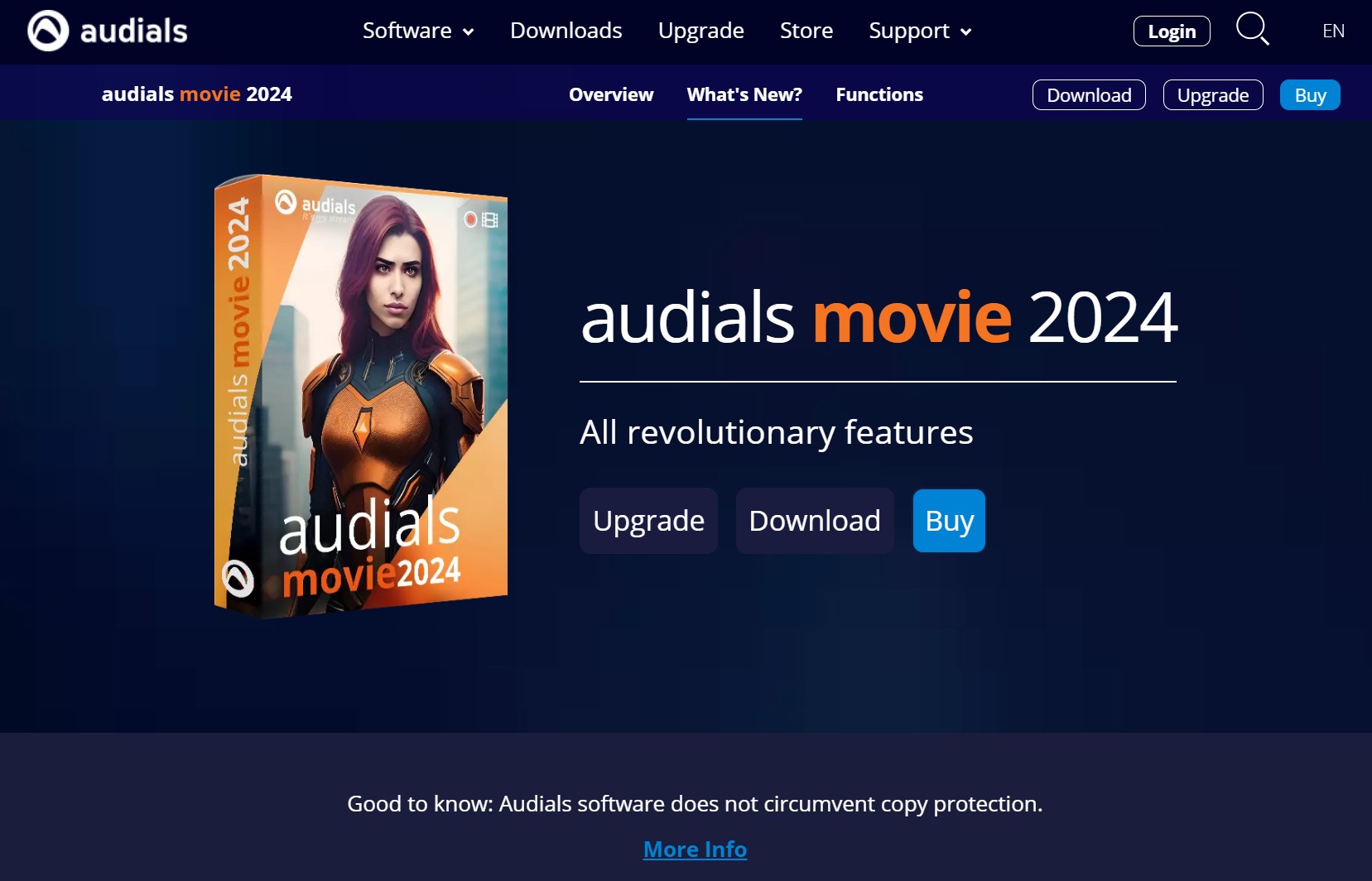
General screen recorders require real-time playback and may still capture audio or interface elements while NOW video remains black.
Basic Recorder Workflow
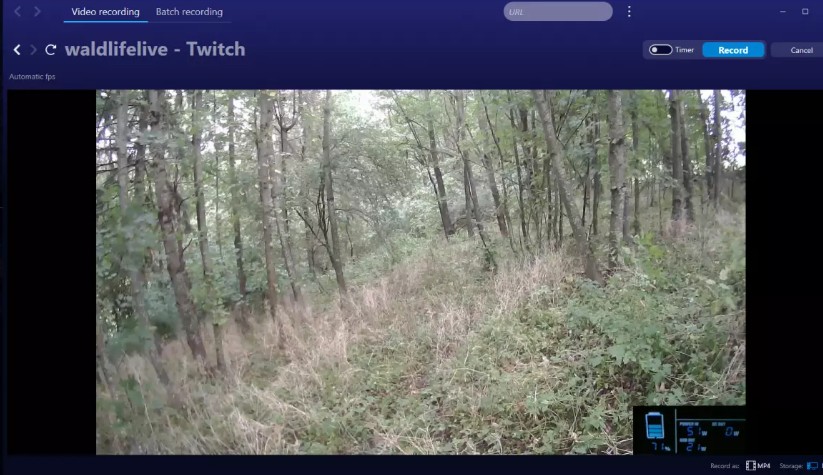
For more options on PC recording utilities, check out our NCH Debut Video Capture Review: Pros, Cons, & Alternatives.
FAQs
Can a Samsung TV or Roku device record NOW programs?
No. Samsung TVs and Roku devices are playback devices and do not add a general native NOW recording feature. Check NOW's available pause, rewind, catch-up, or selected replay options instead.
Is there a free screen recorder that reliably avoids NOW black screens?
No recorder can reliably guarantee that result. Free tools such as OBS may capture the interface or audio, while secure playback can keep the video layer black. Turning off browser hardware acceleration has variable results and is not a general fix.
Will a saved NOW file include audio and subtitles?
It depends on the method. A screen recorder captures rendered playback, while a local-file workflow may offer selectable audio languages and subtitle downloads when the product supports those options.
Conclusion
For a practical decision, treat hardware-acceleration changes as a variable short-clip test, not a reliable solution. If the video stays black, pause or selected replay remains the more appropriate route when NOW offers it.
Use NOW's pause or selected replay when it meets your needs, and consider EE TV only when its provider and program-guide requirements fit. Browser recording remains variable. For authorized content, where platform terms and applicable law permit, StreamFab NOW Downloader is a desktop local-file option for Windows and Mac users who need MP4 or MKV output, selectable audio languages, or subtitle downloads.
This software is intended for personal backup of streaming content you can lawfully access during an active subscription, and for private offline viewing only. Do not use it for redistribution, uploading, or any commercial purpose.


The NOW TV application features an "offline playback mode"; however, it imposes limitations on the storage and viewing duration of downloaded content. How may one enjoy unrestricted offline viewing of NOW videos? This article provides the answer.
By Erika Leen - Aug 4, 2026
You can download eligible NOW TV shows and movies in the NOW TV app for supported iPhone, iPad, and Android devices. For a trip or unreliable connection, the official route works on mobile, while Windows and Mac users need a separate local-file workflow for authorized personal offline viewing.
By Marcia Hatcher - Jul 27, 2026