
Audials Movie Review 2026: Quality, Pricing, and Reliability

Summary: Audials Movie is now the video-recording component inside Audials One 2026. This review explains the U.S. Standard and Premium pricing, native 1080p capture versus Premium AI upscaling, Windows reliability limits, and the practical differences between a real-time recorder and StreamFab's local-file workflow.
If you searched for an Audials Movie review because the old Audials MovieBox name now points to Audials One, the practical answer is clear: the video recorder sits inside Audials One 2026, and its value depends on whether Windows recording, real-time capture, and 1080p native output fit your workflow.

I focus on the purchase decisions that matter: Audials One 2025 vs 2026 naming, Audials pricing, native versus AI-enhanced output, reliability checks, and the point at which a local-file workflow makes more sense.
Audials Movie Inside Audials One 2026
Audials Movie 2026 is no longer a separately presented product line. The familiar Audials MovieBox label now describes the video-recording component inside Audials One 2026, so buyers comparing Audials One 2025 vs 2026 should start with the plan change.
- Quick takeaway: Upgrade when the unified Audials One plan and Premium processing fit your Windows workflow; choose another route if you need macOS or source-quality local files.
Standard, Premium, and License Options
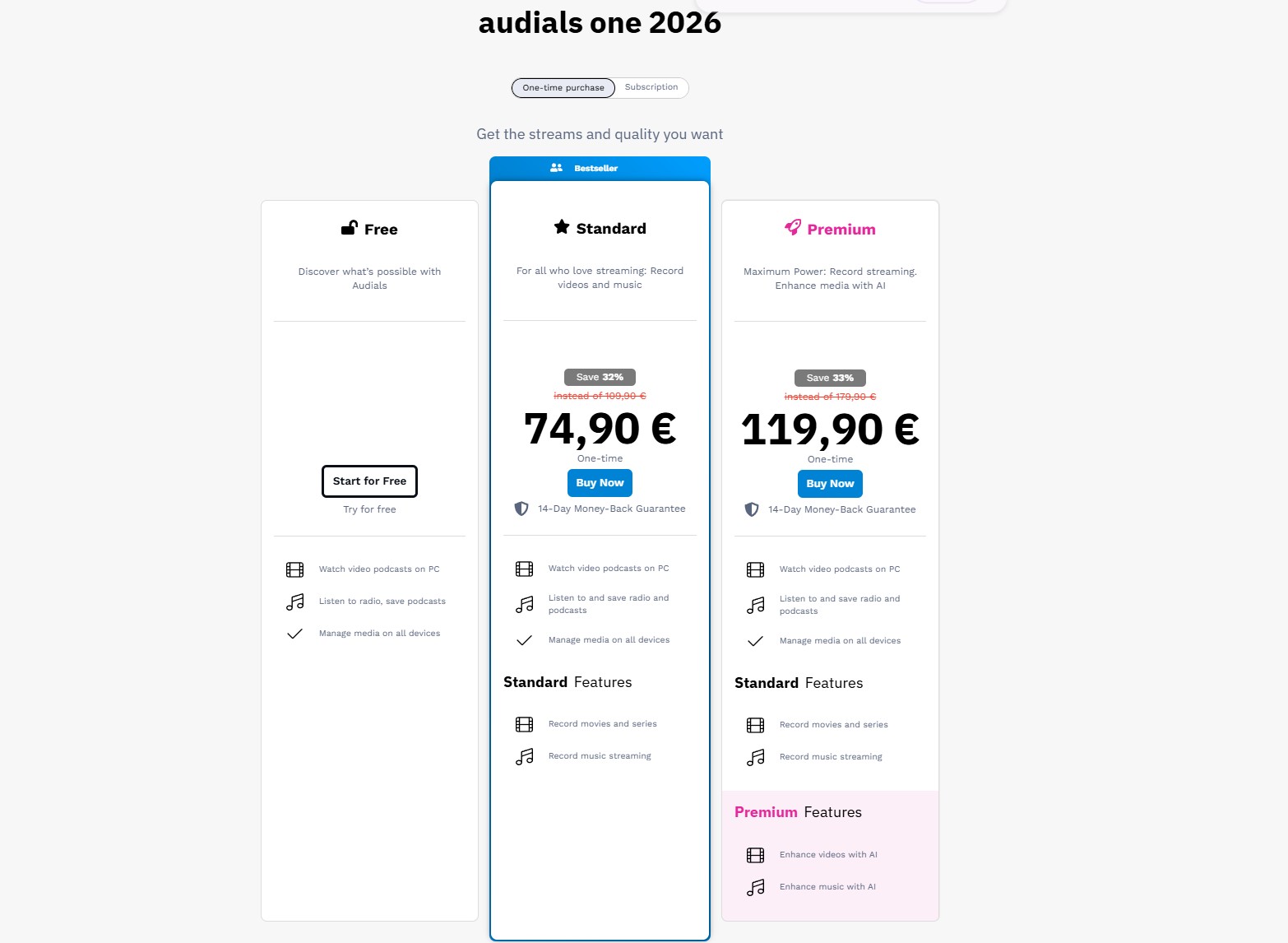
The current Audials pricing choice is between a recurring Standard or Premium plan and a one-time purchase route. Audials One Premium adds post-processing tools, while Standard keeps the focus on core recording.
As of August 24, 2026, the official overview listed Standard at $16.95 per month or $46.74 per year, and Premium at $20.95 per month or $58.44 per year. Both plans carried a 30-day money-back guarantee. A one-time Premium 2026 license was also offered; check the current store listing for its price.
- Standard: suited to Windows users who want the combined video and audio recorder without Premium post-processing.
- Premium: suited to users who want AI-assisted enhancement after a recording is complete.
The Audials free trial is a useful way to check whether your main service, browser route, and preferred speed behave as expected before committing to a plan. Exact trial allowances depend on the current product route.
| Plan | Price | What it includes | Refund |
|---|---|---|---|
| Audials One 2026 Standard | $16.95 monthly or $46.74 yearly | Core video and audio recording | 30-day money-back guarantee |
| Audials One 2026 Premium | $20.95 monthly or $58.44 yearly | Standard features plus AI-assisted enhancement | 30-day money-back guarantee |
Audials Recording Quality and Reliability in 2026

This Audials Movie review treats Audials recording quality and Audials reliability as separate questions. A recording can finish successfully yet still miss the source browser's delivered resolution, drift at accelerated speed, or pick up system audio.

I look at Audials as a Windows recording workflow, not as a magic quality switch. The useful question is whether its capture method matches the service, speed, and file expectations you actually have.
Features That Matter
As a streaming video recorder and Windows video recorder, Audials centers on capturing rendered playback. It also offers ad handling, subtitle capture, and simple MP4 editing; for another recording-centered workflow, the PlayOn review provides a useful point of comparison.
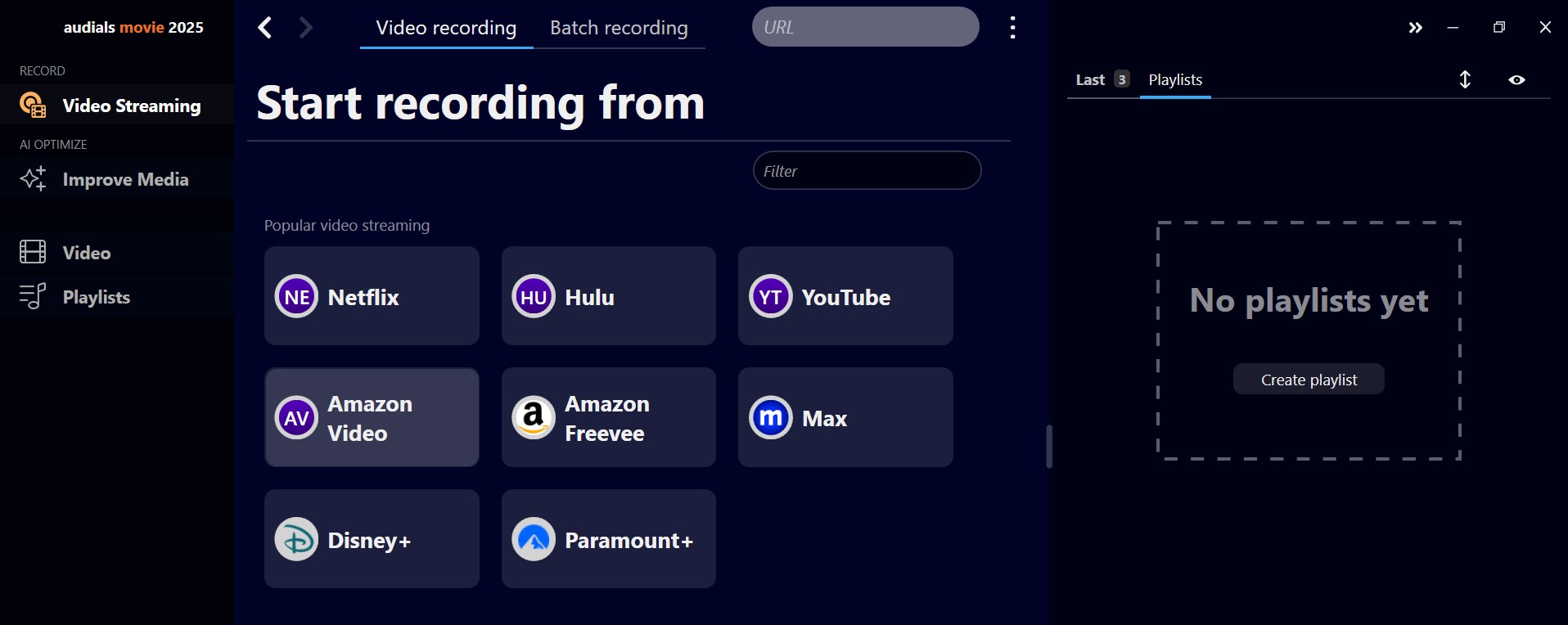
- Recording and ad handling: Captures rendered playback and can handle ad-supported services through its ad-detection workflow.
- Subtitle and format options: Subtitle capture and MP4 editing support a straightforward archive workflow.
- Platform fit: The recording path is built for Windows, so operating-system choice matters before purchase.
- Playback-first workflow: A recording runs with playback, which makes speed settings and foreground use part of the trade-off.
Native Recording Quality vs AI 4K
Native 1080p recording and AI upscaled 4K are different outputs. Audials records up to 1080p natively, while Premium can post-process a finished recording to 4K; the source browser's delivered resolution can still lower the capture.
- Native capture: up to 1080p when the source browser delivers that resolution.
- Premium processing: a completed recording can be enlarged to 4K after capture.
- Practical limit: AI upscaling changes the frame size, but it does not restore detail that was never delivered by the source.
My read is simple: treat the browser's delivered resolution as the real ceiling, then decide whether the Premium step is worth paying for as a finishing tool rather than calling it native 4K.
Our Test Setup and Measured Results
To test Audials reliability, keep one Windows PC, one service, one title, and one speed setting fixed, then record the browser route, output resolution, format, CPU use, completion time, and failures.
The practical baseline is normal-speed recording on a short title. It gives you a clean reference for audio sync and file splitting before you try accelerated capture. Best for: Windows users who can leave the recording session in the foreground. Not ideal for: readers who need unattended processing with no opportunity to check the result.
Reliability Issues and Practical Fixes
Common Audials black screen and Audials audio sync complaints point to playback state, system-audio capture, browser resolution, or speed settings rather than one universal failure. If a broader Audials One not work pattern appears, the Audials One troubleshooting guide collects the longer checklist.
- Blank screen: confirm that the title is visibly playing in the selected browser or player before starting the capture.
- Service restarts: keep the computer awake and avoid switching playback routes during a recording.
- Low browser resolution: check the resolution actually delivered by the source player; an output setting cannot add missing source detail.
- Low volume: check the system mixer and the selected recording device before starting a full title.
- Audio drift: test accelerated recording on a short title first, then return to normal speed if sync moves.
- Episode splitting: update the app and confirm that the service's episode detection is behaving correctly before queuing a season.
Drawbacks and Limits
Audials reliability depends on a Windows, real-time recording workflow. The main limits are the lack of a current macOS recording path, a native ceiling of 1080p, foreground system-audio risks, and the time cost of letting playback run.
- OS coverage: Audials Movie recording is for Windows; macOS users need a different workflow.
- Trial scope: Trial capabilities and current limits vary by product route.
- Source quality: Native capture tops out at 1080p, and browser-delivered resolution can be lower.
- Foreground recording: Notifications or task switching can interrupt a capture or contaminate its audio.
- Time cost: Real-time playback means a long title still occupies the recording session.
- Audio checks: Low volume or drift calls for a short test before a full-length recording.

Current User Ratings
Audials user reviews on Trustpilot showed a 3.8/5 rating across 405 reviews as of August 24, 2026. The spread of positive and negative feedback suggests that service compatibility and recording conditions matter as much as the feature list.
Using the Audials Movie Recorder
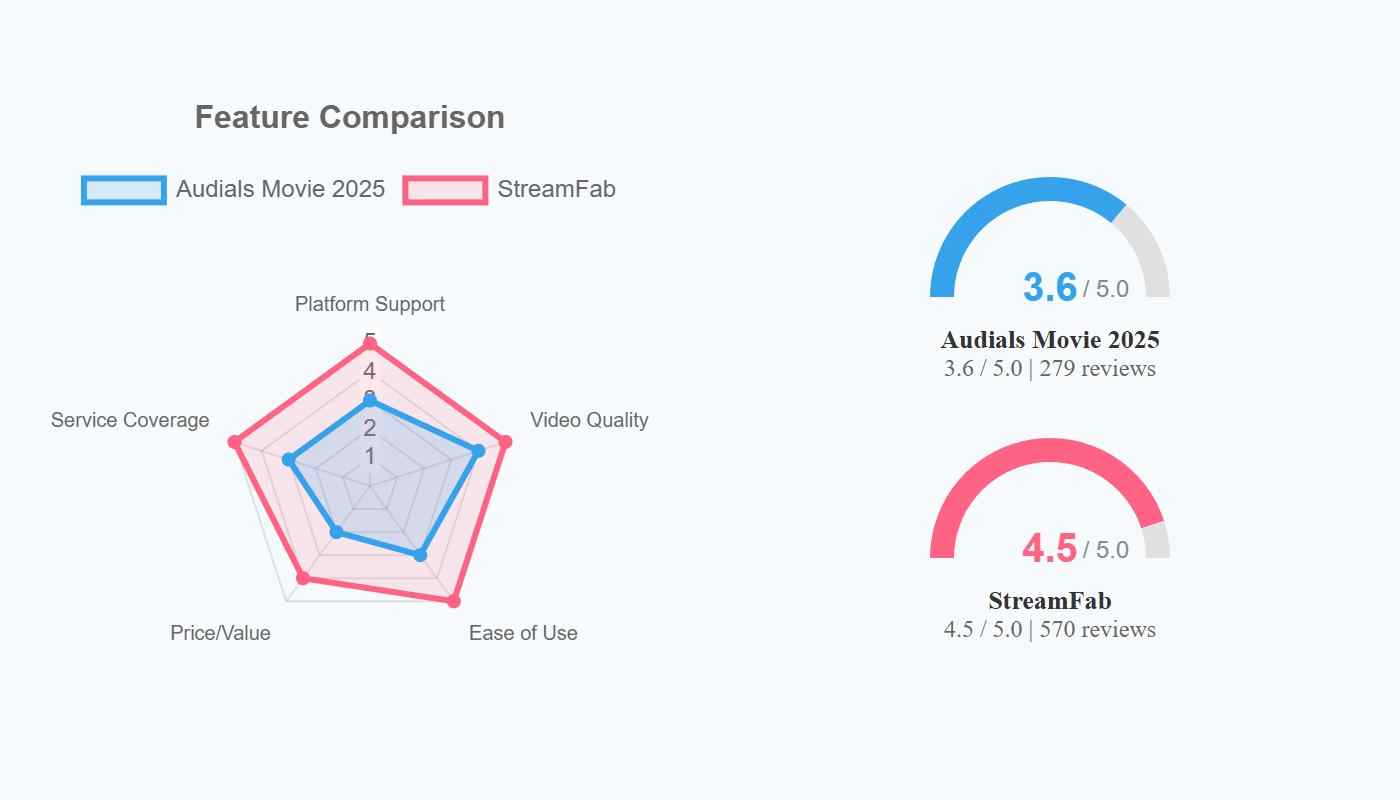
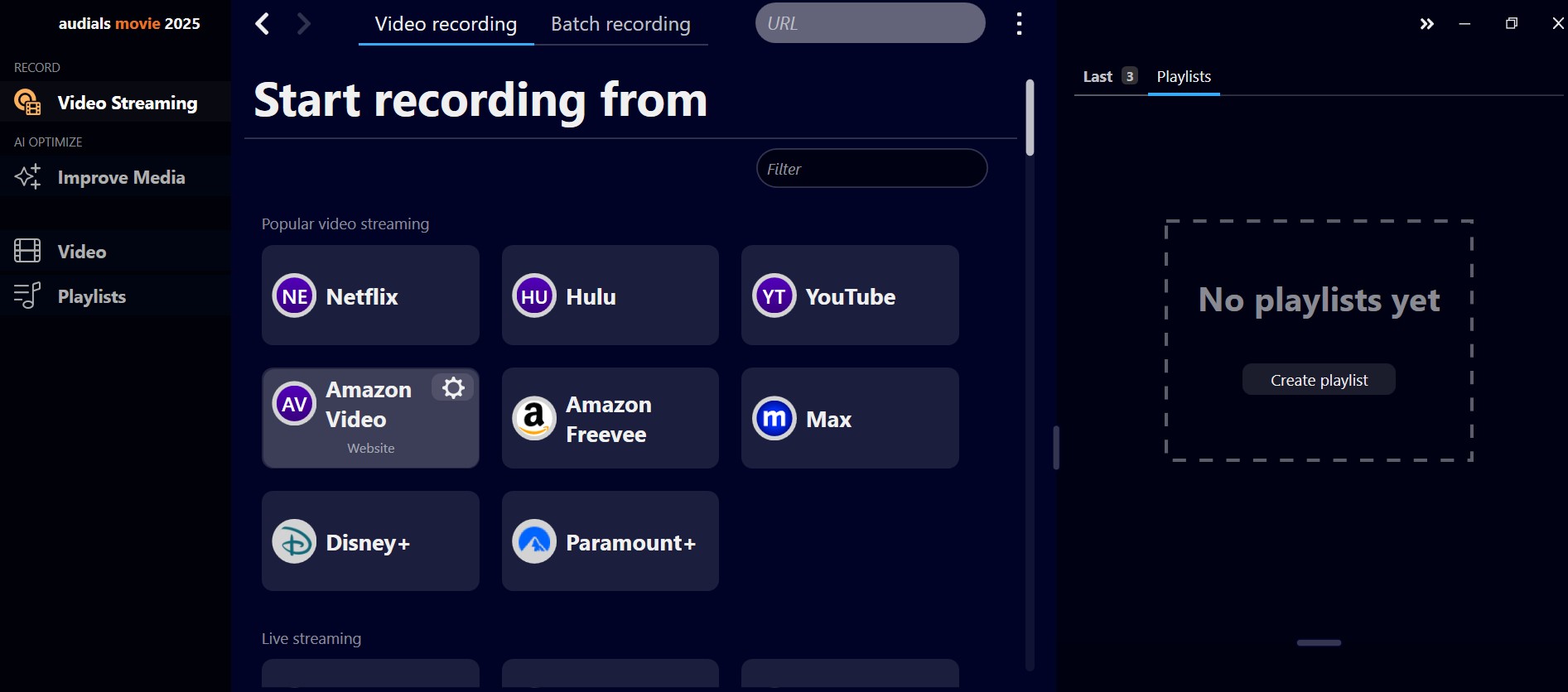
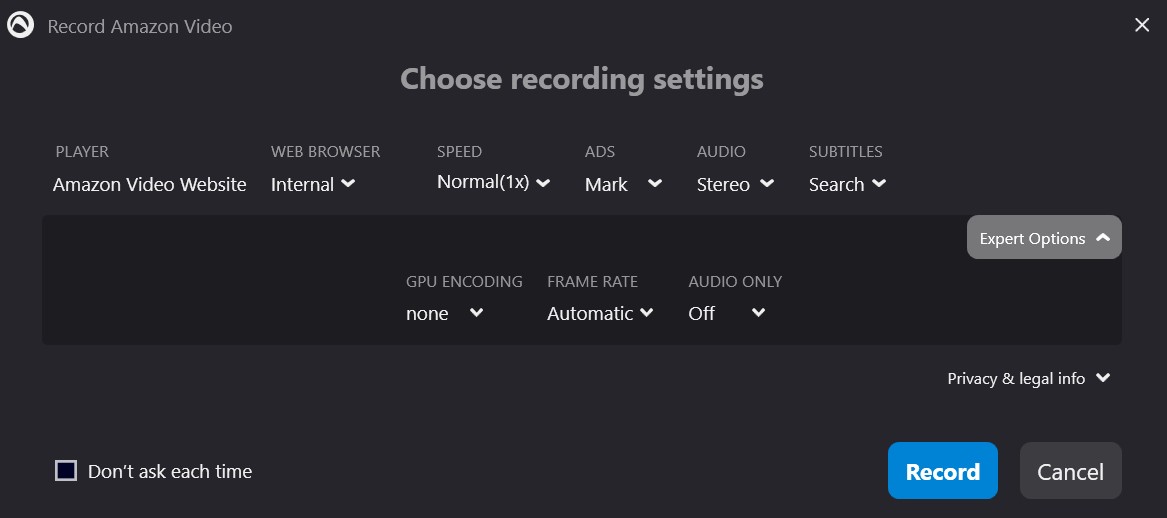
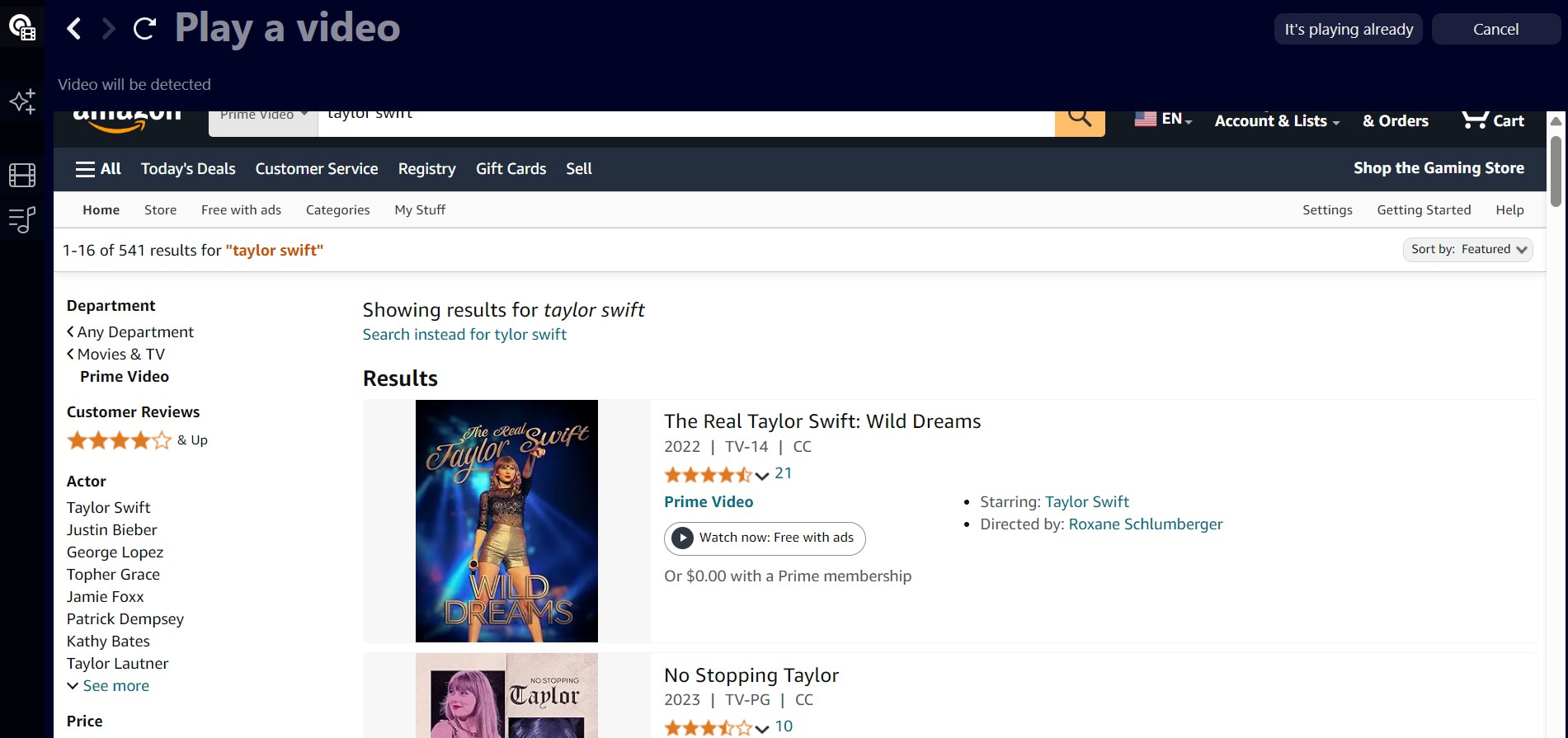
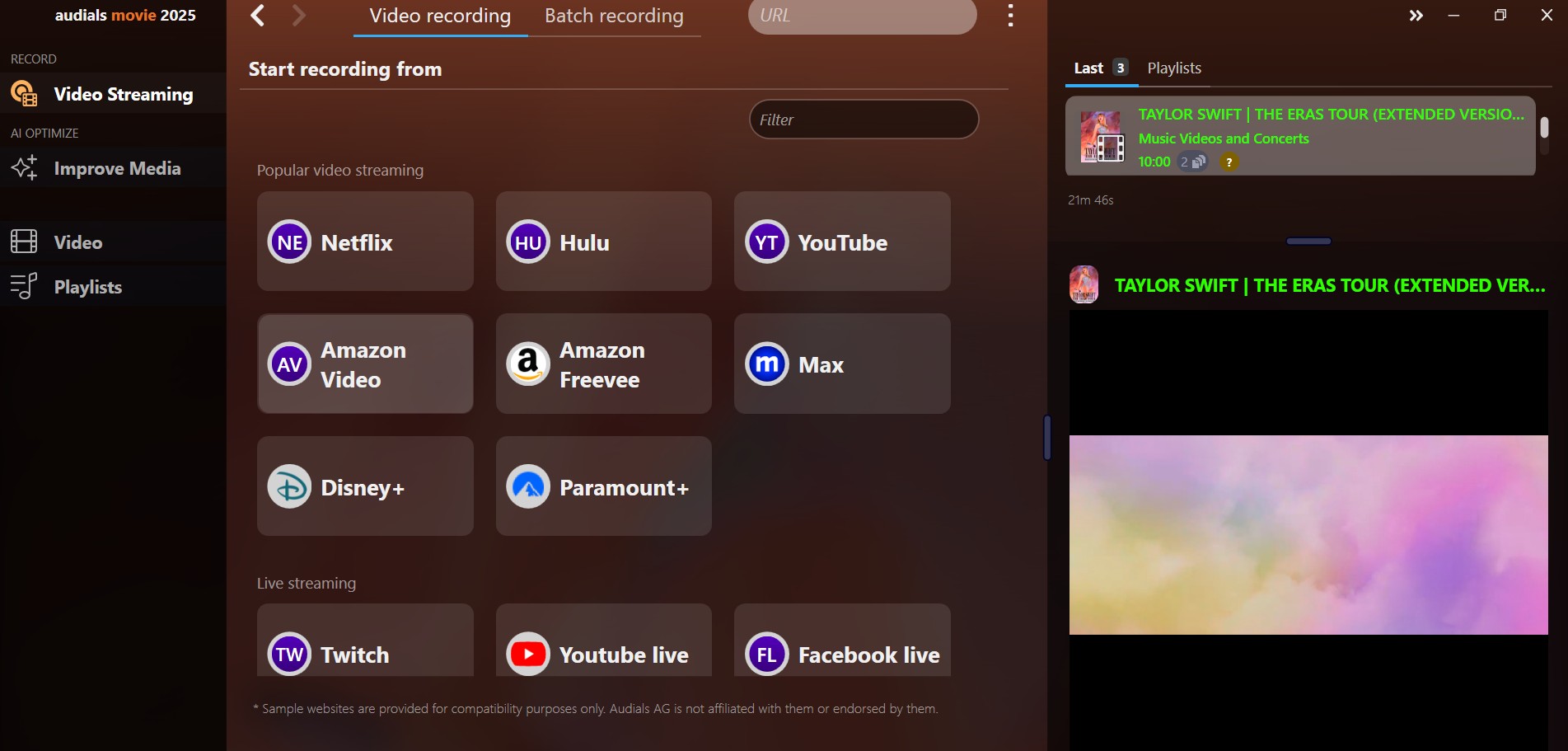
To use the streaming video recorder, sign in to a valid service account, open the title in the supported Windows route, and keep the playback window stable while the capture runs.
Audials for Mac is not part of the current recording path; Mac users can jump to the local-file alternative section for a different workflow.
For a first run, choose a short title, use normal speed, confirm the audio level, and check the finished file before recording a full movie or season. Accelerated speeds deserve the same short-title check because users report drift and failed captures above real time.
StreamFab as a Local-File Alternative
For content you are authorized to access, where permitted by platform terms and applicable law, StreamFab offers a local-file workflow for personal offline viewing. The Audials One alternatives overview helps place that workflow beside Audials without treating either method as universal.
StreamFab runs on Windows 10/11 and macOS, outputs MP4 or MKV, and supports batch and scheduled tasks. Resolution is service-dependent, with a maximum of 4K on supported services and plans; the file is designed for playback without a dedicated client.
This tool downloads videos from over 50 OTT services and a thousand-plus online sites. It saves them in up to 8K MP4/MKV format onto your device so you can watch offline anytime.
Audials vs StreamFab by Task
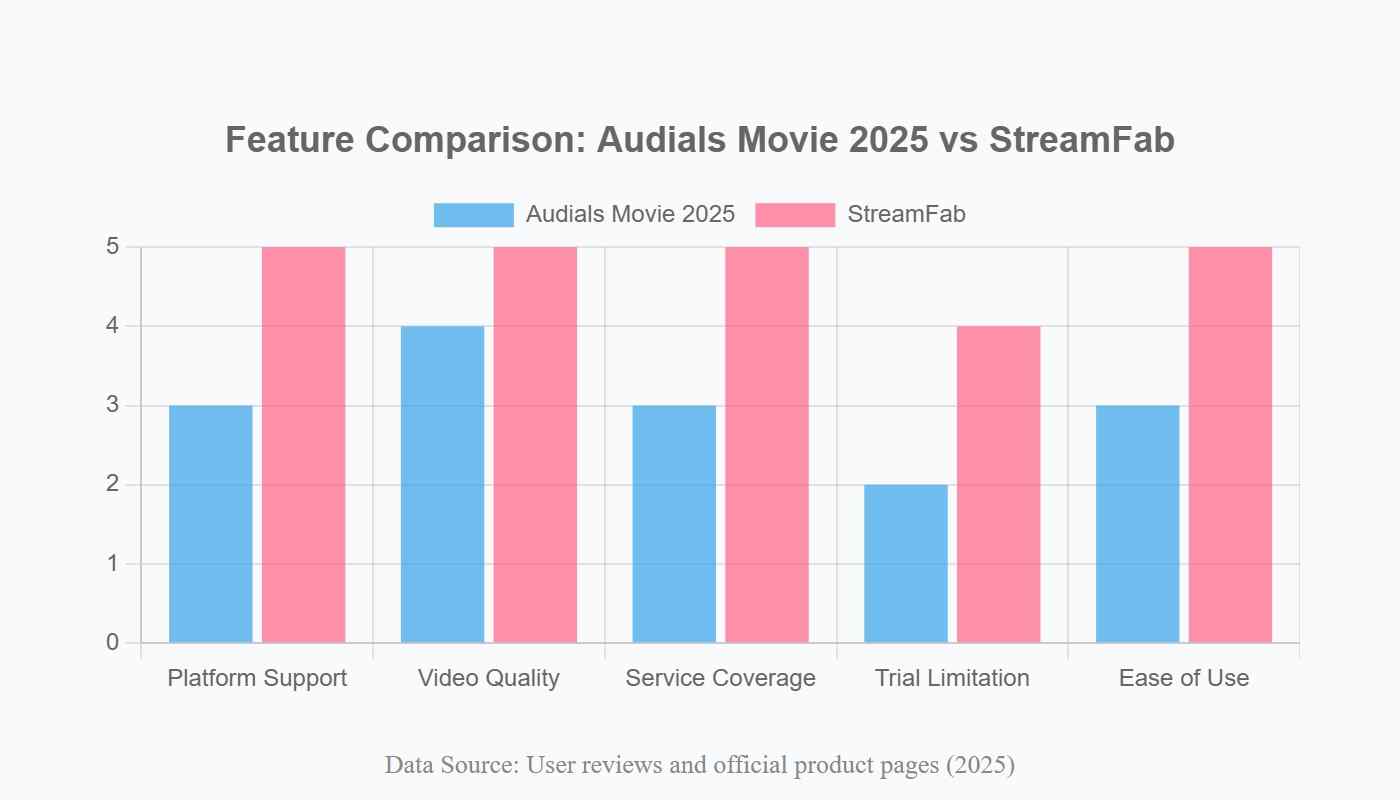
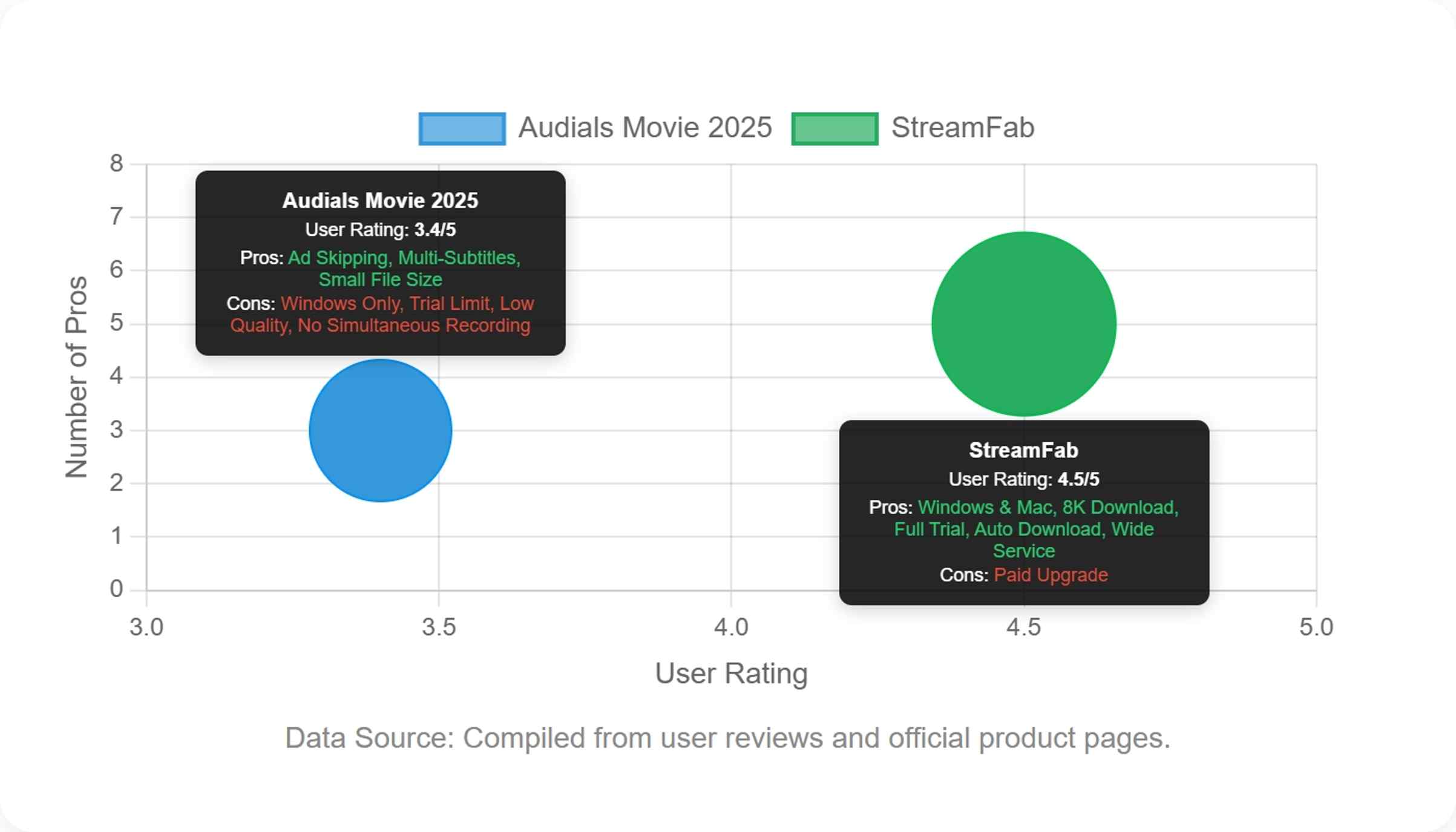
For native 1080p recording, Audials keeps the rendered-playback model. For Audials reliability and file control, the choice turns on whether you prefer a real-time recorder or a local-file workflow with batch and scheduled options.
| Decision point | StreamFab All-In-One | Audials One 2026 |
|---|---|---|
| Saving method | Local files for authorized personal offline viewing | Records rendered playback; Audials quality section |
| Native output ceiling | Service-dependent, up to 4K | Up to 1080p native |
| Operating systems | Windows 10/11 and macOS | Windows |
| Batch or scheduled workflow | Batch and scheduled tasks | Recording session per title |
| Best fit | Mac support and direct local files; not ideal for rendered capture | Windows recording; not ideal for Mac or source-quality direct files |
The StreamFab review covers broader platform detail, while the Audials recording quality and reliability section keeps the recorder-side trade-offs in view.
StreamFab Workflow
The workflow is short: sign in to a service you are authorized to use, select the title, choose the available resolution and MP4 or MKV output, then start or schedule the task. Keep the first job short so the result can be checked before a batch.
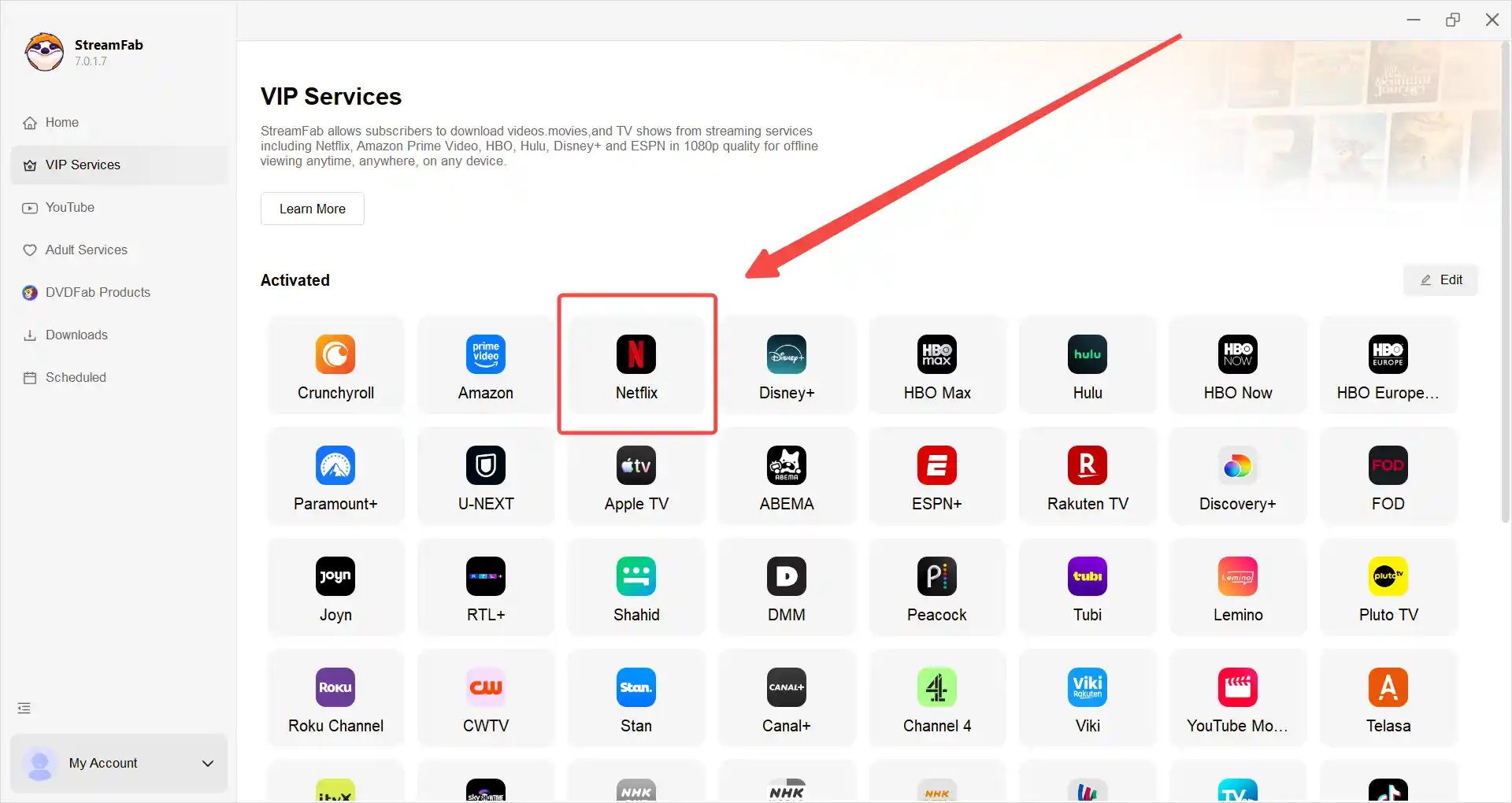
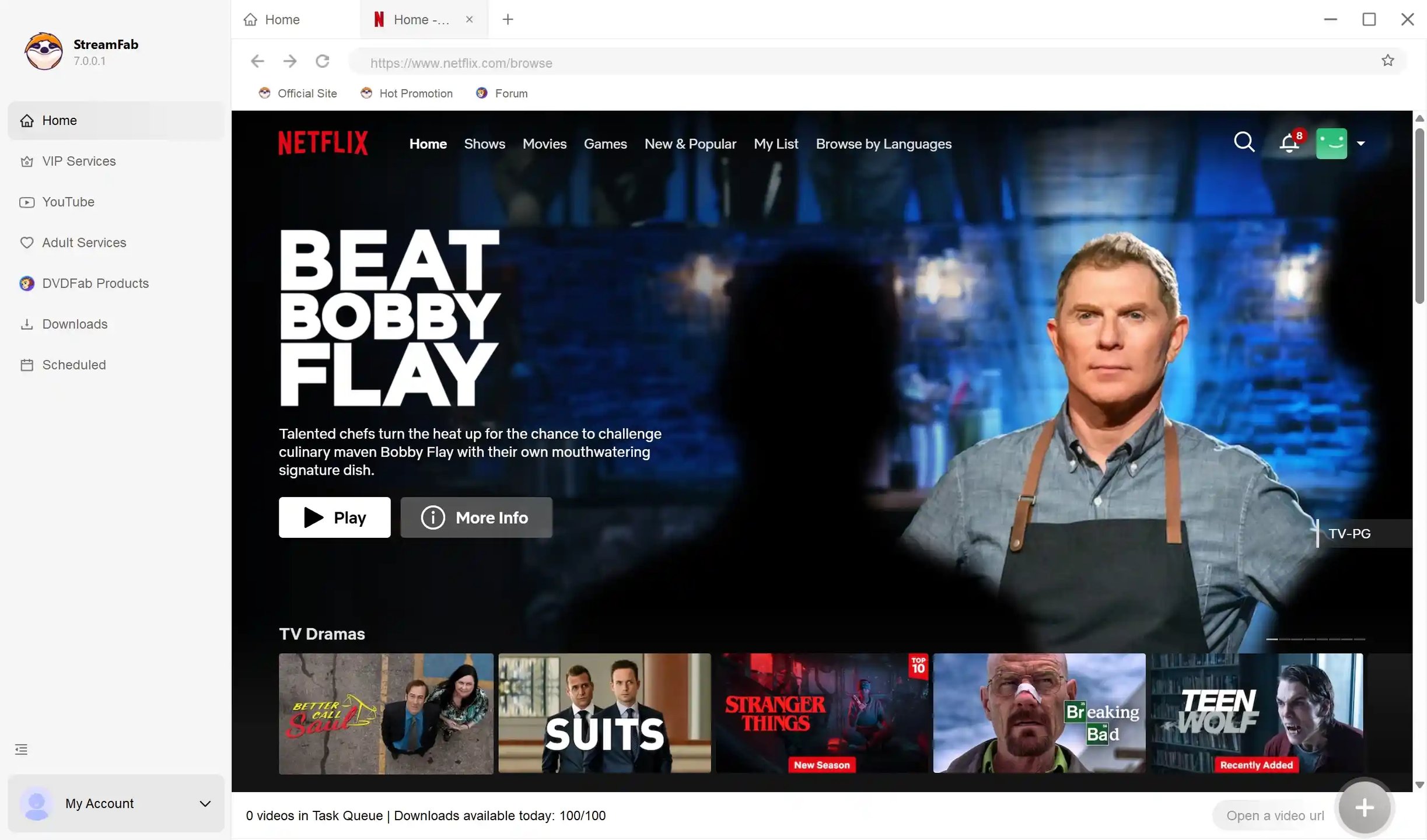
Choose the streaming service
Find the streaming website you want. You can also copy and paste your video URL directly into the address bar on the Homepage. Here, we still take Netflix as an example.
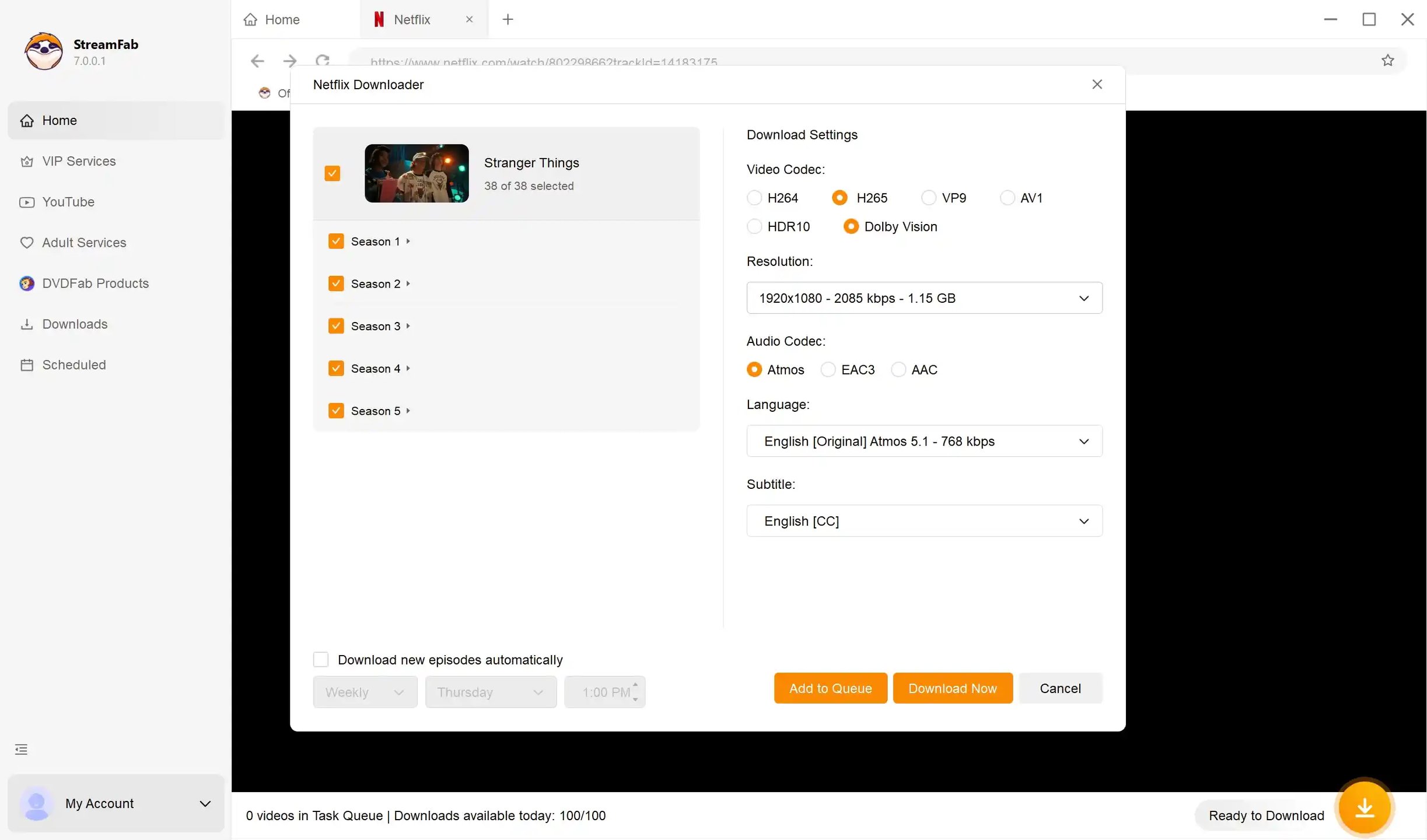
Customize the file
Search for the video and play it, then a pop-up window will ask for your customization. You can choose the audio, subtitle language, format, resolution, etc.
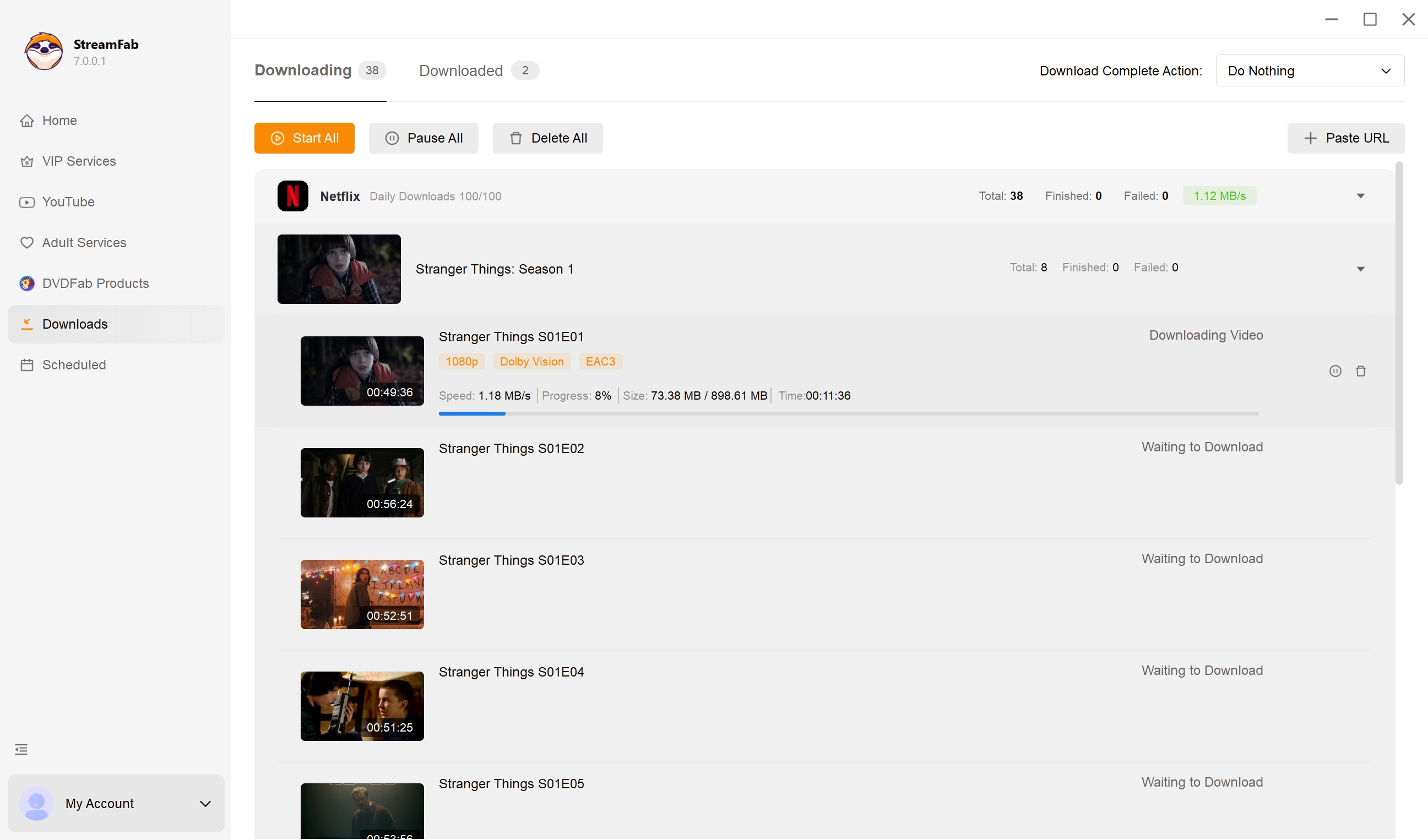
Click the download button
Once you have selected your preferred settings, click on the “Download” button, and StreamFab Video Downloader will start fetching the video for you.
Audials Movie FAQs
Can I keep using Audials Movie 2025 after the 2026 release?
An installed older version may continue to open, but service changes and version-specific support can affect recording reliability. Treat the current service and title as the deciding test before relying on an older build.
Does Audials capture notification sounds while recording?
It can, because recording uses the foreground playback and system-audio path. Turn off notifications, close unrelated audio apps, and make a short test recording before a full title.
Why can older Audials versions merge episodes into one file?
Episode detection can change with the service and the app version. Update the software, test one episode, and confirm the current title-detection behavior before starting a season queue.
Is Audials Play the same as the Audials One trial?
No. Audials Play and the Audials One trial are different product names and routes. The available recording features depend on the current installer and plan; for the wider suite context, see the Audials One 2026 review.
Update Log
This page reflects the Audials One 2026 naming and the current United States plan structure.
- Updated pricing and plan information for 2026
- Added the native 1080p versus AI 4K distinction
- Added reliability symptoms and practical checks
- Refreshed user-rating context
Conclusion: Is Audials Movie Worth It?
For this Audials Movie review, the purchase verdict is conditional: Audials Movie is best for Windows users who are comfortable recording rendered playback, and not ideal for Mac users or readers who require source-quality direct files.
My judgment is to test the primary service and preferred speed on a short title first. If that workflow fits, Standard or Premium can make sense; if you need macOS, batch local files, or service-dependent output up to 4K, StreamFab is the more suitable route to evaluate.
Choose the plan that matches your actual device and capture workflow, then keep recordings within the permissions attached to the content and service.

AnyStream (RedFox AnyStream) shut down in June 2024 and remains gone in 2026. I tested every major replacement — here are the 5 best anystream alternatives, including free options, ranked by real-world performance.
By Erika Leen - Oct 12, 2026
Evaluating the Audials One 2026 free trial? I tested its 720p caps, examined if is audials legal under Fair Use
By Erika Leen - Sep 29, 2026
Are you thinking of purchasing NoteBurner and unsure if it’s worth the investment? In this NoteBurner review, let’s delve into its product lines, particularly the NoteBurner Video Downloader’s pros and cons.
By Marcia Hatcher - Sep 28, 2026
Read our in-depth Audials review for 2026. Is Audials safe and legal for Amazon Prime? Discover actual test results, Widevine DRM fixes, and better alternatives.
By Erika Leen - Sep 28, 2026