
StreamFab Batch Download Guide: Queue Multiple Video Downloads (2026)

Summary: StreamFab's batch download feature lets you add multiple videos to a download queue and start them all at once. This is incredibly useful when you want to build a collection of movies or save an entire TV season—no need to wait by your computer for each download to finish.
If you want to batch download a series without opening and adding every episode one at a time, StreamFab lets you select a full season or chosen episodes, then start the queue together. With an active subscription and enough free disk space confirmed, choose your output settings first and queue only content you are authorized to access — that is the practical path to a reliable overnight batch.
StreamFab is a desktop recording and saving tool separate from official platform download features. Use it with a valid subscription to save a local MP4 or MKV copy for personal offline viewing, subject to platform terms and applicable law.
Before You Start
Make sure you have:
- Installed a current StreamFab release (7.0.4.x as of July 2026) and checked the on-screen buttons against your installed version, since recent updates changed task-queue and episode-analysis behavior
- An active Netflix account (or other supported streaming platform account)
- Stable internet connection for smooth downloading
Output Settings: Format, Quality, Audio, and Subtitles
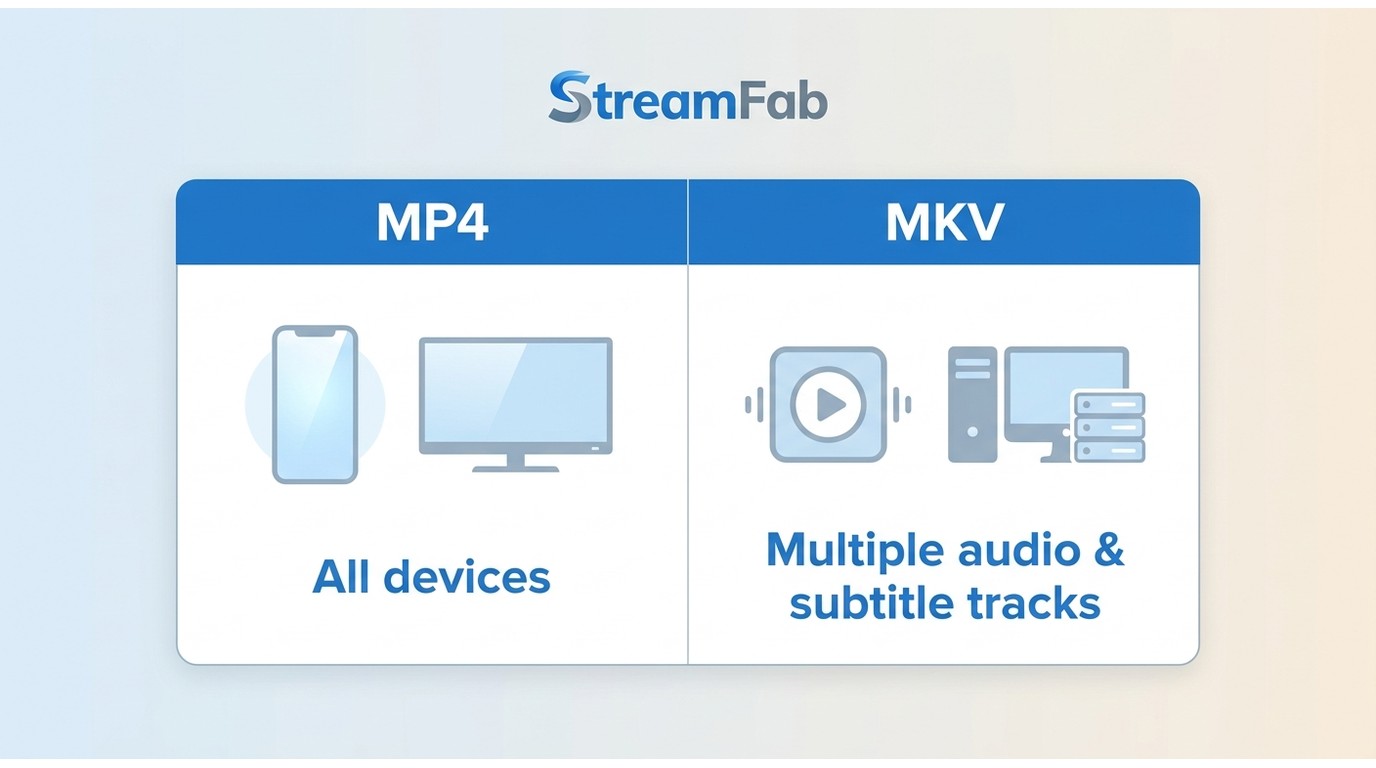
Before building a long queue, choose the format, resolution, audio tracks, subtitle language, and save folder. You can adjust StreamFab output video quality settings before adding titles, and should confirm that your device has enough free disk space for the expected file count.
| Setting | MP4 | MKV |
|---|---|---|
| Typical compatibility | Broad compatibility with phones, TVs, and common media players | Widely supported by modern desktop players and media servers |
| Audio tracks | Can retain available original multichannel audio tracks | Can retain available original multichannel audio tracks and multiple track options |
| Subtitles | Supports embedded subtitles or external SRT files | Supports embedded subtitles or external SRT files |
| Recommended use | Watching across the widest range of devices | Keeping several audio and subtitle tracks in one flexible container |
For most readers, I recommend MP4 because it is the simpler choice for playback on different devices. Choose MKV when preserving multiple available tracks matters more than broad device compatibility. The default output folders are Windows: C:\Users\[Username]\Documents\StreamFab\Output and Mac: ~/Documents/StreamFab/Output; you can change either location in Settings.
Note: The batch download feature works not just for Netflix but also for Disney+, Amazon Prime Video, Hulu, and other supported platforms.
How to Add Multiple Videos to the Queue
Step 1: Search and Play Your First Video
- Open StreamFab Netflix Downloader
- Log in with your Netflix account
- Search for the movie or show you want to download
- Click on the result to start playing the video
Step 2: Add to Queue
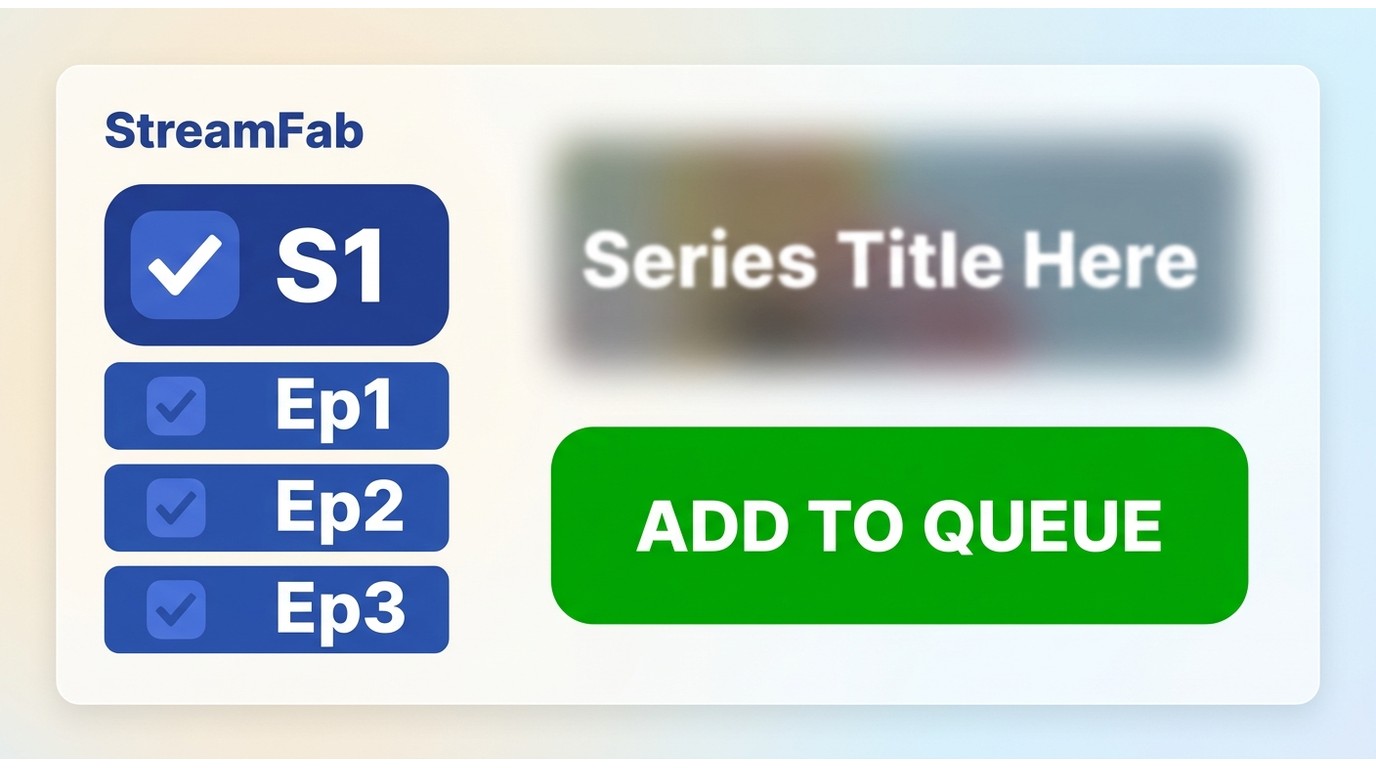
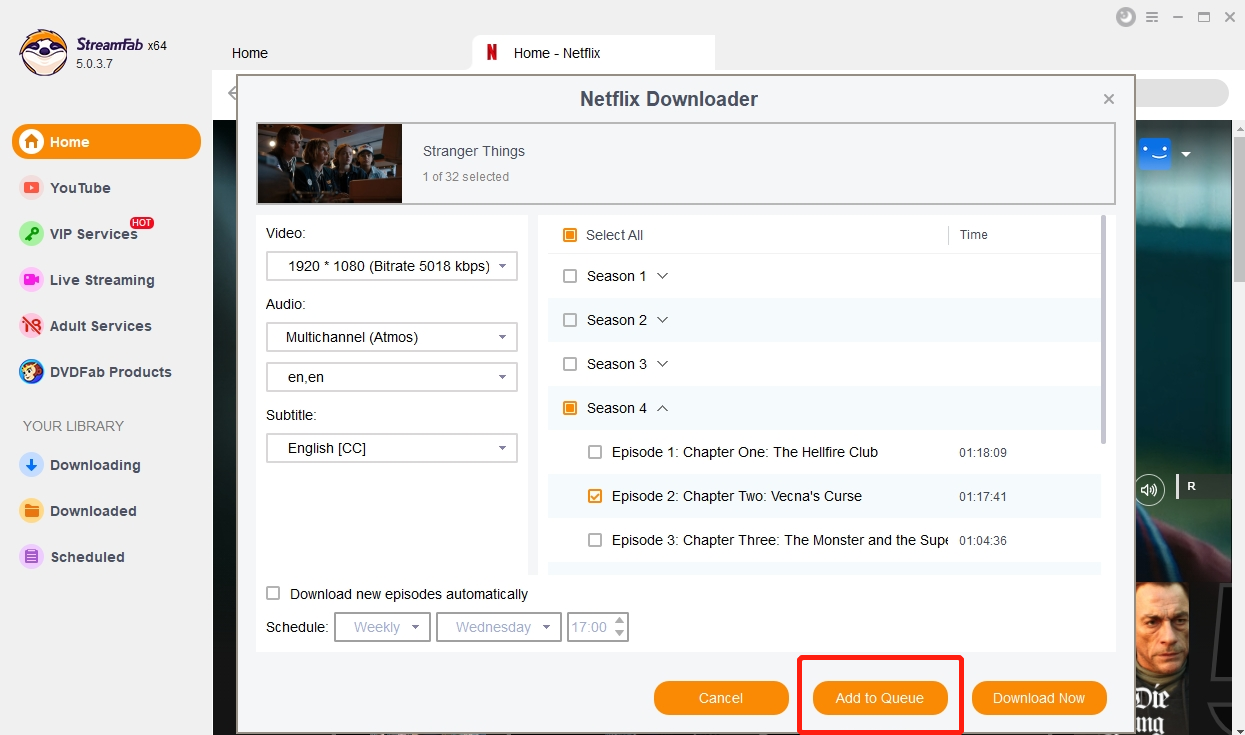
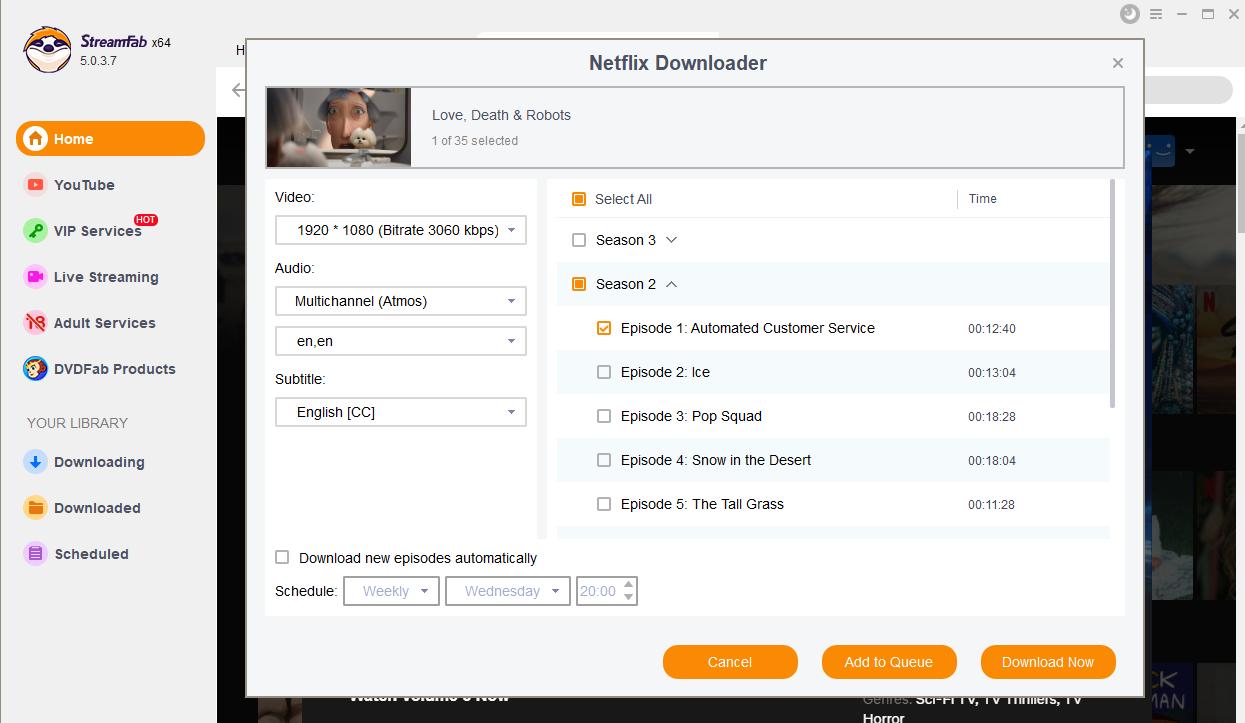
When a series starts playing, the download dialog lists the available seasons and episodes. Select the checkbox for an entire season, or choose only the episodes you want, before sending the selection to the queue.
- Download Now: Start downloading the current video immediately
- Add to Queue: Add the video to the download queue for later batch download
After confirming your checked episodes, click "Add to Queue." The selected titles are added together but will not start downloading until you start the queue. I recommend this selector workflow over opening episodes individually because it keeps a full-season batch easier to review before it runs.
Step 3: Add More Videos
For a batch download series, select the whole season or the specific episodes you want in the same dialog and add them in one action. If a particular platform does not show a multi-select dialog, add its titles individually instead.
How to Start Batch Download
Check Your Download Queue
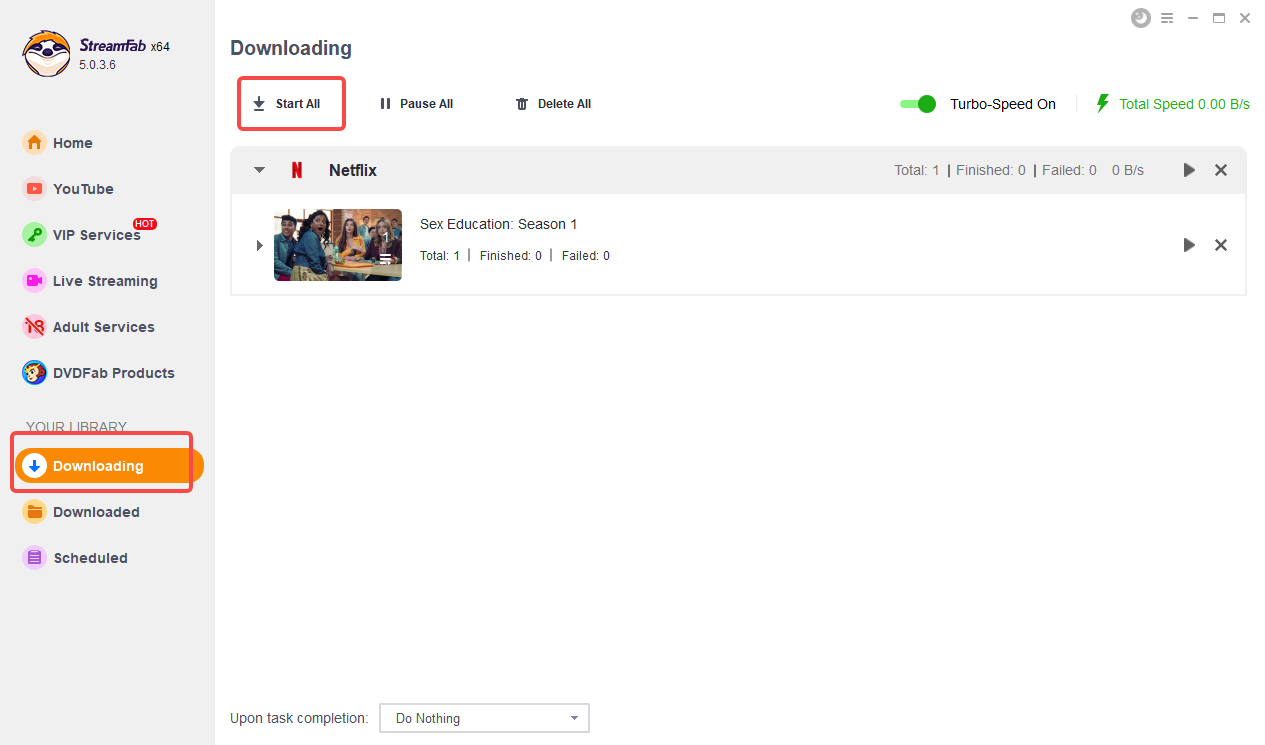
After adding all the videos you want, click the "Downloading" tab. You'll see a list of all videos added to the queue.
Important: Adding to the queue does not automatically start downloading. You need to manually initiate the download process.
Start All Downloads
On the "Downloading" page, click the "Start All" button. Queued titles start downloading then. Depending on the platform, module, and app version, StreamFab may process several tasks at once rather than strictly one after another; use the Downloading tab to see active and scheduled tasks.
During Download
- Background downloading: Downloads run in the background, so you can continue using your computer
- Active tasks: Use the Downloading tab to review active, scheduled, and completed items
- Progress tracking: Check the progress of each video anytime
Common Use Cases
Use Case 1: Download a Full Season
Want to download an entire season of a show (say, 10 episodes):
- Open any episode from the season
- In the download dialog, select the season checkbox or choose the episodes you want
- Click "Add to Queue," then click "Start All" from the Downloading tab
- Leave the computer running while the queued tasks complete
Use Case 2: Download Multiple Movies
Planning a movie weekend?
- Add all the movies you want to watch to the queue on Friday night
- Click "Start All"
- Let downloads complete overnight
- Watch on Saturday morning
- Plan your queue: Start a long batch when you can leave the computer running without interrupting it
- Review storage: Check the expected file count and available disk space before you start
- Keep it stable: Avoid closing StreamFab or interrupting your connection while active tasks are running
Troubleshooting a Long Batch Queue
The season or episode selector does not appear
Open a playable series title and wait for the download dialog to finish loading. If it still shows individual titles rather than seasons and episodes, that service or module may require individual additions. Confirm that StreamFab is current, then restart the title analysis before rebuilding the queue.
A title cannot be analyzed
If a title shows “video cannot be analyzed,” refresh the title page, confirm that you can play it with your active account, and retry it as a small batch. Catalog changes, sign-in state, and module updates can affect analysis. For broader cases where StreamFab is not working, use the dedicated troubleshooting guide rather than repeatedly restarting a large queue.
The queue stalls or an unattended run is interrupted
Check the Downloading tab for a task that needs attention, then restart that item instead of rebuilding the entire queue. Scheduling and interval behavior can vary by version, so set those options according to the controls in your installed build. For an overnight batch, I recommend starting with a smaller group to confirm that the selected platform is processing normally.
A full season exceeds available storage
Pause the queue and free disk space, lower the selected resolution for a separate batch, or split the season into smaller groups. Check your output folder before restarting so completed files are not mixed with unfinished tasks.
Safe, Responsible Batch Downloading
Queue capacity in StreamFab is separate from each streaming service’s account rules and download allowances. Use batch downloading for content you are authorized to access, save local copies for personal offline viewing where permitted by platform terms and applicable law, and avoid unusually aggressive, nonstop automation.
If you are deciding whether StreamFab is safe to use with your account, review the service rules that apply to your subscription and keep batch sizes practical. In editorial terms, heavy unattended batching is not appropriate when it goes beyond normal personal viewing needs.
FAQs
Conclusion
To download a full season efficiently, use the season and episode selector, review the queue before pressing "Start All," and plan storage before a long run. That approach is more manageable than building a season one episode at a time.
Update Log
This article is regularly updated to ensure accuracy and timeliness.
Updated July 2026: refreshed the season and episode selector workflow, added output-format and storage-planning guidance, and added troubleshooting and responsible-use sections.


A balanced StreamFab Amazon Downloader review covering current version details, safety considerations, MP4/MKV output, trial terms.
By Erika Leen - Aug 26, 2026

We will conduct a thorough evaluation of the features and cost-effectiveness of the Streamfab Netflix Downloader. I trust that this review will provide you with a more comprehensive understanding of the Streamfab Netflix Downloader prior to making a purchase.
By Erika Leen - Aug 19, 2026

This guide compares best StreamFab alternatives, FlixGrab+, CleverGet V26, MovPilot, and Audials One 2026, plus a separate Linux and open-source route. It explains operating-system fit, workflows, trials, automation, and update reliability so readers can choose without treating every tool as equivalent.
By Nicole Lopez - Aug 7, 2026
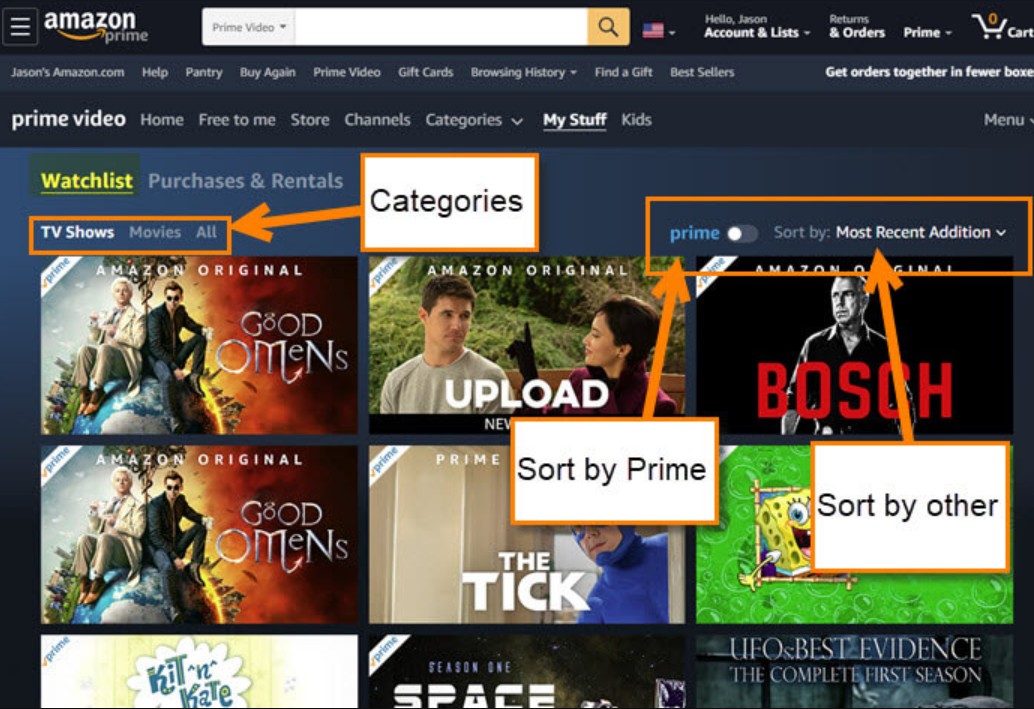
Watchlist lets you save shows and movies for later, but it doesn't support offline viewing. This guide explains how to manage your list efficiently and enjoy your content anytime, even without internet.
By Erika Leen - Aug 7, 2026