
StreamFab Output Quality: Real 4K, 1080p Limits, and Codecs (2026)

Summary: This guide explains how StreamFab output quality is constrained by each service, title, account, and region. It maps 4K and 1080p availability, consolidates the quality settings, compares H.265 with H.264, and shows how to verify the finished file.
Table of Contents
If you selected StreamFab 4K but an Amazon Prime Video or Netflix download finished at 1080p, the setting may not be the problem. Output video quality is limited by the resolution, account access, region, and tracks that each service supplies. This guide shows what to select and how to check the result.

Which Streaming Services Download in True 4K
True 4K vs 1080p depends first on the streaming service and title. A 4K setting requests the highest available track; it does not turn a lower-resolution source into 4K.
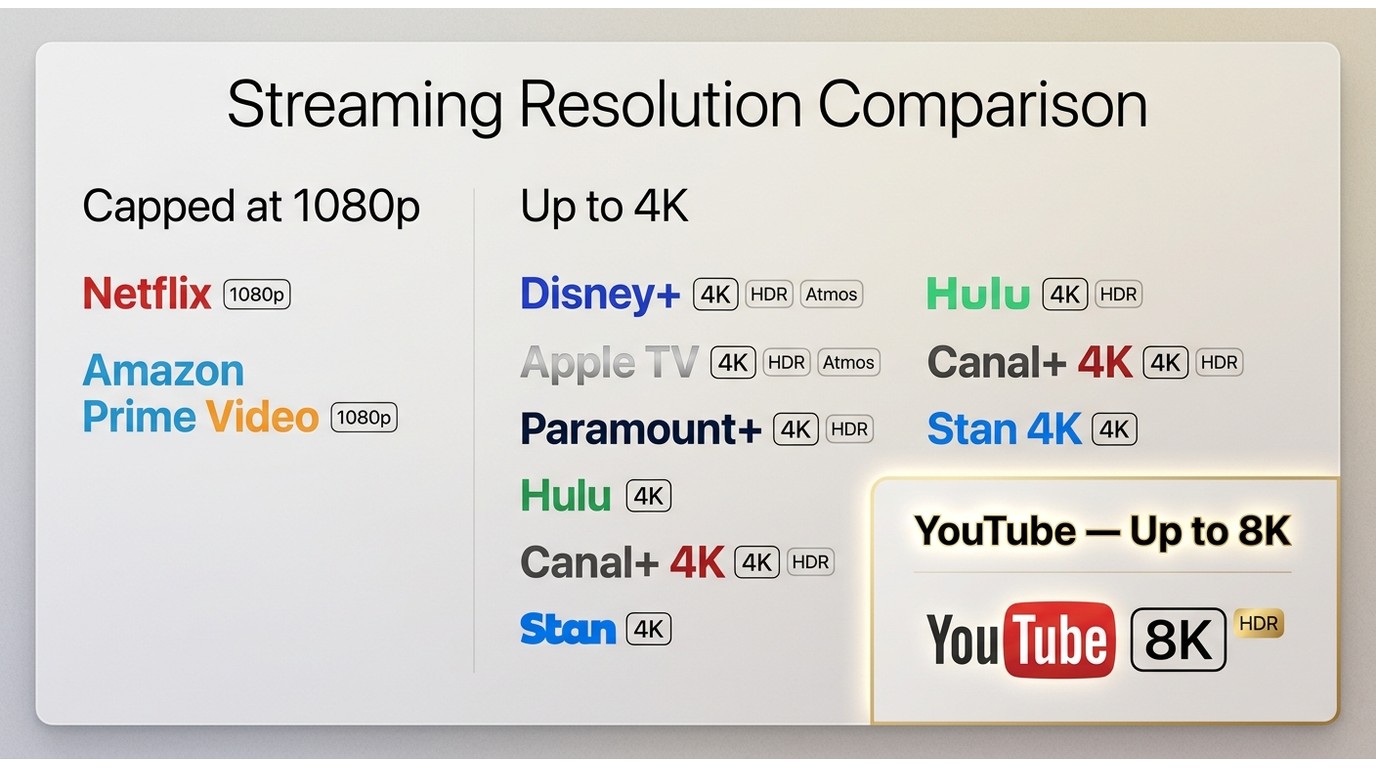
| Streaming service | Max download resolution | HDR / Dolby Vision | Audio (5.1 / Atmos) |
|---|---|---|---|
| Netflix | 1080p | HDR availability varies by title and plan | 5.1 where offered |
| Amazon Prime Video | 1080p | HDR availability varies by title and plan | EAC3 5.1 where offered |
| Disney+ | Up to 4K | Available on eligible titles | 5.1 or Atmos where offered |
| Apple TV | Up to 4K | HDR10 and Dolby Vision where offered | 5.1 or Atmos where offered |
| Paramount+ | Up to 4K | HDR10+ or Dolby Vision where offered | 5.1 or Atmos where offered |
| Hulu | Up to 4K | Dolby Vision where offered | 5.1 where offered |
| Canal+ | Up to 4K | HDR10 or Dolby Vision where offered | 5.1 or Atmos where offered |
| Stan | Up to 4K | HDR10 where offered | 5.1 where offered |
| YouTube | Up to 8K | Depends on the source upload | Depends on the source upload |
Service capabilities shown as of Aug 2026. The title, subscription, region, and available source tracks determine the options shown for a specific download.
Amazon Prime and Netflix Cap at 1080p
A StreamFab Amazon 4K request or Netflix 4K request can resolve to 1080p because those services cap the downloadable track at 1080p in this workflow. That is a service-access constraint, not evidence that the quality control failed.
The StreamFab Netflix downloader workflow follows the tracks Netflix makes available. For Amazon, the practical value is a faithful 1080p copy with EAC3 5.1 audio when that track is offered.
Where StreamFab Reaches 4K, 8K, and Dolby Vision
A 4K HDR download is available on supported services when the title and subscription include that track. StreamFab supports 4K output for services including Disney+, Apple TV, Paramount+, Hulu, Canal+, and Stan, while its Android product supports resolutions up to 8K.
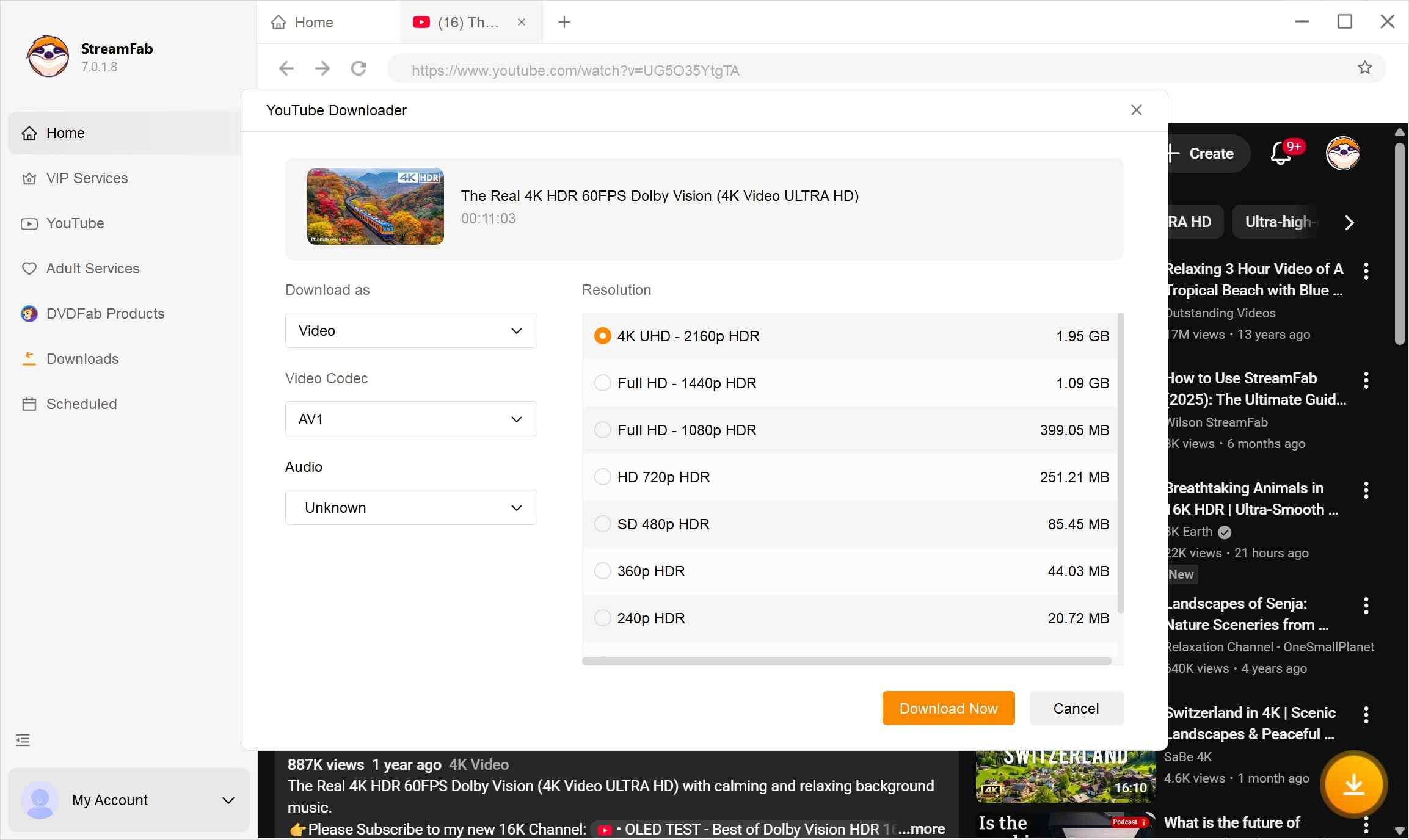
YouTube can reach 8K when the upload provides it; the StreamFab YouTube quality controls expose the available resolution and codec choices before the download starts. Dolby Vision download options likewise appear only when the service supplies a compatible track.
Set Your Default Output Quality
Set a realistic default, then review the track list for each title. “Best Available” is useful when quality matters more than predictable file size, while 1080p is often the more practical default for routine viewing.
YouTube Resolution and Encoding (720p to 8K)
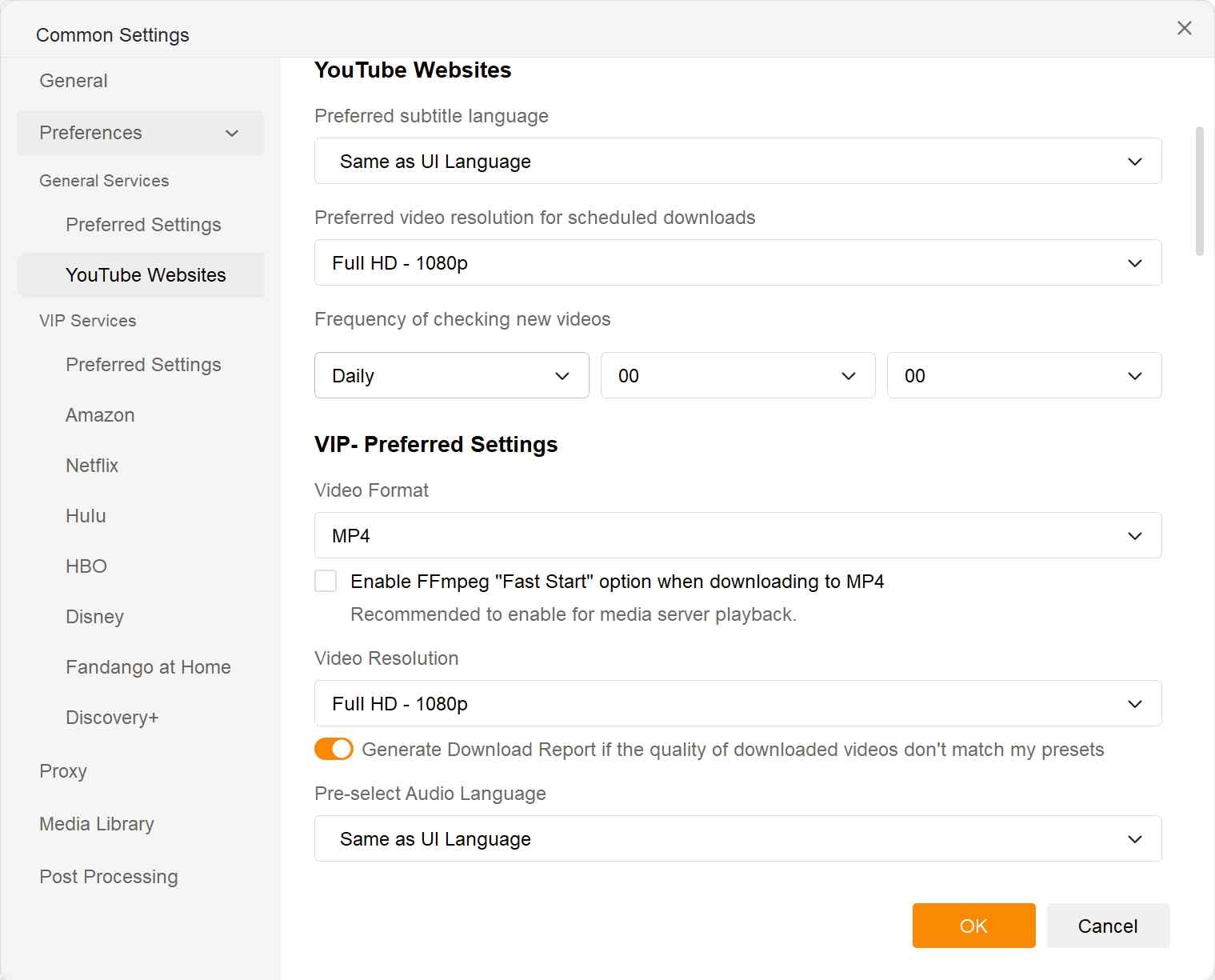
YouTube settings control the preferred resolution and codec, but the source upload remains the ceiling. Use these steps to set a default without repeating the same choice for every video.
- Open the menu in the upper-right corner of StreamFab and choose “Settings.”
- Select “YouTube Websites,” then open “Video Resolution.”
- Choose a preferred resolution from the available range, from 720p through 8K.
- Select H.264, VP9, or AV1 when the corresponding source track is available, then save the setting.
When the download dialog opens, review its resolution and codec list. A one-time selection can override the default, and “Remember my choice” applies that preference to later downloads from the same service.
VIP Service Quality, HDR, and Audio Tracks
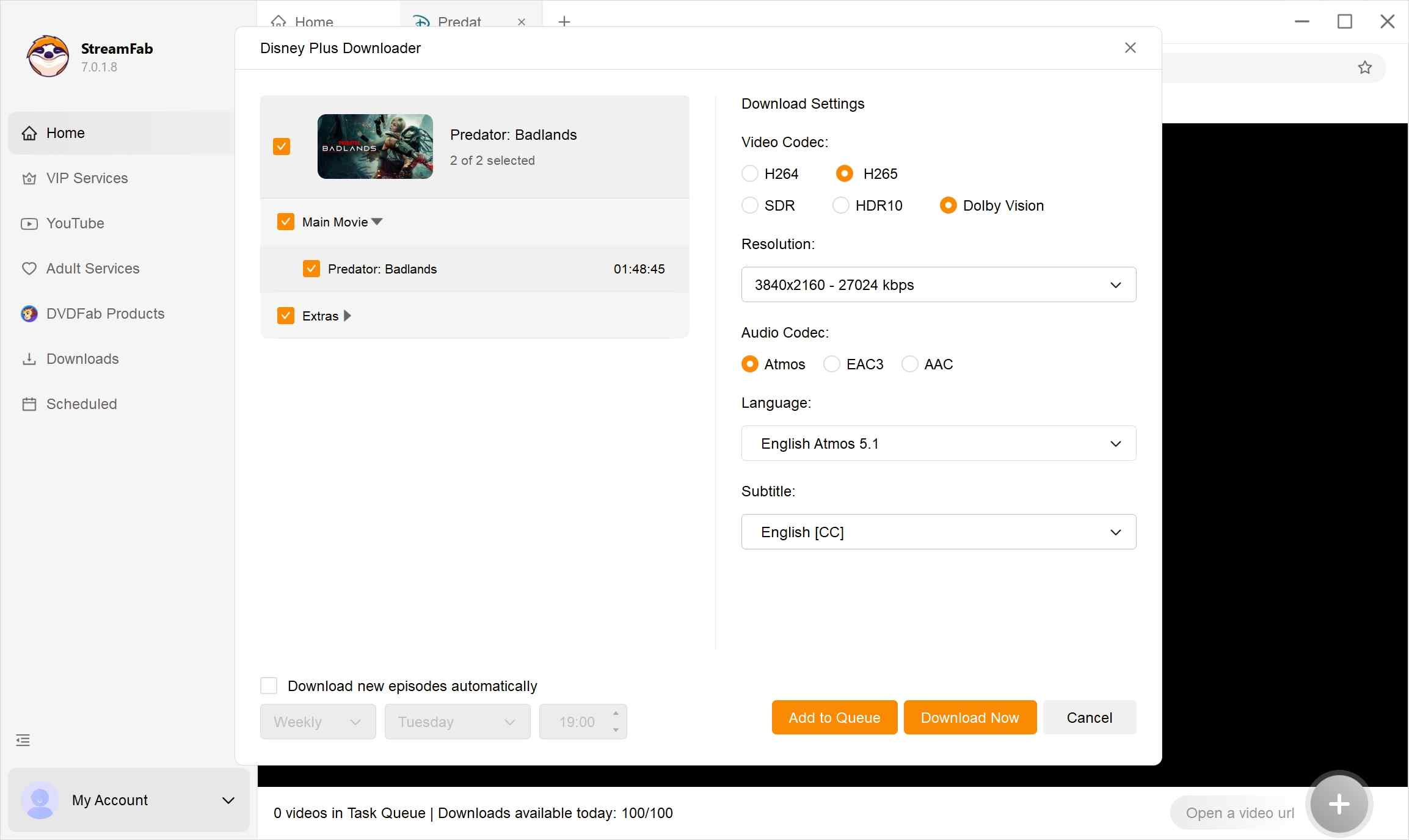
For subscription services, select “Best Available” if you want the highest track your account can access. The download dialog then shows the resolution, HDR, audio, and subtitle choices supplied for that title.
- Open “Settings,” choose “VIP Services,” and select “Video Resolution (Selected If Possible).”
- Choose 720p, 1080p, or “Best Available” as the default.
- Start the title and select an offered HDR option, audio track, and subtitle format.
- Use “Remember my choice” only if the same preference suits future downloads from that service.
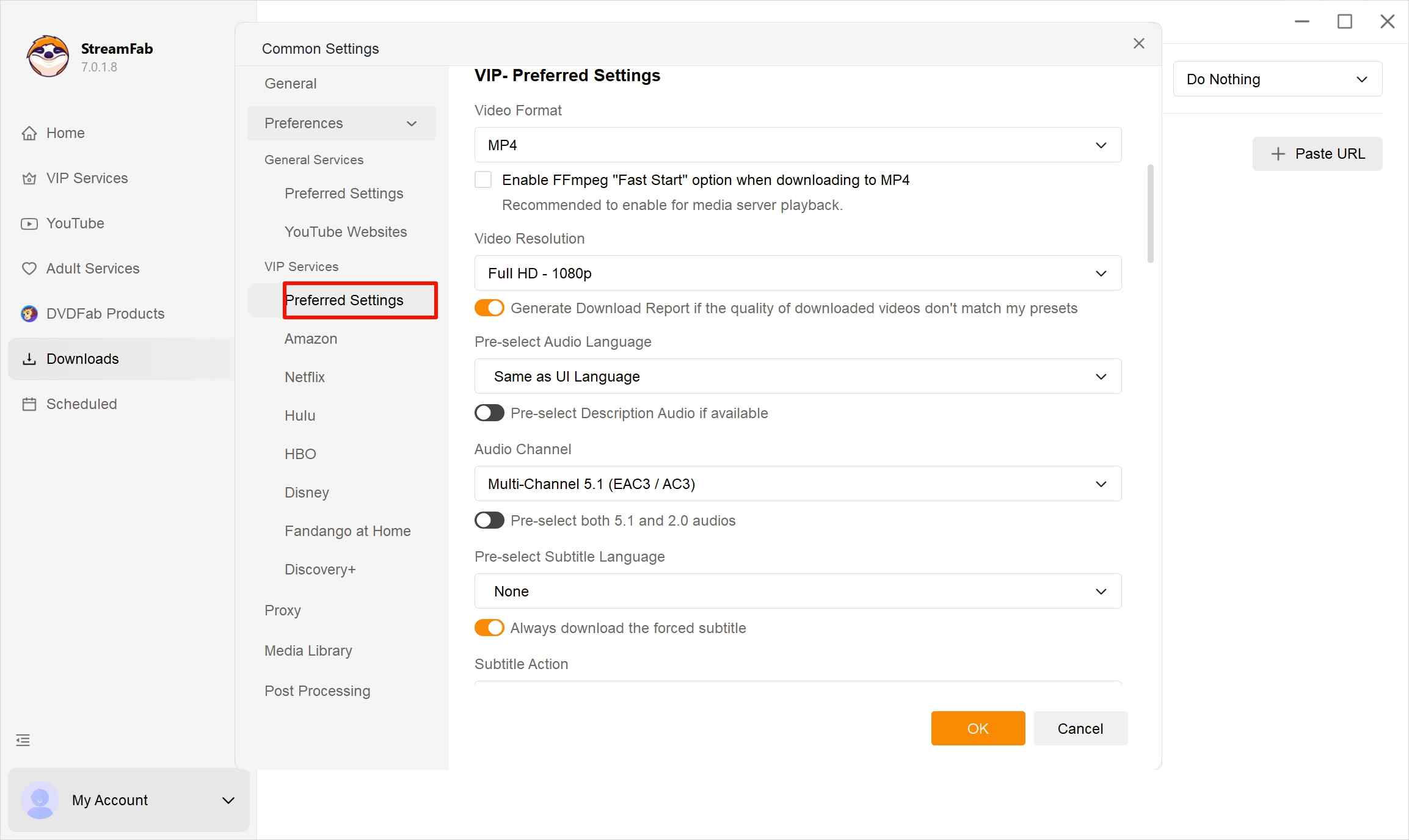
StreamFab can retain offered EAC3 5.1, AC3 5.1, AAC 2.0, or Dolby Atmos audio and save video in standard MP4 or MKV. A 1080p Amazon download with EAC3 5.1 audio can therefore be the right archive when a 4K track is not offered.
Best for viewers who want the highest quality their subscription permits. It is less suitable for devices with limited storage, where 1080p usually gives a better balance of detail and file size.
H.265 vs H.264: Picking the Right Codec
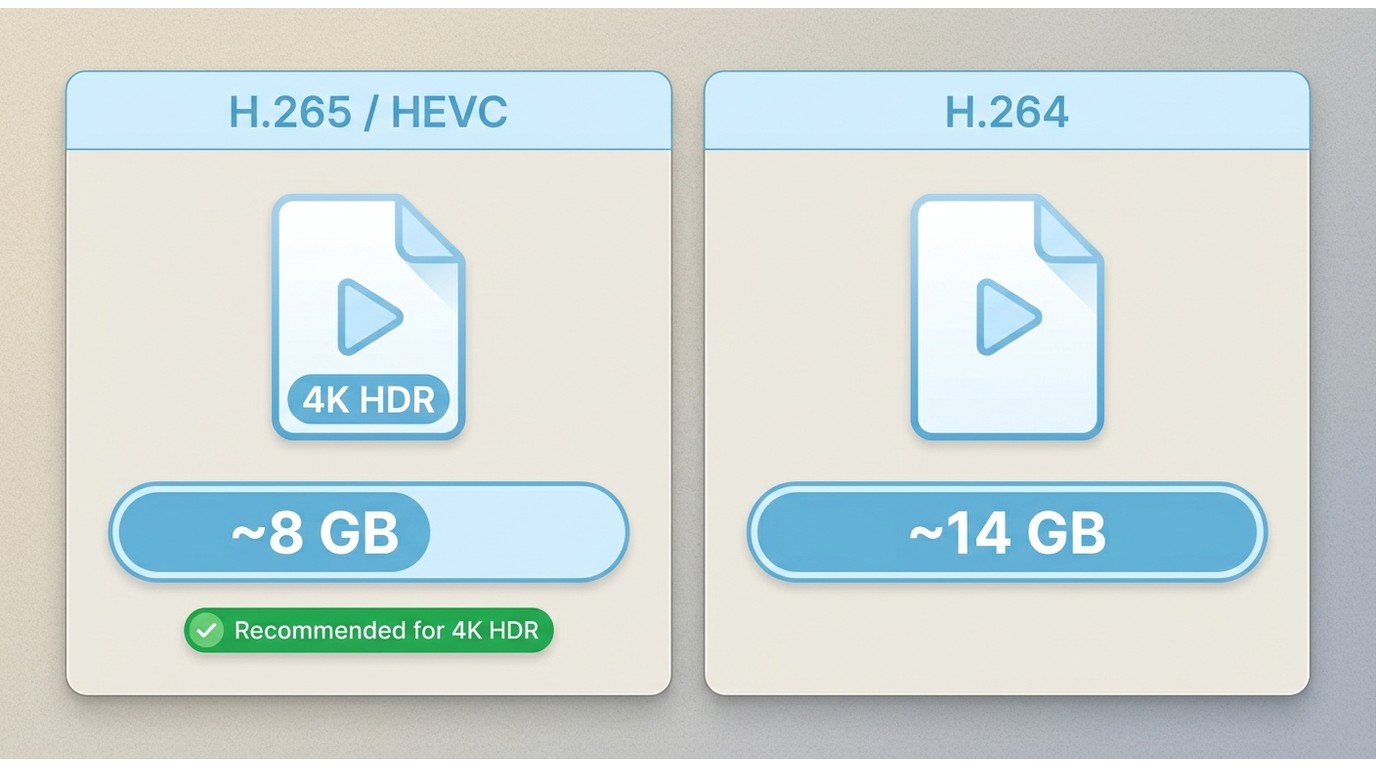
H.265 vs H.264 is mainly a choice between storage efficiency and playback compatibility. H.265, also called HEVC, is usually the better default for 4K HDR; H.264 is easier for older players and devices to decode.
| Codec | Quality and size | Compatibility | Practical choice |
|---|---|---|---|
| H.265 / HEVC | Retains comparable detail in a smaller file | Works well on modern hardware | Prefer for 4K HDR and Dolby Vision |
| H.264 | Usually creates a larger file at comparable quality | Broad support across older players | Use when a target device cannot play HEVC |
| VP9 / AV1 | Efficient options for compatible YouTube sources | Support varies by device | Choose only when the playback device supports the codec |
My editorial recommendation is simple: default to H.265 for 4K HDR and let StreamFab choose the next available codec or quality when the preferred track is absent. Keep H.264 for a specific player that cannot handle HEVC.
Why Your Download Is 1080p Instead of 4K
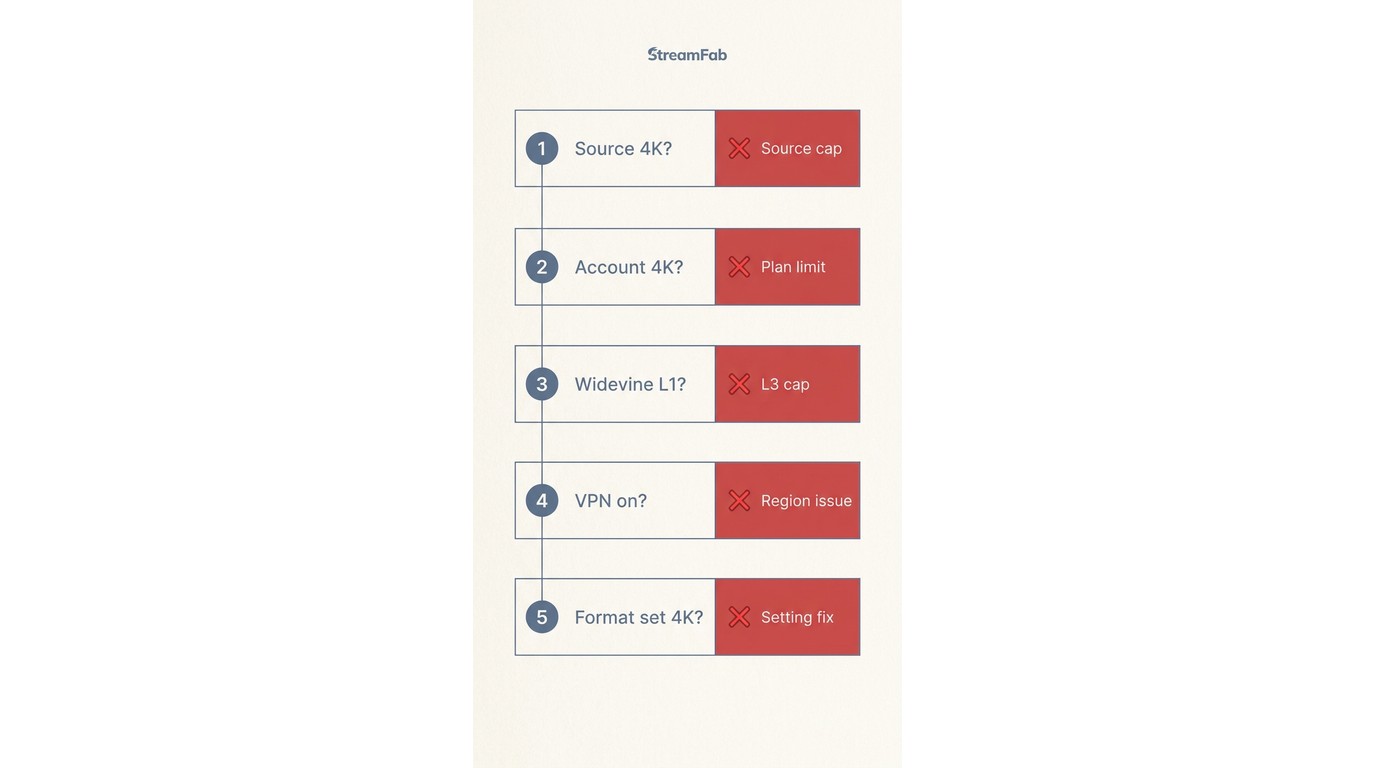
A 4K preference cannot exceed the track offered to your account. Service policy, browser access, Widevine security level, title availability, region, and connection stability can all change the maximum resolution or bitrate that StreamFab sees.
Amazon Prime Video and Netflix commonly stop at 1080p in this workflow. The relationship between browser access, DRM controls, Widevine L1 or L3, and streaming quality compared with StreamFab downloads explains why selecting 4K does not create a 4K source track.
For personal offline viewing of content you are authorized to access, where permitted by platform terms and applicable law, a 1080p Amazon copy can still retain the original EAC3 5.1 640 kbps track when offered. Resolution is only one part of perceived output quality.
| Reason | What it means | What to do |
|---|---|---|
| Source limitation | The title is not supplied in the selected resolution. | Check the quality list before starting. |
| Service access | The platform, account, region, or Widevine level supplies a lower track. | Compare the available list with the service’s playback options. |
| VPN routing | A different region or reduced bandwidth changes the available stream. | Test once with the VPN off. |
| Quality classification | A label may cover a resolution below the expected pixel dimensions. | Inspect the finished file rather than relying on the label. |
| Fallback behavior | The preferred track is unavailable, so StreamFab selects the next offered option. | Review the completion details and retry after checking the connection. |
The practical takeaway is to treat “Best Available” as a request, not a promise of 4K. The track list is the clearest preview of what that title can deliver.
Storage and System Requirements for 4K
4K storage requirements are higher than 1080p because resolution, runtime, HDR, audio, and codec all affect the final file size. Keep generous free disk space and use hardware that can decode the selected codec smoothly.
- Choose H.265 when the playback device supports it and storage efficiency matters.
- Keep extra working space for the active download as well as the finished file.
- Confirm that the display, graphics hardware, cable path, and player support the selected HDR format.
- Use 1080p when the screen size or viewing distance makes the extra storage cost of 4K hard to justify.
For most laptop viewing, I would choose 1080p with the best offered audio before spending substantially more storage on 4K. A larger HDR display is where the higher-resolution file becomes easier to justify.
Verify Your Actual Output Resolution
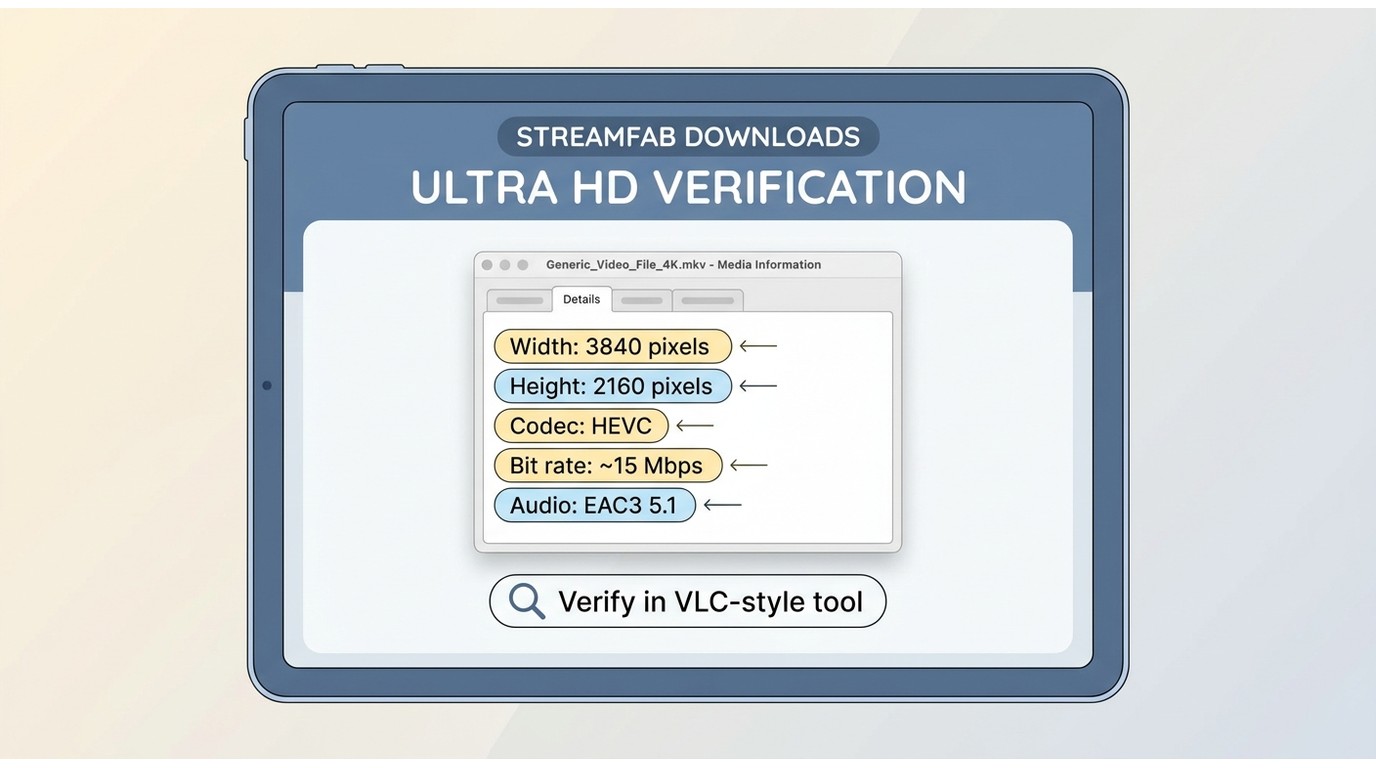
Verify video resolution after the download if the label and picture quality do not seem to match. File metadata gives a more reliable answer than visual inspection alone.
- Open StreamFab’s completion details and note the resolution and codec.
- In Windows Properties or VLC Media Information, inspect the frame width, frame height, and codec.
- Use MediaInfo when you need exact resolution, bitrate, HDR, codec, and audio-track details.
This check separates a genuine 4K file from a 1080p source displayed on a 4K screen. It also confirms whether a fallback changed the selected codec or audio track.
FAQs
Can StreamFab upscale a 1080p download to real 4K?
No. StreamFab downloads the source track that the service makes available; it cannot add image detail that is absent from a 1080p source. Playing that file on a 4K display may scale it to the screen, but the file remains 1080p.
How can I tell if a title is available in 4K before I download it?
Open the title in StreamFab and inspect the quality and track list before starting. It shows the resolutions, HDR formats, codecs, audio tracks, and subtitles offered to your account for that title.
Does a VPN change my download quality?
It can. A VPN may route the service through a region with different title or quality availability, and a slower route can affect the stream offered. Compare the track list once with the VPN enabled and once with it off.
Is downloading in 4K with StreamFab legal?
StreamFab is intended for personal offline copies of content you are authorized to access, where permitted by platform terms and applicable law. Do not redistribute saved content or use it commercially.
Conclusion
The right StreamFab output quality is the highest useful track the service actually offers, not necessarily the largest number in Settings. Start with “Best Available,” prefer H.265 for compatible 4K HDR playback, verify the finished metadata, and use 1080p when it gives the better balance of detail, audio, compatibility, and storage.
Update Log
Aug 2026: Clarified the 1080p limits for Amazon Prime Video and Netflix, added the service-resolution matrix, consolidated YouTube and VIP settings, and added codec, storage, and resolution-verification guidance.
- Added Apple TV 4K HDR10 and Dolby Vision support to the capability summary.
- Added StreamFab for Browser support for Chrome and Edge with source-dependent output up to 8K UHD.
- Retained recent 4K HDR notes for Paramount+, Hulu, Canal+, and Stan.
- Noted recent quality updates for Hulu Japan and Fandango at Home without treating availability as identical across regions or titles.

Staring at an error code and wondering what StreamFab is actually telling you? In July 2026, I mapped every code against the real failure it represents — here's the reference guide that skips the corporate jargon and tells you exactly what to do in under 2 minutes.
By Erika Leen - Oct 12, 2026
StreamFab 7 marks the first major update in nearly three years. This review looks beyond surface-level changes and examines what actually matters in everyday use based on real testing, community feedback
By Erika Leen - Sep 28, 2026
Choose between StreamFab’s local file workflow, Audials’ Windows recording and editing, and PlayOn’s local or cloud recording. Compare queue behavior, picture quality, audio and subtitles, and recurring costs, with a repeatable way to check one authorized title before building an offline library.
By Marcia Hatcher - Sep 28, 2026
This article is an official response to users asking regarding the safety and legality of StreamFab. Written by StreamFab team, it moves beyond simple assurances to provide a transparent technical and legal analysis.
By Nicole Lopez - Sep 24, 2026