
StreamFab YouTube Downloader Guide: MP4, Free vs Pro

Summary: Wondering what is StreamFab? I tested the StreamFab YouTube Downloader Pro for YouTube TV offline access, 8K AV1 hardware acceleration, and batch archiving limits. See the 2026 real-world benchmark and learn how to avoid API throttling.
Table of Contents
StreamFab YouTube Downloader lets you save authorized YouTube videos as local files, including MP4, and queue available playlist items. This guide shows how to install the app, compare Free and Pro features, select output settings, locate the finished file, and verify playback.
Before downloading, review the StreamFab copyright and usage guidelines for the rules on authorized access, personal offline use, redistribution, platform terms, and applicable law.
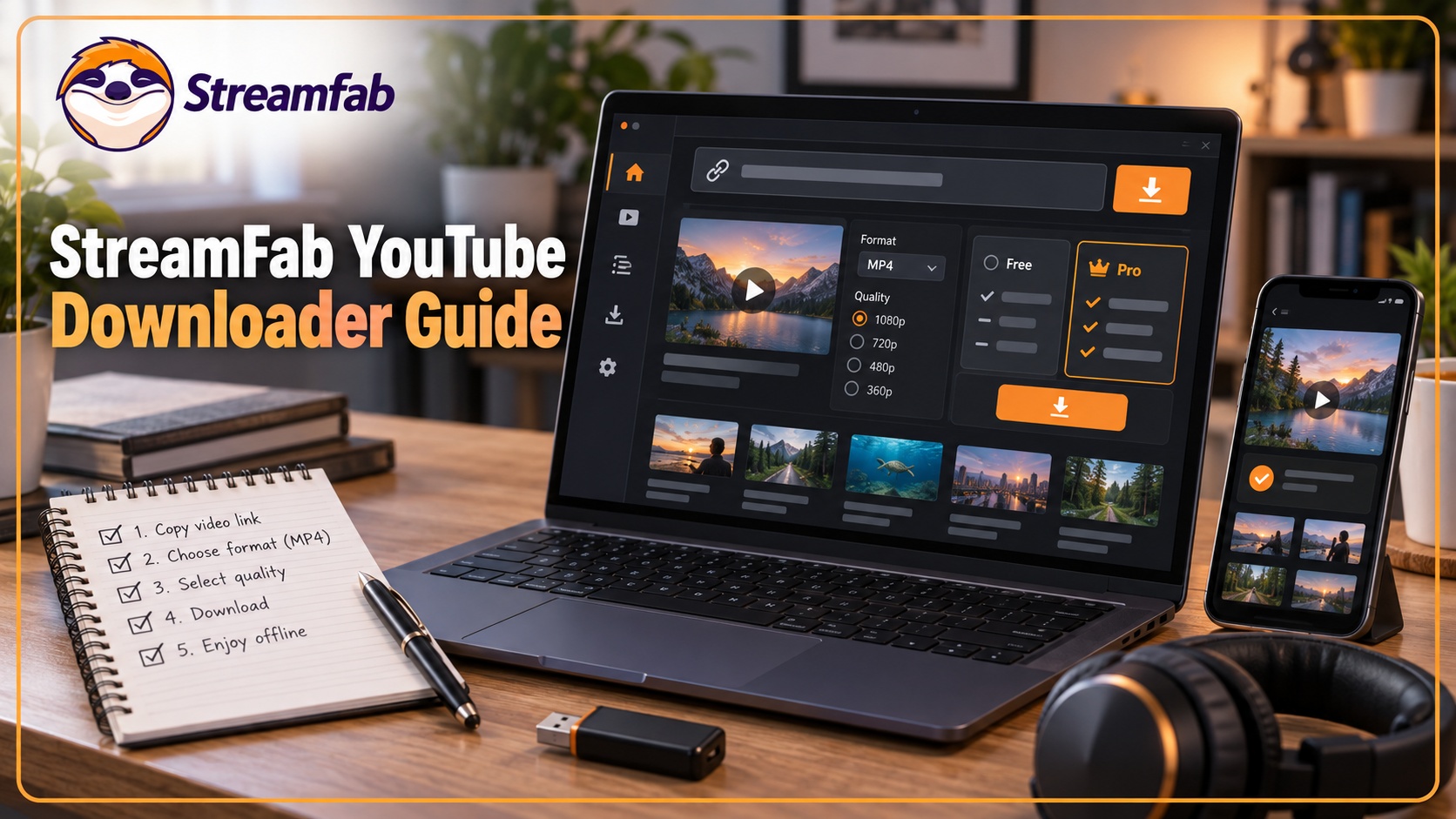
StreamFab YouTube Downloader Supports Batch Downloads
For content you are authorized to access, where permitted by platform terms and applicable law, StreamFab YouTube Downloader can save available YouTube videos as local files and queue playlist items for batch download. Use downloaded content for personal offline viewing, do not redistribute it, and maintain any subscription required to access subscription-based content. A saved file does not grant unlimited usage rights or permission to access content you are not authorized to view, and you should not attempt to defeat technical protections.
YoutuFab and StreamFab YouTube Downloader
If you searched for YoutuFab, use the current StreamFab YouTube Downloader installer for standard YouTube downloads and available playlist items.
The software analyzes an authorized YouTube URL and presents the output options available for that source.
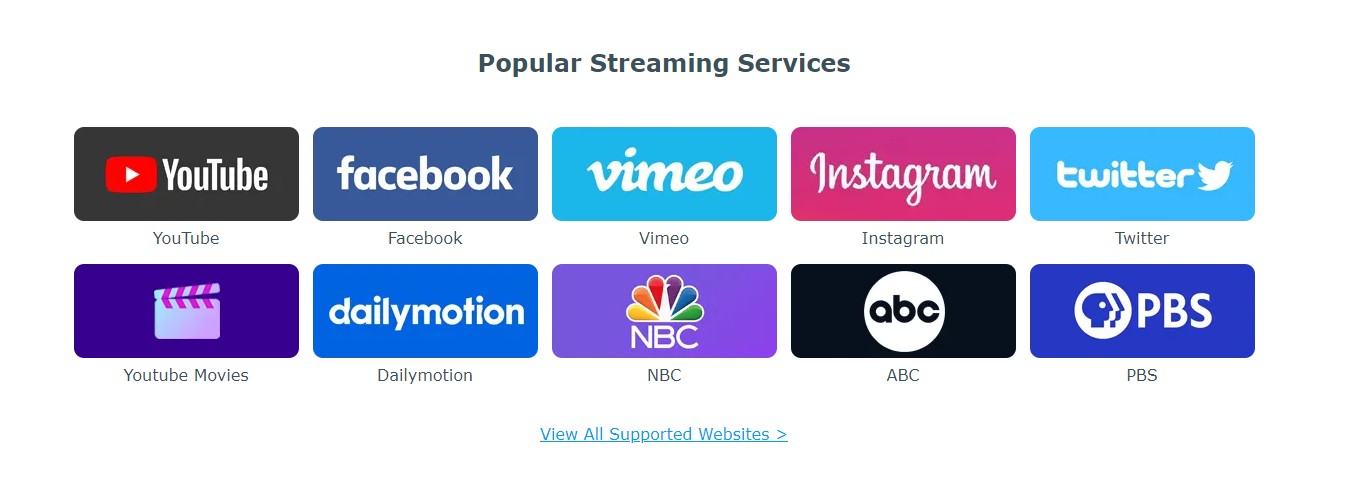
For current service compatibility and update information, check the StreamFab Download Status.
YouTube vs YouTube TV Access
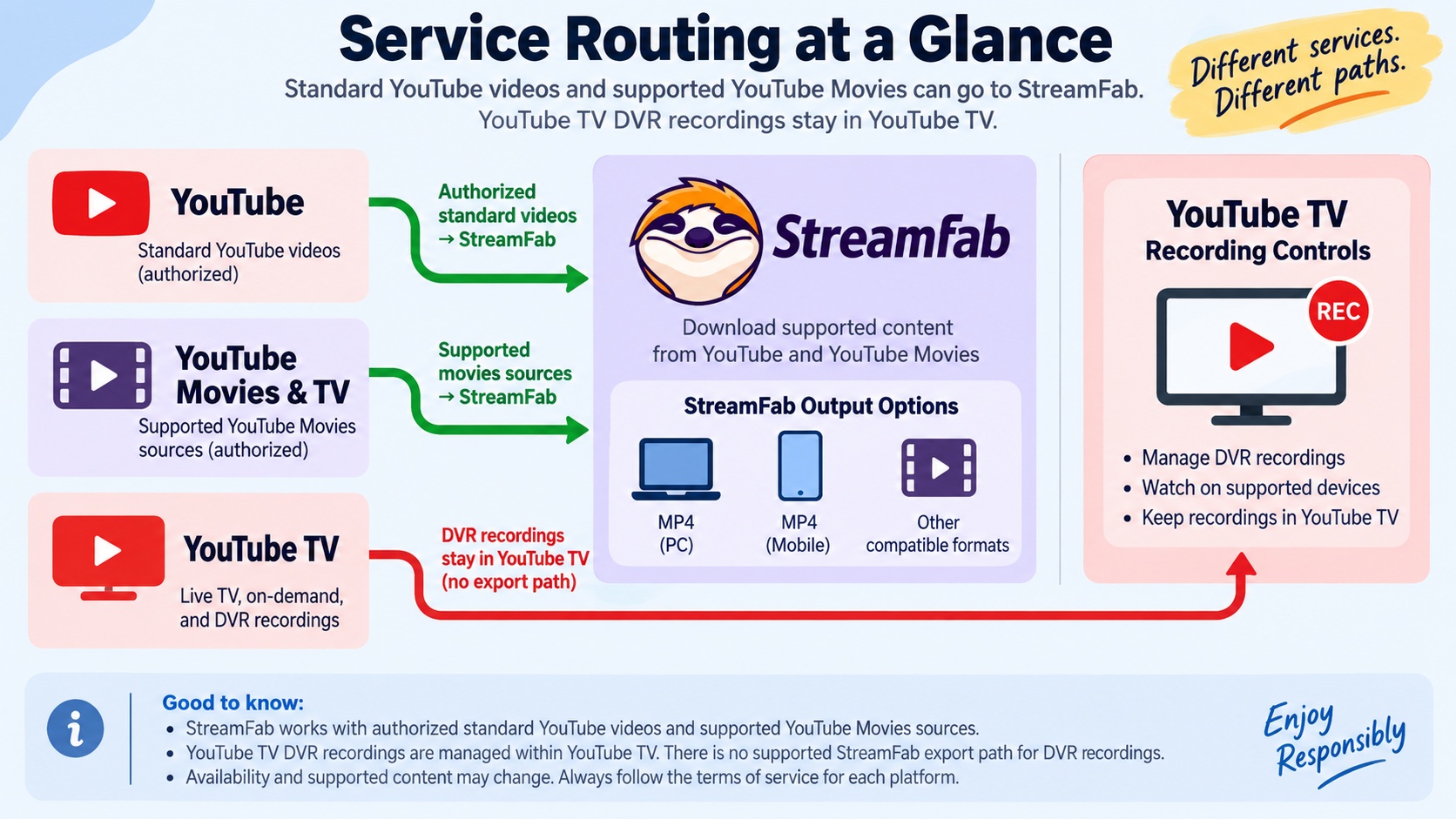
A common source of confusion is that standard YouTube videos, YouTube Movies & TV purchases, and YouTube TV recordings belong to different services. StreamFab lists YouTube Pro and YouTube Movies support as separate product features.
YouTube TV recordings remain managed through YouTube TV’s own recording controls. StreamFab YouTube Downloader should not be treated as a promised export path for a YouTube TV DVR library.
8K Decoding & Hardware Demands
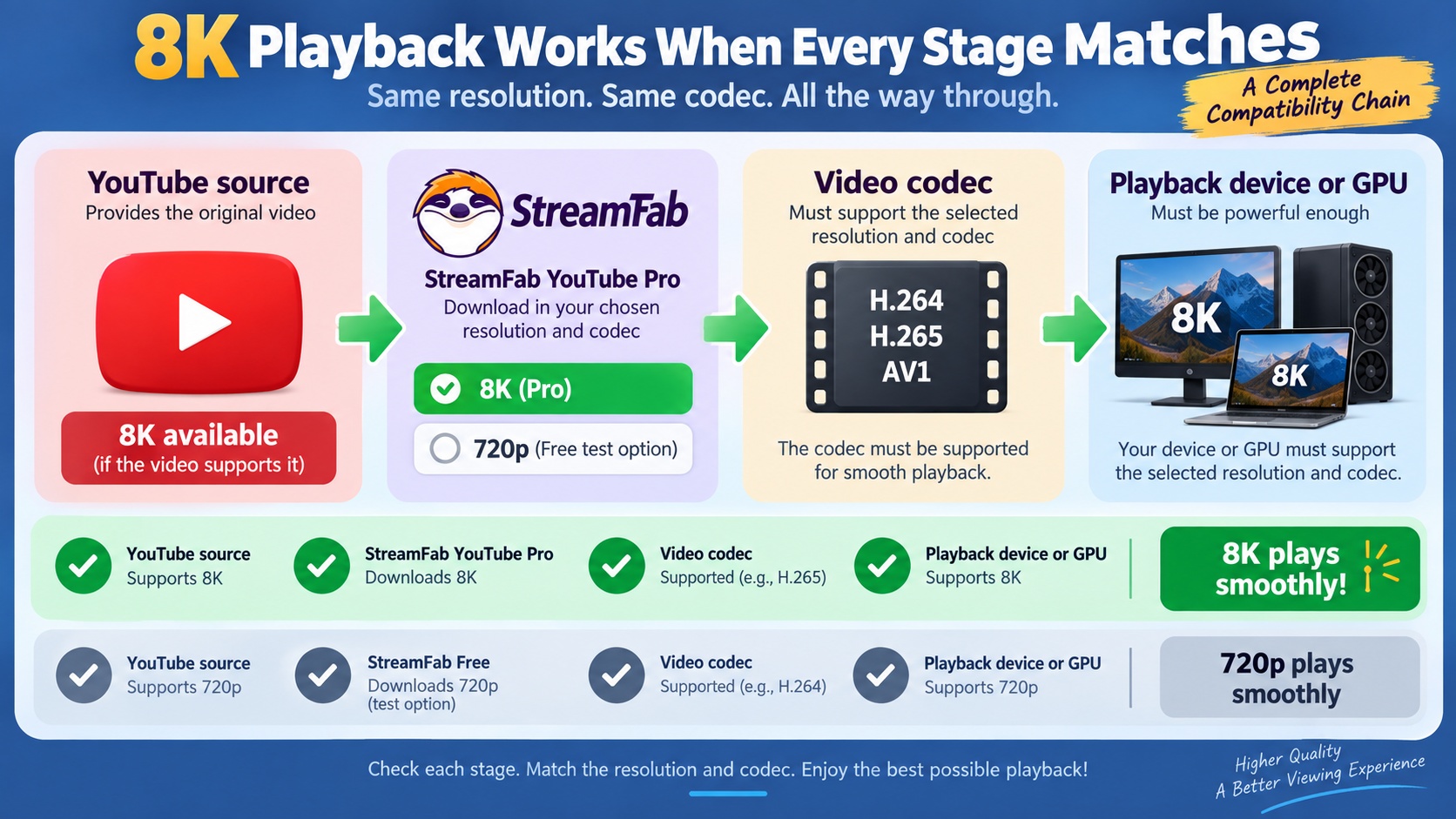
An 8K option appears only when the selected YouTube source and product features provide it. Before downloading, review the available output quality settings, then confirm that the intended playback device supports the selected resolution and video codec.
GPU Support and Video Playback
Download resolution is limited by the available source and the selected product features. Playing the saved file requires support for its video codec and resolution on the playback device.
If a high-resolution file does not play smoothly, choose another currently listed quality option or use a player and device that support the file’s codec. The free YouTube option supports downloads up to 720p, providing a practical way to check the selected source and playback setup before deciding whether YouTube Pro fits your higher-resolution needs.
Pro vs Free Value Analysis
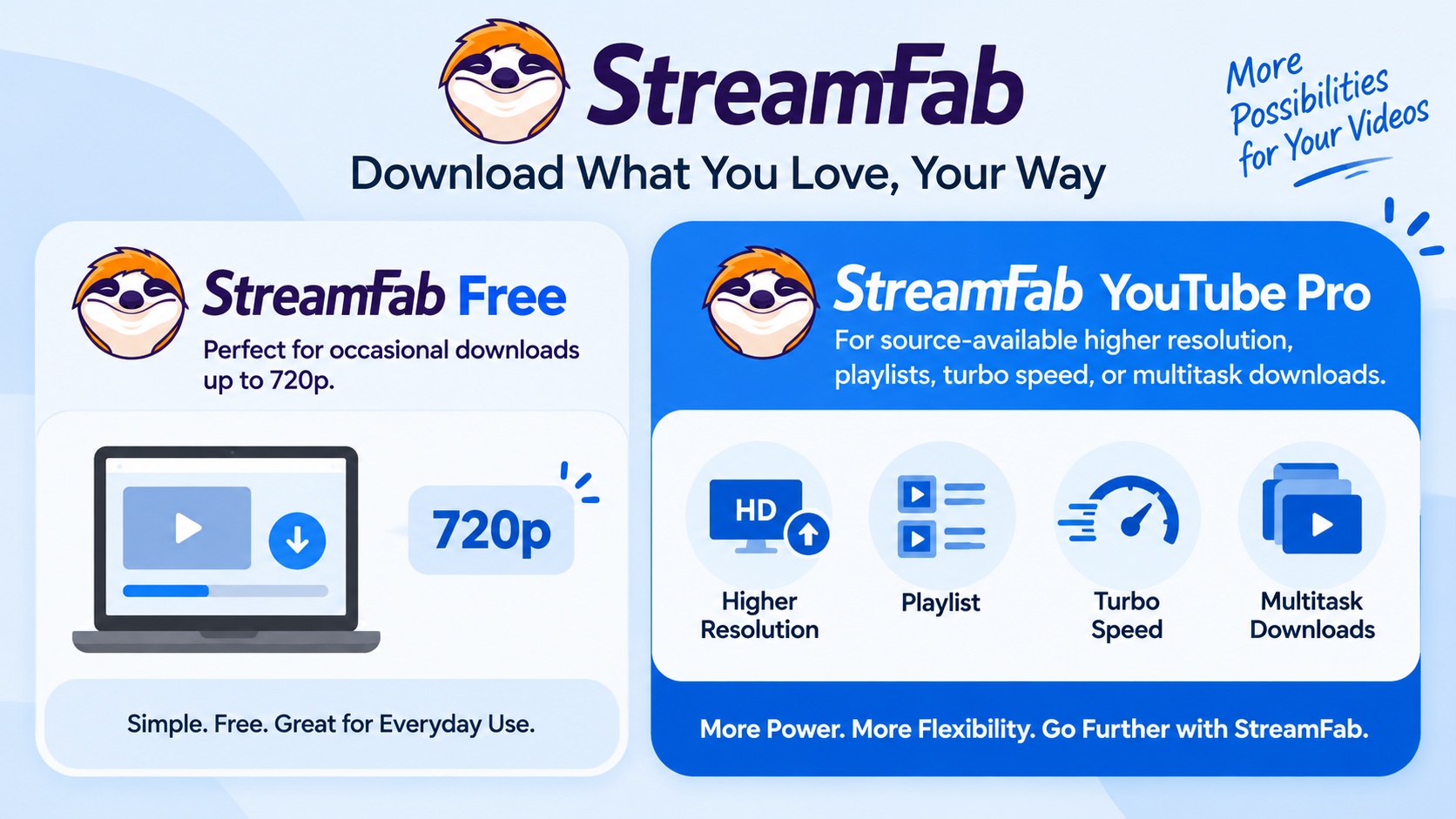
Yes, you can use StreamFab YouTube Downloader for free. The free option covers occasional downloads up to 720p, while playlist access, turbo speed, multitask downloads, and source-available higher resolutions distinguish the advanced trials and YouTube Pro.
Free Features and Advanced Feature Trials
The free YouTube option supports video downloads up to 720p. Playlist, turbo-speed, and multitask features have separate trial limits; five trial uses are not the total allowance for basic free YouTube downloads.
| Feature | Free YouTube Option | YouTube Pro |
|---|---|---|
| Video Resolution | Up to 720p | Higher resolution when available from the source |
| Playlist Access | Feature trial | Paid feature |
| Turbo and Multitask | Feature trials | Paid features |
Feature availability as of September 2026.
My practical recommendation is to start with the free option for occasional 720p downloads. If you need source-available higher resolutions and paid batch features, YouTube Pro is the better fit for that workflow.
Real-World Performance & Risks
Updates and Interrupted Downloads
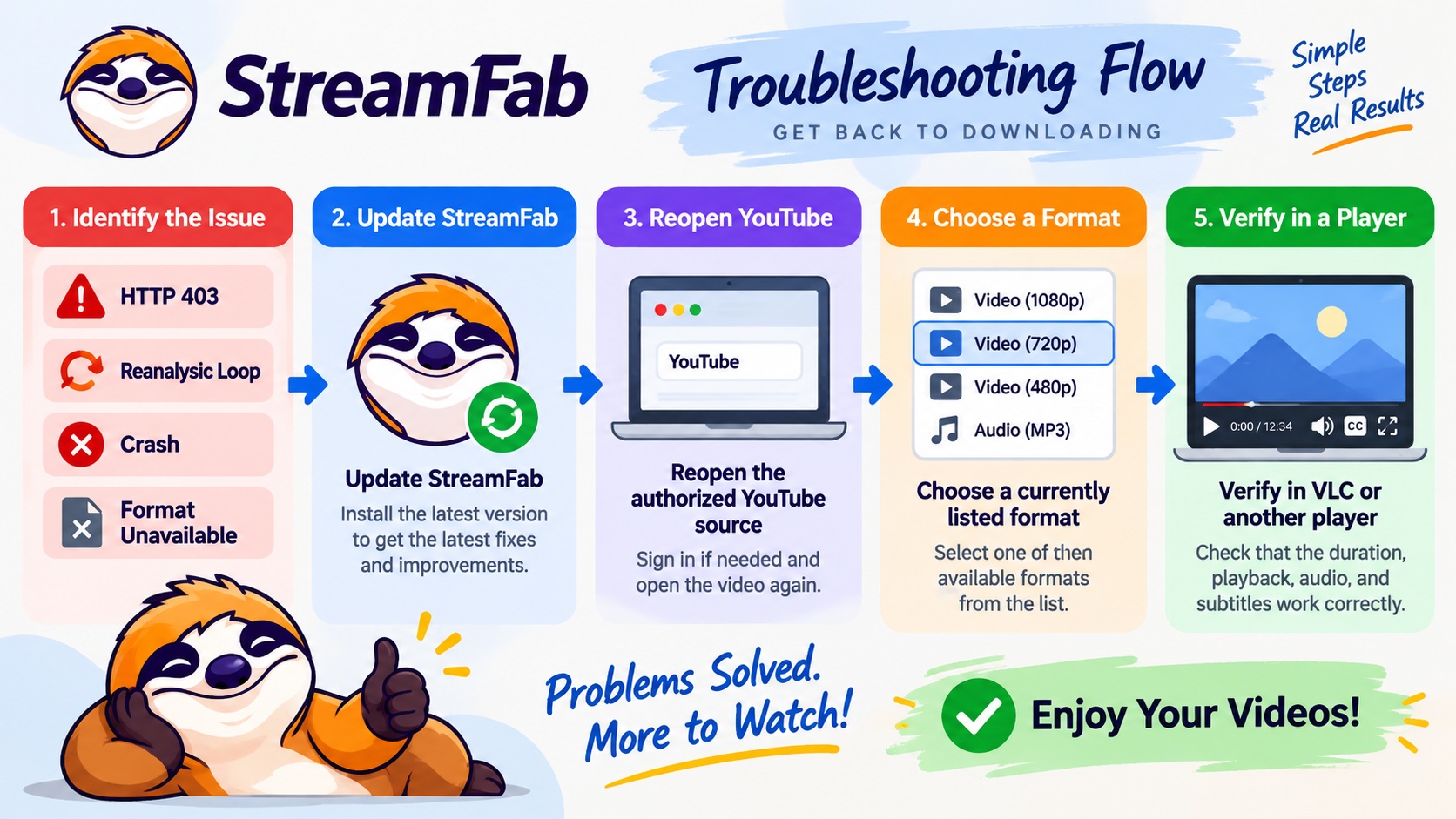
If StreamFab crashes, enters a reanalysis loop, displays HTTP 403, or reports that a format is unavailable, update the app, reopen the authorized source, and select an option currently listed for that video. For incomplete output, use the file-completeness checks in the MP4 and MKV section below rather than relying only on the completed task status.
If the symptom persists, follow the StreamFab not working troubleshooting steps and include the app version, OS version, selected format, and displayed error when requesting support.
- Update StreamFab to the current available version before reopening the source.
- Reopen the video page and confirm that you are authorized to access the content.
- Select a format and resolution currently listed for that source.
- Record the exact error message before changing additional settings.
- Compare the saved file's duration with the source video.
- Seek near the end of the file to check for an early cutoff.
- Play the file in the intended player and check its audio and subtitles.
- Include the app version, OS version, selected format, and error when contacting support.
For users who also need a mobile option, StreamFab for Android is available separately from the desktop workflow.
Your First StreamFab YouTube Download
Prerequisites: Install the desktop app, confirm that you are authorized to access the selected YouTube content, and have a destination folder ready. App license authorization is separate from any video-service login.
The workflow takes you from your first authorized download to confirming file completeness: install and authorize the app when applicable, select the available source and output settings, then open the saved file and check that it plays through to the end.
Install and launch the StreamFab desktop app on your computer.
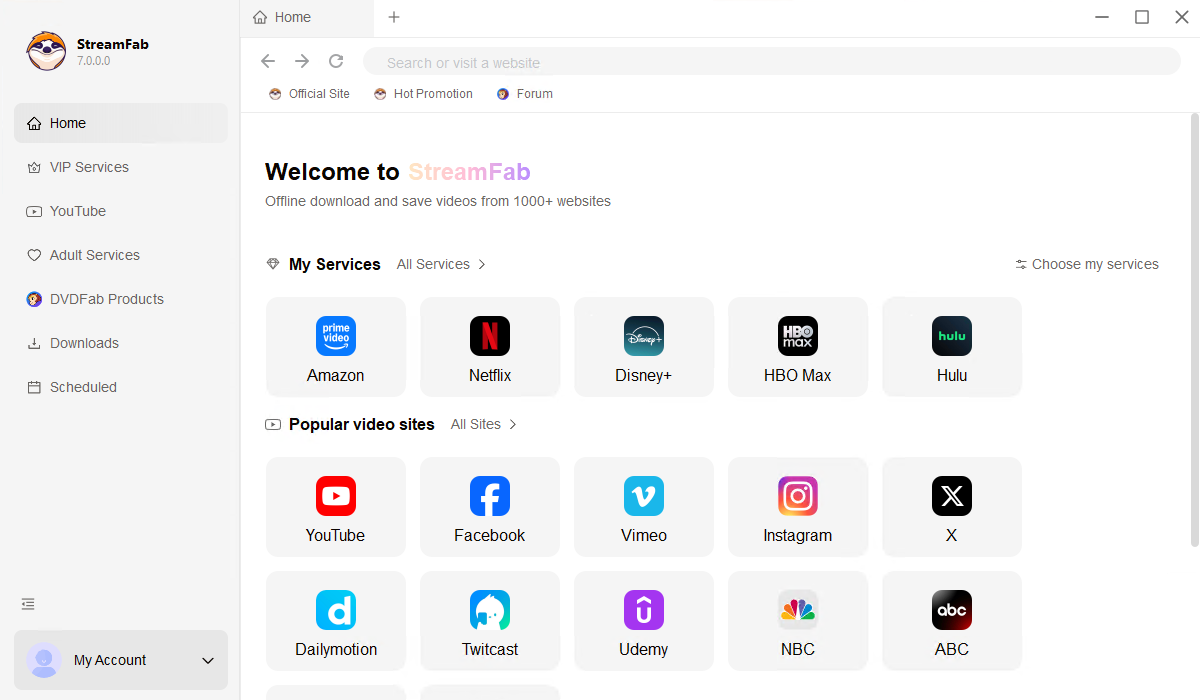
Authorize a paid StreamFab license when applicable; app authorization is separate from signing in to a video service.
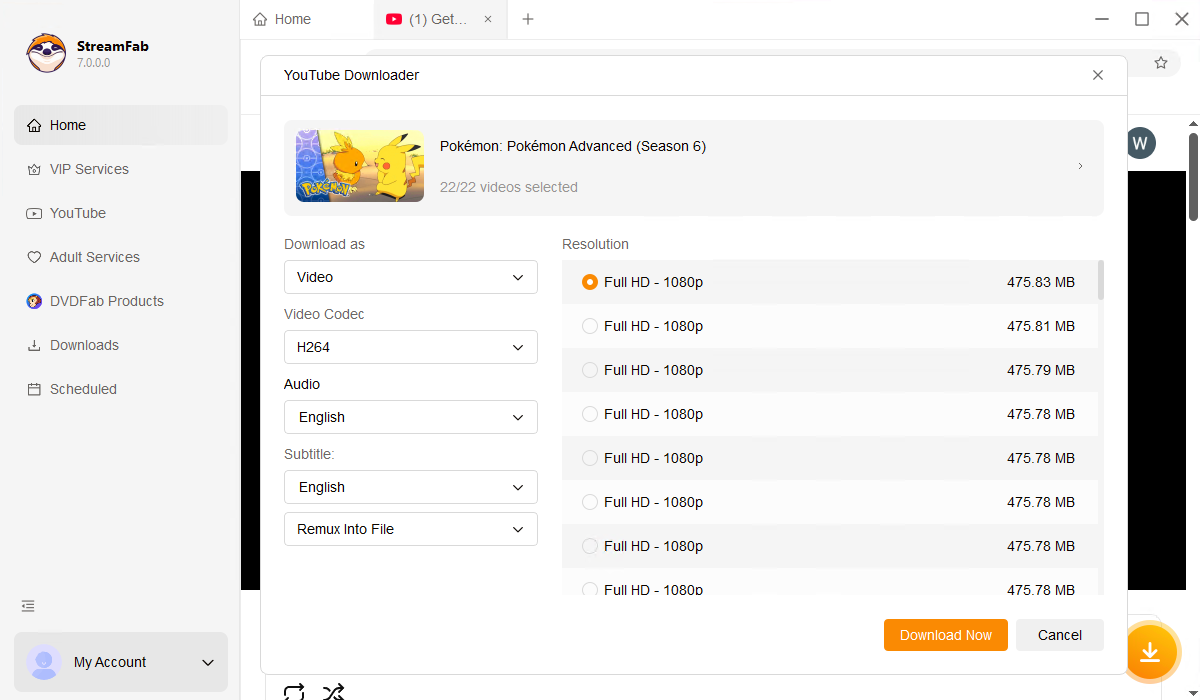
Open or paste a YouTube URL for content you are authorized to access.
Select an available format, quality, subtitle option, and destination folder for the source.

MP4 and MKV Files: Save, Find, and Play
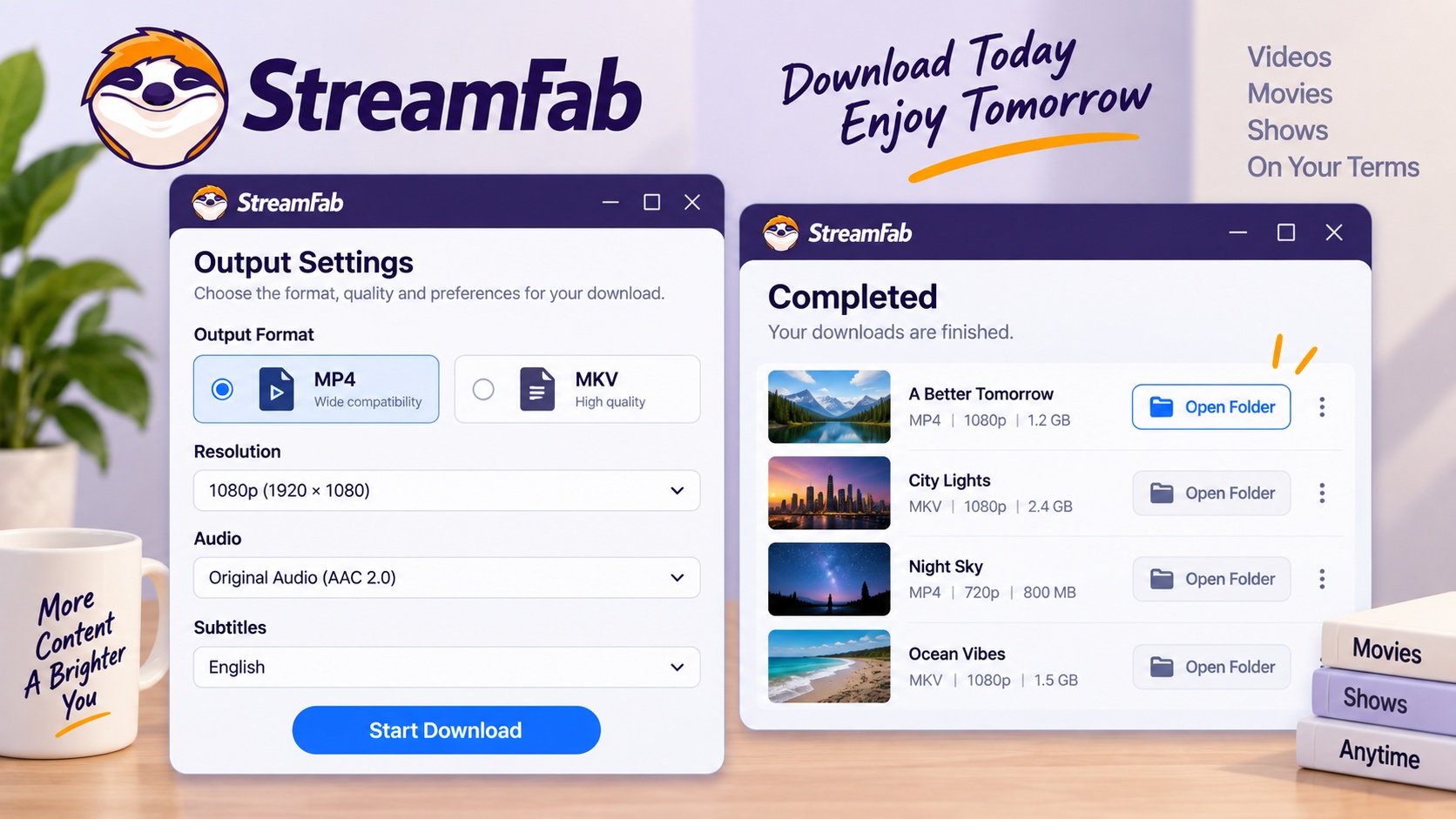
StreamFab saves a local video file rather than creating the service-managed offline copy used inside a streaming app. For authorized personal offline use, choose MP4 for an MP4-compatible player or editor, MKV for an MKV-compatible media setup, or an available audio-only option when you need listening rather than video playback.
The container choice does not convert an unsupported video codec into a compatible one, and neither MP4 nor MKV is guaranteed to work with every player or editor. Match the selected format, codec, resolution, audio, and subtitles to the software or device where you plan to use the file.
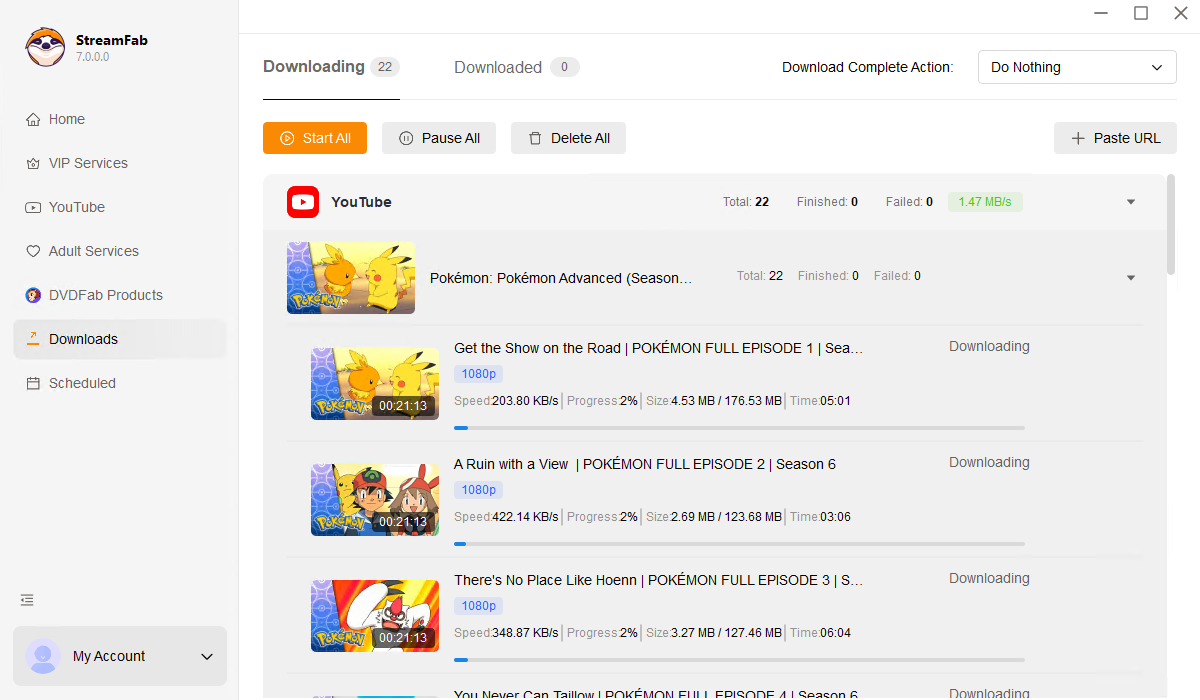
Find the result in the destination folder configured before the download. You can also open the completed task and use its file-location control to locate the saved file without relying on a fixed default path.
A completed task label is not a file-integrity check. Open the file in the intended player, compare its duration with the source, seek near the end, and confirm that the expected audio and subtitles work. Local output does not create unlimited usage rights or guarantee continued access to the original service.
Technical FAQs
What should I check before downloading a playlist?
A playlist queues videos that are currently available in that playlist; automatic channel subscriptions use a separate workflow. Select the listed items and available output settings, then check the current StreamFab download status if compatibility changes. Download only content you are authorized to access, follow platform terms and applicable law, and do not redistribute the saved files.
Why is my YouTube download limited to 1080p?
The available resolution choices depend on the selected YouTube source and the StreamFab YouTube product you are using. If a previously available option disappears, update StreamFab, reopen the authorized source, and select a resolution that is currently listed. The free YouTube option supports downloads up to 720p, while higher-resolution choices require YouTube Pro and a source that provides them.
Can I turn downloaded subtitles on and off?
A separate SRT subtitle file can be turned on or off in a player that supports external subtitles. Text burned into the video image cannot be toggled off. Choose an available subtitle option during the download, then open the matching subtitle file in your intended player.
Conclusion & My Verdict
My recommendation is straightforward: start with the free YouTube option if occasional downloads up to 720p meet your needs and you want to confirm that the available source and output work with your player. Choose YouTube Pro when source-available higher resolutions and paid playlist, turbo, or multitask features better match your workflow.
"The best tool for archiving YouTube TV. 8K hardware acceleration works flawlessly, saving me hours of encoding time."
"I bypassed DRM limitations easily. The batch downloading feature and auto-metadata tagging for Plex is a game-changer!"

Staring at an error code and wondering what StreamFab is actually telling you? In July 2026, I mapped every code against the real failure it represents — here's the reference guide that skips the corporate jargon and tells you exactly what to do in under 2 minutes.
By Erika Leen - Oct 12, 2026
StreamFab 7 marks the first major update in nearly three years. This review looks beyond surface-level changes and examines what actually matters in everyday use based on real testing, community feedback
By Erika Leen - Sep 28, 2026
Choose between StreamFab’s local file workflow, Audials’ Windows recording and editing, and PlayOn’s local or cloud recording. Compare queue behavior, picture quality, audio and subtitles, and recurring costs, with a repeatable way to check one authorized title before building an offline library.
By Marcia Hatcher - Sep 28, 2026
This article is an official response to users asking regarding the safety and legality of StreamFab. Written by StreamFab team, it moves beyond simple assurances to provide a transparent technical and legal analysis.
By Nicole Lopez - Sep 24, 2026