Amazon Video Download to SD Card: 3 Working Methods for Android, Windows & Any

Summary: Looking for a way to Amazon Video Download to an SD Card? Then look no further because this guide will show you how to download Amazon videos to SD card with the help of StreamFab Amazon Downloader.
You want Prime Video on an SD card so it rides along on a phone or tablet through commutes, flights, and dead-zone trips. The catch: the SD card option is often greyed out, official downloads stay locked to the phone that grabbed them, and they quietly expire. This guide walks the working Android and Windows paths for Amazon video download to sd card, fixes the greyed-out Prime Video download location, covers what SD card actually works, and shows a desktop alternative for when the official route is not enough.

Save Prime Video to an SD Card on Android
The Android app is the one route where Amazon officially lets you point downloads at an SD card. It fits viewers who watch on the same phone that did the downloading; the file stays inside the Prime Video app and cannot be copied out to another device. iOS does not offer an SD card option at all, so iPhone and iPad users need the Windows or desktop route instead.
- Install and open the Amazon Prime Video app on your Android device, then sign in.
- Go to your Profile icon (formerly My Stuff) → Settings (Gear icon) → Stream & Download.
- Tap Download location and select SD card.
- Open a movie or TV show page and tap Download. New downloads will now be saved to your SD card.
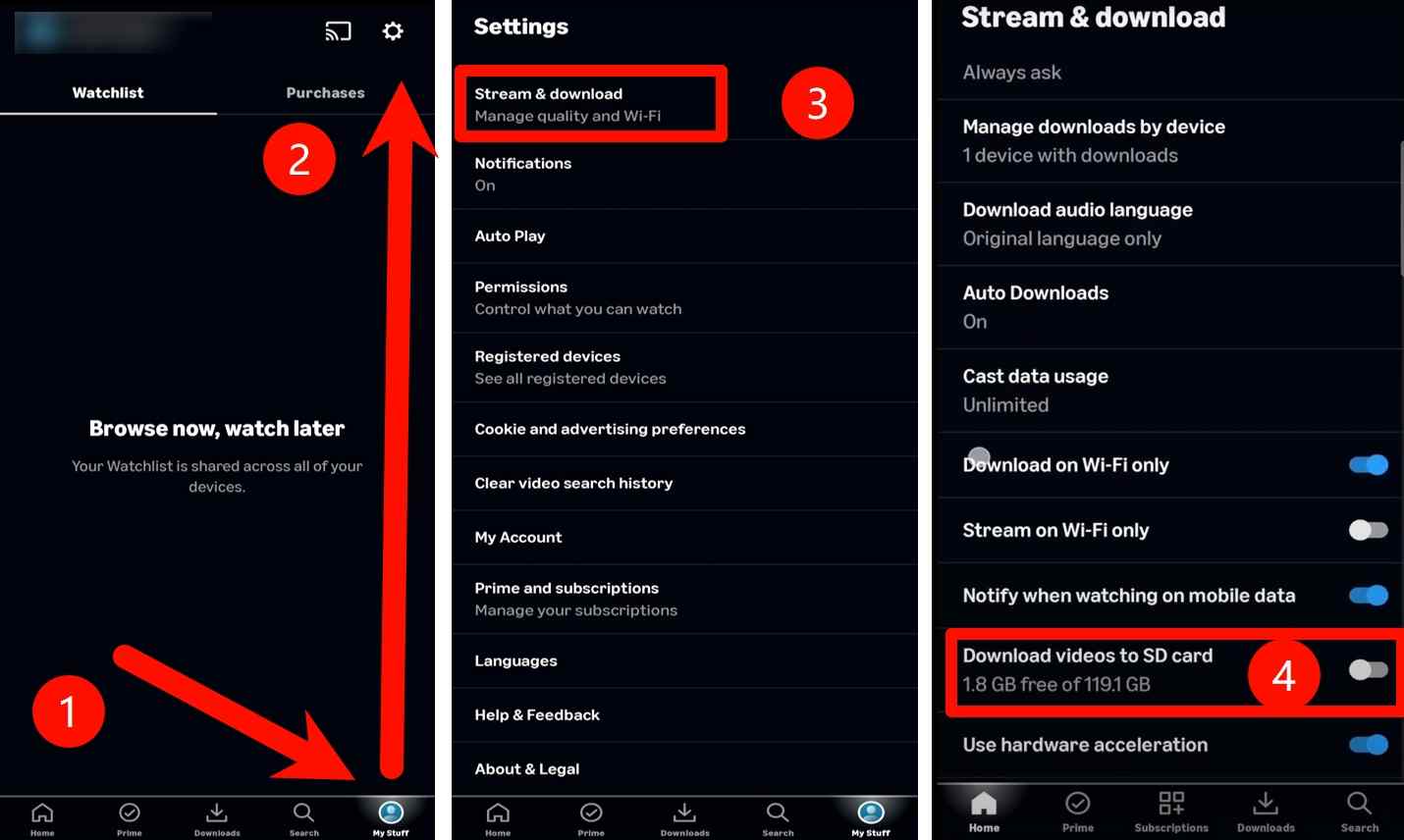
Note: Downloads are account- and device-bound. This means that Prime Video titles downloaded to the device itself cannot be simply copied or transferred to the SD card manually. To move existing items from internal storage to your SD card, you must delete and download them again after switching the location.
Where Prime Video stores your SD-card downloads
To search for your downloaded Amazon Prime videos manually, follow the steps below:
- Launch the File Manager app on your device.
- Go to the SD Card folder and then choose the Android folder.
- Select the Data folder, then locate the Amazon Prime Video folder (usually named
com.amazon.avod.thirdpartyclient).
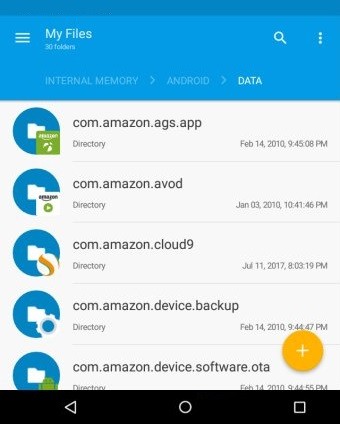
From here, you can see the Prime Video download location and access the file entries. The files themselves are encrypted and only play inside the Prime Video app on the same signed-in device.
Set an SD Card as the Windows Download Location
- Open the Prime Video app for Windows and sign in.
- Go to Settings → Downloads (or Storage, depending on your app version).
- Select your preferred Download location (such as an inserted SD card or external drive) and confirm.
If you would rather dig up existing downloads in place, Prime Video hides them in a system folder. In File Explorer, open the View tab, click Options, switch to the View tab in the popup, enable Show hidden files, folders, and drives, then browse to C:\Users\UserName\AppData\Local\Packages\AmazonVideo.PrimeVideo_pwbj9vvecjh7h\LocalState\Downloads. The files are still DRM-locked to the Prime Video app.
Fix the Greyed-Out SD Card Option in Prime Video
If the SD card entry is missing, greyed out, or throws an "SD card not present" message, the card is almost always formatted as Internal (Adoptable) Storage rather than Portable Storage. Prime Video only lists cards mounted as portable storage as a valid download location.
- Back up anything on the card. Reformatting wipes it.
- Open your Android settings, find the SD card entry under Storage, and choose Format as portable (the exact wording varies by phone maker).
- Grant the Prime Video app storage permission under Apps → Prime Video → Permissions.
- Force-close and relaunch Prime Video, then reopen Settings → Stream & Download → Download location. The SD card should now be selectable.
If it still refuses, the card itself may be too slow or failing. That leads into the next section.
Choosing the Right SD Card for Prime Video
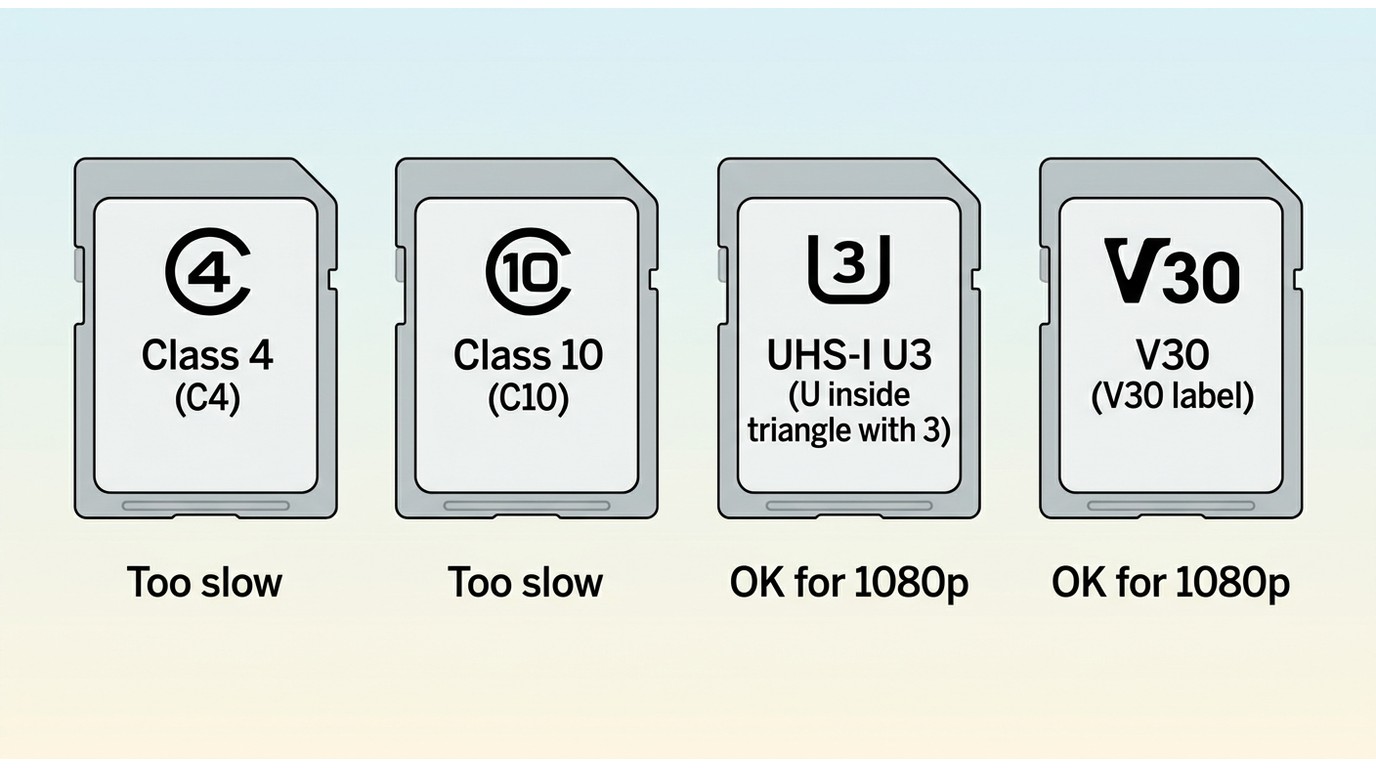
A quick, practical shortlist for HD Prime Video downloads:
- Capacity: 128 GB is a comfortable floor for a season or two of HD video plus other apps; 256 GB or 512 GB if you download a lot in one go.
- Speed: UHS-I with a U3 or V30 rating handles 1080p writes smoothly. Older Class 4 or Class 10 cards are a common reason downloads stall.
- Format: Mount it as portable storage, not adoptable/internal, or Prime Video will refuse to use it.
- Brand: Stick to a name-brand card from a retailer with a returns policy. Cheap unbranded cards often misreport capacity.
Even with the right card, the official route has one more limit worth knowing about before you commit a whole trip's worth of viewing to it.
Why Official SD-Card Downloads Expire and Stay Locked
Two facts to know before the SD card fills up. Official Prime Video downloads are time-limited: a downloaded title is generally available for about 30 days, and once you press play you usually have around 48 hours to finish it (as of July 2026). They are also locked with account- and device-locked encryption, so moving the SD card into another phone will not make them play. If you want the specifics of the Amazon download time limits and per-title caps, that's covered in a separate guide.
That's why viewers who need Prime Video on multiple devices, or want to keep a title past the 30-day window, end up looking for a desktop workflow instead.
Save Prime Video as a Local Copy with StreamFab
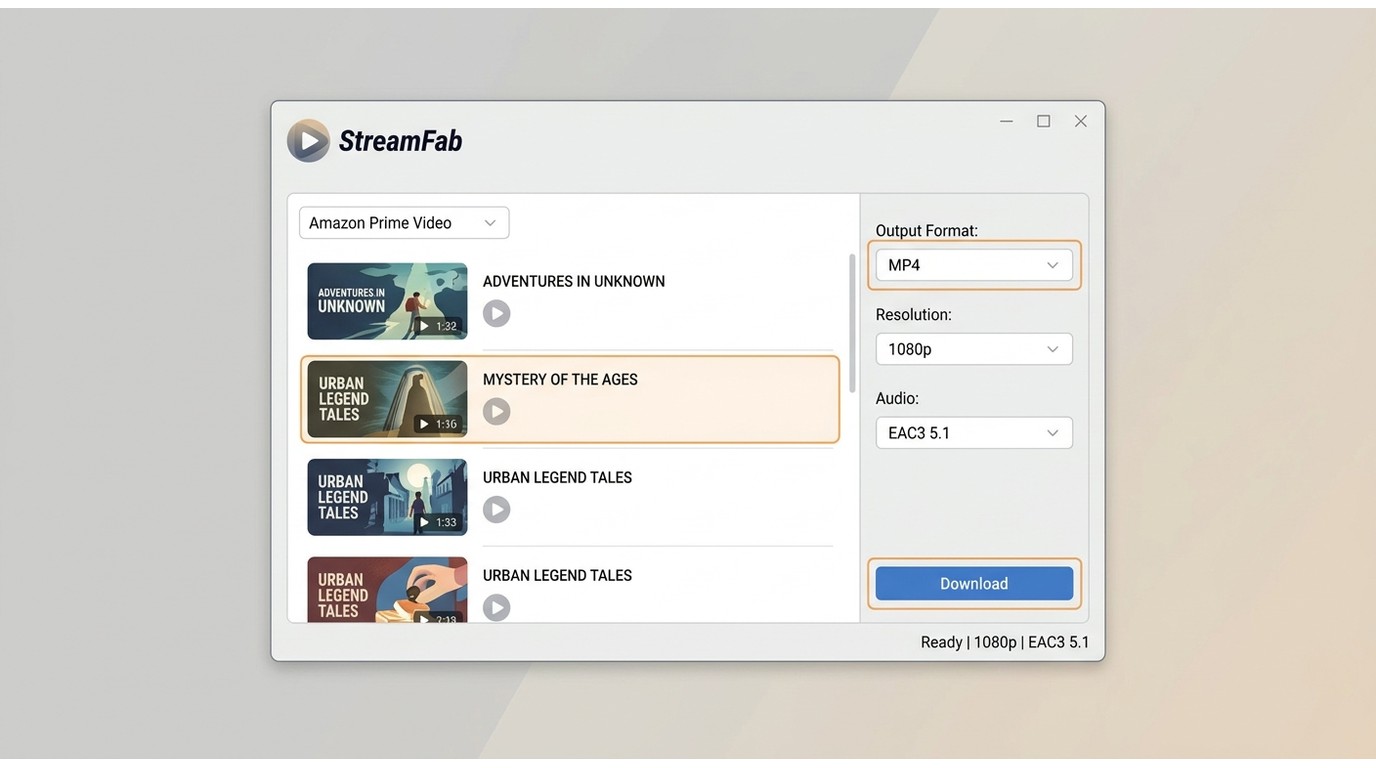
When the official route expires or stays locked to one phone, my go-to on Windows and Mac is StreamFab Amazon Downloader. It saves a local MP4 or MKV copy for personal offline viewing that you can then move onto an SD card and play in a standard media player, for content you are authorized to access, where permitted by platform terms and applicable law. It's a third-party desktop app relative to Amazon's own download feature, not a way around your subscription.
Best for: Windows or Mac users who want a local copy that plays on any device from an SD card. Not for iPhone-only viewers.

- Download videos from all regional Amazon Prime sites (US, UK, JP, etc.).
- Download content from channels on Amazon Prime, including download subtitles from Amazon
- Save the latest episodes and movies in stunning 1080p.
- All files are saved in MP4 or MKV formats, which are compatible with nearly all devices.
- Schedule Mode allows you to queue videos for automatic downloading at a scheduled time.
- With Batch Mode, users can download multiple episodes simultaneously.
- Automatically removes ads from the video stream.
- User-friendly interface, perfect for both non-tech and beginner users.
Download Prime Video to a local file in four steps
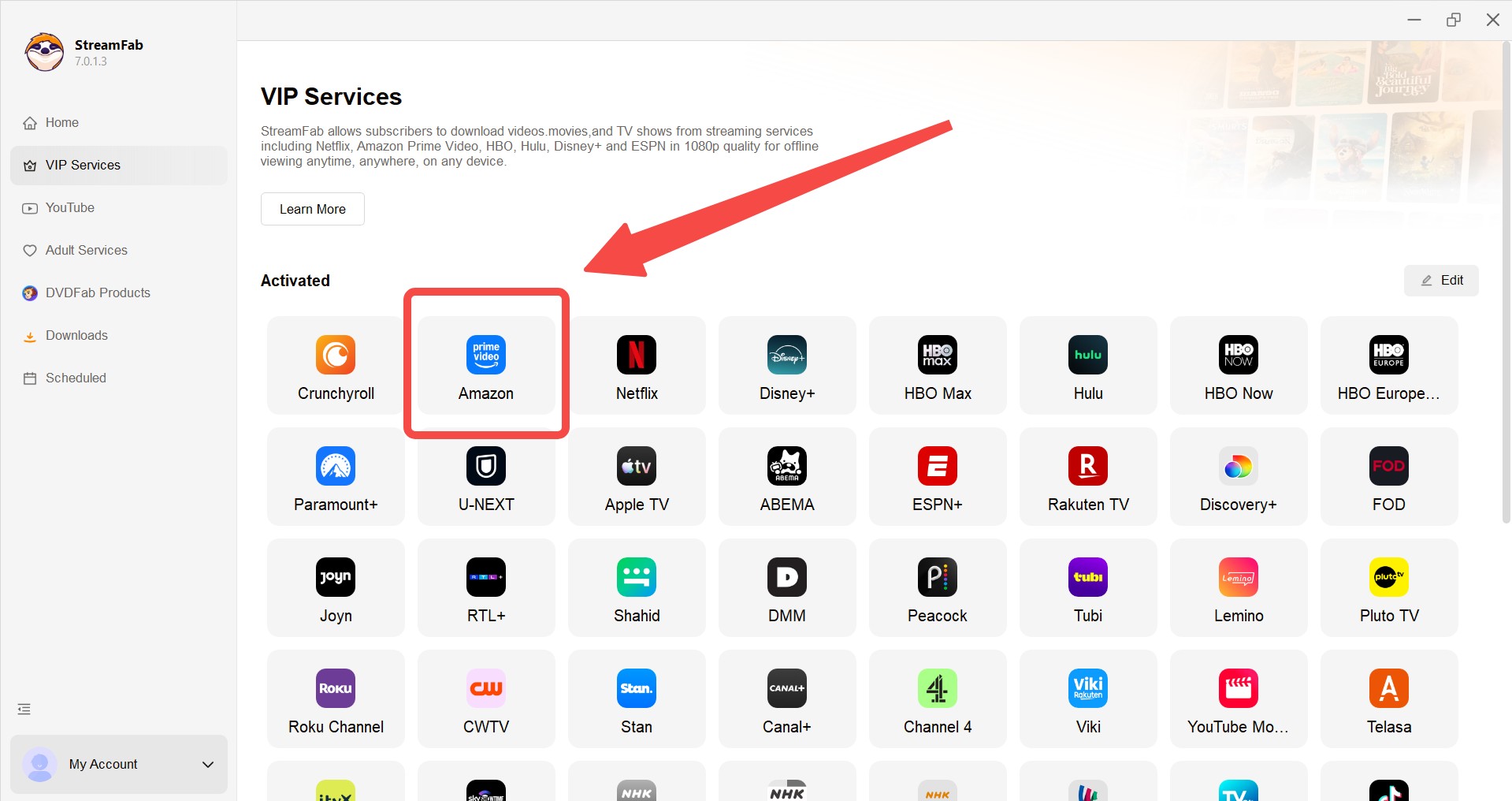
Choose the streaming service
Choose the “VIP Services” option from the left panel, then select Amazon Prime.
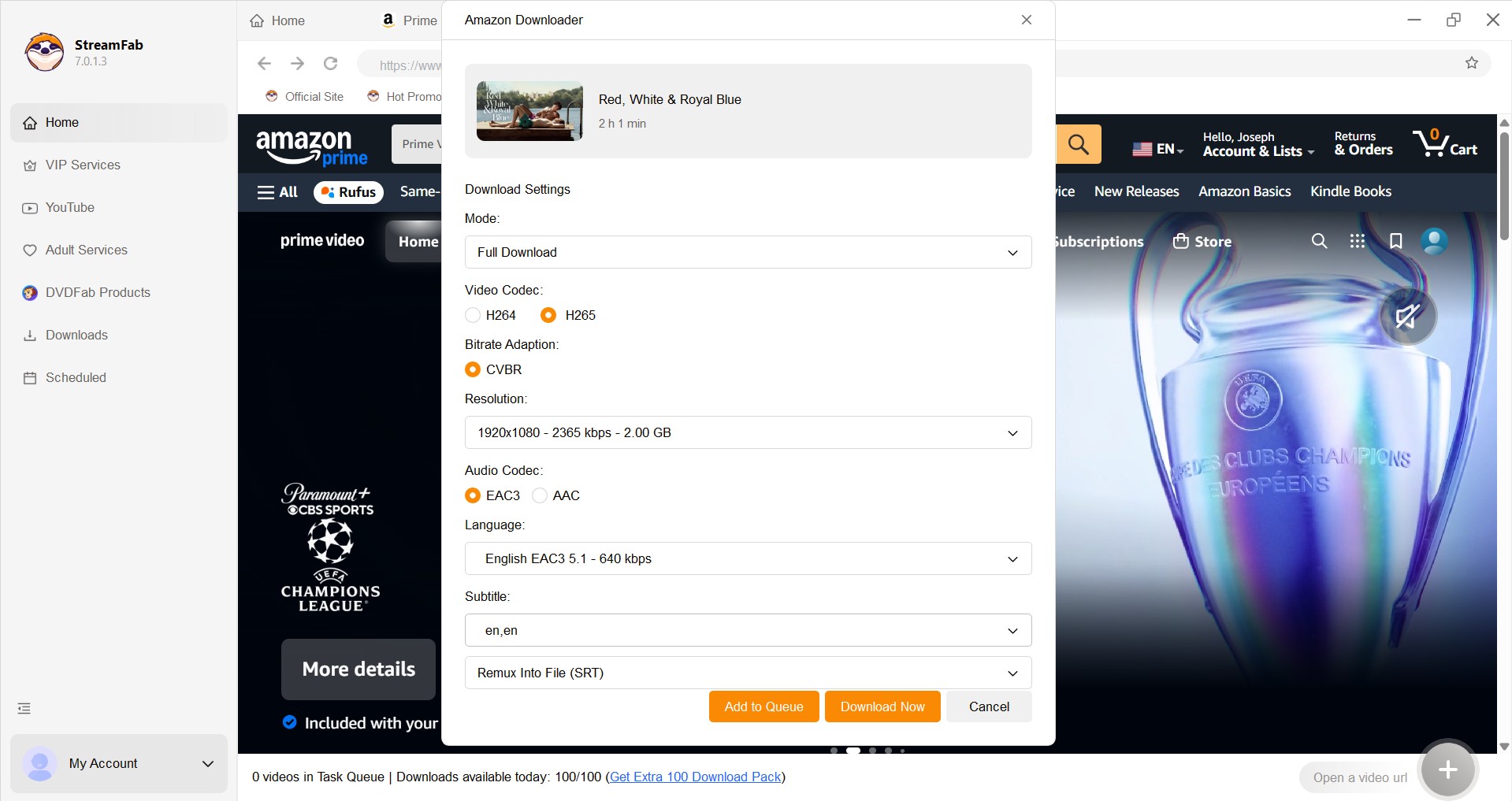
Customize the file
Sign in to your Amazon Prime account and open the video you wish to download. A new window will appear on your screen. Choose the desired video quality, audio track, and subtitles. When you are done, click the Download Now button to start the process.
Click the download button
Now, wait until the downloading process is complete.
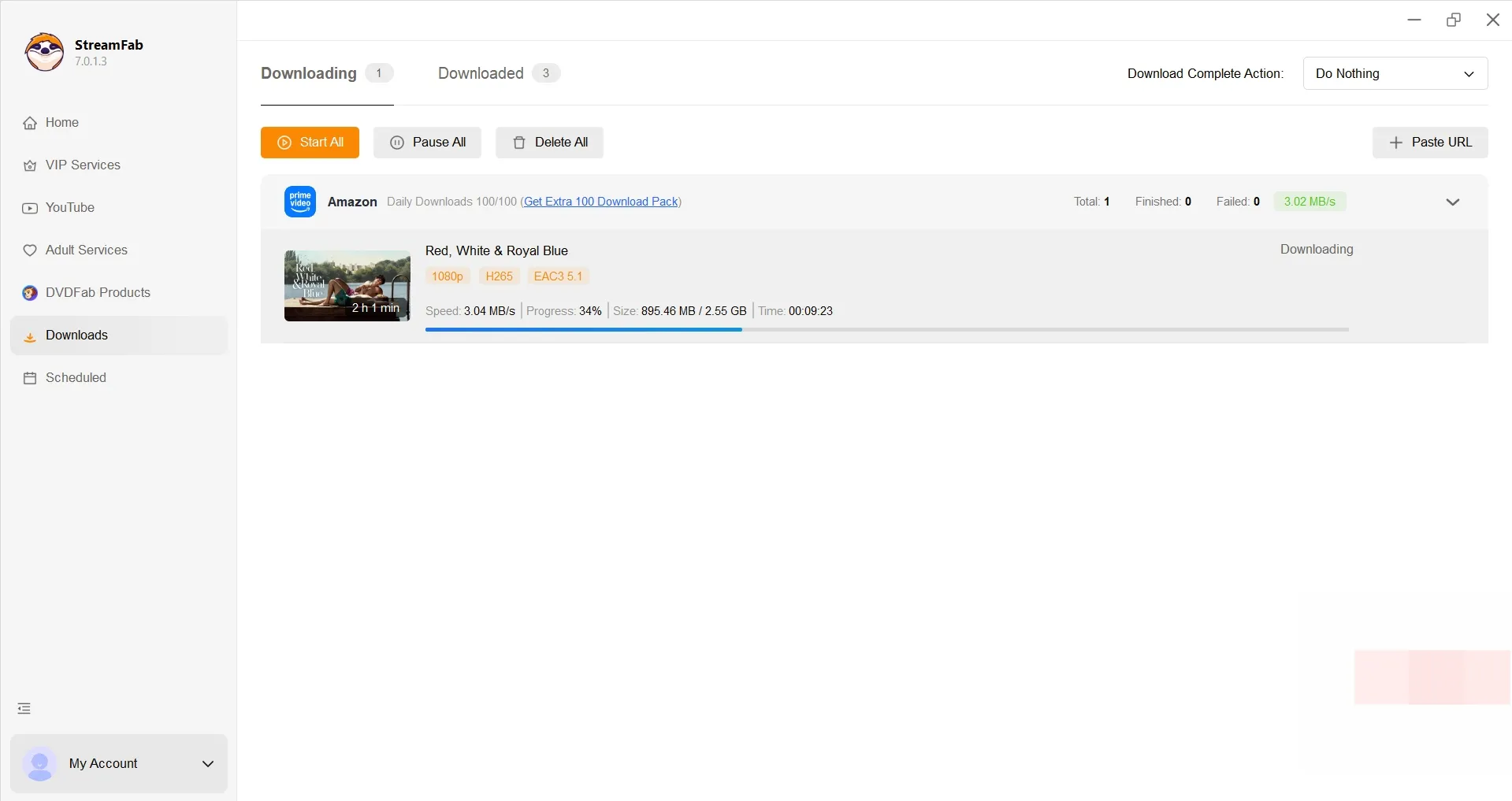

After the download is complete, you can find the Amazon Prime videos saved in MP4 format, which is perfect for transferring to your SD card. You can then pop that SD card into any tablet, phone, or TV to watch offline without restrictions.
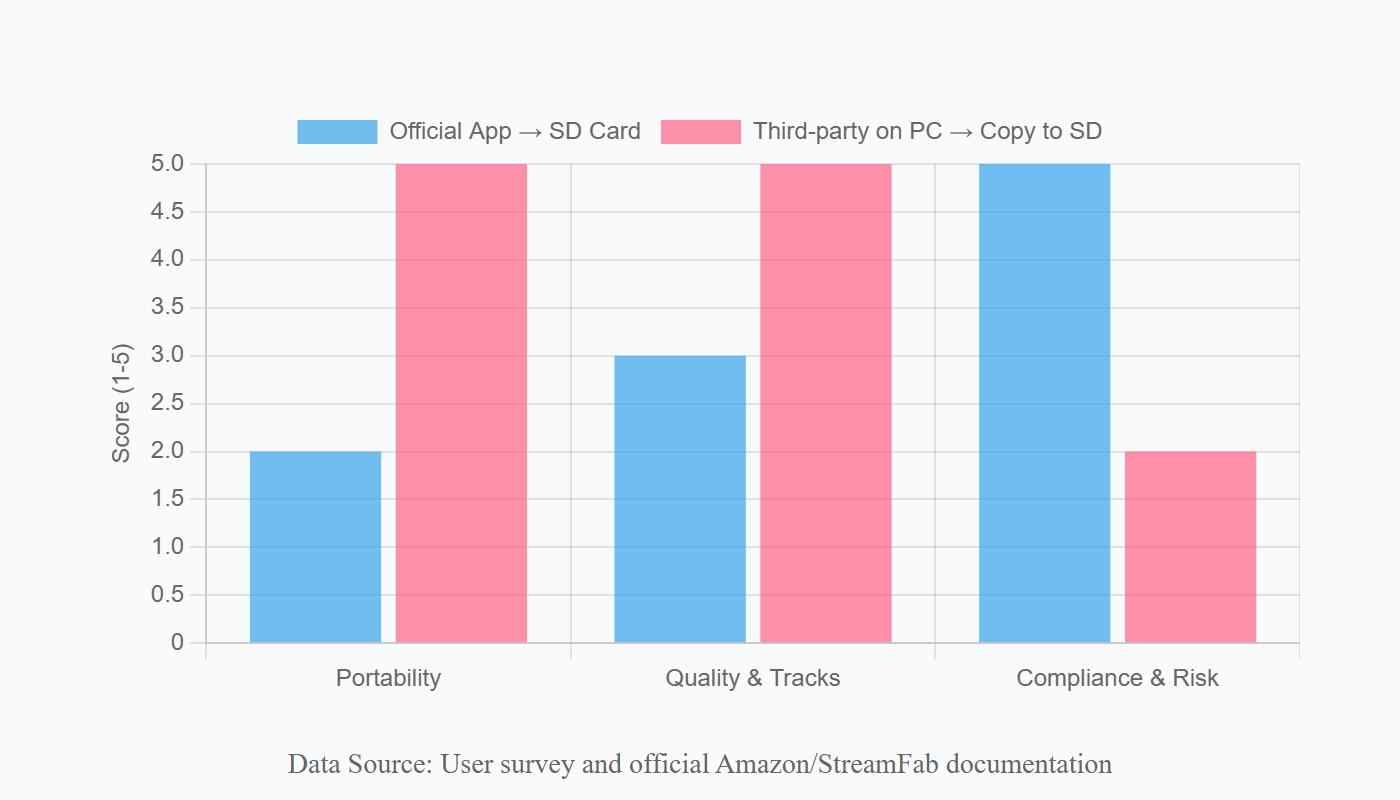
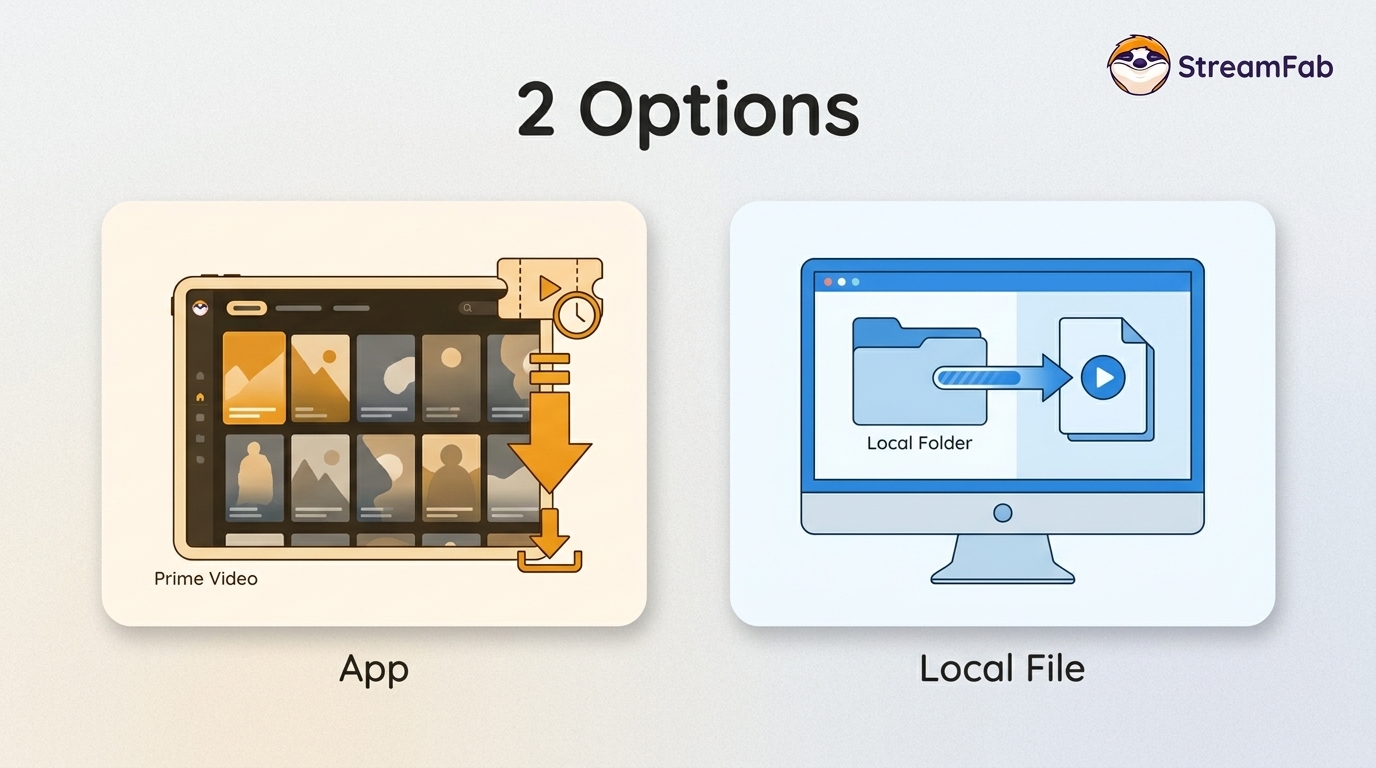
Official App vs. Local Copy: Which SD-Card Route Fits
| Criteria | Official App → SD Card | Local Copy via StreamFab |
|---|---|---|
| Device playback | Locked to one account and device | Plays on any device that reads MP4/MKV |
| Expiry | About 30 days, 48-hour watch window once played | A local copy you keep for personal offline use |
| Video quality & audio | Depends on app and device certification | Up to 1080p with EAC3 5.1 audio and .SRT subtitles |
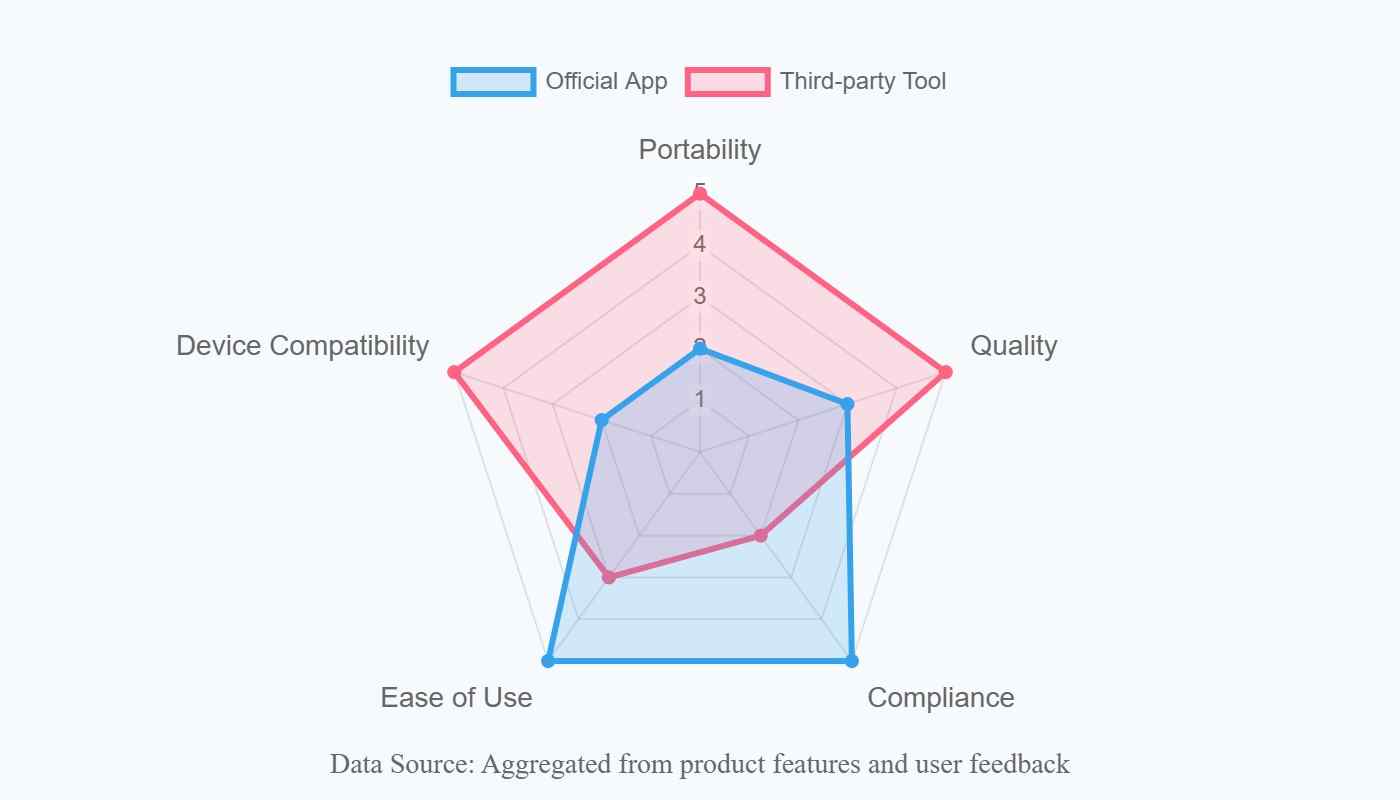
- Android and Windows let you choose an SD card as the download location; iOS does not.
- Official downloads are encrypted and locked to your account and the device that downloaded them; moving the SD card to another phone will not play them.
- Changing the storage location does not move existing items; delete and re-download them to the new location.
- Official downloads generally expire in about 30 days, with a 48-hour watch window once you press play.
FAQs
Conclusion
My take: if you'll watch on the same Android phone that downloaded the title, the in-app SD-card route is the least effort — just format the card as portable storage first. If you need Prime Video across multiple devices, or want to keep a title past the 30-day window, save a local copy from a Windows or Mac desktop and move it to the SD card. iPhone users don't have the first option at all, so the desktop route is where to start.

Yes, you can directly download Amazon Prime video on Mac through the official macOS app (subject to a strict 30-day limit) or utilize third-party downloders to export permanent local MP4 files. Explore my 2026 technical tests to avoid blackout restrictions.
By Erika Leen - Aug 26, 2026
Amazon Prime Video Channels like Starz, AMC+, and Acorn TV offer extra shows beyond standard Prime. But their downloads face time and device limits. This guide explains the key difference between Prime vs Channels and shows how to safely download Channel videos.
By Erika Leen - Aug 25, 2026

I revisits the most iconic PBS Kids shows of the 2000s, sharing heartfelt recommendations and formative memories of each series,
By Erika Leen - Aug 21, 2026
You can download eligible rented Amazon movies and purchased titles through the Prime Video app, but rentals have limited viewing Windows and app-managed storage. This guide explains the official route first, then a desktop local-file workflow for authorized viewing when format, audio, or playback flexibility matters.
By Nicole Lopez - Aug 11, 2026