
Disney+ Not Working? 7 Fast Fixes for Playback and Downloads

Summary: Frustrated because Disney Plus isn’t working? Whether you’re experiencing endless buffering, login issues, or error codes, this guide will help you troubleshoot and fix your streaming problems quickly!
Table of Contents
If Disney+ is not working, first determine whether the failure affects every device or just one app, network, title, or download. The fastest path is to narrow the scope before resetting anything: this guide covers outages, devices, error codes, and offline downloads.
Is Disney+ Down or Is the Problem Local?
A 60-Second Triage Check
Before changing settings, check four things: Does Disney+ fail on every device? Does it work on another network, such as mobile data? Does another title or profile play? Are outage reports spiking? If every device and network fail at once, wait and retry later. If the problem follows one device, browser, or Wi-Fi connection, use the matching steps below.
A service-wide outage and a local playback problem can look identical at first. The scope of the failure is the useful clue.
Seven Core Fixes for Disney+ Not Working
Fix #1: Clear Cache and Site Data
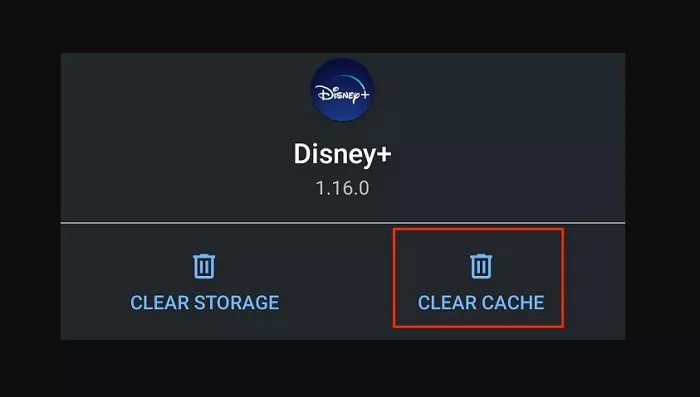
Disney+ stores temporary files that can get corrupted after updates. Clearing your cache forces a fresh start. This can also help to fix the Disney Plus protected content license error.
Open your browser settings, find "Clear browsing data," and select cached images and files without selecting saved passwords or browsing history. Restart the browser, then try Disney+ again. If Disney Plus is not working on Chrome but works elsewhere, also test a private window or another supported browser.
Fix #2: Update or Reinstall Disney+
Update the Disney+ app or your browser first. Older app versions, incomplete updates, and device firmware mismatches can cause loading, sign-in, or playback failures.
On a computer, refresh the page and test another browser profile before reinstalling anything. On a phone, TV, or streaming device, restart after updating the app. If the problem began immediately after an update and persists after a reinstall, update the device software and contact Disney+ Support with the app version.
Fix #3: Test the Connection Path
Run a speed test during your normal viewing time, then compare Wi-Fi with a different network if possible. A fast result alone does not prove that the complete playback chain supports the requested quality.
If Disney+ works on mobile data but not Wi-Fi, restart the router and check for DNS filtering, network security settings, or a weak signal. A wired connection can help isolate a Wi-Fi-specific problem. Treat router or protocol changes as temporary diagnostics, not guaranteed fixes.
Fix #4: Restart the App and Device
Close Disney+ completely, restart the device, and sign in again if prompted. This clears a stalled app session without changing router settings.
If basic restarts do not help, compare the same title on another device before making network-level changes. A repeated failure on one device while another works usually points to that device or app path rather than a service-wide outage.
Fix #5: Disable VPNs and Extensions
VPNs, privacy tools, content blockers, and other browser extensions can interfere with sign-in or playback. Disconnect any VPN and temporarily disable extensions before reloading Disney+.
If playback returns, re-enable extensions one at a time to identify the conflict. A clean browser profile is often the quickest way to separate a browser issue from an account or network issue.
Fix #6: Confirm the Outage Scope
Check whether Disney+ fails on multiple devices and networks, then look for a sudden spike in outage reports. If the issue is widespread, repeated resets are unlikely to help.
Retry later, and keep the exact error code if one appears. If the issue is isolated to one device or connection, continue with the device and error-code sections below.
Fix #7: Try Different Shows
If Disney Plus won't play one title, try another title and another profile. If other content works, the problem may be title-specific; report the affected title through Disney+ Support.
If Disney Plus 4K is not working or Full HD is unavailable, check title and plan availability, the playback device, the display chain and HDCP support, and browser limitations. Test another supported device before assuming the connection is the cause.
How to Fix Disney+ by Device
Smart TVs and Streaming Boxes
For Disney Plus not loading on TV, restart the TV or streaming box, update the Disney+ app, and install available firmware updates. Confirm that the device still meets Disney+ playback requirements and test another title before reinstalling the app.
If the app crashes after its logo or fails on one TV while it works on a phone over the same network, focus on that TV's app and firmware path. Check HDMI connections and display support when video is black, audio-only, or limited to a lower resolution.
Browsers and Computers
For Disney Plus not working on Chrome, try a private window, disable extensions, clear cached site data, and test another browser. Background security software or a browser profile can also be the limiting factor.
Desktop playback can vary by browser, operating system, display connection, and content availability. If another browser works, keep the troubleshooting focused on the original browser rather than resetting the whole network.
Phones and Tablets: First Checks
Mobile Fix #1: Force Stop and Restart
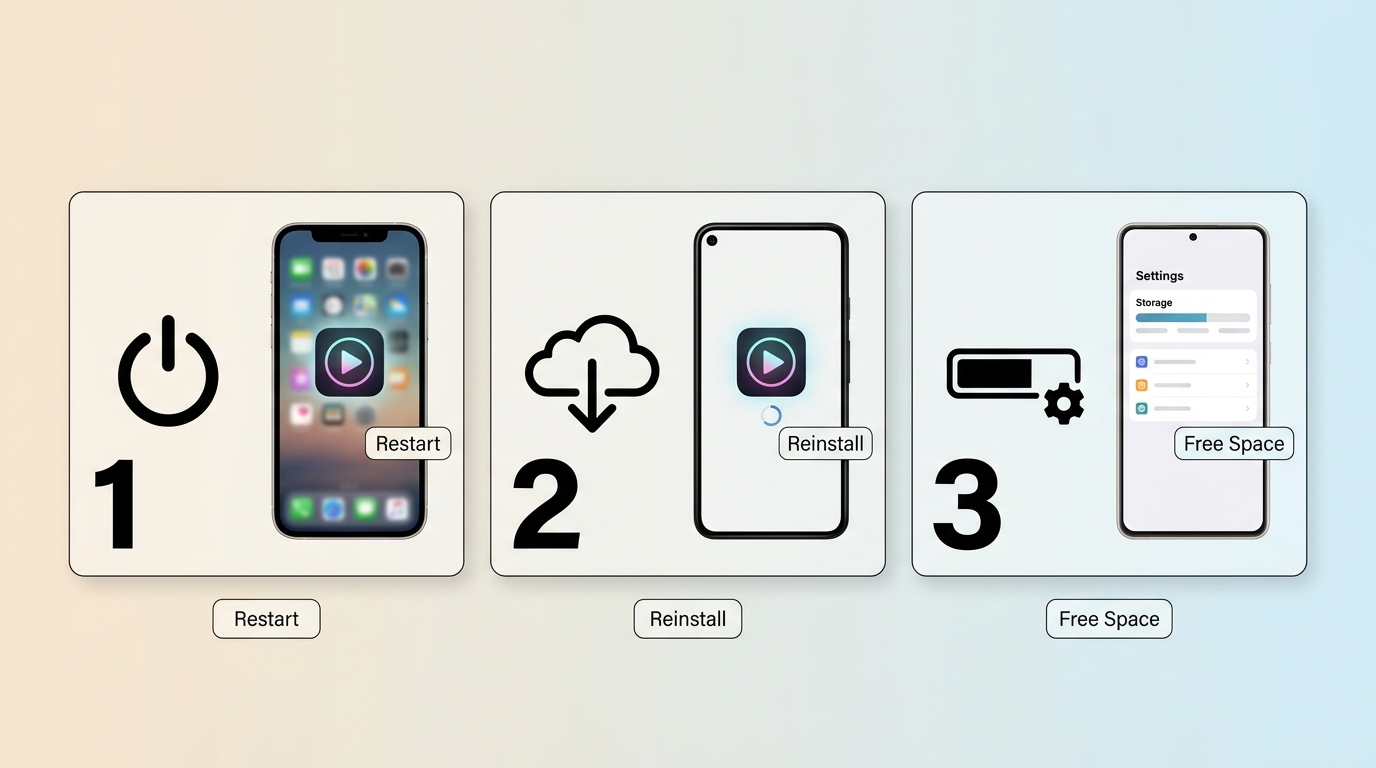
The Disney+ app can freeze during platform transitions. Force stopping clears temporary memory without deleting your downloads.
- Android: Settings > Apps > Disney+ > Force Stop
- iOS: Swipe up from bottom (or double-click home) and swipe Disney+ away
Reopen Disney+ and wait about 30 seconds.
Mobile Fix #2: Reinstall the App
A fresh install ensures compatibility with Disney's authentication.
First, note your completed downloads because reinstalling can remove offline files. Uninstall Disney+, restart the phone or tablet, install the current app version, and sign in again. If the issue continues, update the device operating system and check whether the device remains supported.
Mobile Fix #3: Check Your Storage Space
Low storage can prevent app updates and downloads from completing. Remove unused files or apps, then reopen Disney+ and retry the affected download.
If downloads remain queued, update the app, confirm that the device has enough available storage for the title, and use the download checks below.
Chromecast and Casting
If Disney Plus Chromecast is not working, restart the phone or tablet, Chromecast, and Wi-Fi router, then confirm that both devices are on the same network. Update the Disney+ app and the casting device before trying again.
If casting fails after an app update while local playback still works, test another supported casting app and another title. That distinction helps identify whether the issue is specific to Disney+, the casting session, or the network.
Disney+ Error Codes Explained
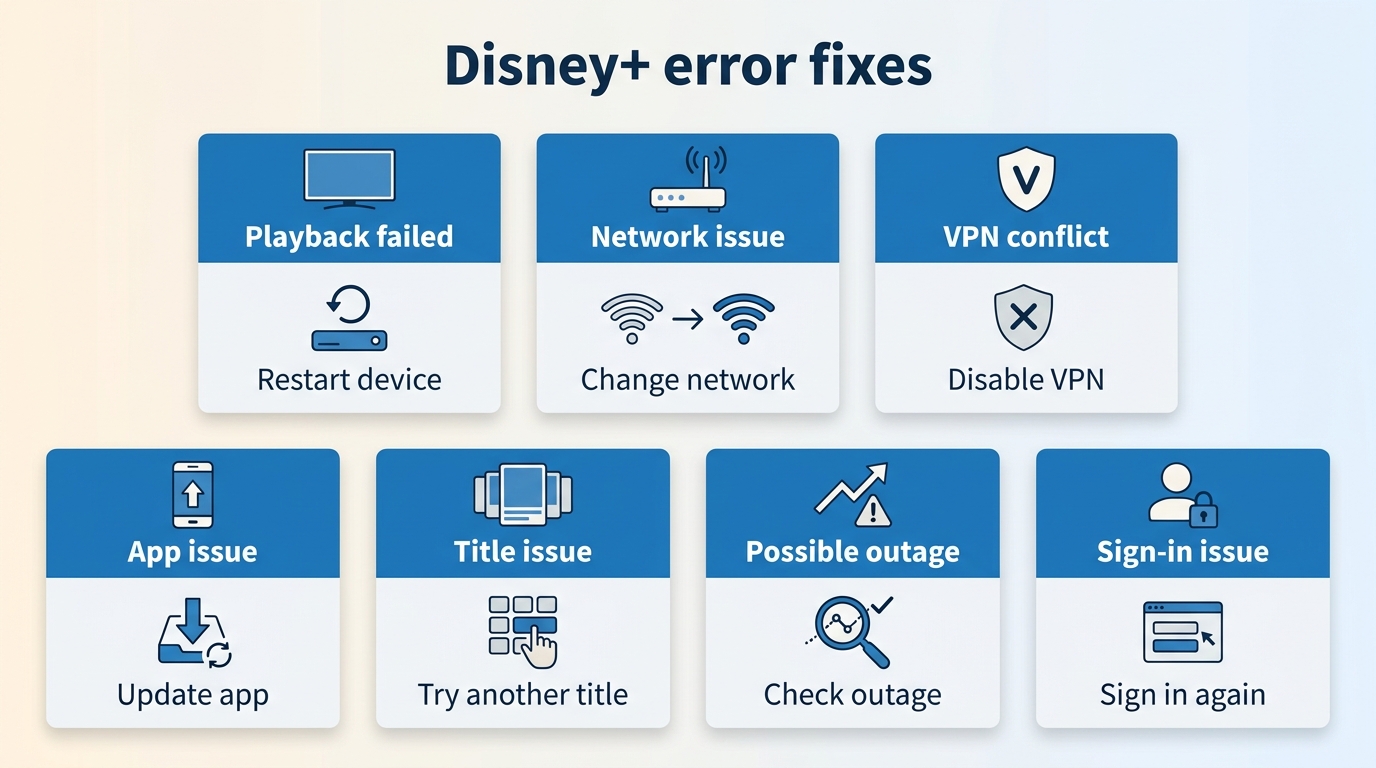
Error codes are useful clues, but they do not always identify one exact cause. Start with the device, network, and account checks that match the code, then contact Disney+ Support if the error persists.
| Error code | Likely category | First action | Device clue | Escalation |
|---|---|---|---|---|
| 83 | Device, browser, or connection authorization issue | Restart, sign in again, and disable VPNs or extensions | Compare another browser or device | Send the code and app or browser version to Support |
| 42 | Connection or service availability issue | Retry on another network and check outage scope | Fails across devices or Wi-Fi paths | Contact Support if the issue persists after the outage check |
| 73 | Location or account access issue | Confirm account access and disconnect VPNs | Often appears during sign-in or playback | Contact Support with the exact message |
| 1026 | App or device playback issue | Update the app and restart the device | Often isolated to a TV or streaming device | Include device model and firmware version |
| 39, 41 | Playback or title availability issue | Try another title and restart playback | May affect one title more than others | Report the affected title and time of failure |
| 91, 92, 142 | Account, session, or unexpected app issue | Sign out, restart, and sign in again | Compare another device or browser | Provide the code, device, and steps already tried |
Disney+ Help Center, as of July 2026.
Error 83 is a category signal, not proof of a single connection problem; the device, browser, and network comparison usually narrows it down faster.
Fix Disney+ Download Problems
Official Disney+ downloads require an eligible Premium plan and the Disney+ mobile app on supported phones and tablets. They are not native download options for TVs or computers, and the device must reconnect to the internet at least once every 30 days (as of July 2026).
Check Plan and Device Eligibility
If the Download button is missing, confirm that you are using the supported mobile app on an eligible plan and device. Download limits can also affect a failed request; Disney+ download limits and restrictions are covered in more detail separately.
Fix Storage and Queued Downloads
For Disney Plus downloads not working or stuck in a queue, update the app, free sufficient storage, reconnect to a stable network, and retry one title before queueing more. Restarting the app can refresh a stalled download session.
Refresh Offline Playback Access
If Disney downloads won't play offline, reconnect the mobile device to the internet, open Disney+, and let the app refresh its access before traveling. Complete downloads before boarding a flight and confirm that each title plays while the app is still online.
When Official Downloads Don't Fit
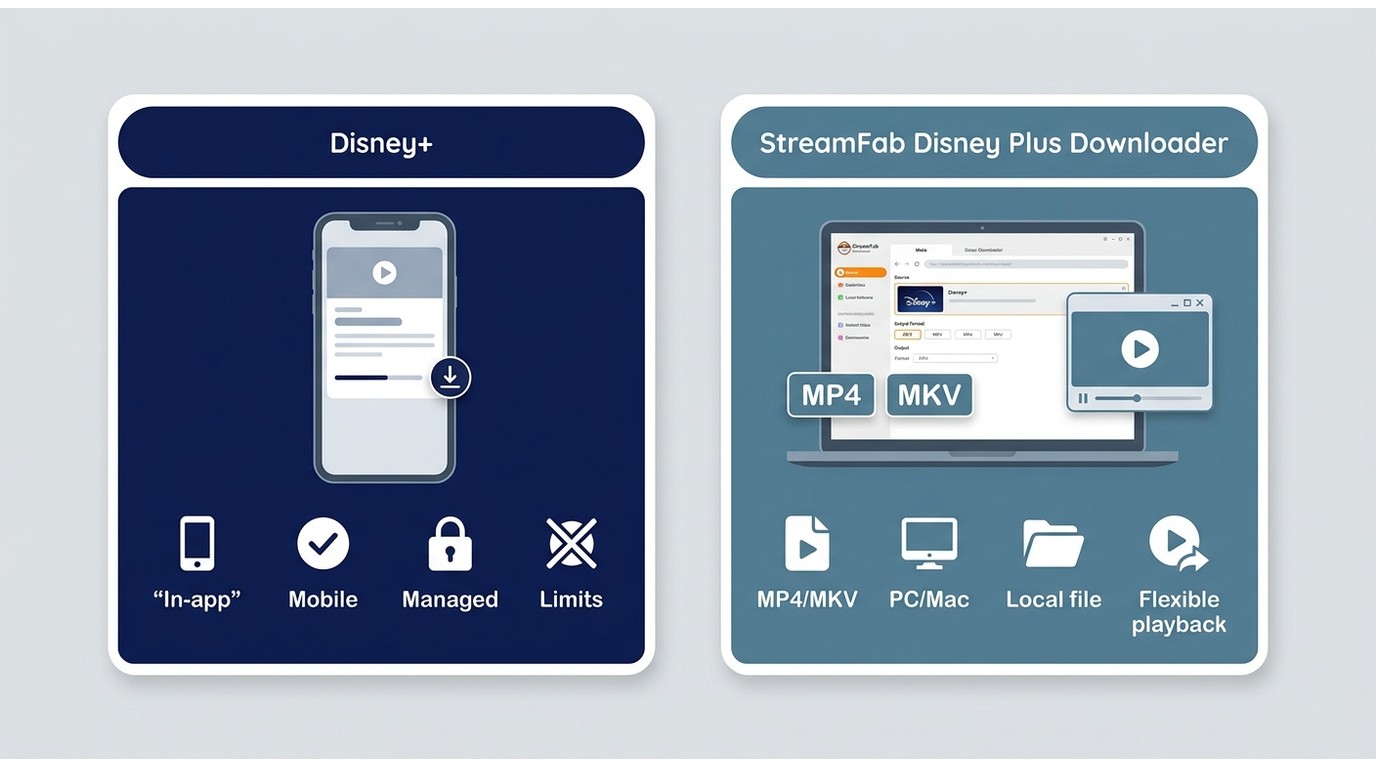
Official downloads are the straightforward choice for supported mobile offline viewing. Alongside that official feature, StreamFab Disney Plus Downloader is a desktop local-file option for Windows or Mac users with valid Disney+ access, for personal use permitted by platform terms and applicable law.
| Consideration | Official Disney+ downloads | StreamFab local-file workflow |
|---|---|---|
| Best fit | Mobile offline viewing on supported phones and tablets | Windows or Mac users who need a local MP4 or MKV workflow |
| Supported devices | Supported mobile devices | Windows and Mac |
| Plan or account requirement | Eligible Premium plan and active Disney+ access | Authorized access to the content and permitted use |
| Offline file type | Managed in-app download | Local MP4 or MKV file |
| Portability | Used within the Disney+ app | Depends on the selected local player and device compatibility |
| Reconnect or playback constraints | Requires periodic internet reconnects | Playback remains subject to applicable terms, law, and the local environment |
| Video and audio options | Managed by the Disney+ app and plan | Resolution, audio language, and subtitle options can be selected where available |
| Key limitation | Not available as a native computer or TV download | Not ideal when supported mobile downloads already meet your needs |
StreamFab Disney Plus Downloader
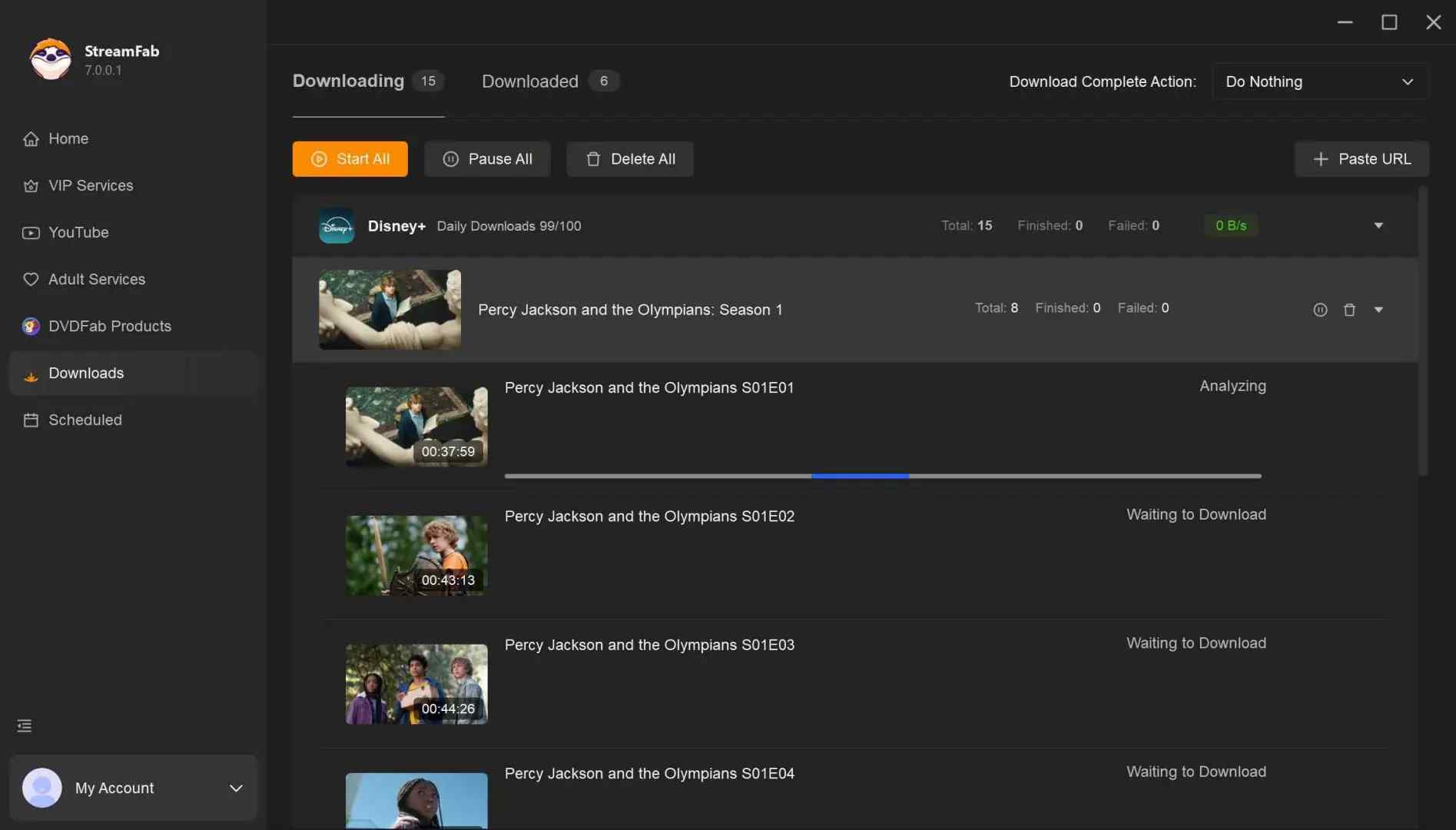
StreamFab Disney Plus Downloader supports Windows and Mac, with MP4 or MKV output and selectable audio or subtitle options. Its practical fit is for desktop users with a local-file need, not for readers whose official mobile downloads already work well.
The workflow below shows how to download movies on Disney Plus with StreamFab on Windows or Mac. It does not change Disney+ account, subscription, or content-use conditions.
Step 1: Download and launch StreamFab Disney+ Downloader.
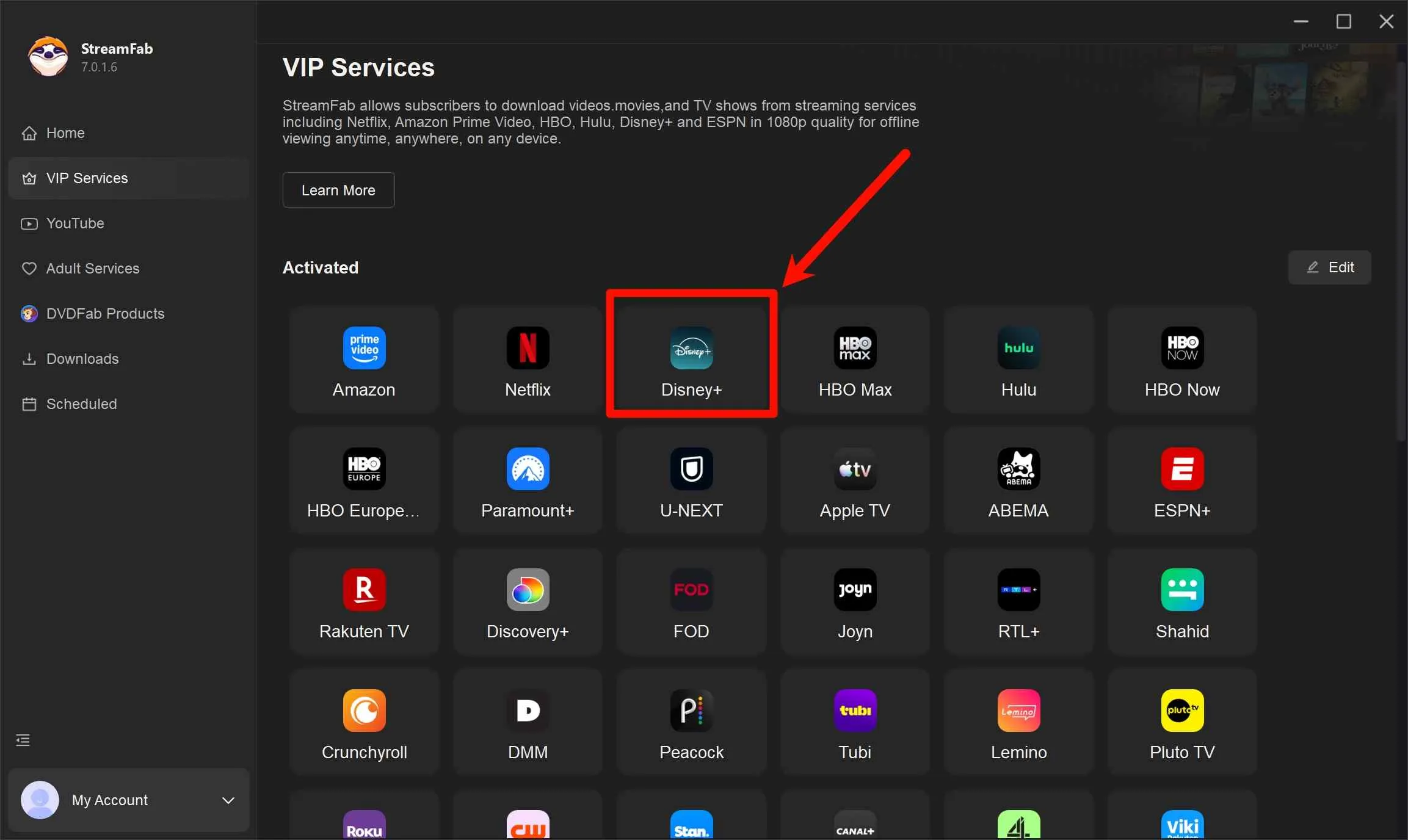
Step 2: Open the Disney+ service from the "VIP Services" section on the left side of the interface.
Step 3: Sign in your Disney Plus Account in the top right corner by entering your E-mail. Follow the official login instruction by entering your account password or verification code to complete the process.
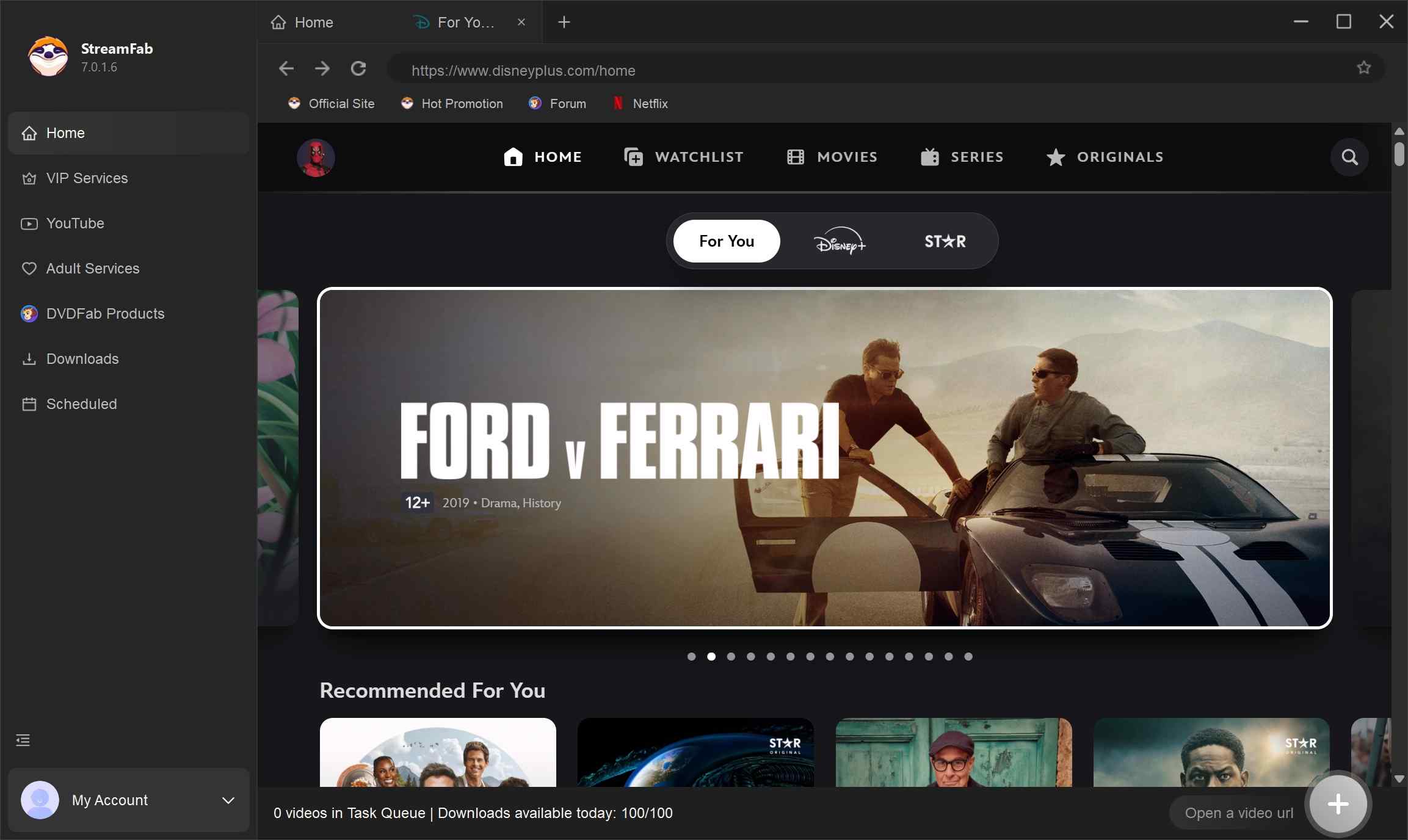
Step 4: Select a video you are authorized to access, then choose available output settings such as resolution, audio language, and subtitles.
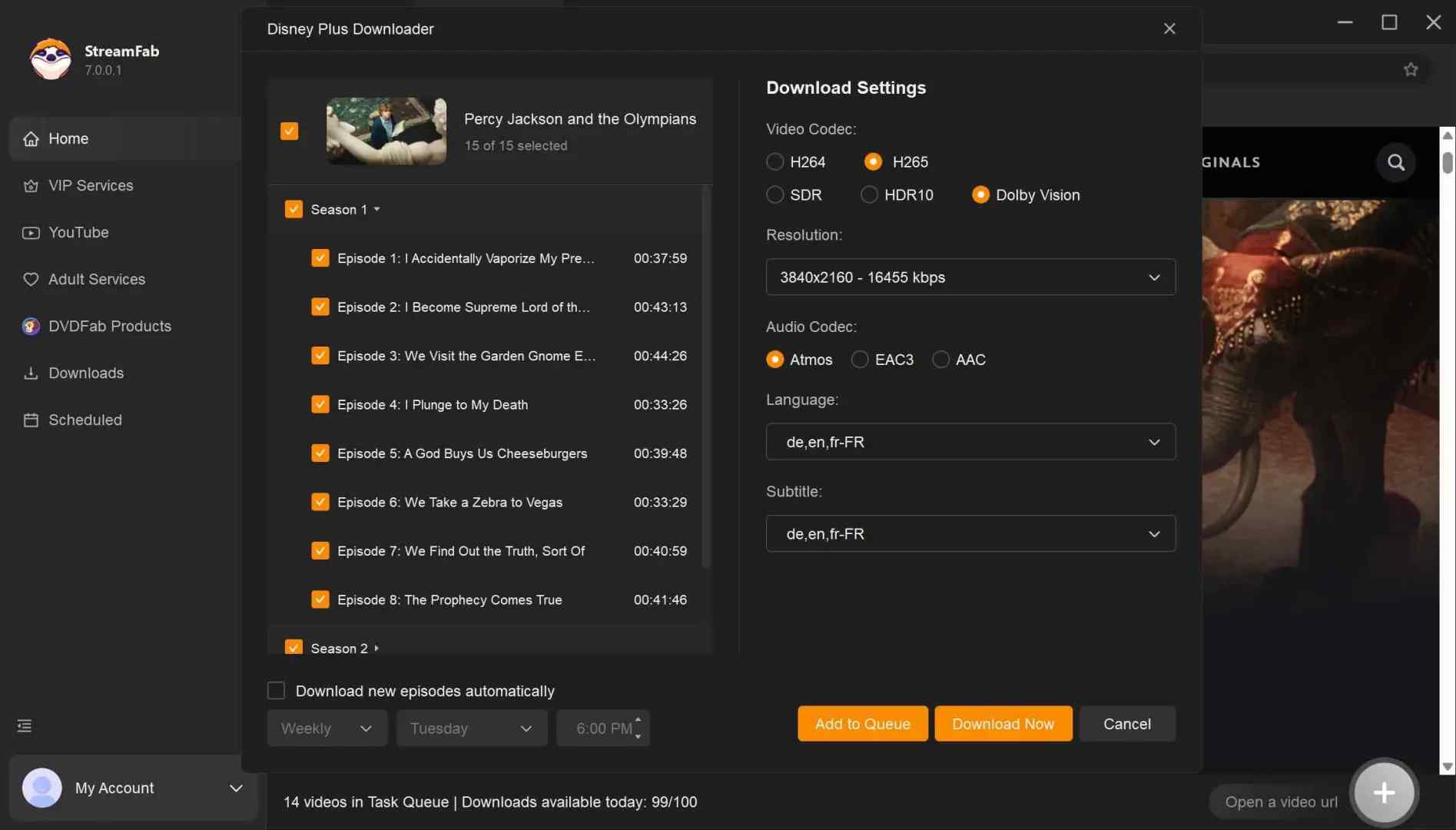
Step 5: After that, you can click the "Download Now" button to start the download.
FAQs
Can I watch downloaded Disney+ movies on a plane?
Yes, through the supported Disney+ mobile-app workflow when the download is completed before travel. Open Disney+ while connected to the internet before leaving, confirm that the title plays, and keep in mind that offline access requires periodic reconnection.
Why does Disney+ say I'm offline when other apps work?
An offline message can reflect a stale app session, a VPN or extension, or a network-path issue even when other apps connect normally. Restart Disney+, compare another network, and sign in again before changing broader device settings.
What details should I send Disney+ Support?
Send the exact error code, device model, app or browser version, network test result, affected title, and the steps you already tried. These details help Support separate an account issue from a device, network, or title-specific problem.
Conclusion
Start by confirming whether the issue is widespread or local, then follow the matching device or error-code branch. If downloads are the symptom, check official plan, device, storage, and reconnect requirements first. If those checks do not resolve the issue, contact Disney+ Support with the diagnostic details listed in the FAQ. For eligible desktop needs, the local-file option above remains conditional on authorized access and applicable terms and law.
This article is reviewed as Disney+ device support, download conditions, and troubleshooting guidance change.
Latest Update (July 2026):
- Added outage-versus-local troubleshooting checks
- Added official mobile-download eligibility and offline playback guidance
- Added device, browser, TV, and Chromecast diagnostic paths
- Added error-code and display-chain troubleshooting guidance
- Updated FAQs for Wi-Fi, offline viewing, and Support escalation
Troubleshooting results can vary by device, app version, network, title, and service availability. Use the matching diagnostic path and contact Disney+ Support when the issue persists.

Choose between official Disney+ downloads and a desktop local-file workflow for offline viewing. Compare ten tools and their viewing scenarios, including AnyStream’s discontinued status. Learn how resolution, MP4/MKV compatibility, audio tracks, and subtitles affect playback on your devices.
By Nicole Lopez - Sep 28, 2026
Officially, you cannot download Disney Plus movies on a laptop natively. This post explores solutions to batch download Disney Plus series and movies in 4K HDR10 for personal offline viewing without black screen errors.
By Erika Leen - Sep 16, 2026
No online converters work due to recent DRM CDM updates. Discover the definitive technical method to bypass hardware acceleration black screens and securely archive Disney Plus to MP4 in true lossless 4K for your Plex library or USB storage.
By Erika Leen - Sep 15, 2026
This article will explain to you what the protected content license error of Disney Plus is, and then teach you eight ways to resolve this problem.
By Jacob Harrison - Aug 26, 2026