
4 Ways to Download Wayback Machine Videos as MP4

Summary: To get straight to the point, you can download Wayback Machine videos only when the archive captured the underlying media file or a complete playable stream. A saved page, title, thumbnail, or comments section is not enough, so check the capture before choosing a retrieval method.
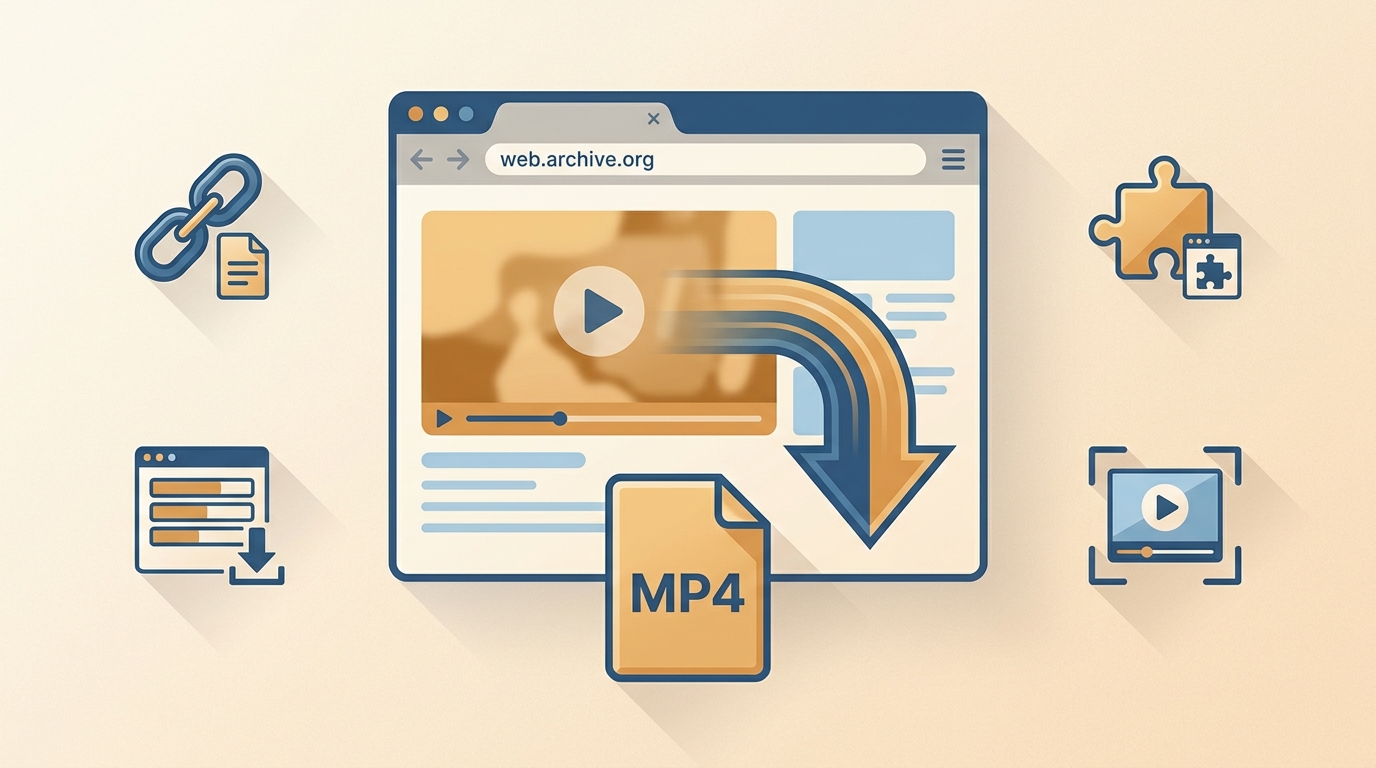
Can Wayback Machine Save the Actual Video?
A saved Wayback page does not necessarily include the underlying video file. Before attempting a download, confirm that the archived player loads media data or that the archive exposes a raw media file.
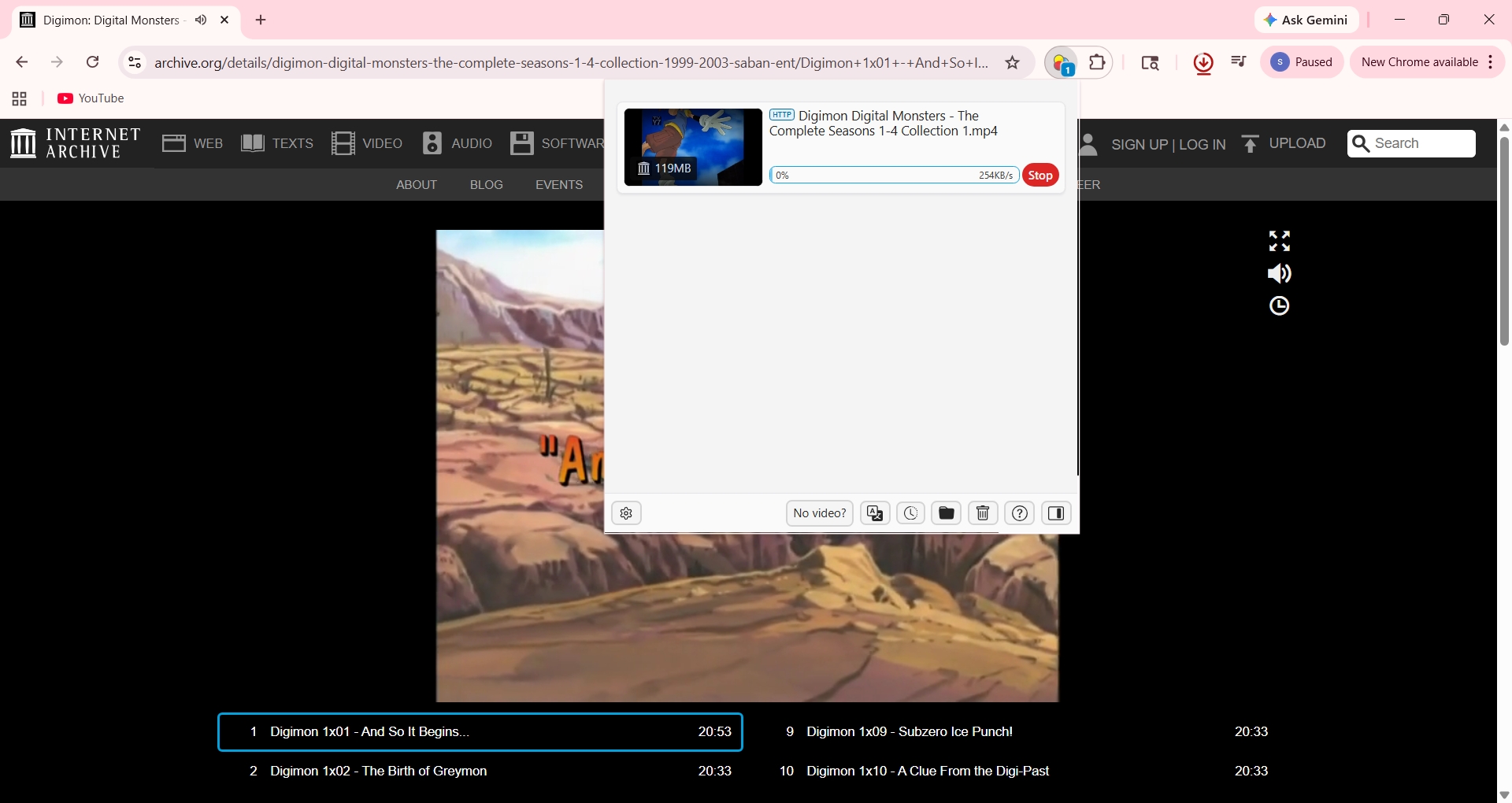
Start by identifying the archive surface. A Wayback web snapshot passes the check when its player loads and exposes a media request; an Internet Archive item page passes when its file list includes a video asset; an archived YouTube URL passes only when playable media or complete stream data is present; and a whole-site recovery task requires checking each embedded host separately.
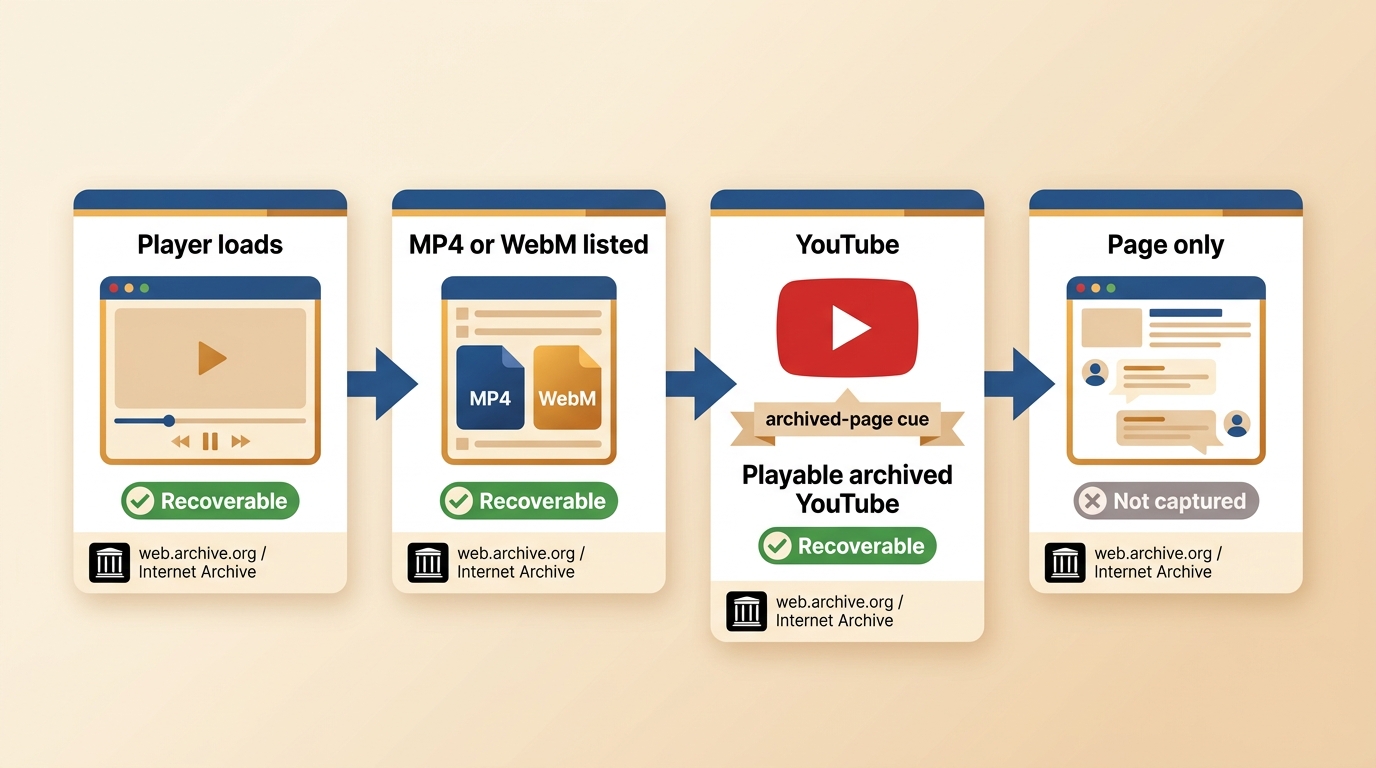
A captured page, title, thumbnail, or metadata cannot recreate missing video bytes. This quick check saves more time than switching between Wayback Machine video downloader tools after the fact.
4 Ways to Download Wayback Machine Videos
Once you confirm that media was captured, use the shortest path first: save an exposed file directly, try a detected-stream helper when the player creates a usable request, use a guided desktop workflow for supported complex or batch cases, and record only when playback is the remaining option.
This order helps you download Wayback Machine videos without treating every snapshot as the same kind of source.
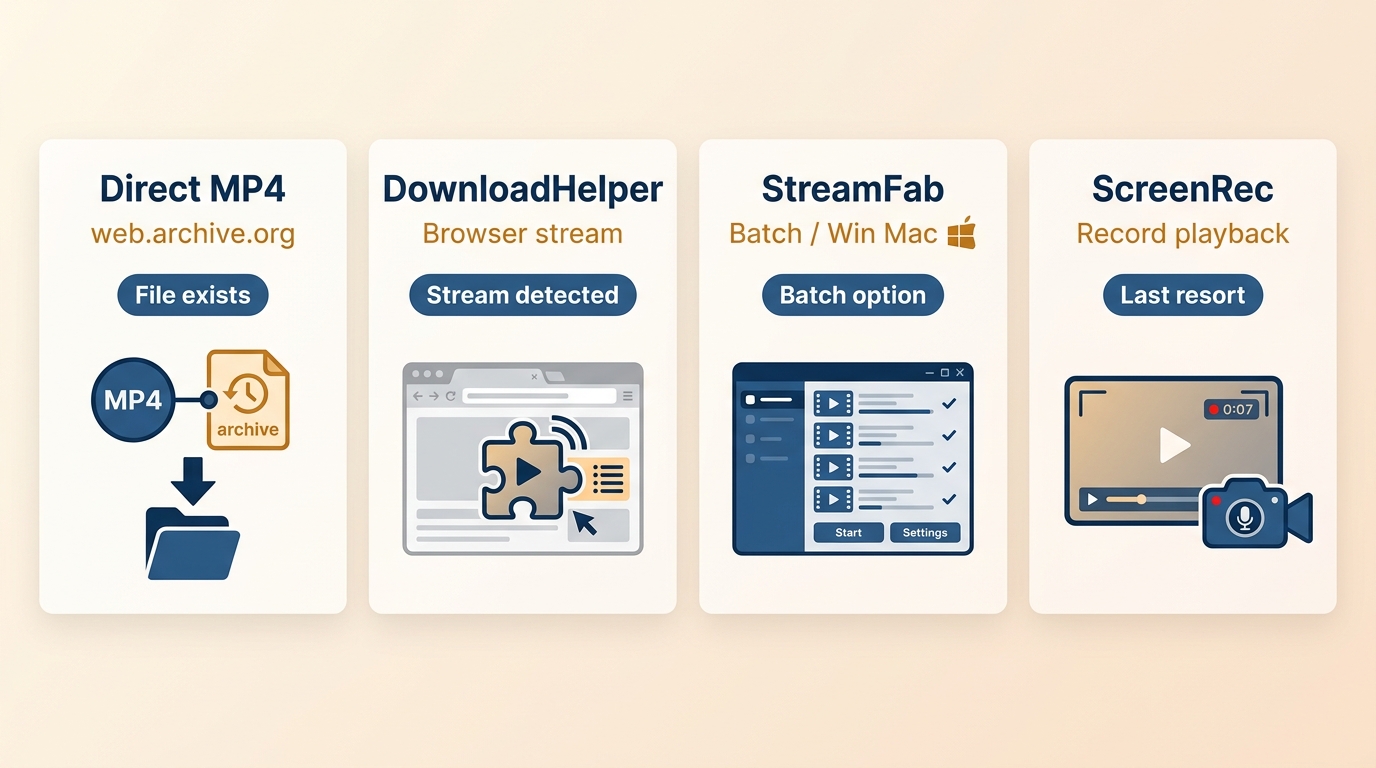
| Method | Best archive condition | Source type | MP4 outcome | Skill level | Main limitation |
|---|---|---|---|---|---|
| StreamFab | Supported sources needing a guided or batch workflow | Supported web sources | MP4 or MKV output | Beginner to intermediate | Not ideal for exposed direct files or missing media |
| ScreenRec | The archived video plays but no complete file can be saved | Browser playback | Recording can create an MP4 | Beginner | Quality trade-offs; cannot recover missing media |
| Video DownloadHelper | Playback creates a detectable media request | Archived player stream | Depends on the detected stream format | Intermediate | Detection may fail with absent or incomplete media |
| Browser Save Video As or curl | An exposed raw archived media URL is available | Direct media file | Saves an exposed MP4 unchanged | Beginner to advanced | Requires a real media file rather than an archived page |
Choosing an MP4 result: If the archive exposes an MP4, save it unchanged. A different playable container or stream may need link-to-MP4 conversion after retrieval, while playback-only content can be recorded to MP4 with quality trade-offs. Audio extraction, if needed, comes after recovering the video.
StreamFab for Complex or Batch Downloads
For content you’re authorized to access, where permitted by platform terms and applicable law, StreamFab YouTube Downloader can provide a desktop local-file workflow for supported sources. It supports MP4 or MKV output and batch handling when a guided process is more useful than saving one exposed archive file directly.
StreamFab is separate from the Internet Archive’s official download options and is most useful for Windows or Mac users handling supported complex or batch cases. It is not the right choice when the archive already exposes a direct media URL, and no desktop workflow can retrieve media bytes that were never captured.
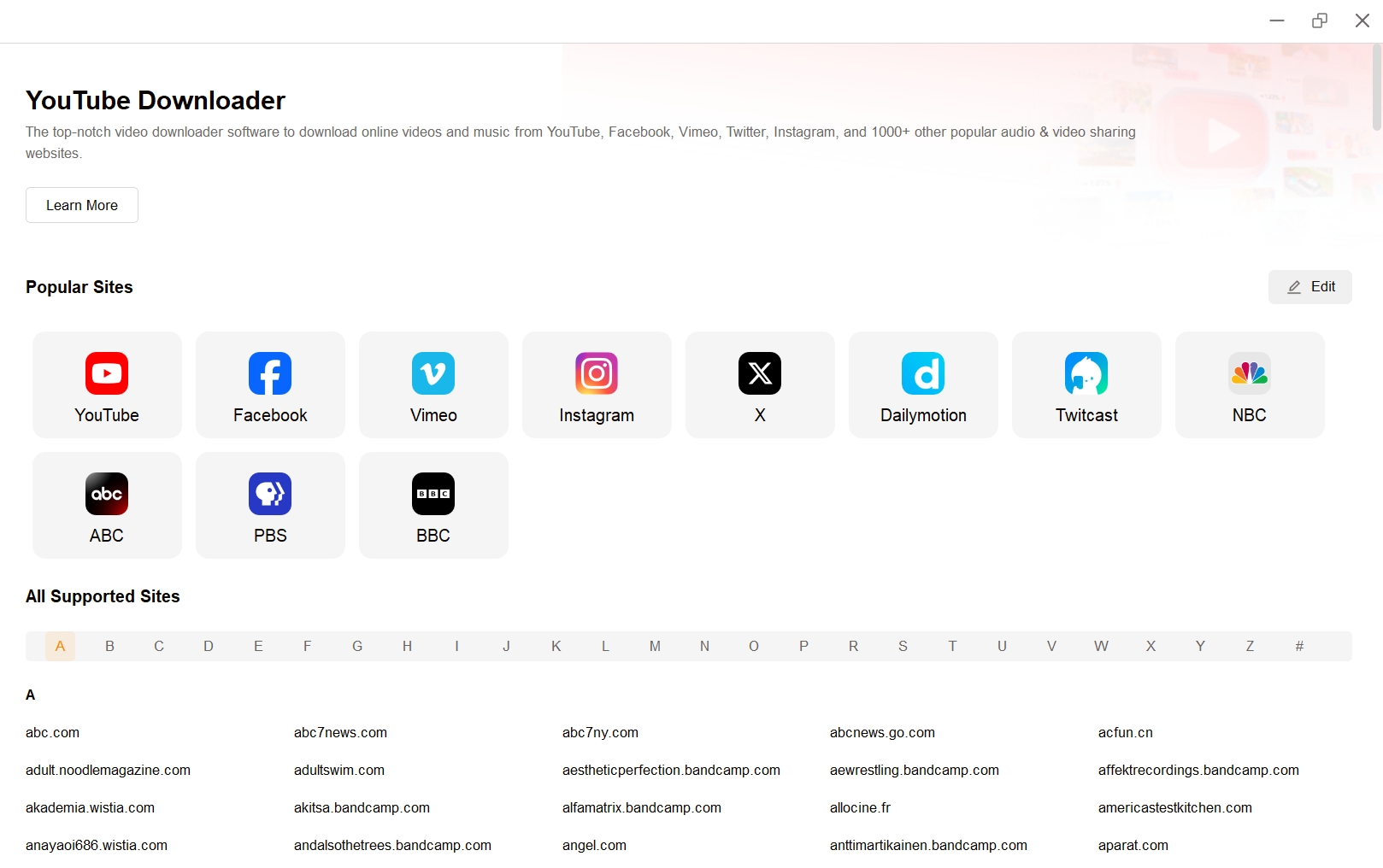
How to download video from Wayback Machine using StreamFab?
Pick the Streaming Service & Type the URL
If you wanna download videos from Wayback Machine, just head straight over to that Explore section. Then, drop the URL or type some keywords for the Wayback Machine video you want to download right into that search box.
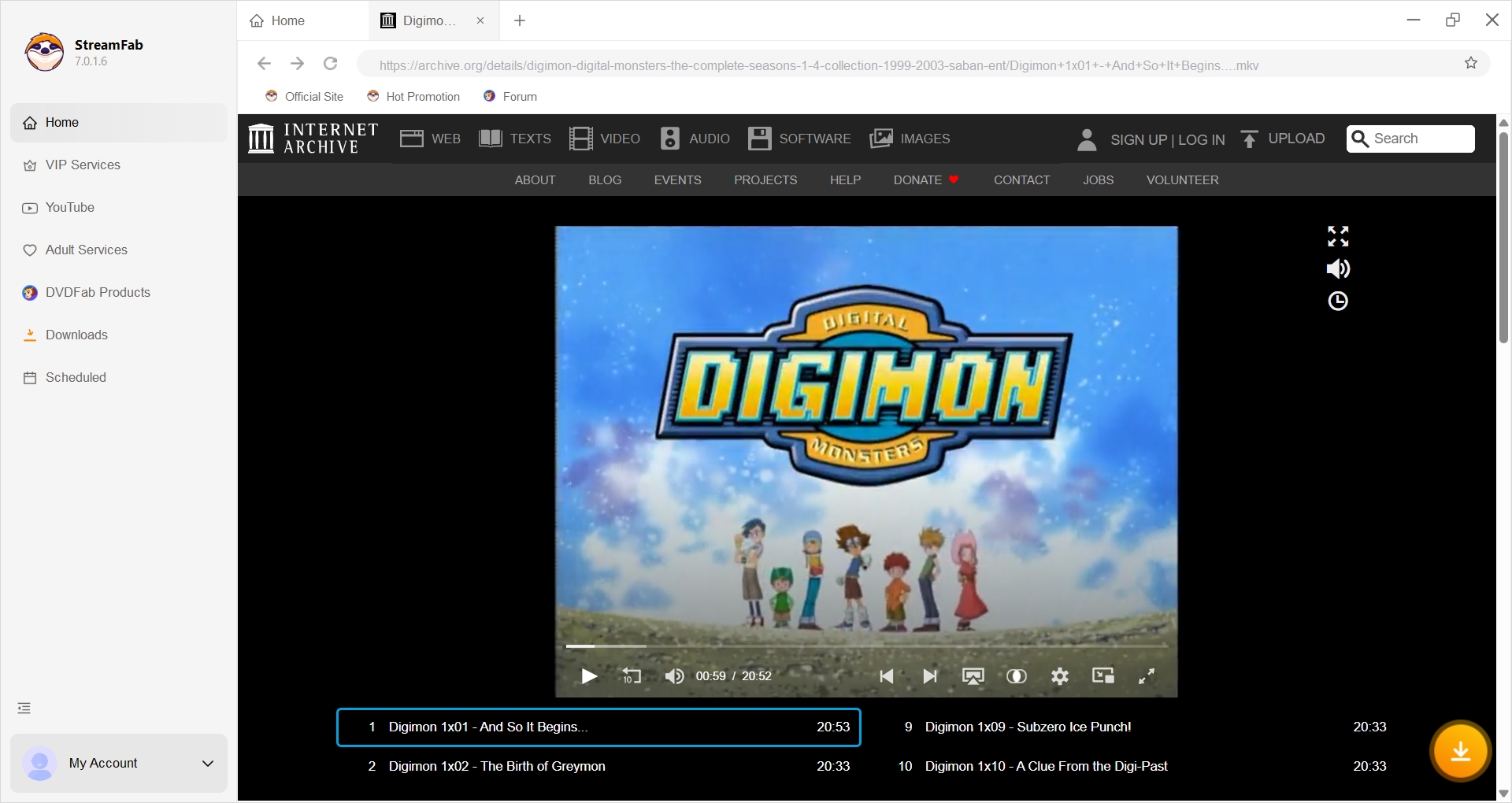
Tweak Your Download Options
Go ahead and adjust the download options like your file format, the quality, audio, and subtitle language. You can even set the number of seasons to download exactly how you prefer it.
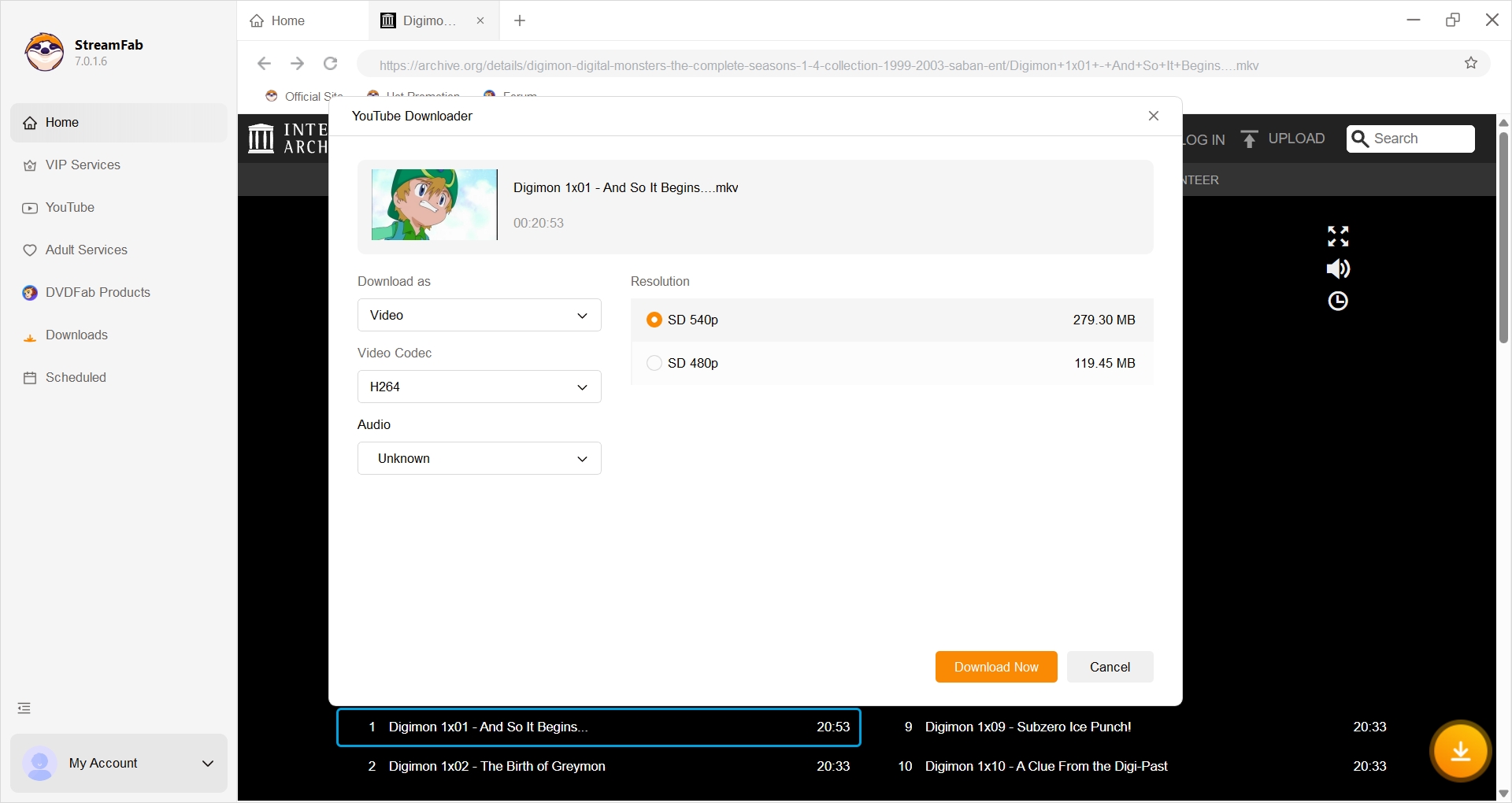
Start the Download Process
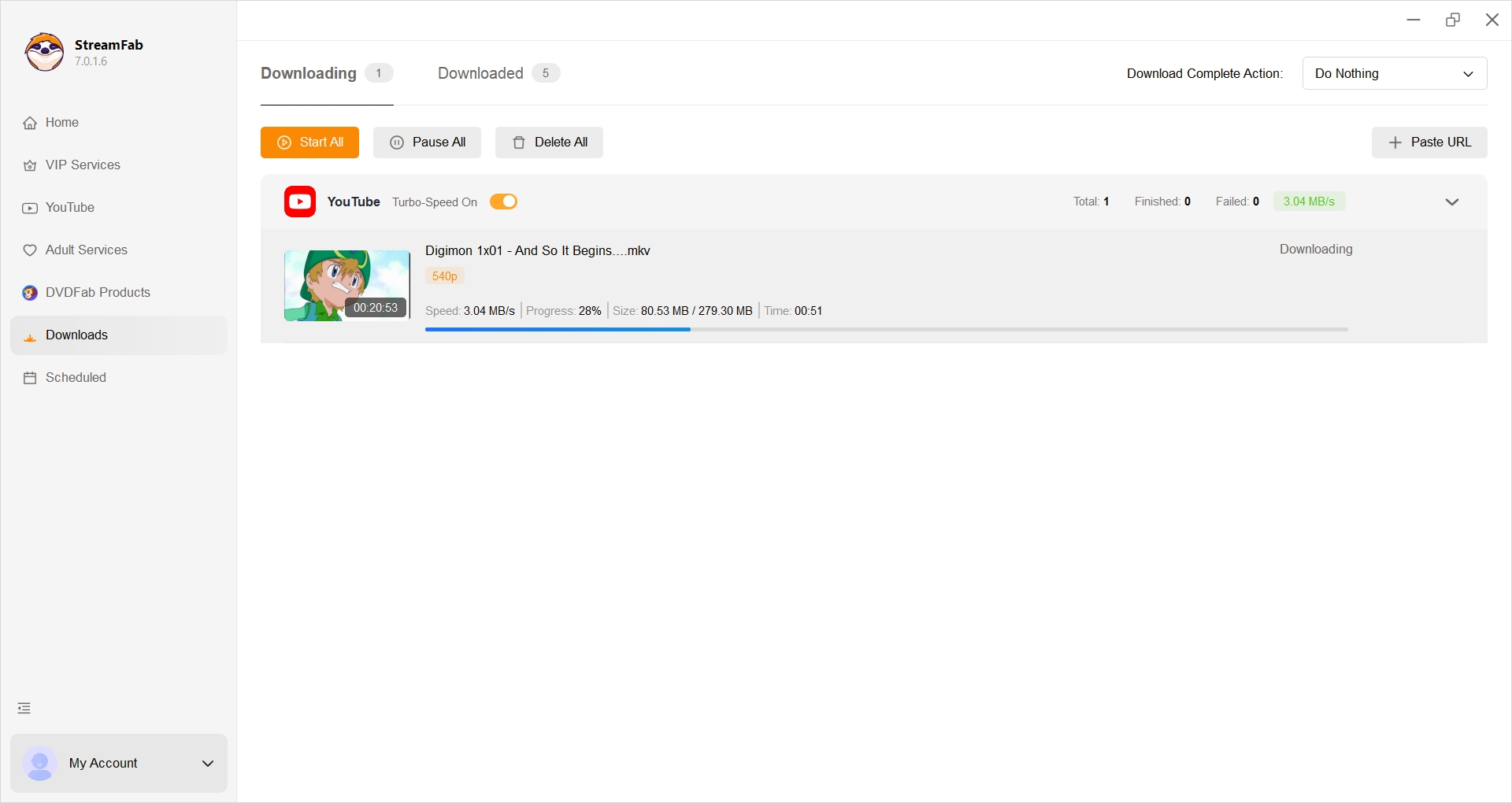
Hit that Download button to kick off the download process. The videos will just be downloaded while you're watching, or you can throw them into your queue for later.
ScreenRec When Playback Is the Only Option
Screen recording is a fallback only when the archived video actually plays but no complete direct media request can be saved. It is suitable for short playable clips, not long videos, batch work, highest-source quality, or a snapshot with missing media.
The practical difference between downloading and recording matters here: direct retrieval preserves the archived file when available, while capture creates a new recording. Before keeping the result, check system audio, frame drops, and the full runtime.
How to download video from Wayback Machine with ScreenRec?
Head over to the Wayback Machine Website and Find the Video
First things first, just go to the Wayback Machine and sort of poke around until you land on the specific video you want.
Open Up ScreenRec & Fiddle with Your Settings
Next, before the Wayback Machine loads the full page, fire up ScreenRec. Go ahead and mark out the part of the screen you want to record, mess with things like audio input, and tweak your preferences.
Start Recording
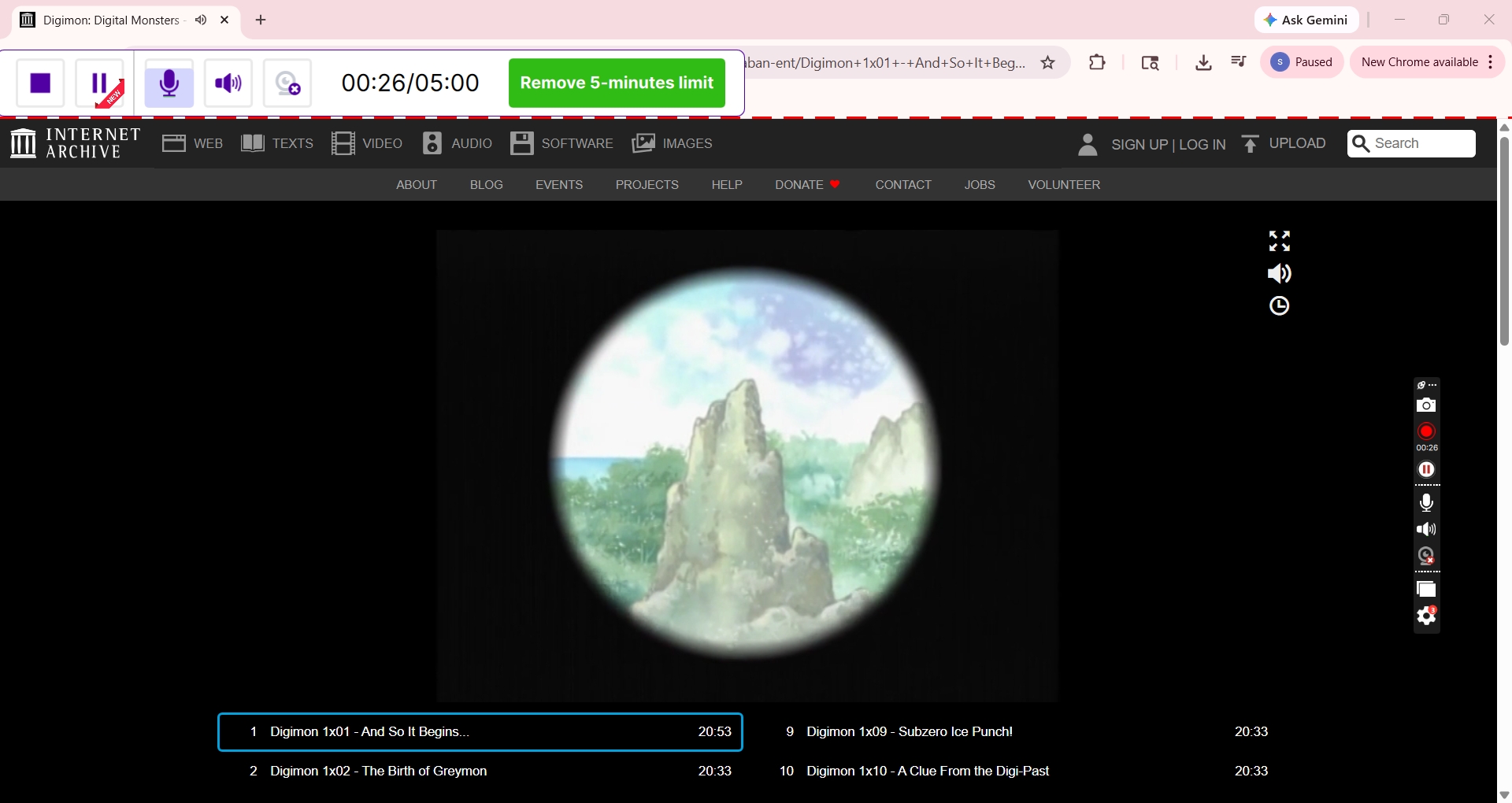
When you’re ready, hit whatever magic hotkey starts the recording. Play the video through, and when you’re done or have seen enough, just click ‘Stop’ or ‘Finish’ inside ScreenRec. Simple, but still easy to forget if you get distracted.
Review Recorded Video
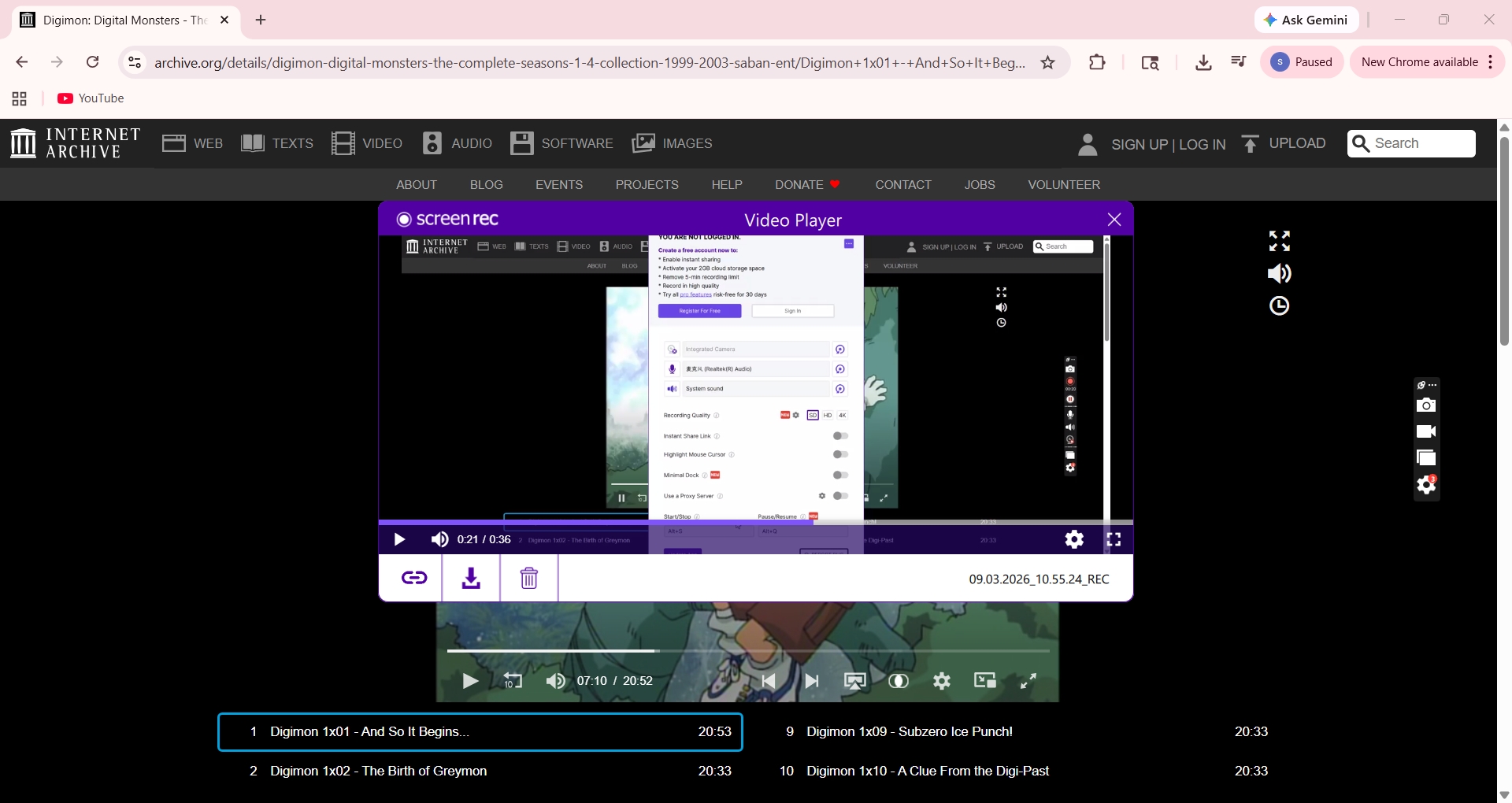
Finally, review the video. Seriously, watch it, even if you think it’s fine. There’s nothing worse than realizing later that your recording is a jittery mess or, worse, silent.
Video DownloadHelper for Detected Media Streams
Video DownloadHelper offers current versions for Chrome, Firefox, and Edge. It can be useful when archived playback creates a detectable media request, but detection depends on how the player exposes that stream. It is not useful when the archived media is absent or the available fragments cannot be recovered into a playable file.
How to download videos from Wayback Machine via Extension?
Install the Extension
Begin by installing the Video DownloadHelper extension.
Navigate to Wayback Machine
After installation, proceed to the Wayback Machine's website and identify the video you wish to download. Choose the specific snapshot or date range that includes your desired video content.
Play Video & Locate Extension Icon
Initiate video playback on the Wayback Machine's platform by playing the selected video. Look for the browser extension icon in your toolbar, typically near the address bar.

Optimize File Saving
If you prefer quick downloads with default settings, click the three-dots sign beside an item. This reveals a list of actions. Check "Use this action as default" and click "Quick Download" to start immediate downloading. For subsequent downloads, open the extension panel and click the item in the list (not the plus sign).
curl for Direct Archived Media Files
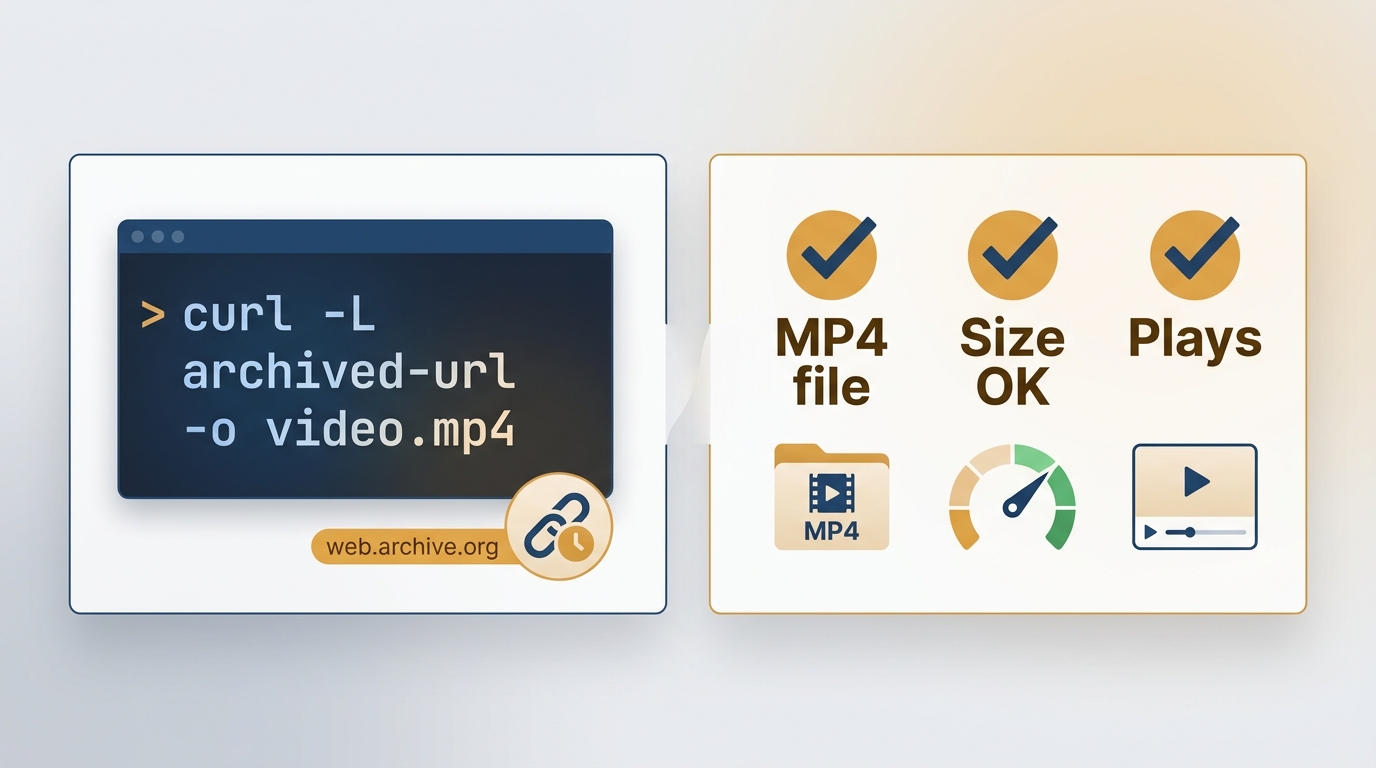
When Wayback exposes an archived media file, start with right-click and browser Save Video As. If you have the raw archived media URL, curl provides the same direct-download path: curl -L "https://web.archive.org/web/.../video.mp4" -o "archived-video.mp4".
The -L option follows redirects. Success means the saved file is media rather than HTML, has a plausible size, and plays locally. For an archived watch URL or detected stream that does not expose a raw file, yt-dlp may be a later helper, but it cannot reconstruct media that the archive never captured. When direct retrieval works, it is the most faithful route to the archived asset.
How to download videos from Wayback Machine via Curl?
Install Curl and Open Command Line
First things first: get Curl installed. If it’s already there, pat yourself on the back; you’re ahead of me. Then, pop open your command line window.
Navigate to Download Directory
Navigate over to the folder where you want your Wayback Machine treasure (aka video file) to go. I usually get lost in folders, but you’ll manage better.
Copy the Video URL & Enter Download Command
Found the video link on Wayback Machine? Grab it. Copy, paste the URL, then type in the Curl download command.
Wait for Processing
Now, wait. Curl does its magic, downloading your Wayback video into the folder you picked. Be patient, stretch, make coffee.
FAQ
Is it legal to download archived videos for personal use?
Copyright status, authorization, intended use, platform terms, and applicable law determine what is permitted. Personal research or private viewing does not automatically make a download fair use, and a local copy does not grant permission to redistribute or monetize the work.
What should I try when an archived video will not download?
First confirm that the video plays, then inspect the player for a media request and test the raw archive URL when one is available. Next, try yt-dlp or a detected-stream helper. If playback succeeds but direct retrieval does not, recording is the final fallback.
A no valid sources available error can indicate that the player has no usable media request. If the archive never captured the media bytes, no downloader, extension, or recorder can reconstruct the missing video from the saved page alone.
Can Wayback recover a deleted YouTube video?
A deleted YouTube video is recoverable through Wayback only when a playable media asset or complete stream data was captured. An archived watch page, title, comments page, or thumbnail is not proof that the video file is available.
Conclusion
The archive check matters more than the brand of downloader. Use a direct file path first, a detected-stream tool when the player exposes usable media, a guided desktop workflow such as StreamFab Video Downloader for supported complex or batch cases, and recording only for content that still plays. If the underlying media was never archived, stop there: the saved page cannot supply the missing file.
This guide prioritizes confirming an archived media capture before selecting a retrieval method.
Latest Revision: July 2026
- Archive check: Added guidance for distinguishing a saved page from an archived video file or stream.
- Direct retrieval: Added browser Save Video As and curl as the first path for exposed raw media URLs.
- Method selection: Clarified when detected-stream tools, guided desktop workflows, and recording are appropriate.
Editorial Note
The four methods are presented by archive condition, with direct retrieval preferred whenever the archived media file is available.

Identify protected and unprotected M4V files, use authorized Apple TV playback, convert compatible files, or choose a separate supported-streaming workflow.
By Erika Leen - Sep 8, 2026
Legal 4K movie downloads do not all provide the same kind of offline access. Most mainstream services offer app-locked downloads, while portable movie files, UHD Blu-ray, public-domain media, and authorized desktop workflows involve different quality, cost, device, and licensing limits.
By Jacob Harrison - Aug 12, 2026
To get straight to the point, you can download a BitChute video as MP4 through its download icon: open the video, then use Save As. For authorized content where permitted, this guide explains when desktop, Android, or browser alternatives make sense.
By Marcia Hatcher - Aug 11, 2026

Looking to convert a link to MP4 in 2026? I've systematically tested top desktop and online converters to bypass Widevine DRM, dynamic tokens, and geoblocking for seamless PC and Android extraction.
By Jacob Harrison - Aug 7, 2026