
How to Cancel PlayOn Subscription (Home & Cloud) - Full Guide

Summary: How to cancel PlayOn subscription? Will you get a refund after cancelling? This guide tells you everything you need to know about cancelling PlayOn subscriptions.
How to Cancel PlayOn in Under 2 Minutes
If you are searching for a playon cancel subscription guide, the correct route depends on who bills you. To find where to cancel PlayOn subscription payments, use the PlayOn account dashboard for direct billing, Apple or Google Play settings for store purchases, and PayPal for automatic payments. If the cancel button is missing, follow the troubleshooting path below.
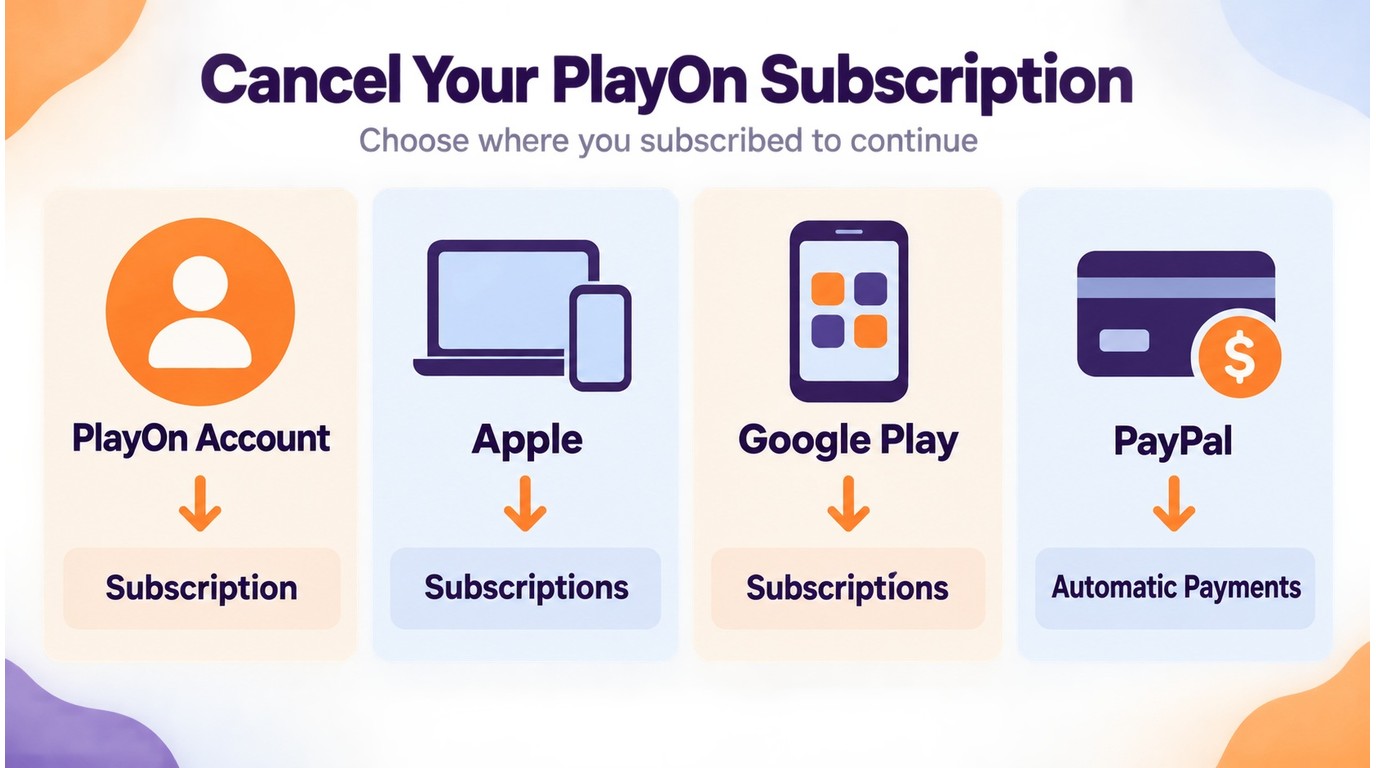
Here is the cancellation path for each billing method:
| Billing owner | Where to cancel | Renewal timing | Access end | Proof to save |
|---|---|---|---|---|
| PlayOn website | Account > Subscription | Before the next billing date shown | Shown after confirmation | Confirmation email |
| Apple | Settings > Apple ID > Subscriptions | Before the Apple renewal date | End of current billing period | Apple confirmation |
| Google Play | Play Store > Subscriptions | Before the Google Play renewal date | Date shown by Google Play | Cancellation screen or email |
| PayPal | Settings > Payments > Automatic Payments | Before the next automatic payment | Check the PlayOn account | PayPal confirmation |
One thing to keep in mind before you start: Uninstalling the PlayOn app does NOT cancel your subscription. You have to go through the actual billing channel listed above, or charges will keep hitting your card. I have seen this trip up more people than I can count; do not let it be you.
Below, I walk through each cancellation path step by step so there is zero guesswork involved.
Cancel PlayOn Home Through the Website
If you subscribed directly through PlayOn's website, this is the quickest route. The entire process takes about sixty seconds once you are logged in. Here is exactly what to do:
Step 1. Go to playon.tv and log in with the email address tied to your PlayOn Home account.
Step 2. Click your account name or profile icon in the top-right corner, then open the account dashboard and select Account or Subscription from the dropdown menu.
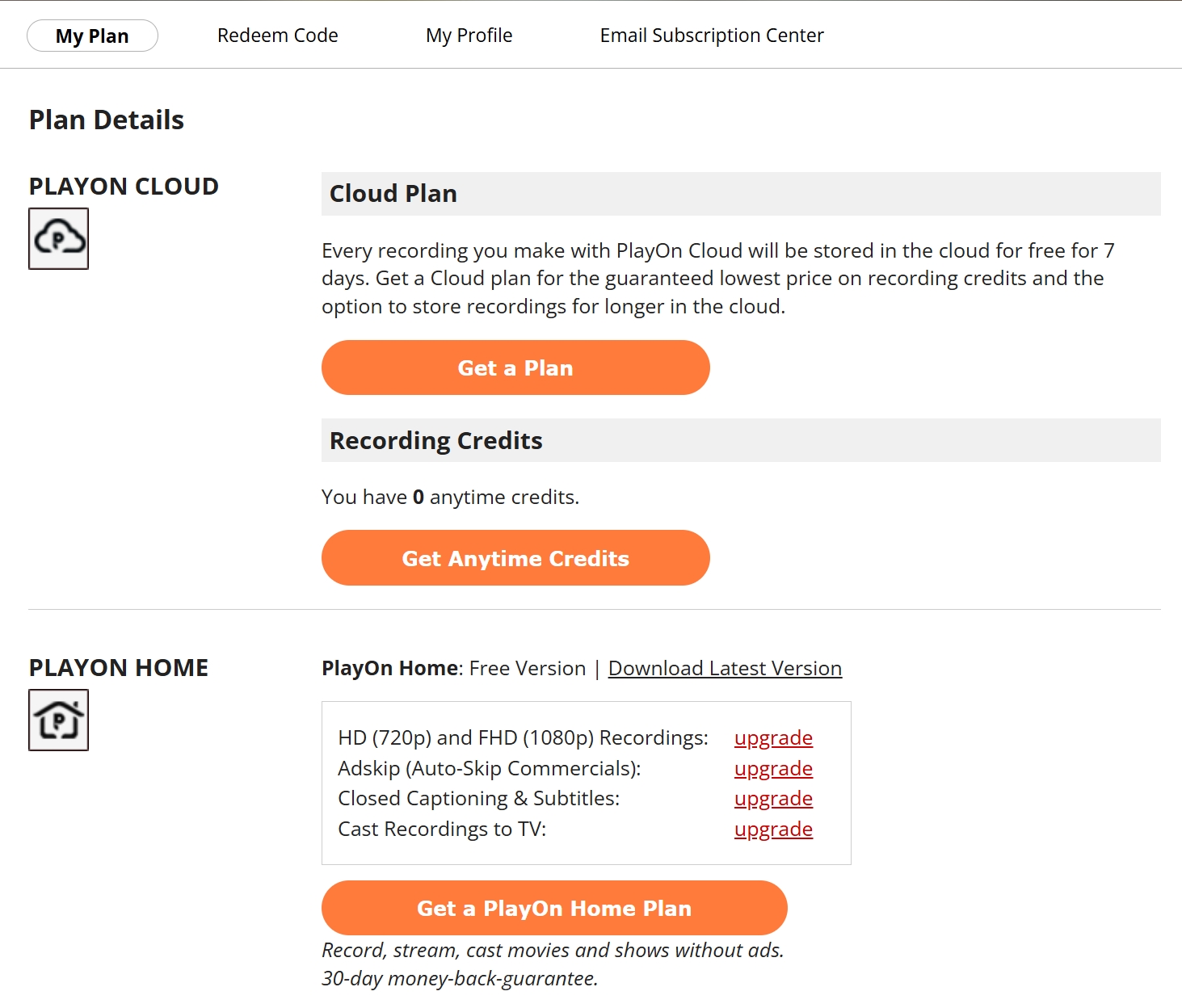
Step 3. Locate the active subscription section. You should see your current plan, billing cycle, and next payment date listed there.
Step 4. Click Cancel Subscription. PlayOn may present a retention offer or ask why you are leaving. You can skip through these prompts.
Step 5. Confirm the cancellation when prompted. You will typically see a confirmation message on-screen.
Step 6. Check your email inbox for a cancellation confirmation from PlayOn. Save it. If a charge shows up later, that email is your proof.
Important: Cancel before the next billing date shown in your account to avoid another cycle. Save the confirmation so you have a record of the cancellation.
Want a full breakdown of what PlayOn actually delivers before you pull the trigger? Check out our PlayOn Review 2026 for an honest look at features, pricing, and where it falls short.
Cancel PlayOn Cloud on iPhone, Android & PayPal
The original billing owner controls cancellation: direct PlayOn billing is managed in the account dashboard, while Apple and Google subscriptions are managed in their store subscription settings. PayPal automatic payments are managed in PayPal. Use the step-by-step path that matches how you originally signed up, then save the cancellation confirmation.
Cancel on iPhone or iPad (Apple Subscriptions)
Open Settings on your iPhone or iPad and tap your name at the very top of the screen. Tap Subscriptions and you will see a list of every active and expired subscription tied to your Apple ID. Find PlayOn Cloud in the list and tap it. Tap Cancel Subscription, then confirm when prompted. You will retain access until the end of the current billing period.
Apple enforces a strict rule here: you must cancel at least 24 hours before your renewal date, or the next charge will go through automatically. Check the renewal date shown on the subscription details screen and set a reminder if you need to.
Cancel on Android / Google Play
Open the Google Play Store app on your Android device. Tap your profile icon in the top-right corner, then go to Payments & subscriptions > Subscriptions. Find PlayOn Cloud and tap it. Tap Cancel subscription and follow the on-screen prompts to confirm. Google will show you the exact date your access expires; no further charges will be made after that point.
If you subscribed on one Android device but no longer have it, you can manage the subscription from any device signed into the same Google account or visit play.google.com/store/account/subscriptions in a desktop browser.
Cancel Through PayPal
Log in to your PayPal account at paypal.com. Click the Settings gear icon near the top-right corner, then navigate to Payments > Manage Automatic Payments. Look for MediaMall Technologies; that is the company behind PlayOn. Click on it, then click Cancel to stop future automatic payments. PayPal will confirm the cancellation on-screen and via email.
Confirmation check: After canceling, check for a confirmation email or revisit the subscription management page to verify the status.
When the Cancel Button Is Missing
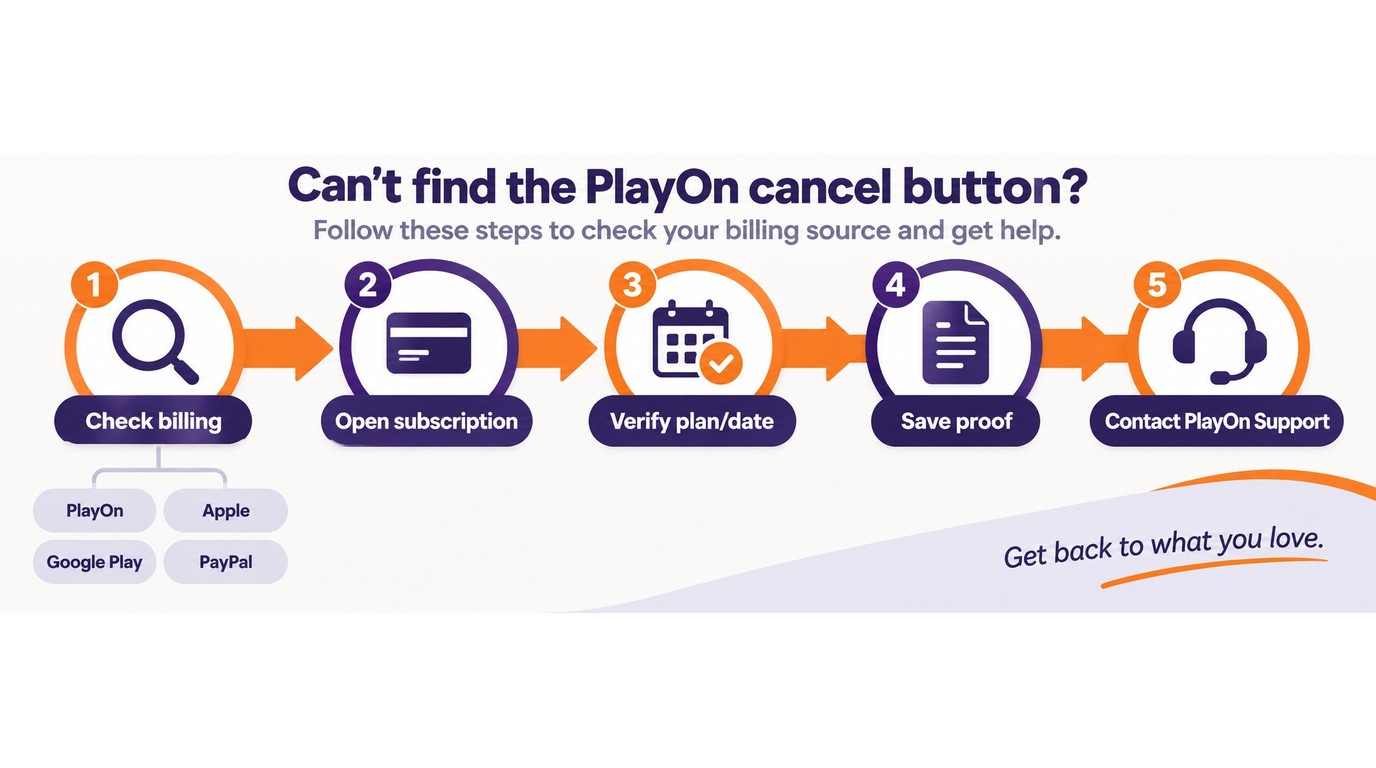
If the Cancel button is missing, the account shows no active plan, or charges continue after you tried to cancel, work through this checklist:
- Identify the original billing owner. Check whether the payment came from PlayOn, Apple, Google Play, or PayPal.
- Open the matching subscription page. Look for the active plan, renewal date, and cancellation status in the PlayOn dashboard or the relevant store or payment account.
- Save proof. Keep screenshots of the subscription status and any cancellation emails, including the date and account email.
- Contact PlayOn Support. If the control is still absent or another charge appears, include your account email, billing channel, renewal date, and saved confirmation details in the support request.
What Happens After You Cancel (Don't Skip This)
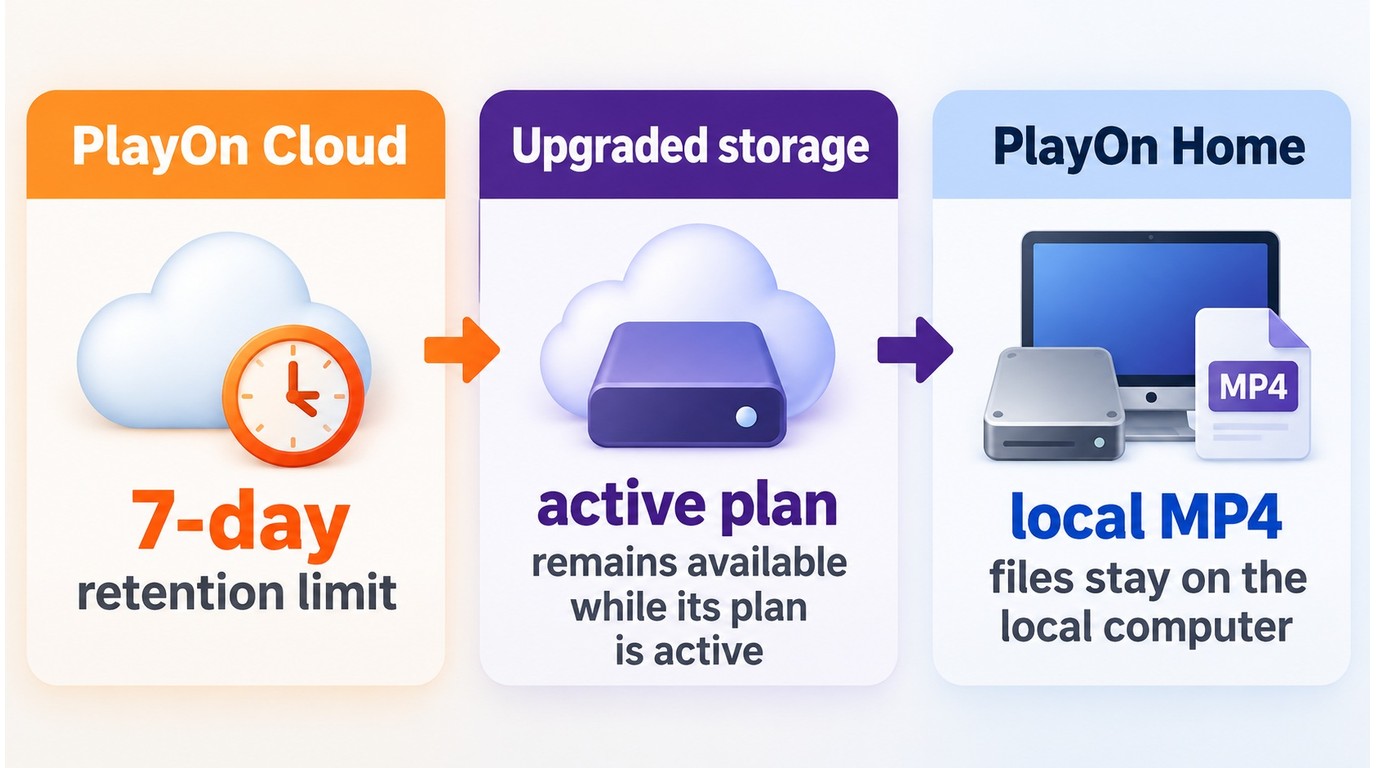
Here is the single most important thing to know: PlayOn describes a 7-day cloud locker for recordings not kept in local or upgraded storage; recordings in an upgraded storage plan remain available while storage is retained under that plan. Download any files you want to keep and check your current storage plan before canceling.
I have seen enough frustrated posts on Reddit and the PlayOn forums to know this catches people off guard. So let me break down exactly what happens to your stuff after cancellation, depending on which version you use.
PlayOn Cloud Storage and Download Checks
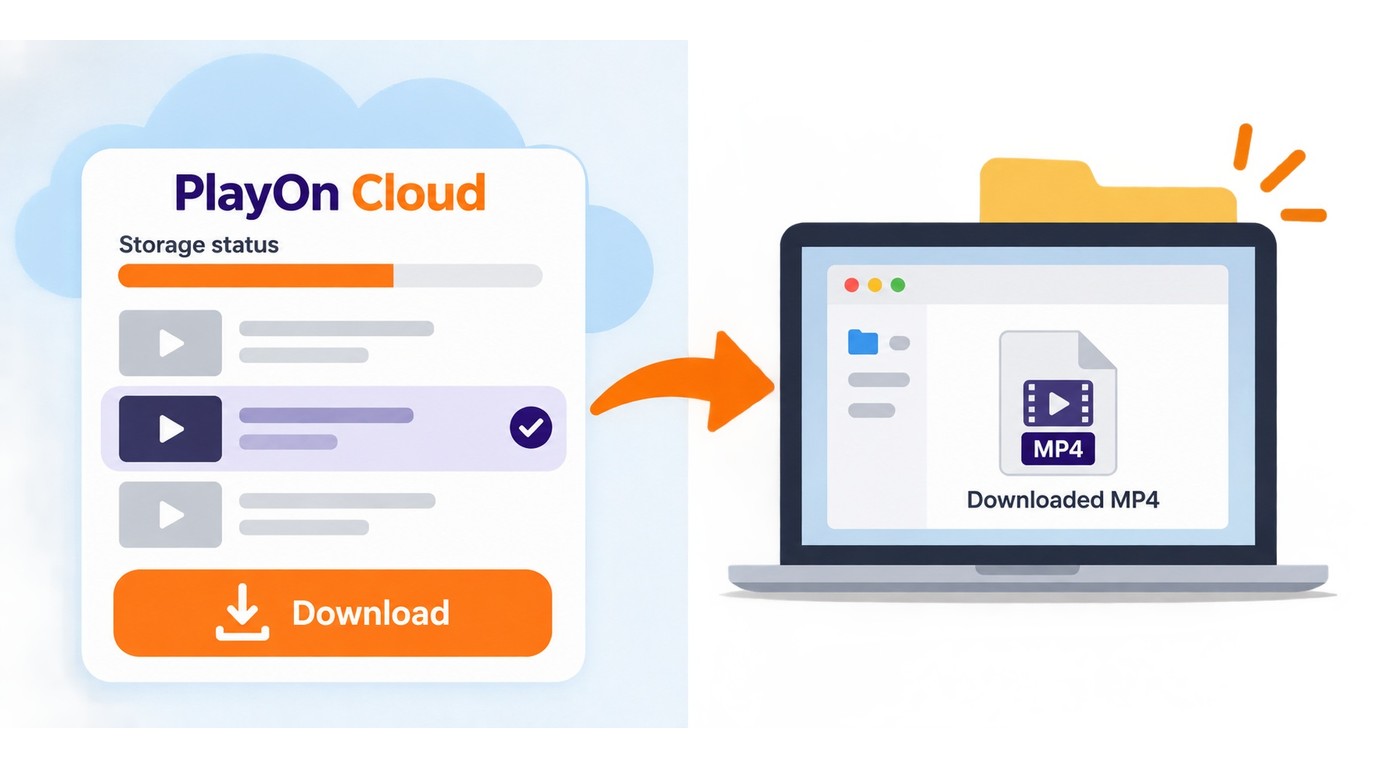
Before canceling, check where each recording is stored and download the files you want to keep.
- Cloud locker recordings — download wanted files before the locker retention period ends.
- Upgraded storage — availability follows the storage plan while it remains active.
- Local files — open the downloaded files on your device or computer to confirm they are available.
Open the PlayOn Cloud app, review the storage status for your recordings, download the files you want to keep, and verify that they are available before canceling.
PlayOn Home: Your Local Files Are Safe
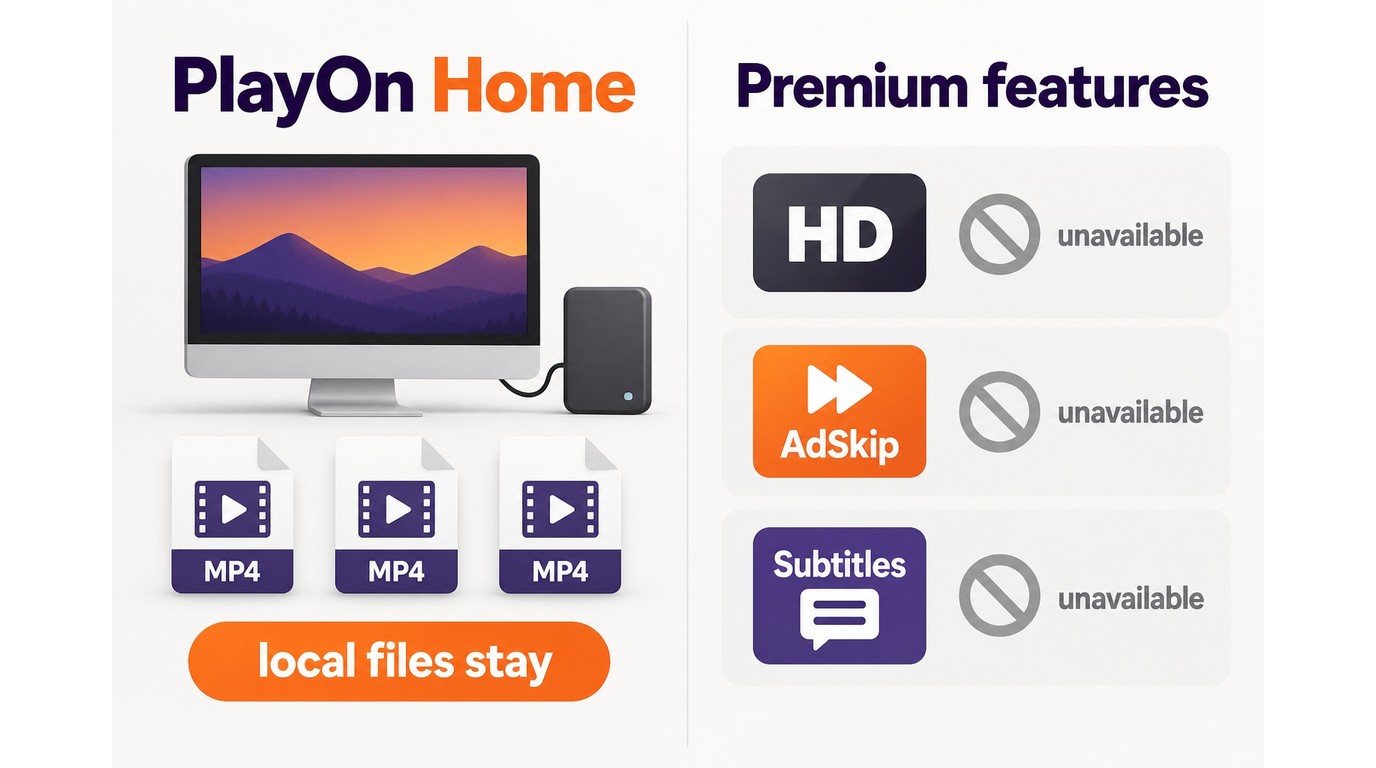
If you use PlayOn Home (the desktop version), the situation is far less stressful. Recordings made with PlayOn Home are stored as MP4 files on your local hard drive. Cancelling your subscription does not touch those files since they are yours, sitting in whatever folder you chose during setup.
What you do lose after cancellation are the premium features that came with your paid plan:
- HD recording quality — recordings drop back to standard definition
- AdSkip — commercial removal during recordings stops working
- Subtitle and closed caption support — no longer included in new recordings
The software itself remains installed and functional for basic use. You just lose the features that made the paid tier worth paying for.
Remaining Cloud Credits
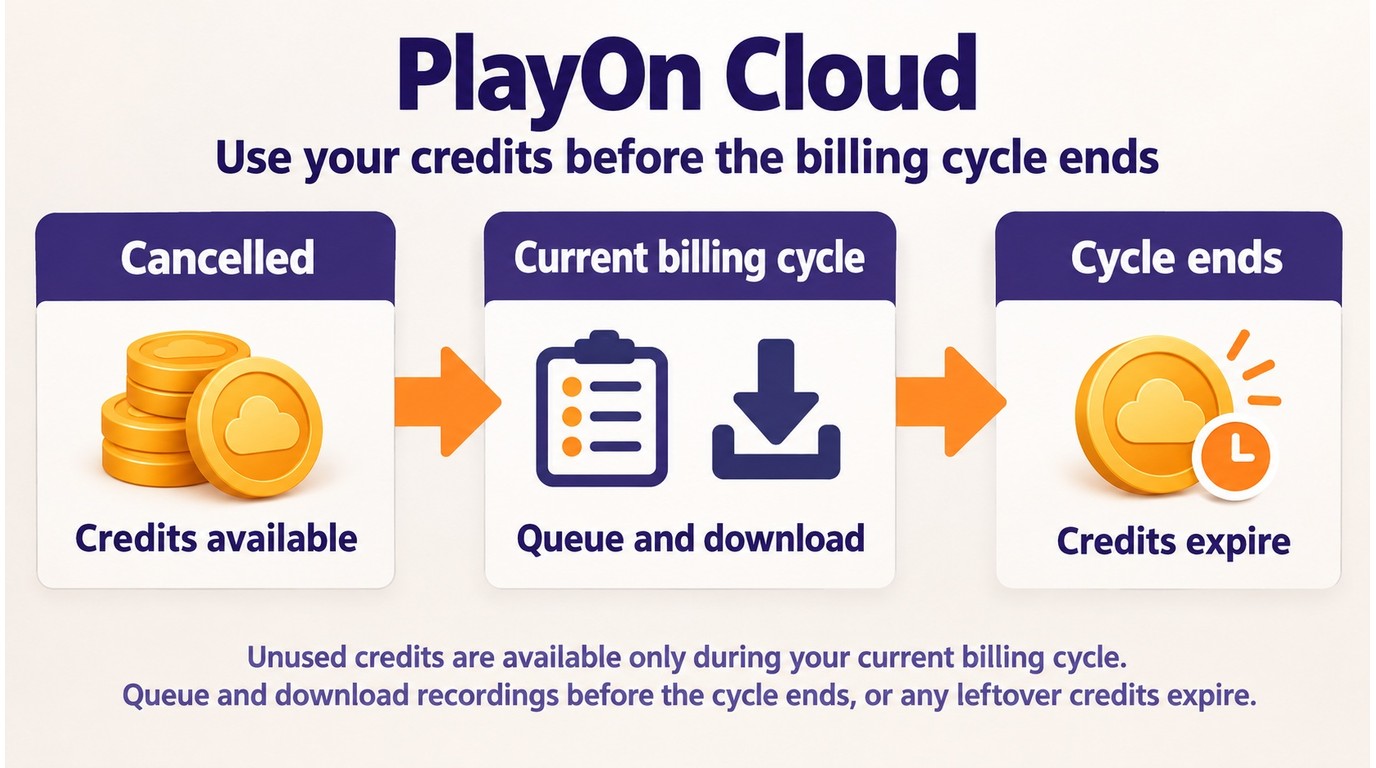
If you have unused cloud recording credits at the time of cancellation, you can still spend them through the end of your current billing cycle. They do not vanish the instant you cancel. However, once that billing period ends, any unspent credits expire permanently. PlayOn does not carry over, refund, or convert leftover credits.
My advice: if you are sitting on credits and planning to cancel, use them all first. Queue up recordings for anything you have been meaning to save, download the finished files, and then cancel.
PlayOn Refund Policy: What You Can (and Can't) Get Back
Refund eligibility depends on the product, purchase channel, and terms that applied when you paid. A direct PlayOn purchase may follow PlayOn's own refund terms, while Apple and Google purchases are handled through the relevant store's refund process. Before submitting a request, identify the billing owner, gather the order details, and review the applicable official terms so the request goes to the right place.
PlayOn Home: 30-Day Money-Back Guarantee
PlayOn Home comes with an unconditional 30-day refund policy. If you purchased a PlayOn Home license within the last 30 days and you are not satisfied for any reason, send an email to support@playon.tv requesting a refund. You do not need to provide a reason, and you should not have to fight for it. The policy is clearly stated on their site, and the support team processes these requests without pushback, based on what I have seen reported.
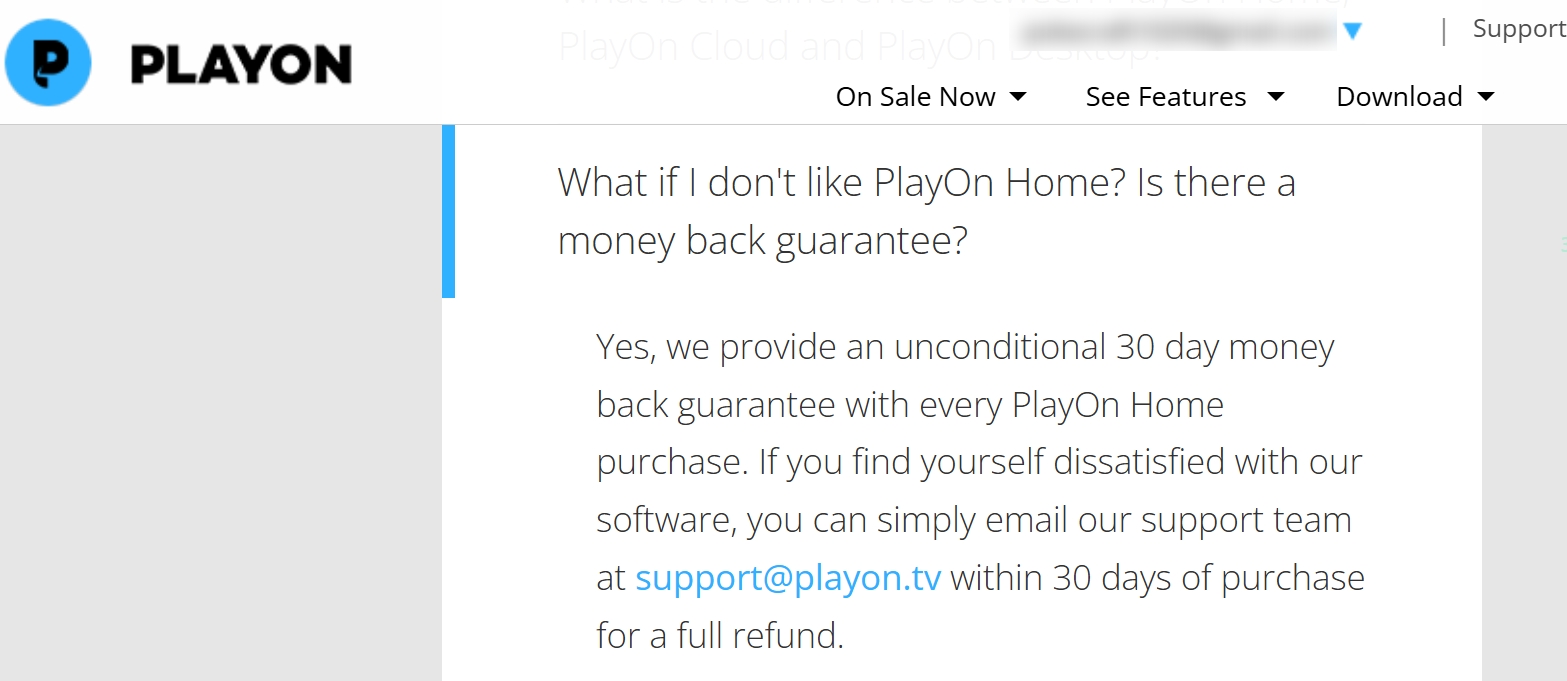
Make sure you include your purchase email address and order number in the refund request. That speeds things up considerably.
PlayOn Cloud: No Refund Guarantee
PlayOn Cloud subscriptions and credit purchases do not carry an official refund guarantee. Once you buy credits or start a subscription cycle, PlayOn considers that transaction final. If you purchased through the PlayOn website directly, your best bet is to contact support and explain the situation, but approval is not guaranteed.
If you subscribed through Apple (via the iOS app), you have a slightly better path. Apple may issue a refund if the service failed to conform to its advertised functionality; essentially, if it did not work as promised. You would submit that request through Apple's Report a Problem page, not through PlayOn. Google Play subscribers can try a similar route through the Play Store's refund process, though the window is typically much shorter.
What This Means Practically
If you are testing PlayOn Home and unsure whether it fits your needs, you have a genuine 30-day safety net. For PlayOn Cloud, there is no such cushion; you are committing from the first purchase. That asymmetry is worth knowing before you hand over payment information.
Refund Policy Comparison: PlayOn vs StreamFab
| Product | Refund Window | Conditions |
|---|---|---|
| PlayOn Home | 30 days | Unconditional; email support@playon.tv |
| PlayOn Cloud | None guaranteed | Case-by-case; Apple/Google may refund separately |
| StreamFab | 7 or 14 days | Monthly unconditional; annual/lifetime conditions apply |
The difference here is consistency. PlayOn splits its refund policy across two different product lines with two different rules, which creates confusion. StreamFab has refund terms that depend on the billing plan: monthly subscriptions have a 7-day unconditional refund window, while annual and lifetime purchases have a 14-day window under stated conditions.
Why So Many Users Are Canceling PlayOn
PlayOn's reputation has drawn criticism from some customers. Trustpilot shows 2.5 out of 5 stars from 54 reviews as of September 2026. Community discussions also mention recording failures, storage concerns, and frustration with subscription changes. These reports describe individual experiences rather than a universal outcome, but they can help explain why some subscribers reconsider the service.
1. Changes to Lifetime License Expectations
Some customers have expressed dissatisfaction with changes affecting PlayOn's desktop products and lifetime licenses. Community discussions describe a transition from Desktop to PlayOn Home and concerns about the length of any included access to the subscription service. Community discussions describe these concerns in general terms: some former license holders felt that product changes reduced the value of what they had purchased. That context may help explain why a former license holder reconsiders the service.
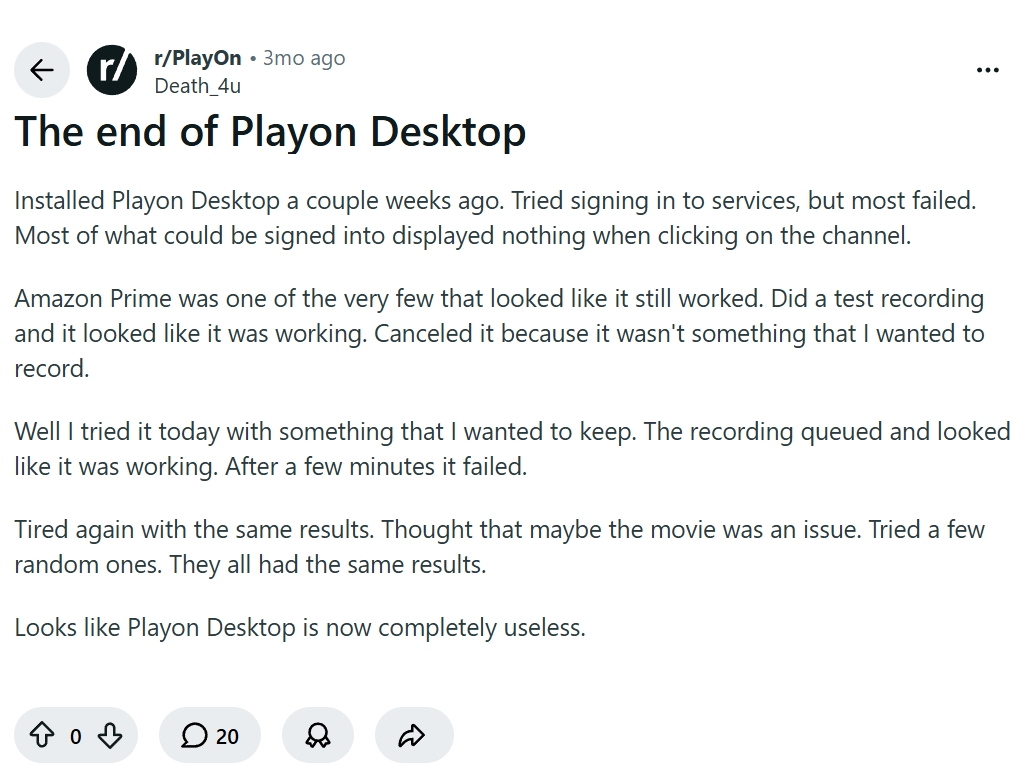
When a product changes from a lifetime-license model to a subscription model, reviewing the current account status, included access, and renewal terms can help clarify what remains available before cancellation. Accessing content without authorization or redistributing recordings can violate applicable law and platform terms, so a license dispute is not a valid workaround.
2. Forced Auto-Updates That Break Everything
PlayOn pushes mandatory updates with no opt-out mechanism. That would be tolerable if the updates were stable. They are not. Users report that updates routinely break recording functionality, sometimes for days or weeks until a hotfix arrives. You sit down to record a show, and your software has silently updated itself into a broken state.
"STOP MAKING ME UPDATE WITHOUT MY PERMISSION. You've lost a customer."
— Trustpilot, verified purchase review
This creates a uniquely frustrating experience: you cannot roll back to a working version, and you cannot prevent the update that breaks your setup. You are at the mercy of PlayOn's release cycle.
StreamFab handles updates differently. While it does release frequent updates to maintain compatibility with streaming platforms, users retain control over when updates are applied and can manage their software on their own schedule.
3. Chronic Recording Failures
Because PlayOn relies on screen recording, literally capturing what plays on your screen, it is inherently fragile. Users report recordings that abort mid-stream, output files that are only 15 seconds long, and entire platforms that simply refuse to record at all after a service-side change. The failure rate is high enough that multiple Reddit threads exist solely to troubleshoot why recordings produce blank or truncated files.
Common failure scenarios include:
- Recordings that start but abort after a few seconds with no error message
- Output files that contain only a black screen with audio
- Platform-specific incompatibilities that persist for weeks between updates
- Recordings that complete but produce unwatchable, artifact-heavy files
For supported services, StreamFab provides a local-file workflow with MP4 and MKV output, batch queueing, and high-resolution availability that depends on the service and plan. This approach does not rely on the same screen-rendering workflow as PlayOn, but availability remains subject to service support and account access.
4. The Quality Ceiling Problem
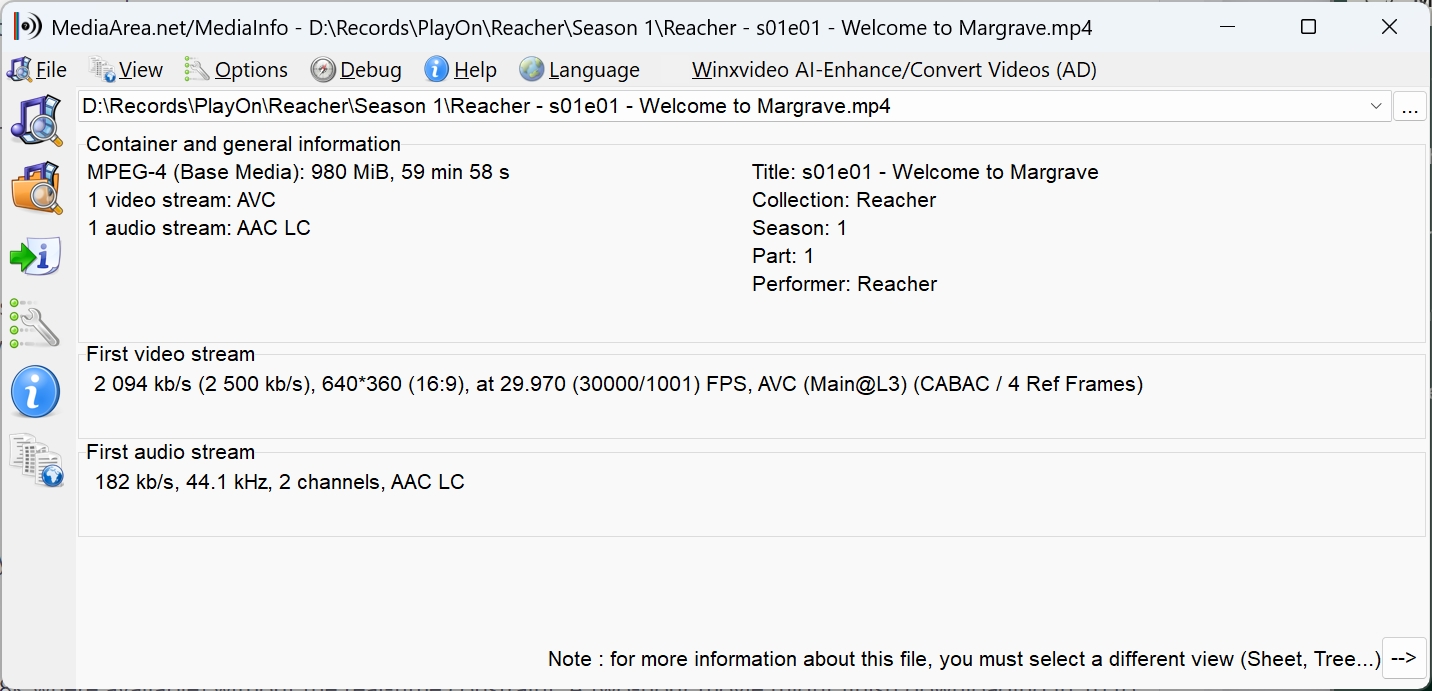
Screen recording imposes hard technical limits. PlayOn maxes out at 1080p, and in practice, the output is often compressed well below that due to the encoding overhead of real-time capture. You also lose your computer while recording, since PlayOn needs the screen and system resources dedicated to the capture process. A two-hour movie takes two hours to record. There is no way around it.
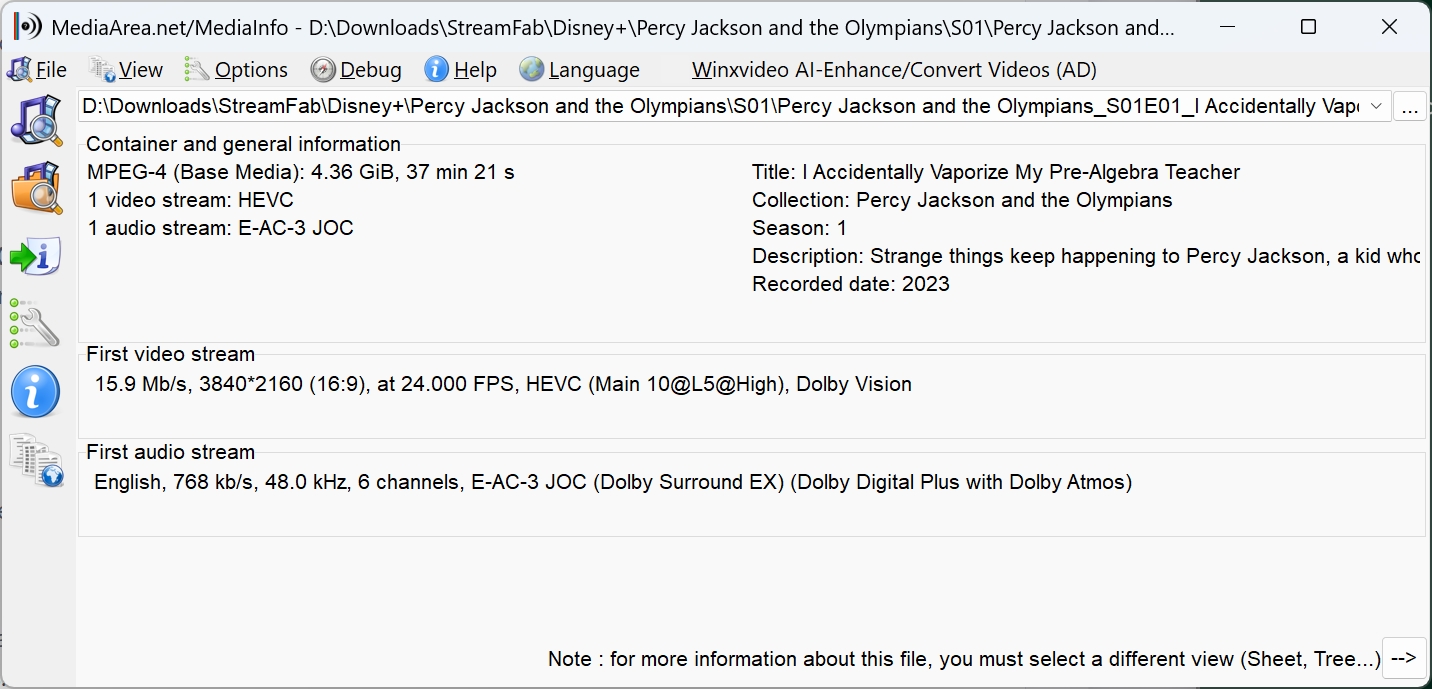
CPU usage spikes during recording, fan noise increases, and your machine becomes effectively unusable for other tasks. For users with older hardware, this is not just an inconvenience; it makes the software impractical.
StreamFab supports output up to 4K when the service and plan provide that option, with MP4 and MKV formats. Batch queueing can help organize multiple episodes for authorized personal offline viewing.
What to Use Instead After Canceling PlayOn
After canceling PlayOn, some readers may want a local-file workflow for authorized personal offline viewing. StreamFab is one desktop option for Windows and Mac users on supported services, with MP4 and MKV output, batch queueing, and availability up to 4K when the service and plan provide it. It does not cancel your PlayOn billing plan, so handle the subscription separately first.
- Get ad-free downloads from any country for an unlimited period.
- Unlimited downloads with 1080p resolution & EAC3 5.1 or AAC 2.0 audio track.
- Downloading option with H.264 or H.265 codecs to save your device storage space.
- MP4 saving for flexible access to downloads on any device.
- Get downloads with your best-suited subtitles & metadata.
- Scheduled newly released videos will be automatically downloaded.
The practical distinction is the workflow: PlayOn records content as it plays, while StreamFab uses stream-recording technology to create local video files for personal use where permitted. StreamFab does not decrypt DRM or replace a required platform subscription. Use it only with authorized access, for personal use where permitted, and in line with applicable law and each platform's terms.
Workflow: Batch Queue vs. Real-Time Recording
With PlayOn, recording a two-hour movie takes two hours. There is no shortcut: it is a screen capture, so it runs at real-time speed. StreamFab supports batch queueing for supported services, which can help organize multiple episodes for authorized personal offline viewing.
Quality: Native vs. Compressed
PlayOn's screen recording approach caps out at 1080p, and the actual output quality is often lower due to real-time encoding compression. StreamFab supports output up to 4K when the service and plan provide it, with MP4 or MKV files and subtitle options such as SRT or embedded subtitles.
Reliability: Direct Path vs. Fragile Capture
Screen recording is inherently brittle. It depends on your display settings, GPU drivers, screen resolution, and a dozen other variables that can silently break between sessions. StreamFab's local-file approach does not depend on those display variables. For supported services and eligible content, StreamFab provides a local-file workflow, while availability remains subject to service support and account access.
Platform Coverage
StreamFab supports services including Netflix, Amazon Prime Video, Disney+, Hulu, HBO Max, Paramount+, Apple TV+, YouTube, U-NEXT, Abema, and more. If you subscribe to multiple services, managing authorized offline files in one tool may be useful.
Feature Comparison at a Glance
The main differences are the recording workflow, output format, resolution, batch handling, and subtitle options.
| Feature | PlayOn Home | StreamFab |
|---|---|---|
| Method | Screen recording | Stream-recording technology |
| Output | MP4 | MP4 / MKV |
| Maximum resolution | 1080p | Up to 4K, service-dependent |
| Batch workflow | Limited | Supported |
| Subtitle options | Basic CC | SRT / embedded |
Ready to Make the Switch?
StreamFab offers a free trial so you can test it against your own streaming services before committing. Download it, run a few test saves, and see the difference for yourself.
For a full list of PlayOn alternatives, check our comparison of the best 6 PlayOn alternatives.
Frequently Asked Questions About Canceling PlayOn
Conclusion: Cancel PlayOn With Confidence
To cancel PlayOn, first identify the original billing owner, then use the matching account, Apple, Google Play, or PayPal settings. Save the confirmation, check when access ends, and download any Cloud recordings you want to keep before storage or locker rules affect availability.
If you still need a local-file workflow after canceling, StreamFab supports authorized personal use on supported services with MP4 and MKV output. Review the applicable platform terms, then try StreamFab if that workflow fits your needs.

CleverGet offers separate downloading and recording workflows for Windows and Mac, with different file options. Compare MPD limits, annual and lifetime licenses, and trial use before choosing a workflow. The review also covers StreamFab for recurring episode downloads and explains the personal-use boundaries for local copies.
By Erika Leen - Oct 14, 2026
AnyStream (RedFox AnyStream) shut down in June 2024 and remains gone in 2026. I tested every major replacement — here are the 5 best anystream alternatives, including free options, ranked by real-world performance.
By Erika Leen - Oct 12, 2026
Evaluating the Audials One 2026 free trial? I tested its 720p caps, examined if is audials legal under Fair Use
By Erika Leen - Sep 29, 2026
Are you thinking of purchasing NoteBurner and unsure if it’s worth the investment? In this NoteBurner review, let’s delve into its product lines, particularly the NoteBurner Video Downloader’s pros and cons.
By Marcia Hatcher - Sep 28, 2026