
PlayOn Review 2026: Is Home or Cloud Still Worth Paying For?

Summary: What do users think about PlayOn? Dive into authentic reviews to see if PlayOn is the right choice for you. If you want to download videos with PlayOn, but are a bit hesitant, this review is for you.
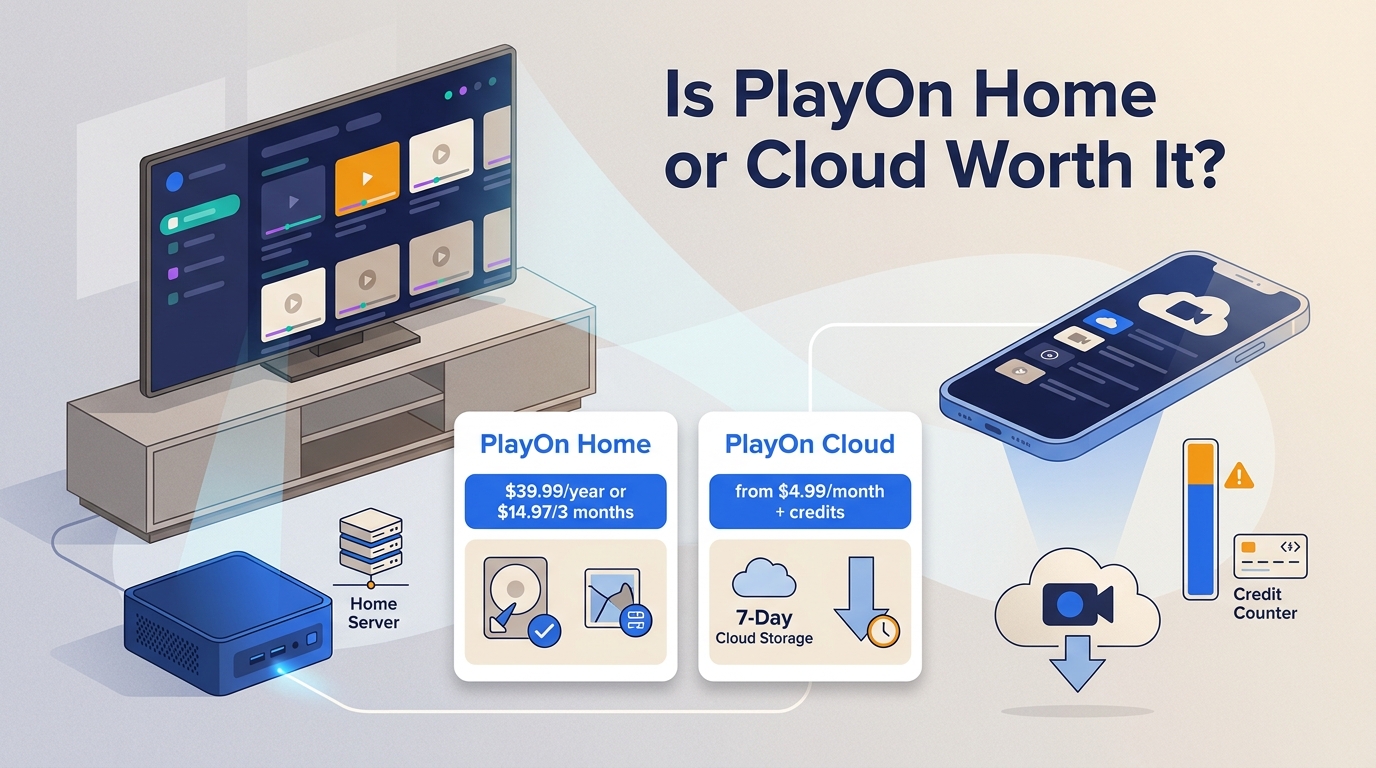
This PlayOn review comes down to one choice: PlayOn Home offers a low-cost Windows DVR workflow, while PlayOn Cloud trades local PC load for credit-based remote recording. The catch is that both record in real time, and failed jobs or uncertain source quality can erase the value quickly.
PlayOn Home and Cloud Compared
PlayOn basically splits its world into two separate apps, and they do not share a subscription.
PlayOn Home records locally on a Windows PC in real time. As of July 2026, it costs $39.99 per year or $14.97 for three months. It best suits users who want scheduled DVR-style recording, have adequate PC resources, and prefer local storage over a mobile cloud workflow.
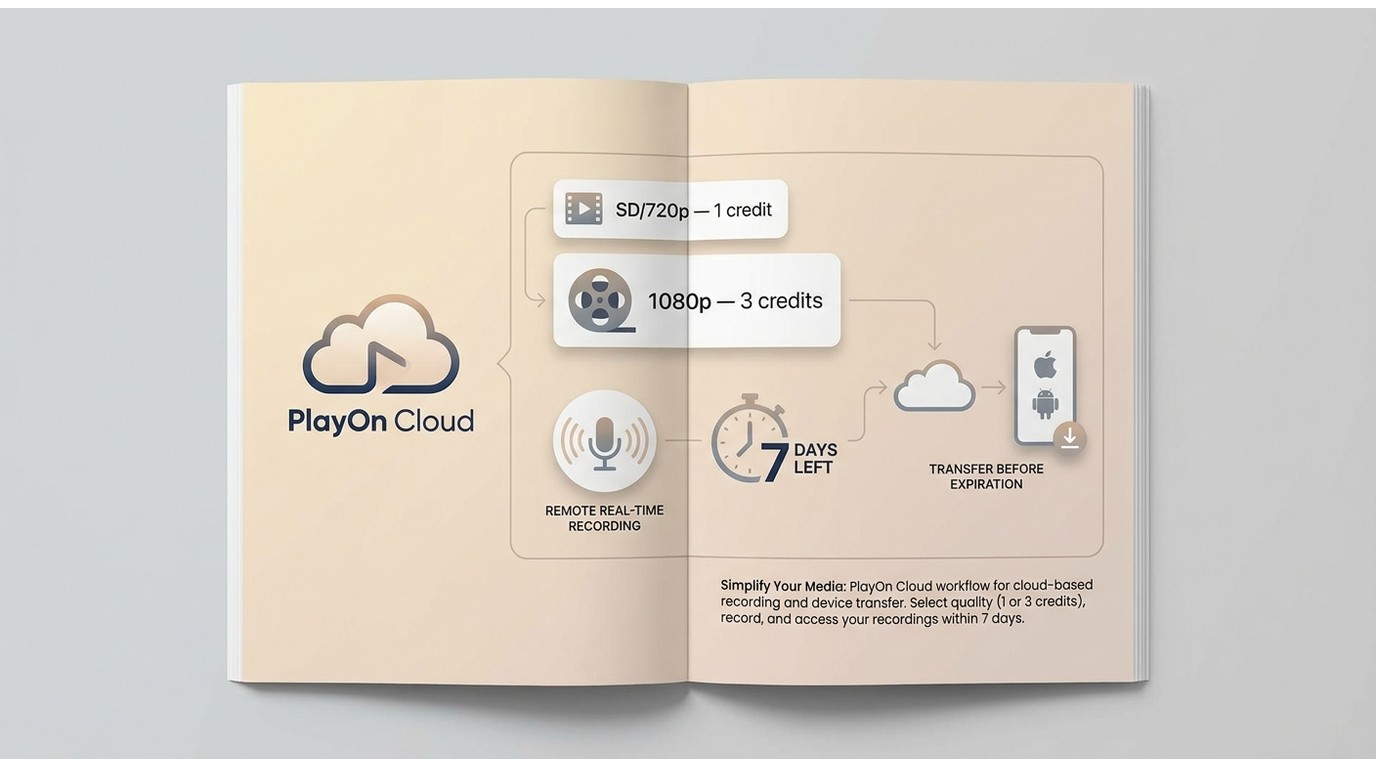
PlayOn Cloud records on a remote virtual PC, then lets you transfer the completed recording to a supported device. Monthly plans start at $4.99, and standalone credit packs remain available. SD and 720p recordings use one credit, while 1080p recordings use three. Cloud is the better fit when you want mobile access or do not want recording load on your own PC, but credits and temporary cloud storage add ongoing constraints.
| PlayOn Cloud | PlayOn Home |
| Home costs $39.99/year or $14.97 for 3 months |
|
|
Personal-Use Safety and Legal Limits
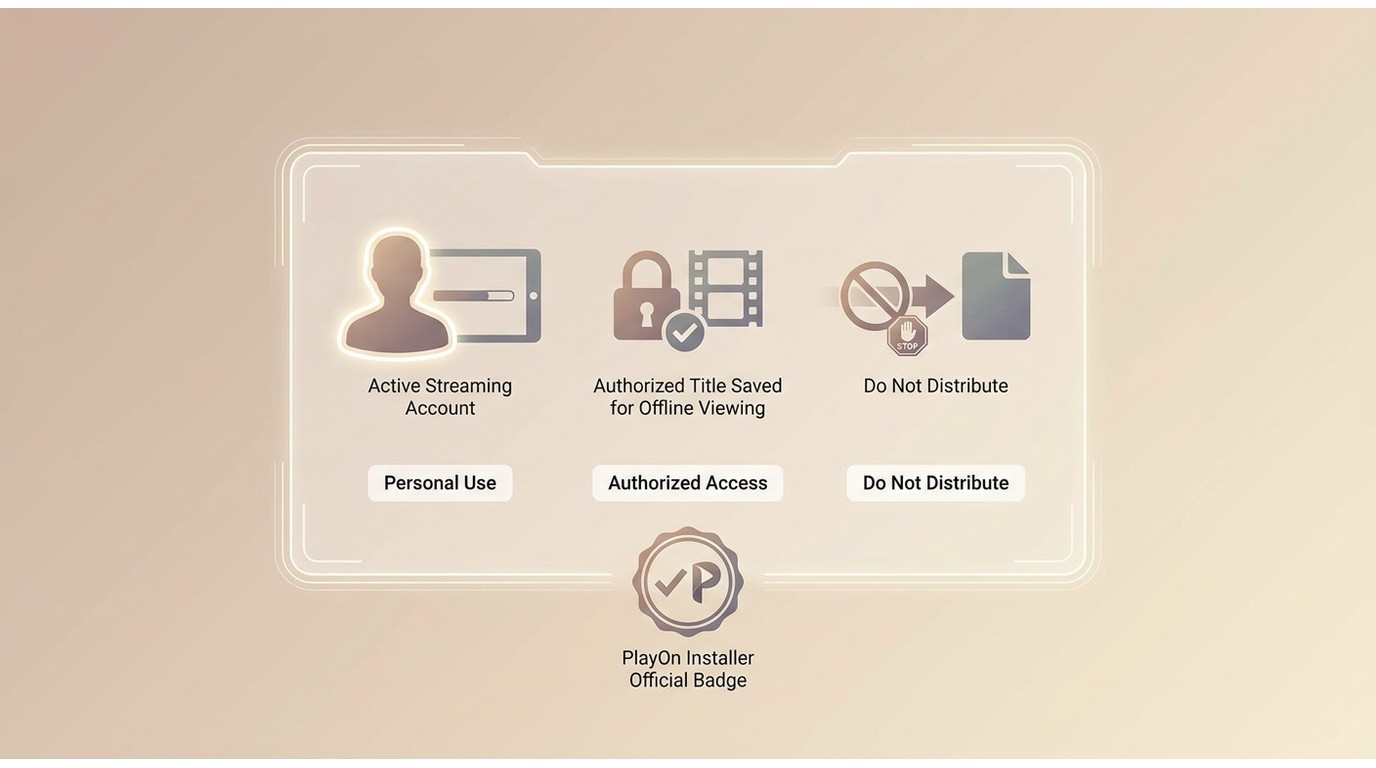

PlayOn uses a screen-recording workflow similar to a digital video recorder. Use it only with an active account and content you are authorized to access, for personal offline viewing, and where the workflow is permitted by the service terms and applicable law. Do not share or distribute recorded files.
I treat installer provenance and account security as a separate issue from legality: downloading the installer from PlayOn’s official site reduces avoidable software risk, but it does not override a streaming service’s rules.
PlayOn Pros, Cons, and Quality Limits
1. Native Source Quality Versus 1080p Output
PlayOn supports scheduled recording and an AdSkip playback feature, although ad detection and provider behavior can affect the result. Scheduling is useful for overnight queues, but it does not change the core limitation: recording still runs in real time.

*The below pic refers to the sample recorded with PlayOn from Prime Video. In the output video, there are still stalling and buffering effects.
Because PlayOn records in real time, a two-hour title takes about two hours to complete, and PlayOn Home also adds browser-engine and encoding load to the PC. Full HD mode creates a 1920x1080 output file, but those dimensions do not prove that the provider supplied a native Full HD browser stream. A 720p or lower source may be upscaled, while bitrate, frame handling, and compression still shape the visible result. Since 1080p also costs three Cloud credits instead of one, I would choose it only when the source and viewing setup can justify the extra time, storage, and credits.
2. Cloud Storage, Credits, and Local Copies
PlayOn Cloud includes seven days of complimentary cloud storage unless you purchase a storage plan. Transfer completed recordings to your device before that window closes. Once a file has been transferred, it is no longer governed by the complimentary cloud-storage window. PlayOn Home instead writes recordings directly to local PC storage, so available disk space becomes the practical limit.
3. Privacy Watermark and Identification Frame
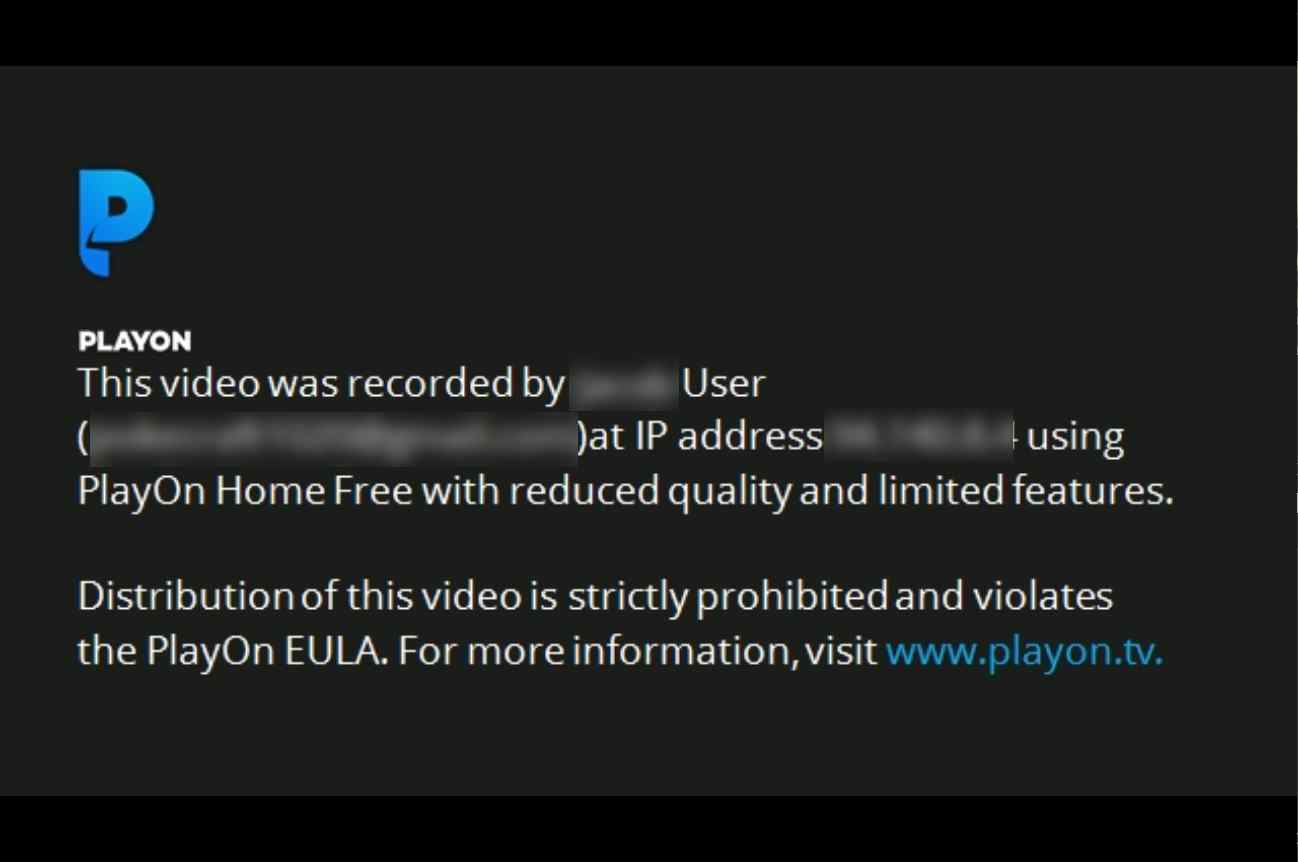
PlayOn recordings may begin with an identification frame containing account-related details such as a name or IP address. Treat that information as private when organizing, sharing, or playing files around other people. The frame reinforces the personal-use design of the workflow, but it should not be interpreted as a legal guarantee.
4. PlayOn Reliability and Common Recording Failures
PlayOn reliability depends on the product and failure cause. Home can be affected by CPU load, the embedded browser engine, security-software conflicts, provider login state, or service-specific changes; Cloud moves processing off the local PC but can still encounter provider failures or incomplete recordings. Live TV may work when the provider, subscription, and channel are currently supported, but availability can change. If repeated failures are a deal-breaker, PlayOn is a poor fit regardless of its price. For cause-specific fixes, see the PlayOn troubleshooting guide.
What Current PlayOn Users Report
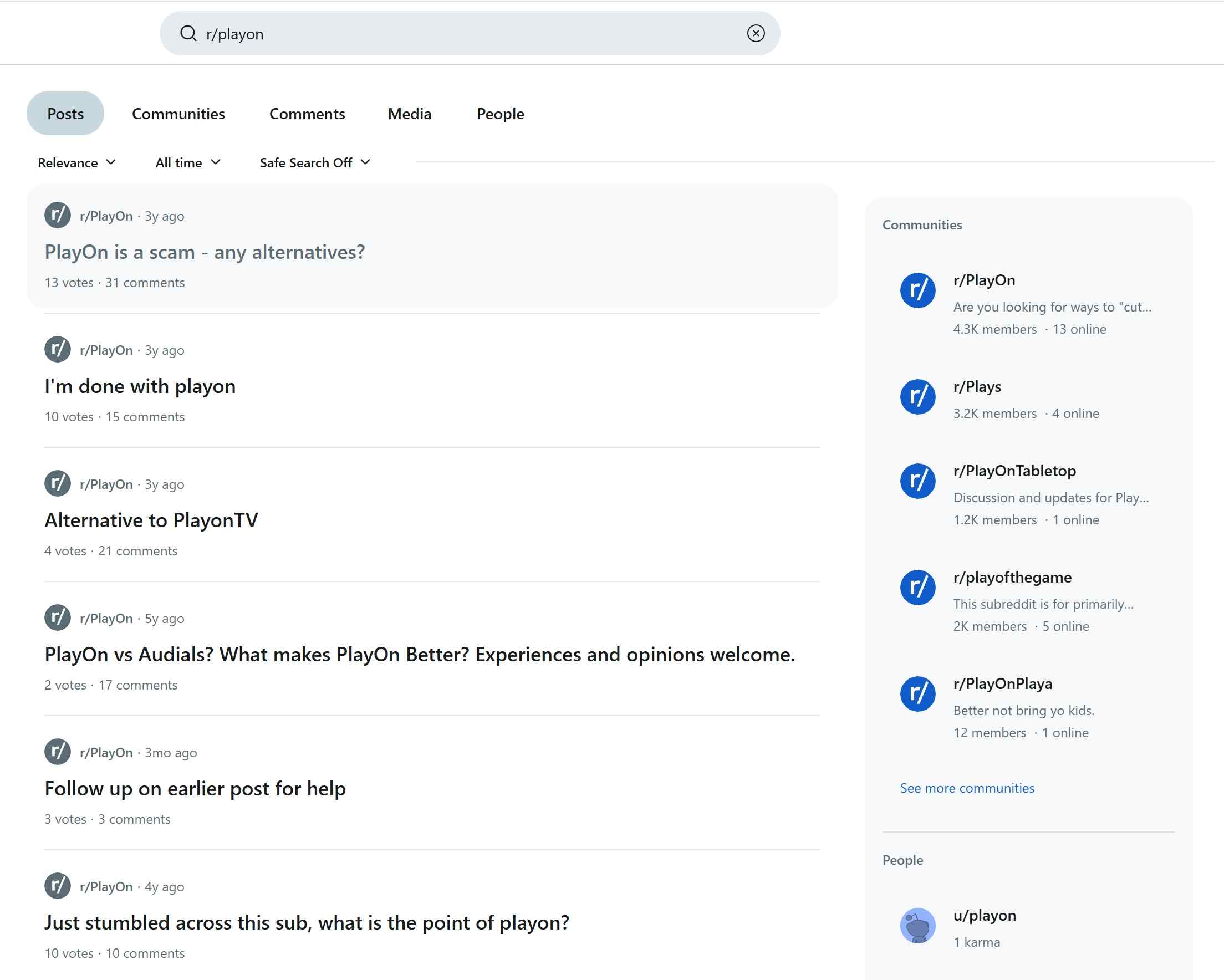
As of July 2026, a current U.S. search snippet lists PlayOn at 2.5 out of 5 on Trustpilot from 54 reviews. Complaints there and on Reddit often focus on failed recordings, support, and resentment over past license changes, while app-store feedback more often reflects the PlayOn Cloud mobile experience. VideoHelp discussions tend to focus on the Windows product and recording behavior. These audiences are self-selecting, so no single platform should be treated as a unified score for both Home and Cloud.
Maintenance signals also differ by platform: Google Play lists a PlayOn Cloud update dated June 17, 2026, while the U.S. App Store version history shown for iOS is dated September 10, 2024. Those dates indicate different release timelines, not identical features or reliability across Android and iOS.
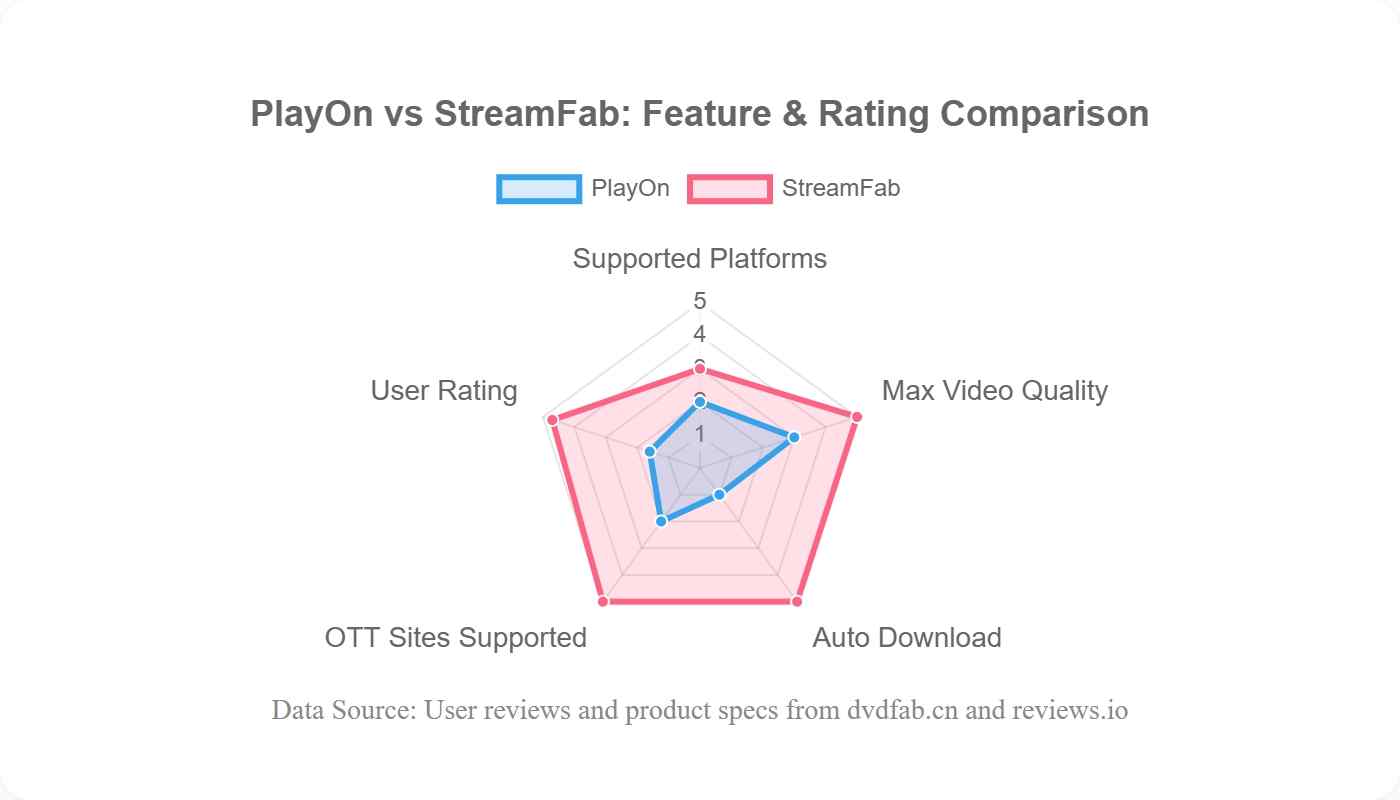
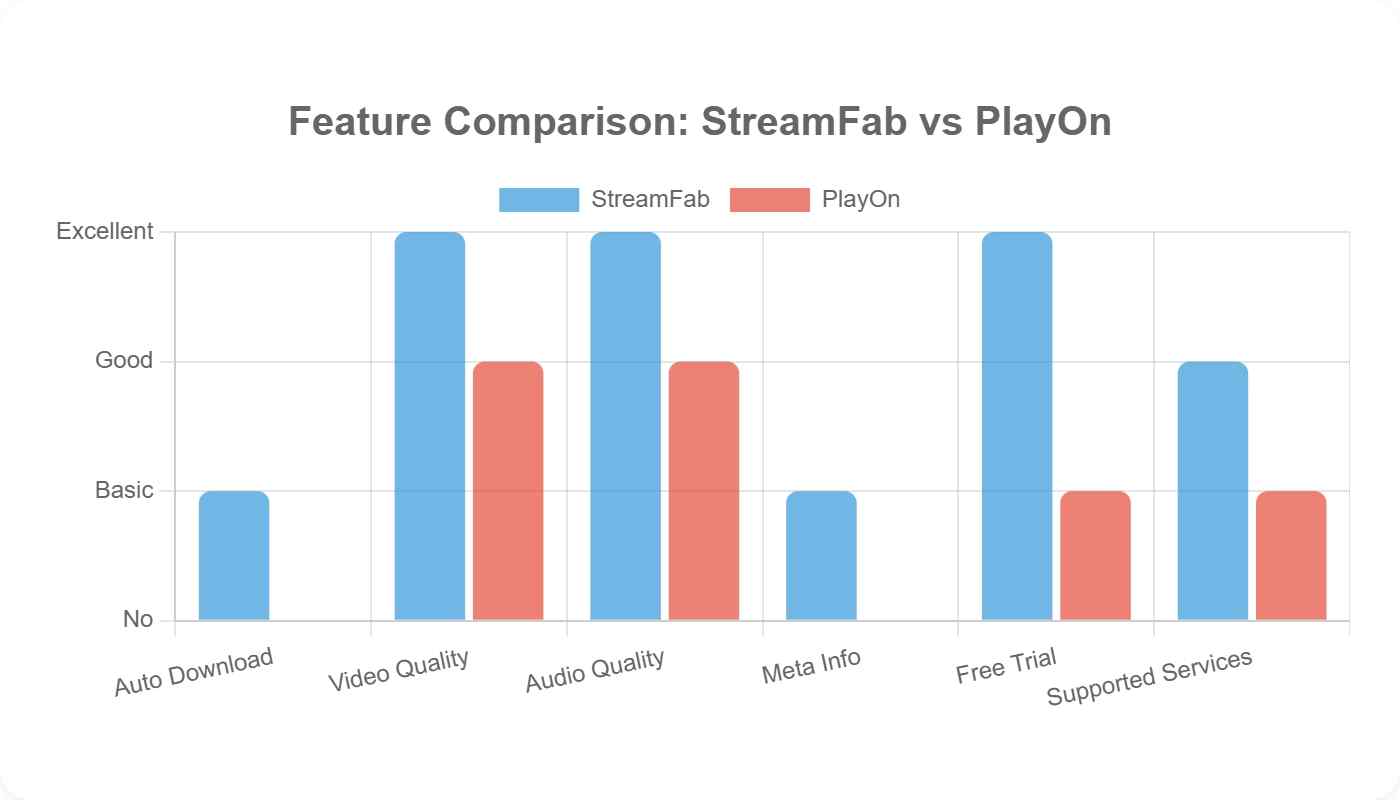
The useful question is not whether one workflow wins every category. It is whether you prefer PlayOn’s familiar real-time DVR model or a desktop workflow built around managed local files.

Bottom line: PlayOn remains a practical choice for users who value a familiar DVR workflow and accept real-time recording. I would look at a desktop local-file workflow instead when batch processing, MP4 or MKV files, and lower tolerance for failed recordings matter more than mobile cloud access.
Recorder Versus Local-File Workflow
For content you’re authorized to access, where permitted by platform terms and applicable law, StreamFab All-In-One provides a desktop local-file workflow for Windows and Mac. Relative to PlayOn’s real-time DVR model, it is designed for users who prioritize batch queues and common MP4 or MKV output on supported services.
StreamFab supports output up to 4K where the service and plan allow it, along with selectable audio tracks and metadata writing. Service support and available quality can change, so this is not the right fit for readers who specifically want PlayOn’s familiar DVR interface or mobile cloud recording.

For supported services, StreamFab can save authorized content as MP4 or MKV on Windows or Mac, with batch queues and selectable audio tracks.
For a fuller product evaluation, see the StreamFab review. If neither workflow fits, the dedicated PlayOn alternatives guide covers broader options without turning this review into a product ranking.
| Decision factor | StreamFab | PlayOn Home / Cloud |
|---|---|---|
| Best fit | Desktop local-file workflow on Windows or Mac | Local DVR recording with Home or mobile cloud recording with Cloud |
| Processing location | Desktop processing; supported services vary | Home uses the local PC; Cloud uses a remote virtual PC |
Recording workflow | Faster-than-playback processing on supported services | Real-time recording |
Output quality | Up to 4K where the supported service and plan allow it | 720p or 1920x1080 output; the browser source may be lower resolution |
File and audio options | MP4 or MKV with selectable audio tracks | Recorded file; available audio depends on the provider source |
Storage and metadata | Local files with metadata writing | Home uses local storage; Cloud includes 7 complimentary storage days unless a storage plan is added |
Queue features | Batch queues and episode monitoring Home supports scheduling Cloud supports remote recording queues that consume credits | Main limitation |
| StreamFab is not a mobile cloud DVR; PlayOn requires real-time recording, credits, or sufficient PC resources | StreamFab Review: Real Person Test | Objective & Comprehensive 2026 | PlayOn In-Depth Reviews: Is It Worth to Try [2026 Update] |
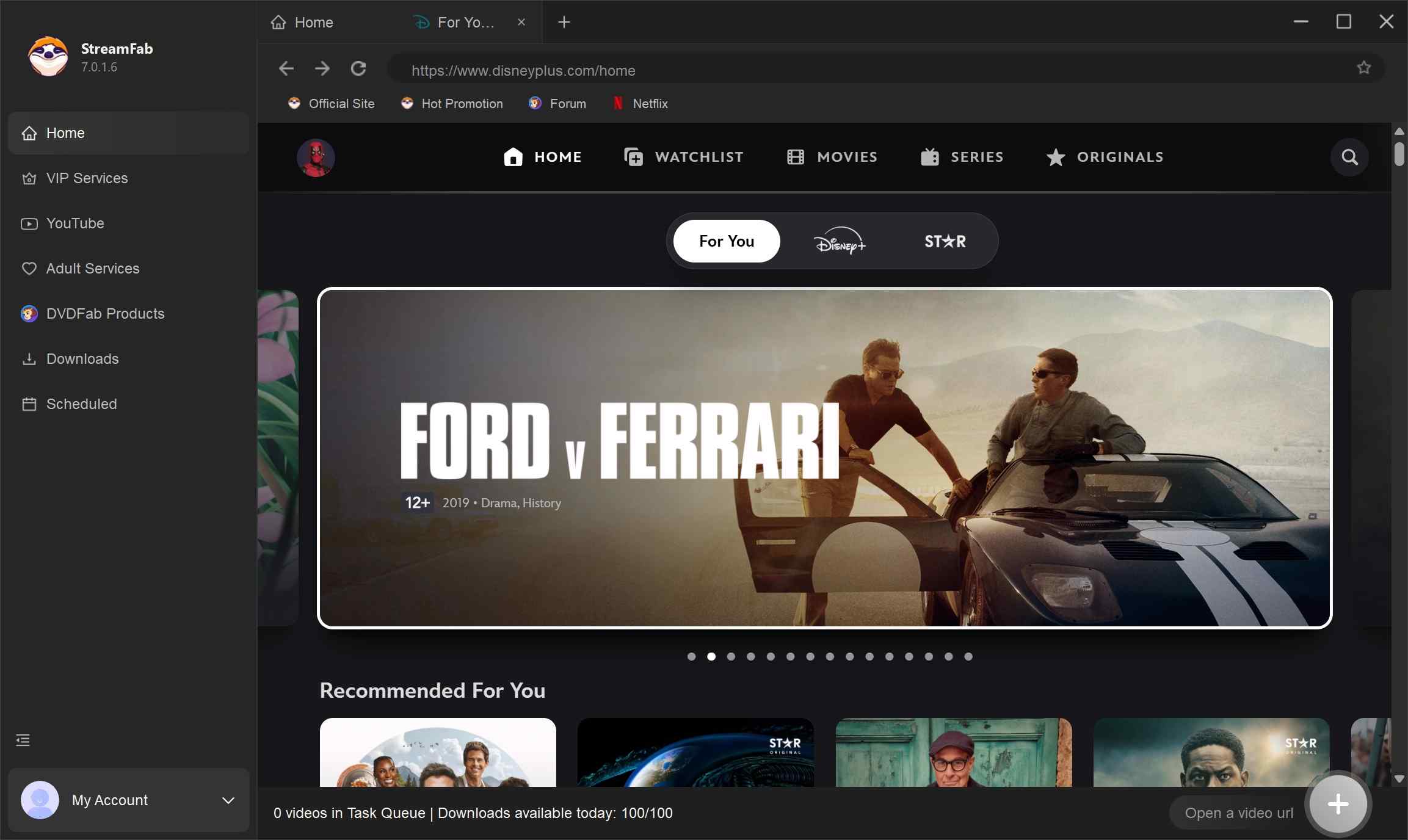
Choose the streaming service
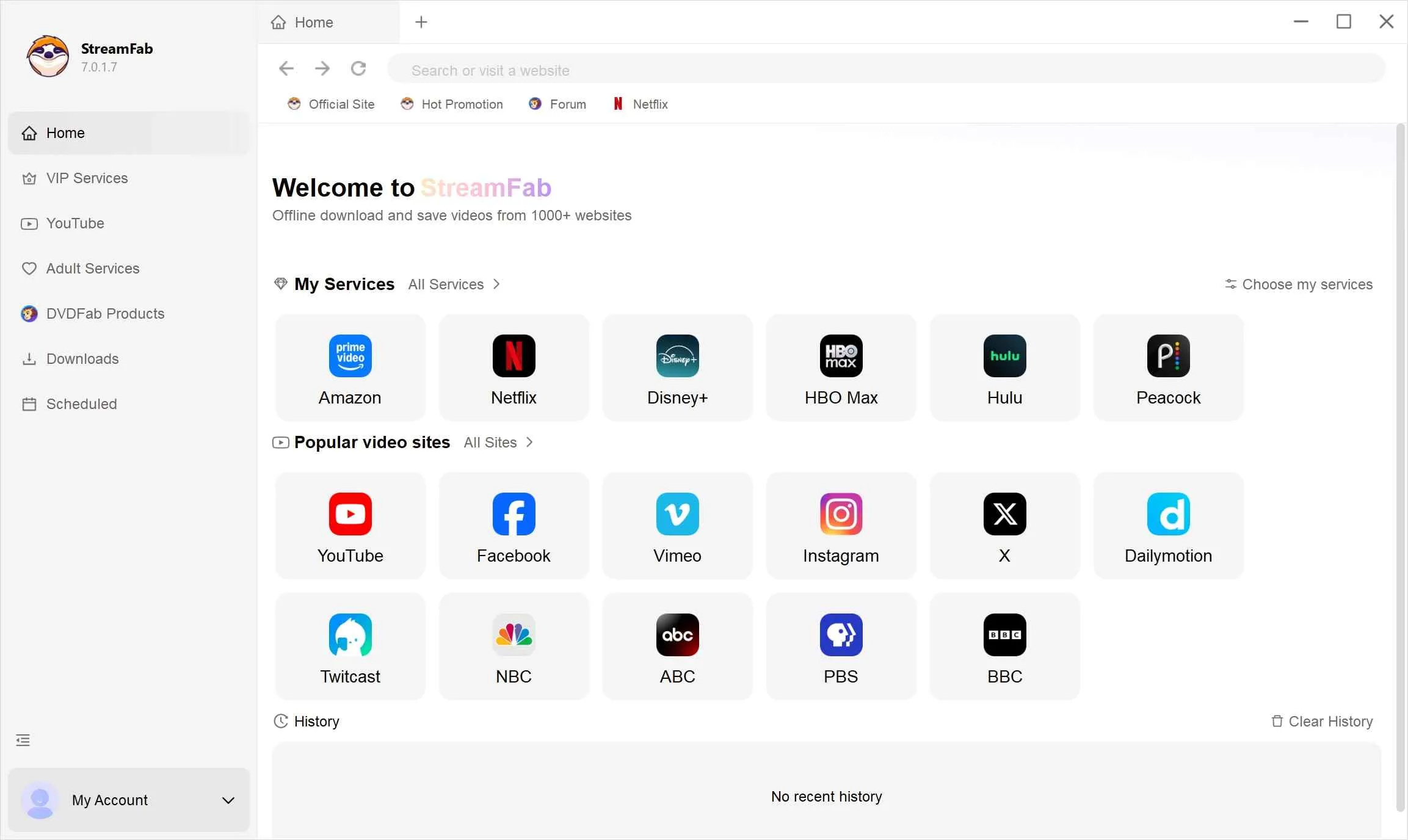
Find the streaming website you want. You can also copy and paste your video URL directly into the address bar on the Homepage. Here we take Netflix as an example.
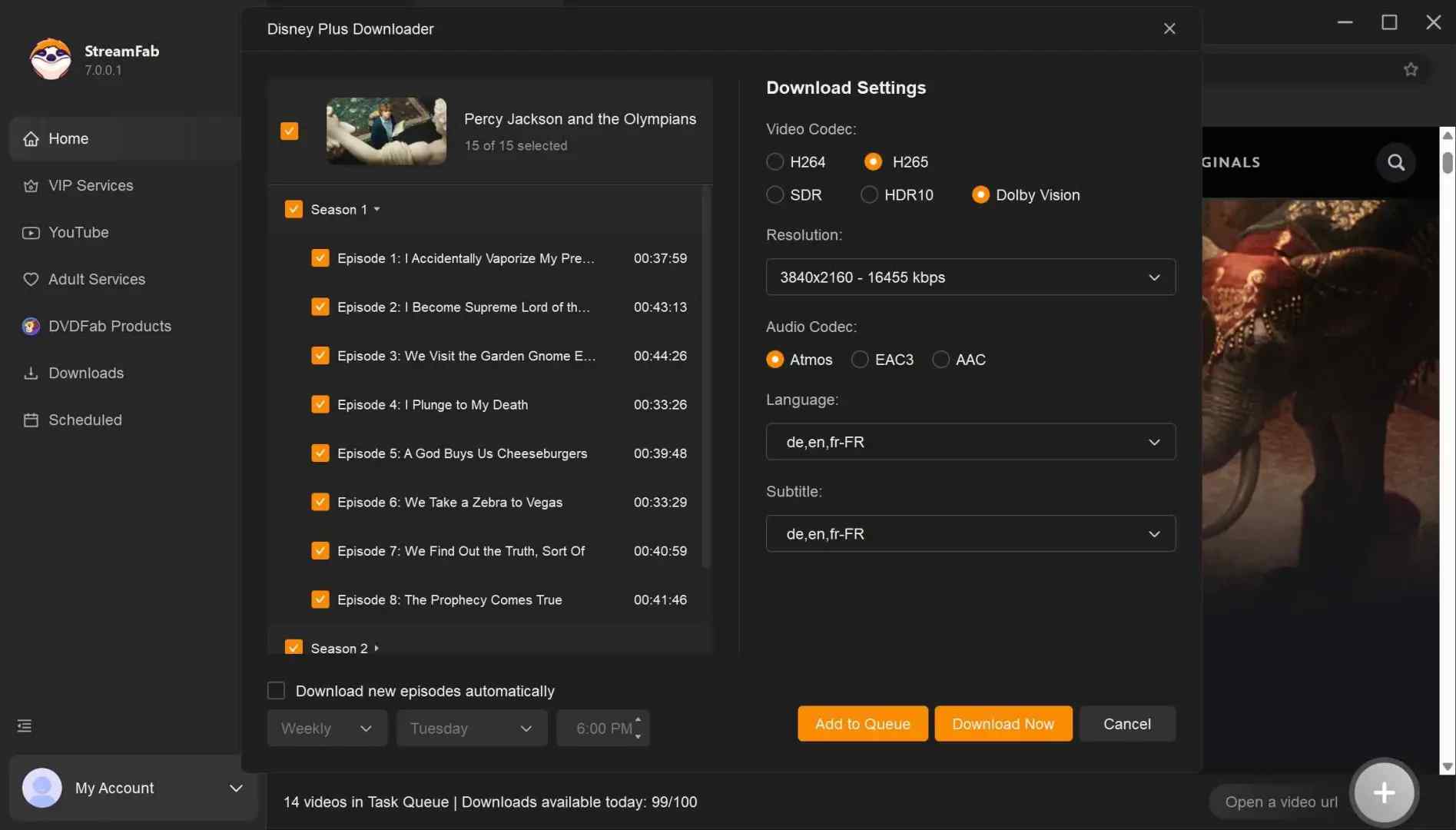
Customize the file
Please search for the video, for example, Squid Game, and play it; then a pop-up window will ask for your customization. You can choose the audio, subtitle language, format, resolution, etc.
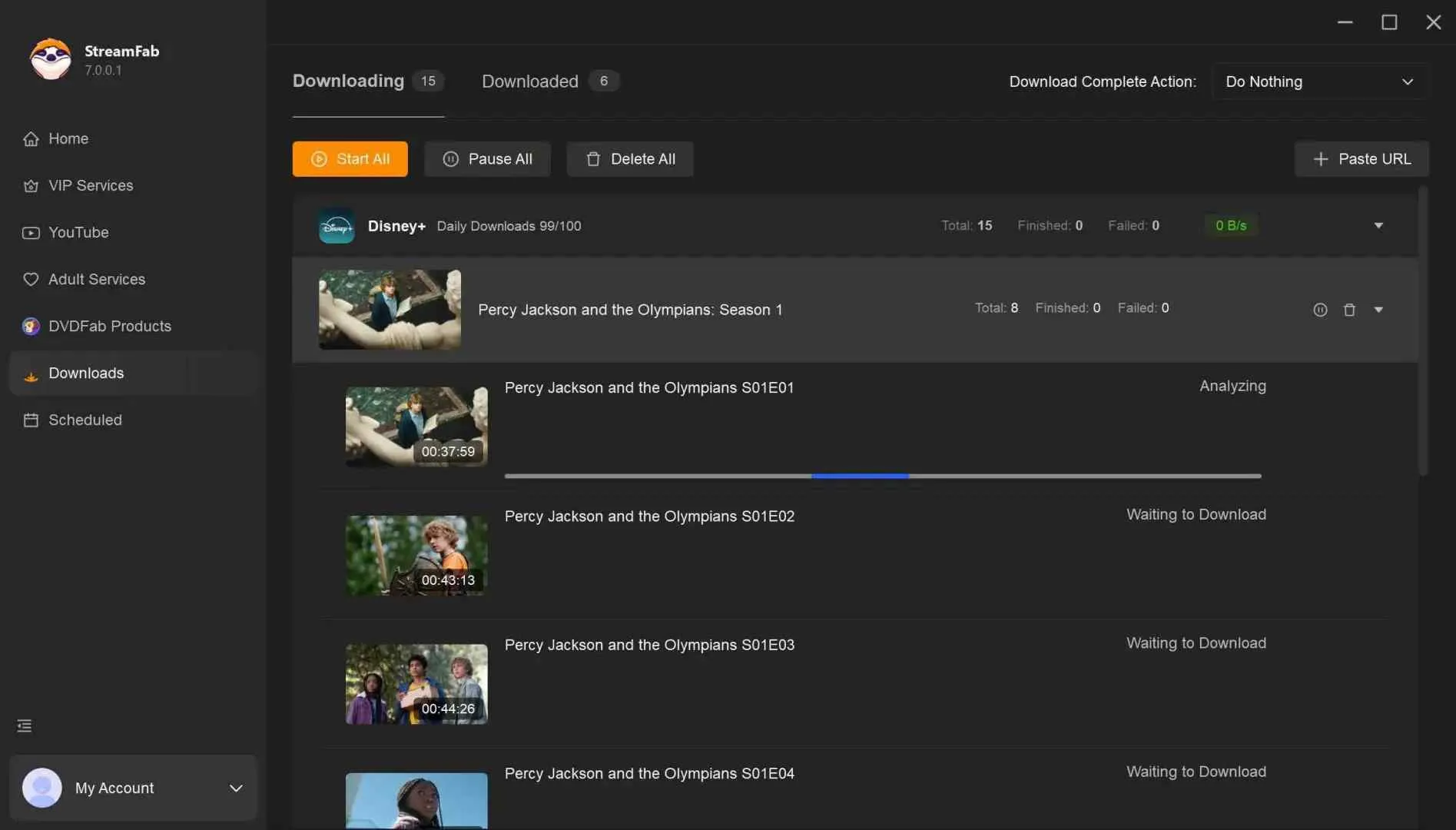
Click the download button
After customization, you can download it right now or add it to the queue.
FAQs
Is PlayOn Desktop still supported?
No. PlayOn Desktop is the unsupported legacy product, and current Windows users are directed to PlayOn Home. Desktop lacks current Windows 11 support, captions, and several channels available in Home.
Can PlayOn record live TV, and which channels work?
It can record live content when the provider, your subscription, and the specific channel are currently supported. Provider login changes and service updates can interrupt compatibility, so use the reliability section above as the decision guide.
Is PlayOn Home free after installation?
No. Ongoing use requires a paid Home subscription. Temporary trial or promotional access should not be confused with the regular subscription.
Is the PlayOn Cloud app free to install?
The app may be installed without buying PlayOn Home, but recording requires Cloud credits or a plan. A 1080p recording uses more credits than SD or 720p, and storage beyond the complimentary window may add another cost.
Does PlayOn Cloud download a video directly to my device?
No. PlayOn Cloud first records the title in real time on a remote virtual PC, stores the completed recording temporarily, and then lets you transfer the file to a supported device.
Conclusion
PlayOn is still worth considering if you want a familiar DVR-style workflow and accept its trade-offs. Home offers scheduled local recording on Windows but depends on PC resources and setup stability. Cloud removes that local processing load and adds mobile access, but it uses credits and provides only a limited complimentary storage window.
My decision rule is straightforward: choose PlayOn when its low-cost DVR appeal outweighs real-time waiting, source-quality uncertainty, and occasional failures. If you need batch-oriented local files and have less tolerance for failed recordings, a supported desktop workflow such as StreamFab may fit better. It is a conditional choice, not a universal replacement for PlayOn’s mobile cloud or DVR experience.
This revision corrects specific pricing, storage, quality, user-feedback, and platform-status details in the PlayOn review.
Corrections in the July 2026 revision:
Pricing and Credits: Corrected PlayOn Home pricing and clarified Cloud monthly plans, standalone credit packs, and resolution-based credit use.
- Cloud Storage: Replaced the obsolete 21-day claim with the seven-day complimentary storage rule and clarified transfers to local devices.
- Quality and Platform Status: Added the native-source caveat for 1920x1080 output and removed the unsupported Windows 12 compatibility claim.
- User Feedback: Updated the Trustpilot search-snippet figure and separated Android, iOS, Home, and Cloud maintenance and feedback signals.
The review now uses waiting time, source quality, storage, credits, and failure tolerance as its main purchase criteria.

Videoder now refers to multiple packages, so identity comes before any safety verdict. This guide checks the publisher, package ID, version, permissions, source, and update signals, then explains current feature limits and compares desktop, browser, Android, and authorized paid-streaming alternatives. It also clarifies why older YouTube instructions should not be treated as current.
By Nicole Lopez - Sep 4, 2026
Audials One does not offer a native macOS desktop release. This guide separates the Intel Windows-VM route from Apple Silicon limits, explains why Audials Play is for radio and podcasts, and maps native Mac choices for streaming video, ordinary screen capture, and MP4/MKV offline files. It also gives a restrained StreamFab fit judgment for authorized personal viewing.
By Erika Leen - Sep 3, 2026
As a Mac user with a need to download online videos, I explored Videoduke, and shared my reviews and opinions about this software in this article.
By Nicole Lopez - Sep 3, 2026

This guide maps eight VideoProc alternatives to the job they are meant to replace, from local conversion and AI enhancement to editing, recording, and authorized service-aware downloads. It also covers HandBrake, FFmpeg, and Video2X, explains restoration limits, and provides a compact workflow matrix and FAQ for choosing a practical fit.
By Marcia Hatcher - Sep 3, 2026