
Can You Record Disney Plus With OBS? 4 Black Screen Checks.

Summary: Can you screen record Disney Plus with OBS? Sometimes, but protected-content controls can leave you with audio and a black video. Results vary by operating system, browser, capture source, and current Disney+ playback rules. This guide covers four practical checks and a desktop local-file alternative for authorized personal viewing.
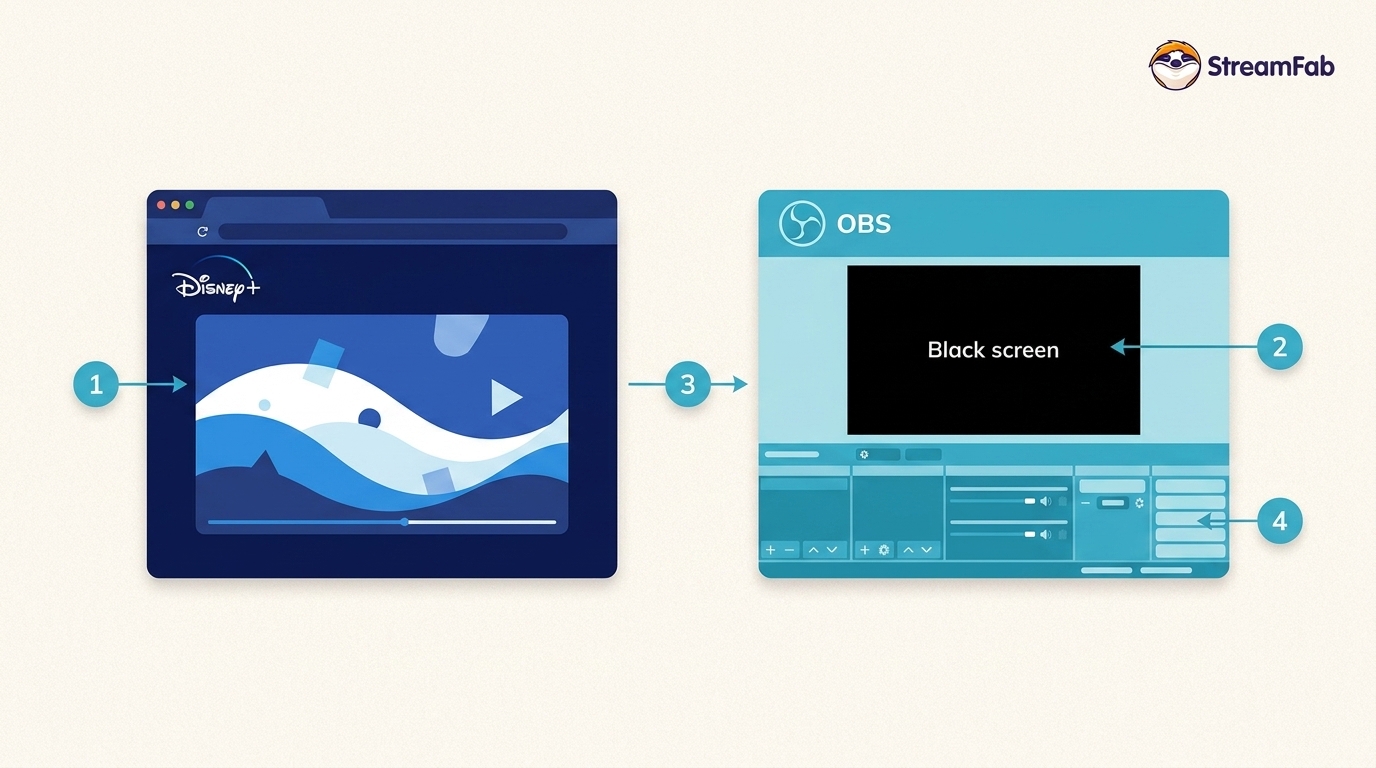
Table of Contents
A Disney Plus black screen in OBS usually means the playback path and capture method are incompatible, not that one setting will fix every setup. Use the checks below to narrow down the cause before deciding whether to keep trying to screen record Disney+ in real time or use another offline-viewing workflow.
OBS Setup for Disney+ Recording
As of August 2026, OBS lists version 32.2.1, released July 24. OBS recording setup is conditional, so treat these as four checks rather than a fixed recipe:
- Check 1, capture source: Test Window Capture and Display Capture separately.
- Check 2, audio path: Confirm browser and OBS audio behavior separately on Windows and macOS.
- Check 3, graphics acceleration: Make one reversible browser-setting test, then restore it if it does not help.
- Check 4, browser and drivers: Update the browser and graphics driver, then stop changing settings if the black screen remains.
Window Capture vs. Display Capture
Window Capture targets one browser window, which can reduce accidental notifications and unrelated desktop content in the recording. Display Capture includes the entire screen, so it can expose alerts, the taskbar, and other open Windows. Test the two sources separately because protected-content black screens can affect either one.
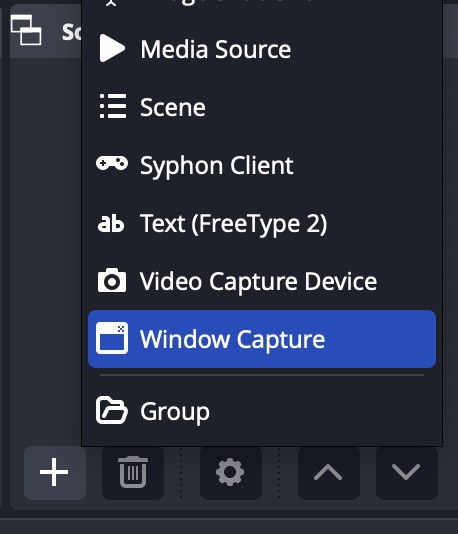
Display Capture can be useful when Window Capture does not show the browser as expected, but it records everything visible on that display. I would start with Window Capture for a cleaner, more private setup, then switch sources only if the first option fails to capture the window correctly.
macOS Audio Capture
On macOS, check the audio controls available for your selected OBS capture source and confirm the result with a short local recording before starting a longer session. Windows results do not establish macOS compatibility, because the audio path, browser permissions, and capture-source behavior differ between the two systems.
Why Disney+ Turns Black in OBS
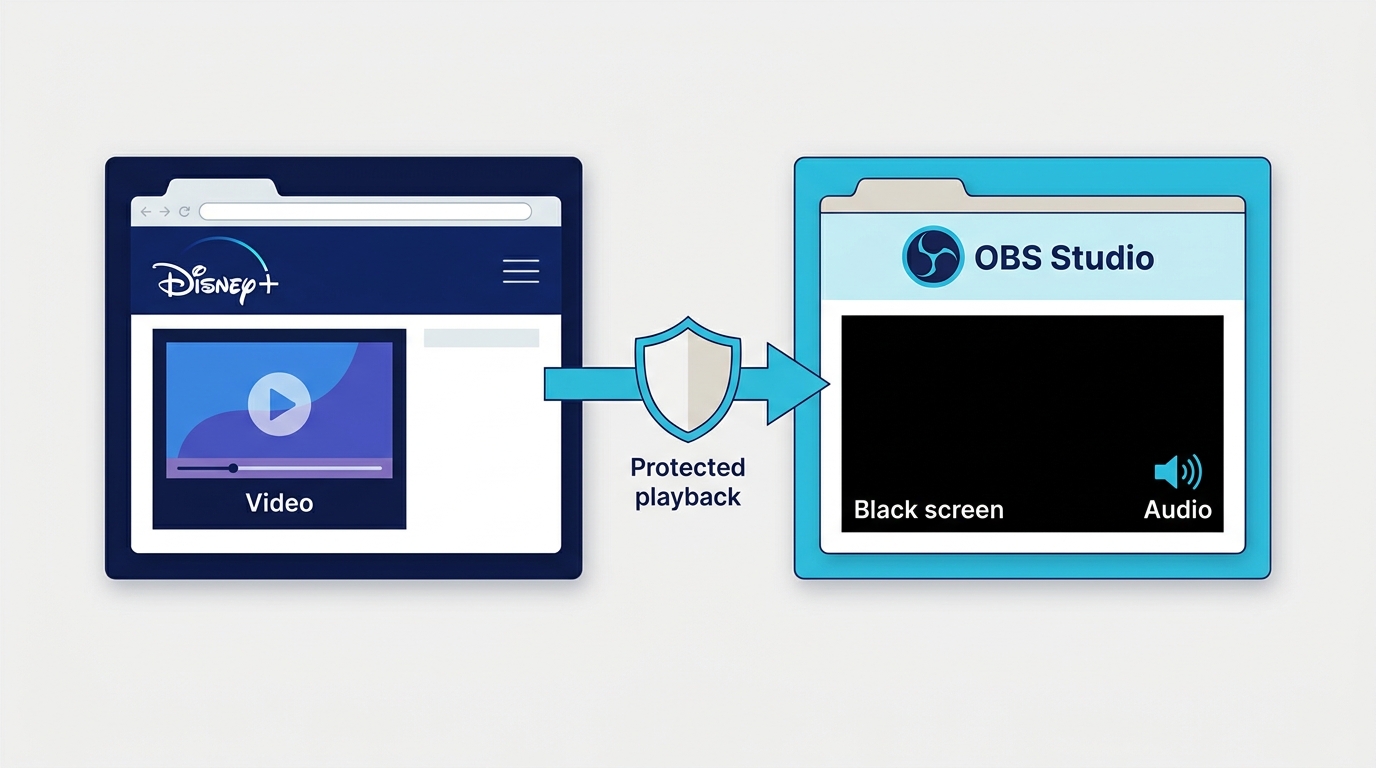
Disney+ can return a protected-content black screen when the playback path and capture method are incompatible. The outcome can change with the browser, operating system, capture source, graphics settings, and platform updates, so no OBS black screen fix is universal.
For content you are authorized to access, and where platform terms and applicable law allow it, keep any local copy limited to personal offline viewing.
Hardware Acceleration: Test, Then Roll Back
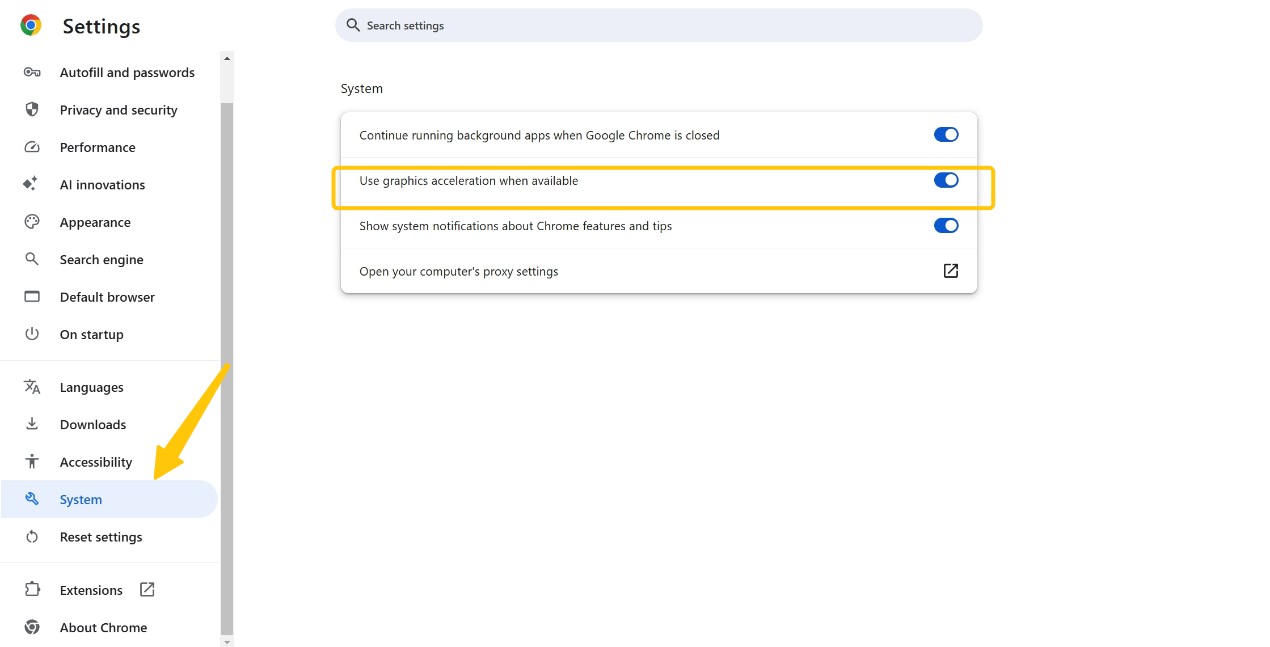
Disabling graphics acceleration is one reversible troubleshooting test, not a universal fix. It can change how the browser and OBS interact, but results vary by browser, operating system, capture source, and platform updates.
In Chrome, go to Settings → System and temporarily turn off "Use hardware acceleration when available," then relaunch and compare the result. If playback, stability, or capture does not improve, restore the original setting. A Disney Plus protected content license error can indicate that the issue is in the playback path rather than OBS itself.
Capture and Driver Checks
If the black screen remains, update OBS, your browser, and the graphics driver, then retry with one capture source at a time. Changing graphics acceleration can affect capture behavior, but it does not create a guaranteed recording result or a fixed resolution outcome across all setups. If these checks do not change the result, further toggling is unlikely to be productive.
OBS and StreamFab: Practical Tradeoffs
OBS is a free, configurable real-time capture option, but it requires setup checks and keeps the computer occupied while recording. StreamFab Disney Plus Downloader is a desktop local-file alternative to official Disney+ downloads for authorized personal offline viewing where platform terms and applicable law allow it. It is not the best fit for an occasional viewer who does not need a paid local-file workflow.

StreamFab Disney Plus Downloader
To demonstrate the technical gaps, I monitored hardware telemetry and output metadata across both solutions. Here are the lab results:
| Workflow | Expected output | Audio and subtitles | Time and resources | Best fit |
|---|---|---|---|---|
| OBS Studio | Real-time screen recording | Depends on capture path | Records in real time | Users willing to troubleshoot |
| StreamFab Disney Plus Downloader | Up to 4K, depending on platform and plan; MP4/MKV | Selectable audio; subtitles available | Batch handling; no real-time recording | Regular local-file users |
| Key limitation | Protected-content black screens may remain | Audio behavior varies by system | Setup can take time | Not ideal for mobile capture |
| StreamFab details | H.264/H.265 video | Dolby Atmos, EAC3 5.1, or AAC 2.0 | Metadata and batch options | Paid desktop workflow |
StreamFab Workflow and Limits
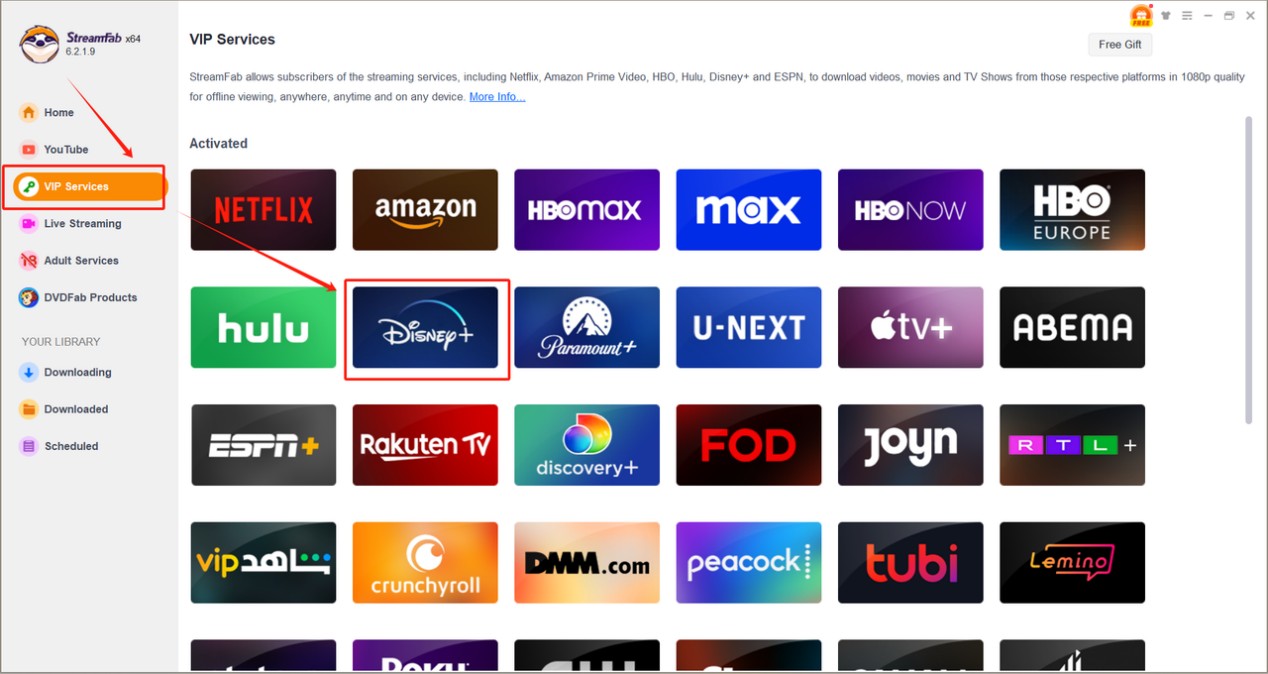
Step 1: Start by using StreamFab to open Disney+ from the VIP Services area and sign in with an active account.
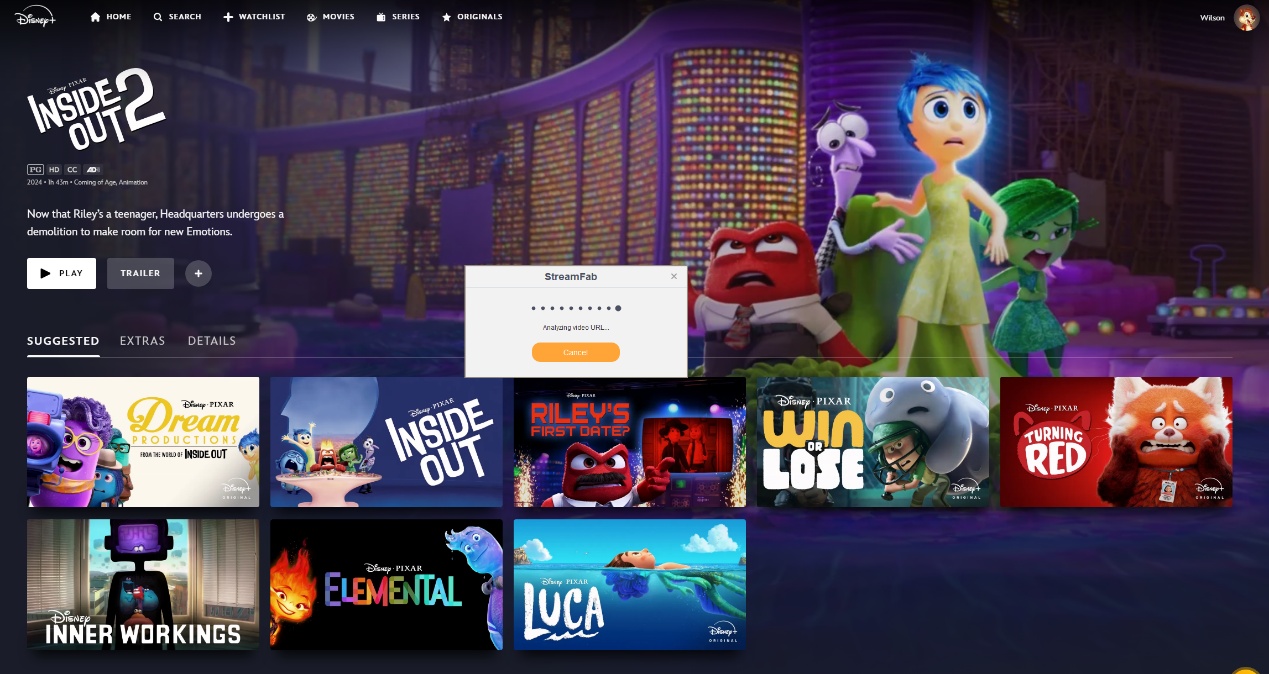
Step 2: Search for a title and begin playback. The built-in browser analyzes the selected title and presents the video, audio, and subtitle options currently available for that title.
Step 3: Choose Disney+ videos in MP4 or MKV, then select the available audio and subtitle options before adding the title to the queue.
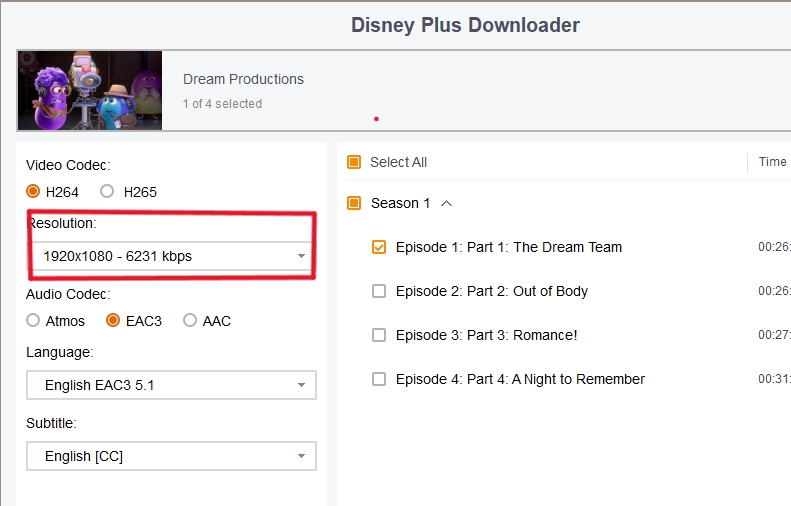
For recurring shows, batch downloading can reduce repetitive queue setup. Available quality, audio, subtitles, and playback depend on the title, platform, plan, and device.

FAQs
Can I record Disney+ with OBS on an iPhone or iPad?
OBS is a desktop application. iPhone and iPad capture use separate device workflows, and protected video can still appear black. The same general limitation applies to Android and Smart TV capture.
Why is Safari Blocking All OBS Captures?
Can OBS record a live show on Disney+?
Live playback is subject to the same protected-content and capture-path limits as on-demand titles. OBS may record a black video even when audio is present, so treat a live recording as a conditional setup result rather than an expected outcome.
What should I try if StreamFab cannot detect a Disney+ title?
Update the app, refresh your Disney+ sign-in, and try another title first. If detection still fails, the StreamFab troubleshooting steps cover cache and analyzer checks that can help isolate the issue.
Conclusion
OBS is the free option for people who are comfortable testing capture sources, audio paths, browser settings, and drivers while recording in real time. If the Disney Plus black screen persists after those four checks, it is reasonable to stop troubleshooting rather than keep cycling through the same settings.
For recurring offline viewing, StreamFab Disney Plus Downloader offers a paid desktop workflow with up to 4K depending on platform and plan, plus MP4 or MKV output, selectable audio, subtitles, metadata, and batch handling. My practical view is simple: OBS makes sense when you need a free capture tool and accept setup uncertainty; StreamFab makes more sense when a local-file workflow is worth paying for. It is not necessary for an occasional viewer who is satisfied with official Disney+ downloads.

Downloading your favorite Netflix library permanently for your flexible offline watch is not a big deal anymore. Try the Pazu Netflix video downloader to enjoy Netflix streaming with ultimate customizations.
By Erika Leen - Sep 18, 2026
This review exposes the gap between Video Downloader Plus's marketing and its actual performance. Technical tests confirm the extension cannot process encrypted HLS streams found on major sites. Furthermore, the review critiques the lack of a free trial, forcing users to pay blindly for functionality that may not work on complex websites.
By Jacob Harrison - Sep 15, 2026
Explore a comprehensive list of alternative software to MovPilot. Learn about their features, pricing, and user reviews to make an informed decision based on 2026 DRM standards.
By Erika Leen - Sep 15, 2026
How to cancel PlayOn subscription? Will you get a refund after cancelling? This guide tells you everything you need to know about cancelling PlayOn subscriptions.
By Nicole Lopez - Sep 15, 2026