
How to Download Fansly Videos: 4 Tested Methods (Step-by-Step Guide 2026)

Summary: Learn how to download Fansly videos with 4 tested methods. Step-by-step StreamFab tutorial, free alternatives, iOS workaround, and troubleshooting tips.
StreamFab Step-by-Step — Full walkthrough with every click mapped out
Free Methods — Browser extensions, online tools, and screen recording
iOS Workaround — What actually works on iPhone in 2026
Troubleshooting — Fixes for the most common download failures
Fansly doesn't have a download button. You already knew that — that's why you're here.
I've been backing up creator content from subscription platforms for over three years now, and the single most common question I get is some variation of "how do I actually save Fansly videos to my computer?" The answer depends on what you need: a quick one-off save, a bulk archive, or something that works on your phone.
This guide covers four methods I've personally tested in June 2026. I'll walk you through the exact steps for each one — starting with the method I use daily, then covering free alternatives and an iOS workaround.

Can You Actually Download Videos from Fansly?
Short answer: yes, you can download Fansly videos — but not through Fansly itself.
Fansly doesn't offer a native download feature. The platform streams content through an encrypted player, and there's no "Save Video" button anywhere in the interface. This is by design — it's how they protect creators' content from unauthorized redistribution.
So if you want to download videos from Fansly for personal offline viewing, you'll need a third-party tool. Here's what you need before you start:
- An active Fansly subscription to the creator whose content you want to save. You can only download content you've paid for and have legitimate access to.
- A computer (Windows or Mac). Most reliable methods are desktop-based. I'll cover an iOS workaround later, but it comes with trade-offs.
- A download tool. This guide focuses on StreamFab Fansly Downloader as the primary method, plus three free alternatives.
One thing to be clear about: downloading Fansly content you've subscribed to for personal backup is generally considered fair use. Redistributing or reselling that content is not. Keep your downloads private.
If you're looking for a full comparison of the best Fansly download tools, check out our roundup of the 5 best Fansly downloaders. This guide is about the "how" — the exact steps to get it done.
How to Download Fansly Videos — Full Step-by-Step
This is the method I use every time. StreamFab Fansly Downloader is a desktop application with a built-in browser — you log into Fansly directly inside the app, browse to the video you want, and hit download. No browser extensions to install, no link copying, no format conversion afterwards.

Losslessly download subscribed Fansly videos in 1080p full HD quality and save as comaptible MP4/MKV format. When creator post new content, StreamFab automatic downloading track the new videos and add to the task queue without manual operation.
Here's exactly how it works, click by click.
Step 1: Download and Install StreamFab
Head to the StreamFab download page and grab the installer for your system (Windows or Mac). Run the installer — it takes about 2 minutes. No special configuration needed during setup.

Step 2: Launch StreamFab and Open the Built-in Browser
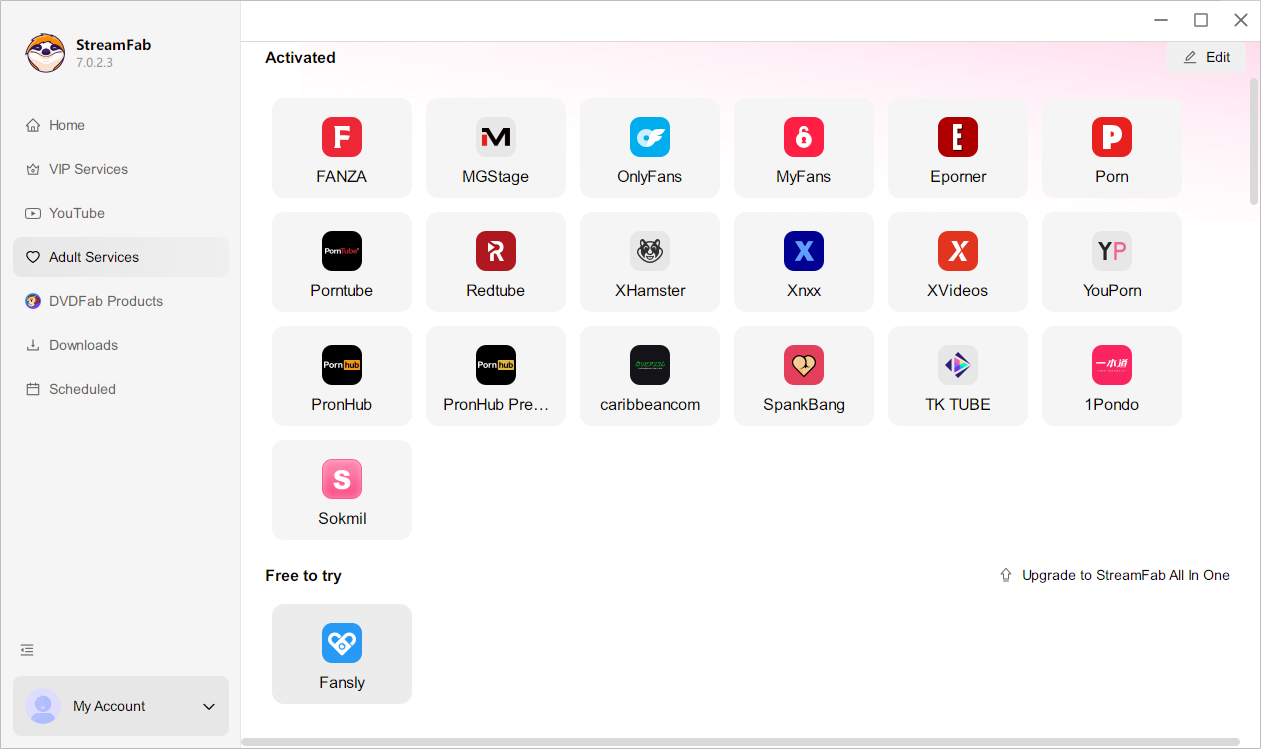
Once installed, launch StreamFab. You'll see the main dashboard with a list of supported streaming services on the left panel. Scroll down or search for "Fansly" and click on it.
This opens StreamFab's built-in browser — an SSL/TLS-encrypted browser window embedded directly in the application. Your login credentials stay local and are never transmitted to StreamFab's servers.
Step 3: Log Into Your Fansly Account
The built-in browser loads Fansly's login page. Enter your Fansly username and password just like you would in a regular browser. If you use two-factor authentication, you'll be prompted for that too.
Once logged in, you'll see your normal Fansly feed — subscriptions, purchased content, everything you'd see on fansly.com.
Step 4: Navigate to the Video You Want to Download
Browse to the creator's page and find the specific video (or videos) you want to save. Click on the post to open it. StreamFab monitors what you're viewing in the background.
When StreamFab detects a downloadable video, a download prompt appears automatically. You don't need to copy any URLs or do anything special — just browse normally.
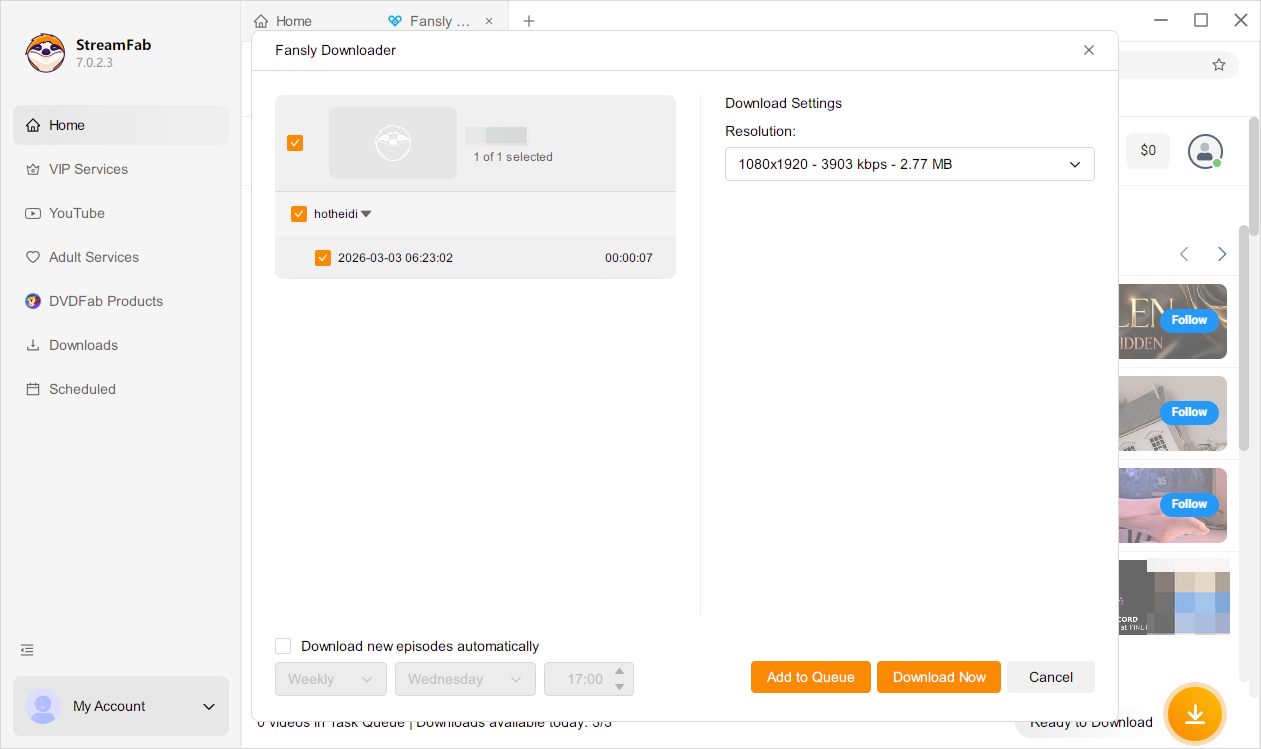
Step 5: Configure Your Download Settings
Before hitting download, you can adjust a few settings:
- Video Quality: Up to 1080p Full HD — quality-identical to what you see streaming on Fansly. No transcoding or re-encoding, so what you download is what the creator uploaded.
- Output Format: MP4 (universal compatibility) or MKV (better for preserving multiple audio tracks).
- Audio: AAC 2.0 stereo, preserved as-is from the original stream.
- Save Location: Choose where on your computer the file gets saved.
My recommendation: stick with MP4 at 1080p. It plays on everything — your laptop, phone, TV, tablet — without needing extra codecs.
Step 6: Start the Download and Find Your Files
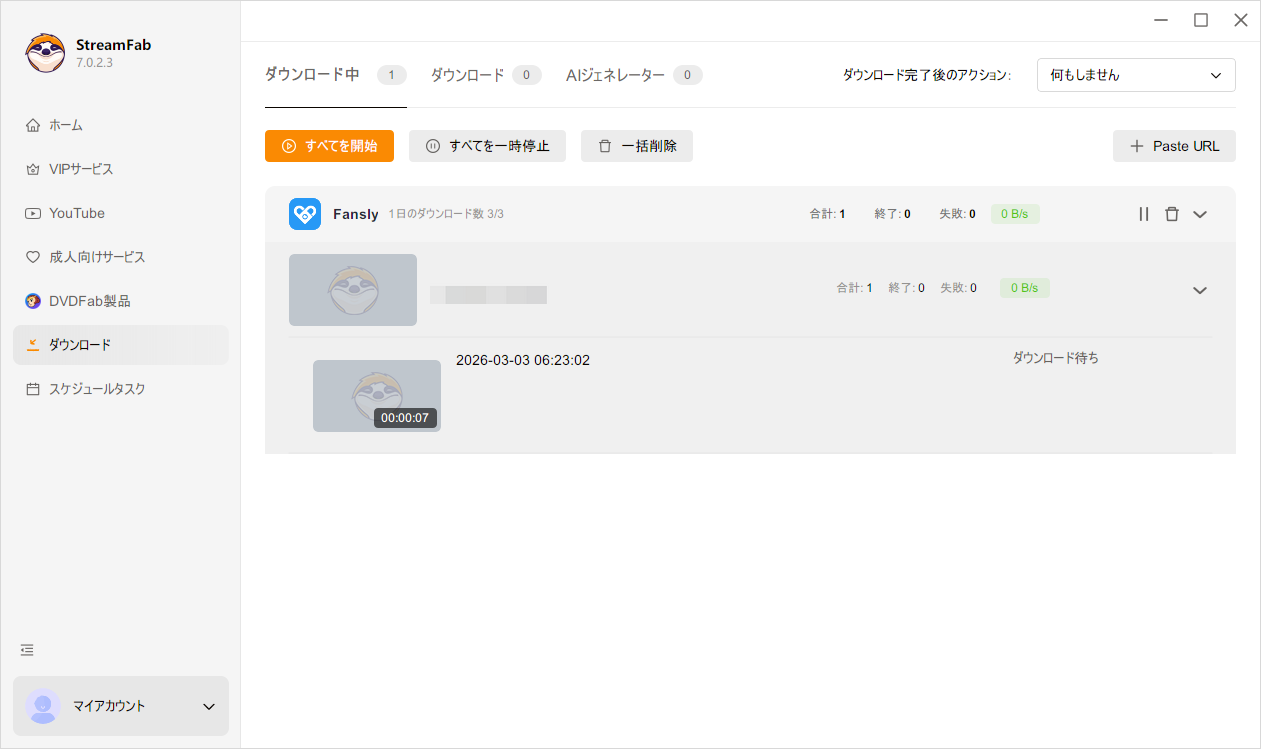
Click "Download" (or "Add to Queue" if you're batching). StreamFab starts pulling the video immediately. Download speed depends on your internet connection, but most Fansly videos (typically 5-30 minutes long) finish in under a minute on a decent connection.
When it's done, click the "Downloaded" tab in the left panel to see all your saved files. You can also navigate directly to your chosen save folder in File Explorer (Windows) or Finder (Mac).
That's it. Six steps, and you have a local MP4 file that plays anywhere.
Try It Free — 3 Downloads, No Restrictions
Test the full StreamFab Fansly workflow with 3 free trial downloads. No credit card required to start.
How to Download Fansly Content in Bulk (Batch Mode)
Downloading one video at a time works fine for the occasional save. But if you're trying to archive an entire creator's library before your subscription lapses, you need batch mode.
StreamFab handles this natively. Here's how:
- Browse to the creator's profile page inside StreamFab's built-in browser (not a single post — the full profile).
- StreamFab scans the page and detects all available videos. A panel appears listing every downloadable video with checkboxes.
- Select the videos you want — or click "Select All" to grab everything.
- Click "Download All" to add them to the queue. StreamFab processes them sequentially (up to 100 downloads per day on paid plans).
The batch queue runs in the background. You can close the browser panel and let it work while you do other things. Each file gets named automatically with the creator name + post date, so your downloads stay organized without manual renaming.
This is honestly where StreamFab pulls ahead of every free method I've tested. Browser extensions and online tools make you copy-paste URLs one at a time. StreamFab's batch mode saved me about 2 hours last month when I needed to archive content from a creator who was leaving the platform.
How to Download Fansly Videos for Free (3 Alternatives)
Not ready to pay for software? Fair enough. Here are three free methods that work — with honest notes on where each one falls short.
Option A: Browser Extension (Chrome or Firefox)
Several Fansly downloader extensions exist for Chrome and Firefox. The process is similar across most of them:
- Install the extension from the Chrome Web Store or Firefox Add-ons. Search for "Fansly Downloader" and pick one with decent reviews.
- Go to fansly.com in your browser and log into your account normally.
- Navigate to the post containing the video you want.
- Click the extension icon in your toolbar. It detects the video on the page and shows a download button.
- Click download. The file saves to your default Downloads folder.
What's good: Free, no software to install, works directly in your browser.
What's not: Quality caps vary — some extensions max out at 720p. No batch downloading. Extensions can break when Fansly updates their player (which happens frequently). You'll also need to check that the extension is Manifest V3 compatible in 2026, as Chrome has fully deprecated Manifest V2.
Option B: Online Download Tools
Web-based downloaders let you paste a Fansly post URL and get a download link back. Tools like Locoloader follow this pattern:
- Open the Fansly post in your browser and copy its URL from the address bar.
- Go to the online downloader's website.
- Paste the Fansly URL into the input field.
- Click the download button that appears.
What's good: Works on any device with a browser. No installation at all.
What's not: Usually limited to publicly accessible content or requires you to paste authentication cookies manually. Quality is often capped at 720p. One video at a time. Some tools inject ads or redirect you to sketchy pages — be cautious about which ones you use.
Option C: Screen Recording (Built-in Method)
The simplest free method — no tools, no extensions, just your computer's built-in recorder:
- Windows: Press
Win + Gto open Xbox Game Bar → click Record → play the Fansly video in full screen → stop recording when done. - Mac: Press
Cmd + Shift + 5→ select "Record Selected Portion" or "Record Entire Screen" → play the video → click Stop in the menu bar.
What's good: Completely free. Works on any platform that plays in a browser. Zero setup.
What's not: You're recording in real-time, so a 20-minute video takes 20 minutes to "download." Quality depends on your screen resolution and recording settings — it's a screen capture, not a direct file download. No batch capability whatsoever. And if a notification pops up mid-recording, it's in your video.
Free vs. Paid: The Honest Trade-off
Free methods work for the occasional one-off download. But if you're regularly saving Fansly content, the friction adds up fast: lower quality, no batch support, frequent breakage from platform updates, and a lot more manual work per video.
StreamFab's 3 free trial downloads let you compare the experience directly — same video, free method vs. StreamFab, and judge for yourself whether the difference matters to you.
How to Download Fansly Videos on iPhone (iOS Workaround)
There's no native Fansly downloader app for iOS. Apple's App Store policies make it unlikely one will appear anytime soon. But there are three workarounds that actually work in 2026.
Workaround 1: iOS Screen Recording (Easiest)
- Open Settings → Control Center and make sure "Screen Recording" is in your included controls.
- Open Fansly in Safari and navigate to the video you want.
- Swipe down from the top-right corner to open Control Center.
- Tap the Screen Recording button (circle icon). You get a 3-second countdown.
- Switch back to Safari and play the video in full screen.
- When the video ends, tap the red status bar at the top of your screen → tap Stop.
- The recording saves to your Photos app automatically.
Same limitations as desktop screen recording: real-time capture, quality depends on your screen, no batch support. But it works, and it's built right into iOS.
Workaround 2: Download on Desktop, Transfer via AirDrop
This is what I actually do when I want Fansly videos on my phone:
- Download the video to your Mac or PC using StreamFab (see the step-by-step above).
- Mac users: Right-click the MP4 file → Share → AirDrop → select your iPhone. Done in seconds.
- Windows users: Connect your iPhone via USB, open iTunes or the Apple Devices app, and sync the file to your device. Alternatively, upload to iCloud Drive and open it on your phone.
Takes an extra step, but you get full 1080p quality on your phone — something no iOS-native method can match right now.
Fansly Download Not Working? Here's How to Fix It
Downloads failing? Here are the most common issues I've run into and how to solve each one.
"Login Failed" or Session Expired
Cause: Fansly sessions expire frequently, especially in third-party browsers.
Fix: Clear cookies in your download tool's built-in browser (or the extension), then log in again fresh. In StreamFab, go to Settings → Clear Browser Data → re-login to Fansly. If you use 2FA, make sure your authenticator app's time is synced correctly.
Video Detected but Download Fails at 0%
Cause: Usually a network interruption or Fansly's CDN throttling the connection.
Fix: Pause the download, wait 30 seconds, and retry. If it persists, try switching to a different network (e.g., from Wi-Fi to mobile hotspot) to get a fresh CDN connection. Also check that your firewall or VPN isn't blocking the download stream.
Downloaded Video Won't Play (Black Screen / Corrupted)
Cause: Incomplete download or format incompatibility with your media player.
Fix: Try playing the file in VLC Media Player — it handles virtually every format and codec. If the file is genuinely corrupted (tiny file size, 0 bytes), delete it and re-download. In StreamFab, check that you selected MP4 as the output format, since MKV files may not play natively on some devices.
Browser Extension Stopped Working After an Update
Cause: Fansly frequently updates their video player and content delivery. Browser extensions often lag behind these changes by days or weeks.
Fix: Check if the extension has an update available. If not, this is the core weakness of free browser extensions — they break when the platform changes, and you're waiting on a solo developer to fix it. Desktop tools like StreamFab push weekly updates and typically patch within 72 hours of platform changes.
"Content Not Available" Error
Cause: Your subscription to that creator has expired, or the creator has removed the content.
Fix: Verify your subscription status on Fansly directly. If the content was removed by the creator, it's no longer available for download from any tool.
FAQ
Is it legal to download Fansly videos?
Downloading content you've paid for and have legitimate access to — for personal, offline viewing — falls under personal backup use in most jurisdictions. What's not legal: redistributing, reselling, or uploading downloaded content anywhere. Fansly's Terms of Service prohibit unauthorized redistribution, and creators retain full copyright over their content. Keep your downloads for personal use only.
Does Fansly notify creators when you download their videos?
No. Third-party downloaders and screen recording tools operate outside Fansly's notification system. Fansly does not send creators alerts about screenshots or external downloads. That said, this doesn't change the ethical obligation to respect creators' work — downloading for personal backup is fine, sharing it is not.
Can you download Fansly photos and messages too?
Photos are generally easier to save than videos — most browser extensions and online tools support image downloads from Fansly posts. For DMs and message attachments, support varies by tool. StreamFab focuses specifically on video content. For photos, a browser extension or right-click save (when available) is usually sufficient.
What video quality can you get from Fansly downloads?
It depends entirely on the method you use. Desktop downloaders like StreamFab capture up to 1080p Full HD — the same quality the creator uploaded. Browser extensions typically cap at 720p. Screen recording quality depends on your display resolution and recorder settings, and usually introduces some quality loss from re-encoding. Online tools vary widely, with many limited to 720p or lower.
Can you download Fansly videos without a subscription?
Only if the content is posted as free/public by the creator. Paywalled content requires an active subscription — no legitimate download tool can bypass Fansly's access controls. If a tool claims to download paid content without a subscription, it's either not working or doing something you probably don't want to be involved with.
Conclusion
I've tested browser extensions that broke after a week. I've sat through 45-minute screen recordings for a single video. I've pasted URLs into online tools that returned 404 errors half the time.
StreamFab is the method that stuck. Three reasons:
- Reliability. Weekly updates mean it keeps working when Fansly changes their backend. In three months of daily use, I've had zero failed downloads due to tool-side issues.
- Quality. 1080p with no re-encoding. The file you get is bit-for-bit what the creator uploaded. Free tools can't match this consistently.
- Batch capability. When a creator I follow announced they were leaving Fansly, I archived 47 videos in one session. Try doing that with a browser extension.
The free trial gives you 3 downloads to see if the workflow fits. If you're only saving a video once every few months, a free method might be enough. But if you're regularly archiving content from creators you support, the time savings alone make StreamFab worth it.
Ready to Try It?
3 free downloads. Full 1080p quality. No feature restrictions during trial.


I tested every major online Fansly downloader in 2026. Result: 40-60% success on free content, 0% on DRM-protected paid videos. This guide ranks all 5 tools, explains why online downloaders can't handle DRM, and covers the StreamFab desktop method that does.
By Erika Leen - Jun 23, 2026

No reliable Android app can download DRM-protected Fansly videos directly on your phone. The tested solution: use StreamFab Fansly Downloader on PC to grab 1080p originals, then transfer via USB, cloud, or Nearby Share. Full workflow takes ~5 minutes.
By Erika Leen - Jun 23, 2026
I spent an entire afternoon trying to screen record a Fansly video with OBS. Got a perfectly crisp recording — of a black screen. If you've landed here asking can you screen record on Fansly, I'll save you the frustration: it depends entirely on what tool you use.
By Erika Leen - Jun 23, 2026
I tested every Fansly downloader Chrome extension in 2026. Only 2 still work, both capped at 720p. See what failed, why, and the desktop fix I use instead.
By Erika Leen - Jun 16, 2026