
Can You Screen Record on Fansly? [What Actually Works in 2026]

Summary: I spent an entire afternoon trying to screen record a Fansly video with OBS. Got a perfectly crisp recording — of a black screen. If you've landed here asking can you screen record on Fansly, I'll save you the frustration: it depends entirely on what tool you use.
I spent an entire afternoon trying to screen record a Fansly video with OBS. Got a perfectly crisp recording — of a black screen. If you've landed here asking can you screen record on Fansly, I'll save you the frustration: it depends entirely on what tool you use.
Fansly uses DRM encryption on its video streams. Most standard screen recorders can't capture the video layer at all — your browser detects the recording software and hides it. But there are tools specifically built to handle this. I'll walk you through what actually works in 2026, what doesn't, and which method gives you the best results for the least effort.
- Why You Get a Black Screen — Fansly's DRM blocks the video layer when recording software is detected
- RecordFab: No Black Screen Recording — Built-in browser bypasses DRM detection, records at up to 5x speed
- StreamFab Fansly Downloader — Direct download at 1080p without real-time recording (much faster)
- Recording vs. Downloading Compared — Side-by-side breakdown of both approaches
Can You Screen Record on Fansly? — It's Complicated
The short answer: yes, but most tools won't work.
Fansly encrypts its video streams with DRM protection, which means the platform actively prevents standard screen recording software from capturing video content. When your browser detects a recording app running in the background, it replaces the video feed with a black screen. Your audio might still record fine, but the visual? Gone.
This isn't unique to Fansly — it's the same technology Netflix, Disney+, and other streaming platforms use. The difference is that Fansly content is subscription-based and personal, so users looking to save content they've paid for hit this wall constantly.
Here's what I found after testing multiple approaches:
- Standard screen recorders (OBS, Windows Game Bar, Mac Screenshot) — Black screen on most DRM-protected Fansly videos
- RecordFab — Records Fansly videos without black screen using a built-in browser that bypasses detection
- StreamFab Fansly Downloader — Skips recording entirely and downloads the original file at 1080p (faster and higher quality)
I'll break down each method below so you can pick the one that fits your situation.
Why Most Screen Recorders Show a Black Screen on Fansly
Before jumping to solutions, it helps to understand why your screen recorder fails in the first place.
Fansly uses DRM (Digital Rights Management) to encrypt its video streams. When you play a video on Fansly, the content is decrypted inside a protected rendering pipeline in your browser. This pipeline is designed to prevent external applications — including screen recorders — from accessing the raw video frames.
Here's what happens technically:
- Browser detection: Modern browsers (Chrome, Edge, Firefox) detect when screen capture APIs are active
- Video layer hiding: The browser's Widevine DRM module instructs the GPU to exclude the video layer from screen capture output
- Black frame substitution: Instead of the actual video, your recorder captures an empty (black) frame while audio continues normally
This is why you'll see Reddit threads full of users complaining about recording "perfect audio with a black screen." It's not a bug in your recording software — it's DRM working exactly as intended.
For a deeper dive into how Fansly's content protection works, check out our complete guide to Fansly DRM.
Important note: Fansly does not notify creators when you take screenshots or screen recordings. There's no detection alert system. The DRM simply prevents the capture from working — it doesn't report it.
Method 1 — Standard Screen Recording (What You'll Actually Get)
Let's start with what most people try first: built-in screen recorders.
I tested three common options on the same Fansly video:
| Tool | Platform | Video Result | Audio Result |
|---|---|---|---|
| OBS Studio | Win / Mac | Black screen | Captured fine |
| Windows Game Bar | Windows | Black screen | Captured fine |
| macOS Screenshot (Cmd+Shift+5) | Mac | Black screen | Captured fine |
All three captured audio perfectly. All three produced a black video. The pattern is consistent: if the tool relies on your browser's standard screen capture API, DRM blocks the video layer.
Some users report success with older browsers or specific hardware acceleration settings, but these workarounds are unreliable and often break with browser updates. I wouldn't recommend building your workflow around them.
Verdict: Standard screen recorders are not a reliable method for capturing Fansly video content in 2026. You need a tool specifically designed to handle DRM-encrypted streams.
Method 2 — RecordFab: Screen Recording Without the Black Screen
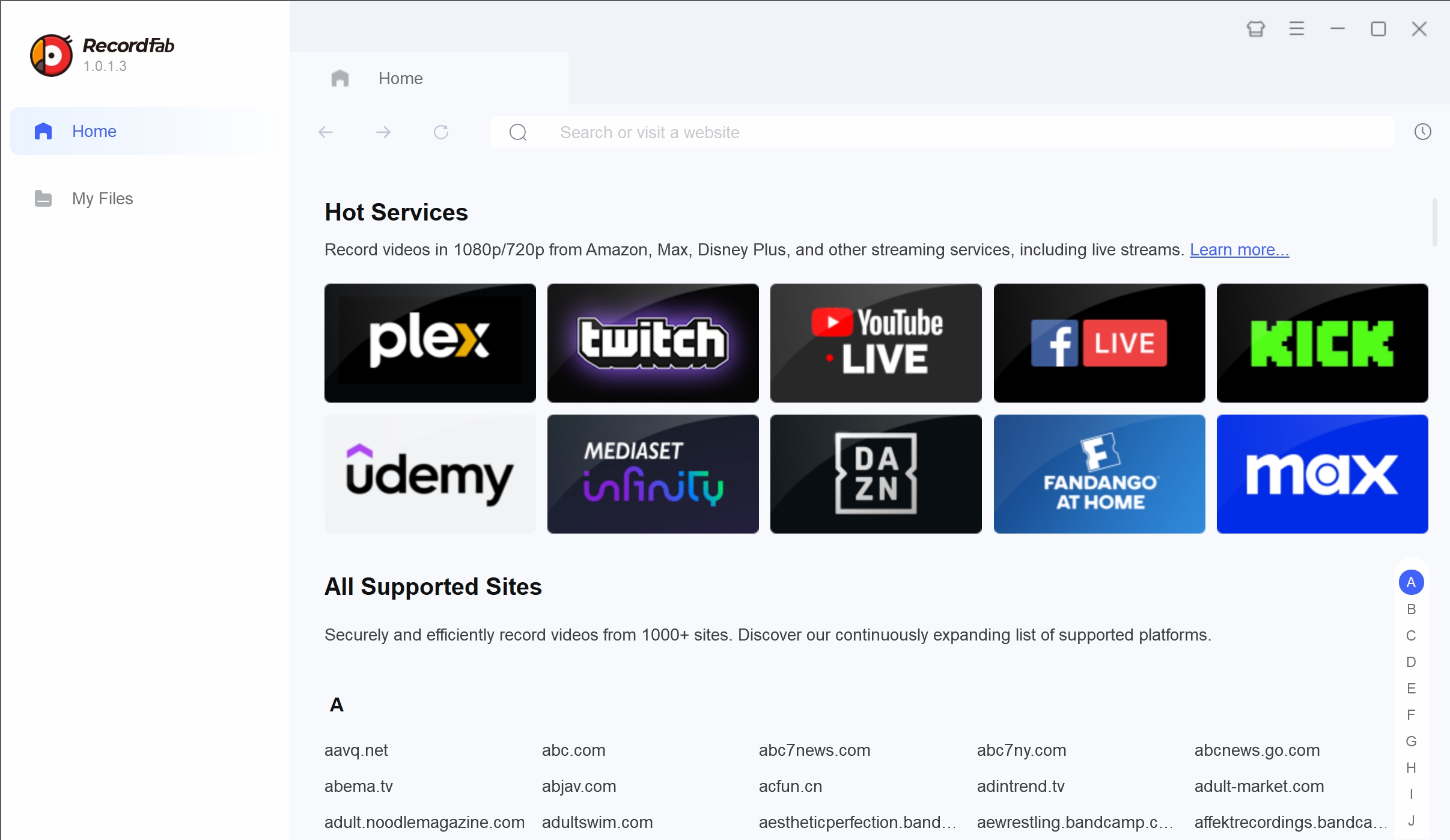
This is where things get interesting. RecordFab takes a fundamentally different approach to screen recording — instead of trying to capture your browser window from the outside, it uses a built-in browser that handles video playback and recording internally.
The result: no black screen.
How RecordFab Works
RecordFab's built-in browser plays the Fansly video stream directly inside the application. Because the recording happens within the same rendering pipeline (not as an external capture), the DRM detection that triggers black screens in regular browsers doesn't kick in.
Key specs:
- Output quality: 720p or 1080p (you choose)
- Recording speed: 1x, 1.5x, 2x, 3x, 4x, up to 5x
- Output format: MP4 or MKV
- Audio sync: Automatic audio-visual synchronization
- Platform: Windows only (no Mac version currently)
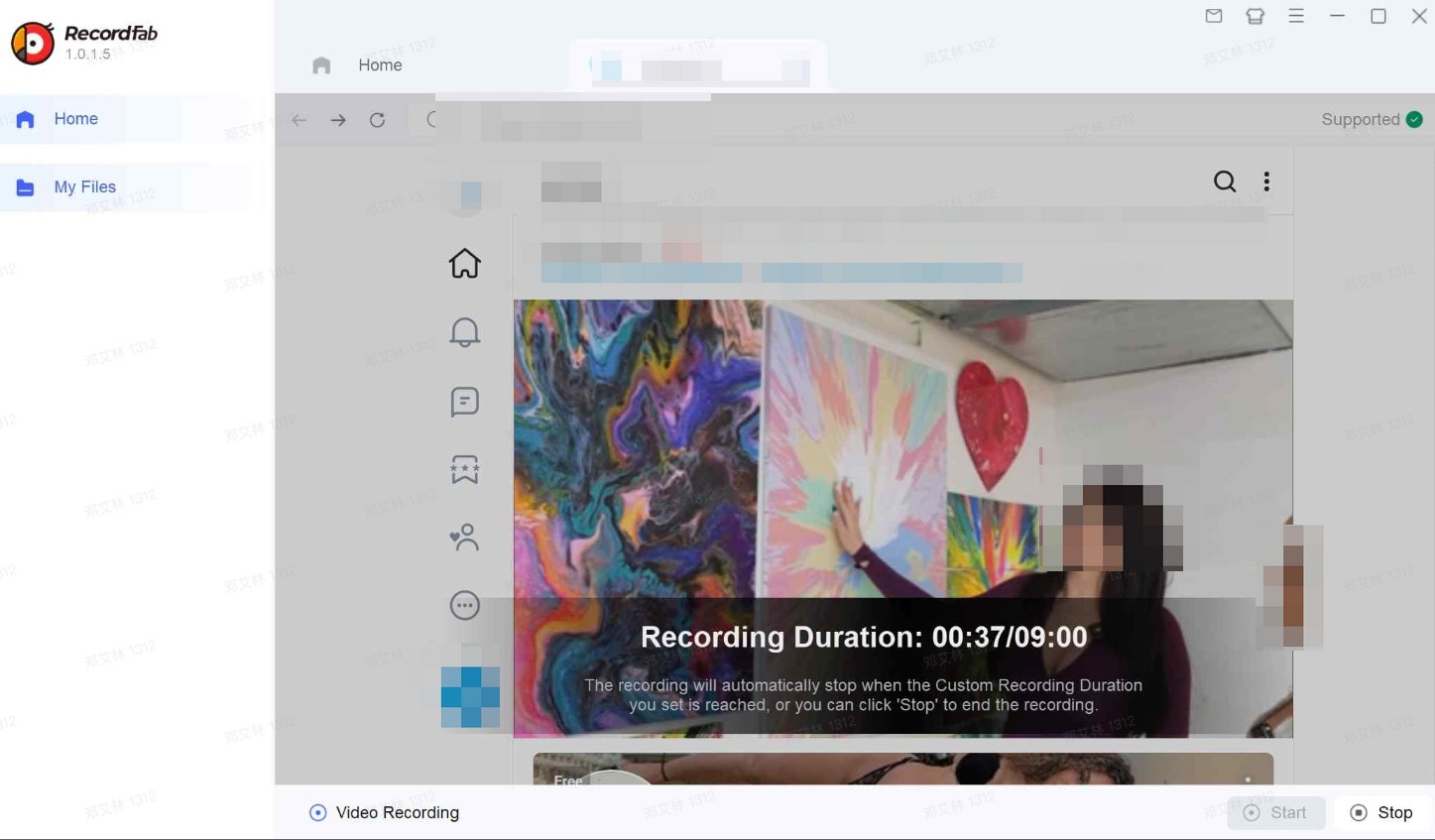
How to Record Fansly Videos with RecordFab (3 Steps)
Step 1: Open RecordFab and navigate to Fansly
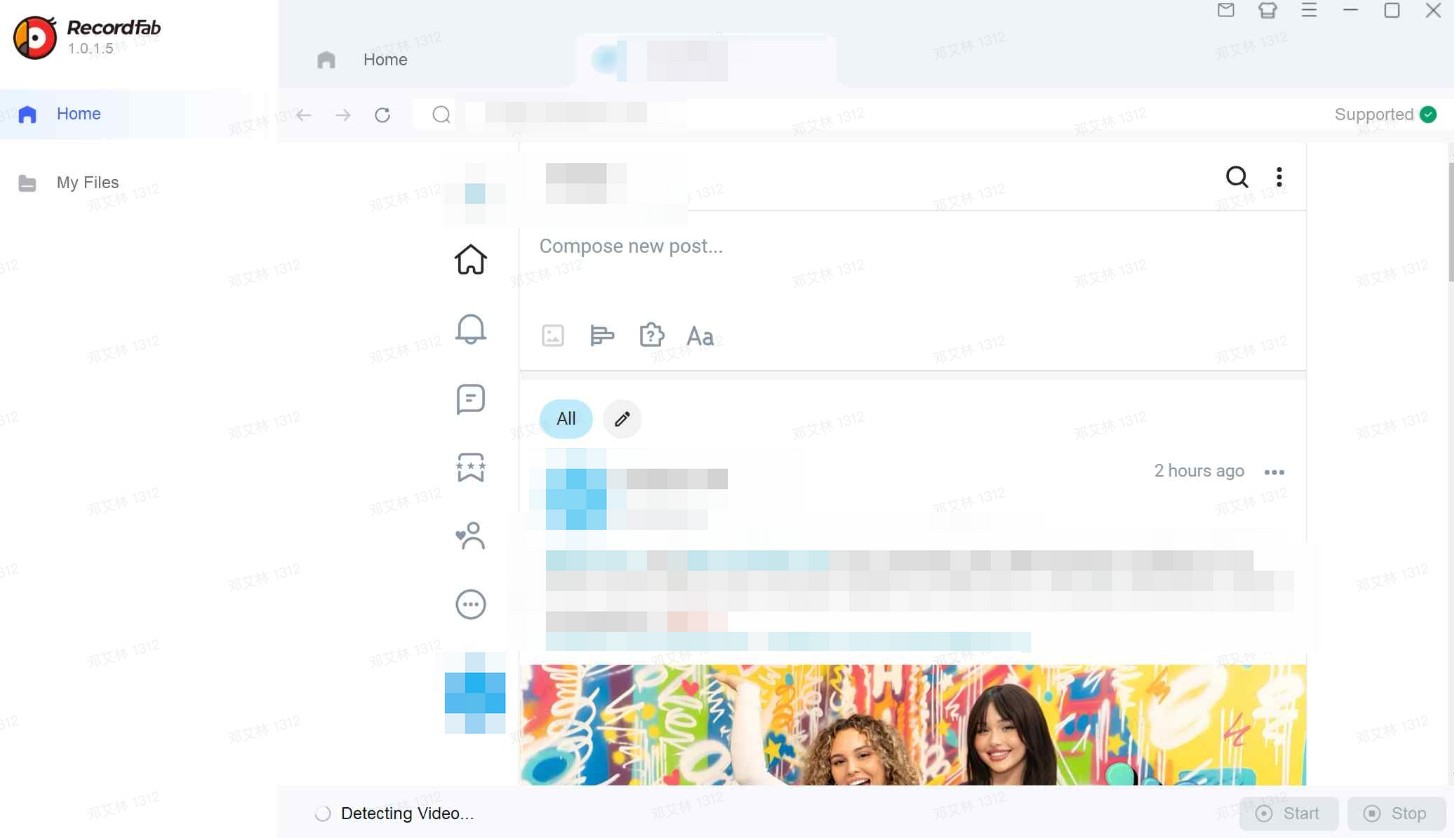
Launch RecordFab and use its built-in browser to visit Fansly. Log in to your account as you normally would. The built-in browser works just like Chrome — it's not a stripped-down version.
Step 2: Play the video and start recording
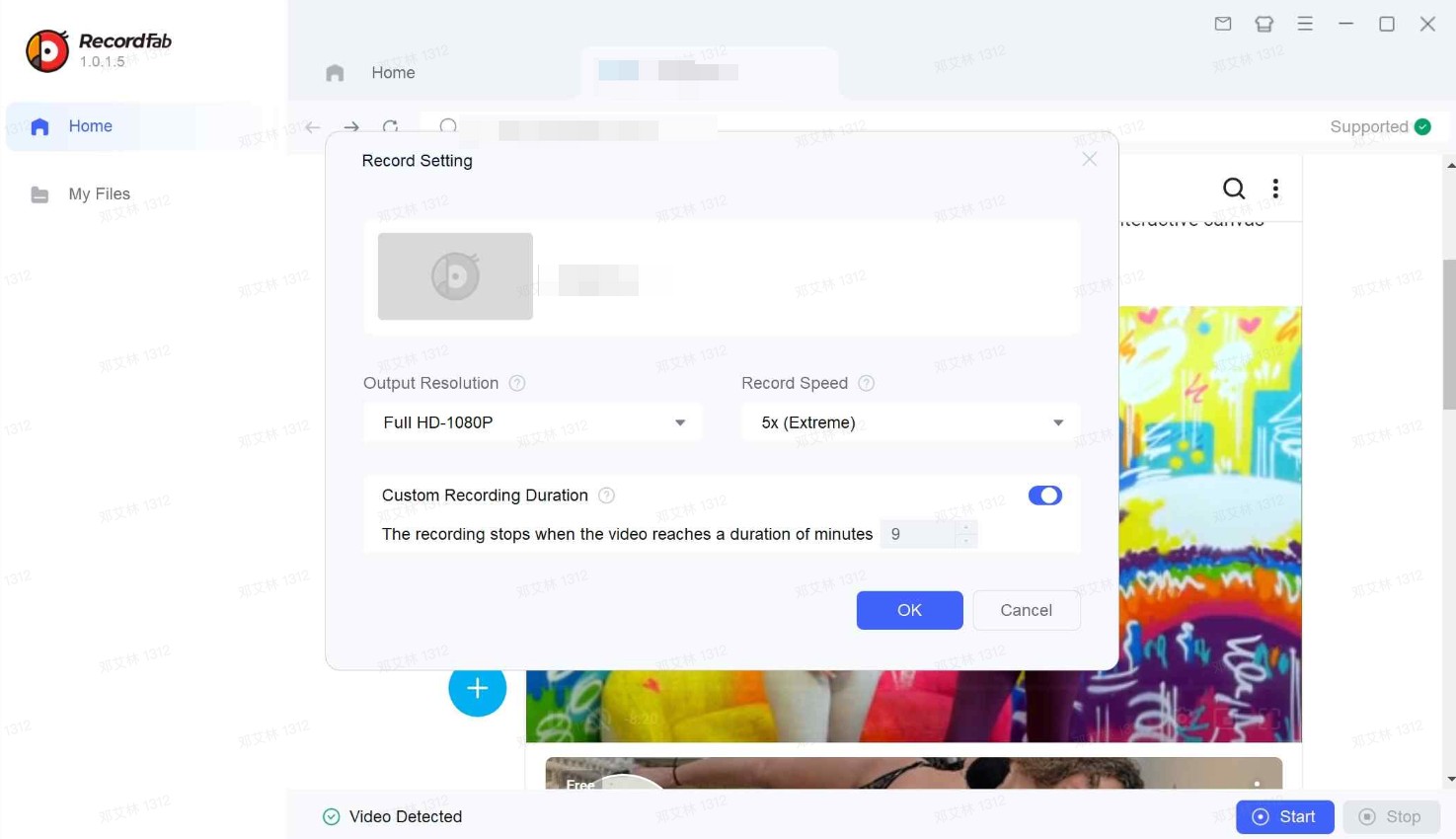
Navigate to the creator's page and play the video you want to record. RecordFab automatically detects the video stream — you don't need to manually set a recording frame or crop area. Choose your preferred quality (720p or 1080p) and recording speed.
Step 3: Wait for recording to complete
The recording processes at your selected speed. At 1x, a 10-minute video takes 10 minutes. At 5x speed, that same video takes about 2 minutes. Once done, the file saves to your designated output folder in MP4 or MKV format.
RecordFab Limitations — Being Honest
- Windows only: No Mac support. If you're on macOS, skip to Method 3.
- Real-time recording: Even at 5x speed, you're still spending time watching the recording process. A 2-hour video at 5x still takes ~24 minutes.
- Quality ceiling: You're getting a recording of the stream, not the original source file. Quality depends on stream bitrate and your recording settings.
RecordFab is a solid option if you specifically need screen recording capability. But if your goal is simply to save Fansly videos for offline viewing, there's a faster method.
Method 3 — StreamFab Fansly Downloader: The Faster Alternative
Here's what changed my workflow entirely: I stopped trying to record Fansly videos and started downloading them instead.

Directly downloads the original video file from Fansly's servers at up to 1080p — no transcoding, no re-encoding, no quality loss. What took 2 hours to record took StreamFab about 3 minutes to download.
Why Downloading Beats Recording
The fundamental difference: recording captures a copy of what's playing on screen. Downloading grabs the original file. That means:
- Original quality preserved: 1080p Full HD with AAC 2.0 stereo, no compression artifacts from re-encoding
- Much faster: Downloads run at your internet speed, not playback speed
- Batch processing: Queue up multiple videos from a creator's page and download them all at once
- Both platforms: Works on Windows and Mac
How to Download Fansly Videos with StreamFab (3 Steps)
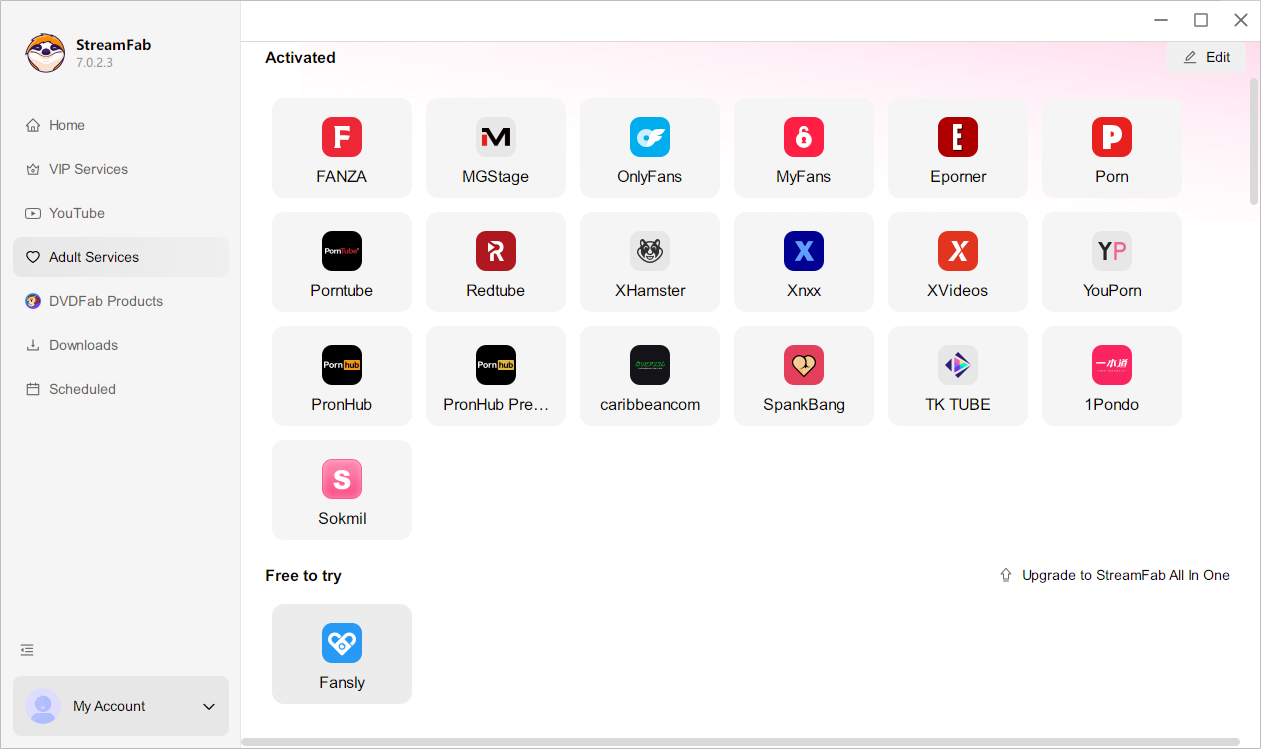
Step 1: Open StreamFab and log in to Fansly
Launch StreamFab and navigate to Fansly using the built-in browser. Your login credentials are processed locally through SSL/TLS encryption — they're never sent to any external server.
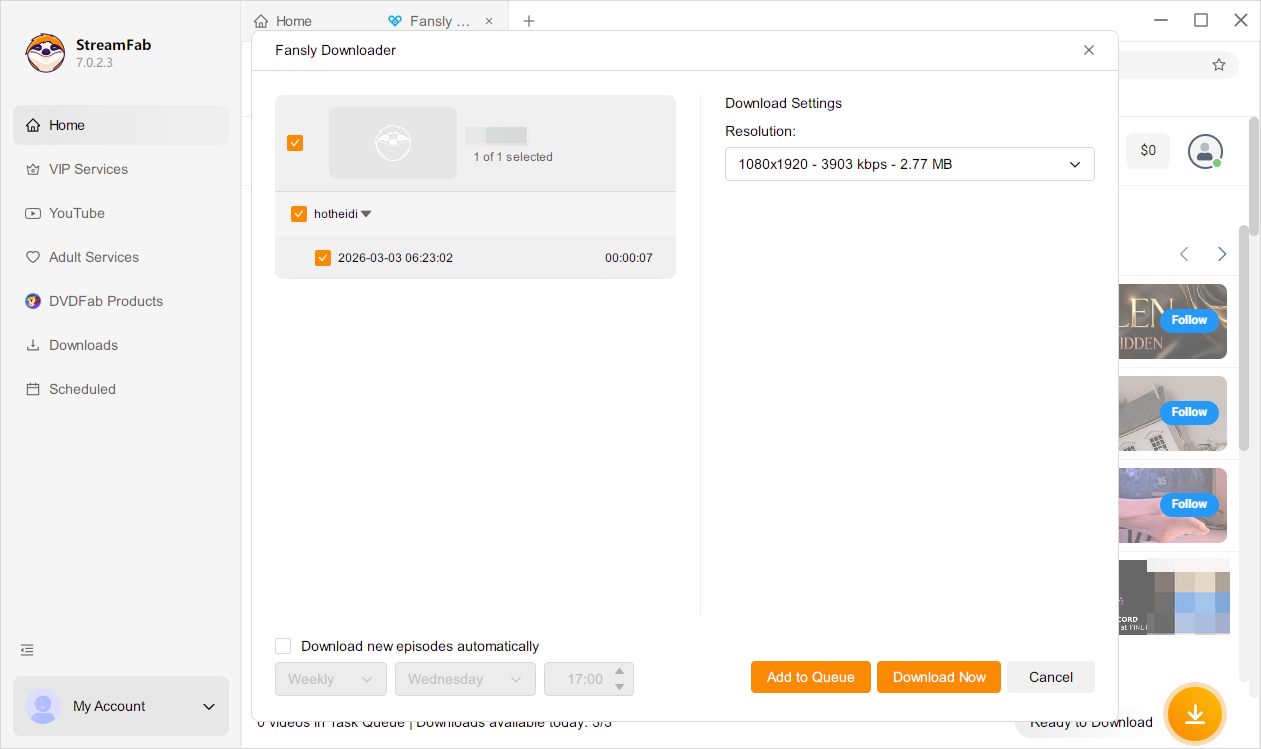
Step 2: Browse and select videos
Navigate to the creator's page. When you play a video, StreamFab detects it and offers download options. Choose your format (MP4 or MKV) and resolution (up to 1080p). You can add multiple videos to the download queue.
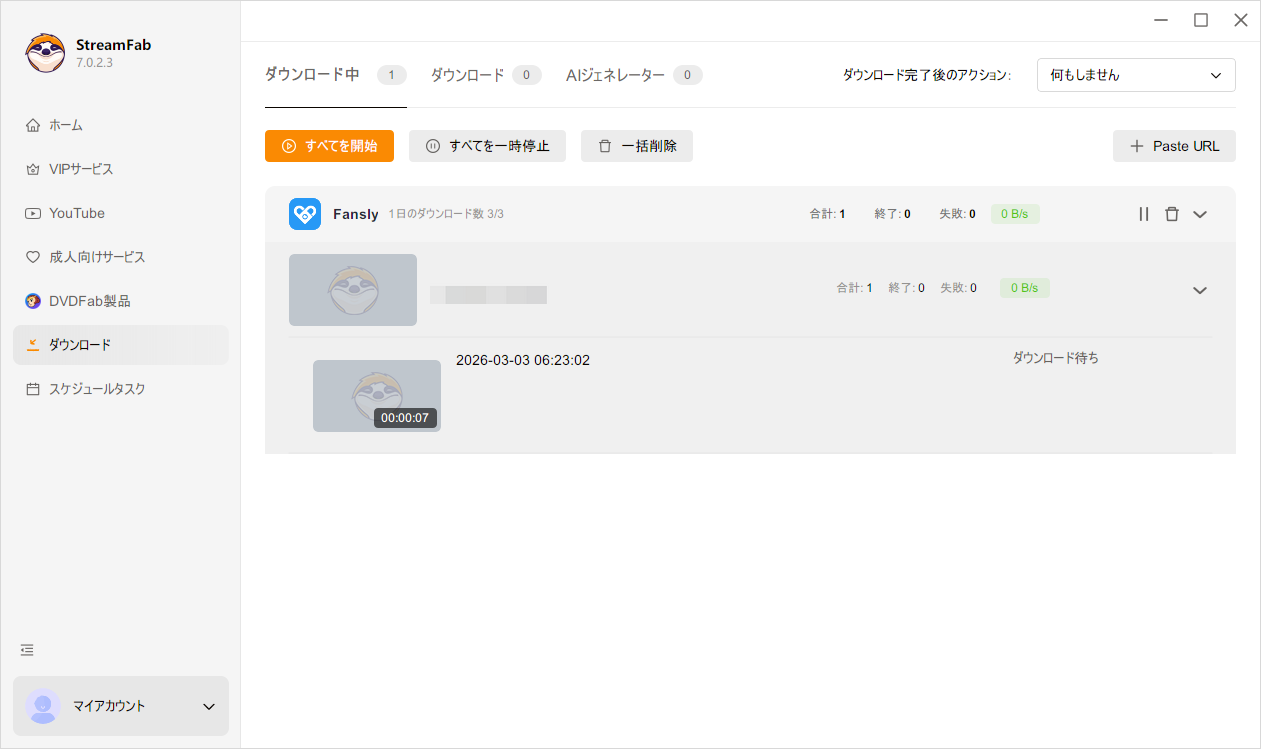
Step 3: Download
Hit the download button. StreamFab processes the queue in the background — no need to keep the video playing or stay on the page. Files save to your local drive ready for offline playback.
3 free downloads included — same 1080p quality, same speed as the full version. No feature restrictions.
For a complete walkthrough with screenshots, see our step-by-step guide to downloading Fansly videos. And if you're curious about other download tools, we've tested and compared the 5 best Fansly downloaders available right now.
Screen Recording vs. Direct Download — Which One Should You Use?
I've used both methods extensively. Here's how they compare on the metrics that actually matter:
| Factor | Standard Screen Recorder | RecordFab | StreamFab Fansly Downloader |
|---|---|---|---|
| Black screen issue | Yes — blocked by DRM | No | No (direct download) |
| Max quality | N/A | 1080p (recorded) | 1080p (original file) |
| Speed (10-min video) | N/A | 2-10 min (speed dependent) | ~1-3 min (network dependent) |
| Batch processing | No | One at a time | Yes — queue multiple videos |
| Output format | Varies | MP4 / MKV | MP4 / MKV |
| Platform support | Win / Mac | Windows only | Windows + Mac |
| Free trial | Free (but doesn't work) | Limited trial | 3 free downloads (full features) |
| Requires real-time playback | Yes | Yes (at recording speed) | No |
My recommendation: If you just need to save Fansly videos offline, StreamFab Fansly Downloader is the better tool. It's faster, preserves original quality, supports batch downloads, and works on both Windows and Mac.
RecordFab makes sense in one specific scenario: when you need to capture something that isn't a standard video file — like a livestream that can't be downloaded, or content from a platform StreamFab doesn't support. For standard Fansly video content, downloading is simply more efficient than recording.
A note on browser extensions: we've also tested Fansly downloader Chrome extensions, and the results aren't encouraging. Out of 6 tested in 2026, only 2 still functioned — and they break frequently with browser updates. Dedicated desktop software is the more reliable path.
FAQ
Does Fansly notify creators when you screen record?
No. Fansly has no screenshot or screen recording detection system. The platform does not send alerts to creators when you attempt to capture content. Instead, Fansly relies on DRM encryption to prevent the capture from working in the first place — resulting in the black screen issue described above.
Why does my Fansly screen recording show a black screen?
Fansly videos are protected by DRM (Widevine). When your browser detects screen recording software (OBS, Game Bar, etc.), it instructs the GPU to exclude the video layer from the capture output. You end up recording the audio track normally but get a completely black video. This is a deliberate content protection measure, not a software bug. Tools like RecordFab avoid this by using a built-in browser that handles playback and recording internally.
Is it legal to screen record Fansly content?
Recording content you've personally paid for, strictly for your own private offline viewing, generally falls under personal use. However, redistributing, sharing, uploading, or selling recorded Fansly content is a violation of copyright law and Fansly's Terms of Service. It can result in DMCA takedowns, account bans, and legal action. Keep your recordings private and personal.
Can you screen record Fansly on iPhone or Android?
Mobile screen recording on Fansly faces the same DRM limitations as desktop. iOS Screen Recording and Android's built-in recorder will typically produce a black screen when attempting to capture DRM-protected video content. The DRM module in mobile browsers blocks the video layer from the capture pipeline. Currently, the most reliable solutions (RecordFab and StreamFab) are desktop applications — there's no mobile equivalent that consistently works.
What video quality can you get from Fansly recordings?
With RecordFab, you can record at up to 1080p — but the output is a recording of the stream, which means slight quality loss compared to the original. With StreamFab Fansly Downloader, you get the original 1080p file with AAC 2.0 audio, with no transcoding or re-encoding involved. If quality is your priority, direct downloading preserves more detail than screen recording.
Conclusion
After testing every method in this article, here's where I landed: StreamFab Fansly Downloader is my primary tool for saving Fansly content.
The math is simple. Recording a 30-minute video with RecordFab at 5x speed still takes 6 minutes of active processing. Downloading that same video with StreamFab takes under 2 minutes, gives me the original-quality file, and I can queue up an entire creator's page while I go do something else.
That said, I keep RecordFab installed for edge cases — the occasional livestream that needs real-time capture, or a platform that StreamFab doesn't support yet. It's a capable tool for what it does.
If you're still deciding, start with the free trial. StreamFab gives you 3 full-featured downloads at no cost, so you can test it on actual Fansly content before committing. RecordFab also offers a trial for the recording approach.
Ready to save Fansly videos without the black screen?
Try StreamFab Fansly Downloader free — 3 downloads, full 1080p quality, no restrictions.

Fansly uses Widevine L3 DRM, split audio-video HLS streams, and rotating API tokens to protect paid video content. This guide breaks down the full 5-layer protection architecture, explains why browser extensions and open-source tools fail against Fansly DRM, and covers the one desktop approach that doesn't.
By Erika Leen - Sep 20, 2026
Learn how to download Fansly videos with 4 tested methods. Step-by-step StreamFab tutorial, free alternatives, iOS workaround, and troubleshooting tips.
By Erika Leen - Sep 20, 2026

I tested every major online Fansly downloader in 2026. Result: 40-60% success on free content, 0% on DRM-protected paid videos. This guide ranks all 5 tools, explains why online downloaders can't handle DRM, and covers the StreamFab desktop method that does.
By Erika Leen - Jun 23, 2026

No reliable Android app can download DRM-protected Fansly videos directly on your phone. The tested solution: use StreamFab Fansly Downloader on PC to grab 1080p originals, then transfer via USB, cloud, or Nearby Share. Full workflow takes ~5 minutes.
By Erika Leen - Jun 23, 2026