
Watch Prime Video on Chromecast: Phone, Laptop, and Casting Fixes

Summary: To watch Prime Video on Chromecast, use the Prime Video Cast icon from a supported iPhone or Android device on the same Wi-Fi network. For occasional laptop viewing, use Chrome’s Cast tab; on Google TV hardware, the native Prime Video app is usually simpler.
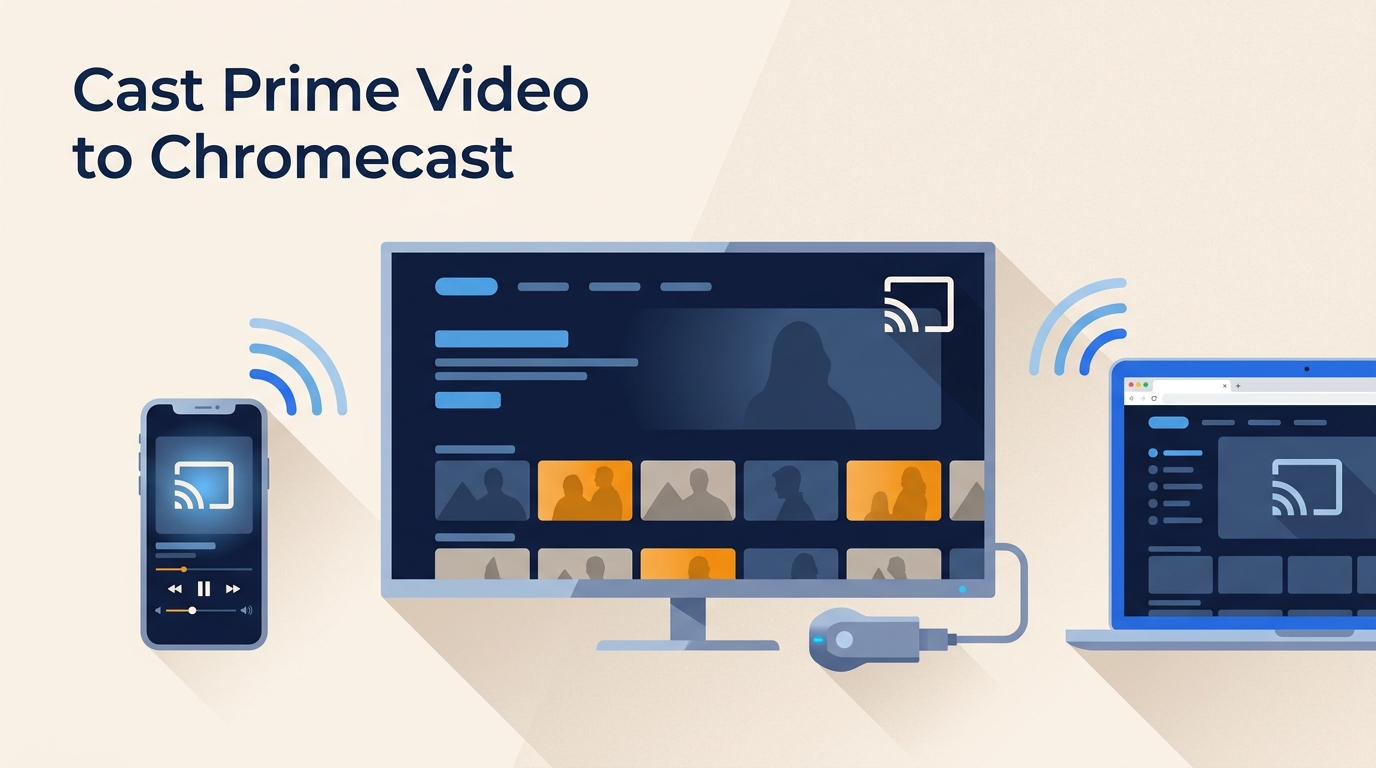
Table of Contents
If Prime Video is not casting, the visible symptom matters: a missing Cast icon, an absent receiver, an endless spinning circle, a dropped session, and a black screen call for different checks. Whole-screen mirroring is also distinct from using Prime Video’s official Cast workflow.
This guide first helps you identify your receiver, then covers mobile and computer casting before working through each common failure symptom.
Choose the Right Prime Video Setup
Start by identifying the receiving device. Google ended Chromecast production in August 2024 and now positions Google TV Streamer as its current streaming device, while existing Chromecast devices continue to receive support.
- A Chromecast dongle plugged into your TV’s HDMI port
- A TV with Chromecast built-in (many smart TVs have it)
- A Google TV / Android TV device (where you can often install Prime Video directly)
Compare the available playback routes
| Device type | Best-fit method | Phone required? | Is casting necessary? | Practical consideration |
|---|---|---|---|---|
| Legacy Chromecast | Prime Video mobile app Cast button | Yes, to start and control playback | Yes | Still suitable for app-based casting, but it does not run a native Prime Video app. |
| Cast-enabled smart TV | Prime Video Cast button or the TV app, if available | Only when casting | Not always | The simpler route depends on the TV’s app support and software condition. |
| Chromecast with Google TV | Native Prime Video app | No | No | Casting remains available, but the installed app usually involves fewer connection steps. |
| Google TV Streamer | Native Prime Video app | No | No | Designed around installed streaming apps; casting is useful when you specifically want phone control. |
Check device and app compatibility
- Update Prime Video and, where applicable, Google Home.
- Install current operating-system and receiver firmware updates.
- On Android, update Google Play Services.
- Connect the sender and receiver to the same Wi-Fi network.
- On iPhone or iPad, allow Prime Video to access the local network.
- Use a supported phone or tablet. Amazon Fire Tablet does not support Chromecast casting.
These compatibility checks should come before a router reset because they isolate sender-side and receiver-side issues without disrupting the rest of the network.
Cast Prime Video From iPhone or Android
Start with the Prime Video mobile app when using a legacy Chromecast or Cast-enabled TV. Once connected, the receiver streams the title while the phone acts as the remote. If the TV already has a dependable native Prime Video app, opening that app may require fewer steps.
Find and use the Cast icon
Open the Prime Video app, start playing a title, tap the Cast icon (a rectangle with Wi-Fi waves), and select your receiver. A tidy watchlist on Prime Video can also make the title easier to find before you connect.
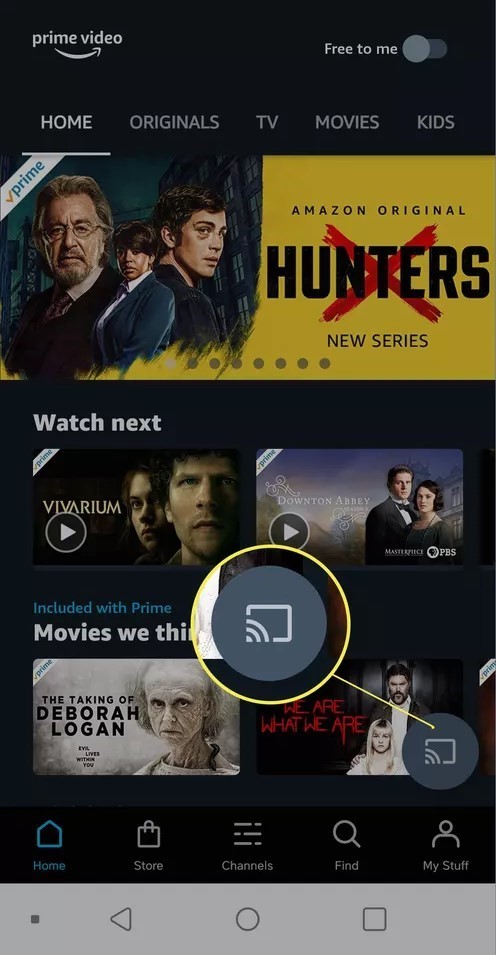
Allow a few seconds for the receiver to connect and begin loading the title.
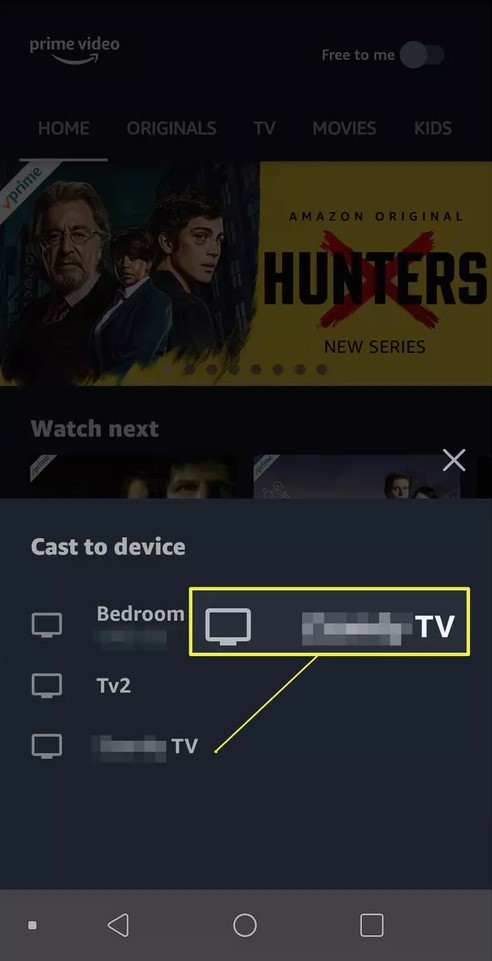
Control or disconnect playback
When connected, the Cast icon usually changes state (filled/active). That’s normal Cast behavior across apps.
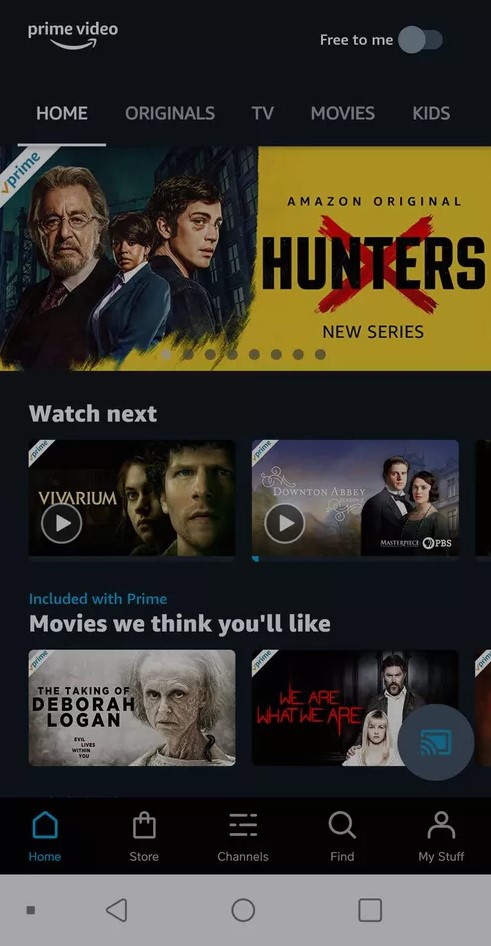
Once it’s casting, your phone controls playback: pause, seek, subtitles, and audio tracks. You don’t need to keep your phone screen “broadcasting” the video—this isn’t mirroring. When you’re done, tap the Cast icon again to disconnect (or stop playback). That helps prevent a “stuck connection” the next time you cast.
Fix iPhone or iPad Local Network access
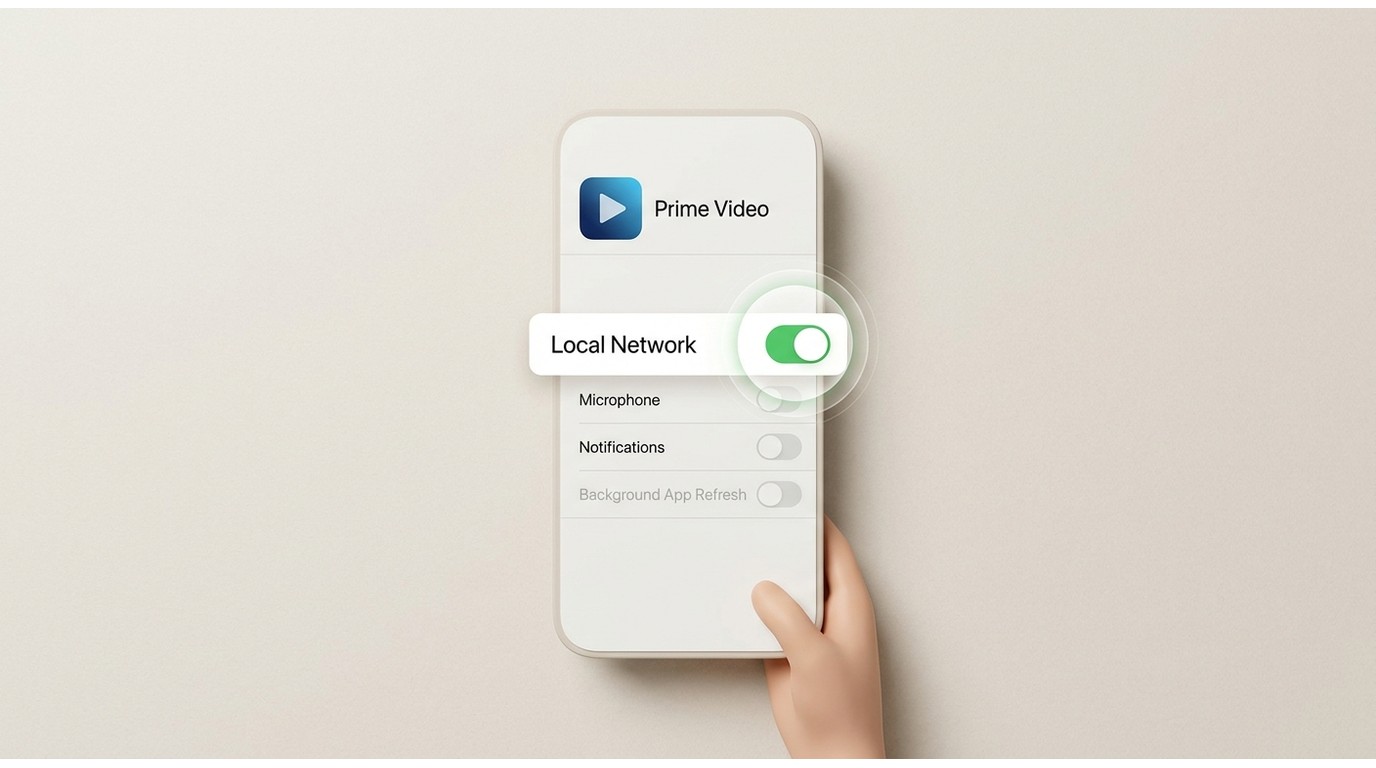
If the Cast icon or receiver list is missing, open Settings → Prime Video → Local Network and enable access. Then fully close Prime Video and reopen it.

A quick iPhone note:
If you’re on iPhone/iPad, and Prime Video suddenly acts like casting doesn’t exist, check this setting: Settings → Prime Video → Local Network → ON
My troubleshooting rule is to verify Local Network access and same-Wi-Fi status before resetting the router. Those checks directly affect whether Prime Video can discover the receiver.
Cast Prime Video From Windows or Mac
Computer casting is a secondary route for occasional Windows or Mac viewing. Prime Video plays in Chrome, and Chrome sends the selected tab to the receiver. This route can use more system resources and may be less consistent than the Prime Video mobile Cast button or a native TV app.
Plug in the laptop if possible and close resource-heavy tabs or extensions before starting. If unreliable Wi-Fi makes casting impractical, StreamFab’s guide to Amazon Prime Video offline viewing explains the official options; its separate guide covers the Prime Video download limit.
Open Prime Video in Chrome
Open Google Chrome, go to Prime Video on the web, sign in, and start playing the title you want.
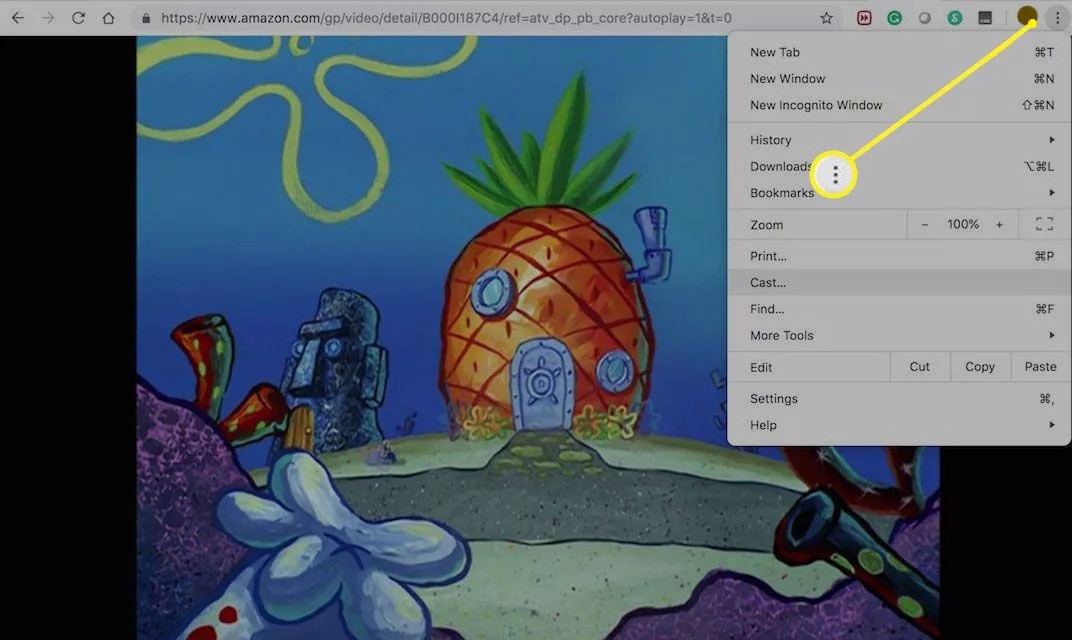
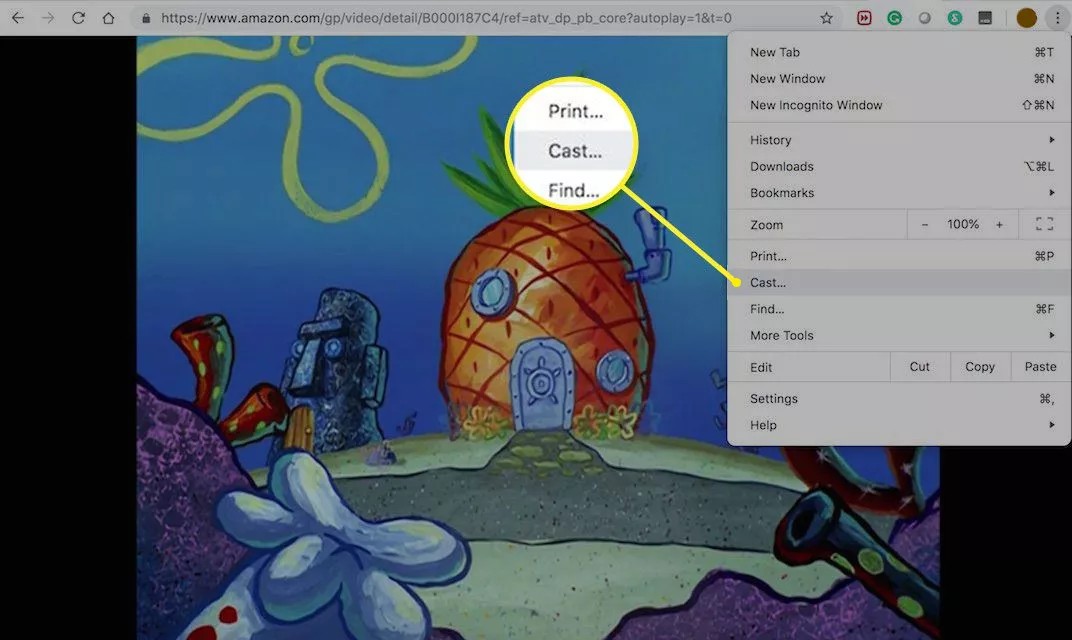
Use Chrome’s current Cast menu
Open More > Cast, save, and share > Cast…. When Chrome opens the Cast panel, select the Chromecast or Cast-enabled TV you want to use.
Choose Cast tab as the source
In the Cast panel, open Sources and choose one of these:
- Cast tab (recommended): sends only the Prime Video browser tab and is usually the cleanest option.
- Cast screen (desktop): sends your entire desktop; useful for presentations, but more likely to show the wrong window (or expose other tabs/notifications).
Tip: if you run into problems, avoid true fullscreen. Many streaming players behave better in a theater/cinema-style window when you’re trying to cast protected video.

I treat Chrome tab casting as an occasional-viewing route rather than the first troubleshooting choice. If loading, disconnects, or black-screen symptoms persist, the mobile Cast button or native Prime Video TV app is the more useful comparison test.
Watch Without Casting on Google TV
If your supported device runs Google TV or Android TV, you can install Prime Video and watch without starting a casting session from a phone or laptop.
The native app removes the phone-discovery and ongoing Cast-session steps, so it is a practical fit when receiver visibility or dropped connections are the main problem. Casting can still be useful when you prefer to browse and control playback from your phone.
The flow is simple: open the TV’s app store, install Prime Video, sign in, and watch with the remote. If your Wi-Fi is a little flaky, this path can feel noticeably less fragile.
Fix Prime Video Casting Problems
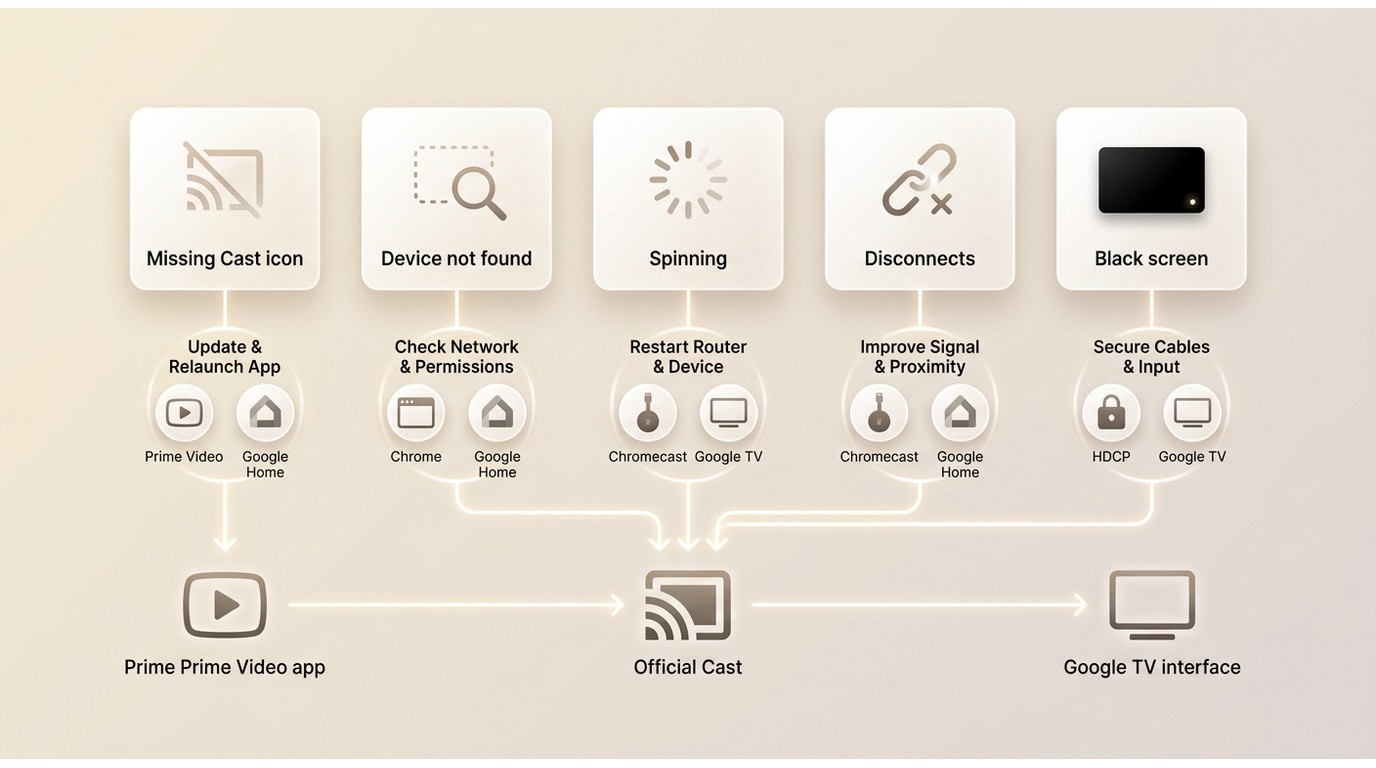
Match the fix to what you can see on the sender and TV. Begin with app permissions, software status, and receiver visibility; reset the wider network only after those checks fail.
Cast icon is missing
Confirm that Prime Video is current and that the phone is supported. On iPhone or iPad, enable Local Network access; on Android, update Google Play Services. Then verify that Wi-Fi is enabled before reinstalling the app.
Chromecast device does not appear
Make sure the sender and receiver are on the same Wi-Fi network, not separated by a guest network or device-isolation setting. Confirm that the receiver is powered on, visible in Google Home where applicable, and running current software or firmware.
Video stays on the spinning circle
Check the sender and receiver separately. Confirm that Prime Video plays on the phone, then stop the session and reopen the app before reconnecting. If the TV appears ready while the phone keeps loading, restart the receiver and test the mobile Cast button before resetting the router.
Casting connects, then stops
First update Prime Video and the receiver, then compare the mobile Cast button with Chrome tab casting. If mobile casting works but the browser session stops, continue with the mobile route. If both fail, check signal strength and network isolation before restarting the router.
TV shows a black screen or plays audio only
Do not treat whole-screen mirroring as the same process as Prime Video’s Cast button. If mirroring leaves the video layer black, switch to the official mobile Cast workflow or open the native Prime Video app on supported Google TV hardware. For a concise explanation of protected display connections, see HDCP content protection standards for Amazon Prime Video.
Frequently Asked Questions
Can I use a TV sign-in QR code instead of the Cast icon?
A QR code may help you sign in to the native Prime Video app on a TV, but it does not start a Chromecast session. To cast, connect the sender and receiver to the same Wi-Fi network and use the Cast icon in Prime Video.
Can an Amazon Fire Tablet cast Prime Video to Chromecast?
No. Amazon Fire Tablet does not support Prime Video casting to Chromecast. Use a supported iPhone or Android device, or open the native Prime Video app on a compatible TV or Google TV device.
Why can another app cast when Prime Video cannot?
Each app manages its own permissions, account session, software state, and Cast connection. If another app works, keep the receiver in place and check Prime Video’s Local Network access, app version, account playback, and mobile-versus-browser behavior in that order.
Conclusion
There is no single route that fits every receiver. Use the Prime Video Cast icon for a legacy Chromecast or Cast-enabled TV, use Chrome’s Cast tab route for occasional computer viewing, and open the native Prime Video app on supported Google TV hardware when you do not need phone-based casting.
If casting fails, identify the visible symptom first and follow the matching checks above before resetting the entire network.

Learn how to fix Amazon Prime Video offline playback errors in 2026. Discover official download rules, device limits, DRM handshake issues for a stable offline experience.
By Jacob Harrison - Sep 28, 2026
Choose among ten Prime Video movie picks, from documentaries and courtroom drama to action comedy and science fiction. Compare access labels and named rating signals, then match a film to your mood. The guide also explains membership offers, catalog changes, and personal offline-viewing options.
By Nicole Lopez - Sep 24, 2026
Running into Error Code 0.6 on Prime Video can ruin movie night, but it’s usually fixable. This guide walks through quick checks, explains the cause, and shares device-specific fixes.
By Nicole Lopez - Sep 23, 2026
Yes, you can directly download Amazon Prime video on Mac through the official macOS app (subject to a strict 30-day limit) or utilize third-party downloders to export permanent local MP4 files. Explore my 2026 technical tests to avoid blackout restrictions.
By Erika Leen - Aug 26, 2026