
Can You Download 4K Movies on Amazon Prime? What Works on PC and Mac

Summary: Discover how to watch 4K movies on Amazon Prime Video, and understand the difference between 4K streaming and offline downloads. This guide also explains why Amazon downloads are generally limited to 1080p and how to save eligible videos with customizable audio, subtitles, codecs, and output formats for personal offline viewing.
Table of Contents
4K Streaming and Offline Downloads Differ
I fell into this trap myself the first time I tried to build a Mac media library for a long flight: I assumed the UHD badge next to a Prime Video title meant I could park a 4K file on my drive. It does not. A title that streams in 4K on the right hardware is not automatically available as a 4K offline copy — the delivered quality depends on the method, the app, the title, the device, the region, and your account.
The Short Answer
No mainstream method downloads Amazon Prime titles as native 4K files for offline playback. Amazon's own Prime Video app caps offline saves below the streaming ceiling, and desktop local-file tools that work with authorized content top out at 1080p. If you need 4K, plan to stream it on a compatible setup; if you need portability, plan for 1080p.
Streaming, App Downloads, and Local Files
Three viewing paths tend to get mixed up. Streaming plays the title in real time on Amazon's servers and can reach 4K on eligible titles and hardware. Official app downloads store a title inside the Prime Video app for offline playback, tied to the device, with viewing Windows that vary by title and region. A desktop local-file workflow saves an MP4 or MKV of content you are authorized to access, portable across your own devices — but not at 4K for Amazon.
Prime membership in the United States starts at $14.99/month (as of August 2026), and eligible titles stream in 4K without an add-on fee at that tier. Individual titles may still require a rental or purchase, and Prime Video Ultra terms can differ; treat plan and price details as time-sensitive.
Quick comparison
| Path | Max quality | Where it plays | Portable file | Best for | Not ideal for |
|---|---|---|---|---|---|
| Prime Video 4K streaming | Up to 4K (title/device/plan dependent) | In the Prime Video app or browser | No | Watching UHD at home on a compatible TV or box | Offline trips or archiving |
| Prime Video official app download | Below 4K; varies by title | Inside the Prime Video app on that device | No (app-bound) | App-bound offline convenience with an active subscription | Moving files between players or devices |
| Desktop local-file workflow (e.g., StreamFab) | Up to 1080p for Amazon | Any player that reads MP4/MKV on your own devices | Yes | Authorized personal offline viewing where portability matters | Readers who require verified native 4K files |
What Prime Video Needs for 4K
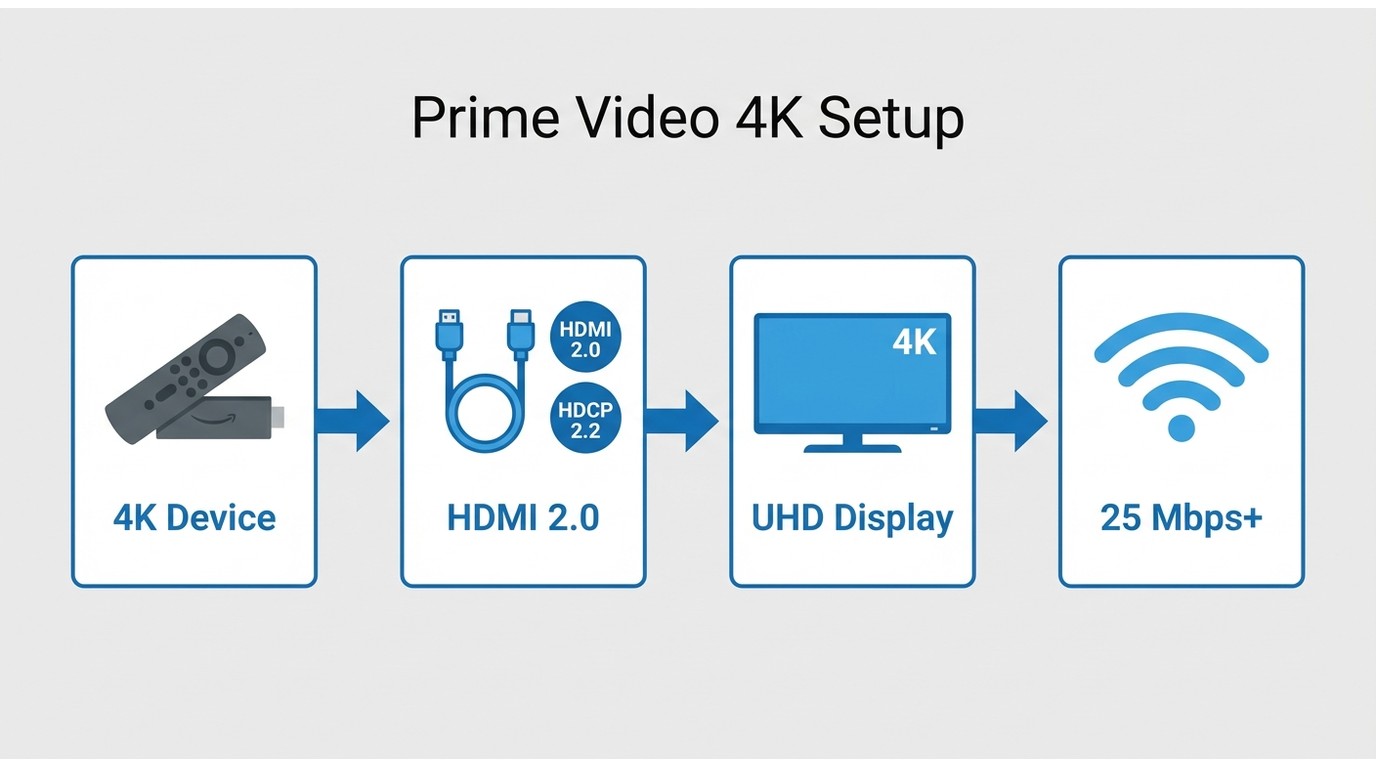
Device, Display, and Connection Checklist
Before troubleshooting anything else, work through the setup:
- A 4K-capable playback device: recent 4K smart TVs, Fire TV Stick 4K or Fire TV Cube, Apple TV 4K, Roku Ultra, PlayStation 5, or Xbox Series X/S.
- A display that actually supports UHD input (a 4K TV, or a monitor connected over HDMI 2.0 with HDCP 2.2 or newer).
- A stable connection of roughly 25 Mbps or more per 4K stream.
- The latest Prime Video app for that device.
Desktop browsers on Windows and Mac generally do not deliver 4K Prime Video playback — that is a hardware and DRM path issue, not a bandwidth one, and it is why a "Windows/Mac" promise on its own says nothing about 4K.
Plan and Title Eligibility
Eligible titles carry a UHD label, and access can depend on your plan tier and region. Some newer or premium films remain rent-or-buy even for Prime members. If a title shows UHD in the catalog but plays at HD, the bottleneck is usually the device, display, or connection rather than the title itself.
Find and Confirm 4K Prime Titles
Use the UHD Collection and Badge
The most reliable way to browse currently available UHD movies is Amazon's own UHD collection and the search filter on Prime Video. On each candidate title, open the detail page and confirm the UHD badge is present before you commit — a static "best 4K movies" list published a year ago is a poor substitute for the live catalog. For a broader browse across genres, the sibling roundup on the best movies on Amazon Prime is a useful starting point.
Check Included, Rental, and Purchase Access
On the detail page, look for the "Included with Prime" tag versus a rental or purchase price. A UHD badge tells you the title exists in 4K; the access line tells you whether your subscription covers it or you will pay separately. In my experience, this is where most "why is this suddenly costing extra?" confusion starts.
A Few UHD Titles Worth Testing Your Setup On
Rather than a full static ranking that ages badly, here are a handful of titles that have shown up in Prime Video's UHD collection recently and are useful references when you are checking whether your setup actually delivers 4K:
- Dune: Part Two — desert vistas and sandworm sequences are a hard test for HDR and detail.
- Furiosa: A Mad Max Saga — vehicular chases stress motion clarity and grain retention.
- The Batman — shadowy, rain-slick Gotham exposes weak HDR handling quickly.
- Nosferatu — near-monochrome cinematography reveals banding on lesser panels.
- Challengers — kinetic sports footage tests judder and motion interpolation.
Availability shifts month to month, so treat this as an example set, not a promise. For a wider genre browse, the sibling roundup on the best movies on Amazon Prime linked above stays fresher than any list I could freeze into this article.
Save an Offline Copy on Desktop
When a Desktop Local-File Workflow Fits
Before considering a third-party tool at all, rule it out where it does not fit. This path is not the right answer if you need a verified native 4K file (no mainstream option gives you that for Amazon), if you only ever watch on a phone or tablet inside the Prime Video app, or if you are looking for a way to keep watching after your subscription lapses — that is out of scope here.
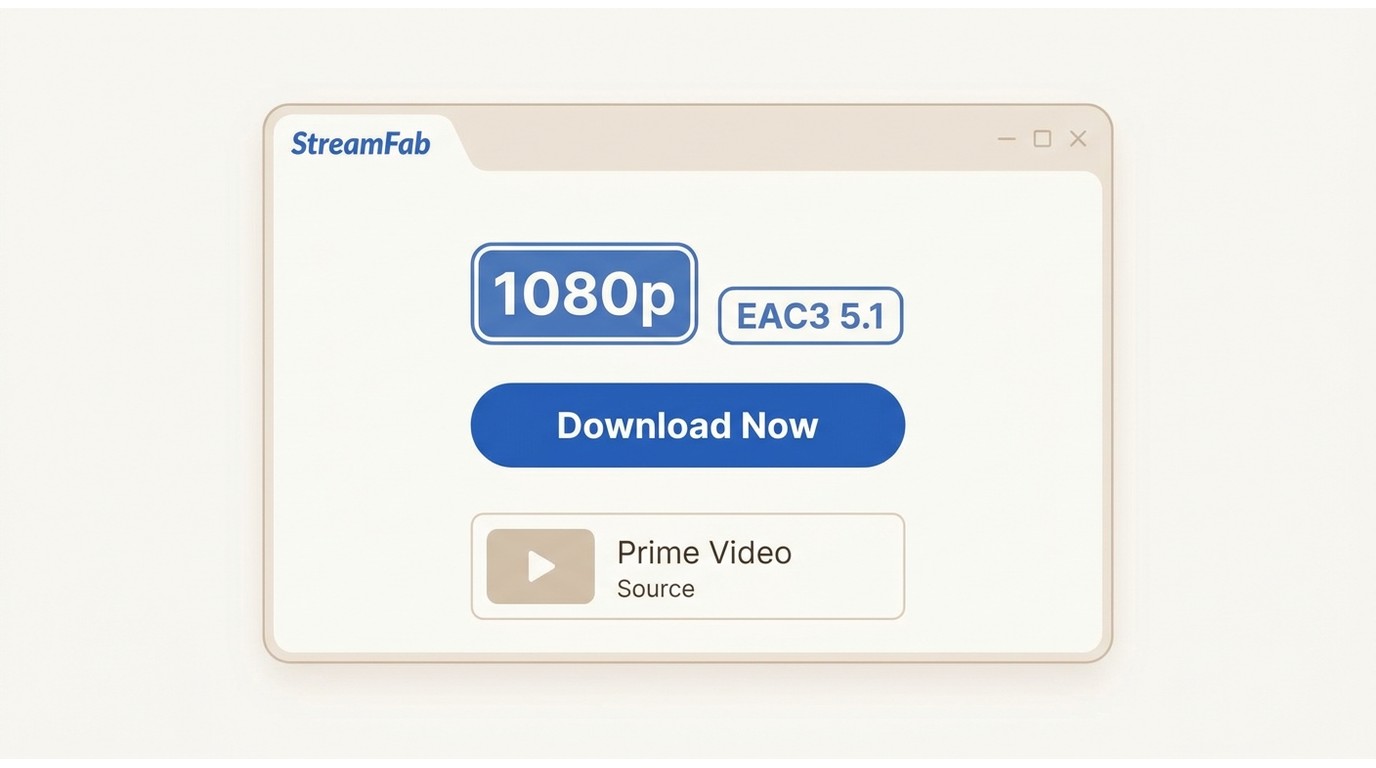
Where it does help: authorized personal offline viewing on your own Windows or Mac, when app-bound downloads are too rigid — you want the file to sit in your regular media folder, play back in VLC or Infuse alongside your other library, and travel with you across your own devices. Up to 1080p is the ceiling for Amazon.
StreamFab Amazon Downloader is a third-party desktop tool relative to Amazon's official offline feature: it works with content you are authorized to access on your account and is subject to Amazon's terms and applicable law. It uses screen-recording technology rather than decryption. On the Amazon platform it delivers up to 1080p — for readers who require native 4K files, this is not the right tool.

With this tool, you may be able to save selected Amazon Prime Video titles that you can already stream under your account for personal offline viewing. Available resolution, audio tracks, and subtitle options depend on the title, region, and Amazon’s delivery policies
Choose Quality, Audio, and Subtitles
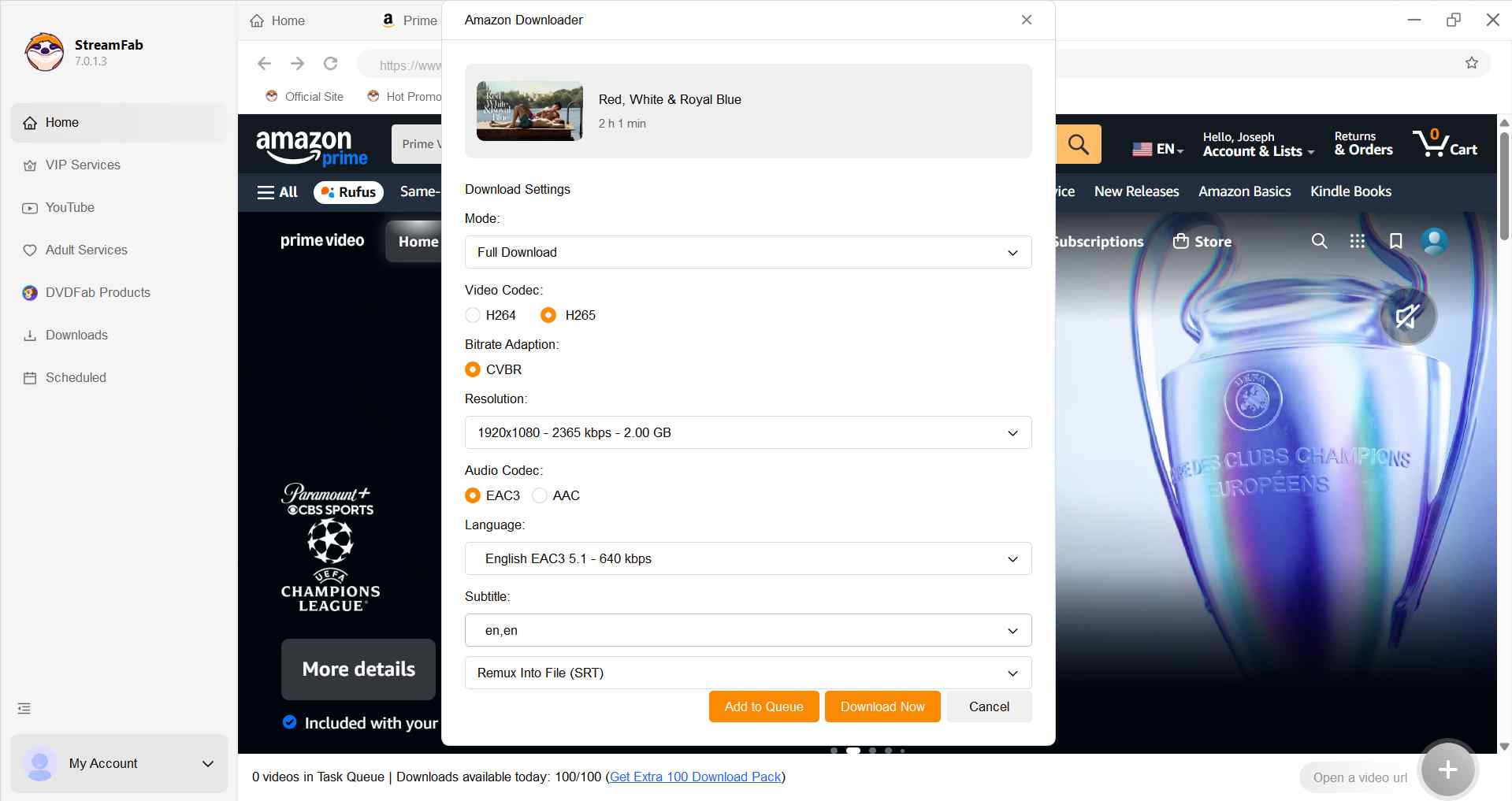
Once a title analyses successfully, three settings tend to matter more than the rest:
- Resolution: pick 1080p for Amazon; higher options in the dropdown often reflect other supported platforms, not Amazon output.
- Audio track: select the exact dubbed language you were streaming, along with the multichannel option (EAC3 5.1 or AAC 2.0, depending on what Amazon provides) — this is where most "wrong language" complaints originate.
- Subtitles: choose SRT sidecar files if you plan to switch languages later, or hard-burned subtitles if the target player struggles with external tracks. If you want a deeper walkthrough of that specific step, the sibling piece on how to download subtitles on Amazon Prime Video covers it in detail.
Output is MP4 or MKV — both play in mainstream desktop and mobile players, and MP4 in particular travels well if you later want to convert Amazon Prime Video to MP4 for a specific device.
Complete the Desktop Workflow
Install the software and review the in-app help documentation for supported services and usage requirements.
Free Download Windows 11/10/8.1/8/7
Free Download macOS 12.0 or newer
Access Amazon Prime Video within the software’s supported environment and sign in with an account that is authorized to watch the title. Availability depends on your region, subscription, and Amazon’s policies.
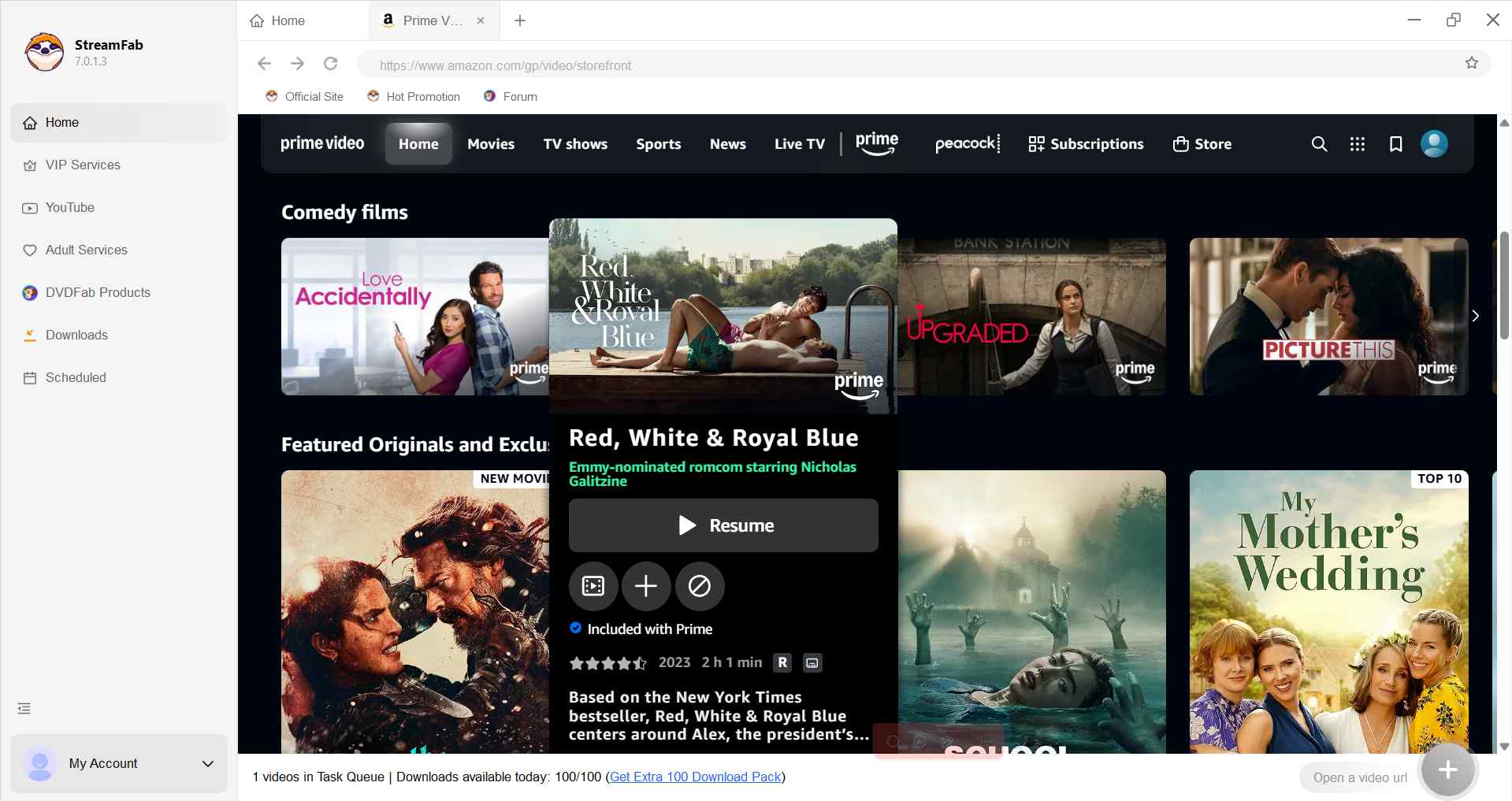
If offline saving is available for the selected title, choose from the options that are presented for your session (such as available audio/subtitle selections).
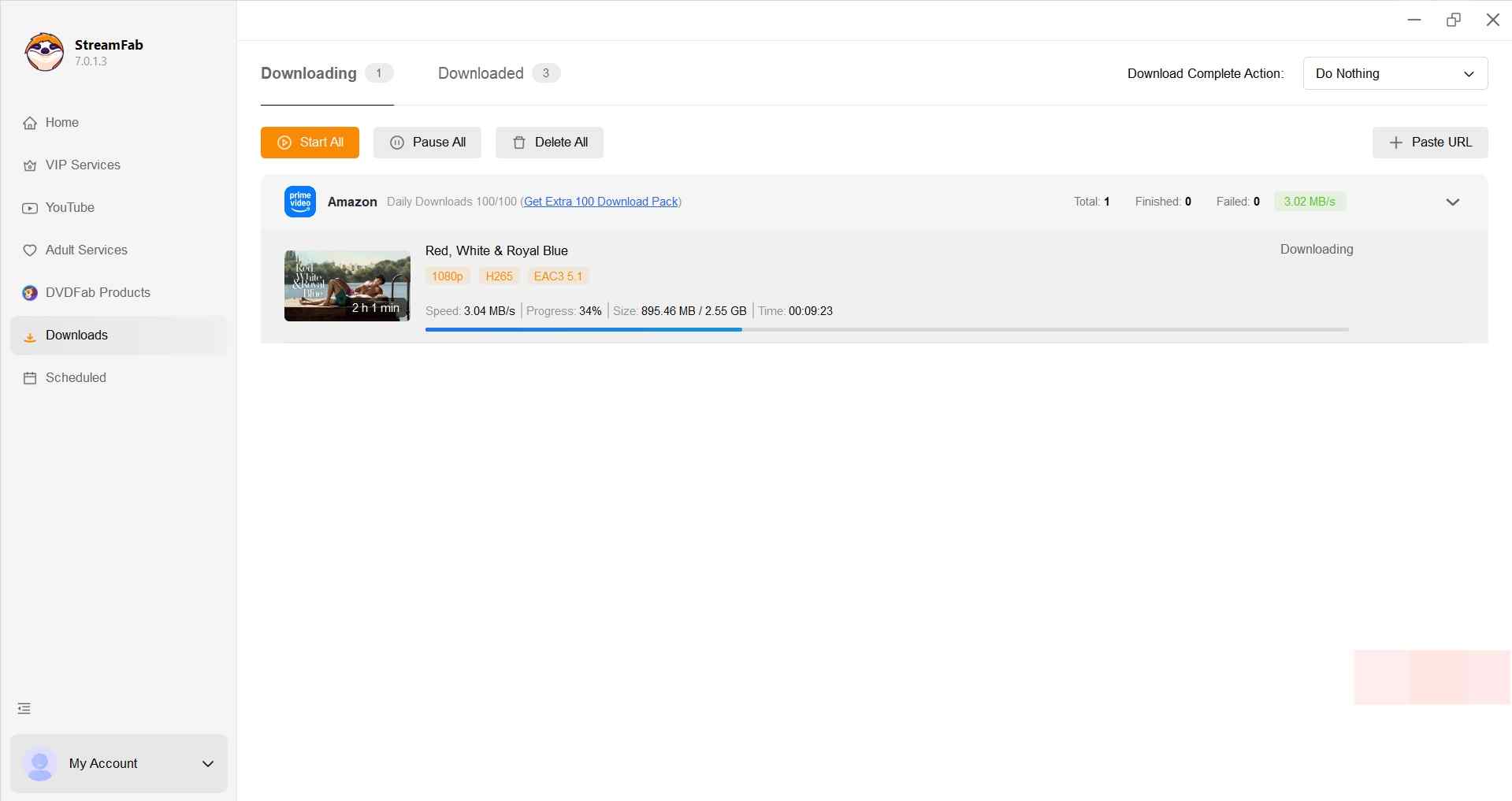
Follow the on-screen guidance to prepare a local copy for personal offline viewing during your valid access period.
Fix Common Download and Quality Problems
Playback Works but Analysis Fails
Prime Video plays fine in the browser, yet a downloader stalls on "analysing" or throws an error. This typically follows a Prime Video web update. Best next step: update the tool to its current build, sign out and back into the built-in Amazon login pane, and clear its cached login. If it still fails, drop from a season URL to a single-episode URL and retry.
VPN, Region, and Account Mismatches
Prime Video's catalog and access rules shift by country. A VPN pointing at one region while your account is billed in another will surface "unavailable in your location" or blank episode lists. Best next step: match the VPN region to your account's billing region, or turn the VPN off entirely for the session. Series pages sometimes list episodes that are not actually included in your plan — always confirm the access line on the individual episode.
File Size Does Not Equal Quality
A 2 GB file is not automatically "better" than a 900 MB file. Delivered quality depends on the source resolution, the codec (H.265 packs the same picture into a much smaller file than H.264), the bitrate, and how many audio tracks and subtitle streams are muxed in. If two saves of the same title look identical but one is smaller, the smaller one usually just used a more efficient codec — that is a win, not a downgrade.
FAQs
Conclusion
Match the path to what you actually need. Stream in 4K when your device, display, and title all support it — that is the only route to true UHD picture on Prime Video. Use official app downloads when you want offline convenience inside the Prime Video app and are fine staying on that device. Consider a desktop local-file workflow when portability across your own devices matters more than resolution and up to 1080p is acceptable. What this article is not for: readers who need verified native 4K offline files from Amazon. That option does not exist today, and the honest tradeoff is picture ceiling versus portability.


Yes, you can directly download Amazon Prime video on Mac through the official macOS app (subject to a strict 30-day limit) or utilize third-party downloders to export permanent local MP4 files. Explore my 2026 technical tests to avoid blackout restrictions.
By Erika Leen - Aug 26, 2026
Amazon Prime Video Channels like Starz, AMC+, and Acorn TV offer extra shows beyond standard Prime. But their downloads face time and device limits. This guide explains the key difference between Prime vs Channels and shows how to safely download Channel videos.
By Erika Leen - Aug 25, 2026
I revisits the most iconic PBS Kids shows of the 2000s, sharing heartfelt recommendations and formative memories of each series,
By Erika Leen - Aug 21, 2026
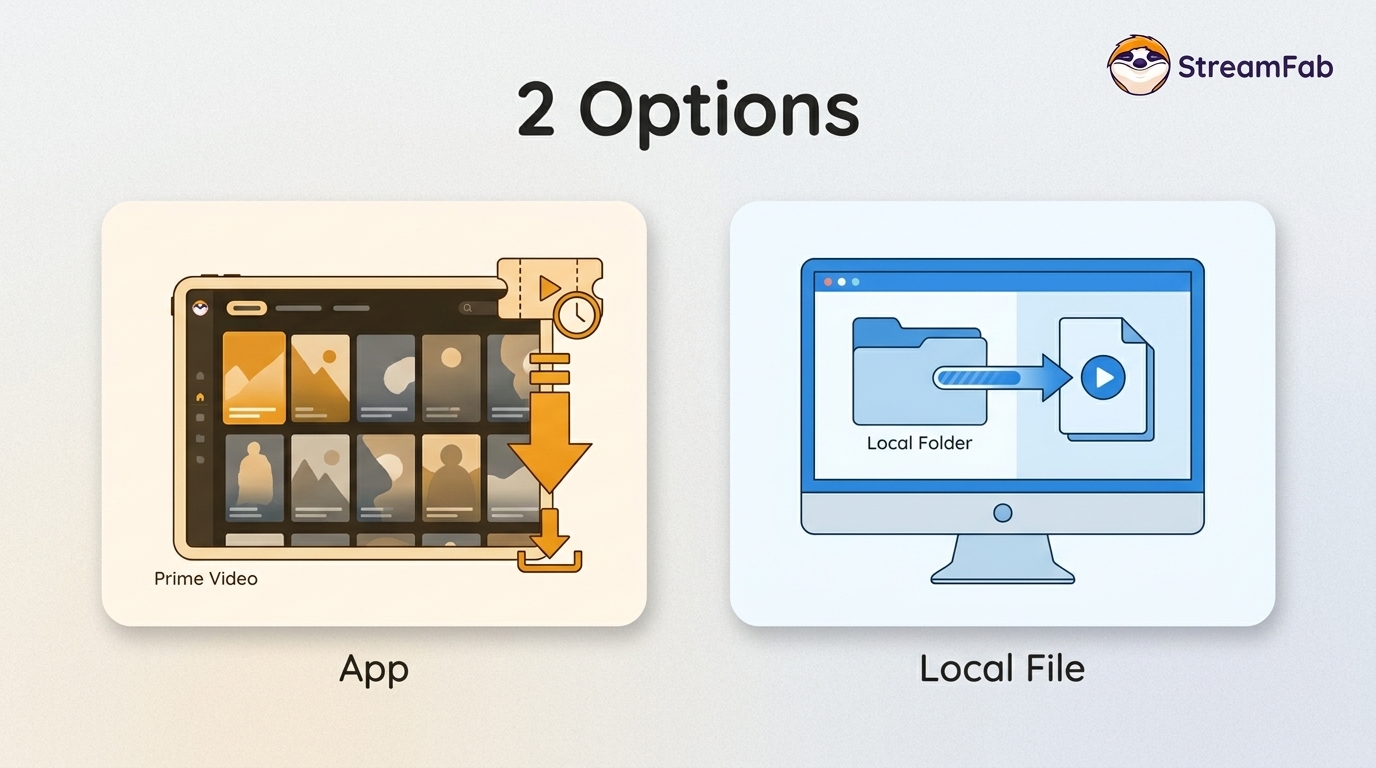
You can download eligible rented Amazon movies and purchased titles through the Prime Video app, but rentals have limited viewing Windows and app-managed storage. This guide explains the official route first, then a desktop local-file workflow for authorized viewing when format, audio, or playback flexibility matters.
By Nicole Lopez - Aug 11, 2026