
FlixiCam Not Working in 2026? Error Codes, Fixes, and When to Switch

Summary: When FlixiCam suddenly cannot save a Netflix title, stalls near completion, or produces an unusable file, the fastest fix is to match the symptom to the setting that controls it. This guide addresses FlixiCam not working, including how to download Netflix to MP4 when the app, login, storage, or codec is the real obstacle.
Table of Contents
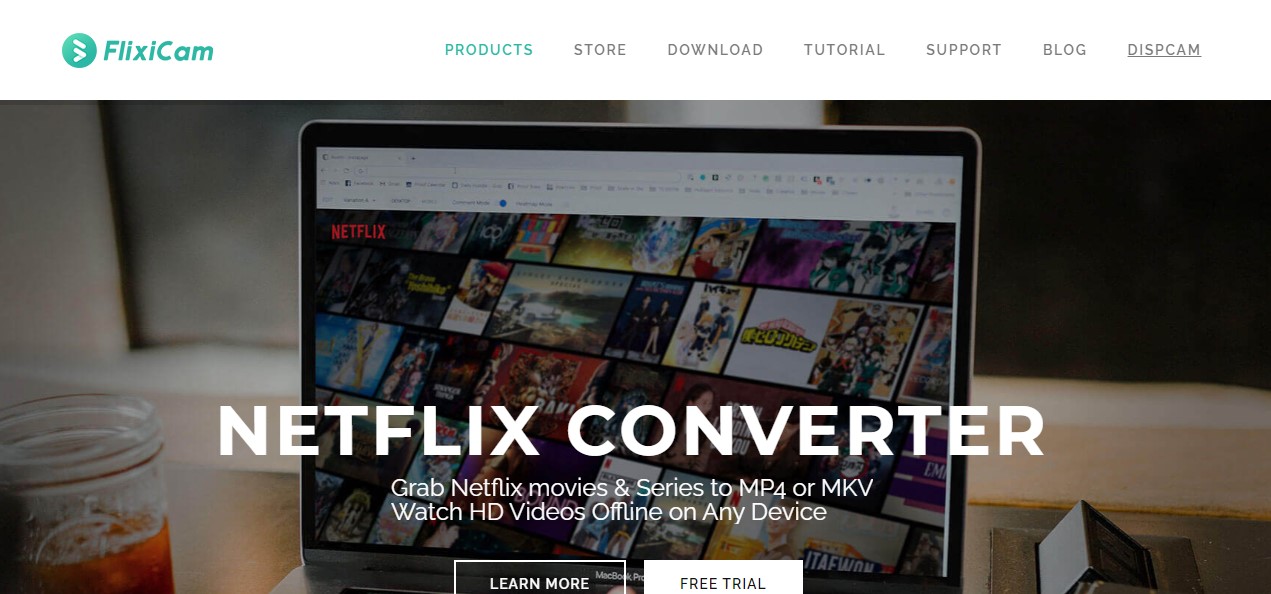
FlixiCam is a Netflix desktop downloader for Windows and Mac. Its role and broader strengths are covered in our full FlixiCam review; here, the priority is diagnosing a failed job without wasting time on unrelated settings.
Is It FlixiCam or Netflix? Check This First
A missing Netflix download button and a failed FlixiCam job are different problems, so identify which app is failing before reinstalling anything.

This distinction matters because Netflix downloads not working inside its Windows app cannot be repaired through FlixiCam settings. In editorial troubleshooting, this is the first check I would make because it prevents an unnecessary reinstall and points the reader toward the right workflow.
FlixiCam Error Codes and Symptoms at a Glance
FlixiCam error codes are most useful as symptom labels. Start with the action tied to the failed stage, then retry one title before changing another setting.
| Symptom or code | Likely area | First action | What confirms the fix |
|---|---|---|---|
| FlixiCam failed 3213 | Codec or hardware acceleration | Select H.264, turn off hardware acceleration, and retry one title. | The job begins processing and creates a playable test file. |
| 3091 | App session or build | Update FlixiCam, restart it, and sign in again. | The same title advances beyond the point where it failed. |
| 1600 | Playback or network session | Confirm the title plays in a normal browser, then retry without a VPN. | Browser playback and the FlixiCam job both start normally. |
| 4001-4106 | Login or service response | Clear built-in browser cookies and authenticate again. | The title page loads under the correct account and region. |
| 6139 | Temporary app data | Clear the app cache, restart, and retry a single title. | The error does not return on the controlled retry. |
| FlixiCam error 634 or Netflix download stuck at 99% | Final file assembly | Free storage, choose a writable output folder, clear cache, and update the app. | A complete MP4 or MKV appears and plays from beginning to end. |
| Output-path failure | Folder access | Choose a local folder with write permission and a simple file path. | FlixiCam creates a new test file in that folder. |
The pattern is more practical than the code number alone: version, output path, storage, codec, and login account for most first checks.
Error 634 and Downloads Stuck at 99%
A download that stalls near 99% or returns Error 634 usually means the final muxing step cannot finish, most often because the drive is low on free space, the output path is invalid or write-protected, or the app cache is corrupted.
Clear the cache, free up disk space, set a writable output folder, and update to the current FlixiCam build before assuming the title itself is blocked.
Failed 3213, 3091, and Output Errors
For Failed 3213, test H.264 with hardware acceleration off. For 3091, refresh the app build and login session. For output errors, use a local folder you can write to and confirm that security software is not blocking FlixiCam.
Confirm Your FlixiCam Version and System First
Check the installed build and operating system before treating a failure as evidence that FlixiCam has stopped being maintained.
FlixiCam is still actively maintained: the StreamOne build for Windows reached version 2.0.2 in July 2026 and the classic FlixiCam Windows app shipped an update in June 2026, so most failures are version-, title-, or configuration-specific rather than proof the tool is dead.
- Open FlixiCam's About or settings panel and note the full version number.
- Confirm that the installed edition supports your current Windows or macOS release.
- Compare the version with FlixiCam's release history, then install the current build if yours is older.
- Restart the computer and retry one known-playable Netflix title.
Date-stamped, version-specific evidence is more useful than a timeless claim that software is obsolete. If the controlled retry works, stop there rather than changing more settings.
Fix FlixiCam Step by Step With Verification
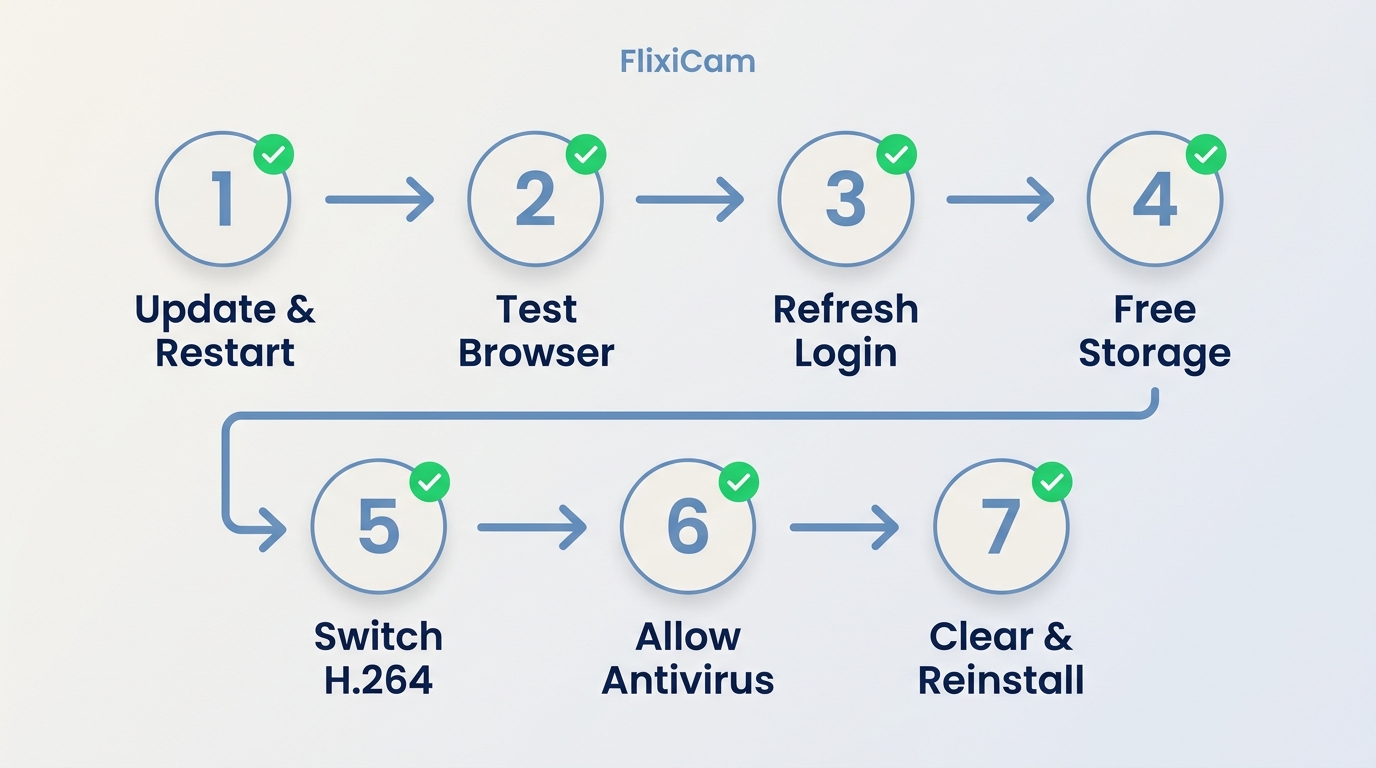
Use this sequence in order and stop as soon as a single-title test completes. Changing several variables at once makes the original cause harder to identify.
- Update, restart, and retry one title. Install the current build, close FlixiCam fully, restart the computer, and retry one short title. The issue is fixed if that title starts and finishes normally.
- Test playback in a browser. Open the same title in a standard browser under the same account. If it will not play there, resolve the Netflix account, title, or network issue first. If it plays, continue.
- Refresh the login session. Sign out inside FlixiCam, clear its built-in browser cookies, and sign in again. A loaded title page under the correct profile confirms authentication is restored.
- Free storage and change the output path. Select a writable local folder and leave enough room for temporary processing. A newly created test file confirms folder access.
- Use H.264 and disable hardware acceleration. Retry the same title. Progress beyond the former failure point shows the codec or acceleration setting was involved.
- Allow FlixiCam through security software. Add the installed app to the antivirus or firewall allowlist, then retry. A normal connection and advancing job confirm that filtering caused the interruption.
- Clear cache and reinstall as a last local step. Back up needed settings, clear temporary app data, uninstall, and install a fresh current build. A clean single-title job confirms corrupted local data was the cause.
- Contact support. If the same code returns after the controlled steps, collect the diagnostics listed below instead of repeating the cycle.
Update, Restart, and Retry One Title
A one-title retry creates a clean baseline. If it completes after the update and restart, do not continue through the remaining changes.
Test Playback in a Browser
Browser playback separates a Netflix-side access issue from a FlixiCam-specific failure. Use the same account, profile, title, and network for a meaningful comparison.
Free Storage and Set a Valid Output Path
Choose a local folder with write access and avoid an unavailable external drive or protected system directory. Successful creation of a test file is the verification step.
Clear Cache and Reinstall as a Last Resort
Reinstallation is useful after cache corruption, but it should follow the faster checks. Repeating it before checking login, storage, and codecs rarely reveals which condition failed.
Output Format, Codec, and Quality Settings
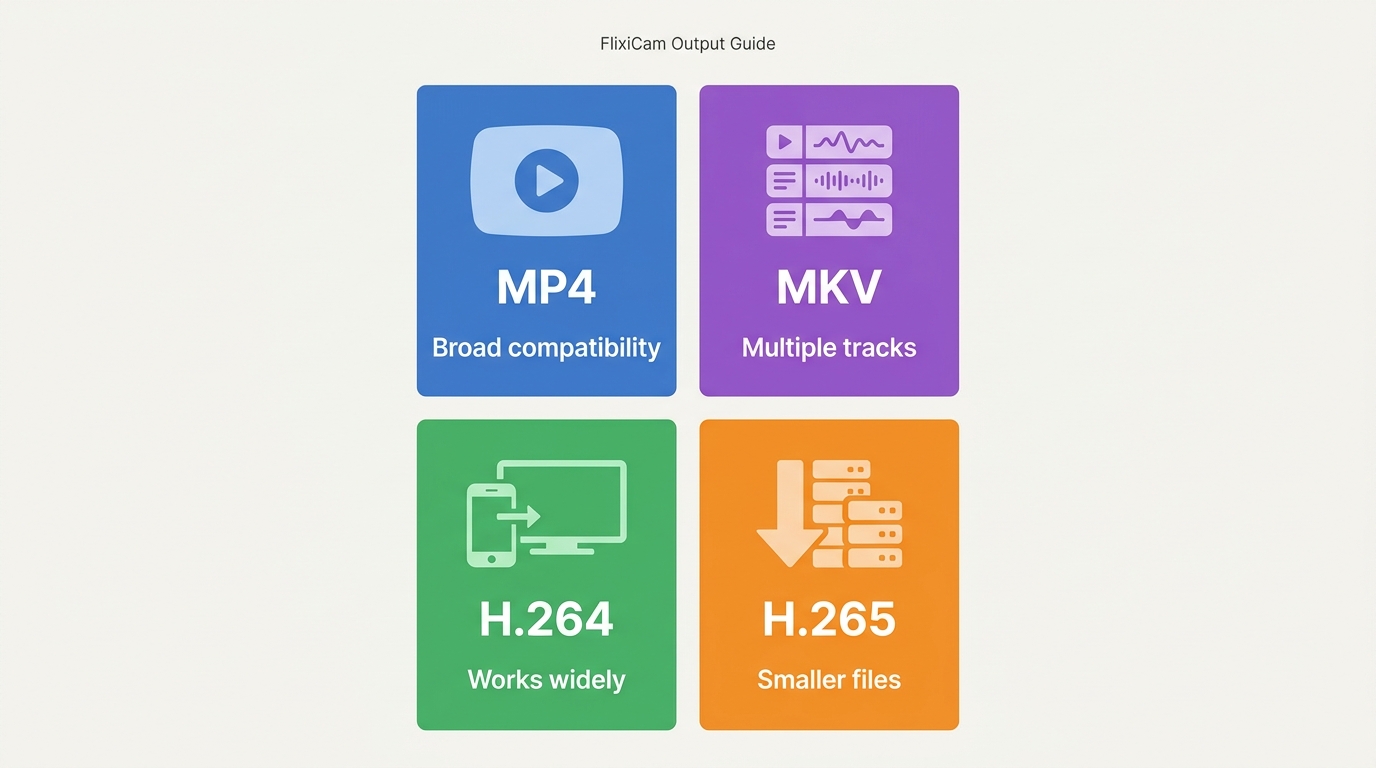
MP4 or MKV output, codec choice, source quality, and storage space can turn a working download into an output error or a file that looks worse than expected.
FlixiCam saves Netflix titles up to 1080p as MP4 or MKV on Windows and Mac; a low-resolution result usually reflects the source stream tier or a codec/hardware-acceleration mismatch rather than a fixed 540p cap. For Failed 3213 or similar output errors, switch the codec to H.264 and turn off hardware acceleration, then download again.
- MP4: Choose it for broad player, TV, and USB compatibility.
- MKV: Choose it when you want a container that can hold multiple audio or subtitle tracks.
- H.264: Use it as the compatibility baseline when H.265 output fails or will not play on the target device.
- Quality: Check the Netflix plan, source stream, selected resolution, and available audio or subtitle tracks before assuming FlixiCam poor video quality is a universal cap.
- Storage: Leave headroom for both the final file and temporary processing, especially when a job reaches the final stage.
This is the most direct settings path for readers trying to download Netflix to MP4: start with MP4 and H.264, confirm one playable file, then raise quality or change tracks one setting at a time.
Login, VPN, and Region Checks
FlixiCam authentication problems often come from an expired session, VPN routing, region mismatch, or a false proxy warning rather than the selected title.
- Disconnect the VPN and test Netflix in a browser on the normal connection.
- Clear FlixiCam's built-in browser cookies, then sign in again.
- Confirm that the account region and title availability match the normal browser session.
- If a VPN is required for your legitimate network setup, try another server or network after establishing the no-VPN baseline.
A false VPN or proxy detection can block authentication even when no VPN appears active, while an overloaded route can progress slowly and then fail. The useful signal is whether the same account and title work on a clean browser session and another network.
When to Contact FlixiCam Support
Contact support when the same error survives the full controlled workflow, appears across multiple playable titles, or returns immediately after a clean install.
- The exact error code and the step where it appears
- The complete FlixiCam version number
- Your Windows or macOS version
- The streaming service, title, and episode
- Application logs
- A screenshot showing the message and progress state
Collecting these details first gives support a reproducible case instead of a general “not working” report, which usually shortens the path to a useful answer.
When Switching Tools Makes More Sense
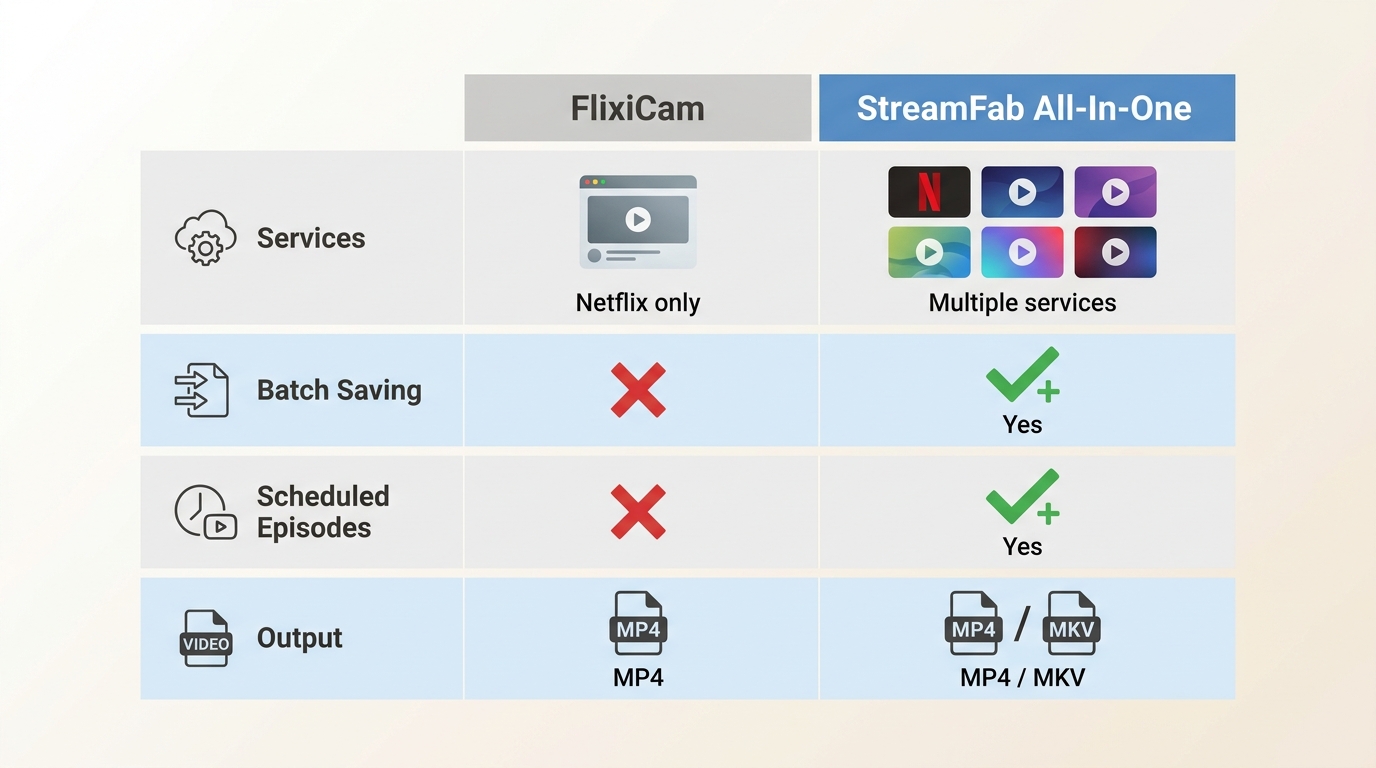
Switching makes sense after the diagnostic workflow fails consistently, or when the required workflow extends beyond FlixiCam's Netflix-focused role.
- The same verified error persists after updating, refreshing the login, changing the output path, and testing H.264.
- You need batch and scheduled saving across several supported services.
- You want one Windows or Mac application for MP4/MKV output across more streaming services and video sites.
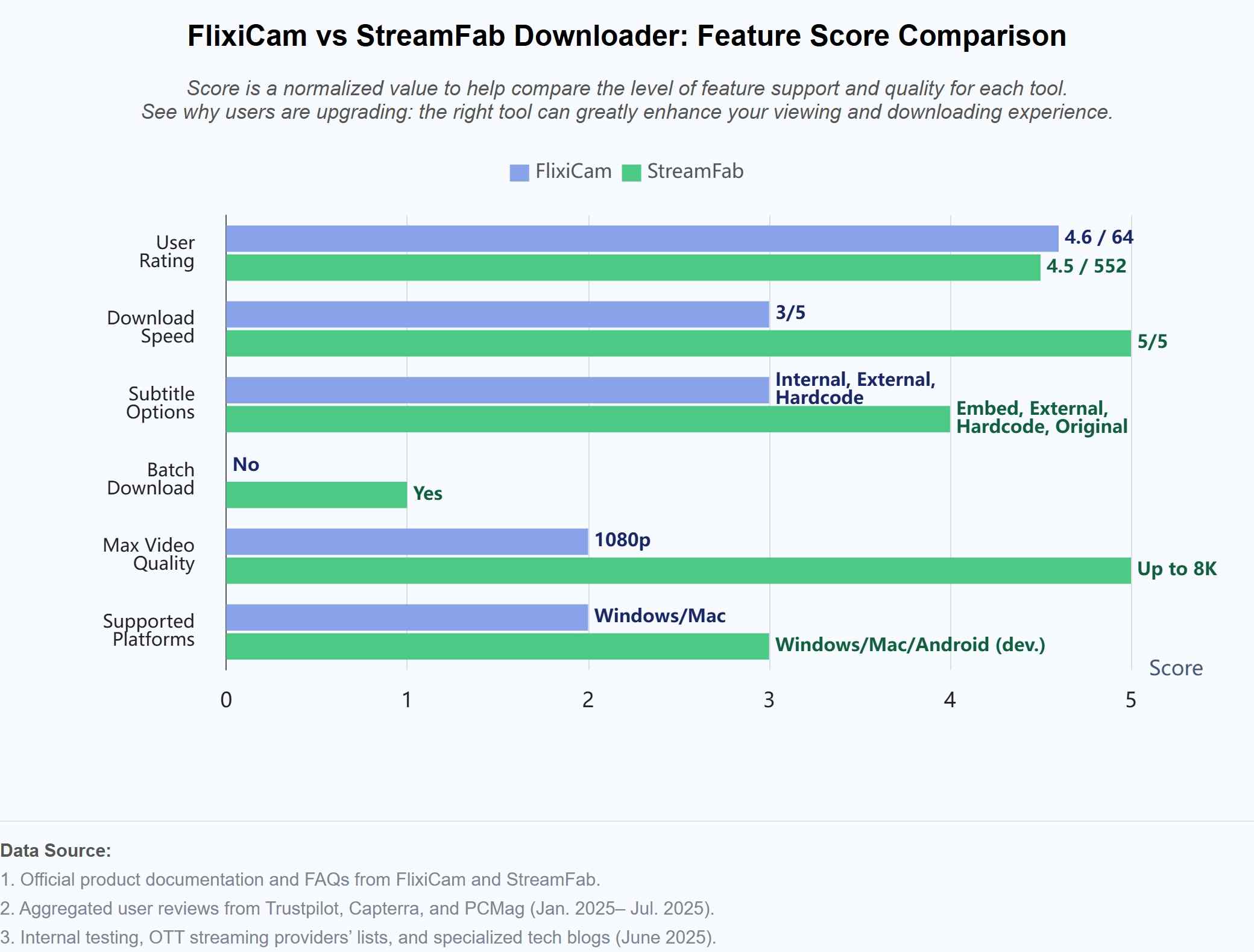
If FlixiCam still fails after the full workflow, or you need batch and scheduled saving across more services, StreamFab is a desktop alternative that saves a local copy for personal offline viewing, for content you're authorized to access and where permitted by platform terms and applicable law.

- Download quality up to 8K/4K & immersive audio effect with Dolby Atmos/EAC3 5.1
- Auto-select the language of audio track & subtitles
- Support unique batch & auto-download
- Remove all ads in videos, no matter the account tier
StreamFab All-In-One supports Windows and Mac, MP4/MKV output, batch tasks, scheduled episode handling, selectable audio and subtitles, and service-dependent ad handling. It fits readers who need multi-service batch and scheduled saving; it is not a sensible switch when one correctable FlixiCam setting is the whole problem.
A wider set of FlixiCam alternatives helps compare other approaches, while the details of how StreamFab handles Netflix belong in the focused product guide.
| Capability | FlixiCam | StreamFab All-In-One |
|---|---|---|
| Output formats and Netflix quality | MP4/MKV; Netflix up to 1080p | MP4/MKV; Netflix up to 1080p |
| Batch and scheduled downloads | Netflix-focused downloading; scheduling depends on the current edition | Batch downloads and scheduled episode handling |
| Services and sites covered | Netflix | Multiple streaming services and general video sites |
| Ad handling and subtitles | Subtitle and audio selection; ad handling depends on the title and service | Selectable subtitles and audio; service-dependent ad handling |
The practical difference is scope, not a fabricated success percentage: FlixiCam remains the narrower Netflix option, while StreamFab is designed for a broader multi-service workflow.
FAQ
Why is my FlixiCam download stuck on “waiting”?
A waiting job usually points to a queued task, an expired login session, or a slow service endpoint. Retry one title, refresh the built-in browser login, and compare another network. If a second title starts, the original queue or title request was the narrower issue.
Can I move Netflix videos saved as MP4 or MKV to a USB drive?
Yes. A standard MP4 or MKV stored on your drive can be copied to a USB drive for personal offline viewing of content you are authorized to access, where permitted by platform terms and applicable law. Confirm that the destination device supports the selected container and codec.
Does Netflix still allow downloads on a Windows PC?
Netflix's current Windows app does not offer downloads or offline playback. If the button is missing there, the change is on the Netflix app side. A FlixiCam failure is separate and should be diagnosed with browser playback, login, output-path, and codec checks.
Is FlixiCam safe and worth using in 2026?
FlixiCam remains actively maintained, but “worth using” depends on whether its Netflix-focused workflow meets your needs and whether your error clears after the steps above. Evaluate the current installer, the exact build, and a controlled test title rather than relying on a blanket community verdict.
Conclusion
Keep FlixiCam when a version, login, storage, output-path, or codec correction restores your Netflix job. Consider switching when the same issue survives the complete workflow or when you genuinely need a broader multi-service batch and scheduling setup.
My editorial rule is simple: fix a specific setting when the evidence points to one; change tools when the workflow itself no longer fits. Most FlixiCam failures in 2026 come down to an out-of-date build, an output-path or storage problem, a login/VPN block, or a codec setting, all of which the steps above resolve; switching tools is a fallback when they do not.

Evaluating the Audials One 2026 free trial? I tested its 720p caps, examined if is audials legal under Fair Use
By Erika Leen - Sep 29, 2026
Are you thinking of purchasing NoteBurner and unsure if it’s worth the investment? In this NoteBurner review, let’s delve into its product lines, particularly the NoteBurner Video Downloader’s pros and cons.
By Marcia Hatcher - Sep 28, 2026

Read our in-depth Audials review for 2026. Is Audials safe and legal for Amazon Prime? Discover actual test results, Widevine DRM fixes, and better alternatives.
By Erika Leen - Sep 28, 2026

TuneFab’s Amazon downloader suits a focused desktop routine, while VideOne covers multiple services. Compare their workflows, license structures, and output checks with StreamFab, then use the numbered setup and maintenance steps for authorized personal offline viewing.
By Erika Leen - Sep 24, 2026