
How to Rip Apple TV Movies for Local Backup in 2026

Summary: While the Apple TV app offers offline viewing, the files are temporary and restricted. This guide explores the best ways to create a permanent personal backup of your purchased or subscribed content, ensuring flexible playback across all your devices without expiration.
Table of Contents
Rip Apple TV Movies: Know the File Outcome
If your goal is to rip Apple TV movies into a portable file, first separate Apple's official offline downloads from a local-file workflow. Official downloads stay inside the Apple TV app, while an authorized desktop workflow can create MP4 or MKV files for personal storage where platform terms and applicable law permit.
That file outcome determines the right route. If you only need offline playback in Apple's app, use the official download feature. If you want to rip from Apple TV for storage on a computer or external drive, choose an Apple TV movie downloader based on the content type and current compatibility.

Choose a Method by Apple TV Content Type
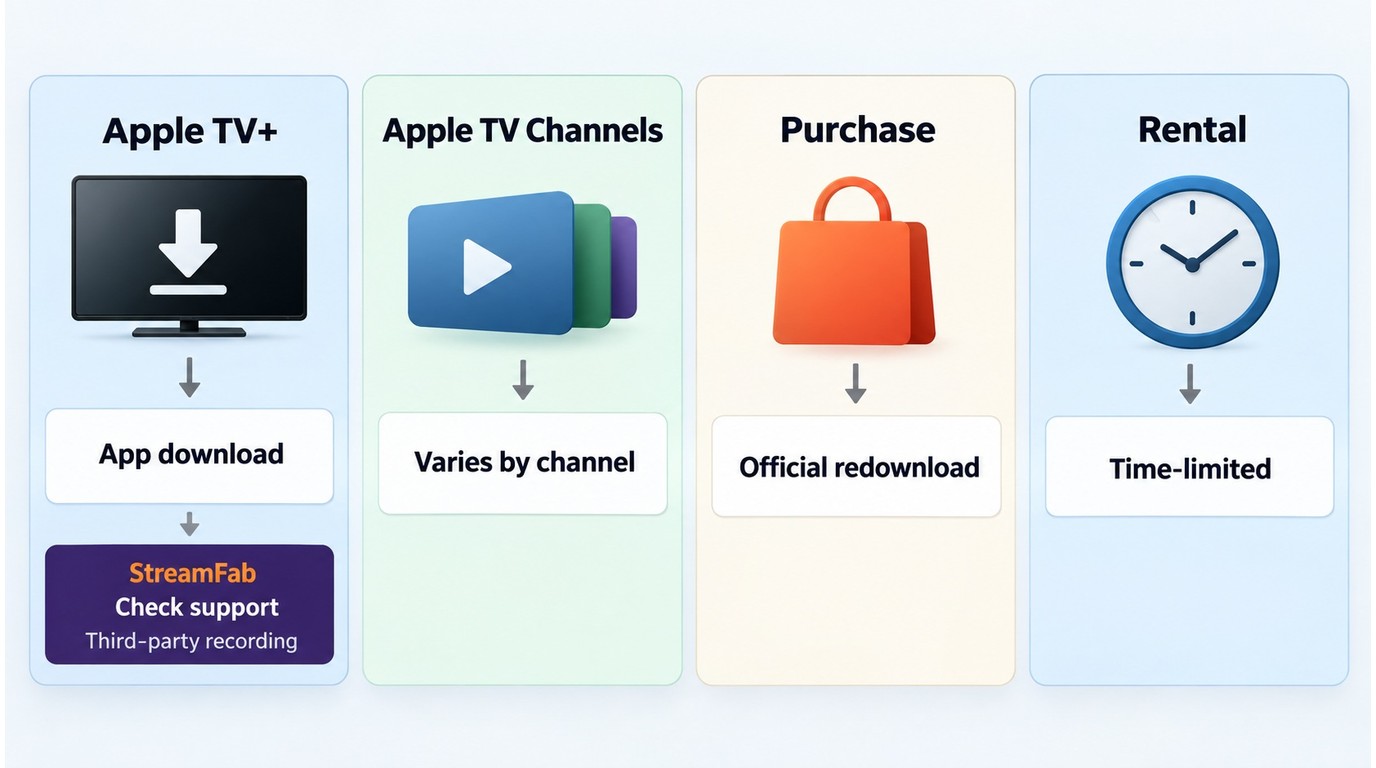
Prerequisite: Sign in with an account authorized to access the title, then identify where the movie comes from before selecting a download workflow.
- Apple TV+ subscription titles: Use Apple’s official feature for app-bound viewing. For a portable local file, confirm that the title appears in StreamFab’s current compatibility information.
- Apple TV channel titles: Check the specific channel and title because supported output and available resolution can differ. If a title is unavailable, use the StreamFab update log or troubleshooting guide to find the current supported path.
- Apple Store or iTunes purchases: Purchased content is not included in the verified StreamFab Apple TV+ workflow. Use Apple’s official redownload option, and consult the StreamFab update log before attempting another workflow.
- Rentals: Use the official rental download and viewing window. Rental access has separate availability rules and should not be treated as unrestricted local-file storage.
Across all four content types, start by checking Apple’s official download option and its device limits before choosing a local-file workflow.
Official Apple TV Downloads and Device Limits
App-Bound Downloads vs Local Video Files
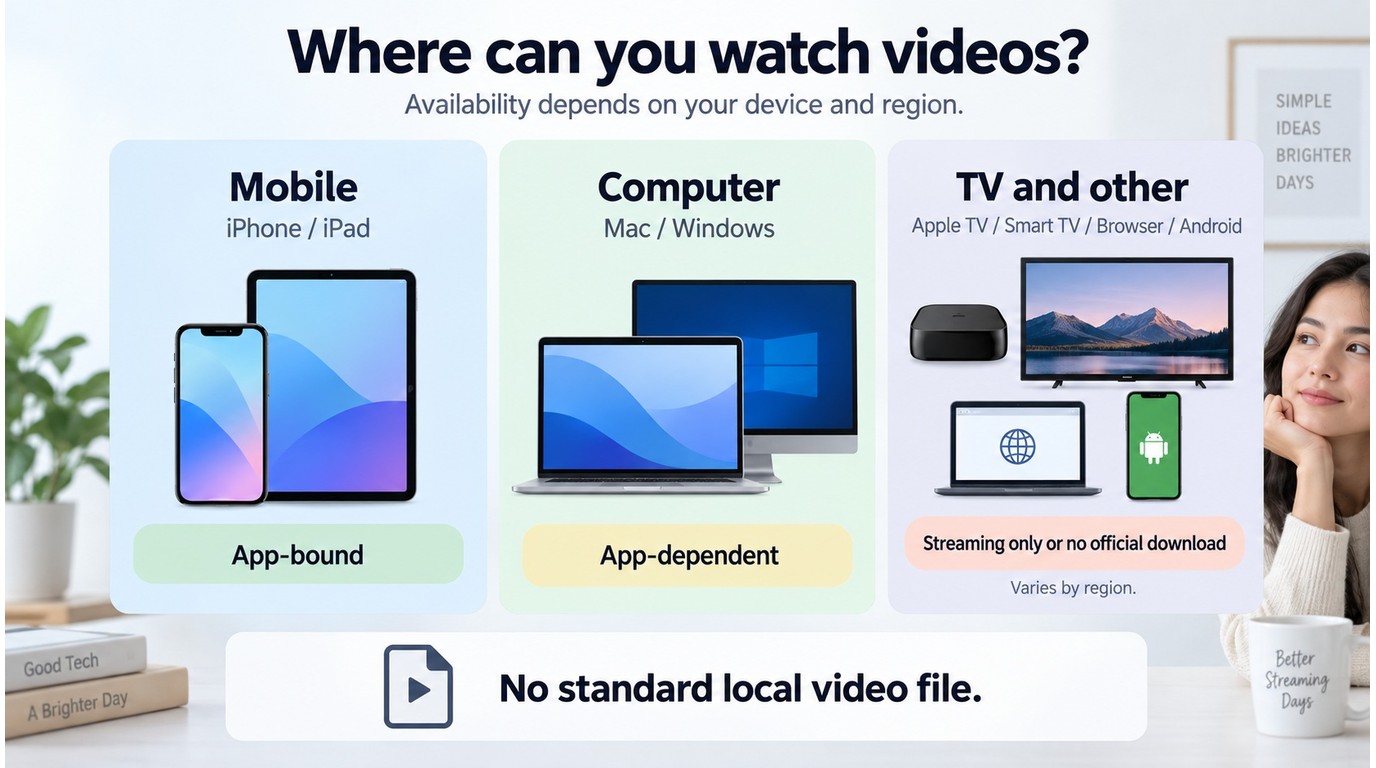
Apple’s official download feature saves a managed copy for offline playback inside the Apple TV app; it does not export a portable MP4 or MKV file. On supported devices, the Download Apple TV+ Shows workflow explains how to use app-based offline viewing without confusing it with an independent local file.
A portable local video file is a different outcome. It can be organized in a compatible media library or stored on an external drive, subject to authorized access, Apple’s terms, applicable law, and the rights attached to the specific content.
Supported Devices for Official Downloads
| Device | Official download | File outcome |
|---|---|---|
| iPhone or iPad | Supported | Apple TV app-bound |
| Mac, Windows PC, or Vision Pro | Supported | Apple TV app-bound |
| Apple TV box, smart TV, streaming device, or tv.apple.com | Not supported | Streaming only |
| Android device | Not listed | No official app download |
Supported devices and availability may change, so confirm the current device list on Apple’s support site.
Apple TV Offline Limits and Expiration Rules
Windows App Downloads Stay App-Bound
Apple TV app downloads on Windows are designed for offline viewing inside the app. When you download a movie officially on Windows 10 or 11, the app does not grant you a playable video file. The downloaded title remains managed by the Apple TV app rather than appearing as a portable MP4 or MKV file that you can move to another player or external drive.
Expiration Rules Vary by Content Type
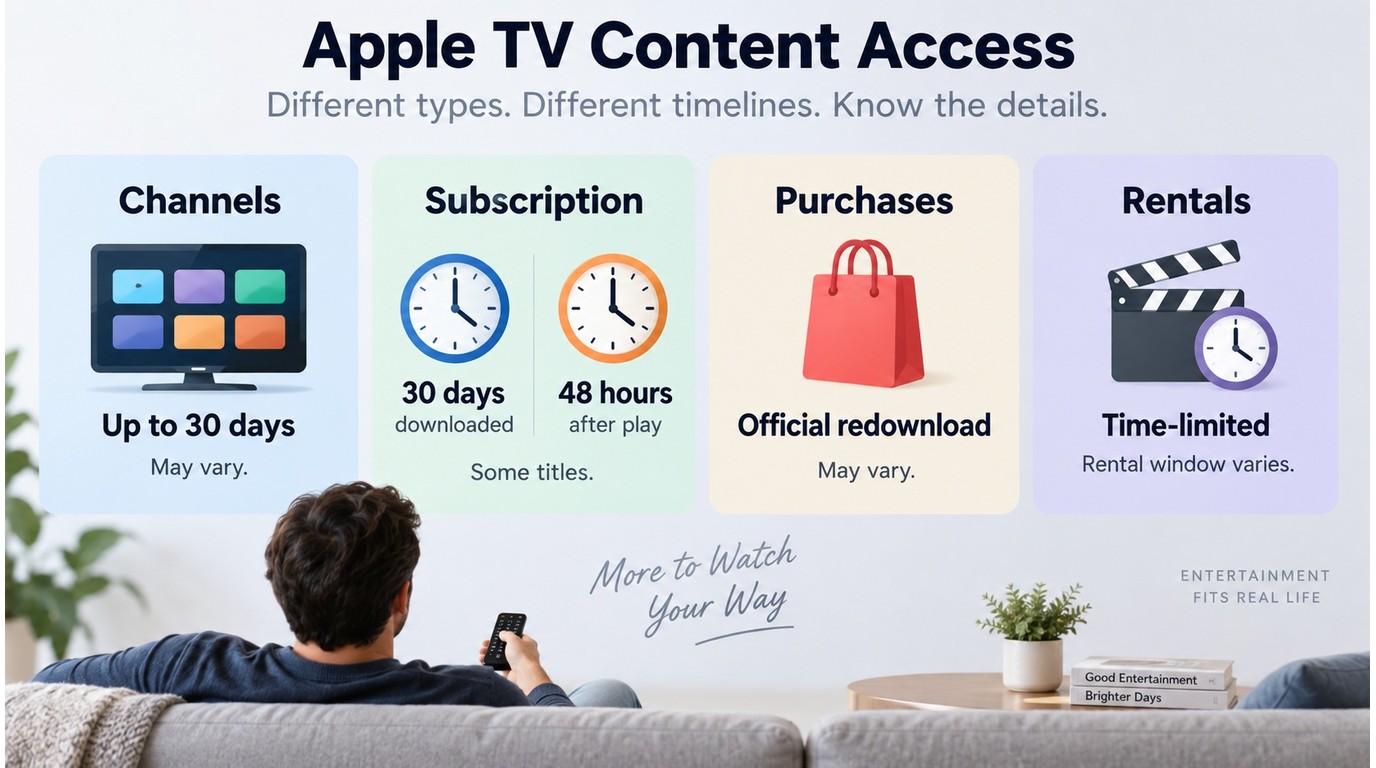
Apple TV offline limits vary according to whether a title comes from an Apple TV subscription, an Apple TV channel, a purchase, or a rental. As of August 2026, most Apple TV channel downloads remain available for up to 30 days; some Apple TV subscription titles expire 48 hours after playback begins or 30 days after download, whichever comes first. Purchases and rentals follow separate eligibility and availability rules, so identify the content type before choosing an official offline download or an authorized local-file workflow.
Apple TV Movie Downloader Options in 2026
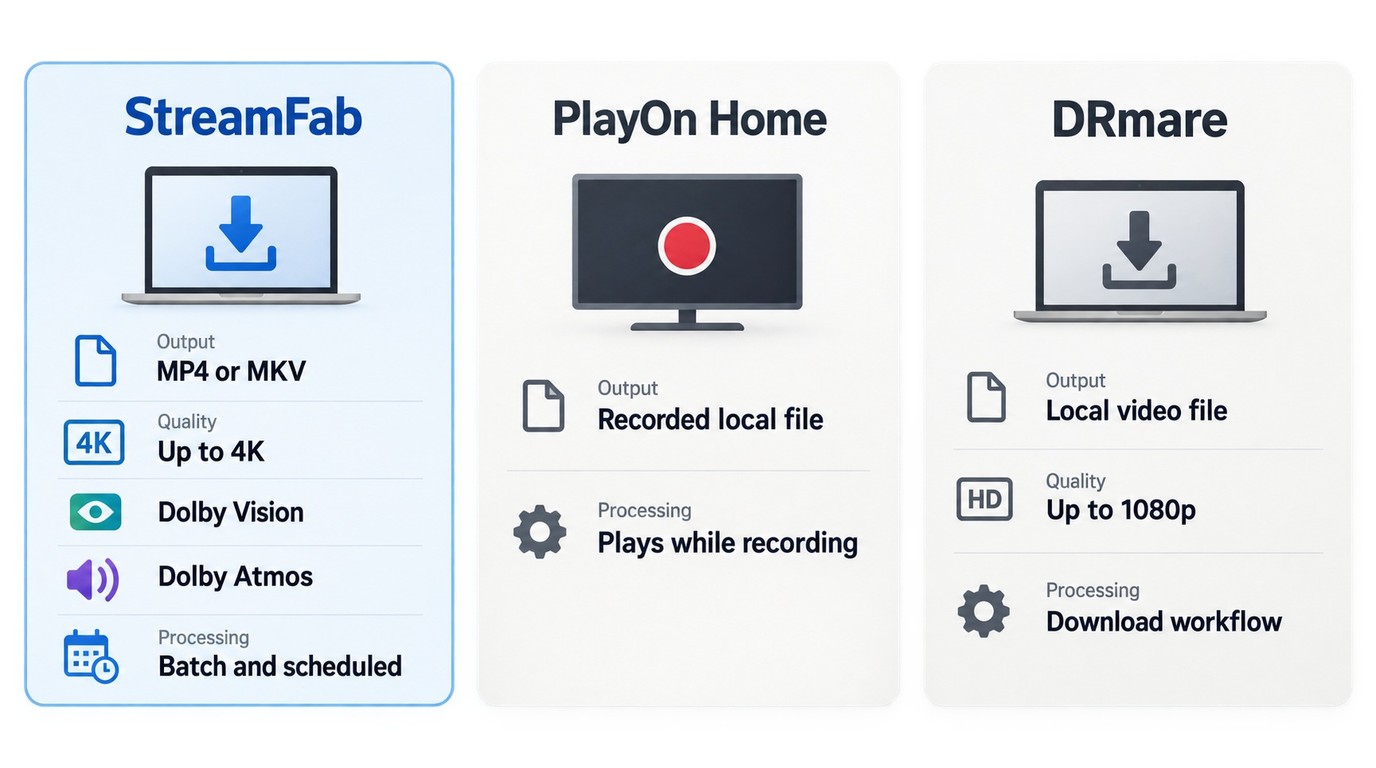
Apple uses FairPlay Streaming to protect encrypted HLS delivery, so the practical comparison is the file outcome and processing model rather than unsupported claims about protection architecture. StreamFab is a desktop local-file workflow outside Apple's official download feature. Use it with an active subscription only for content you are authorized to access and for personal offline use. Do not redistribute saved files, and follow applicable law and the platform's terms; the specifics depend on the use case. StreamFab records authorized playback output rather than altering the platform's access controls.
| Feature | StreamFab | PlayOn Home | DRmare |
|---|---|---|---|
| Workflow type | Desktop local-file saving | Real-time recording | Desktop downloading |
| Local output | MP4 / MKV | Recorded local file | Local video file |
| Official quality claim | Up to 4K, Dolby Vision, Dolby Atmos | Recording-based output | Up to 1080p |
| Processing model | Batch and scheduled workflows | Plays while recording | Download workflow |
| Best fit | External-drive or Plex libraries | Real-time recording needs | Workflows satisfied with 1080p |
StreamFab fits readers prioritizing a portable local-file library, PlayOn fits those who prefer a recording workflow, and DRmare fits users satisfied with its documented 1080p ceiling.
StreamFab for Local MP4 / MKV Workflows
StreamFab Apple TV Downloader supports the Download Apple TV to MP4 workflow for currently supported Apple TV+ and channel titles, saving video as MP4 or MKV for compatible players, Plex libraries, or external-drive storage. Its official specifications list support for up to 4K with Dolby Vision and Dolby Atmos, although available resolution can differ by title, channel, account, and region. If the listed quality is unavailable, use StreamFab’s update log or troubleshooting guide to check current compatibility. For a local media library, I prioritize the portable formats, selectable audio and subtitle languages, and metadata support because those details determine whether files remain organized after they leave the download queue.

A practical option for users building a high-quality local media library on a Windows or Mac computer.
- High-Quality Output: Supports up to 4K with Dolby Vision and Dolby Atmos when available for the title and account.
- Portable Formats: Saves supported content as standard MP4 or MKV files for personal local storage and compatible players.
- Batch Mode: Adds multiple supported episodes to one download queue.
- External Storage: Files can be moved to a USB drive or external hard drive.
- A paid license is required after the per-service trial allowance.
- Desktop-only (Windows/Mac), not available directly on Smart TVs.



Choose an Apple TV+ or channel title listed as supported in the current compatibility information.how to watch Coda without Apple TV
PlayOn for Real-Time Recording
PlayOn Home uses a real-time recording workflow for readers who want to screen recording Apple TV
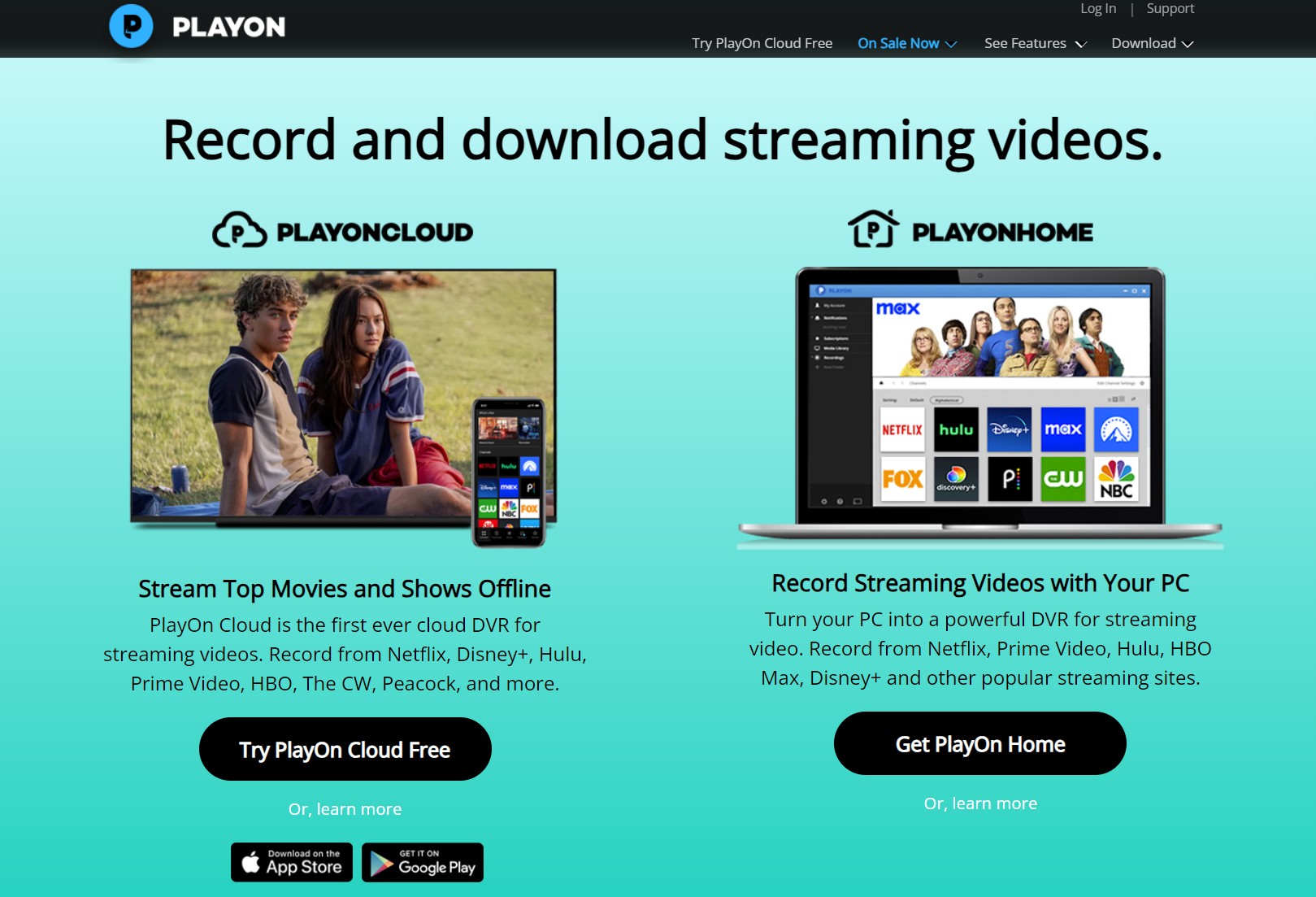
- Supported Channels: Screen recording works with the streaming channels currently supported by PlayOn.
- Ad Handling: AdSkip can identify and skip ad segments where supported.
- Real-Time Processing: Recording duration generally tracks the title’s playback length.
- Variable Output: Quality depends on the source, playback conditions, and recording settings.
- Local Storage: Recordings consume disk space during capture and after processing.
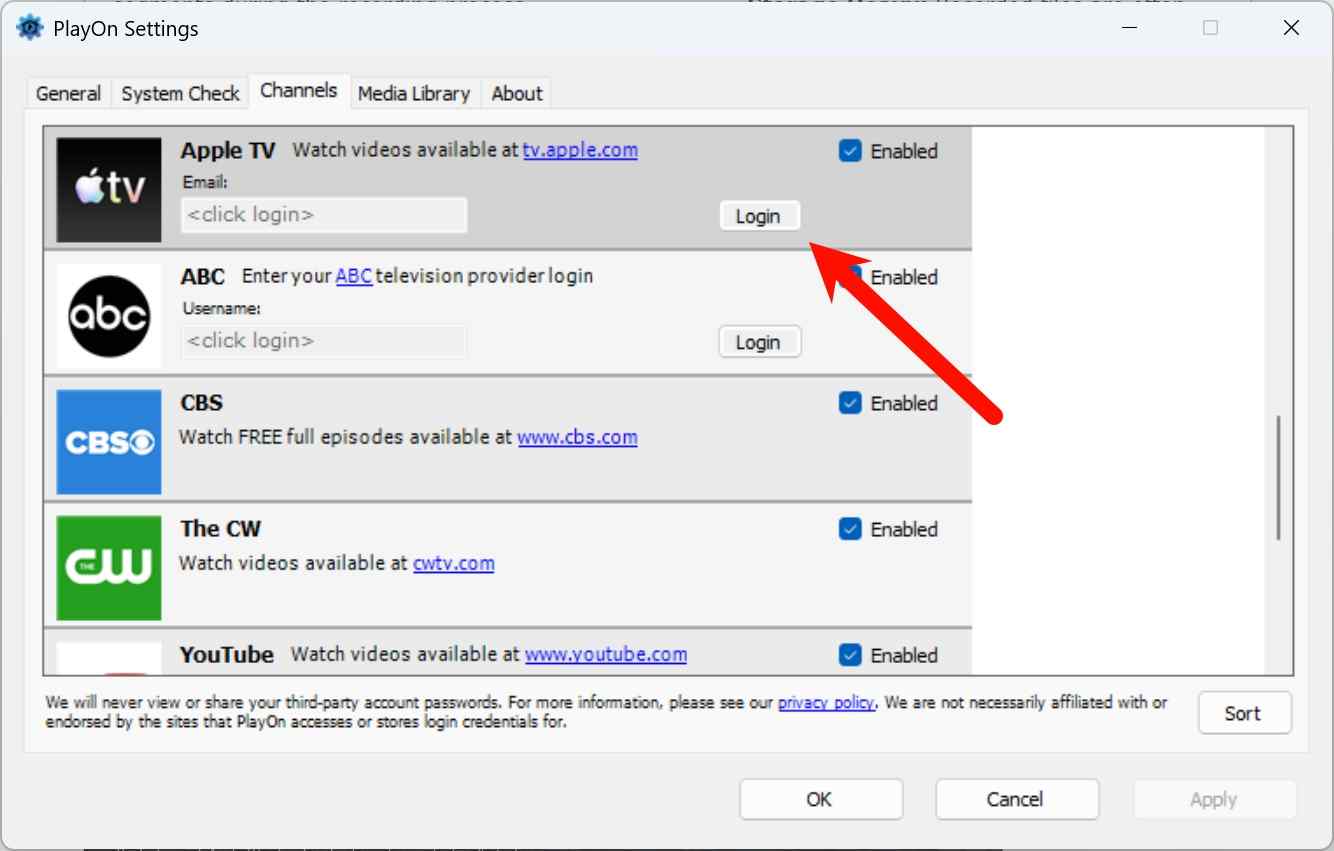
Compare the recording mode and device workflow before choosing between PlayOn Home and PlayOn Cloud. PlayOn review
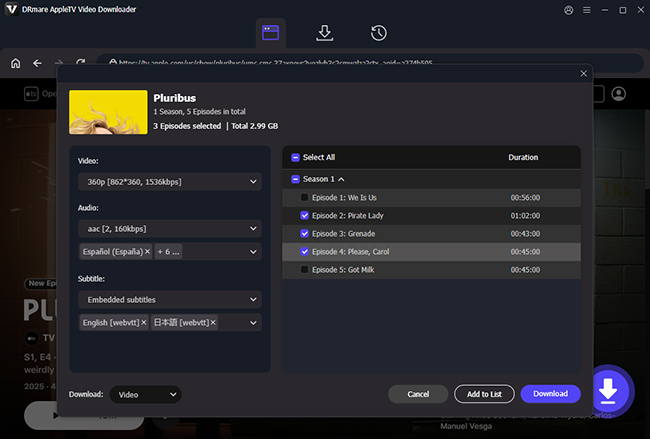
DRmare for Up to 1080p Downloads
DRmare Apple TV Downloader is available for Windows and Mac and lists a current maximum output resolution of 1080p.
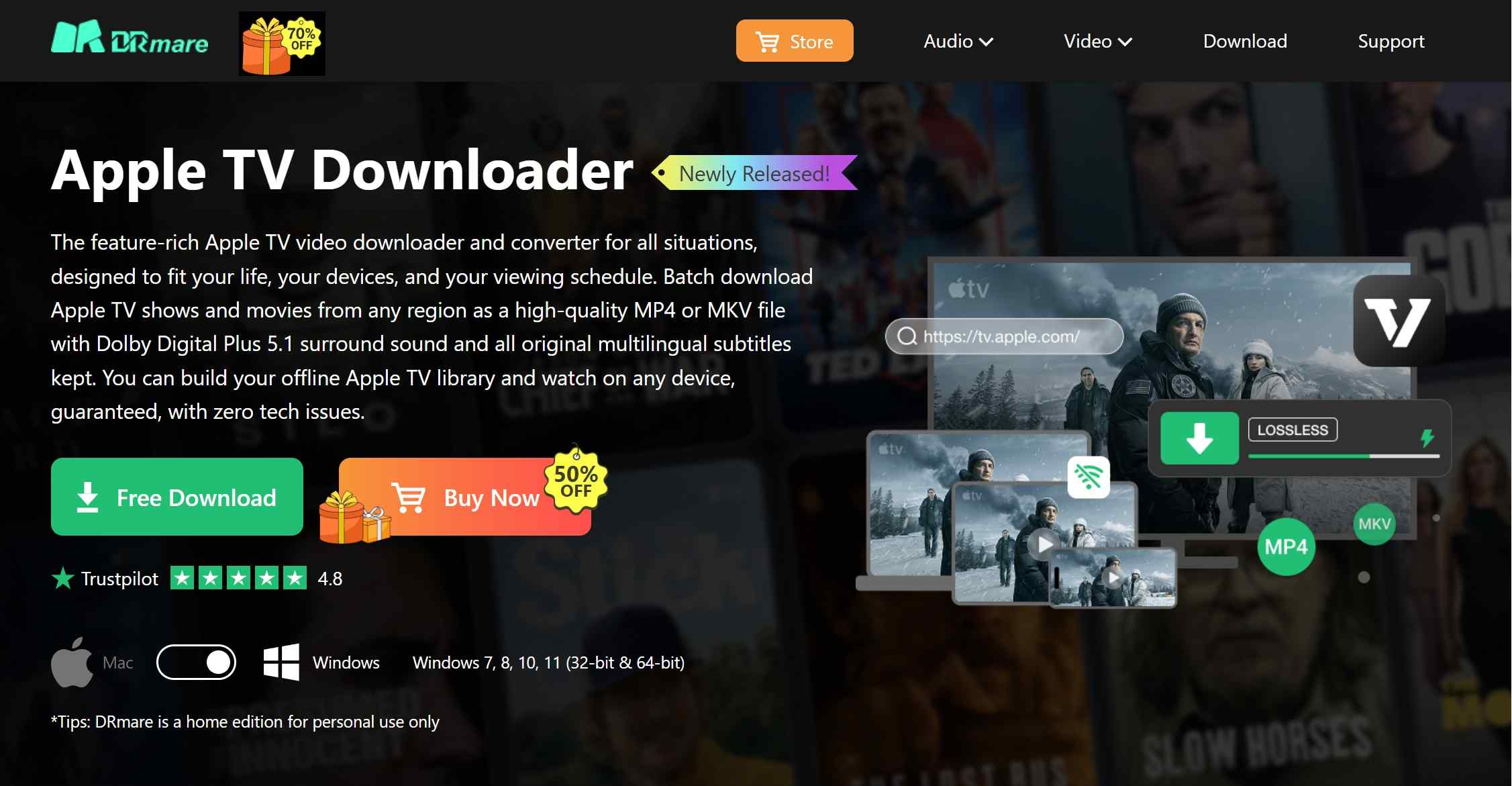
- MP4 Output: Saves supported Apple TV content in a widely compatible local video format.
- Multilingual Support: Keeps multiple audio tracks and subtitle languages intact.
- Quality Ceiling: Its current official maximum output claim is 1080p.
- Content Checks: Supported titles and available output options must be confirmed within the app.
Apple TV Ripping FAQs
Can I download movies from Apple TV to my computer?
Yes. While Apple's official desktop app restricts permanent offline access, you can use specialized stream-ripping software like StreamFab to decrypt and save the media stream directly to your Windows or Mac hard drive. This results in a DRM-free MP4/MKV file that will never expire, allowing for complete local playback freedom.
Can you download a rented movie on Apple TV?
Yes. StreamFab allows you to download rented movies or purchased movies from Apple TV. This feature is supported in StreamFab recent updates and are shared by users on Reddit.
Why does screen recording cause black screens?
This is caused by the HDCP (High-bandwidth Digital Content Protection) 2.3 protocol combined with your browser's Hardware Acceleration. When DRM-protected content is routed through your GPU, it detects screen capture software and blanks the video output. Switching to a direct downloader bypasses the GPU rendering pipeline entirely, preventing the black screen issue.
How to handle SSAI dynamic ad-insertion when ripping?
SSAI (Server-Side Ad Insertion) dynamically stitches ads directly into the video stream, confusing older recorders. Modern tools built for 2026 read the manifest file directly, identifying the M3U8/MPD ad markers and filtering out the advertisement chunks at the code level before muxing the final file, ensuring an uninterrupted movie.
How do I move Apple TV+ shows to an external hard drive?
Since official downloads are hidden and encrypted, you must first rip the show into an MP4 format using a tool like StreamFab or DRmare. Once the file is on your PC, you can simply drag and drop it onto your external hard drive.
Conclusion: A Practical Local-Backup Choice
My selection rule is straightforward: identify the Apple TV content type first, decide whether you need app-bound viewing or a portable local file, and then choose a workflow that currently supports that title and output quality.
StreamFab Apple TV Downloader fits readers who prioritize MP4 or MKV files for an external drive or Plex library. If a title or resolution is unavailable, use the compatibility log or troubleshooting guide to identify the current supported path.

Official Apple TV downloads stay inside the app; they are not portable MP4 exports. Identify your source, choose an appropriate desktop or local-video workflow, and verify the completed file. Learn what FRAG and MOVPKG files mean and how to check playback before transferring videos or queuing a season.
By Erika Leen - Sep 24, 2026
Learn how to download Apple TV+ shows on mobile and PC. Master 2026 techniques, fix HDCP black screens, and securely build your 4K offline library with the ultimate Apple TV 4K downloader.
By Jacob Harrison - Sep 15, 2026
This article discusses how to record on Apple TV on a PC or Mobile device. It explains why common methods screen recording often fail, and introduces effective alternatives such as RecordFab and StreamFab Apple TV Plus Downloader.
By Jacob Harrison - Jul 28, 2026
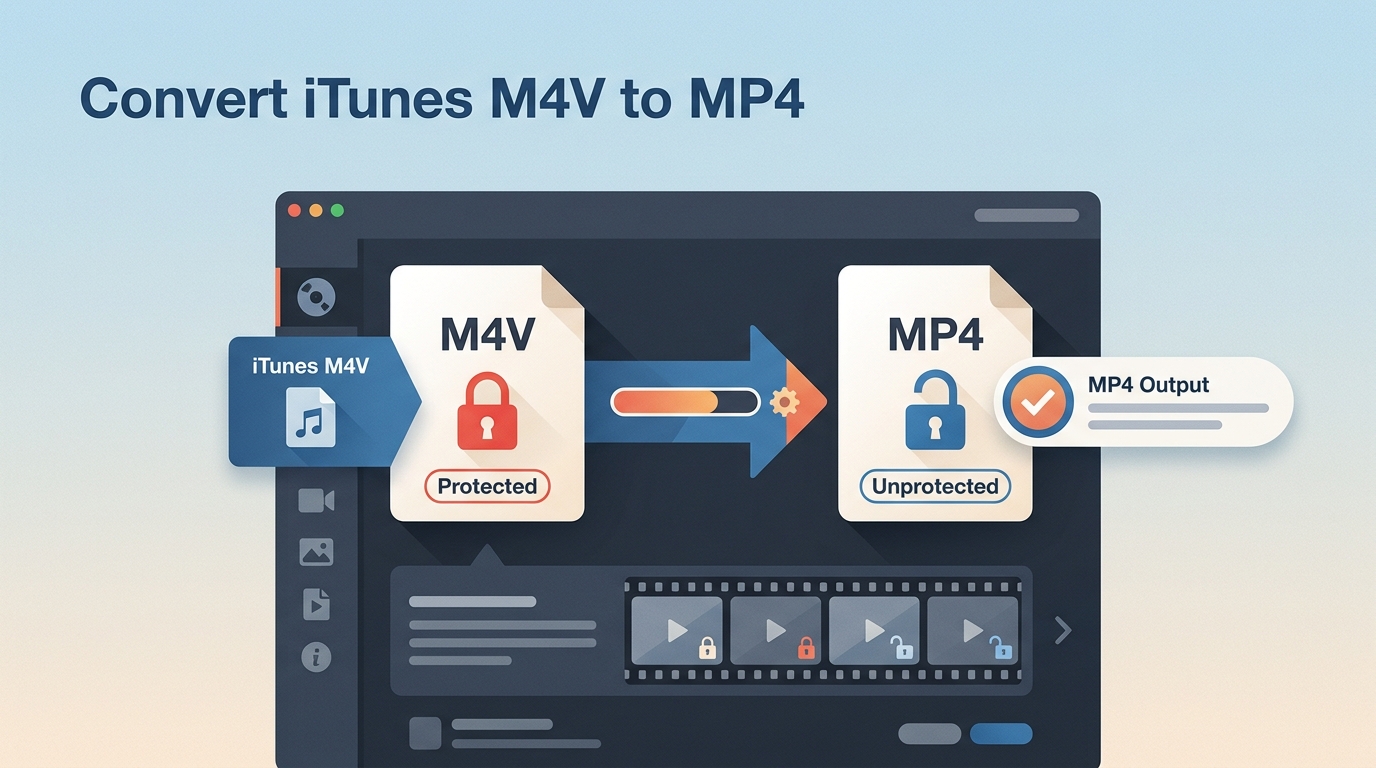
This guide provides a roadmap for creating personal, local backups by converting iTunes M4V files into the universal MP4 standard. We explore two kinds of methods: traditional file conversion for existing M4V downloads and direct high-fidelity downloading for modern 4K content.
By Jacob Harrison - Jul 27, 2026