
How to Download OnlyFans Videos on iPhone in 2026: 3 Methods

Summary: How to download OnlyFans videos on iPhone in 2026: 3 tested methods ranked by success rate, from Aloha browser to iOS screen recording to the PC transfer workflow.
⚠️ Save content locally only when you are authorized to view it and have permission for that specific use. Keep permitted copies private and respect creator rights.
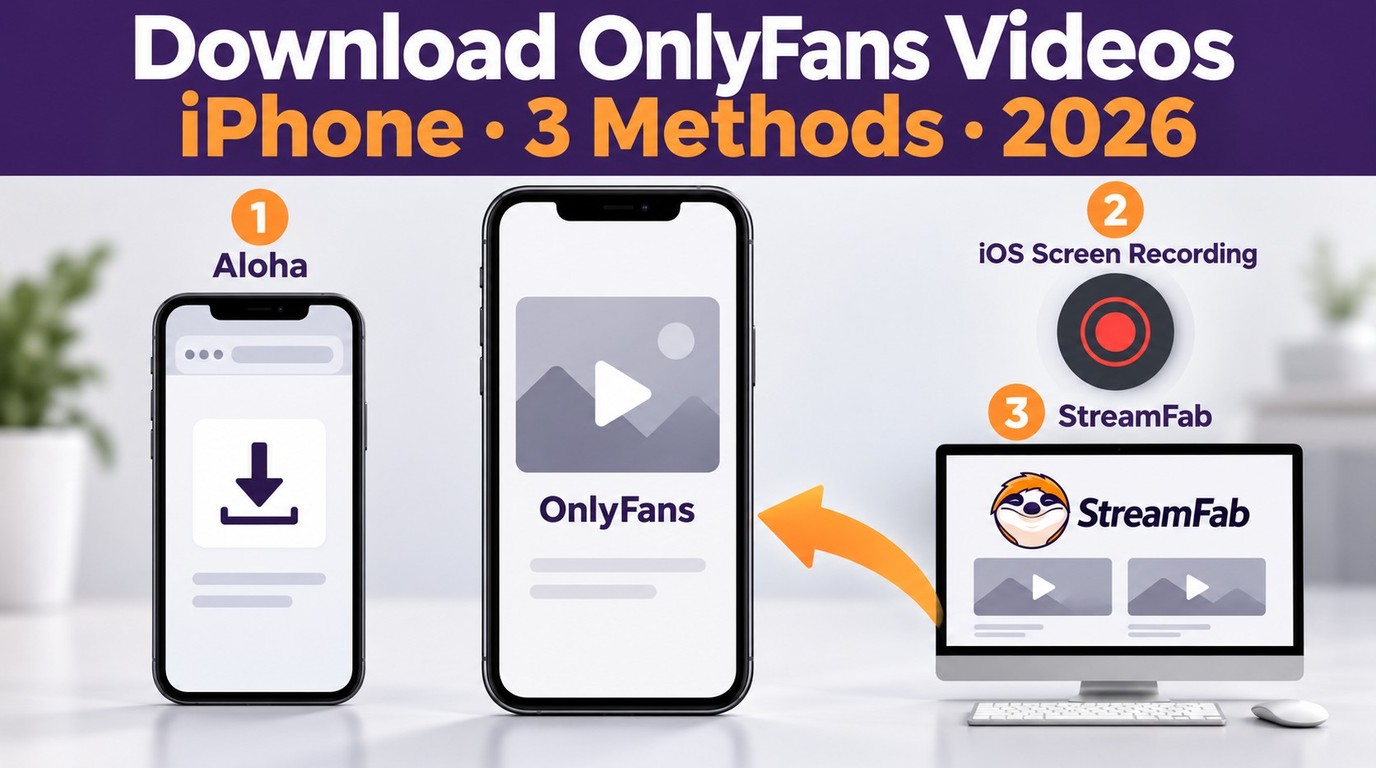
If the save prompt is missing, a download becomes a 0KB file, or screen recording shows black video, you have three routes to download OnlyFans videos on iPhone: an OnlyFans downloader for iOS such as Aloha, iOS Screen Recording, or a Windows/Mac StreamFab workflow that transfers the file to iPhone.
You are here because you want to know how to download OnlyFans videos on iPhone and compare the available workflows when a save prompt is missing, a file is empty, or a recording turns black.
- Compare all three routes and their device requirements ➡️ see all methods here.
- For a side-by-side comparison of devices, file destinations, costs, and best-fit uses ➡️ jump to the comparison table.
- Have questions about legality or privacy? Jump to the FAQ.
⚠️ Save only content you are authorized to access and permitted to copy for personal offline viewing.
Introduction: Why Saving OnlyFans Videos on iPhone Is Hard
If you have tried to use Safari or generic "Downloader" apps on iOS, you have likely seen a missing save prompt, a 0KB file, or a black recording. iOS apps may keep downloads within their own storage unless they provide an export option for Files or Photos. Some apps may also restrict audio or video recording, so a black recording does not identify one universal protection system.
The three practical methods below compare iPhone-first options, third-party browsers, and iOS screen recording for OnlyFans, along with a Windows or Mac workflow that transfers the resulting file to an iPhone. I’ll show the steps, explain where each method saves the file, and help you choose a suitable workflow for personal offline viewing.

- 18+ only. If you are under 18,please close this page now.
- Use these methods only for content you are authorized to access and save.
- Keep any permitted local copy private; do not repost or redistribute it.
- Follow the creator’s license, OnlyFans’ terms, and applicable law.
Official Download Function Lacking: OnlyFans Downloaders on iOS
OnlyFans typically doesn’t provide a built-in download option for subscriber content on iOS, so there may be no official save prompt or direct route to Photos. An iOS downloader may keep an offered file inside its own app until you export it to Files or Photos.
For iPhone users, the practical choices are an in-browser option such as Aloha, iOS screen recording where capture is permitted, or StreamFab OnlyFans Downloader on Windows or Mac followed by a file transfer to the iPhone.
Is It Legal to Save OnlyFans Videos on an iPhone?
OnlyFans is a paid, creator-driven platform. Even when you subscribe, the platform’s terms and creators’ policies can restrict copying, recording, or redistribution. A subscription or an unlocked paid message grants access under the creator’s license, not ownership or blanket permission to copy the content. The safest baseline is the following:
- Use your own account and access only content covered by an active subscription or an individually unlocked paid message.
- Save a local copy only when the creator’s license, platform terms, and applicable law permit that specific use.
- Treat any permitted local file as private: no sharing, no reposting, and no commercial use.
This guide focuses on privacy, stability, and staying within platform/creator rules, so you can choose the lowest-risk workflow when local saving is permitted.
3 Methods to Download OnlyFans Videos on iPhone
Most frustration when saving OnlyFans content comes from a few recurring issues. You may have experienced unstable streaming with buffering, loading loops, or quality drops on mobile networks; browser limitations (iOS browsers often behave similarly under Apple’s system rules); or platform playback limitations that can make “save” prompts unavailable on iOS or cause screen recordings to capture a black video area.
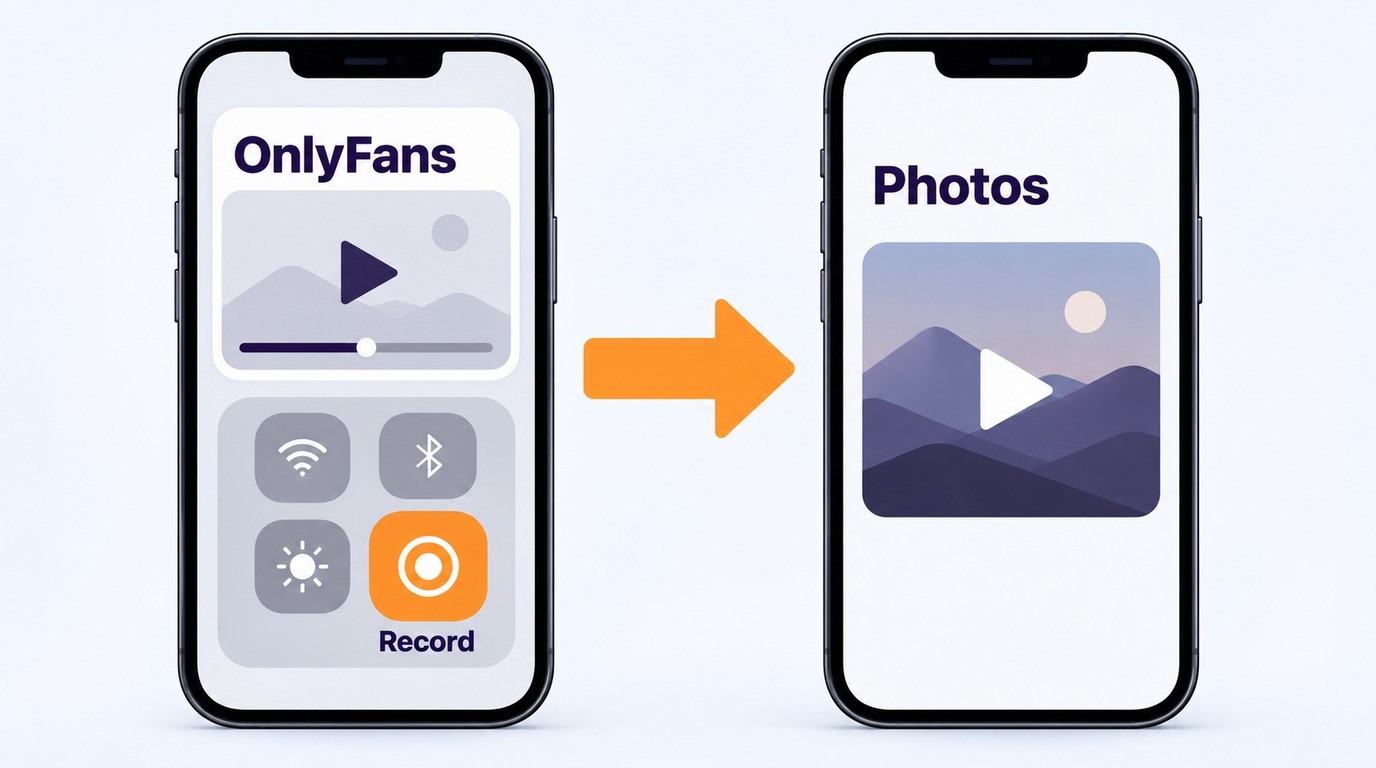
For iPhone users, the real dividing line is where the file ends up: Aloha keeps offered downloads in the app until export, screen recordings go to Photos, and StreamFab OnlyFans Downloader runs on Windows or Mac before you transfer the file to the iPhone. Now let’s break down the three methods.
| Method | Device and workflow |
|---|---|
| Aloha browser | iPhone; save in Aloha when a download prompt appears |
| iOS Screen Recording | iPhone; record in real time and save to Photos |
| StreamFab OnlyFans Downloader | Windows or Mac; save locally, then transfer to iPhone |
- Authorized access: Use your own OnlyFans account and permitted content.
- Available storage: Leave enough space for the saved or recorded video.
- Aloha route: Install the current App Store version on your iPhone.
- Screen recording route: Add Screen Recording to Control Center if needed.
- Desktop route: Use a Windows or Mac computer for StreamFab OnlyFans Downloader.
- Transfer route: Use iCloud Drive, or AirDrop when transferring from a Mac.
Method 1: Use the Aloha Browser
Aloha is often mentioned because it includes a built-in download manager. When a permitted download prompt is available, the flow is simple: open OnlyFans in Aloha, play the video, and use the in-app prompt. Its usefulness depends on whether the prompt appears and the download completes for that video.

- Keeps offered downloads in Aloha’s in-app download library
- Does not require a computer when the download prompt is available
- Download availability can differ by video and app version, and export may be required
Results vary by creator settings, the selected video, and the installed app version, so treat the outcome as best-effort. If no prompt appears or the file does not complete, move to another permitted method rather than assuming a specific quota or protection system.

Go to the App Store, and install Aloha on your iPhone.

Now, use Aloha’s built-in browser to get to the OnlyFans site. Log in, and pick the OnlyFans video you want to save.

Play the video in Aloha. If a download prompt appears, tap ‘Download’ and wait for it to finish.
If the download finishes, you’ll usually locate the file in Aloha’s download folder. Export it to Files or Photos if you want a separate copy outside the app.
Method 2: iOS Screen Recording
Screen recording is built into iOS, which makes it the most “native” method. It also avoids installing a separate downloader app. If you consistently get black video with audio, it’s usually due to OnlyFans' platform/system playback limitations on certain videos, not something you can reliably fix with settings.
- No third-party downloader required
- Good for saving small segments (when recording is allowed)
- Real-time only (you must play the entire video)
- You may need trimming/editing afterward
- Some videos may record as black video with audio only due to platform/system playback limitations
If you see a black screen with audio while recording, the result does not identify one specific protection system. Some apps may not allow audio or video recording.
If an app restricts capture, changing iPhone recording settings may not restore the missing picture or sound.
Open Control Center. If Screen Recording is not available, add it to your Control Center controls.
Tap the Screen Recording control, then wait for the countdown to finish.

Open OnlyFans in your browser and capture only content you are authorized and permitted to record.
Stop recording from the recording indicator or Control Center. The recording is saved in the Photos app .
Method 3: Use StreamFab OnlyFans Downloader
StreamFab OnlyFans Downloader runs on Windows and Mac rather than iOS. The workflow is to organize and save eligible videos that you can already play during authorized access, then transfer the resulting files to your iPhone through standard Apple or local transfer tools.
A desktop provides a clearer output folder and more practical file management when you are organizing multiple videos. After saving the files, you can move them to an iPhone through iCloud Drive, AirDrop from a Mac, Finder, iTunes, or a USB-based transfer workflow.

- Helps you manage and save videos from OnlyFans creators you’ve legitimately subscribed to, including timeline posts and message videos, where such activity is allowed by the platform and the creator.
- Batch-save eligible videos from creators you currently have legitimate access to for personal offline viewing where permitted.
- Optionally check for new posts from creators you follow and add eligible items to your download queue during your active subscription (where permitted).
- Save available video in up to 1080p as MP4 or MKV with H.264 video and AAC 2.0 audio.
- A 30-day trial is available with a limited number of downloads so you can assess the workflow before purchasing.
For a detailed introduction to the desktop workflow,see this guide to StreamFab OnlyFans Downloader.

The following four steps cover saving an eligible video on a computer and transferring the MP4 file to an iPhone.

Within the built-in browser, open the creator pages or posts that you’re already authorized to view, then choose the items you’d like to keep for personal offline playback.

Customize the file
Choose MP4 for the iPhone handoff. MKV is also available but requires a compatible player on the destination device.

Locate the StreamFab output folder after the file finishes saving, and use a clear filename if you are organizing multiple videos.
Windows/Mac: Move the .mp4 file from the StreamFab output folder into your chosen iCloud Drive folder.
iPhone : Open the native Files app> Browse > iCloud Drive, open the folder you selected, and download the file to the iPhone before offline playback.
Playback: Tap the MP4 file to play it in a compatible iPhone app. An MKV file requires a player that supports the container.

Before using any desktop tool to manage or save OnlyFans content, make sure you:
- Have legitimate access (paid/authorized).
- Follow creator/platform rules.
- Keep the files private (no redistribution, no commercial use).
If the platform or creator does not allow downloading or local archiving, you should not attempt to do so—even if a tool appears to make it technically possible
Because StreamFab OnlyFans Downloader runs on Windows and Mac, the OnlyFans video to MP4 workflow ends with a transfer to your iPhone. If analysis stalls, confirm that the permitted video plays in your signed-in account, check available storage, install the current StreamFab version, and use the StreamFab update log or troubleshooting guidance.

Comparison: Download OnlyFans Videos on iPhone
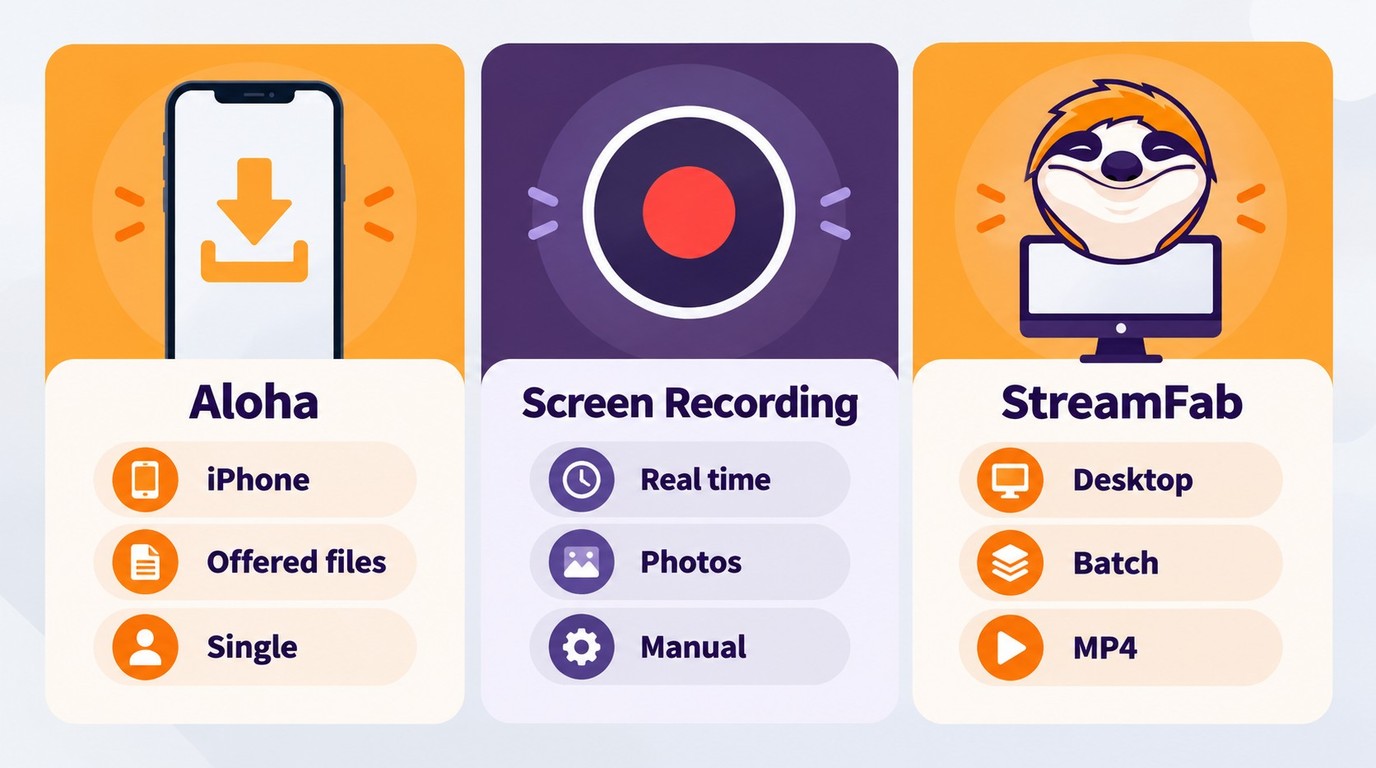
The practical differences are the required device, where the file is stored, and whether you need real-time capture or desktop batch management. For iPhone users, the most useful dividing line is where the finished file lands, not how many download buttons an app displays.
| Method | Device | Output or destination | Cost model | Best fit |
|---|---|---|---|---|
Aloha browser | iPhone | In-app downloads; export separately | Free app; premium options | Permitted in-browser saves |
| iOS Screen Recording | iPhone | Recording saved in Photos | Built in | Short permitted recordings |
StreamFab OnlyFans Downloader | Windows or Mac, then iPhone | MP4/MKV; transfer to Files | Trial; paid license | Batch queues and scheduled saves |
As of October 2026, choose Aloha when a permitted in-browser download is offered, iOS Screen Recording for short real-time captures, or StreamFab OnlyFans Downloader when you need desktop batch management followed by an MP4 transfer to Files.
Reddit Experiences Downloading OnlyFans Videos on iPhone in 2026
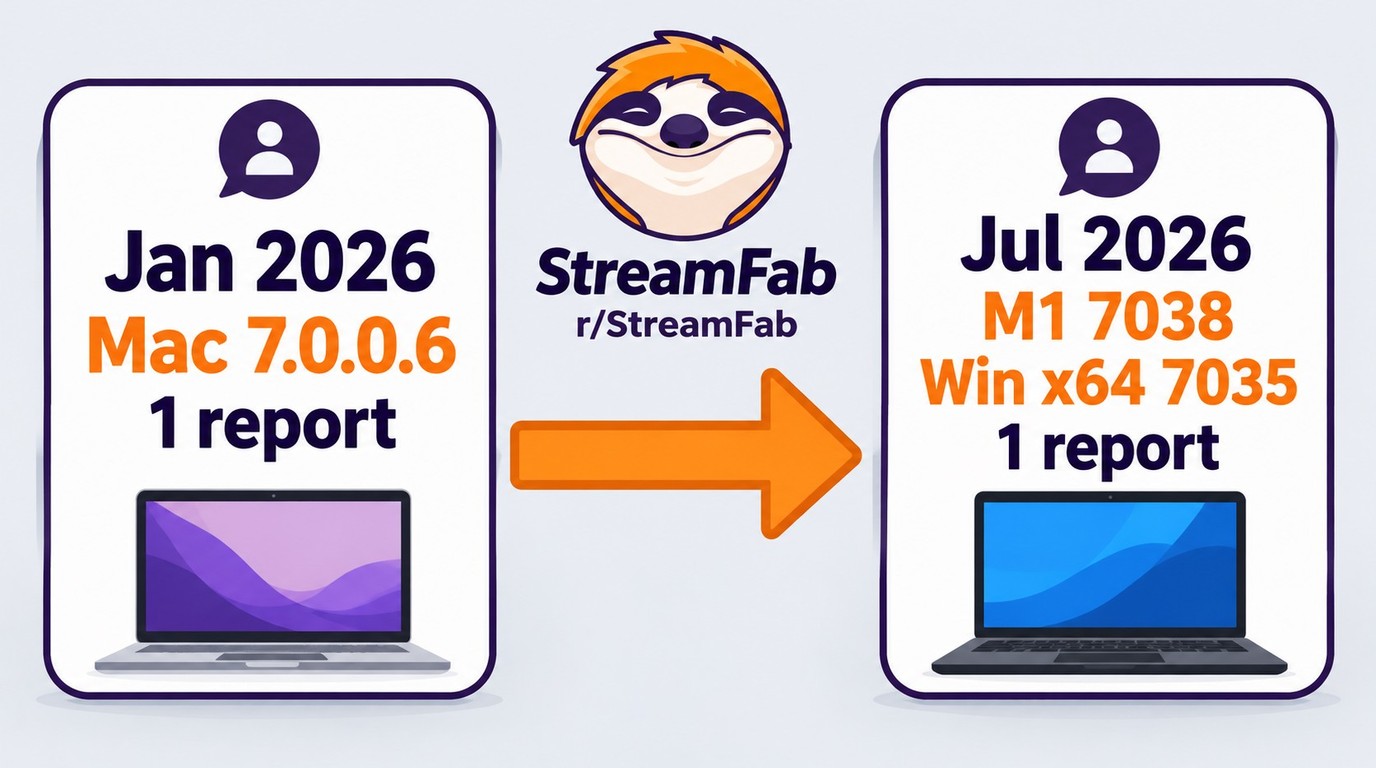
In January 2026, one user in the r/StreamFab community reported that OnlyFans analysis stalled and eventually failed on StreamFab for Mac 7.0.0.6. This was an individual version-specific experience, not a survey or a current success-rate estimate.
In July 2026, another r/StreamFab user reported OnlyFans failures on Mac 7038 for M1 and Windows x64 7035 after months of prior successful use. That report likewise describes a particular compatibility case and does not establish a broader market trend or comparison with iPhone tools.
If StreamFab analysis stalls, confirm that the authorized video plays in the signed-in account, check available storage and the installed version, then use StreamFab’s update log or troubleshooting guidance for the affected build.
FAQs
Is it legal to download OnlyFans videos on iPhone?
An OnlyFans subscription or paid message grants access under the creator's license, not ownership of the content or blanket permission to copy it. A permitted local copy must remain private and must not be shared or redistributed. A username alone grants neither access nor saving permission. Follow applicable law and OnlyFans' Terms of Service, because permission depends on the content and intended use.
Why do I get a 0KB file when downloading OnlyFans videos on iPhone?
A 0KB file contains no saved video data. Confirm that the permitted video plays in your signed-in account and that your iPhone has enough available storage. A completed transfer is not necessarily playable, so check that the file contains both picture and sound. Apple notes that some apps may restrict audio or video recording; a failed file alone does not identify a specific protection system.
Can I download OnlyFans videos from messages to my iPhone?
A subscription and a paid message provide distinct access: the message must be unlocked in the viewer's account, and saving it still requires permission under the creator's license and platform terms. For authorized content whose saving is permitted, StreamFab OnlyFans Downloader runs on Windows or Mac; transfer the resulting MP4 to your iPhone through iCloud Drive, or use AirDrop from a Mac.
Will OnlyFans know or notify the creator if I save their video?
OnlyFans account access is online activity, while a permitted copy stored on your phone is a local file. That distinction does not establish whether a creator will be notified, so do not rely on assumed invisibility. Keep any permitted local copy private, do not redistribute it, and follow the creator's license and platform terms.
How can I save OnlyFans videos on my iPhone after downloading them on a computer?
The available transfer methods are:
(1) AirDrop from a Mac, which works well for single files or small batches;
(2) iCloud Drive from Windows or Mac, followed by opening the chosen folder in the iPhone's Files app;
(3) Finder/iTunes USB, for large batches without Wi-Fi constraints.
For offline playback, open the transferred file in Files and download it onto the iPhone instead of leaving it available only in the cloud. You can move a compatible video to Photos with the share sheet when the Save Video option is available.
Is there a free OnlyFans video downloader for iPhone?
iOS Screen Recording is built in and has no separate downloader fee, but it records in real time and some apps may restrict audio or video capture. Aloha is a free app with premium options when a permitted download prompt is available. StreamFab OnlyFans Downloader offers a 30-day desktop trial with a limited number of downloads, followed by a paid license. None of these options grants unrestricted saving rights; use them only for content you are authorized and permitted to save.
Update Log
- May 2026
- Verified method testing data and StreamFab workflow accuracy.
Conclusion
Saving OnlyFans videos for offline viewing on iPhone is more involved than most people expect. The practical choice depends on whether you want to stay on your iPhone or need a desktop workflow for managing multiple files:
- Aloha browser: keeps the workflow on iPhone when a permitted in-browser download prompt is available.
- iOS screen recording: records in real time and saves the result to Photos, although some apps may restrict audio or video recording.
- Desktop download + iPhone transfer (StreamFab): StreamFab OnlyFans Downloader runs on Windows and Mac and saves available video up to 1080p as MP4 or MKV with H.264 video and AAC 2.0 audio. Batch queues and scheduled checks support eligible new creator posts during authorized access.
If you need batch file management, the desktop-to-iPhone workflow is the more practical fit. Download StreamFab OnlyFans Downloader from the official site on Windows or Mac, choose MP4 for the iPhone handoff, and transfer it through iCloud Drive from either system or AirDrop from a Mac. Download the transferred file locally in Files before offline playback; MKV files require a compatible player.
Use this workflow only to save content you are authorized to view locally and have permission to copy for that specific use. No method grants permanent or unrestricted saving rights. Do not obtain content outside your authorized access, and follow applicable law and OnlyFans terms. Keep permitted local copies private, do not redistribute them, and follow the creator’s license.

I tried to re-watch a DM video from a creator I was subscribed to on my Android phone while offline — and got a black screen the entire time, no matter what I tried. Turns out OnlyFans uses DRM and playback-layer protection that blocks standard screen recording on Android. After testing three dedicated Android tools and a desktop workflow across dozens of videos I had legitimate access to, here are the methods that actually work in 2026 — with no black screen and no quality loss.
By Erika Leen - Oct 14, 2026
Convert authorized OnlyFans videos to MP4 on Windows or Mac using a desktop workflow or a permitted screen recording. Learn how file formats differ from delivery and access, what StreamFab’s output settings provide, and what four dated Reddit reports describe. Five FAQs cover installation, the trial, subtitles, batch selection, and source quality.
By Marcia Hatcher - Oct 13, 2026
Paid for OnlyFans but can't save it? We tested 4 tools to rip and save OnlyFans content in 2026—no black screen, full 1080p, zero account risk.
By Erika Leen - Oct 13, 2026
Can you screen record OnlyFans in 2026? Fix the black screen on iPhone & PC with these tested methods — from OBS tricks to dedicated download tools.
By Marcia Hatcher - Oct 13, 2026