
How to Use StreamFab 7 on Windows and Mac (2026)

Summary: If you are trying to figure out how to use StreamFab, the short answer is straightforward: install and authorize the Windows or Mac app, choose the options available for your video, and add the job to the download queue. This guide covers that desktop workflow and the first checks when it stalls.
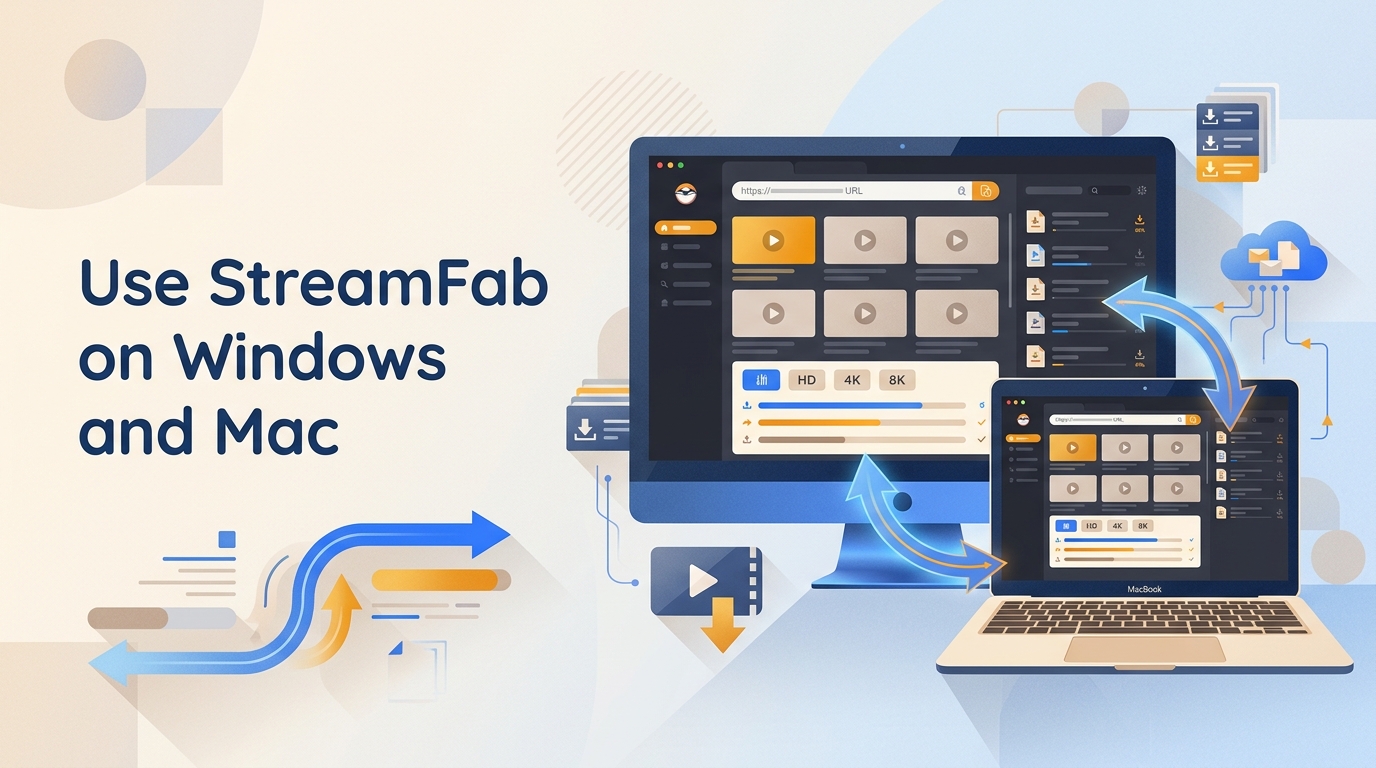
StreamFab is a desktop video-saving tool for supported services and websites. This article explains how StreamFab works, what accounts and authorization you need, how to choose MP4 or MKV output, and where to find completed files.
This tutorial covers StreamFab 7 on Windows and macOS. Browser and mobile products use different interfaces and steps. If you prefer a visual walkthrough, watch this short video guide: How to Use StreamFab (2026): The Ultimate Guide to Downloading Videos
What StreamFab Does
StreamFab uses screen-recording and stream-recording technology to create local MP4 or MKV files through supported workflows. It does not replace the streaming service itself: you still need authorized access to the title, and use remains subject to the service terms and applicable law.
How the Local-File Workflow Works
After you sign in and play a supported title in the built-in browser, StreamFab analyzes the options available for that service and title. You can then select the exposed video, audio, and subtitle choices before adding the job to the queue. I consider this distinction important because it sets realistic expectations for playback compatibility, processing time, and available quality instead of treating the largest advertised resolution as a guaranteed result. For broader security and usage context, see Is StreamFab Safe?
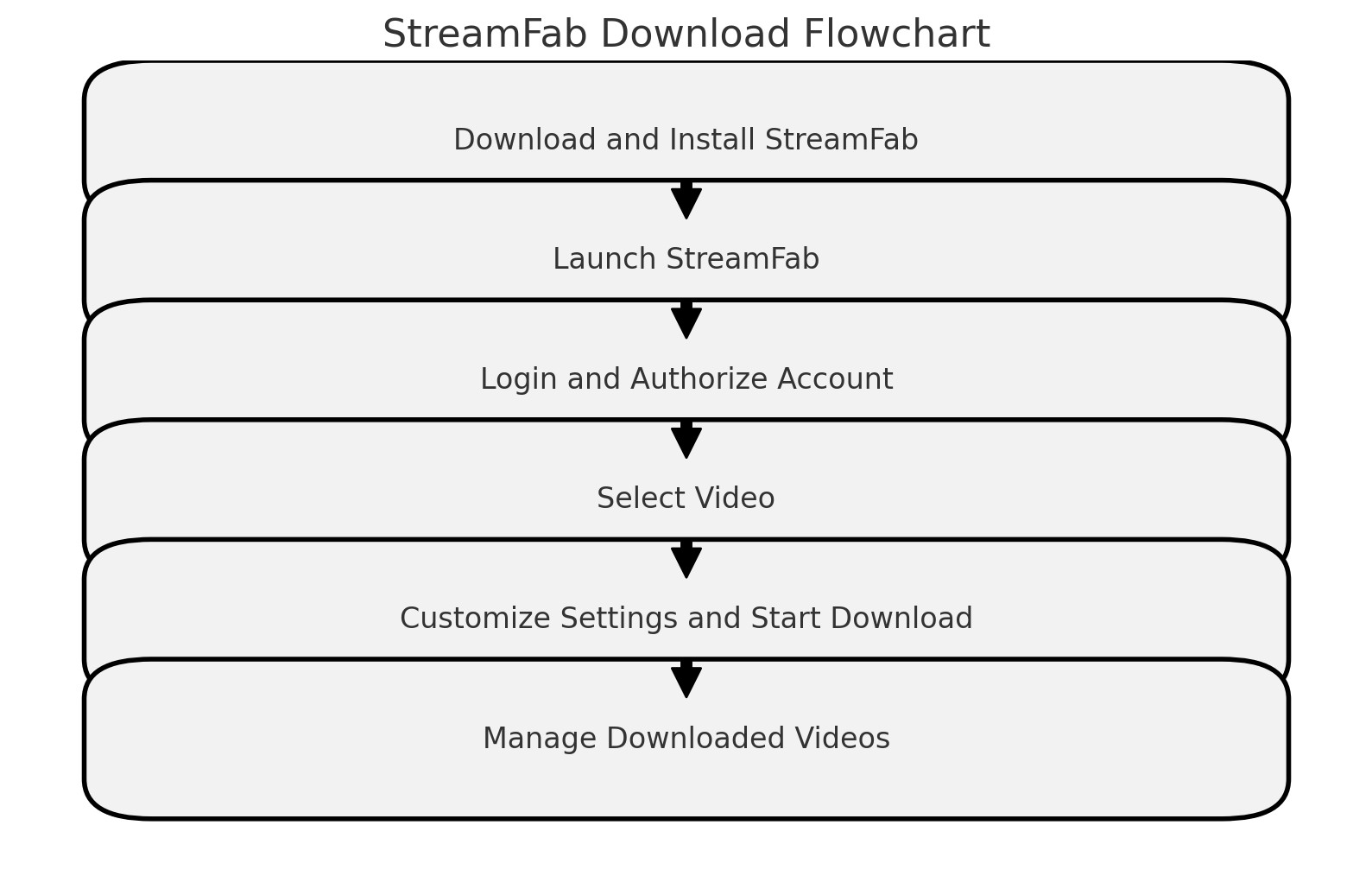
- Use a supported Windows or macOS computer with enough storage for the selected output
- Keep an internet connection available for installation, sign-in, authorization, and service access
- Prepare a DVDFab Member Center account and authorized access to the supported streaming service
- Use the applicable StreamFab module, paid license, or available trial entitlement for the workflow
- Confirm the available video, audio, subtitle, and output-folder choices before adding a job to the queue
- For important information on lawful personal use and backup practices, please see our StreamFab copyright and usage guidelines.
Install and Authorize StreamFab 7
Check Requirements and Install on Windows or Mac
Before installing, prepare a Windows or macOS computer, an internet connection, a DVDFab Member Center account, authorized access to the streaming service, and the applicable StreamFab module or trial entitlement.
A free trial is available with some features limited, which makes it useful for confirming the workflow and available output before choosing a paid license. Download the online installer or get the full package from the Download Center, run it, and select Quick Install. Installation prepares the desktop app; the resolution and other options shown later depend on the supported service, title, plan, and available stream. Purchase and promotion details are covered in the guide to getting StreamFab at a lower price.
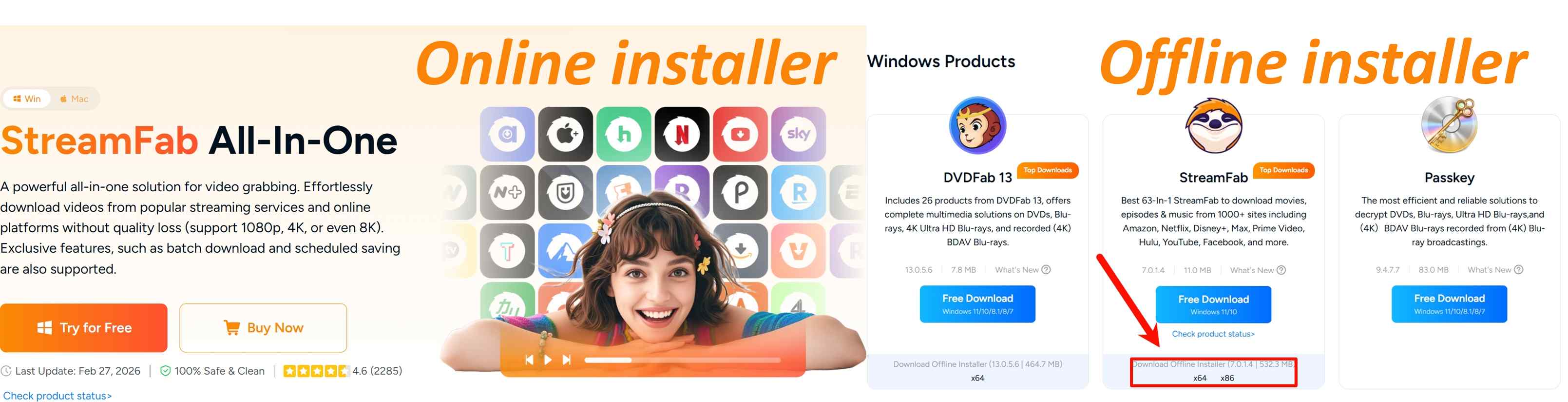
Free Download macOS 12.0 or newer
Authorize or Move a License
To remind you: authorizing StreamFab requires a live internet connection, so check your Firewall or antivirus software settings to make sure they do not block StreamFab from accessing the internet. Besides, before authorization, make sure you are already a member at DVDFab Member Center; otherwise, go Create an Account first.
Authorization activates the applicable StreamFab license or trial entitlement on this computer. Keep the device online during these steps:
Step 1: Fire up StreamFab and click the My Account icon at the bottom left of your dashboard.
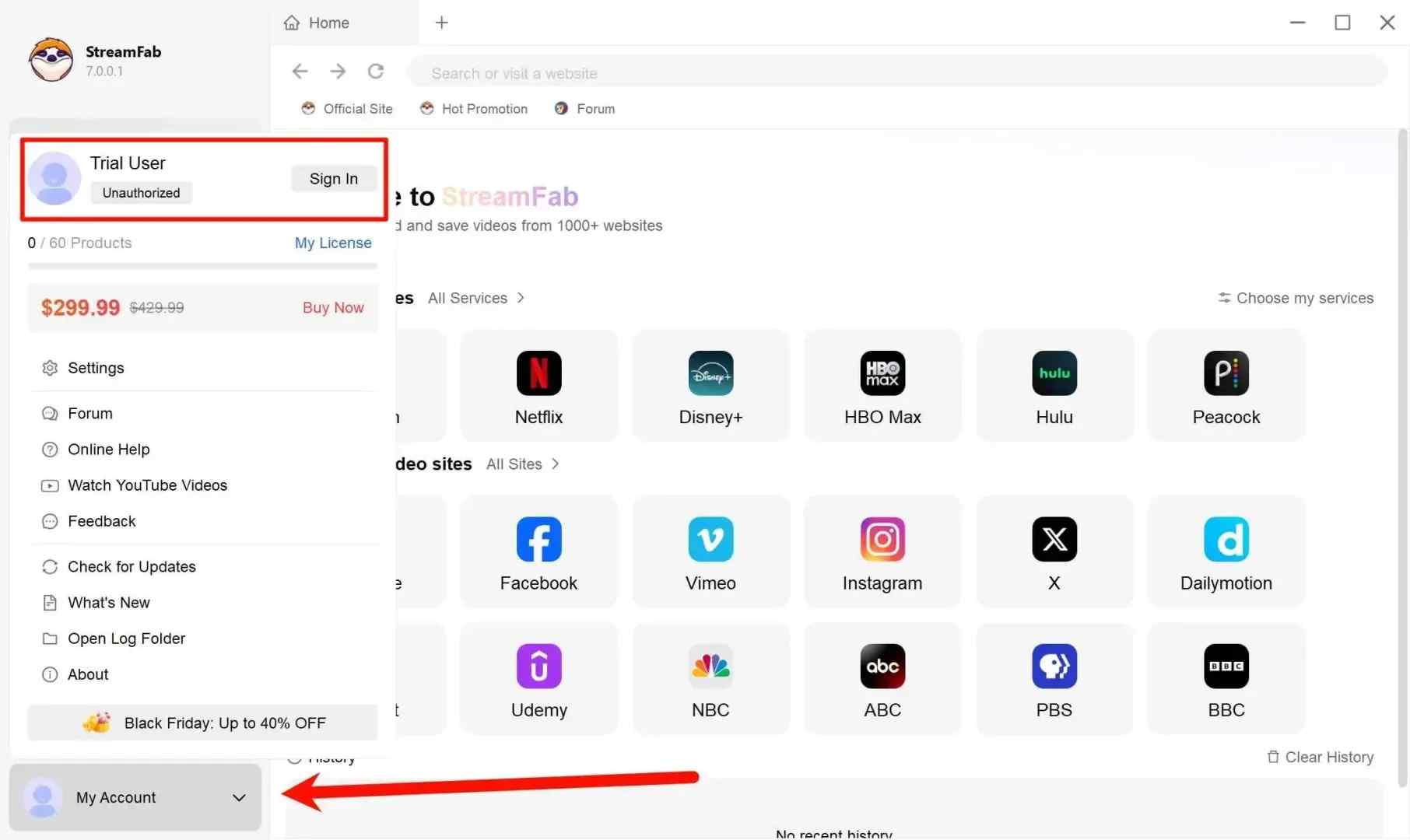
Step 2: Select Sign In to pull up the secure login window. Enter your registered email and password to link your device.
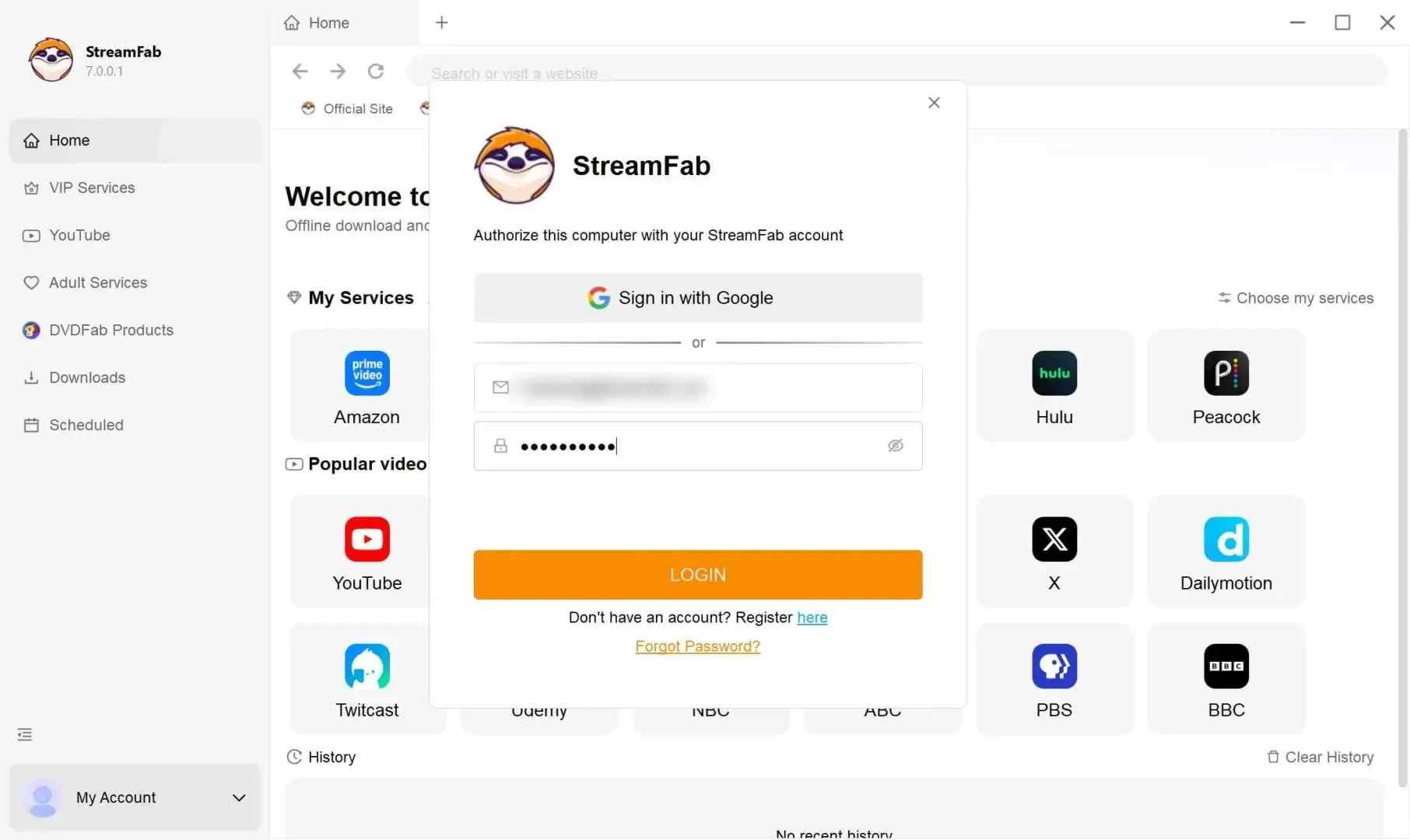
Step 3: Confirm the Device Authorized message to finish activation on this computer.

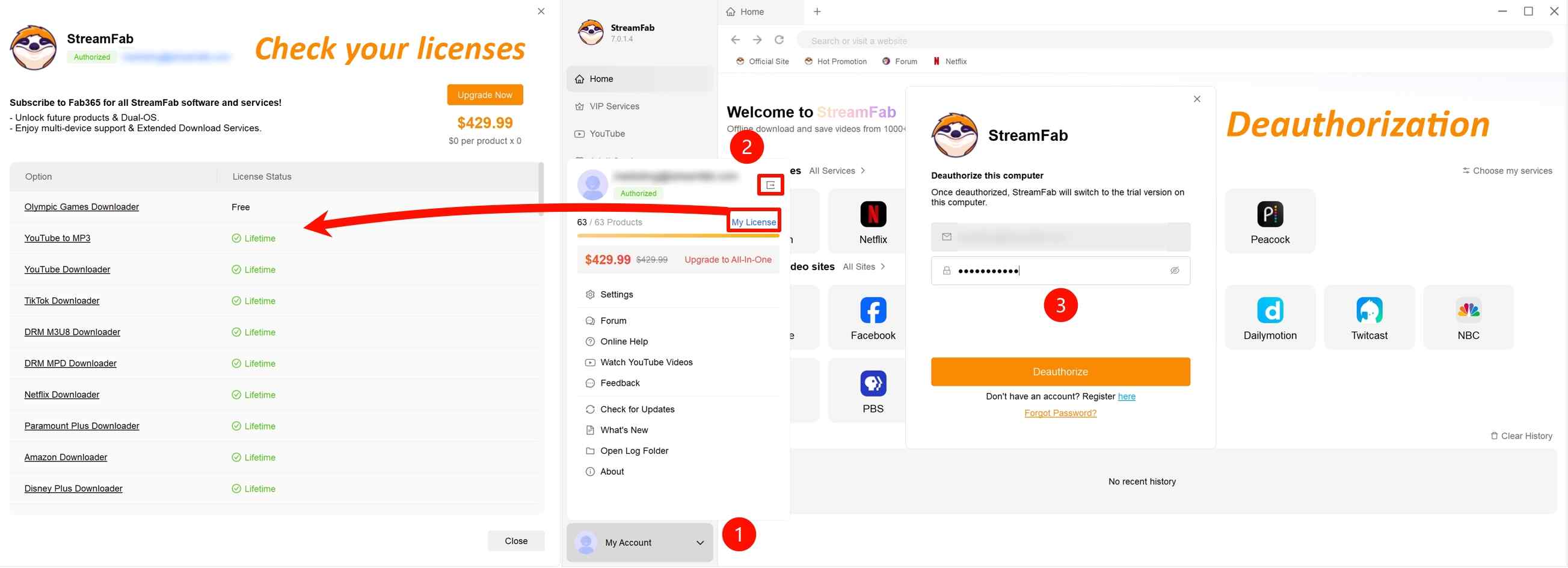
When moving StreamFab to another computer, manage active devices through the Member Center and use Deauthorize in the account menu before activating the replacement device. To review available licenses, open My Account and select My Licenses.
Keep StreamFab Current
Update In App or Reinstall
As of July 2026, the official product page lists StreamFab 7.0.3.9. To check the installed version, open My Account and select Check for Update. If the incremental update fails or the interface appears outdated, install the current full package from the Download Center.
First Checks When Analysis Stalls
If sign-in fails, analysis does not finish, or no download window appears, refresh the service page, sign in again, restart StreamFab, and install the current full package. Persistent cases belong in the StreamFab troubleshooting guide; messages with a specific number are covered in the StreamFab error-code guide.

Choose Output and File Settings
Format, Quality, Audio, Subtitles, and Storage
Open Settings from My Account before the first download. Use this matrix to choose a container, subtitle method, and storage location based on playback needs rather than the largest resolution shown in marketing.
| Decision | MP4 | MKV | Separate SRT subtitles |
|---|---|---|---|
| Best playback fit | Generally the simpler choice for broad device and player compatibility | Useful when a supported workflow exposes multiple audio or subtitle tracks | Useful when you want an editable subtitle file beside the video |
| Container or file type | Video container | Video container | Text-based subtitle file used with an MP4 or MKV video |
| Video codec | Uses the codec available for the selected workflow and settings | Uses the codec available for the selected workflow and settings | Does not contain video or change the video codec |
| Available resolution | Depends on the service, title, subscription plan, and options shown in the download window | Depends on the service, title, subscription plan, and options shown in the download window | Does not affect video resolution |
| Audio-track options | Select from the tracks exposed for the title; player compatibility should guide the choice | Can be useful when multiple exposed tracks need to remain in one container | Does not contain or change audio |
| Subtitle handling | Supported subtitles can be placed in the video container | Supported subtitles can be placed in the video container, including multiple tracks when available | Saves the selected subtitle language as a separate file when that option is available |
| Output location | Saved in the configured Output Directory | Saved in the configured Output Directory | Saved with the related video in the configured Output Directory |
| Service and title limits | Format, quality, audio, and subtitle choices vary by supported workflow | Multiple-track benefits apply only when those tracks are available | Forced or separate subtitles may not be exposed for every title |
My practical rule is to choose MP4 for straightforward playback and MKV when the available track selection justifies it. Subtitle needs and player support should make that decision, not the largest advertised resolution. For service-specific detail, see the StreamFab output-quality guide.
Under General Settings, set the Output Directory and Temp Directory and confirm that both drives have enough free space. Post-processing integrations are optional and should be configured only when they are part of your intended local-file workflow.

Download Videos With StreamFab
Save Supported Web Videos
The download window presents the options available for the selected website and video. Depending on the supported source, those choices may include an audio file or an MP4 video at one of the resolutions shown in the dialog.
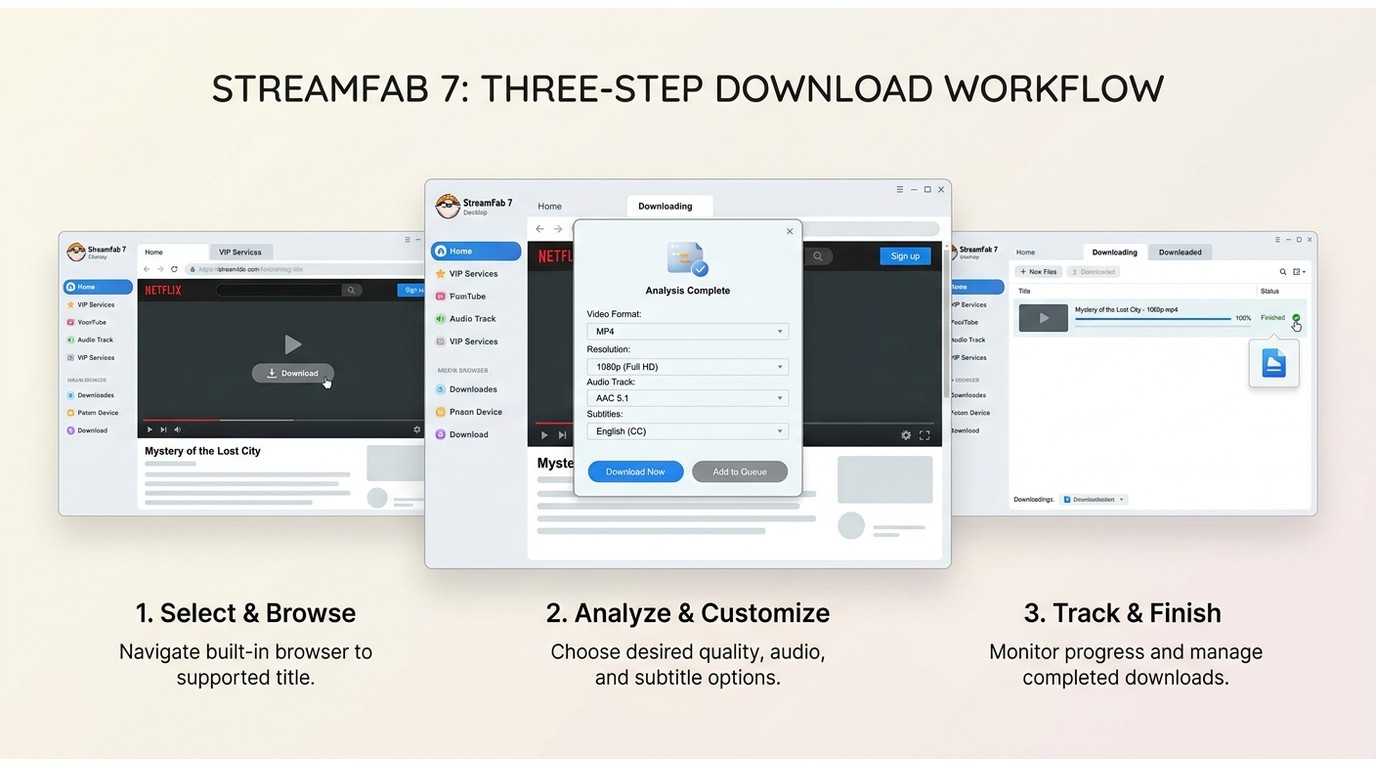
Copy the video URL and select Paste URL in StreamFab, or open the supported page in the built-in browser. Play the video so StreamFab can analyze the page, review the available output choices, and select Download to add the job to the queue. Multiple URLs can also be imported when the supported workflow allows batch processing.
Save Streaming Movies and Series
Open the supported service in VIP Services and sign in with an account authorized to access the title. Select the movie, episodes, or season, review the available video, audio, and subtitle options, and then choose whether to start immediately or add the selection to the queue. This desktop workflow works best for planned personal offline viewing and batch selection, but it may not meet your needs when the service or title does not expose the desired quality or track.
Click the VIP Services tab on the main interface. Use the internal browser to sign in to your active subscription.

Find the show you want to back up and start playback. An analysis window will pop up automatically. This is where you pick your resolution, audio tracks, and subtitles.

Hit Download Now to start, or Add to Queue if you're doing a binge-watch batch.

Manage Queued and Downloaded Files
Open the download queue to review pending and active jobs. Completed items appear in Downloaded and in the Output Directory selected under Settings; you can move the resulting files to another local drive after the job finishes. Batch selection and scheduling are available for supported workflows, while advanced ordering and scheduled-download instructions are covered in the StreamFab batch-download guide.
FAQs
Is StreamFab free to use after the trial ends?
StreamFab offers a free trial with some features limited. Continued use of a paid downloader module after the applicable trial entitlement ends requires the corresponding license.
Why is 4K unavailable for some movies or services?
The options shown in the analysis window depend on the service, title, subscription plan, and available workflow. StreamFab’s maximum supported capability is not a guarantee that every movie or service will expose 4K.
Do I need both a streaming account and a StreamFab license?
Yes. You need authorized access to the supported streaming service and the applicable StreamFab module, license, or trial entitlement for that workflow. The two accounts serve different purposes and are signed in separately.
Why does StreamFab stay on Analyzing without showing a download window?
Refresh the service page, sign in again, restart StreamFab, and install the current full package if an incremental update failed. If the prompt still does not appear, continue with the troubleshooting guide linked above.
Conclusion
StreamFab is most useful for Windows and Mac users who want a planned local-file workflow with selectable available tracks, an output folder they control, and visible queue management. It is a weaker fit for mobile-only use or for anyone who requires a specific resolution or track that the selected service and title do not expose.
If that desktop workflow matches your needs, start with the available trial, confirm the output choices for your service, and complete one download before configuring a larger queue. If it does not match your device or workflow, compare the options in our StreamFab alternatives guide.
Update Log
This update narrows the guide to the StreamFab 7 desktop workflow and records the practical changes made to setup, output selection, queue management, and first-response troubleshooting.
- Desktop Scope: Narrowed the tutorial to the StreamFab 7 workflow on Windows and macOS.
- Requirements: Clarified Member Center, streaming-account, authorization, trial, and paid-module requirements.
- Output Planning: Added an MP4, MKV, and separate SRT decision matrix with service and title limitations.
- Workflow Guidance:Added queue visibility, output-folder, Downloaded history, and local-drive instructions.
- Troubleshooting Coverage:Added first checks for stalled analysis, failed sign-in, missing prompts, and update failures.
- Claim Review Completed:Removed unsupported absolute claims about quality, availability, account handling, and metadata.

Staring at an error code and wondering what StreamFab is actually telling you? In July 2026, I mapped every code against the real failure it represents — here's the reference guide that skips the corporate jargon and tells you exactly what to do in under 2 minutes.
By Erika Leen - Oct 12, 2026
StreamFab 7 marks the first major update in nearly three years. This review looks beyond surface-level changes and examines what actually matters in everyday use based on real testing, community feedback
By Erika Leen - Sep 28, 2026
Choose between StreamFab’s local file workflow, Audials’ Windows recording and editing, and PlayOn’s local or cloud recording. Compare queue behavior, picture quality, audio and subtitles, and recurring costs, with a repeatable way to check one authorized title before building an offline library.
By Marcia Hatcher - Sep 28, 2026

This article is an official response to users asking regarding the safety and legality of StreamFab. Written by StreamFab team, it moves beyond simple assurances to provide a transparent technical and legal analysis.
By Nicole Lopez - Sep 24, 2026