
PlayOn Amazon Not Working? 4 Troubleshooting Checks

Summary: Experiencing PlayOn Amazon not working issues like black screens, audio sync failures, or Error 201? Discover why 2026 Widevine DRM updates break screen recording and how to fix them for high-quality offline playback.
If an Amazon Prime title plays normally in your browser but PlayOn Home returns an unknown error, the failure is likely limited to the recording workflow. When PlayOn Amazon is not working, check ad and audio behavior, black-screen symptoms, sign-in status, and CPU load or scheduling.
The goal is to identify whether the problem affects Amazon playback, one specific title, or PlayOn Home before you change software or recording settings.
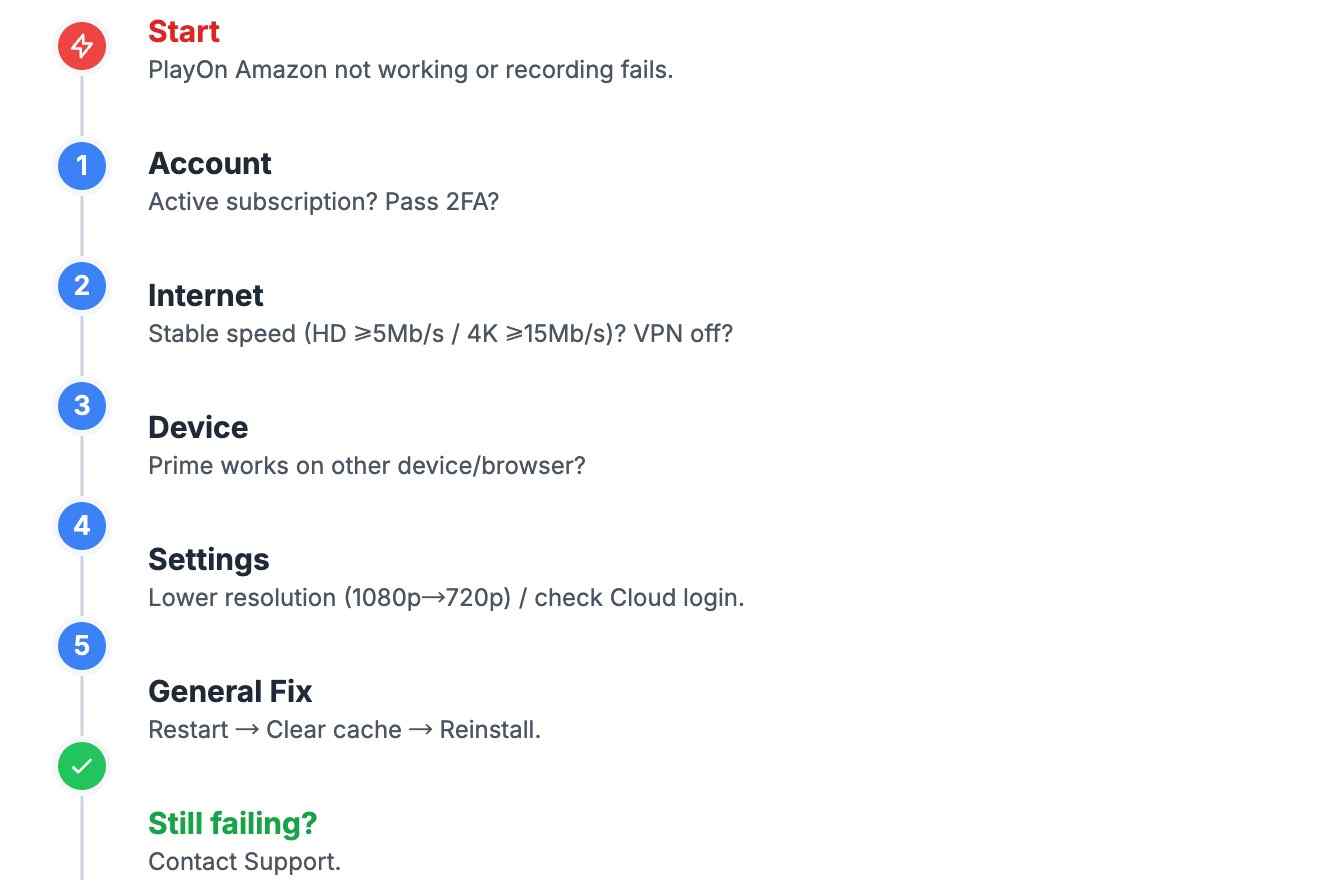
The four checks below cover sync issues, black recordings, Error 201 or repeated 2FA prompts, and local-PC conditions that can interrupt a recording.

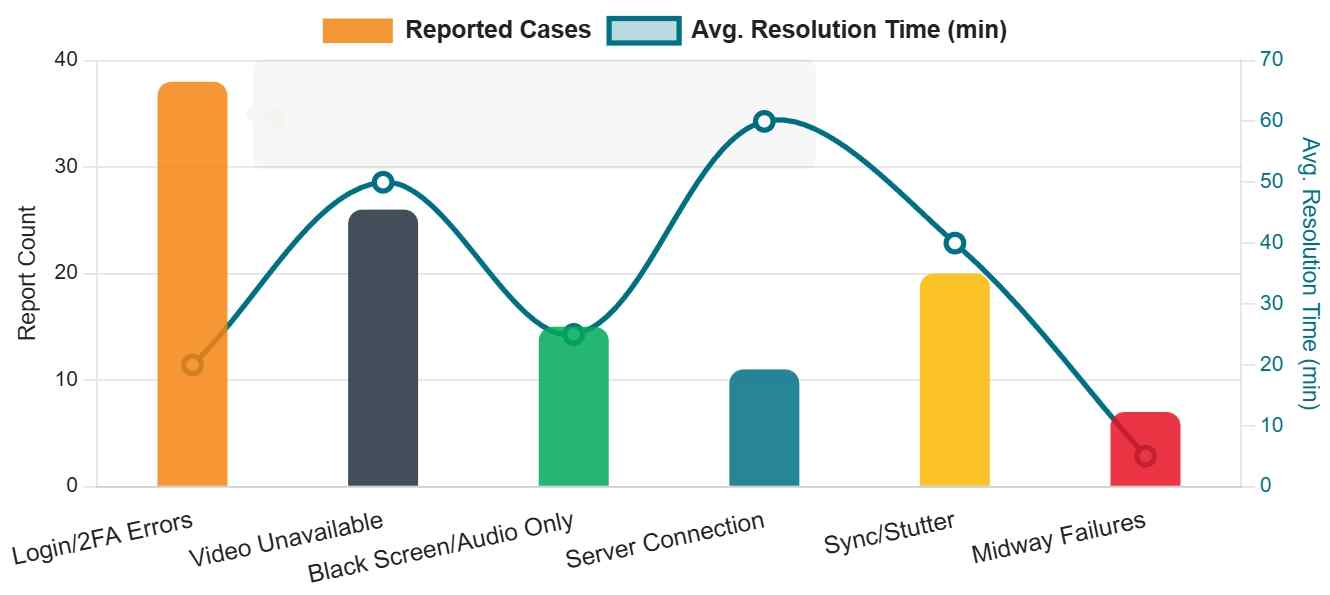
PlayOn Amazon Prime Error Diagnostics
When PlayOn Home reports an unknown error for an Amazon Prime title, play the same title in a normal browser and compare it with one other Amazon episode. If browser playback works, retry the title in Home; if only one title or episode fails, treat it as a title-specific issue rather than assuming a system-wide cause.
For failures that extend beyond Amazon, the PlayOn problems and how to fix guide covers broader software troubleshooting.
Ad-Tier Interruptions & Sync Issues
PlayOn records the Amazon playback session into the output file. Its AdSkip feature marks detected advertisements so they can be skipped during playback, but it does not remove those advertisements from the recorded file.
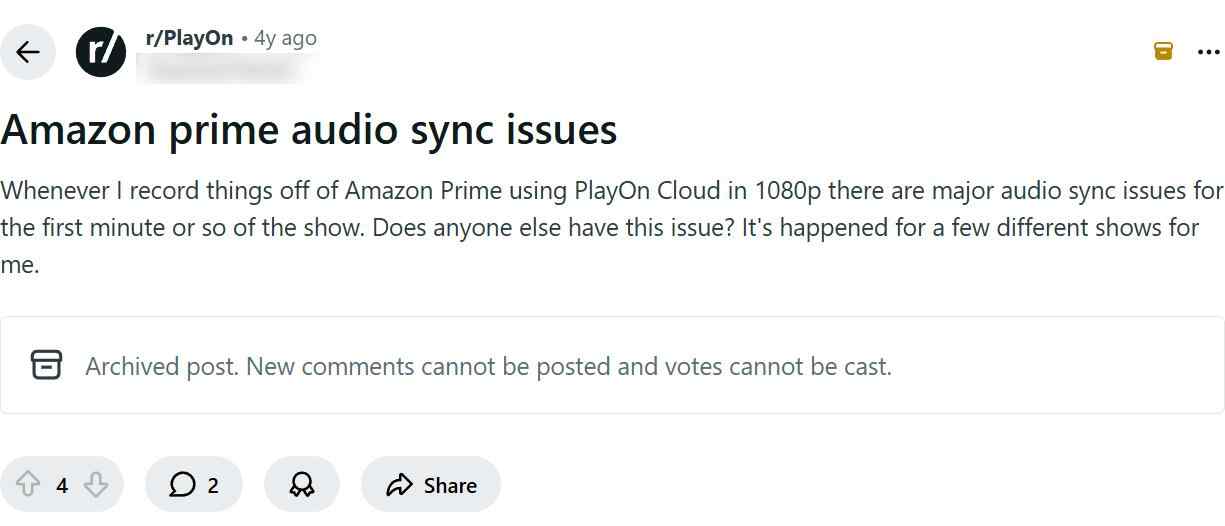
If a recording has missing audio, sync drift, a clipped opening, or an incomplete ending, update PlayOn and inspect both the opening audio and the end of your failed file. If the problem persists, report the Amazon title and installed PlayOn version through support.
Diagnosing Black Screens During Amazon Playback
First, play the same Amazon title in a normal browser. If browser playback is also black, troubleshoot Prime Video playback or the display connection before treating the problem as a PlayOn recording failure; if the browser works but the recording is black, report it as a PlayOn Home recording issue.
For an external display connection, Prime Video requires HDCP 1.4 for HD and HDCP 2.2 for UHD or HDR. A black recording alone does not identify an HDCP fault, so check the display path separately and avoid treating hardware acceleration as a guaranteed remedy.
Resolving Error 201 & 2FA Loops
Error 201 or repeated two-factor authentication prompts can appear when PlayOn Home cannot complete or retain the Amazon sign-in session, but the symptom does not identify one universal cause.
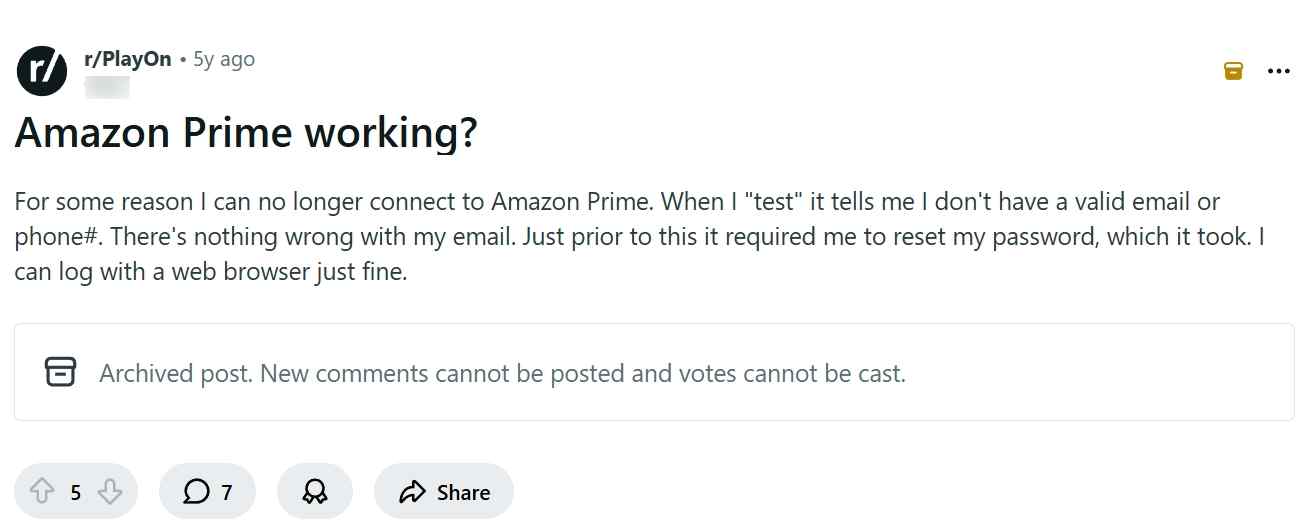
For PlayOn Home, confirm that the title plays in a normal browser, complete any pending 2FA prompts, sign in again, and use the support request option in Settings if Error 201 continues. Because PlayOn Cloud records remotely, Cloud failures should use the app support and recording-credit route rather than local-PC CPU checks.
CPU Load, Sleep & Scheduled Recordings
Real-time video encoding can place a sustained load on the CPU, so heavy background applications may contribute to a recording failure.
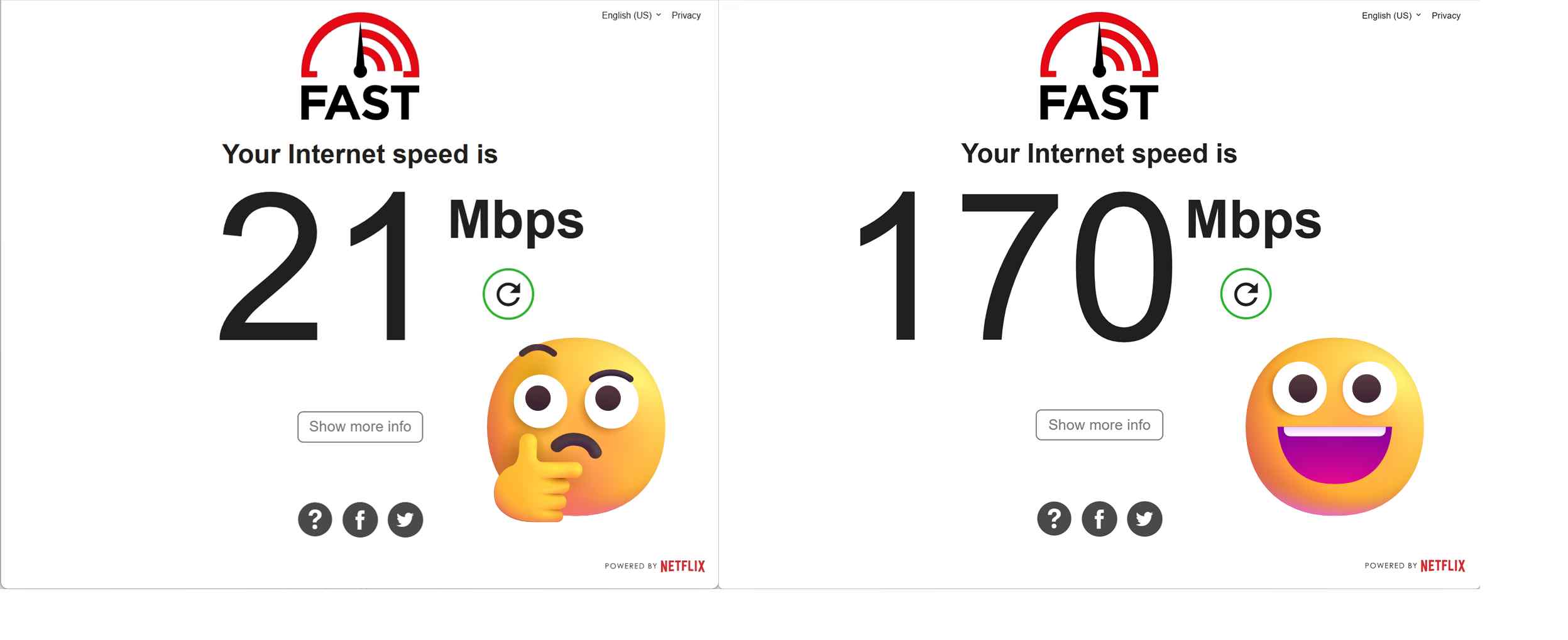
If your computer processor remains near full utilization, PlayOn may struggle to process and write frames consistently. This can lead to a "video unavailable" timeout. Shut down extraneous background processes, lower the recording quality in the software's settings, and ensure your system sleep functions are completely disabled during the runtime. If a manual Amazon title search works but a scheduled recording does not, refresh or re-create the recording subscription and try again. For persistent PlayOn Home failures, submit a support request through Settings.
PlayOn Recording and Personal Offline Viewing
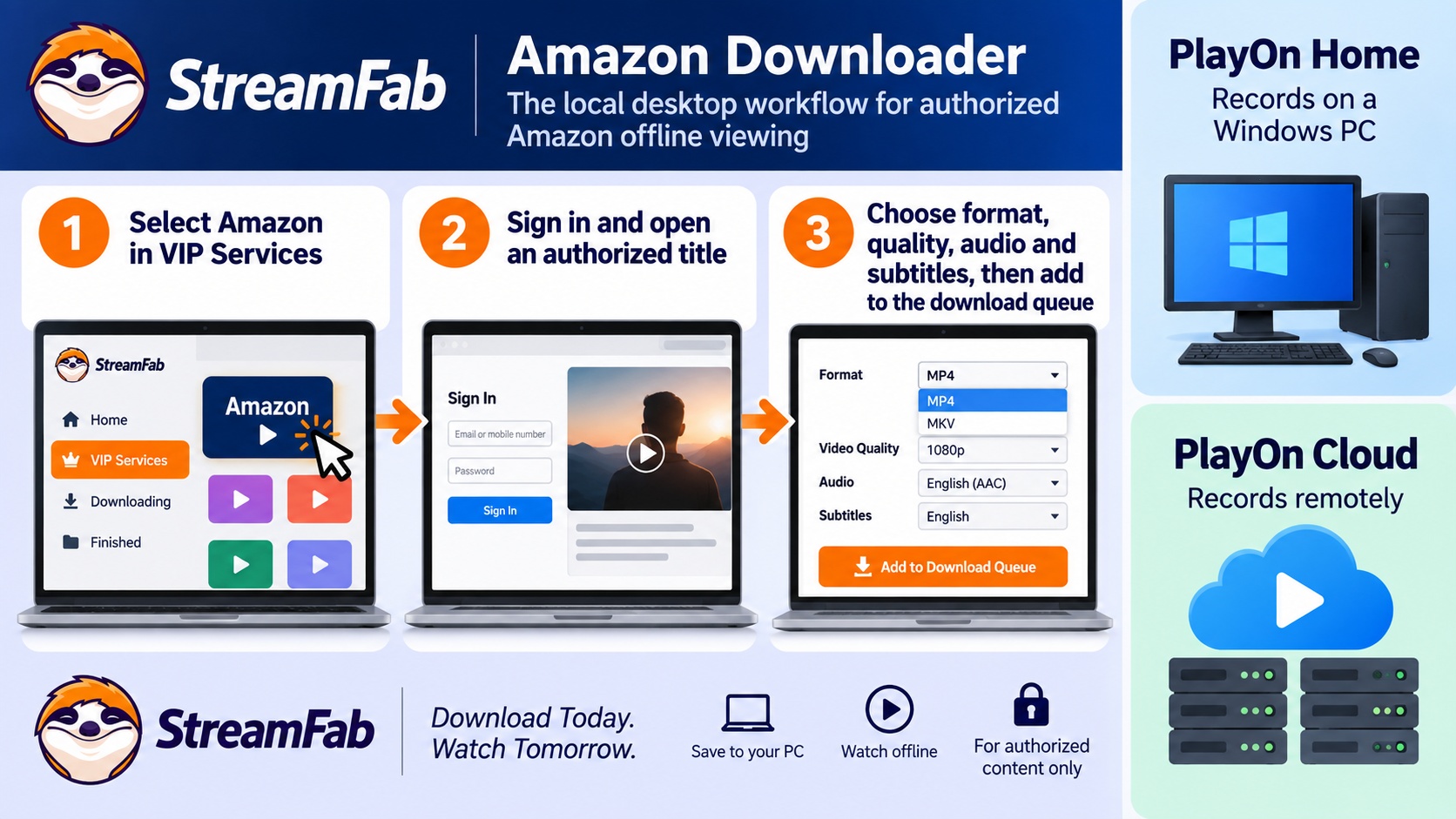
Use PlayOn Home when you want the recording to run on a local Windows PC. Choose PlayOn Cloud when you need remote recording without keeping the Home PC active.
StreamFab for Personal Offline Viewing

Saves Amazon Prime Video titles you are authorized to access as local MP4 or MKV files for personal offline viewing on Windows or Mac.
As of September 2026, PlayOn Home and PlayOn Cloud differ by recording location, available quality, and ad behavior.
| Feature | PlayOn Home free | PlayOn Home paid | PlayOn Cloud |
|---|---|---|---|
| Recording location | Windows PC | Windows PC | Remote recording |
| Recording quality | SD, ad-supported content | Up to FHD 1080p | SD, HD, or FHD |
| Output | MP4 | MP4 | MP4 |
| Ad behavior | Ads remain in file | AdSkip during playback | AdSkip during playback |
An app-managed download is the simpler fit when you only need a permitted viewing session inside the service. For readers weighing a broader PlayOn alternative, StreamFab Amazon Downloader fits the narrower task of saving a local MP4 or MKV copy on Windows or Mac for personal offline viewing of Amazon content they are authorized to access, where platform terms and applicable law permit it.
Amazon support and product availability may change, so use the official installer links below to obtain the current Windows or Mac build.
The workflow has three steps: install the desktop app, sign in with valid Amazon access, and choose the available output settings for the selected title.
Step 1: Install and launch the downloader
Download StreamFab Amazon Downloader from the official installer destination, open the client, and select Amazon from the VIP Services area.
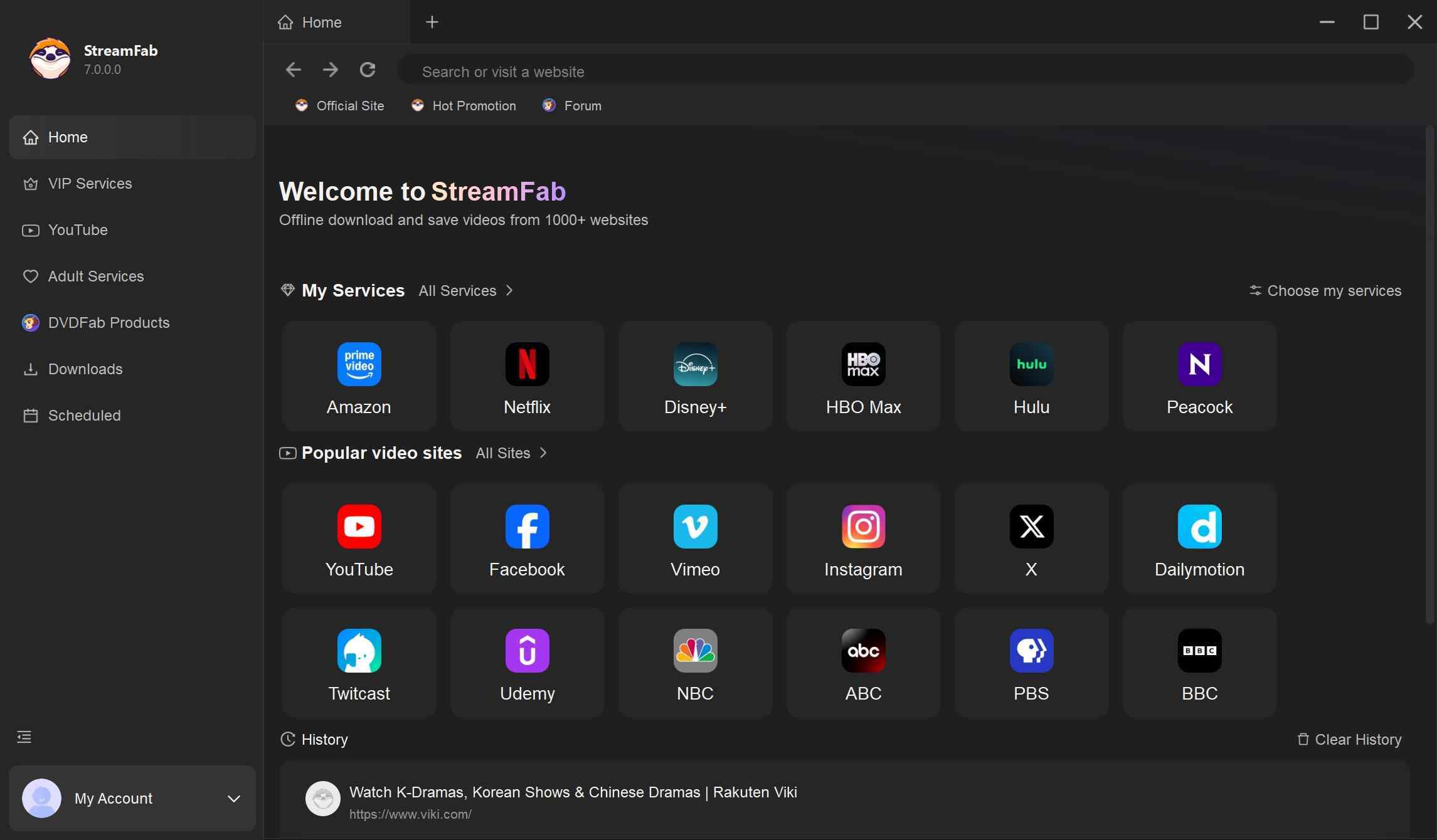
Step 2: Sign in and select an authorized title
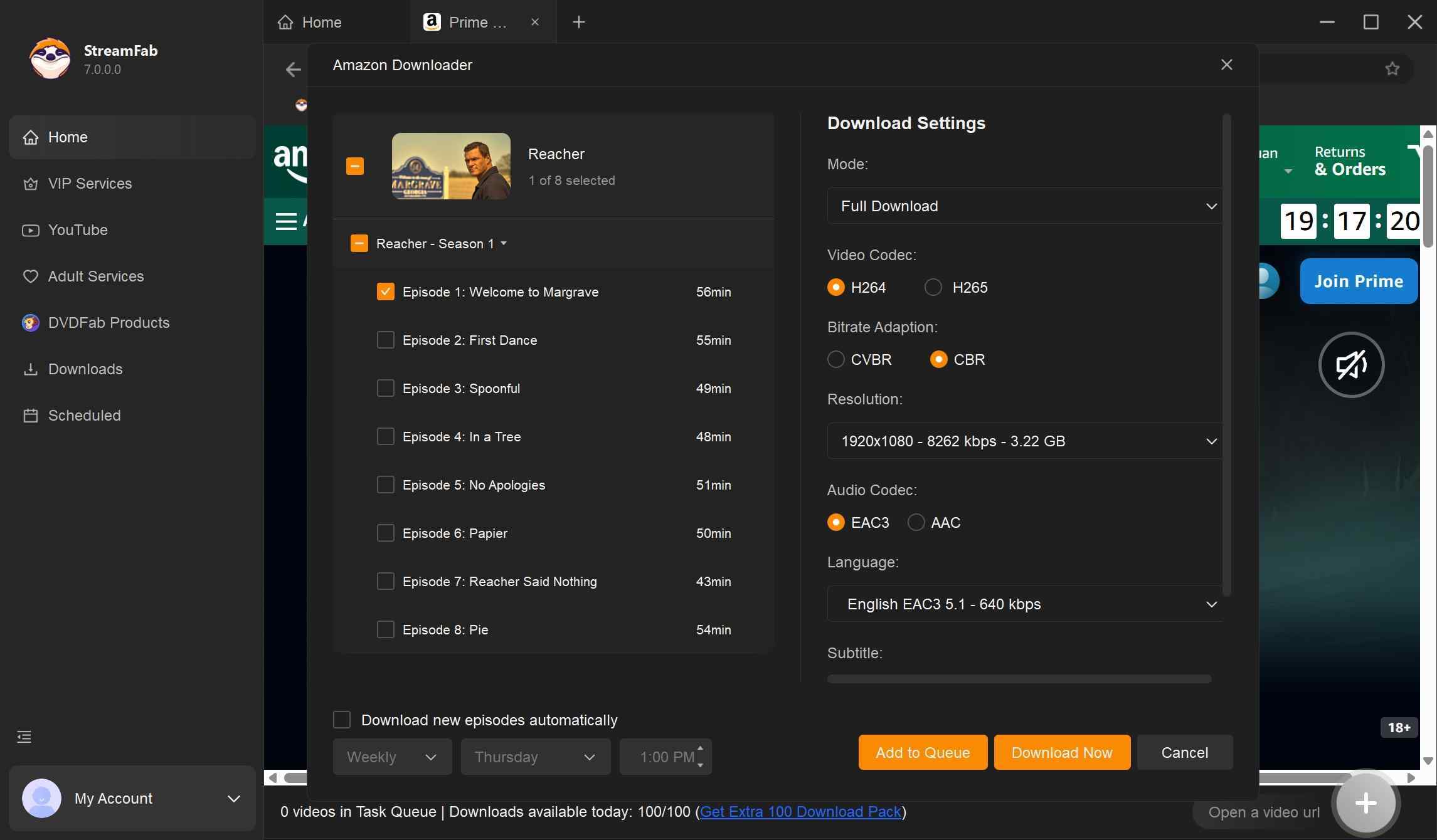
Sign in to the Amazon account that provides access to the title, then open the movie or episode within the integrated browser.
Step 3: Choose the available offline settings
Select the format, video quality, audio, and subtitle options available for the title, then add it to the download queue.
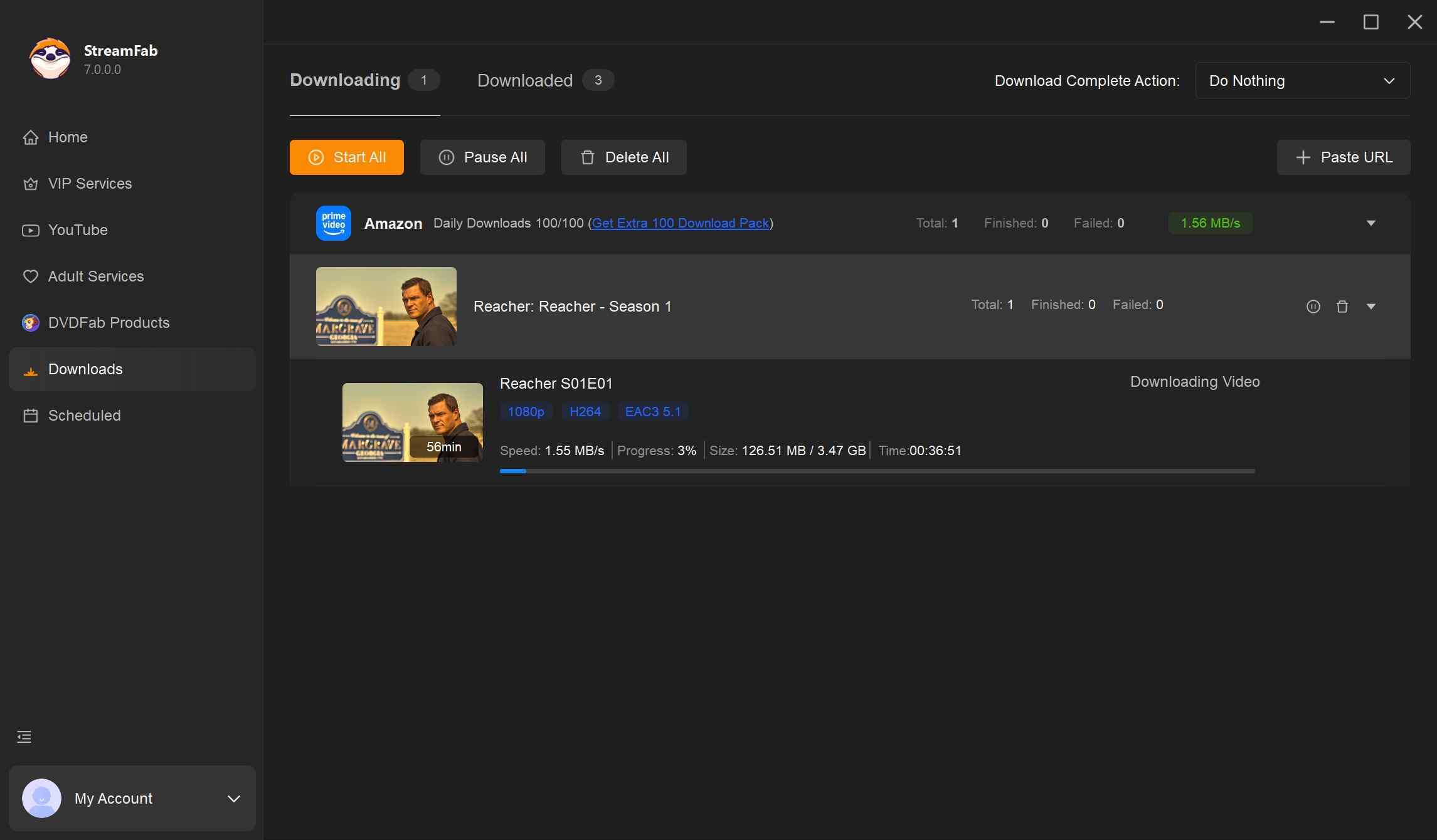
Use a valid Amazon account and save only content you are authorized to access. Keep local copies for personal offline viewing, do not redistribute them, and follow Amazon's terms, applicable law, and any restrictions relevant to your use case.
FAQs
Can PlayOn change which Amazon titles I can access?
No. PlayOn can record only titles available through the Amazon account linked to the service; it does not add access to unavailable titles. Use it only for content you are authorized to access and within applicable platform terms and law.
What should I report when an Amazon recording stops late?
A late failure or a 99% progress reading does not identify the cause by itself. In PlayOn Home, open the support request option in Settings and include the Amazon title and episode, your installed PlayOn version, the failure time, and whether another episode records successfully.
Does PlayOn AdSkip remove ads from Amazon recordings?
No. PlayOn AdSkip marks detected commercial breaks so they can be skipped during playback, but it does not remove the advertisements from the recorded file.
Which HDCP version does Prime Video require?
For external display connections, Prime Video requires HDCP 1.4 for HD playback and HDCP 2.2 for UHD or HDR playback. These requirements apply to the display path, so a black recording alone does not confirm an HDCP problem; first check whether the same title plays normally in a standard browser.
Editor's Take: Diagnose First, Then Choose the Workflow
{{COMPONENT_4}}Conclusion
My recommendation is straightforward: identify where the failure occurs before changing workflows. Confirm that the Amazon title plays in a standard browser, compare another episode, and then check PlayOn Home's CPU load, sleep settings, sign-in state, and recording subscription.
If the problem continues, use PlayOn Home's support option in Settings or choose a permitted offline workflow that fits the task. StreamFab Amazon Downloader is a desktop option for saving a local copy of Amazon content you are authorized to access for personal offline viewing, subject to platform terms and applicable law.
PlayOn Home has troubleshooting paths for browser playback, CPU load, sleep settings, and failed recording subscriptions. If those checks do not resolve the issue, StreamFab Amazon Downloader offers a desktop local-copy workflow for authorized personal offline viewing where permitted.
- Authorized Amazon access is required.
- Use only content you are permitted to access.
- Do not redistribute saved files.
- Follow platform terms and applicable law.

AnyStream (RedFox AnyStream) shut down in June 2024 and remains gone in 2026. I tested every major replacement — here are the 5 best anystream alternatives, including free options, ranked by real-world performance.
By Erika Leen - Oct 12, 2026
Evaluating the Audials One 2026 free trial? I tested its 720p caps, examined if is audials legal under Fair Use
By Erika Leen - Sep 29, 2026
Are you thinking of purchasing NoteBurner and unsure if it’s worth the investment? In this NoteBurner review, let’s delve into its product lines, particularly the NoteBurner Video Downloader’s pros and cons.
By Marcia Hatcher - Sep 28, 2026
Read our in-depth Audials review for 2026. Is Audials safe and legal for Amazon Prime? Discover actual test results, Widevine DRM fixes, and better alternatives.
By Erika Leen - Sep 28, 2026