
M4V DRM Removal: 3 Paths for Protected and Unprotected Files

An .m4v file is a media container, not proof that a file is protected. FairPlay protection may apply to qualifying Apple purchases and rentals, while other M4V files can be compatible with standard converters.
- iPhone / iPad: Use authorized playback in the Apple TV app with the Apple ID tied to the title.
- Windows / Mac: Check whether the file opens in Apple TV, VLC, or HandBrake before choosing a workflow.
- Android phones: Use a compatible, unprotected file in a supported container and codec.
- Smart TVs / TV boxes: MP4 with widely supported codecs is usually the practical starting point.
Platform terms and applicable law determine what processing and offline use are permitted.
Trying to play an M4V file and wondering whether it needs DRM removal? The extension alone cannot answer that. Check the file’s source and protection state first, then choose authorized Apple TV playback, local M4V-to-MP4 conversion, or a separate supported-streaming workflow.
Apple’s FairPlay protection can limit playback of qualifying Apple purchases and rentals outside authorized Apple apps. But the .m4v extension alone does not reveal the file state, so treating every M4V file as a protected file sends readers down the wrong path.
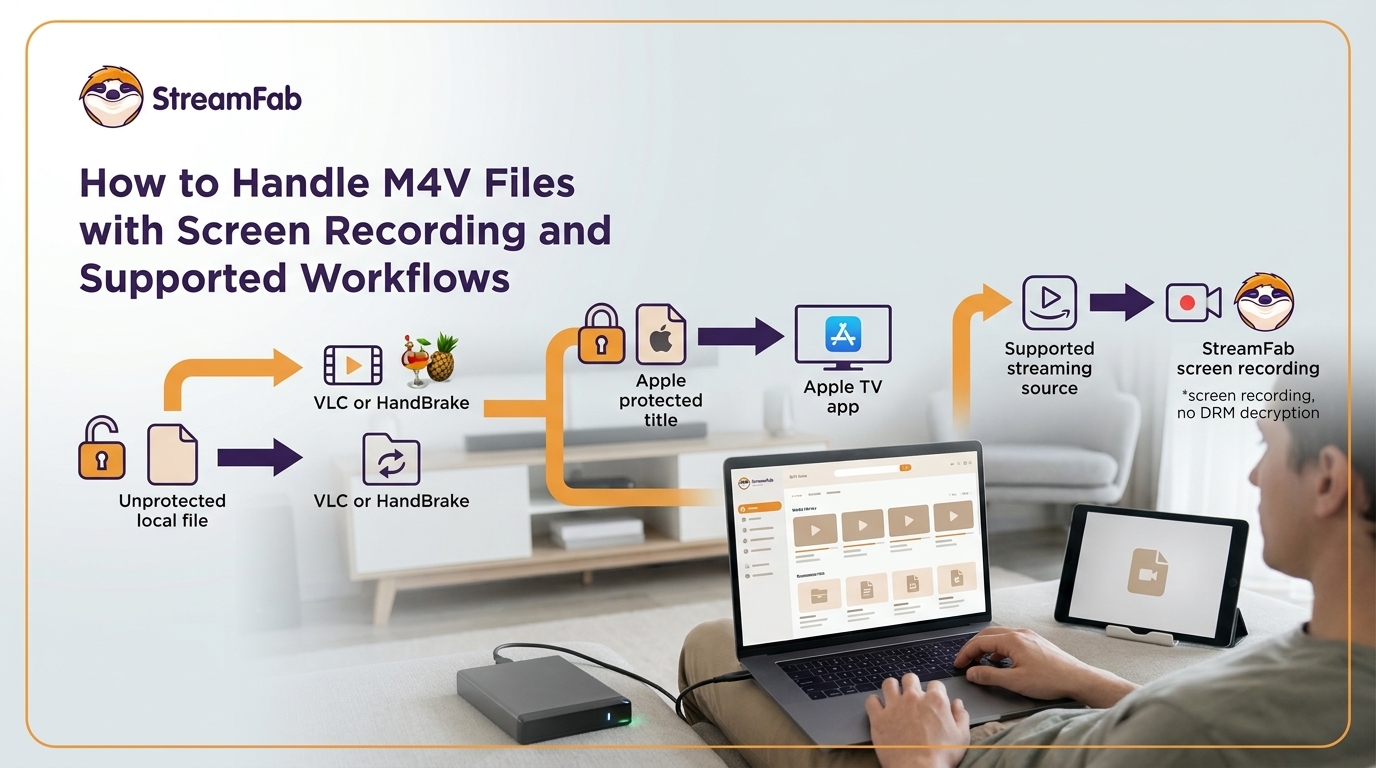
The useful checks are simple: confirm where the file came from, see whether it plays in an authorized Apple TV app session, and try opening it in VLC or HandBrake. Those results determine whether local conversion is realistic.
My rule for M4V troubleshooting is straightforward: verify the file state before installing software. It avoids the common mistake of treating a protected Apple title and an ordinary video container as the same problem.
M4V Files and FairPlay Protection
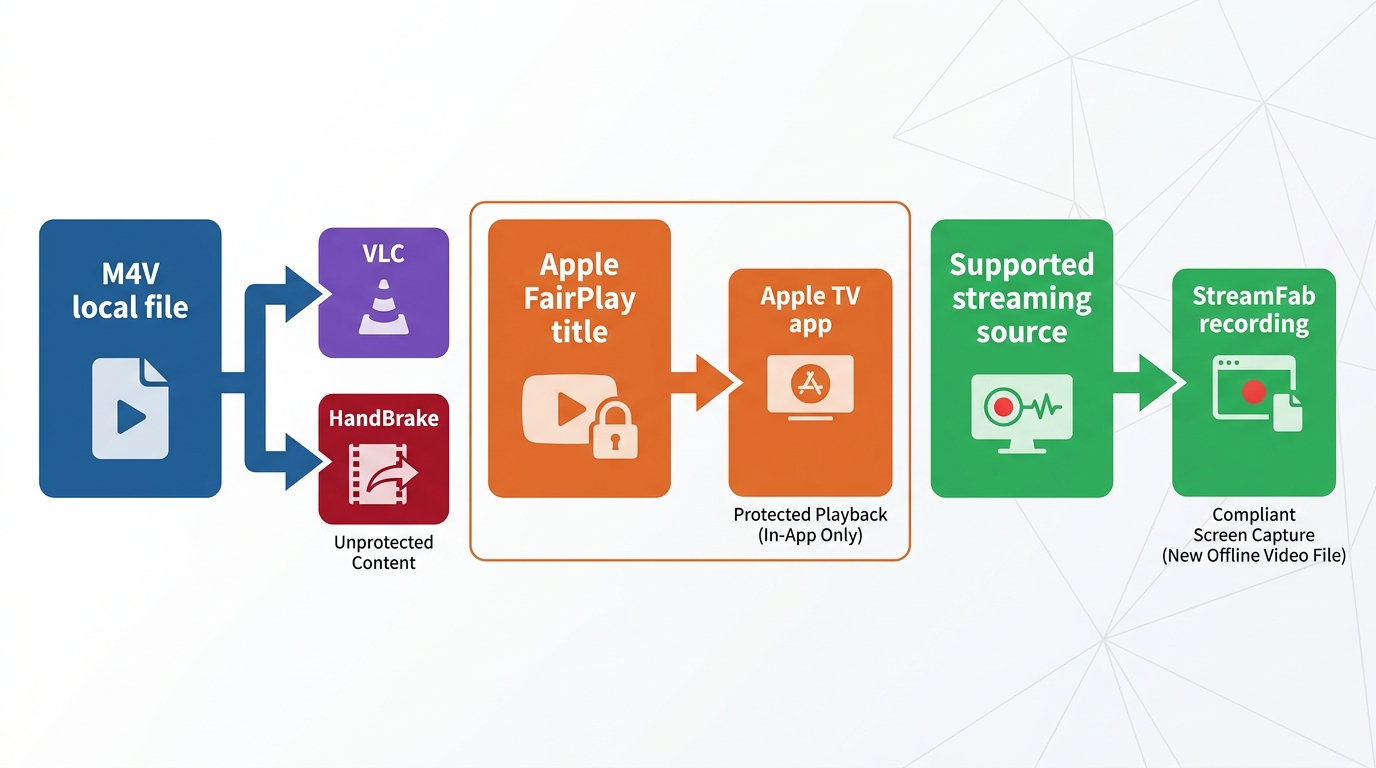
Check the File State First
The .m4v extension identifies a media container; some M4V files are unprotected, while qualifying Apple purchases and rentals may use FairPlay protection. It can hold ordinary video that a compatible player or converter can open, or it can contain a title subject to Apple’s FairPlay protection.
DRM, or Digital Rights Management, is a system used to control access to digital media. Apple calls its system FairPlay. Start by checking the source and trying authorized Apple TV app playback; then see whether VLC or HandBrake can open the local file.
- Authorized playback is tied to the Apple TV app and the Apple ID authorized for that title.
- On current Windows setups, Apple TV is the primary app for movies and TV shows; iTunes applies to older configurations.
- VLC, Android devices, smart TVs, and media servers may not open a protected file directly.
Permission and Platform Limits
A “format not supported” message can result from protection, codecs, audio, subtitles, or the player itself. Ownership or purchase alone does not determine whether a processing method is permitted; platform terms and applicable law also matter. Rentals can have tighter availability rules. On current Windows setups, Apple directs movie and TV playback through the Apple TV app; legacy iTunes references apply only to older configurations. I trust this current terminology more than old iTunes-only instructions.
Choose the Right M4V Workflow
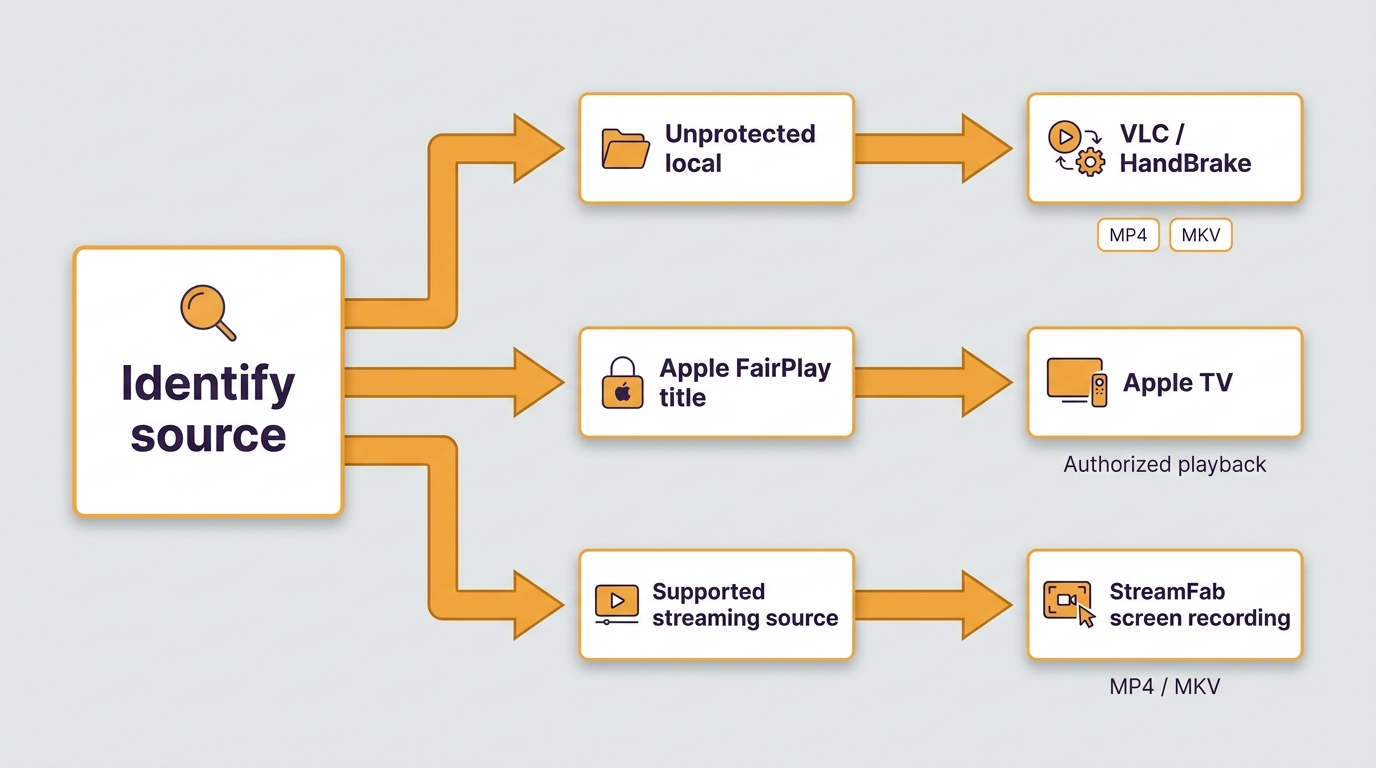
Use the file state to choose the workflow: compatible local files go through conversion, FairPlay-protected Apple titles stay in authorized Apple TV app playback, and supported streaming sources follow a separate offline-copy process.
Match File State to Method
The right path depends on whether the file is unprotected, FairPlay-protected, or from a supported streaming source. An unprotected local M4V can go through compatible remuxing or conversion; for Plex or Jellyfin libraries, readers can create MKV files when the file and server support that format. A FairPlay-protected Apple title belongs in authorized Apple TV app playback; and a supported streaming source is a separate path for creating a new offline copy. For that third path, StreamFab Video Downloader uses its supported-source workflow rather than importing or converting an existing local M4V file.
Feature Comparison | StreamFab (All-in-One) | Traditional Converters (One-Two Punch) |
|---|---|---|
Processing Time | "Processes" simultaneously during download | Requires a second conversion after download |
Ease of Use | Dead simple, one-click process | Complicated steps, easy to mess up |
Time Cost | Extremely low! A 2GB movie was done in under 5 minutes on my office's 100Mbps Wi-Fi. | High! The time it takes to convert one movie is enough for me to watch three anime episodes. |
Platform Support | Not just iTunes, but also streaming platforms like Netflix | Only supports files you've already downloaded locally |
Processing time depends on the source, selected quality, software version, hardware, and network conditions.
StreamFab for Supported Streaming Sources
For content you’re authorized to access, where platform terms and applicable law permit personal offline use, StreamFab uses a built-in browser to save a new offline copy from supported streaming services; it is not evidence of local M4V-file import or conversion. It fits supported streaming sources and batch or scheduled downloads, not a reader whose sole task is converting an existing local M4V file. If local conversion is your task, see our guide to top iTunes DRM removal options; Mac users weighing local conversion against authorized Apple playback can compare best iTunes DRM removal Mac options.
As of September 2026, supported platforms, maximum resolution, and audio capabilities depend on each service’s availability and subscription plan.
- Download videos for offline viewing from 1000+ sites, including Apple TV+, Netflix, Amazon Prime, Disney+, etc.
- Lossless quality in up to 1080p/4k resolution with EAC3 5.1 or AAC 2.0 audio track.
- Download videos in batches to save your time.
- Auto-download newly released video at a set time.
Track A: Convert a Compatible Local M4V File
- Open or import the local M4V file in a compatible converter.
- Select MP4 for broad device compatibility, or create MKV files when your media server supports that format.
- Choose the available audio and subtitle tracks, then start processing.
- Locate the output folder and verify the file’s duration, picture, audio, subtitles, and playback on the target device.
If the app cannot open the file or reports that it is unsupported, stop there. A FairPlay-protected Apple title should be played through the authorized Apple TV app instead.
Choose MP4, MKV, Audio, and Subtitles
MP4 is usually the practical choice for phones, TVs, and broad player support, especially with H.264. MKV suits Plex or Jellyfin libraries that need multiple audio or subtitle tracks. H.265 may reduce file size, but older devices may not support it. Select the audio and subtitle tracks your player can handle, and remember that re-encoding can reduce picture quality. I prioritize reliable playback over the largest resolution listed in a settings menu. After processing, verify the file’s duration, picture, audio, subtitles, and playback on the target device.
Track B: Create a New Offline Copy from a Supported Source
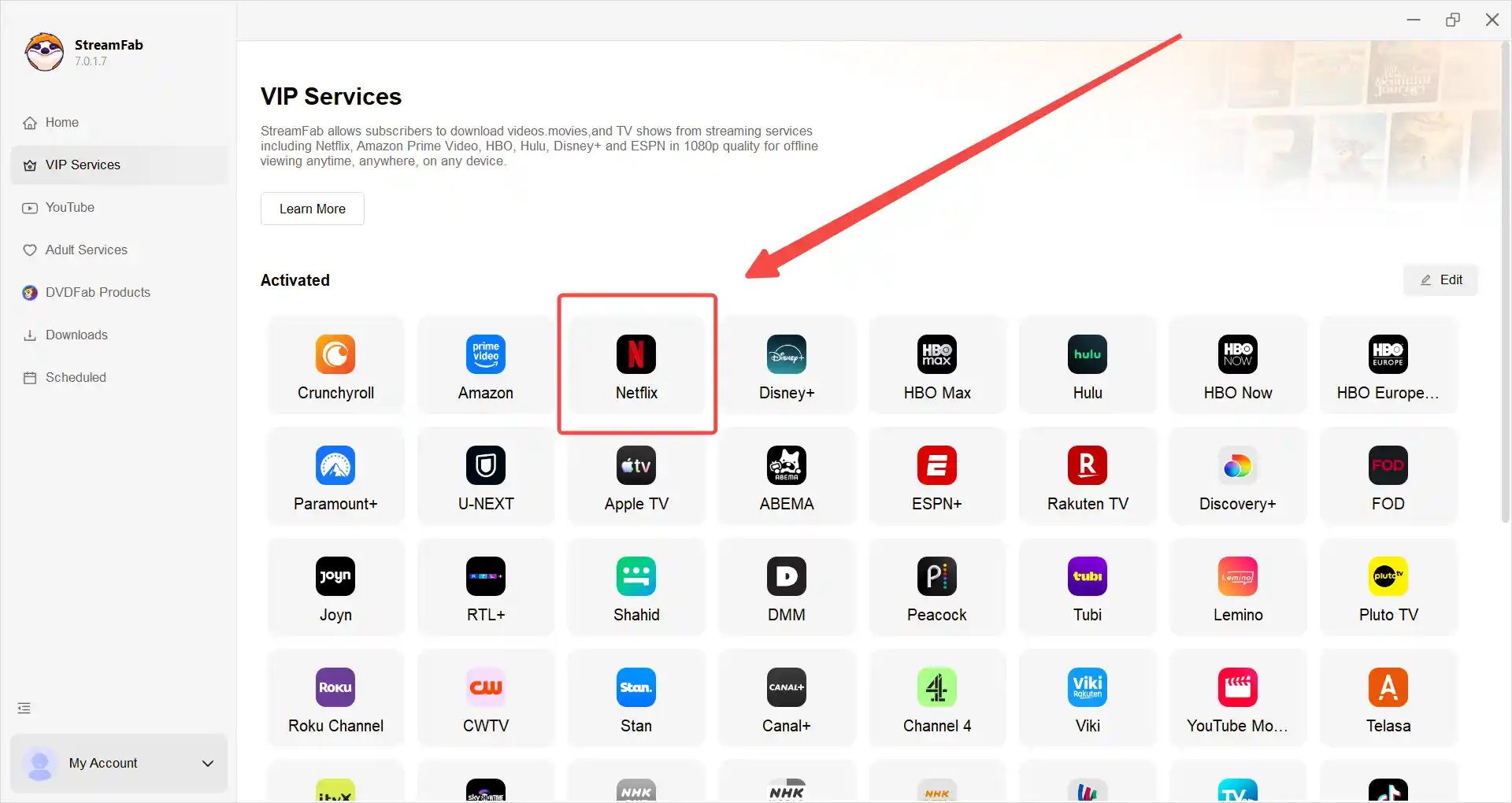
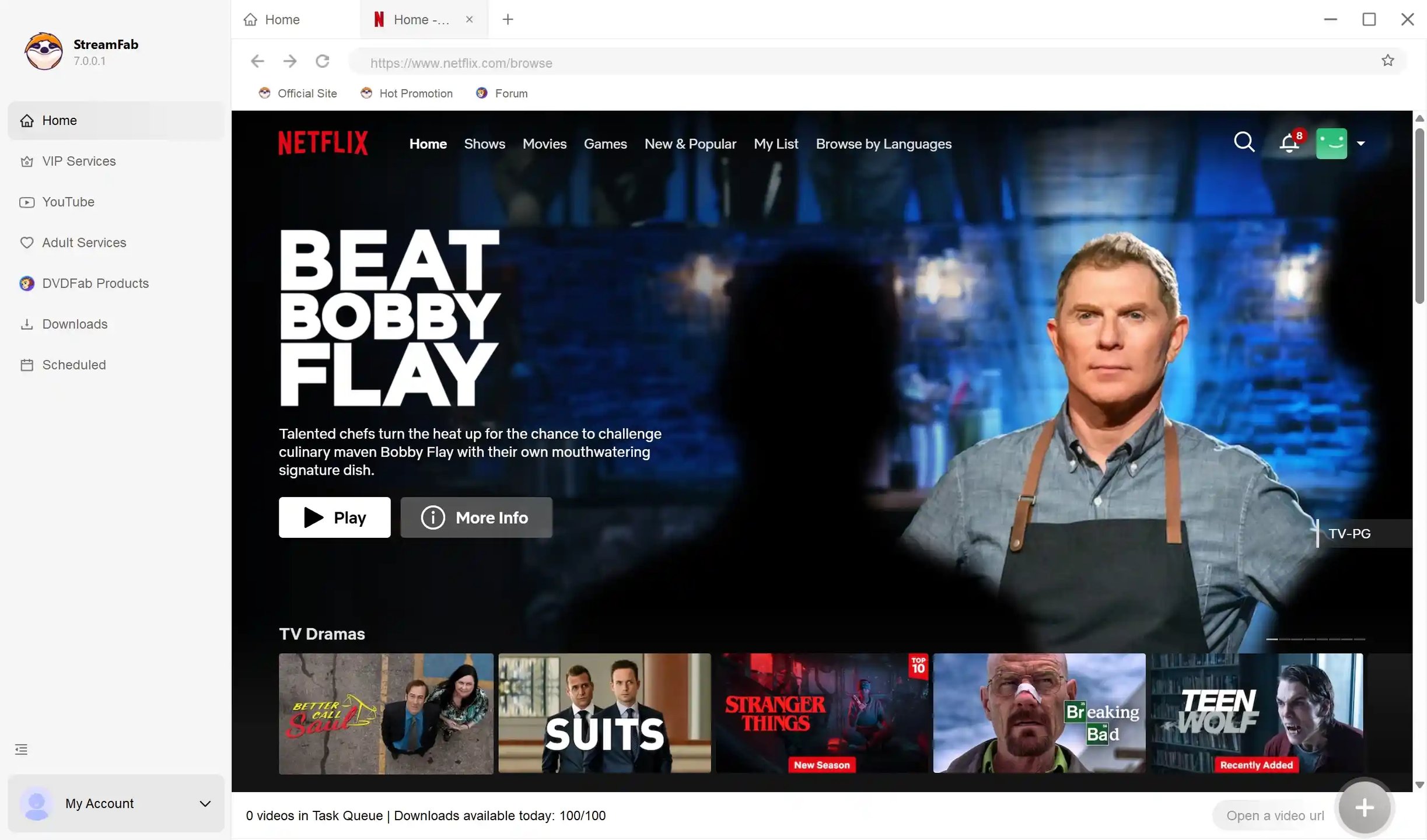
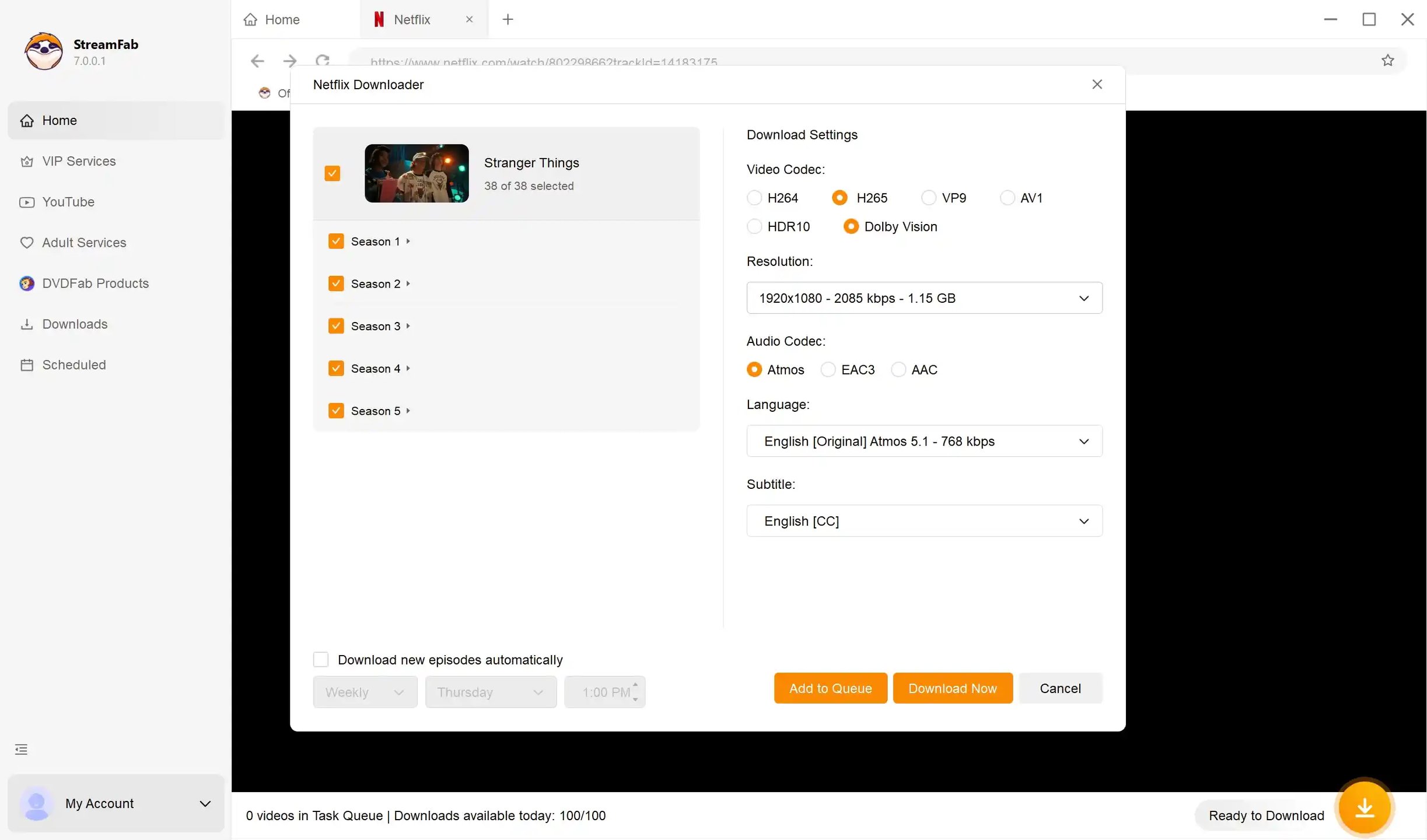
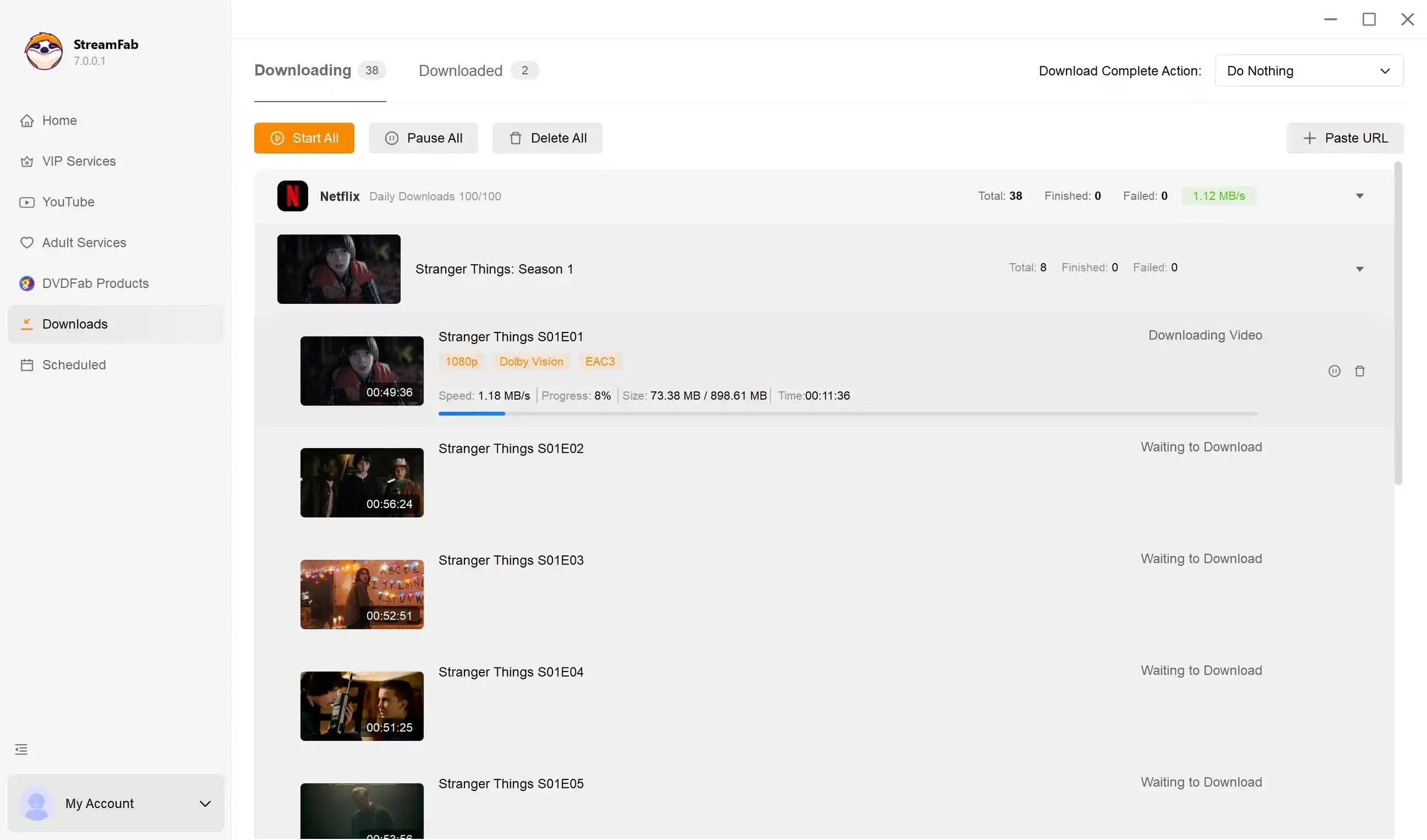
Verify the completed file on the device or media server you plan to use. how to convert itunes m4v to mp4
Phones and Tablets
On an iPhone or iPad, use the Apple TV app while signed in with the Apple ID authorized for the title. On current Windows setups, the Apple TV app is also the starting point for movies and TV shows; iTunes guidance mainly applies to older configurations.
Android devices do not directly play FairPlay-protected Apple files. For an M4V already confirmed to be unprotected, transfer a compatible MP4 or MKV file and check codec, audio, subtitle, and player support. VLC or MX Player may open compatible files, but results depend on the file and device.

Tips:
Authorized Apple TV app playback requires the Apple ID authorized for the title. For compatible local files, transfer methods such as cloud storage or a cable depend on file size and available device storage.
On Smart TVs and TV Boxes
A Smart TV or TV box generally will not play a FairPlay-protected Apple title directly. If you try to drop an iTunes M4V on your TV, it won’t work.
For TVs, Plex, and Jellyfin, start with a compatible, unprotected file and verify its video codec, audio, subtitles, and server settings, especially if you plan to download movies as MKV files for an MKV media library.

Tips:
MP4 with H.264 is often the most compatible starting point for TVs. Playback also depends on the TV, media-server settings, audio track, subtitles, and network conditions.
Frequently Asked Questions
Why does HandBrake open some M4V files but reject others?
HandBrake can process compatible, unprotected media. A FairPlay-protected Apple purchase or rental may not open because the file state, not the .m4v extension alone, determines whether local conversion is available.
Can I convert an M4V file by renaming it to MP4?
No. Renaming changes the filename, not the container structure, codecs, or protection state. It may appear to work only when the media was already compatible with the player.
Is there a free way to make an M4V file more compatible?
Free tools can remux or convert compatible, unprotected M4V files. They do not provide a universal path for protected Apple purchases or rentals, so start by checking whether the file opens in an authorized Apple TV app session or in a local player.
Do purchased and rented Apple videos follow the same rules?
Both can have authorization and availability conditions, but rentals are commonly more restricted. Use the Apple TV app for authorized playback and review the title’s current terms before planning offline use.
Update Log
August 2026: Windows movie and TV playback guidance uses the Apple TV app; M4V compatibility depends on protection, container, codecs, and player support.
July 2025: Original article published.
Conclusion: The Right Path Depends on File State
The appropriate path depends on the file's protection state, the intended device, authorization, platform terms, and applicable law. Use authorized Apple TV app playback for FairPlay-protected Apple titles, use local conversion for compatible unprotected M4V files, and treat a supported-source offline workflow as a separate path.
I would not choose StreamFab when the sole task is converting an existing local M4V file. It fits users who need a new offline copy from a supported streaming source and have the required authorization.
Playback depends on the file’s protection state, container, codecs, audio, subtitles, and target device. Check those details first, then use the route that fits your authorization, platform terms, and intended device.

Are you looking for the best media converter Mac software to address iTunes playback restrictions? Having a reliable video tool at hand will enable you to enjoy your iTunes movies and music for offline play flexibly. You have come to the right page. This post lists the top 5 best converters for Mac used to back up iTunes videos, audiobooks, and Apple Music on Mac easily.
By Nicole Lopez - Sep 29, 2026
Streaming video content is often protected by DRM (Digital Rights Management) technology to prevent users from downloading and recording. This article explains what DRM-protected content is and how to save videos for personal offline viewing.
By Nicole Lopez - Sep 28, 2026
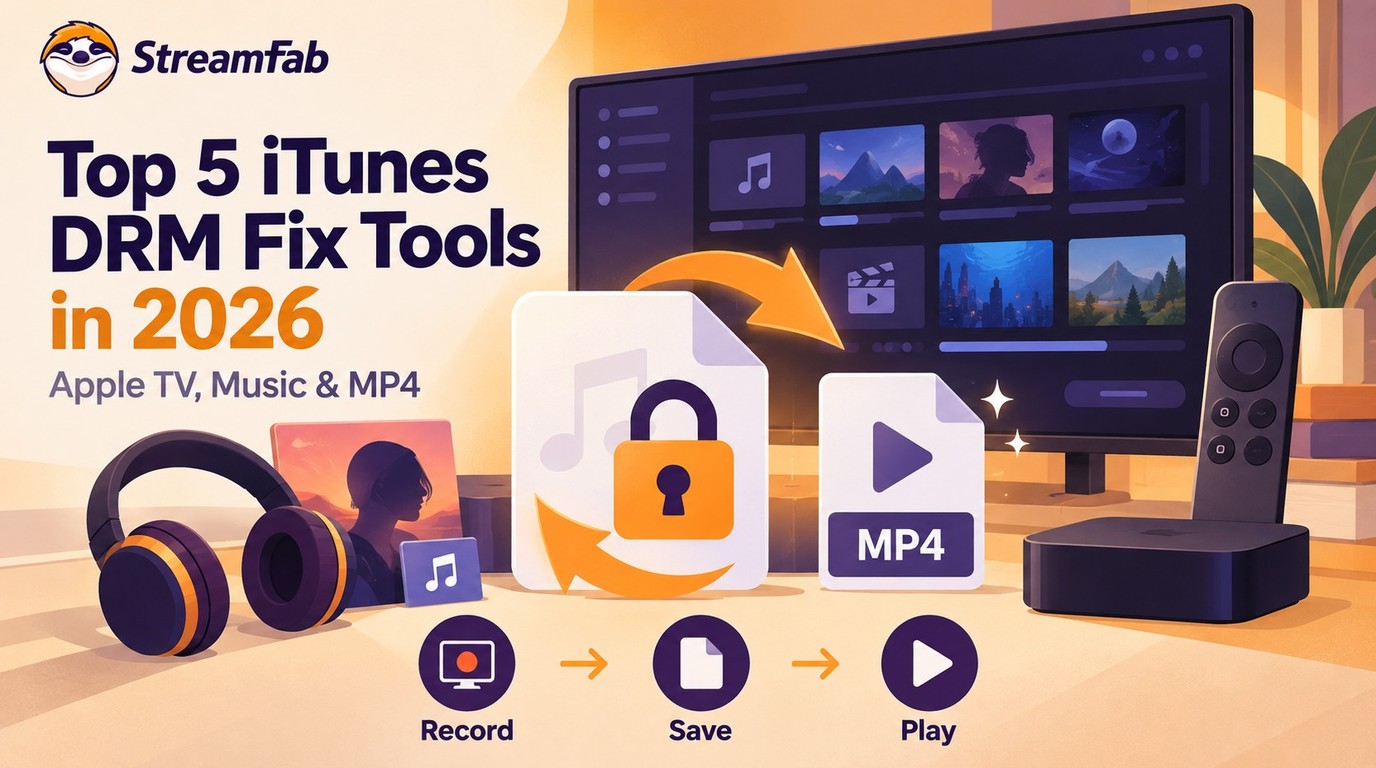
This guide separates modern Apple TV video, Apple Music audio, and legacy iTunes libraries so readers can choose a realistic playback or export path. It covers MP4, M4V, and MKV compatibility, official redownload and iTunes Match eligibility, StreamFab and MusicFab workflows, hardware limits, and the boundaries for authorized personal use in the United States.
By Nicole Lopez - Sep 20, 2026
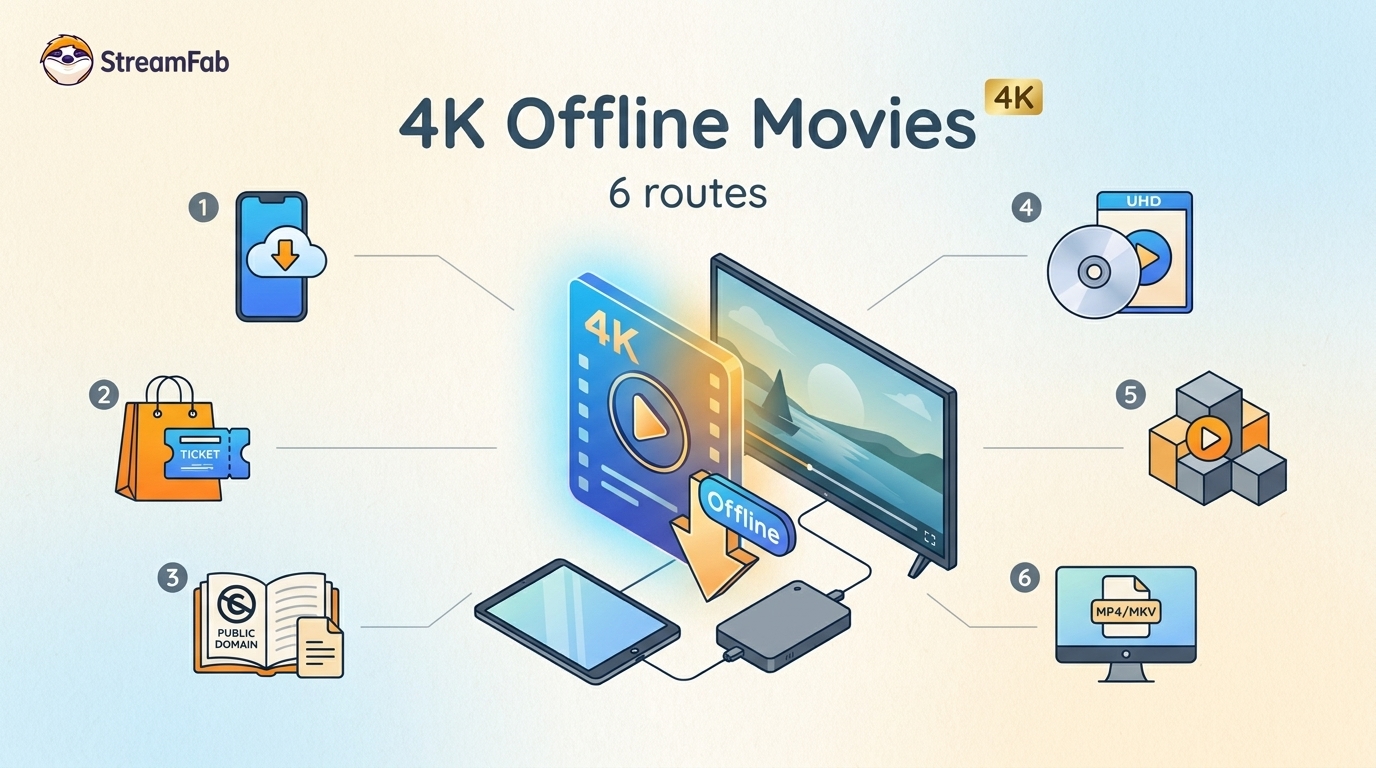
Legal 4K movie downloads do not all provide the same kind of offline access. Most mainstream services offer app-locked downloads, while portable movie files, UHD Blu-ray, public-domain media, and authorized desktop workflows involve different quality, cost, device, and licensing limits.
By Jacob Harrison - Aug 12, 2026