
Netflix Download Limits Explained (2026): Plans, Devices, Time & Workarounds

Summary: Netflix download limits can derail a trip even when your phone has free space: plan caps, registered devices, title rules, storage, and expiration all matter. The key point is that official downloads stay in the Netflix app on the original device, require a signed-in account, and are deleted when membership is canceled.
Table of Contents
This guide explains Netflix download limits by plan, device, active-download count, storage needs, title availability, and expiration, then walks through the most useful fixes for common Netflix download errors.
Netflix Download Storage and Quality Limits
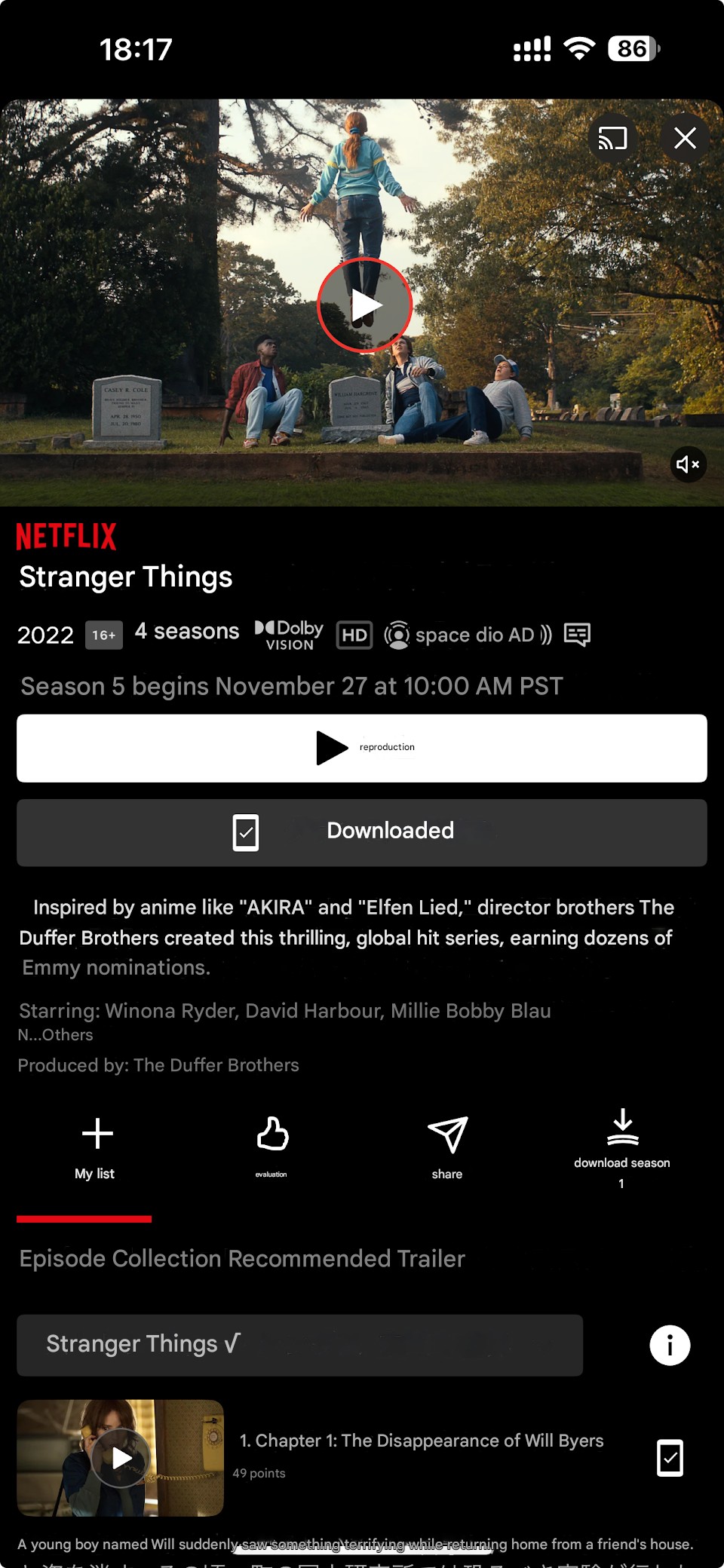
Before diving into limits and workarounds, I want to help you first understand what Netflix's official download experience actually looks like in the real world. iPhones are among the devices that fully support Netflix downloads, so I tested things on my own iPhone to see how it really behaves. I'll walk you through exactly what happened when I downloaded an episode using the Netflix app.
My Real-World Test on iPhone 14 Pro Max
Before downloading anything, I ran a fresh test on my iPhone 14 Pro Max connected to my home Wi-Fi on November 10, 2025.
- Download: 14.8 Mbps
- Upload: 2.59 Mbps
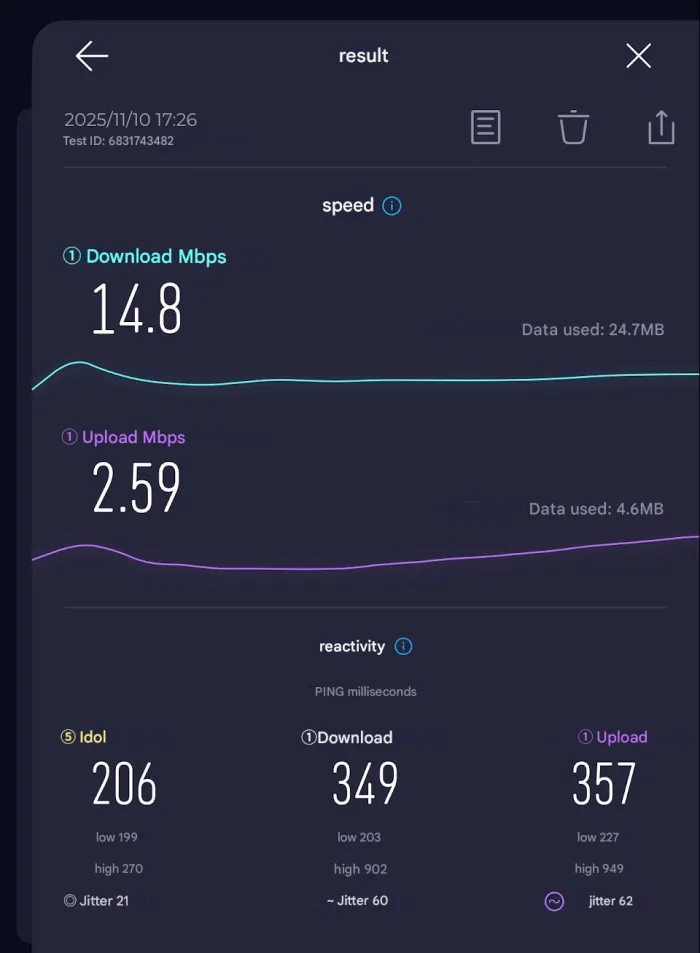
In other words, this is a low-to-medium bandwidth but stable connection: perfectly fine for HD streaming, but not a crazy-fast fiber line. It's a pretty realistic scenario for everyday home Wi-Fi.
Then I opened the Netflix app and downloaded:
- Title: Stranger Things, Season 1 Episode 1
- Runtime: 49 minutes
- Download quality: High (set in the app's Download Video Quality settings)
After the download finished, the Downloads tab showed the file size as 853.3 MB for this single episode. One 49-minute episode at 853.3 MB means:
Quick storage planning: At this sample size, 10 episodes would use about 8.3 GB and 20 episodes about 16.7 GB. Treat those as illustrations, not a Netflix maximum: file size varies by title, codec, selected quality, and device.
- A 64 GB phone with limited free space can realistically store only about a dozen HD episodes before you start getting storage warnings.
- If you like to keep whole seasons offline, you'll need to actively delete older episodes or move other apps/photos out of the way.
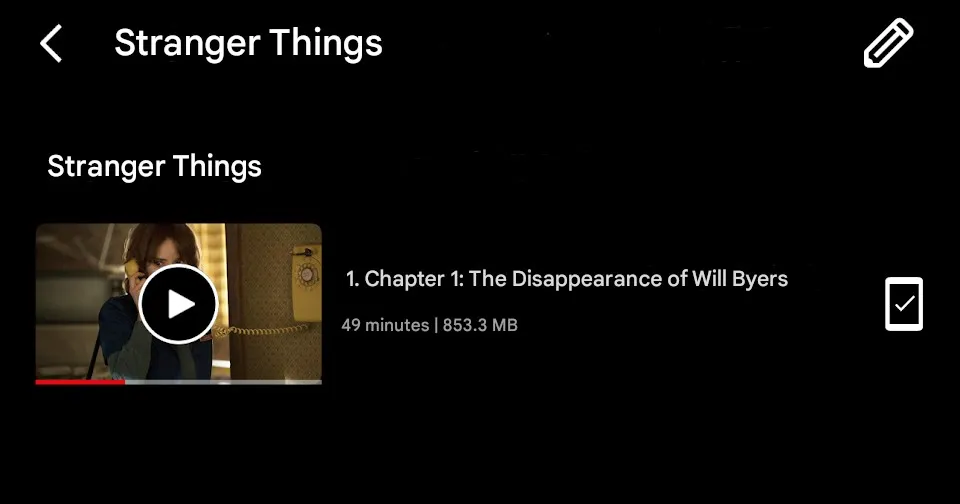
For me, this test turned into a very concrete reminder that storage, not just Netflix's own limits, is part of the real-world "download limit" story.
What This Test Proved for Me
This iPhone test taught me a few important things about Netflix's official downloads:
- A "High" quality episode is big but manageable in size and looks just like normal HD on a phone screen.
- The offline version offered for this title on this iPhone was different from the streaming experience, but that observation should not be treated as a universal Netflix specification.
- On a normal, not-amazing internet connection, downloads can be practical when the line is stable. My practical rule is to open one downloaded episode before leaving connectivity rather than relying on a last-minute download.
With that in mind, let's zoom out from this single test and look at the official rules Netflix uses to control the download.
Netflix Download Limits in 2026: Every Restriction Explained
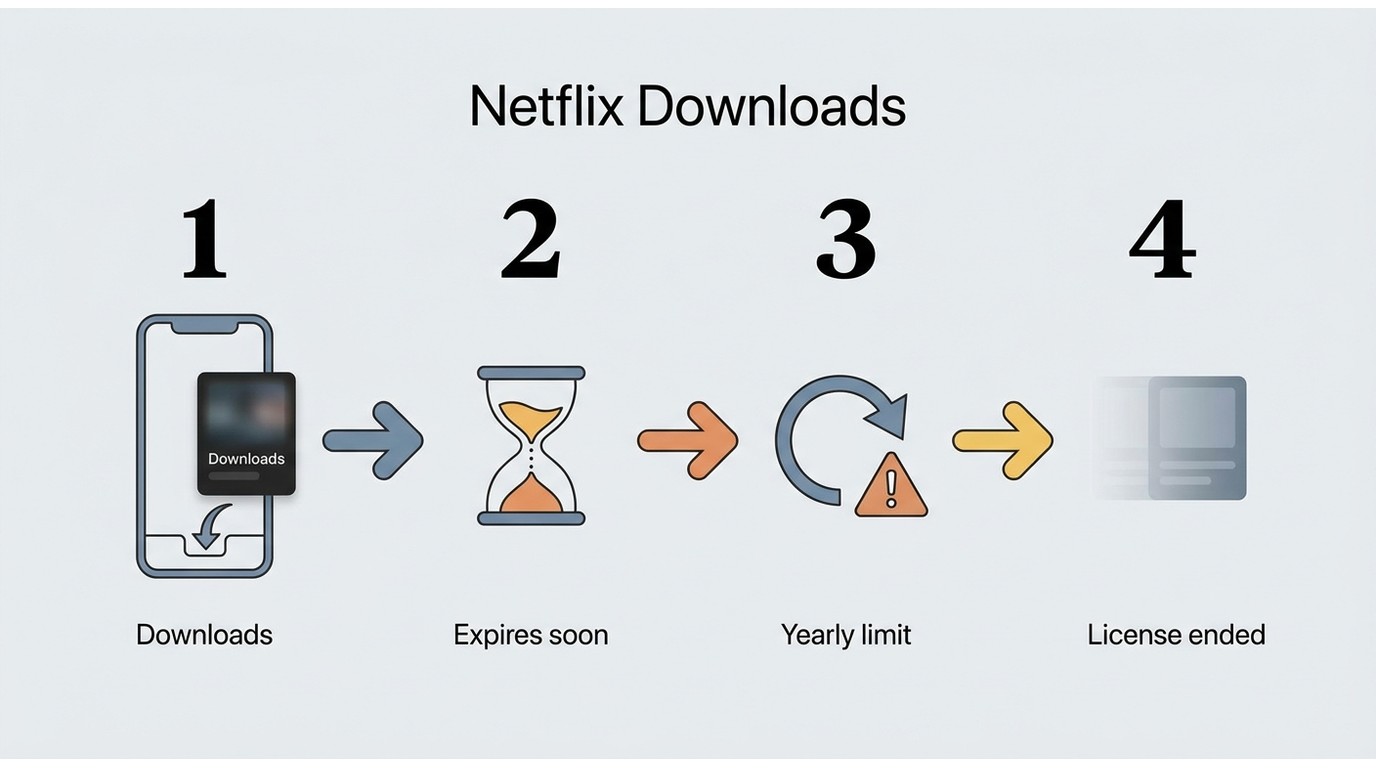
Before we look at numbers and error messages, it helps to know why limits exist. Netflix's offline feature is governed by subscription rules, licensing terms, and device/account restrictions that decide what you can download and how long it stays available.
Your subscription plan and region decide what you're allowed to download. The enforcement layer is technical: it's why you can't copy a downloaded file to another device, why offline titles can expire or lose renewal eligibility under title-specific licensing terms, and why some shows only allow a limited number of downloads per year. Simply put, every limit below — on devices, quotas, expiration, and which titles are downloadable — reflects Netflix's licensing agreements with content owners, and the platform's security architecture makes those rules stick.
Quick Answer | Netflix Download Limits (2026)
- Jump to the part you care about:
- Subscription Plans: Plans affect download access, active downloads, and how many devices can download at once.
- Supported Devices: Official downloads work on supported mobile devices and compatible Chromebooks, not Windows or Mac.
- Download Amount: Active-download slots and title-specific repeat-download limits are separate restrictions.
- Time Expiration: Expiration and renewal eligibility vary by title and licensing terms.
- Content Availability: Not all titles are downloadable; availability depends on region and licensing rights.
- Download Quality: Official downloads are app-bound, device-bound, and require the Netflix account to remain signed in.
1. Netflix Download Limits on Subscription Plans
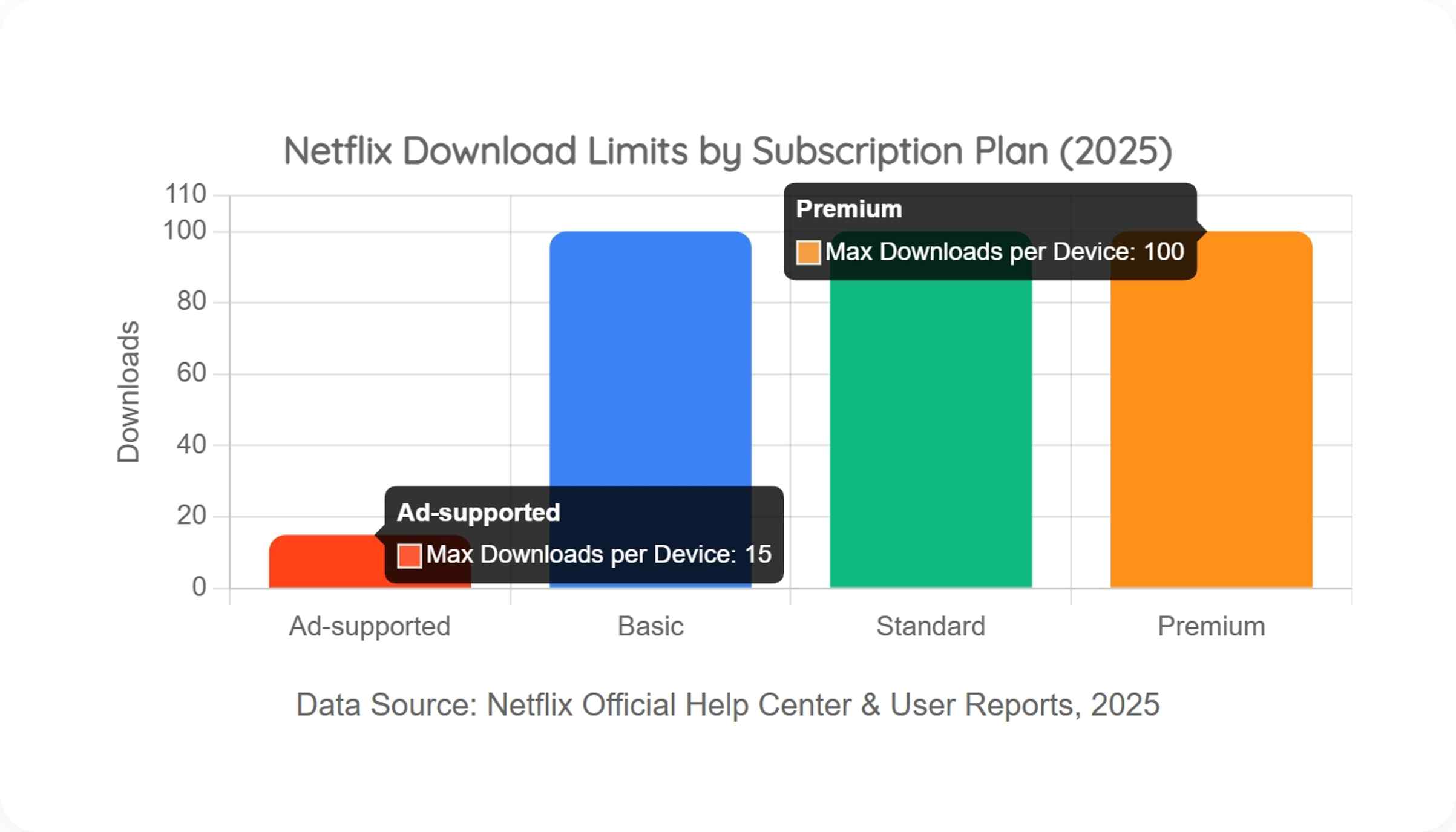
- Ad-Supported Plans (Standard with ads): Limited to 15 downloads per device per calendar month, reset monthly. No Smart Downloads.
- Ad-Free Plans (Standard and Premium): allow up to 100 simultaneous downloads per device, depending on your plan's allowed devices.
The Netflix subscription not only decides whether you can enjoy the download service but also sets a limit on the simultaneous devices you can download shows on. Here is the rule:
- Standard with ads/Standard: 2 download devices
- Premium: 6 download devices
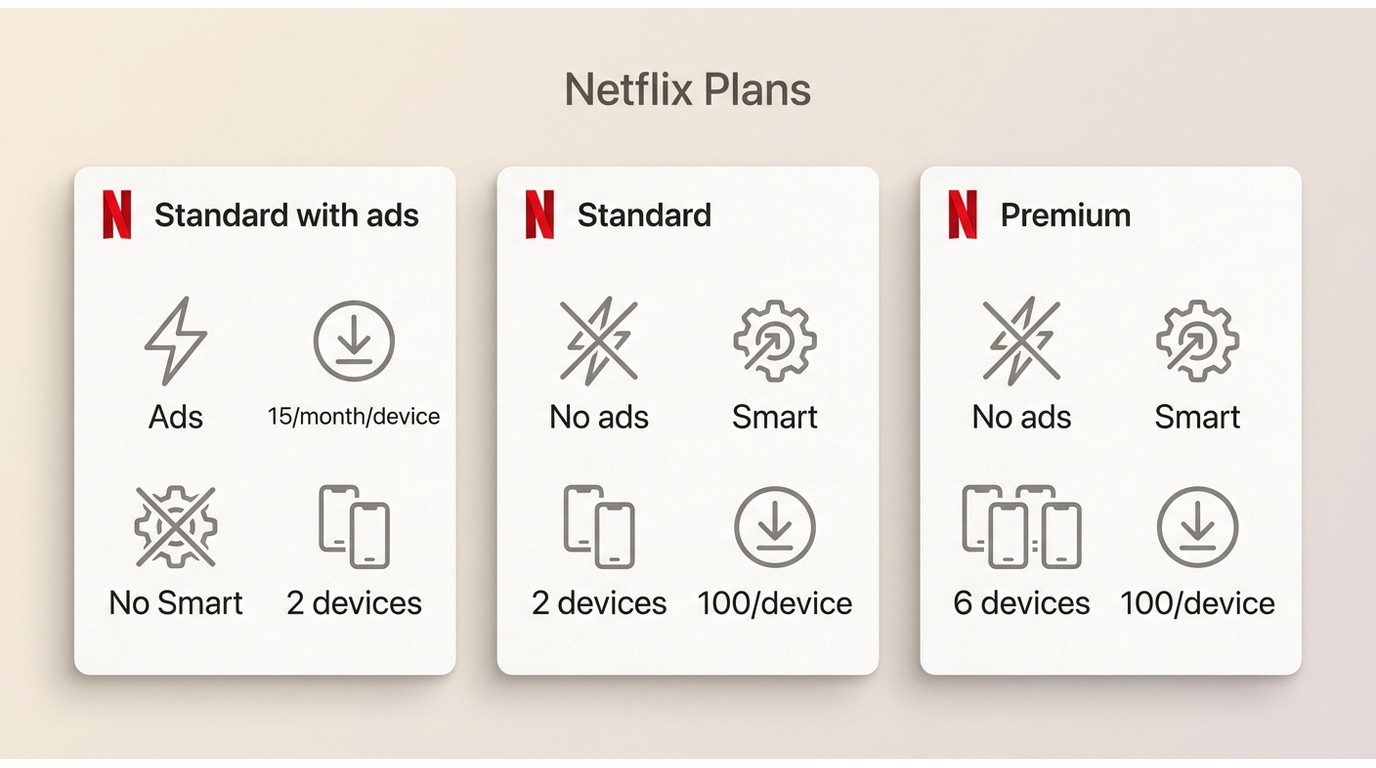
From my own use, the 15-download cap on ad-supported plans feels very tight if you commute or travel often. And Smart Downloads, including the "Download Next Episode" workflow, isn't available on ad-supported plans, so you have to manage every download manually. In my experience, this makes offline viewing feel noticeably less convenient—especially for people who like to binge on the go, because you're constantly checking what's already watched and what still needs to be downloaded.
So if offline viewing matters to you, an ad-free plan is simply more practical.
2. Netflix Download Limits on Supported Devices
You can download Netflix videos to iPhone and iPad, Android phones and tablets, Amazon Fire tablets, and compatible Chromebooks using the Netflix app. Netflix no longer supports offline downloads on Windows, as explained in this guide to Netflix downloads on Windows. If you are wondering whether you can download Netflix movies on MacBooks, macOS also has no official Netflix app for offline downloads.
Official downloads require the Netflix app on the device where they were created and an account that remains signed in. Supported devices and availability may change; check Netflix's current device list for status.
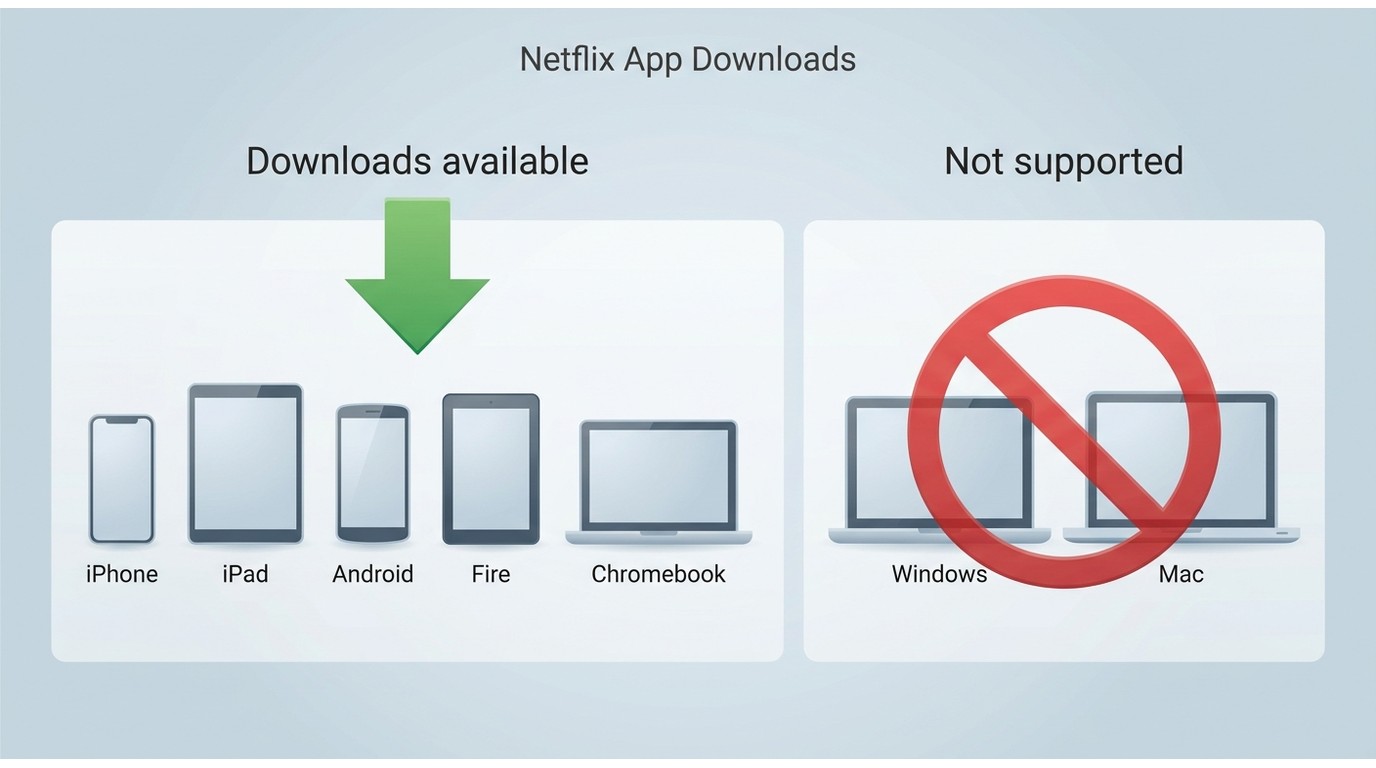
- Android phones and tablets
- iPhone and iPad
- Amazon Fire tablets
- Compatible Chromebooks
Device support can change; see Netflix's current device listthe Netflix Supported Devices Official Explanationfor current availability.
3. Netflix Download Limits on Download Amount
Netflix applies two different kinds of limits:
- Per-device limit: Up to 100 active downloads on a single device at any time.
- Per-title yearly limit: Some titles can only be downloaded a certain number of times per year.
The yearly limit is controlled by the content owners, so it can vary from title to title. Netflix doesn't show the exact number in advance, and you may see a warning only when you are close to the limit or have reached it. Deleting a title can free an active device slot, but it may not restore a license-based repeat-download allowance. That is one of the least transparent limits because the restriction often becomes visible only after you hit it.
4. Netflix Download Limits on Time Expiration
Netflix does not use one universal expiration period for every download. Timing and renewal eligibility vary by title and licensing terms, and the app displays remaining time when a title is close to expiring. The details behind how long Netflix downloads last can therefore differ from one title to another.
- Download timing: varies by title and licensing terms; the app shows remaining time when a title nears expiration.
- Renewal: depends on title eligibility and may not be available for every download.
- Repeat-download cap: Some titles enforce a title-specific limit; wait for eligibility to renew if you hit it.
- Check the Netflix app forhow long Netflix downloads lastthe title's current status.
5. Netflix Download Limits on Content Availability
Some Netflix titles simply don't show a download button. In most cases, this isn't a problem with your phone or app—it's because Netflix only has streaming rights, not download rights, for that title or for your region. Licensing deals can be "streaming-only" or "streaming + download," and sometimes they're limited to specific countries or time periods.
Even when a title is downloadable, that right isn't permanent. If Netflix loses the license, the show can disappear from the catalog, and any downloaded copies will stop working and vanish from your Downloads tab, just like Star Trek leaving Netflix these days. That's why a series you downloaded last month might suddenly be "gone" even though you never deleted it yourself.
On top of that, some titles have a yearly download cap per account. If you repeatedly download and delete the same movie or episode, you may eventually see the message, "You have reached the yearly download limit for this video." When that happens, you can't force another download—you either have to wait for the limit to reset or stream the title online while it's still available.
From a user's point of view, this licensing layer is the most confusing part, because the rules are invisible but the impact is very real. Before a trip, confirm that the title still appears in Downloads, the account is signed in, and the episode opens while you still have connectivity.
6. Netflix Download Limits on Download Quality
My iPhone test revealed that offline quality deserves a separate check before travel. A 49-minute episode used 853.3 MB in my test, but that is an observation from one title and device, not a universal Netflix format or resolution rule.
Offline quality can vary with the app's selected quality setting, available storage, device support, title encoding, and the specific offline version Netflix offers. Audio and subtitle choices can also differ from what is available while streaming.
In practice, offline viewing can involve tradeoffs between storage, compatibility, and the version available for a specific title. Readers who care about predictable travel playback should download and play one representative episode before committing to a full season.
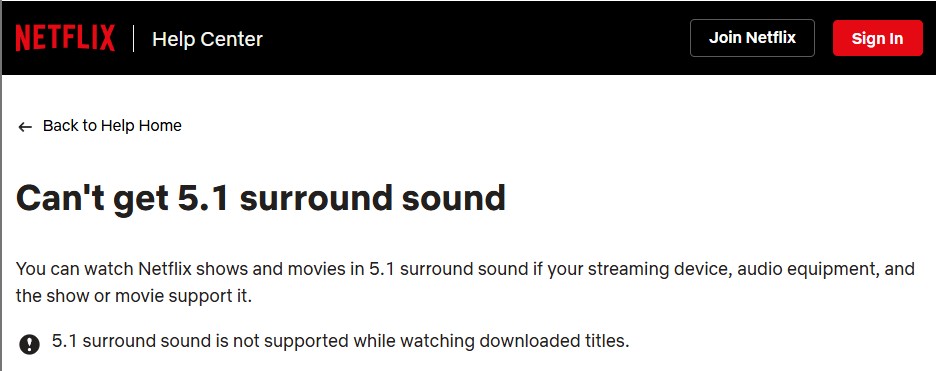
Do not assume that a streaming format will be mirrored in the downloaded version. A title's offline quality depends on the device, settings, available storage, encoding, and the download option currently offered in the Netflix app.
On top of that, the language options are also narrower when downloading—Netflix typically only shows one or two "most relevant" languages for audio/subtitles instead of the full list you might see while streaming. In other words, the download feature trades away top-tier A/V quality and language flexibility in exchange for compatibility and smaller file sizes.
Troubleshooting Netflix Download Limit Errors
When you try to download episodes on Netflix, you may have encountered or noticed some download-limits-related issues. Once they get the error, it notifies users that they are having trouble downloading more videos. We have provided practical ways to resolve common download-limit issues within Netflix's official rules, so you can keep offline viewing smooth and predictable.
1. Clear Old Downloads
One of the Netflix download limit issues is the quantity. Users can save a maximum of 100 titles on one device at any given time. If users exceed the number, they will get a notification "You have too many downloaded videos" on the Netflix app.

I recommend keeping only what you expect to watch in the next week or two. It keeps your phone from filling up and makes it less likely you'll hit this error again.
2. Check Device Allowance
If users get the "You have downloads on too many devices" alert, it indicates they have downloaded movies and TV shows on as many devices as their plan permits. It often pops up when you try to download on a new phone or tablet while your older devices still have active downloads linked to your account.
3. Wait for Reset/Expiry
Some videos have a cap on how many times they can be downloaded within a year. If users get the "You have reached the yearly download limit for this video" alert, it indicates that they have reached the maximum number of downloads for this particular movie or TV show. The number of downloads relies on the licensing deal Netflix has with the content creator.
This is especially disruptive for readers with unreliable connectivity, because the restriction can appear when an offline copy is needed most.
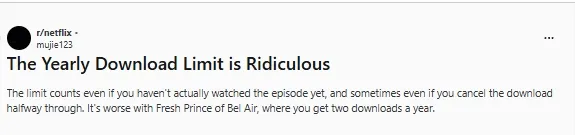
- wait for eligibility to renew,
- stream the title while it remains available, or
- choose another downloadable title.

Smart Ways to Manage Netflix Download Limits Safely
- The official Netflix app is the safest way to watch offline and stays fully within Netflix's rules.
- Laws and platform terms vary by country and account. Review Netflix's Terms of Use and your local copyright rules before using any third-party software.
- For any local-file workflow, use content you are authorized to access only where permitted by platform terms and applicable law, and keep it for personal, non-commercial offline viewing.
When a Desktop Local-File Workflow Fits
Official Netflix downloads remain app-bound, so transferring Netflix downloads from a phone to a computer is not part of the official workflow. For content you're authorized to access, StreamFab Netflix Downloader, one of several Netflix video downloaders, is a desktop local-file workflow for personal offline viewing. It can save compatible Netflix videos as MP4 files or MKV files, with batch or scheduled episode processing and available audio or subtitle selection. Its supported HDR options are covered separately in this guide to Netflix HDR downloads. It does not provide access beyond your Netflix account's available catalog.
Readers who need occasional viewing on a phone or tablet should generally stay with the official app. A desktop workflow is more relevant when app-bound downloads do not fit an authorized personal viewing setup.
A premier choice for managing Netflix's download limitations.
The comparison below focuses on workflow differences rather than account-risk ratings. The official app suits straightforward mobile viewing, while the desktop option fits authorized personal offline viewing when app-bound downloads do not match the reader's device or file-handling needs.
| Access model | Official Netflix downloads | StreamFab Netflix Downloader |
| Supported devices | Mobile devices and compatible Chromebooks | Windows and Mac |
| File handling | Netflix app-bound | MP4 or MKV local files |
| Batch workflow | App-managed downloads | Batch and scheduled processing |
| Audio and subtitles | Title and app dependent | Audio and subtitle selection |
| Cost (as of August 2026) | Included with Netflix membership | 30-day trial; paid plans |
The practical difference is file handling: Netflix manages official downloads inside its app, while StreamFab is designed for an authorized desktop local-file workflow. Readers comparing broader product categories can consult the existing best Netflix downloader comparison, but this article remains focused on Netflix download limits.
Using StreamFab for Authorized Offline Copies
The four steps below require an active Netflix account and authorized content. They are intended for personal, non-commercial offline viewing; do not share or redistribute saved copies. The workflow can be completed on a laptop, but this article does not replace the separate guide to downloading Netflix movies on a laptop. If official mobile downloads already meet your needs, this desktop workflow is not the ideal fit.
Prepare the downloader environment
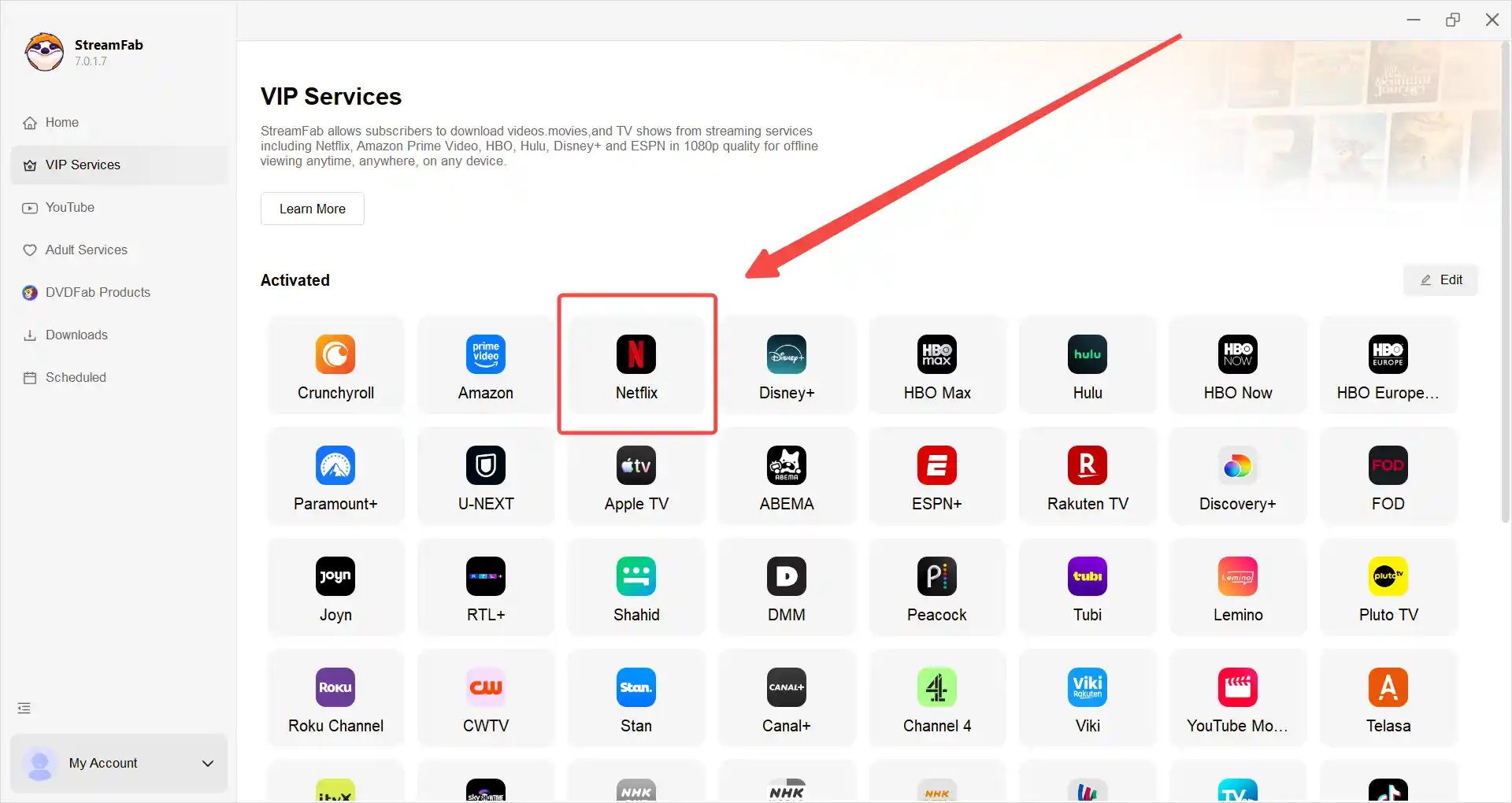
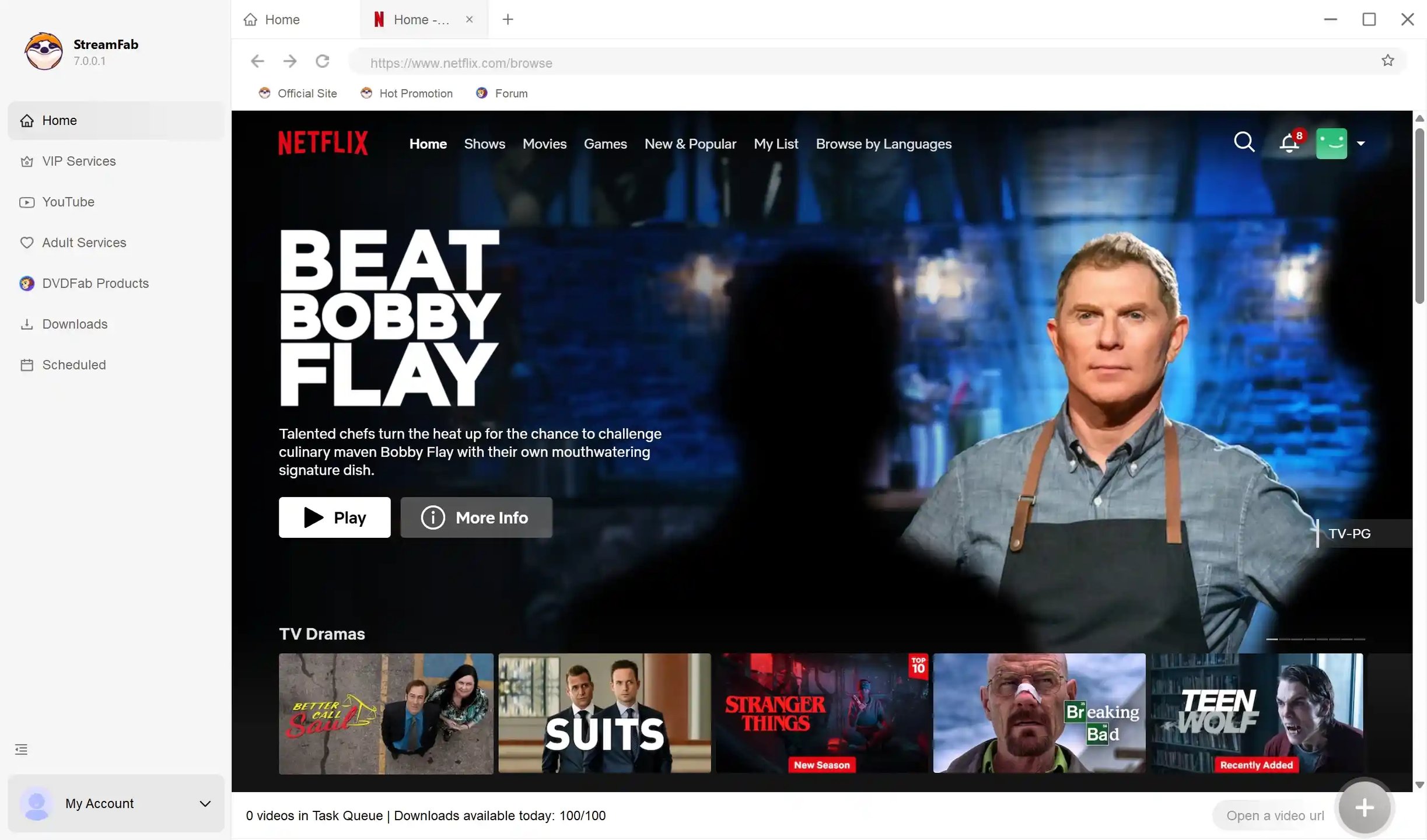
Install and launch the software, then select Netflix from its supported services list.
Sign in and locate the title you can lawfully access
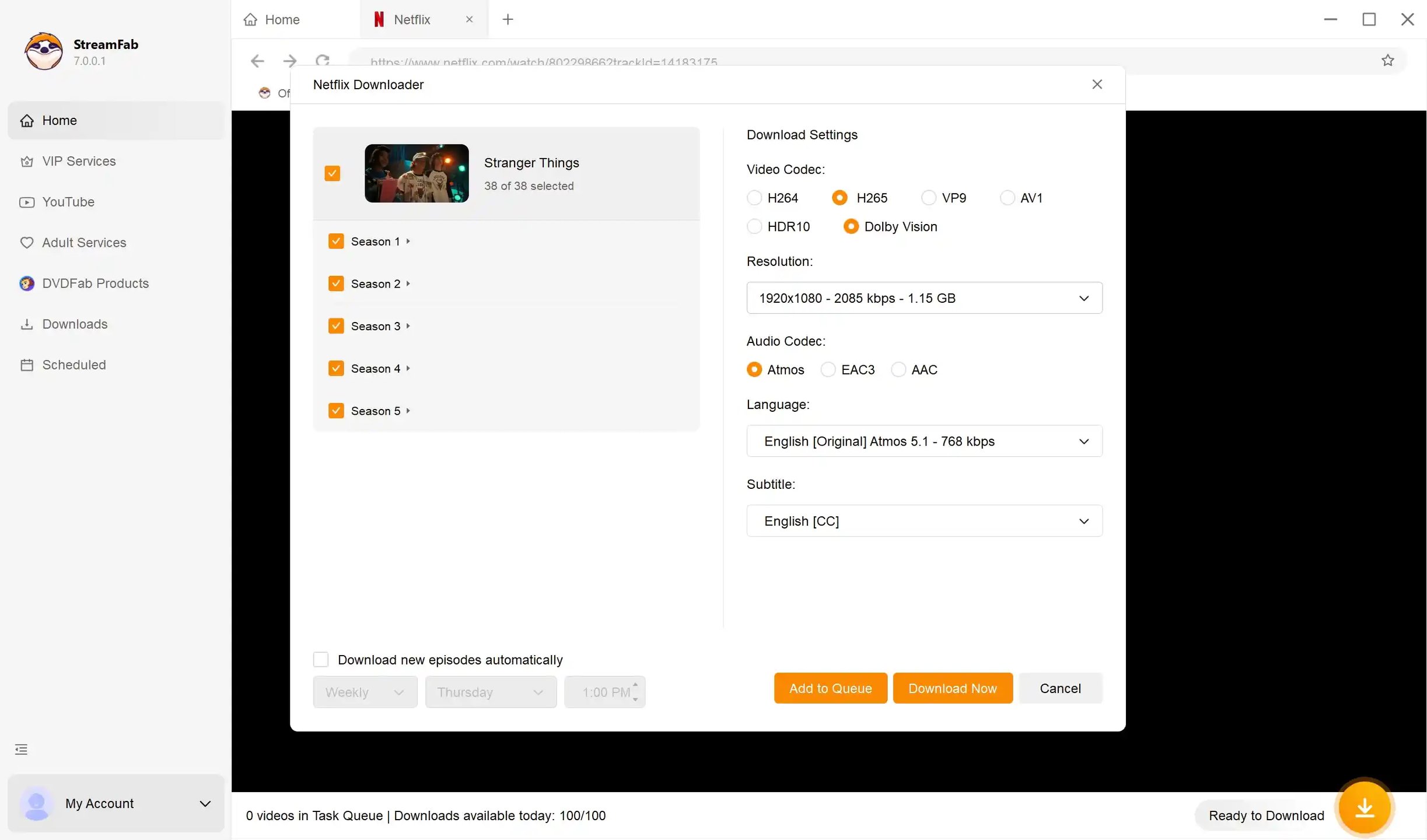
Choose your offline preferences
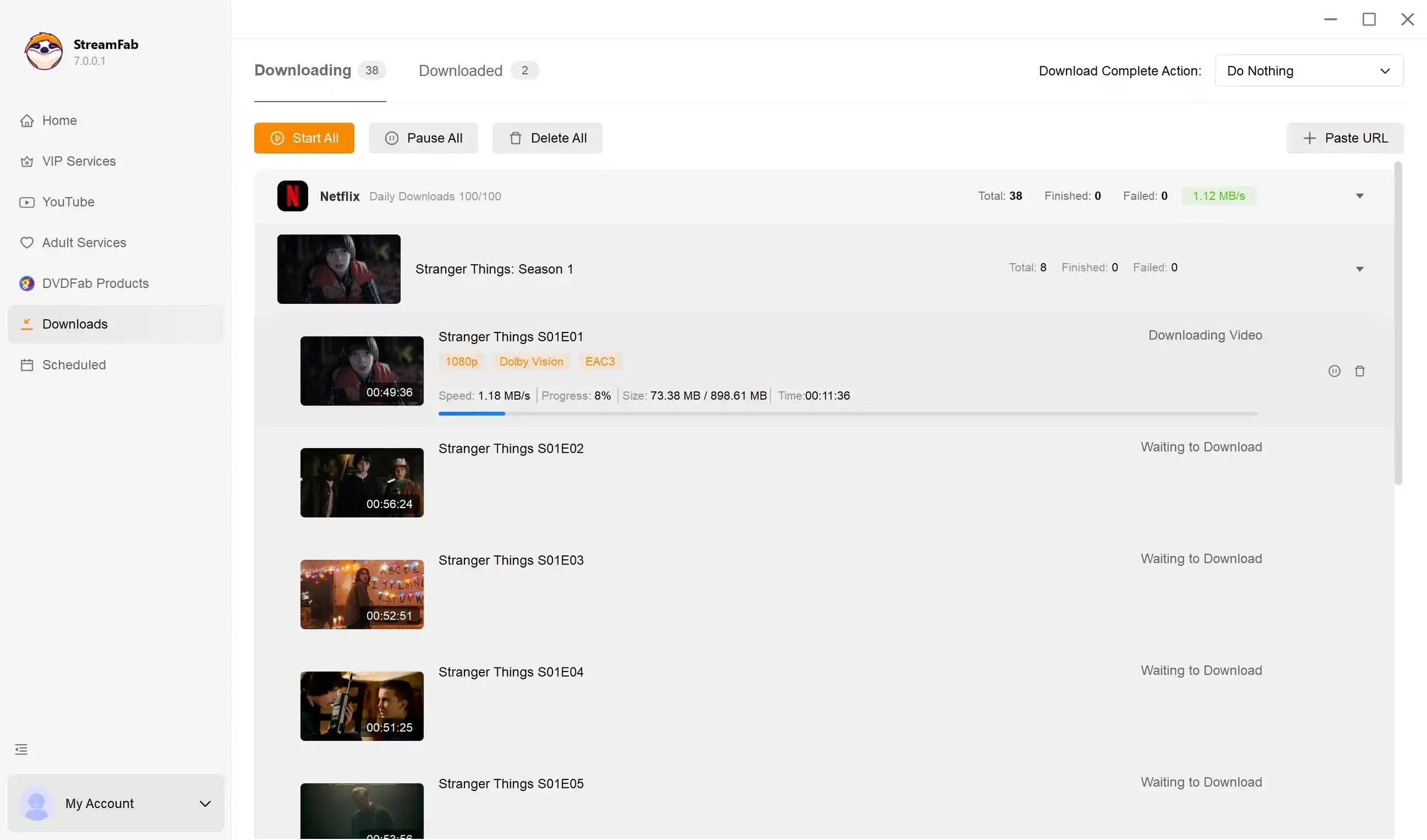
Save for personal offline viewing

FAQs
Why can't you download certain shows on Netflix?
How many devices can download Netflix at the same time?
How many downloads does the Netflix Standard plan allow?
Does Netflix count each episode as a separate download?
Yes. Each movie or episode occupies an active-download slot on the device. Some titles can also have separate repeat-download limits set by licensing terms.
How much storage should I reserve for Netflix downloads?
There is no universal file-size rule. Storage needs vary by title, codec, selected quality, and device, so check your free space and download one representative episode before saving a full season.
Conclusion
Netflix download limits are a mix of plan rules, registered-device caps, storage needs, title availability, and licensing-based expiration. Use the official app when straightforward phone, tablet, or Chromebook viewing is enough, and check storage, account status, and downloaded titles before travel. For authorized personal offline viewing, a desktop local-file workflow can be an alternative when the official app does not fit your device or file-handling needs.
Update Log
Key updates as of August 2026:
- Corrected the end of Netflix downloads on Windows
- Clarified that expiration and renewal rules vary by title
- Added account and device-binding requirements for official downloads
- Added a troubleshooting path for obsolete registered download devices

Netflix does not provide a native download path for macOS, but Mac users still have practical offline routes. This guide compares official iPhone and iPad downloads, cloud recording, and a desktop MP4/MKV workflow, with device requirements, measured StreamFab results, BlueStacks caveats, and troubleshooting steps.
By Marcia Hatcher - Sep 3, 2026
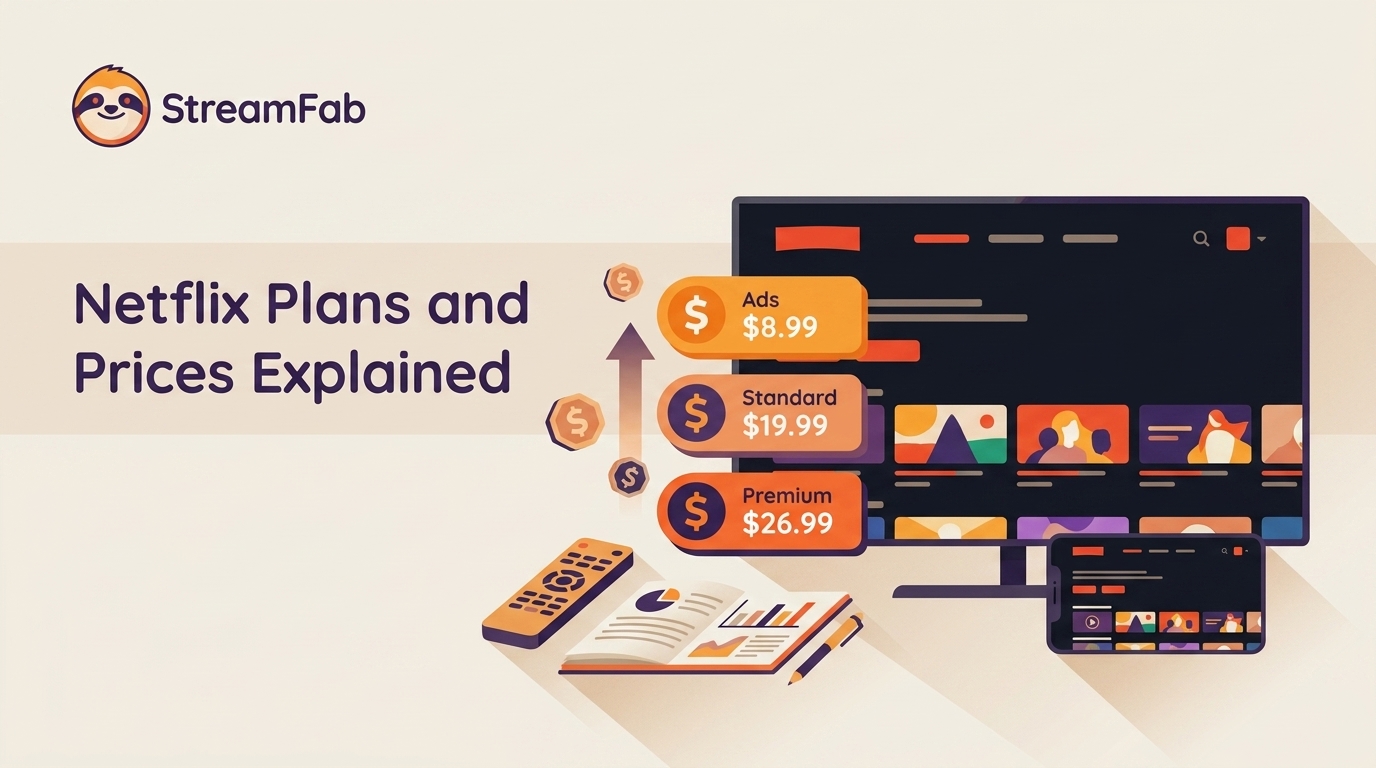
Netflix raised all three US plan prices in March 2026. This guide compares old and current rates, explains billing timing and add-ons, and helps you choose whether to keep, downgrade, rotate, or cancel based on actual use.
By Erika Leen - Aug 26, 2026
Official Netflix downloads are convenient but remain inside the app. This guide explains the difference between NFV and MP4, then compares the official app, StreamFab's configurable desktop workflow, and real-time recording so readers can choose the right offline option.
By Jacob Harrison - Aug 26, 2026

Discover the cheapest way to get Netflix in 2026. As a digital archiving expert, I break down plan comparisons, bundle hidden perks to build your permanent offline library.
By Marcia Hatcher - Aug 26, 2026